Apple’s Find My is one of the most powerful safety features on your iPhone, and it’s completely free. With it switched on, you can locate a lost iPhone on a map, make it play a sound, lock it remotely with a custom message, and even erase it from afar. More impressively, thanks to the Find My network, you can often locate an iPhone that’s offline or switched off — something that surprises a lot of people.
What makes Find My special isn’t just that it puts your iPhone on a map. It’s the combination of features working together: offline finding through a vast network of other Apple devices, a dying-battery breadcrumb, a lock-screen message for honest finders, and theft protection that follows the phone even after a wipe. Set up correctly, it’s less a single feature than a complete safety system. This guide gets every piece of it switched on properly.
This guide explains how to turn everything on properly, what each setting does, and why the combination matters so much.
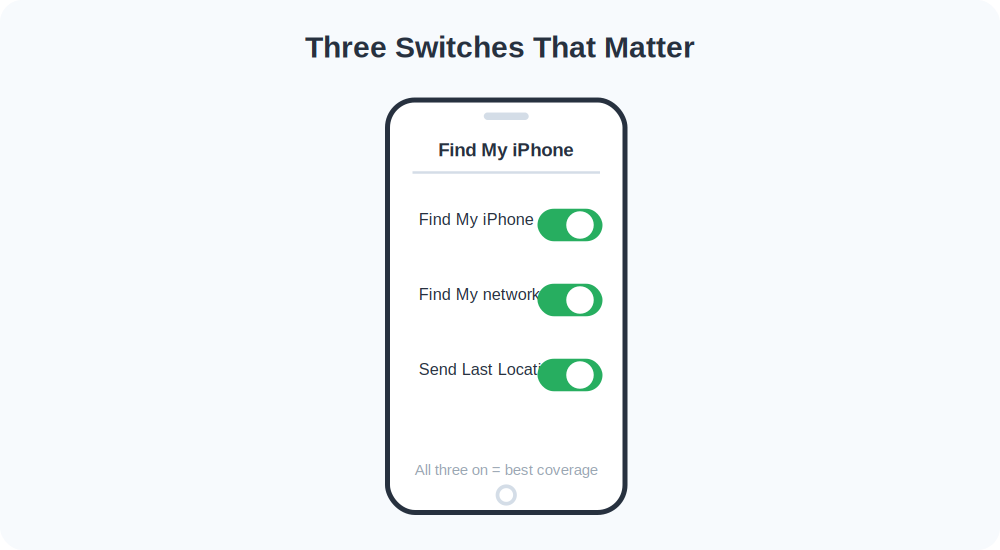
Step 1: Turn On Find My iPhone
- Open Settings and tap your name at the very top (your Apple ID).
- Tap Find My.
- Tap Find My iPhone and switch it on.
This is the master switch. With it on, your iPhone is linked to your Apple ID and can be located through iCloud or the Find My app on another Apple device.
Step 2: Enable the Find My Network
Right below the main toggle is Find My network. Turn it on. This is the clever part. It lets your iPhone be located even when it’s offline or powered down, by anonymously and securely bouncing its location through other nearby Apple devices.
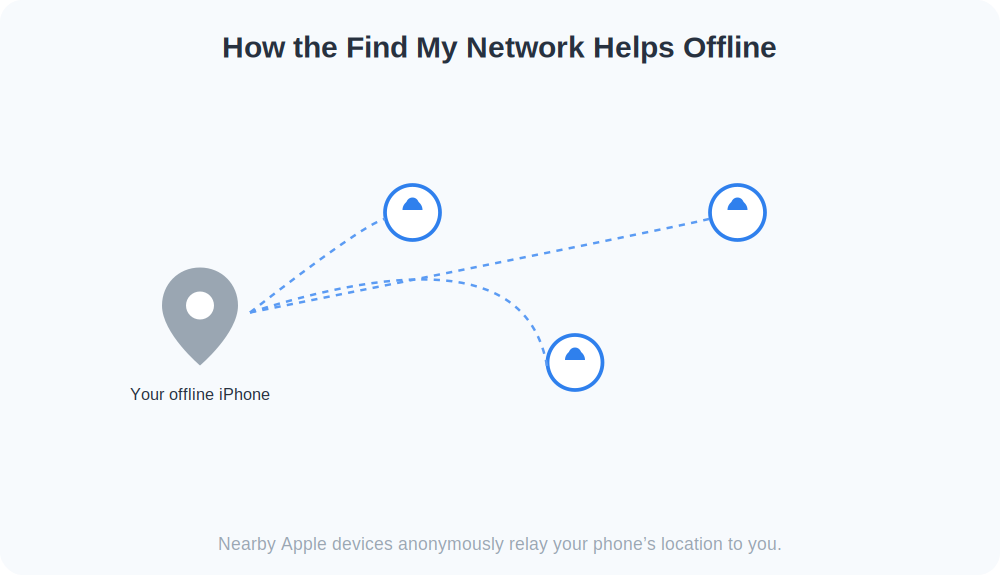
Here’s how it works in plain terms: even an offline iPhone emits a secure Bluetooth signal. Any passing iPhone, iPad, or Mac picks it up and relays the location to Apple, which passes it to you — all encrypted, so no one in the chain (not even Apple) can see whose phone it is. It’s the reason a thief switching your phone off no longer guarantees it vanishes from the map.
Step 3: Turn On Send Last Location
The third toggle, Send Last Location, tells your iPhone to automatically transmit its position to Apple when the battery is critically low. So even if the phone dies minutes after you lose it, you’ll still see where it was when it took its last breath.
Send Last Location is the setting people forget — and the one they wish they’d turned on when their phone dies in a taxi.
Step 4: Make Sure Location Services Are On
Find My needs location access. Go to Settings → Privacy & Security → Location Services, confirm the master toggle is on, then scroll to System Services and make sure Find My iPhone is allowed. This is on by default, but it’s worth a ten-second check.
Step 5: Test It From a Browser
- On any computer, go to icloud.com/find.
- Sign in with your Apple ID.
- Select your iPhone from the device list. It should appear on a map.
- Click Play Sound to confirm it rings even on silent.
If it works, you’re fully protected. You can do the same thing from the Find My app on any iPad or Mac you own, or from a family member’s device if you set up Family Sharing.
What to Do If Your iPhone Goes Missing
Once everything above is set up, recovery is straightforward. Open Find My, select the phone, and you’ll see options to play a sound, get directions to its location, or mark it as lost.
Mark As Lost (Lost Mode)
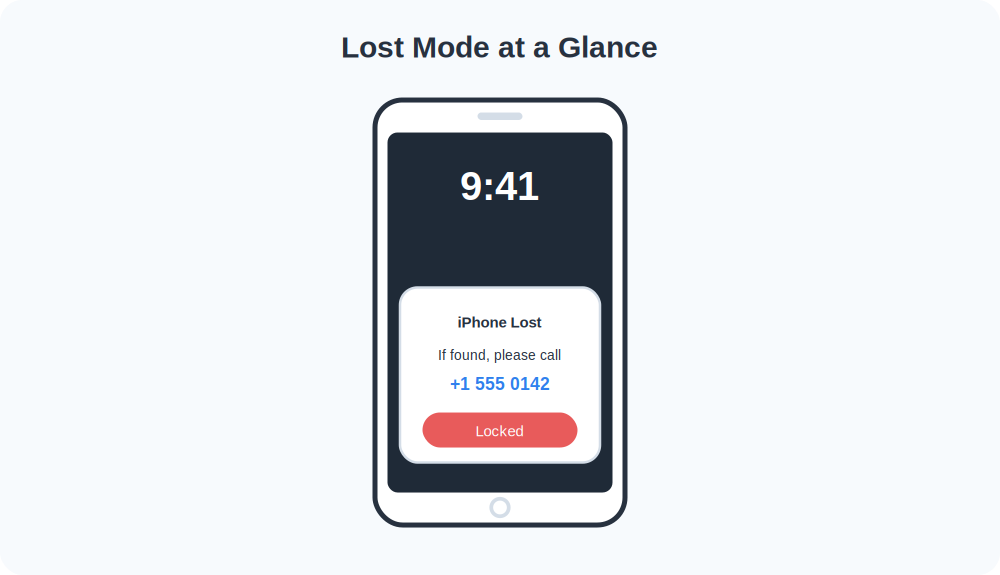
Lost Mode is the feature to reach for when you think the phone is gone for a while. It locks the iPhone with your passcode, suspends Apple Pay, and lets you display a message and phone number on the lock screen so an honest finder can call you.
Erase, but Only as a Last Resort
Erasing wipes the phone remotely. It protects your data, but it also usually removes your ability to keep tracking the device. Reserve it for when you’ve genuinely given up on getting the phone back, or when it holds highly sensitive information you can’t risk.
Why Activation Lock Is the Real Theft Deterrent
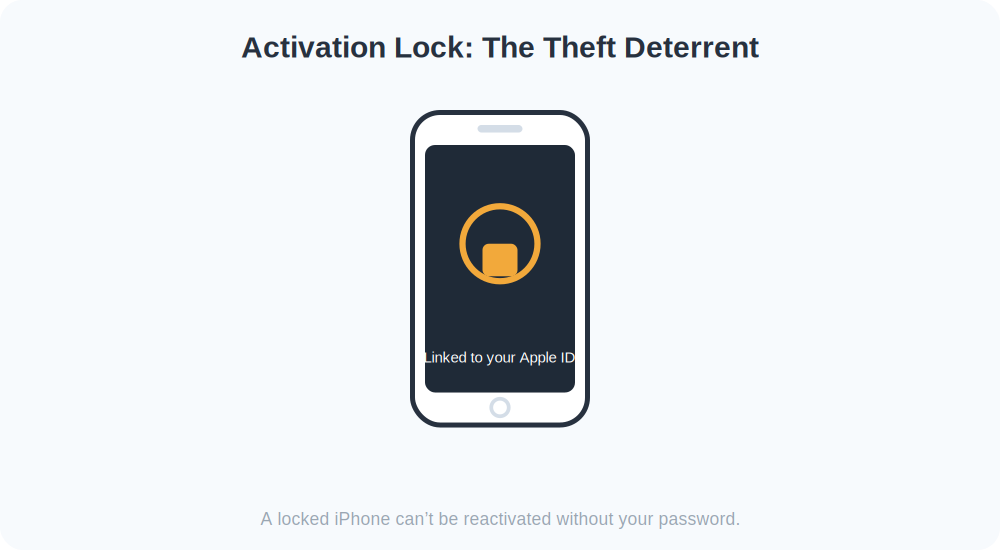
Turning on Find My automatically enables Activation Lock. This ties the iPhone to your Apple ID so that no one can erase and reactivate it without your password. It’s the single biggest reason iPhone theft is less profitable than it used to be — a locked iPhone is little more than a paperweight to a thief. Just remember: never disable Find My before selling or giving away your phone, or the new owner will be locked out.
Frequently Asked Questions
Can someone track me without my knowledge through Find My?
Only people you’ve explicitly shared your location with in Family Sharing or the Find My app can see where you are, and you can revoke that at any time. Find My iPhone itself only reports to your own Apple ID.
Does the Find My network work if my phone is off?
For recent iPhone models, yes, for a period of time after shutdown. Older models need to be at least powered on with a connection. Either way, you’ll see the last known location.
Is Find My free?
Completely. It’s built into every iPhone at no cost and requires no subscription.
How Find My Compares to Other Tracking Methods
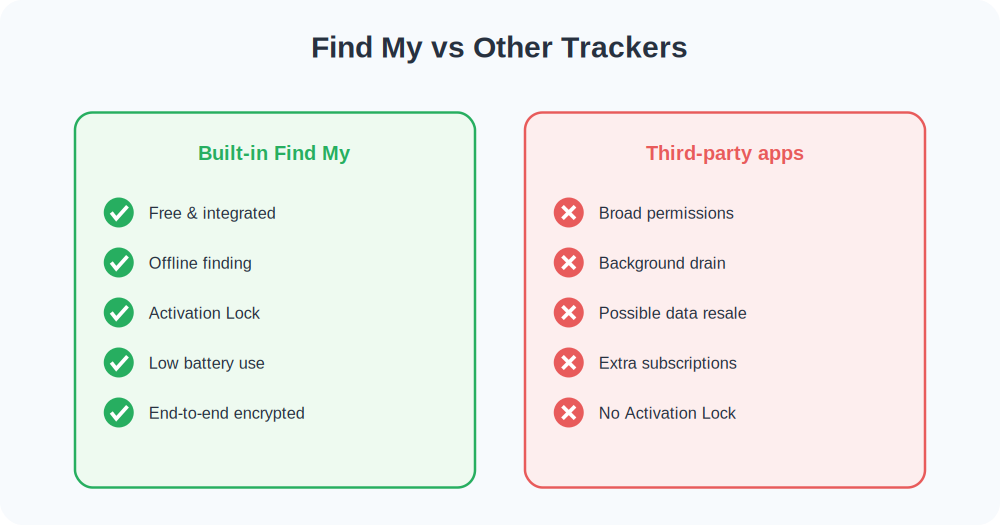
People often ask whether they need a separate tracking app on top of Find My. For locating your own iPhone, the answer is almost always no. Find My is free, deeply integrated, sips battery, and benefits from the enormous Find My network. Third-party trackers tend to want broad permissions and constant background access, and some quietly profit from your location data. The built-in tool gives you map location, sound, lock, lost mode, and remote erase without any of those compromises.
It’s also worth being clear-eyed about the limits so you have realistic expectations. Find My shows an estimated location, not a flawless pinpoint. Indoors, the estimate can drift by a building. The position only updates when the phone can reach a network, so a phone in a basement or a dead zone may show a slightly stale location. And no legitimate tool — Find My included — can locate a phone purely from its number with nothing set up on the device. Anything claiming otherwise is best avoided.
Where Find My Saves the Day: Common Scenarios
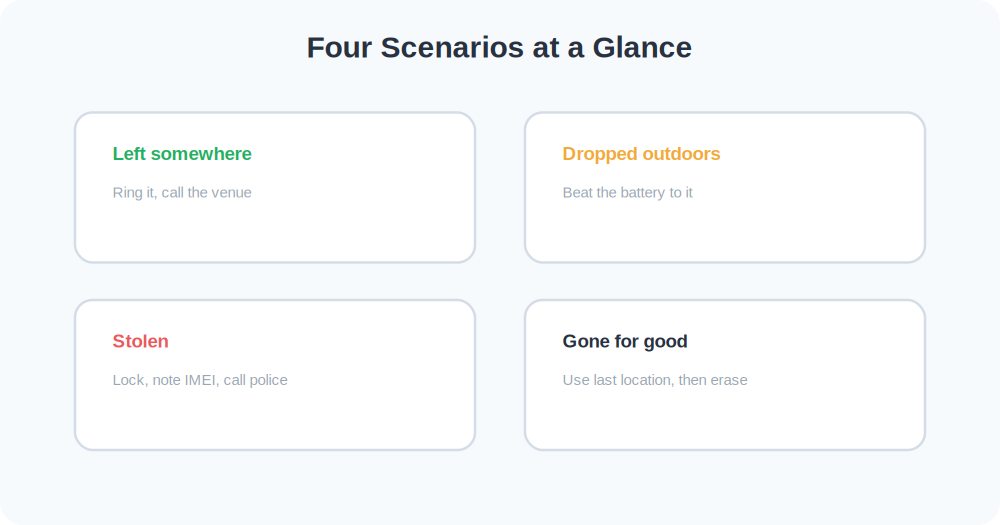
Find My earns its keep in a handful of everyday situations. Knowing how it behaves in each one helps you act fast and with confidence.
Left at a restaurant or shop
This is the easiest case. The phone is online over Wi-Fi or cellular, so you see it on the map immediately, play a sound for the staff, and call the venue to arrange pickup. Most “lost” phones are really just “left somewhere” phones, and this resolves them in minutes.
Dropped outdoors
A phone dropped on a trail or in a park reports its GPS location well, since it has a clear sky view. The risk here is battery: get to it before it dies. This is where Send Last Location matters, because even if it powers down you’ll know roughly where to search.
Stolen
If the map shows your phone moving in a way you can’t explain, treat it as theft. Don’t chase it. Mark it as lost to lock it, note the location and IMEI, and hand the details to the police. Activation Lock means the thief can’t easily profit from it anyway.
Genuinely gone
Sometimes a phone simply disappears — offline, no movement, no response. Here you lean on the last known location as your final clue, lock the device to protect your data, and decide whether to erase. Even in this worst case, your accounts stay protected behind Activation Lock and your passcode.
Set Up Family Sharing So Loved Ones Can Help
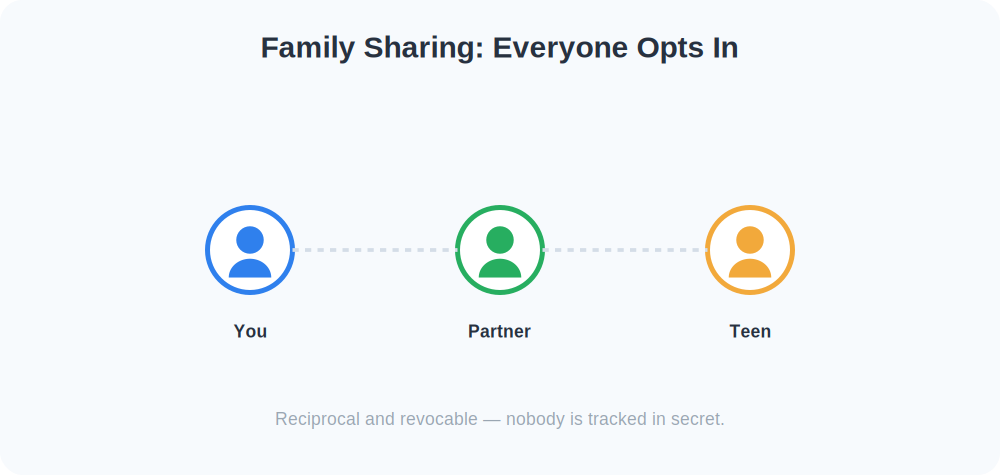
One of the most useful things you can do is add your iPhone to a Family Sharing group. When you do, trusted family members can see your devices in their own Find My app and help locate your phone if you’re ever stuck without a computer. It’s reciprocal and consent-based, which is exactly how location sharing should work.
- Go to Settings → your name → Family Sharing.
- Add family members by invitation.
- In the Find My app, open the People tab and choose Share My Location with whoever you trust.
- Each person can stop sharing at any time, and everyone can see who they’re sharing with.
The key principle is transparency. Family Sharing is designed so everyone opts in and everyone can see the arrangement — nobody is tracked secretly. That openness is what makes it healthy rather than intrusive.
A Real-World Walkthrough
Picture leaving your iPhone in the back of a taxi. By the time you notice, the cab is long gone. Here’s how the setup above turns panic into a plan:
- You open Find My on your iPad and see the phone moving across town — still in the taxi.
- You tap Play Sound so the driver or next passenger hears it.
- You choose Mark As Lost, lock the phone, and put your partner’s number on the screen.
- When the cab stops, an honest passenger sees the message and calls to arrange the return.
Because Send Last Location was on, even if the battery had died mid-journey you’d still see where it was when it powered down — a huge head start for recovery.
Common Mistakes to Avoid
- Only turning on the main toggle. Without Find My network and Send Last Location, you lose offline finding and the dying-battery breadcrumb.
- Forgetting your Apple ID password. Everything routes through your Apple ID. If you can’t sign in, you can’t locate the phone. Keep it somewhere you can reach from another device.
- Disabling Find My before selling. Always turn it off and sign out before handing the phone on, or Activation Lock will leave the new owner locked out.
- Assuming an off phone is unfindable. Thanks to the Find My network, a recent iPhone often reports its location for a while even after it’s switched off.
Privacy: Who Can Actually See You
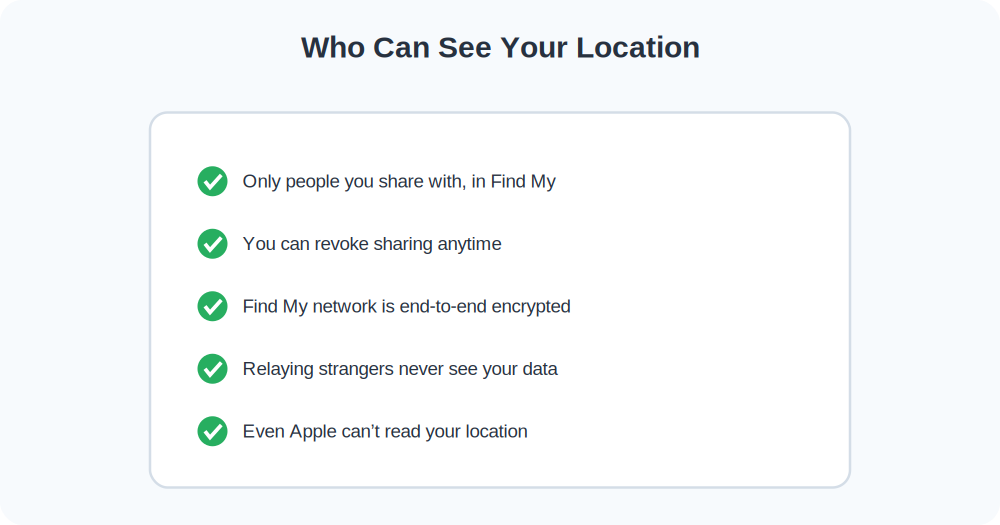
It’s worth understanding the privacy model, because Find My is often misunderstood. Find My iPhone reports your device’s location only to your own Apple ID. Separately, location sharing with people is a deliberate, opt-in choice you make in the Find My app, and you can revoke it instantly. The Find My network that helps locate offline devices is fully encrypted end-to-end — the strangers whose phones relay your location can never see who you are or where your phone is, and neither can Apple.
Quick Takeaways
- Turn on all three: Find My iPhone, Find My network, and Send Last Location.
- The Find My network can locate a recent iPhone even when it’s offline.
- Activation Lock makes a stolen iPhone nearly worthless to a thief.
- Never disable Find My before selling or giving the phone away.
- Test it from icloud.com/find and keep your Apple ID password handy.
The Bottom Line
Open Settings, tap your name, go to Find My, and switch on all three toggles — Find My iPhone, Find My network, and Send Last Location. Confirm location services are on, then test it from icloud.com/find. Five minutes of setup gives you a locator that works even when your phone is offline, plus Activation Lock theft protection that makes your iPhone far less appealing to steal in the first place.