✅ Quick answer — the 3 fastest fixes:
- Set every app’s location permission to “Only while using” or Deny.
- End unwanted shares in Google Maps › Location sharing and Find My › People.
- Sign out unknown devices from your Google/Apple account and change the password.
⚠️ Safety note: If the person spying may be a partner, ex, or someone controlling, removing the app can alert them. Read the safety section below before changing anything.
Your location leaks through more channels than any other piece of personal data: apps with a permission you granted in a hurry, sharing features switched on and forgotten, accounts someone else can open, physical trackers that never touch your phone at all. Stopping location tracking therefore isn’t one switch — it’s seven doors, each closed a different way.
This guide closes all seven, in order from the most common leak to the rarest. If you suspect a specific person is tracking you, work through everything; if you just want your movements to stop being a shared resource, methods 1, 2, and 7 alone will transform your privacy. Either way, each method ends with the door closed, not just found.
Method 1: Revoke “Allow all the time” location permissions
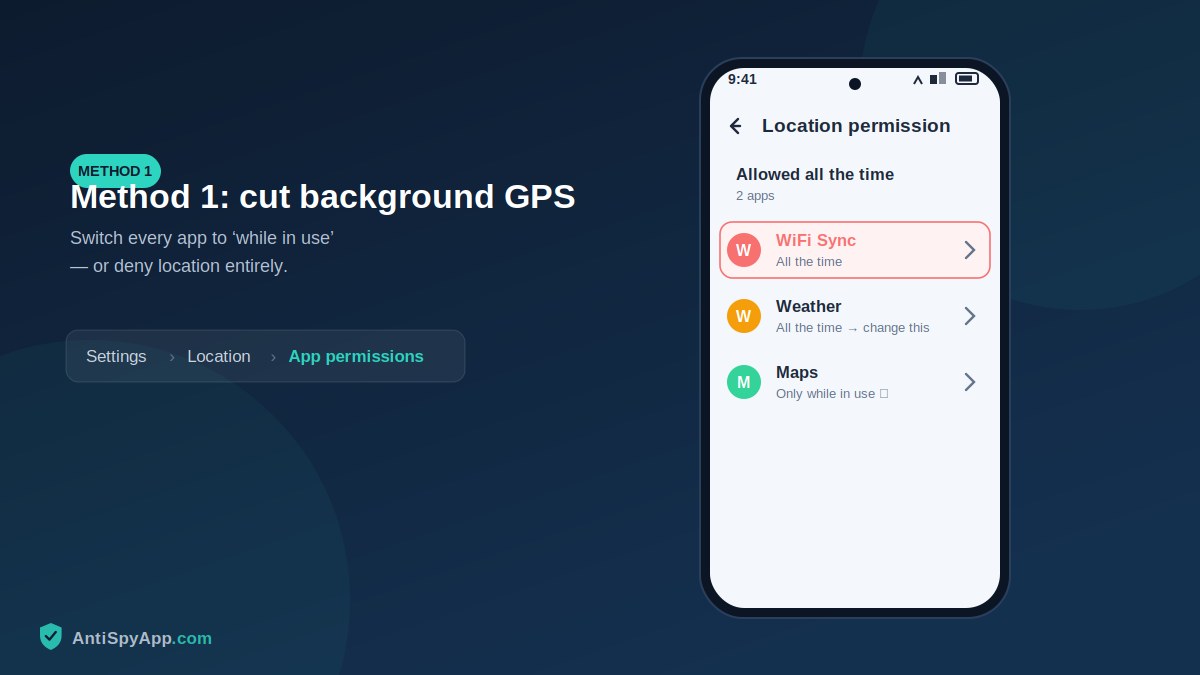
The biggest leak is the one you approved. Any app with location set to “Allow all the time” can report your position with the screen off, around the clock. Open Settings > Location > App location permissions (iPhone: Settings > Privacy & Security > Location Services) and read the all-the-time group with hostility: it should contain Find My Device / Find My and almost nothing else. Downgrade everything with a real need to “While using the app”, everything questionable to “Ask every time”, and everything unjustifiable to “Don’t allow”. Then do the second pass people skip: toggle off Precise location for any app that only needs your general area — weather and news apps work perfectly knowing your city without knowing your street. Ten minutes here removes the single largest source of continuous tracking on any phone.
Method 2: End Google Maps sharing and pause Timeline
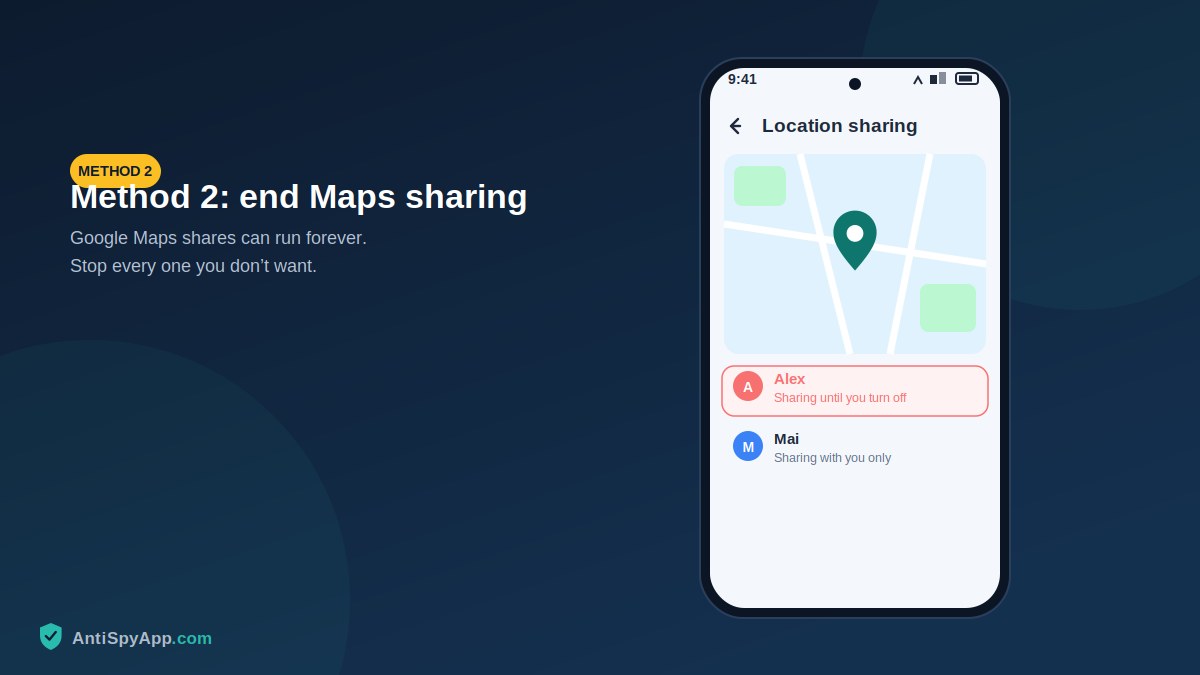
Google Maps location sharing is the most common way real people track other real people — because it is legitimate, easy, and forgettable. Open Maps, tap your profile icon > Location sharing, and look hard at every entry: shares set to “until you turn this off” live forever, including ones created in ninety seconds by someone else holding your unlocked phone. Stop anything you don’t actively, currently want. Then tap Your Timeline in the same menu: if Timeline is recording, your phone keeps a complete history of everywhere you’ve been — useful to you, and equally useful to anyone who can open your Google account. Pause it, and delete existing history if you want it gone (Timeline > settings > Delete all Timeline data). Remember the principle this method teaches: features are not loyal; they serve whoever operates the account.
Method 3: Audit Find My, family features, and carrier sharing
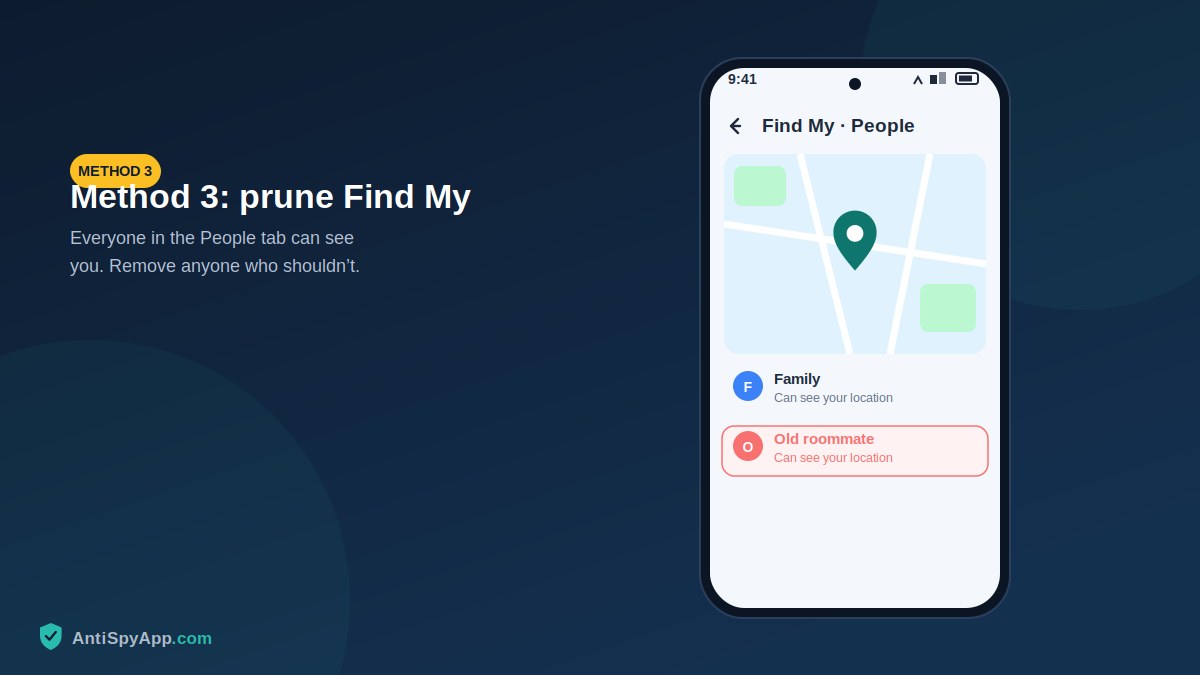
Now the sharing systems that don’t live in Maps. iPhone: open Find My > People for the definitive list of who can see you, and Settings > [your name] > Find My > Share My Location for the master switch. Android: check Settings > Google > Find My Device, Google Family Link group membership, and manufacturer equivalents like Samsung Find. Then the one everyone forgets: some carriers sell family-locator services that track by SIM, phone-side settings never reveal them, so log into your carrier account (or call) and ask whether any locator service is active on your line. Family features are legitimate with informed, current consent — parents and minor children, partners who both actively want it. “It got set up years ago and I never thought about it” is not consent; it’s an open door, and this is the day you decide about it.
Method 4: Take back your accounts — the invisible tracker
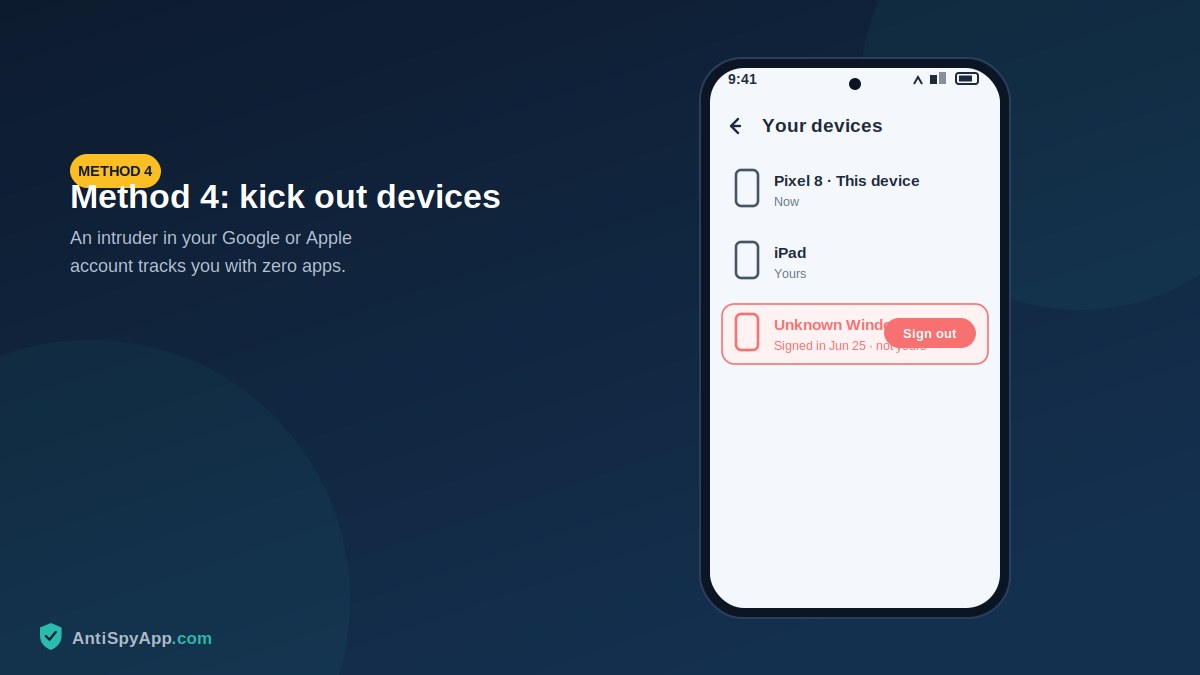
Someone with your Google or Apple password doesn’t need anything on your phone: your own account will report your location, backups, and history to them, from their couch, invisibly to every scan you run. Close it in one session, from a device you fully control. Visit myaccount.google.com > Security: review “Your devices” and sign out strangers, check “Recent security activity”, then change the password and turn on two-step verification. iPhone: Settings > [your name], scroll the device list, remove unknowns, then Sign-In & Security for the password change and 2FA. Ask yourself plainly whether anyone else has ever known these passwords — a partner, an ex, a family member — and if yes, treat the change as mandatory even if the device lists look clean. Account access is the tracking method with no symptoms; only the audit finds it.
Method 5: Sweep for trackers that aren’t on your phone
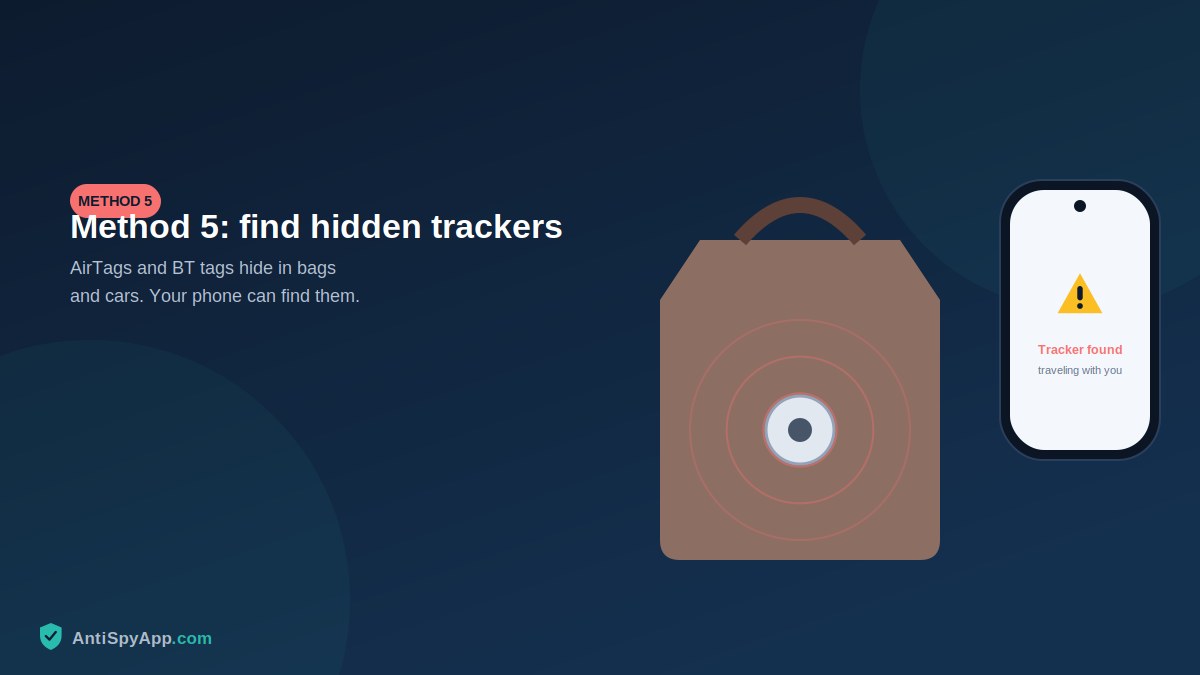
A coin-sized tag in a coat lining, bag seam, or car defeats every setting on your phone — so the sweep is physical and radio-based. Both platforms now help: iPhones alert automatically when an unknown AirTag moves with you (take those alerts seriously; use the option to make it play a sound), and Android has Settings > Safety & emergency > Unknown tracker alerts with a manual Scan now button — run it in the places you feel followed, since the alerts need the tag traveling with you to trigger. Then hands: bag pockets and linings, coat hems, under car seats, glovebox, wheel wells, behind bumpers, under the spare. If you find a tracker you cannot explain, do not smash it in the driveway — photograph it where it sat, note the serial (an NFC tap on most tags shows it), and consider involving police first; the serial ties the tag to an owner, which is evidence worth preserving.
Method 6: Rule out stalkerware
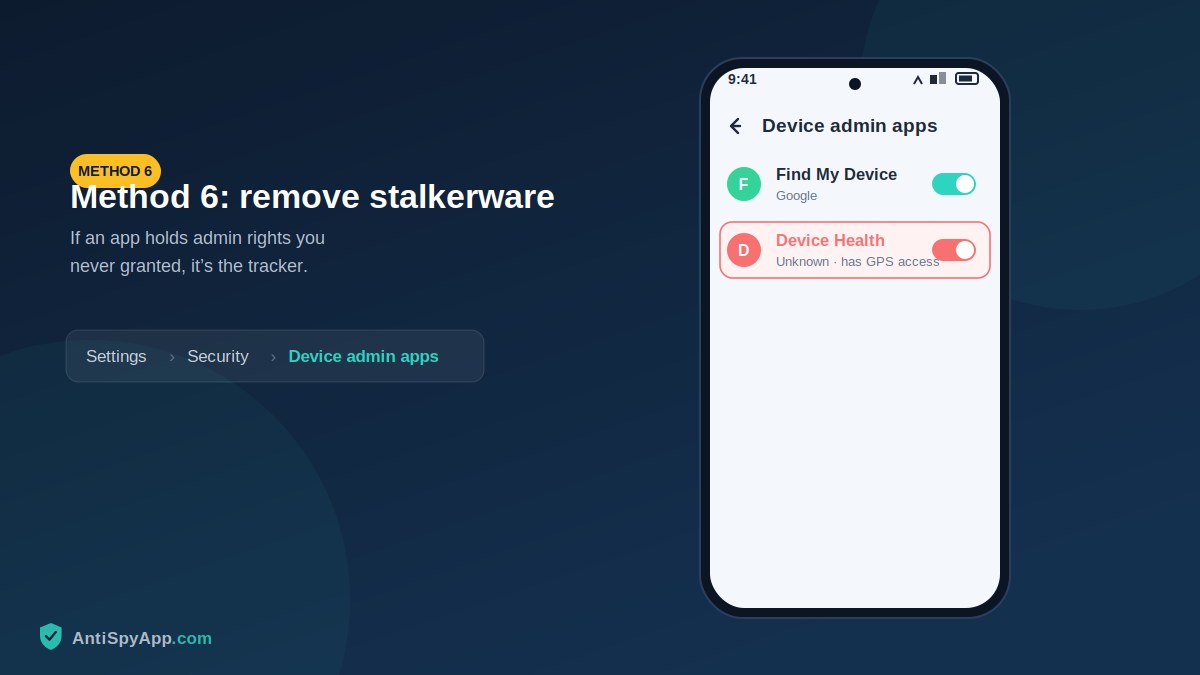
If tracking persists after methods 1–5, consider software installed to do exactly this. The fast Android tour: Settings > Apps > See all apps (with Show system on) for names you can’t account for; Device admin apps and Accessibility > Downloaded apps for strangers holding power; a Google Play Protect scan to put a name on anything known. iPhone: Settings > General > VPN & Device Management, where an unexplained profile is the finding. This paragraph is deliberately a summary — detection is our 13-step Android guide and 7-method iPhone guide, and removal is its own discipline with a safety dimension: if the likely installer is a partner or ex, read the stalkerware guide’s safety section before uninstalling anything, because removal is visible to the person watching and timing should be your choice, not a reflex.
Method 7: Build habits that keep location yours
Everything above closes existing doors; habits keep them closed. Lock the phone with a PIN nobody else knows — every “mystery” share in method 2 started with an unlocked phone in the wrong hands. When apps ask for location, default to “While using” and let them argue you upward. Strip location metadata before sharing photos of places you frequent (both platforms offer “remove location” on the share sheet), and post trips after you’re home rather than live. Once a quarter, spend five minutes repeating methods 1 and 2 — permissions creep back with every app install and update. None of this makes you invisible, and it isn’t meant to; it makes your location something you give, knowingly, instead of something that leaks.
If You Did Everything and Someone Still Knows Where You Are
Trust the pattern over the clean checklist. Re-run the tracker scan in different locations and give the car a second, slower search. Reconsider the low-tech channels: shared calendars, social tags from friends, a mutual contact relaying, an old phone or tablet of yours still signed into accounts. And start a log — each incident, the date, what they knew, which channels carried that information. If the pattern continues, take the log to police or a victim-support organization; a consistent pattern of impossible knowledge justifies action even before the mechanism is found, and advocates have seen every mechanism there is.
The 15-Minute Emergency Version
Heading somewhere sensitive today and no time for the full seven? Do this now, in order: turn on airplane mode if the next hour matters more than the next month. Then, with connectivity back: empty the “Allow all the time” location list except Find My (method 1, three minutes). Open Maps > Location sharing and stop every share (method 2, two minutes). Check Find My > People or your Google family settings for shares you forgot (method 3, two minutes). Change your Google or Apple password from the phone itself and turn on two-factor authentication (method 4, five minutes). Run the unknown-tracker scan and pat down your bag and coat (method 5, three minutes). That covers the channels responsible for the overwhelming majority of real-world tracking. Do the full versions — especially the account audit from a clean device and the stalkerware check — tonight.
Frequently Asked Questions
Can someone track my location from just my phone number?
Not in any way available to ordinary people. A number alone enables calls, texts, and lookup of whatever you’ve made public — not live GPS. The realistic number-adjacent risks are social: phishing texts that trick you into tapping a link and signing into a fake page (which steals the account passwords that method 4 protects), and carrier-level social engineering, which a carrier account PIN blocks. If someone knows where you are, the mechanism is almost certainly one of the seven doors in this article, not the number itself.
Does airplane mode stop location tracking?
It pauses reporting — no connection, no uploads — but the phone can still record GPS positions to deliver later, and everything resumes on reconnection. Airplane mode is a moment of privacy, not a solution. The methods above are the solution; airplane mode is what you use on the way to a sensitive appointment before you’ve had time to do them.
Will a VPN hide my location?
A VPN hides your IP address from websites, which masks your rough network-based location from the internet. It does nothing about GPS: any app holding the location permission still reads your true coordinates and reports them, VPN or not, and account-based sharing (methods 2–4) ignores VPNs entirely. Permissions protect your position; VPNs protect your traffic. Different doors.
Should I just turn Location off entirely?
The master toggle (quick settings, or Settings > Location) is a legitimate blunt instrument, and using it selectively — off by default, on when navigating — suits some people well. Costs: no Find My protection if the phone is lost, no automatic tracker alerts on some setups, and friction in maps and rideshares. The audited middle path in methods 1–3 gets you nearly all the privacy with none of the costs, which is why it’s the recommendation — but off-by-default is not wrong, just inconvenient.
The Recap
Permissions are the biggest leak — empty the all-the-time list and disable precise location where it isn’t needed. Maps sharing and Timeline are the most human leak — end what you didn’t choose. Find My, family features, and carrier locators need current consent, not old defaults. Accounts track invisibly — audit devices, change passwords, add 2FA. Physical tags need a scan and your hands. Stalkerware gets the dedicated guides, safety first. And a locked phone plus quarterly re-audits keeps every door the way you left it: closed, and opening only when you say so.
And a final reassurance worth stating plainly: closing these doors does not require becoming a different kind of person, giving up maps, or living in airplane mode. Every method above ends with your phone still doing everything you bought it to do — the only party whose experience changes is whoever was watching.
Menu paths reflect Android 14/15 and iOS 17/18. If you are in immediate danger, contact your local emergency number.