Your phone can be a lifeline in an emergency — but only if you’ve set it up beforehand. Emergency SOS lets you quickly call for help and alert your loved ones with your location, even when you can’t make a normal call, and Medical ID gives first responders the vital health information they need straight from your lock screen. These features take just a few minutes to configure, and they could one day make a genuine difference for you or someone around you. This guide walks through setting up both on iPhone and Android, and explains how they work when seconds count.
Think of it as the digital equivalent of knowing where the fire exits are — a small, quiet preparation that you barely think about until the day it matters enormously. Unlike most phone features, these aren’t about convenience or entertainment; they’re about getting you help and information to the people who can act on it, in the moments when you might not be able to ask.
It’s the kind of setup that’s easy to put off and invaluable to have ready. Let’s get your phone prepared for the moment you hope never comes — but want to be ready for.
What Emergency SOS Does
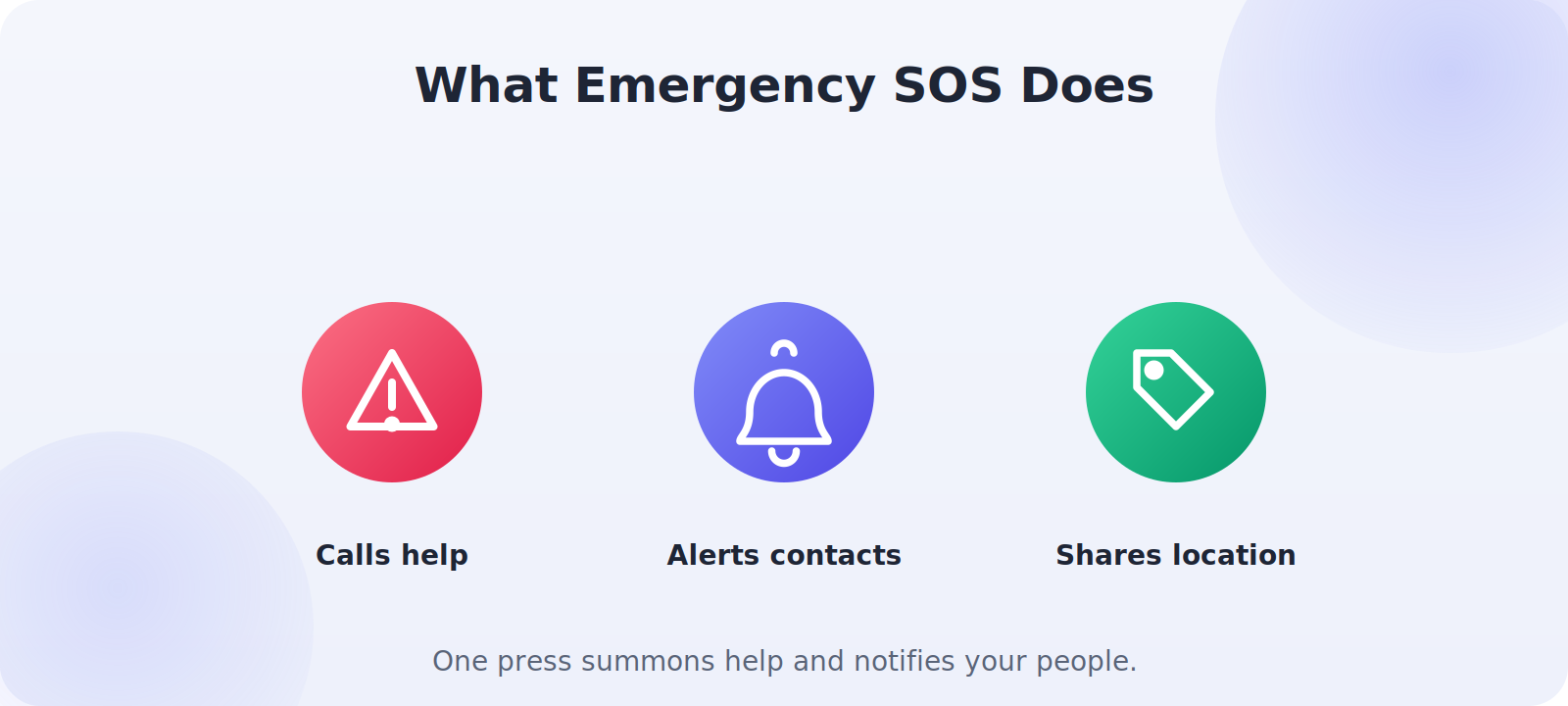
Emergency SOS is a built-in feature that lets you summon help fast, without navigating menus. With a specific button press, your phone can call your local emergency number, and it can automatically notify your chosen emergency contacts with a message and your current location. Some phones add extra capabilities like crash or fall detection that can trigger SOS automatically, and, on newer models, emergency messaging via satellite when you have no cellular signal.
Set Up Emergency SOS on iPhone
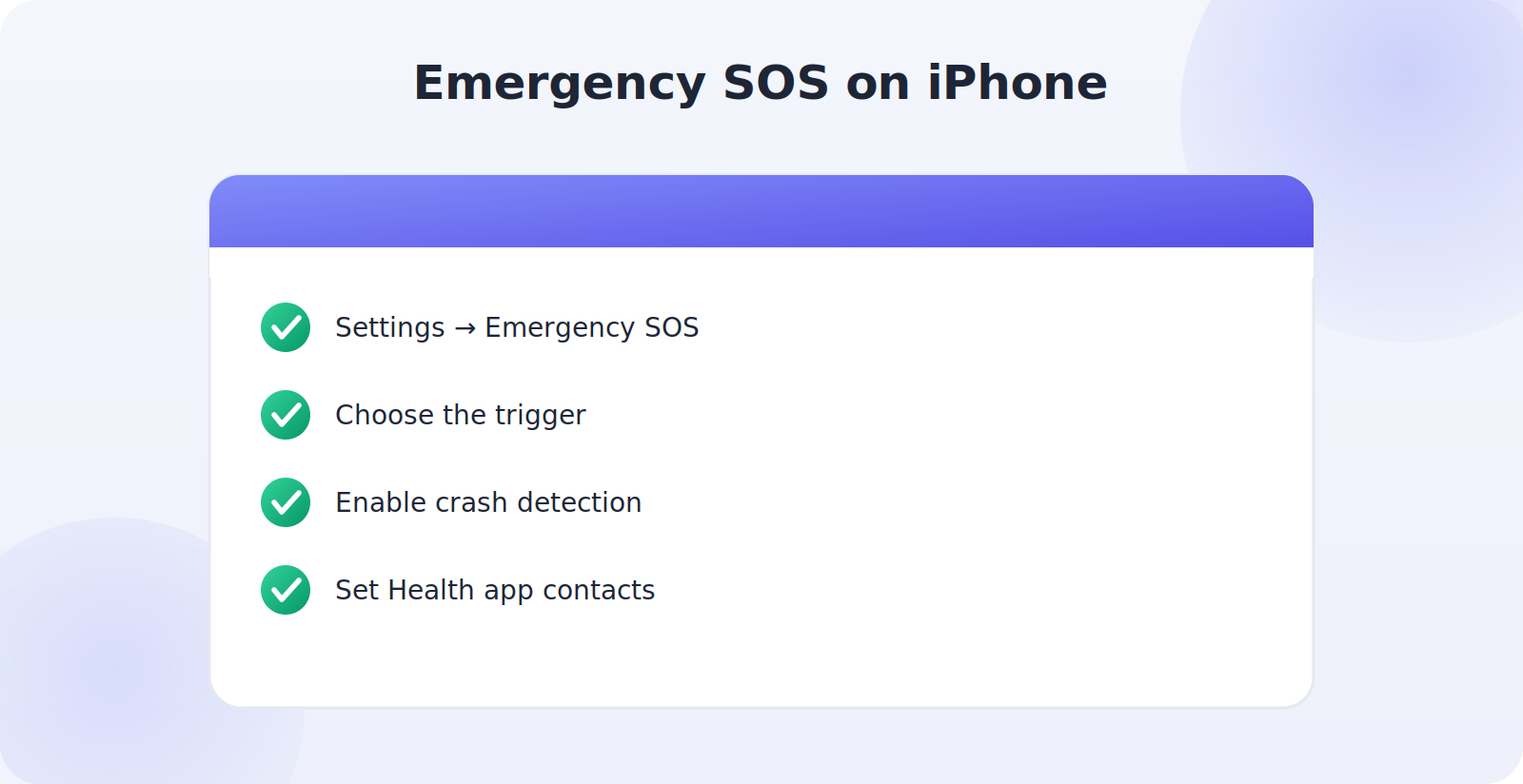
- Go to Settings → Emergency SOS.
- Choose how to trigger it — typically Call with Hold or pressing the side and volume buttons.
- Enable Call After Severe Crash if your model supports crash detection.
- Set up your emergency contacts in the Health app’s Medical ID, so they’re alerted with your location when you trigger SOS.
Set Up Emergency SOS on Android
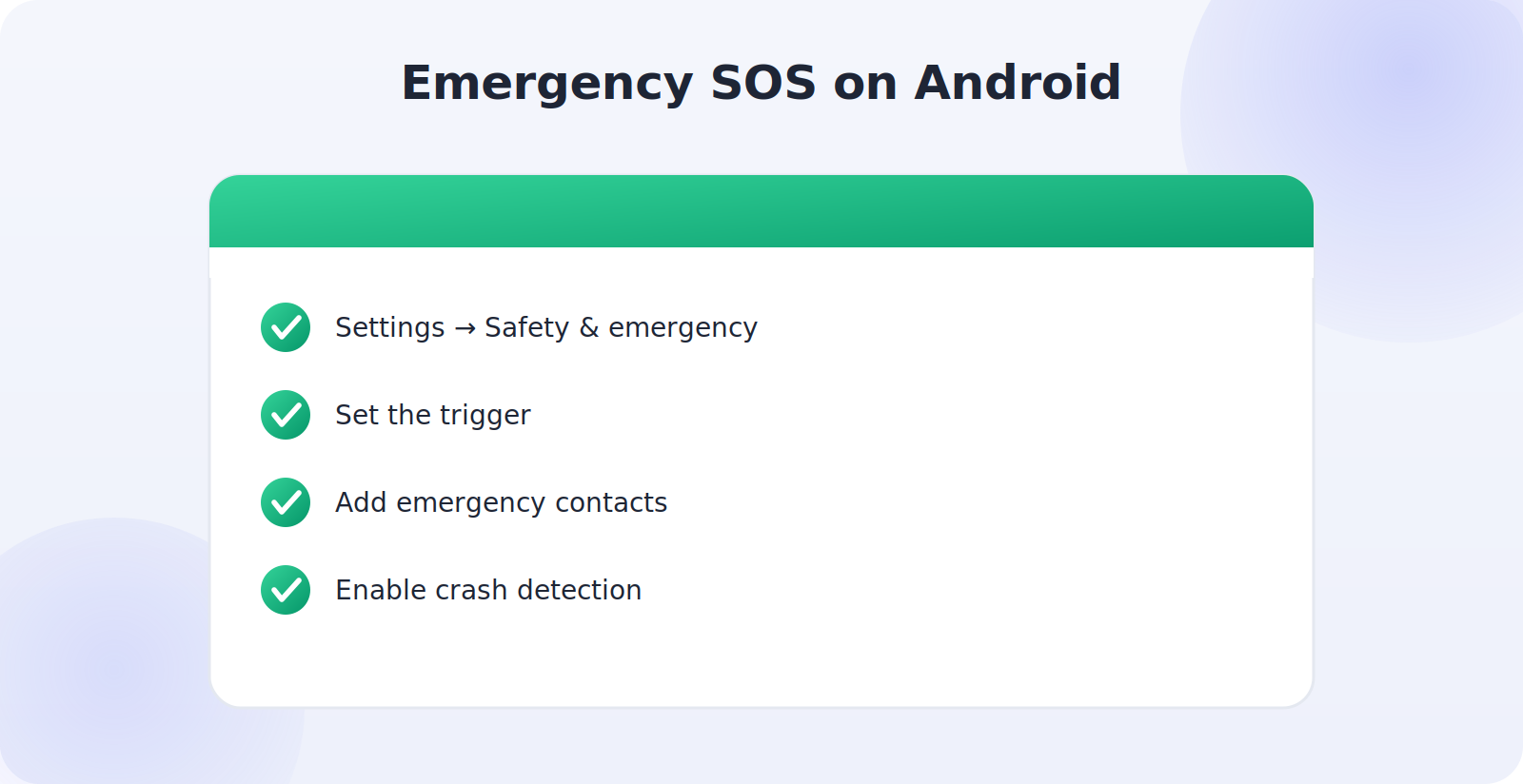
- Open Settings → Safety & emergency (wording varies by phone).
- Set up Emergency SOS and choose its trigger, often pressing the power button several times.
- Add emergency contacts to be alerted with your location.
- Enable car crash detection and other safety features if your phone offers them.
What Medical ID Does
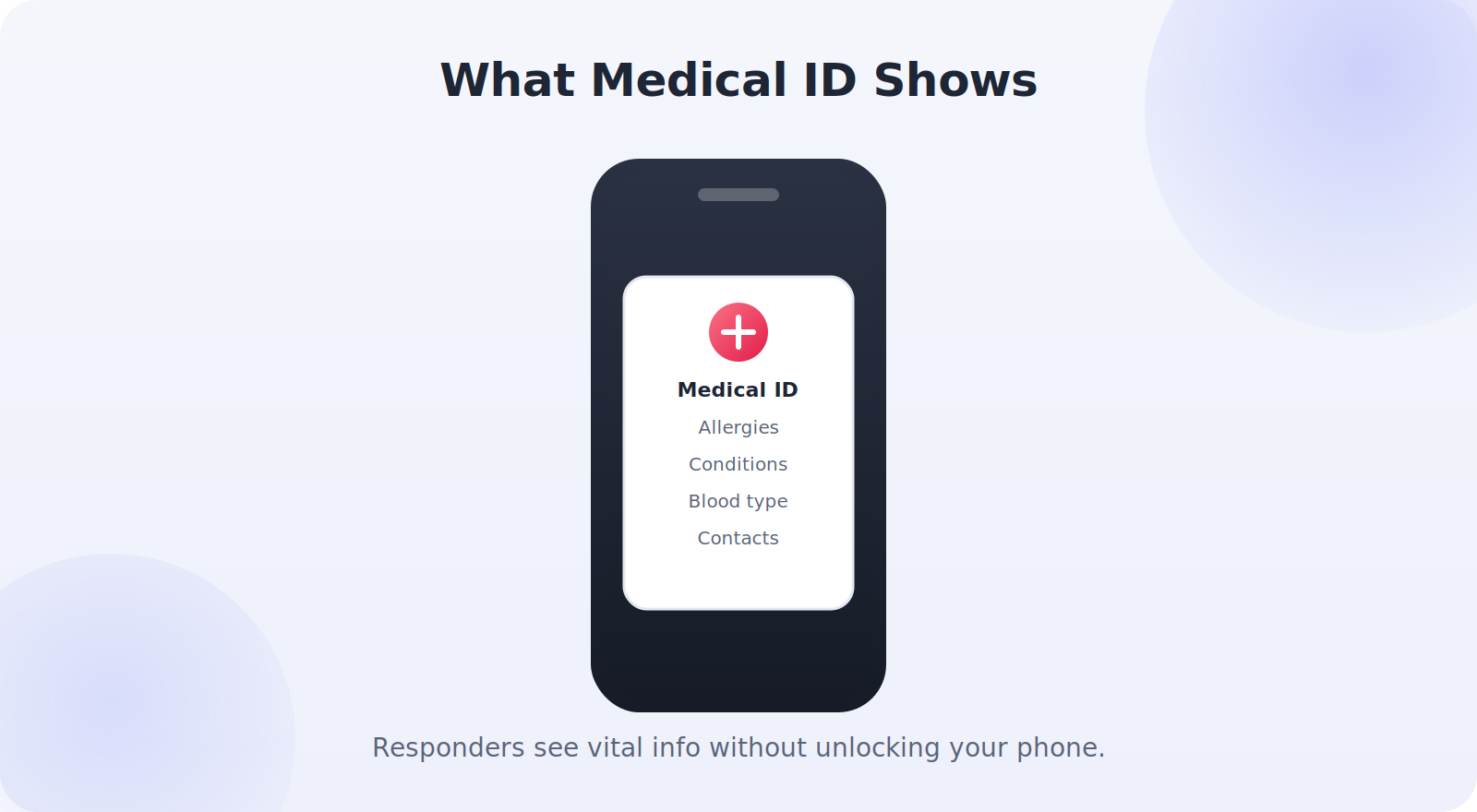
Medical ID is a profile of your essential health information that first responders can view without unlocking your phone. In an emergency where you can’t speak for yourself, it can convey critical details — allergies, conditions, medications, blood type, and emergency contacts — that help responders treat you safely and reach your family quickly. It’s one of the most valuable and underused safety features on any phone.
Set Up Medical ID on iPhone
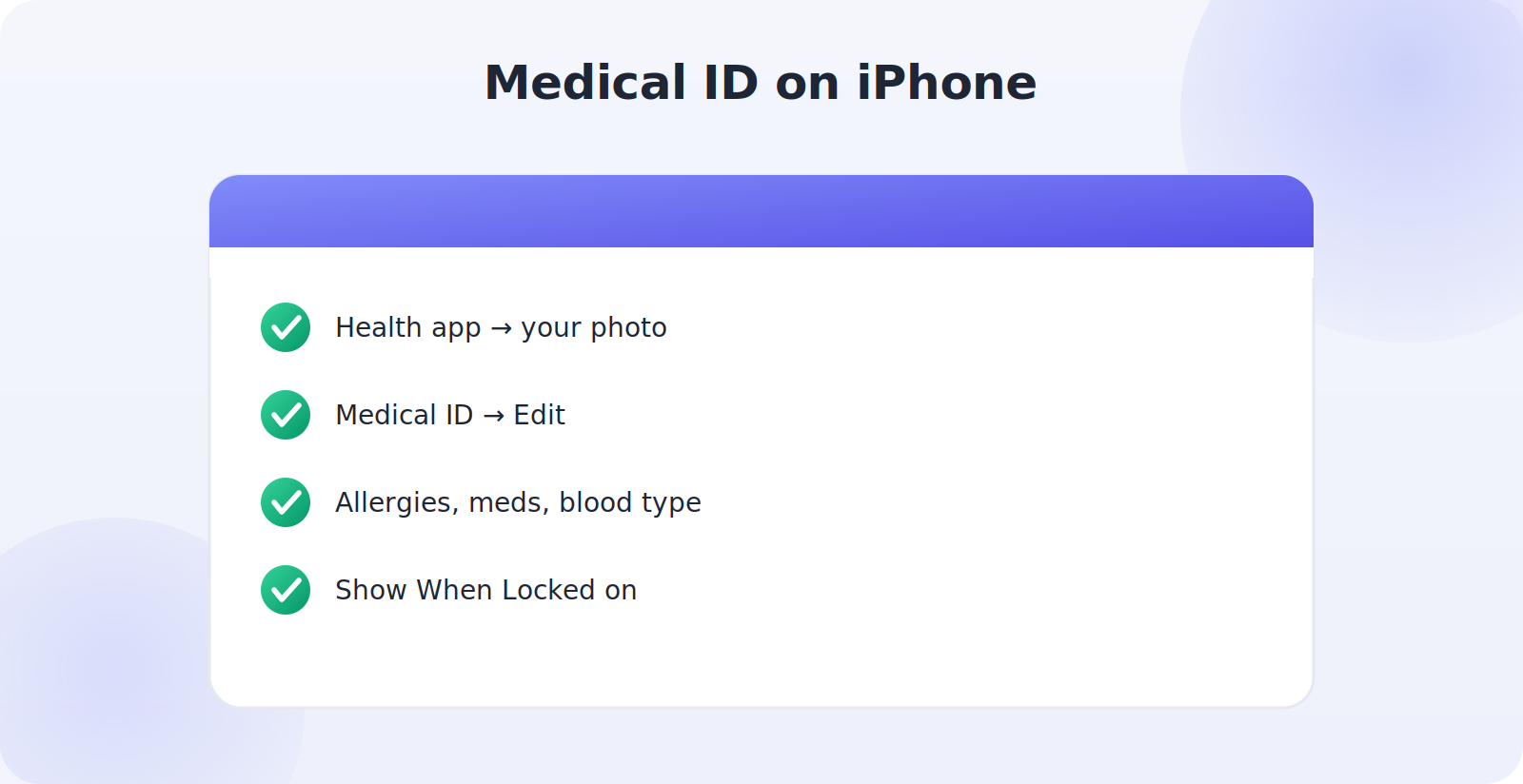
- Open the Health app and tap your profile picture.
- Tap Medical ID, then Edit.
- Fill in allergies, conditions, medications, blood type, and emergency contacts.
- Turn on Show When Locked and Share During Emergency Call so it’s accessible when it matters.
Set Up Medical Info on Android
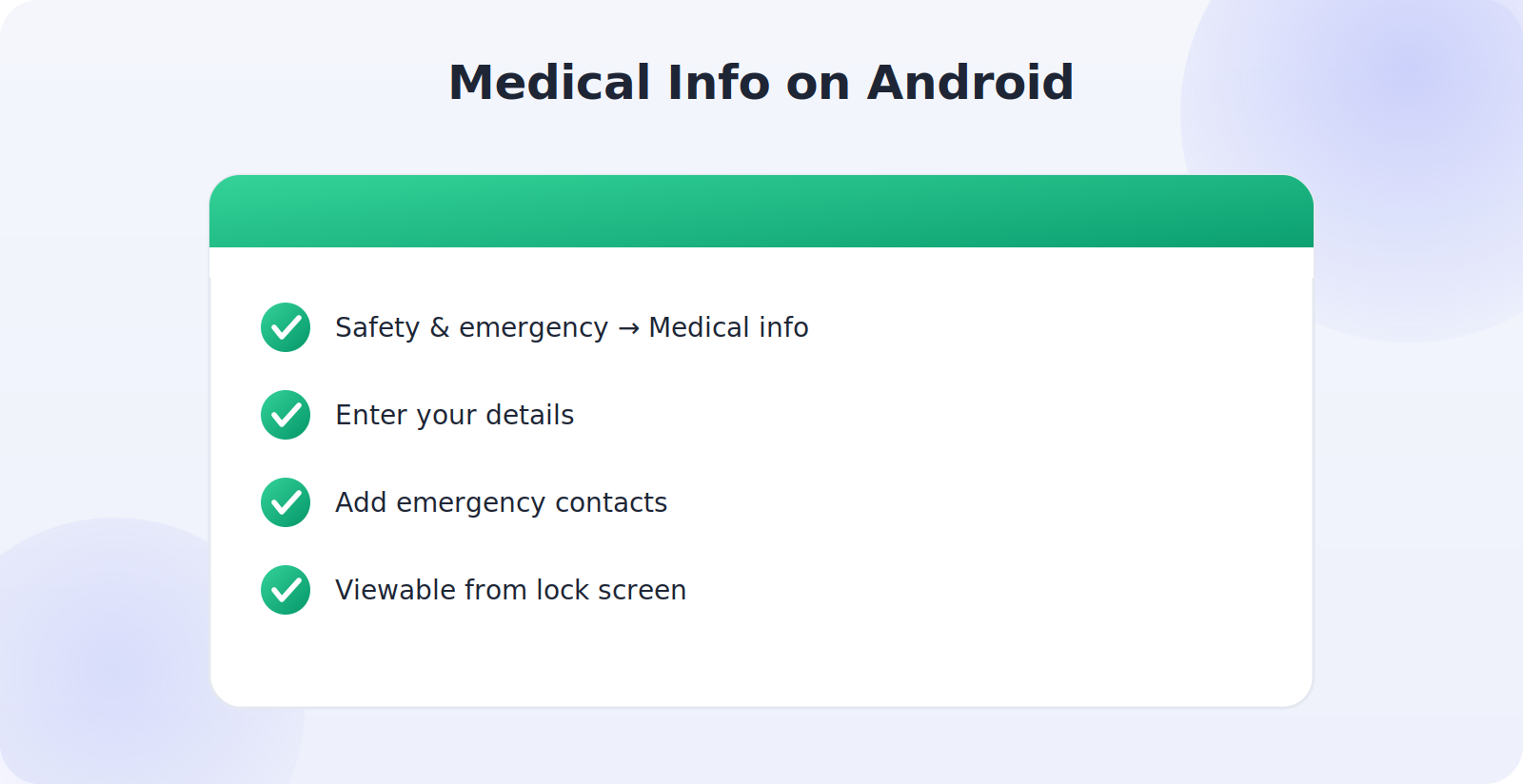
- Open Settings → Safety & emergency → Medical information (or the Personal Safety app).
- Enter your medical details: allergies, conditions, medications, blood type.
- Add your emergency contacts.
- Make sure it’s set to be viewable from the lock screen’s emergency option.
How Responders Access Your Information
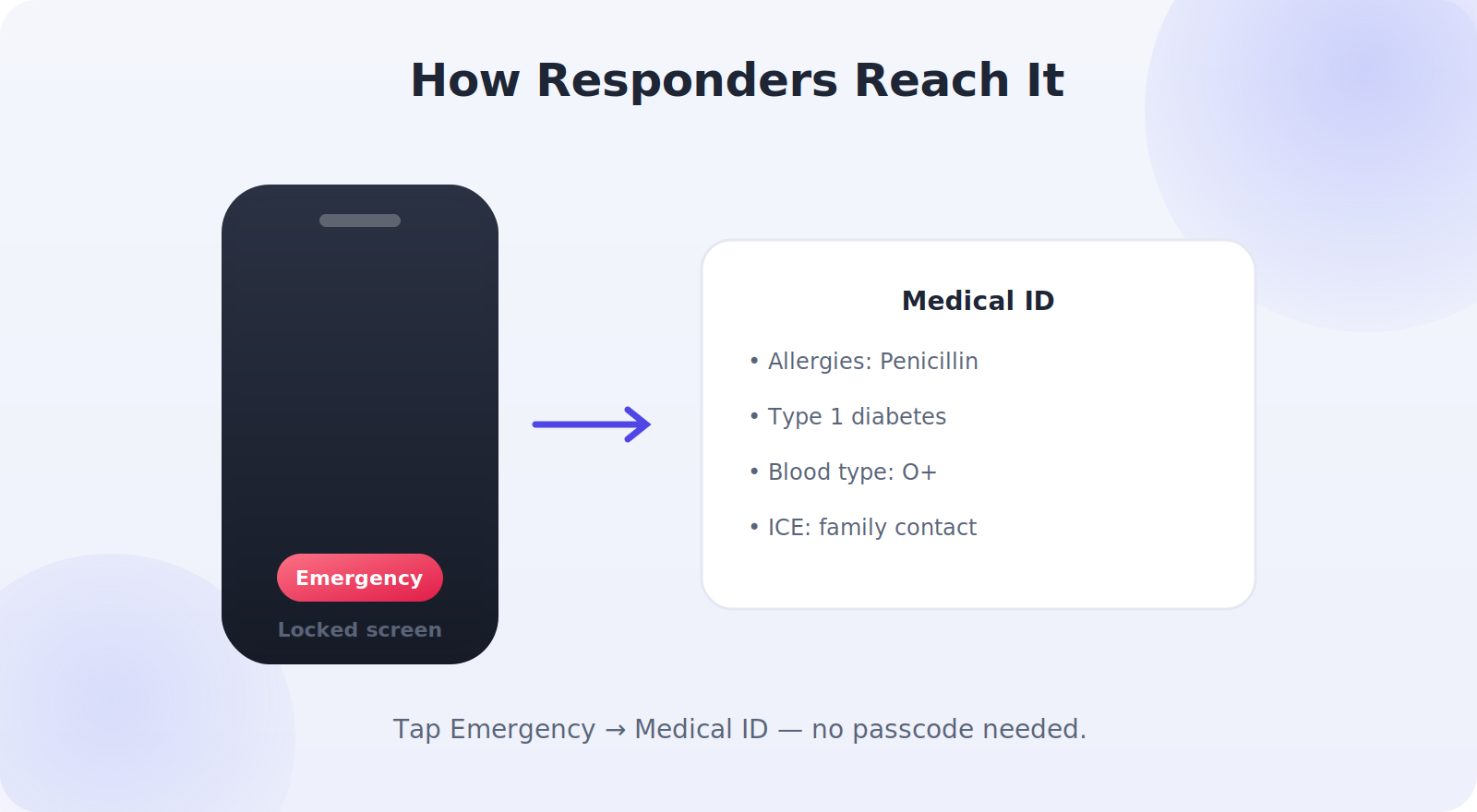
It’s reassuring to know how this works in practice. On a locked phone, there’s an Emergency option on the passcode screen. A first responder taps it, then Medical ID (iPhone) or the emergency-information option (Android), and your vital details and emergency contacts appear — all without ever unlocking your phone or accessing your private data. It’s designed precisely so that help can reach your information in an emergency while your personal content stays protected the rest of the time.
Test It and Keep It Current
Two final steps make all the difference. First, familiarize yourself with how to trigger Emergency SOS so you could do it under stress — just be careful not to actually place a test call to emergency services. Second, keep your Medical ID up to date: review it whenever your medications, conditions, or emergency contacts change. Outdated information could mislead responders, so a quick check a couple of times a year keeps it accurate and trustworthy.
Encourage Others to Set It Up
Once your own phone is ready, encourage the people you care about to do the same — especially older relatives, anyone with a medical condition, and family members who spend time alone or outdoors. It’s a small, caring conversation that could one day matter enormously. For an older parent, setting up Emergency SOS and Medical ID together can be part of a broader safety setup, and knowing it’s there brings peace of mind to the whole family.
Why These Features Matter
It’s worth pausing on just how valuable these features can be, because that’s what turns “I’ll set it up someday” into “I’ll set it up now.” In a medical emergency, seconds matter, and the ability to summon help with a single button press — without fumbling to unlock your phone and dial — can make a real difference. If you’re ever unable to speak for yourself, your Medical ID can tell responders about an allergy or condition that changes how they treat you, potentially avoiding a dangerous mistake.
These aren’t abstract benefits. People are reached by family faster, treated more safely, and helped more quickly every day because their phones were set up in advance. The feature is useless in the moment it’s needed if it wasn’t configured beforehand — which is the whole argument for spending a few quiet minutes on it today, while everything is calm, rather than wishing you had during an emergency you didn’t see coming.
Fall and Crash Detection
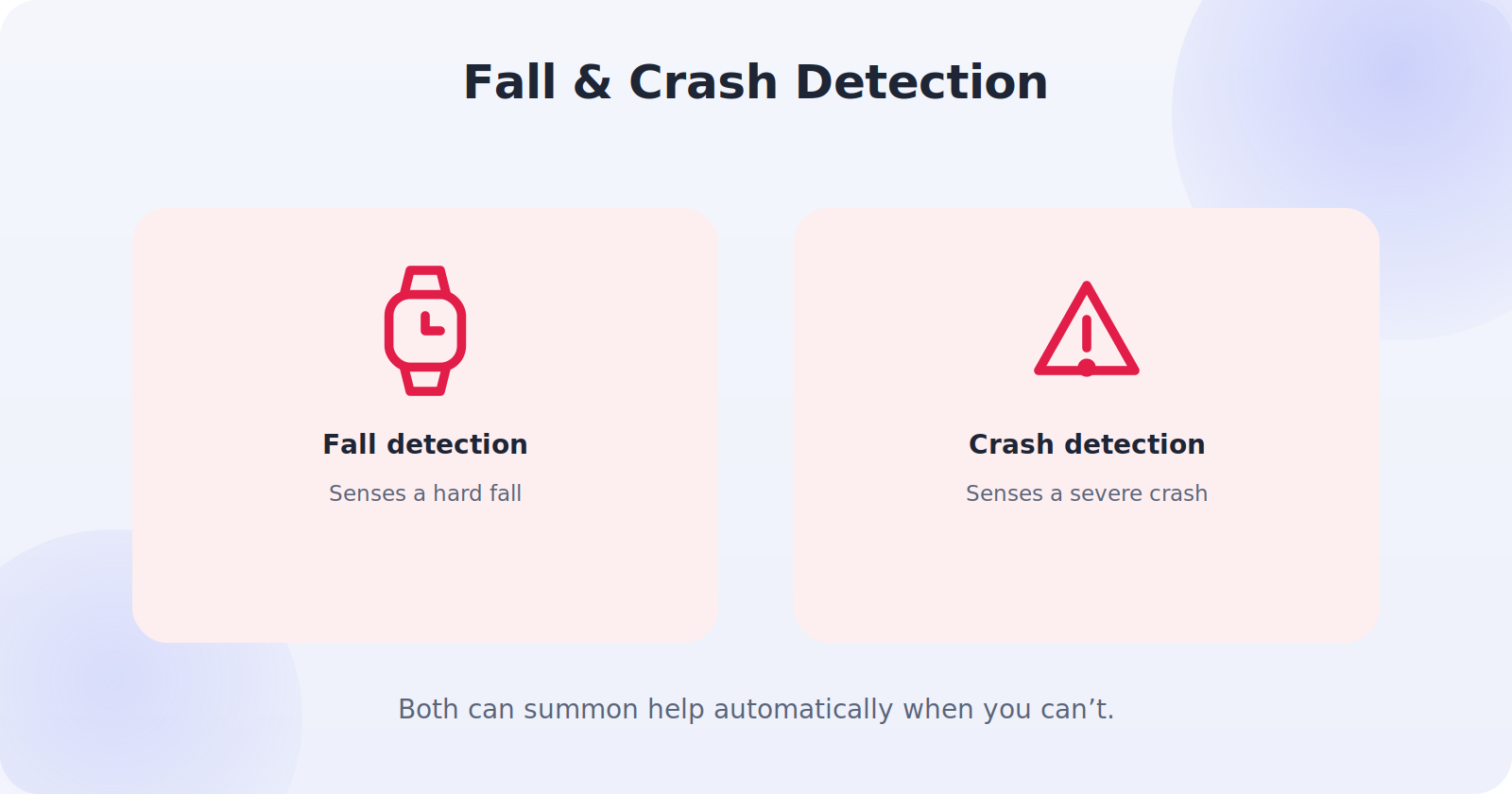
Many newer phones and smartwatches add automatic detection that can trigger Emergency SOS without you lifting a finger. Fall detection, common on smartwatches, senses a hard fall and, if you don’t respond to a prompt, can automatically call for help and alert your contacts — invaluable for anyone at risk of falls. Crash detection, on supported phones, can sense a severe car accident and summon help even if you’re unconscious or unable to reach your phone.
If your device offers these, it’s worth enabling them, especially for older family members or anyone who spends time alone, driving, or outdoors. Just be aware they can occasionally trigger by accident — a hard drop, a fender-bender — so the feature always gives you a moment to cancel before calling. That brief countdown is your chance to dismiss a false alarm, while still ensuring help is summoned automatically if you genuinely can’t respond.
Building a Complete Safety Setup
Emergency SOS and Medical ID are most powerful as part of a small, joined-up safety setup rather than in isolation. Pair them with up-to-date emergency contacts who actually know they’re listed, so they’ll recognize and act on an alert. Combine them with location sharing among family members who consent to it, so loved ones can find you quickly. For someone at higher risk, add fall or crash detection and consider a smartwatch that’s always on the wrist. And make sure the people in your household all know these features exist and how to use them. Assembled together, these pieces form a quiet safety net that asks almost nothing of you day to day, yet stands ready to summon the right help, share the right information, and reach the right people the instant an emergency strikes — which is exactly what you want from technology at the moment it matters most.
Practicing Without Causing a False Alarm
It’s genuinely valuable to know how to trigger Emergency SOS by muscle memory, because an emergency is the worst time to be learning the button combination — but you must practice carefully to avoid placing a real call to emergency services, which wastes responders’ time. The safe approach is to read exactly how the trigger works on your specific phone in the settings, and to note the brief countdown or cancel option that appears before a call is placed, so you understand the sequence without completing it. Many phones also offer a way to review the feature’s behavior in settings without dialing. Familiarize yourself with where your hands go and what the screen shows, then stop before the call connects. That way you build the confidence to act fast in a genuine emergency while never troubling the emergency services with an accidental test.
Common Mistakes to Avoid
- Never setting it up — the feature only helps if it’s ready in advance.
- Forgetting to add emergency contacts, so no one is alerted when you trigger SOS.
- Leaving Medical ID hidden instead of enabling lock-screen access.
- Letting medical info go stale after your medications or contacts change.
- Accidentally calling emergency services while testing — learn the trigger carefully.
Frequently Asked Questions
Will Emergency SOS work if my phone is locked?
Yes — that’s the point. You can trigger Emergency SOS and responders can view your Medical ID from the lock screen without your passcode, while the rest of your phone stays private.
Can I set this up for an older relative?
Absolutely, and it’s one of the best uses. Set up Emergency SOS, add emergency contacts, fill in their Medical ID, and consider fall detection on a smartwatch. Walk through it together so they’re comfortable with it.
Can responders see my Medical ID without my passcode?
Yes — that’s the point. Medical ID is accessible from the Emergency option on the lock screen without unlocking the phone, while the rest of your data stays private.
Does Emergency SOS share my location?
Yes. When you trigger it, your phone can notify your emergency contacts with your current location, and it shares location with emergency services where supported.
What if I have no cell signal?
Some newer phones support emergency messaging via satellite when there’s no cellular coverage. Even without that, your phone will try to connect to any available network to place an emergency call.
Quick Takeaways
- Emergency SOS calls for help and alerts contacts with your location.
- Set it up under Emergency SOS (iPhone) or Safety & emergency (Android).
- Medical ID shows responders vital health info from the lock screen.
- Enable lock-screen access and add emergency contacts.
- Learn the trigger, keep info current, and help others set it up.
The Bottom Line
Emergency SOS and Medical ID are among the most valuable features on your phone, and they take only minutes to set up. Configure Emergency SOS so you can summon help and alert your loved ones with your location in an instant, and fill in your Medical ID so responders can access your vital health details straight from the lock screen. Learn the trigger, keep everything current, and encourage the people you love to do the same. It’s a small investment of time in something you hope never to need — but will be deeply grateful for if you ever do. Set it up today, keep it current, and share it with the people you love — it is one of the most caring few minutes you can spend with your phone.