GPS is one of the hungriest features on your phone. A long drive with navigation running, an afternoon of tracking a hike, or a day with several location-based apps active can drain your battery alarmingly fast. The instinct is to choose between useful location features and lasting battery life — but you don’t actually have to. With the right settings and habits, you can keep the GPS features you rely on while dramatically cutting how much power they cost. This guide shows you exactly how to do both.
The key insight that changes everything is this: GPS battery drain is not one big unavoidable cost but several smaller, very reducible ones. Once you see where the power actually goes — the screen, the data, the background apps, as much as the GPS radio itself — you can trim each one and keep every location feature you rely on. This guide shows you how to do exactly that.
We’ll cover what makes GPS such a battery drain, the settings that rein it in, and the smart habits that stretch your battery through a full day of navigation and tracking.
Why GPS Drains Your Battery
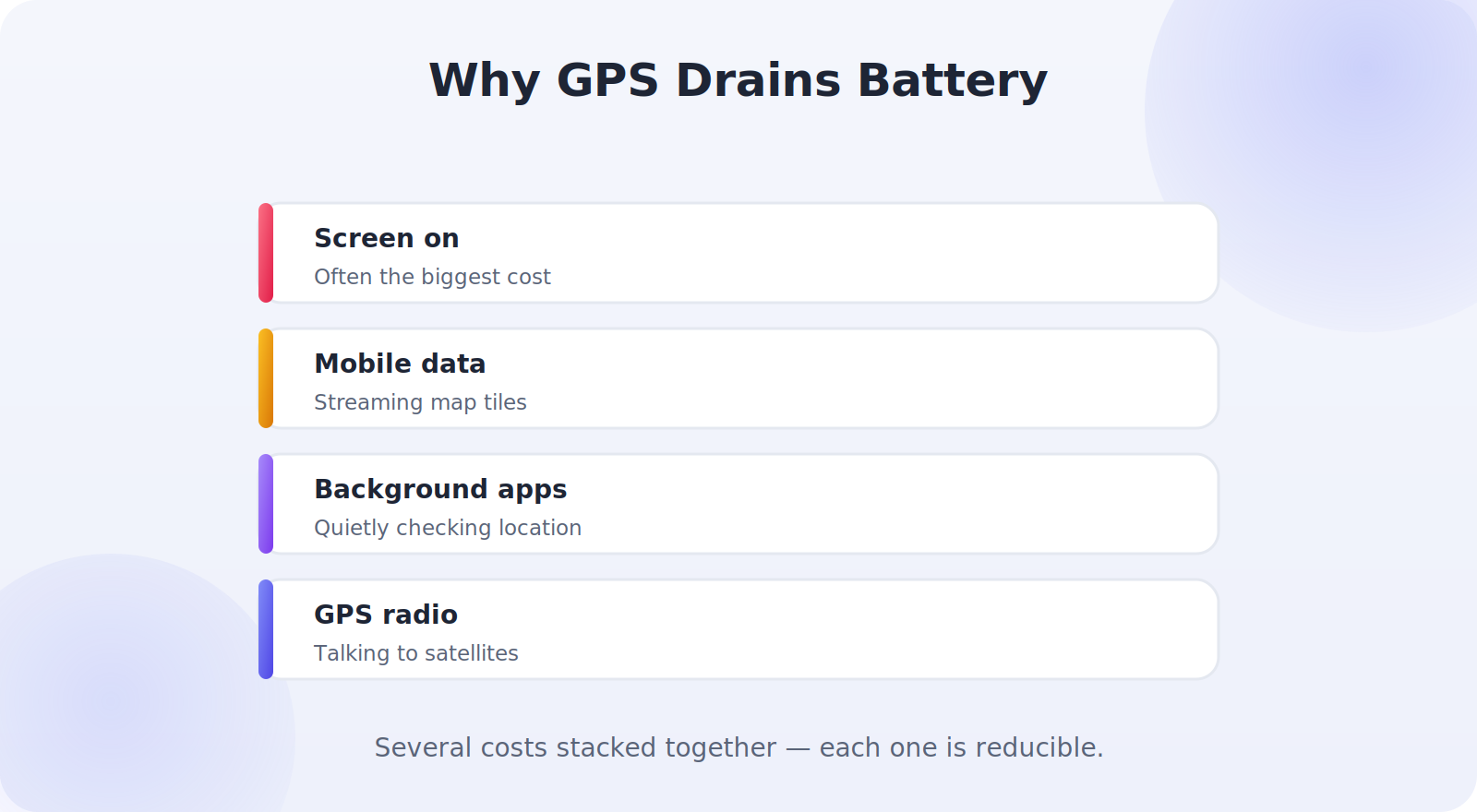
Understanding the drain helps you target it. GPS is power-hungry for a few combined reasons: the GPS radio constantly communicates with satellites, the screen often stays on during navigation, and location apps run continuously in the background, frequently waking the processor and the network. Stack these together — a bright screen, a live map, and several apps all requesting your position — and it’s no wonder the battery plummets.
Step 1: Control Which Apps Use Location in the Background
The biggest hidden drain is apps using your location in the background when they don’t need to. Auditing and tightening these per-app permissions is the highest-impact change you can make.
On Android
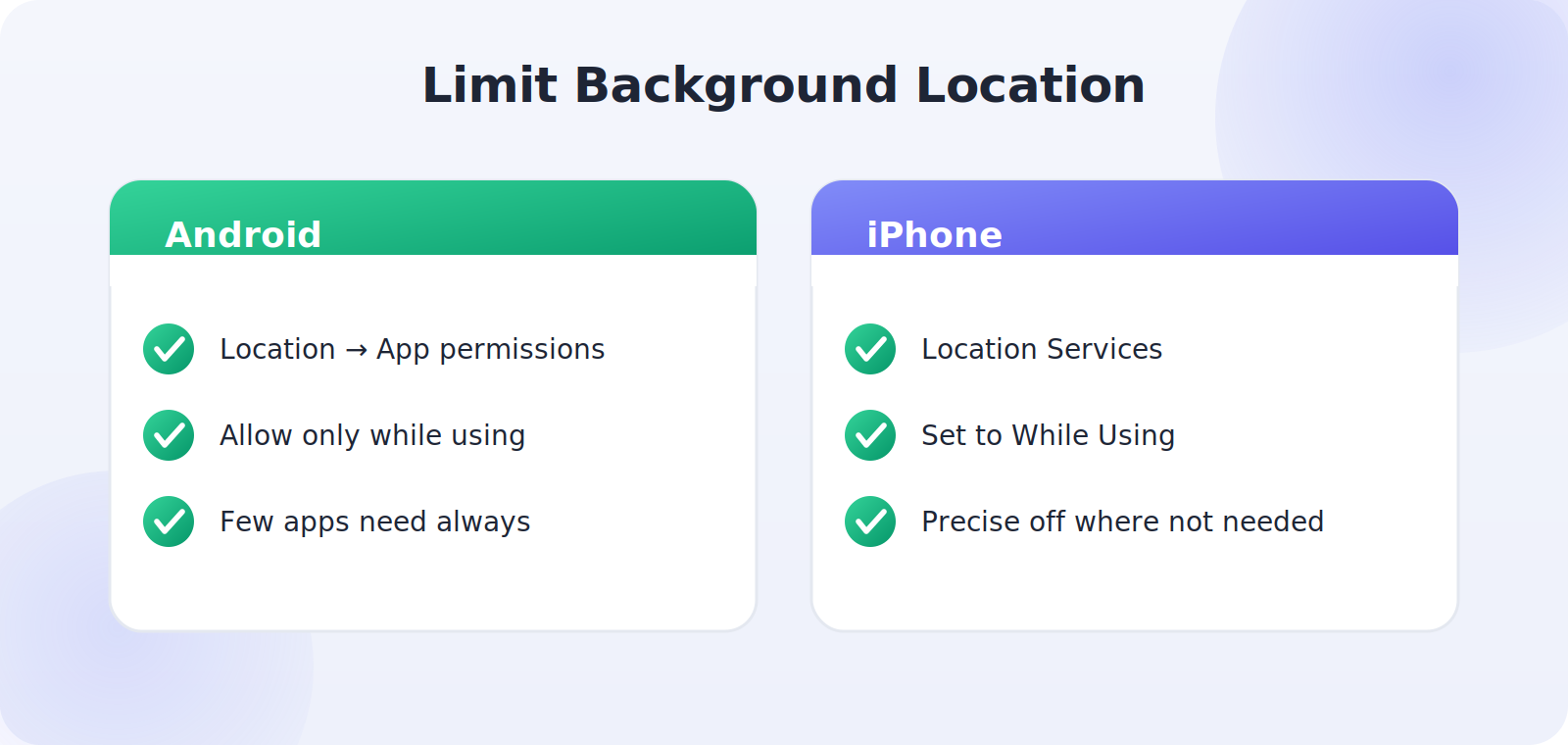
Go to Settings → Location → App permissions and review each app. Set apps to Allow only while using rather than Allow all the time unless they genuinely need constant access. Few apps actually need background location.
On iPhone
Go to Settings → Privacy & Security → Location Services and set apps to While Using instead of Always wherever possible. Turn off Precise Location for apps that don’t need your exact spot, like weather.
Step 2: Use the Right Location Mode for the Task
Not every task needs pinpoint GPS. Many apps work fine with the lower-power, Wi-Fi-and-network-based location that doesn’t fire up the full GPS radio. For weather, local search, or casual check-ins, approximate location is plenty and far cheaper on battery. Save high-accuracy GPS for the tasks that truly need it, like turn-by-turn navigation or fitness tracking, and let everything else use the lighter option.
Step 3: Dim the Screen and Manage Navigation
During navigation, the screen is often a bigger drain than the GPS itself. A few habits help enormously:
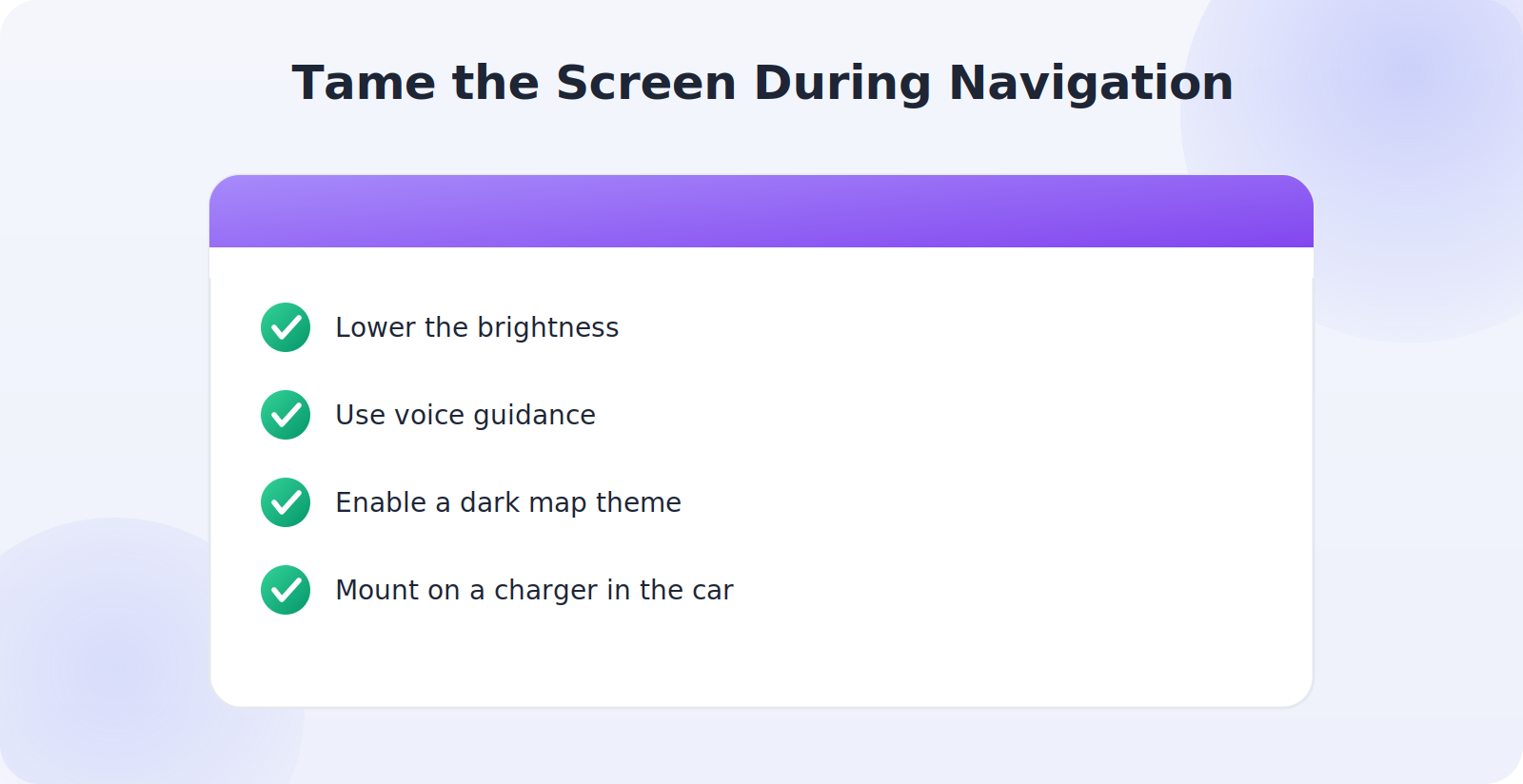
- Lower your screen brightness or use auto-brightness while navigating.
- Use voice guidance so you can let the screen sleep instead of staring at the map.
- Enable a dark map theme, which saves power on OLED screens.
- Mount the phone on a charger in the car, turning a long drive into a non-issue.
Step 4: Download Offline Maps
A clever, often-overlooked trick: download offline maps for areas you’ll navigate. When the map data lives on your phone, it doesn’t need to constantly fetch tiles over the network, which cuts both data use and battery drain. Both Google Maps and Apple Maps let you save regions for offline use. It’s especially valuable on road trips and in areas with patchy signal, where the phone would otherwise waste power hunting for a connection.
Step 5: Use Battery-Saver Modes Wisely
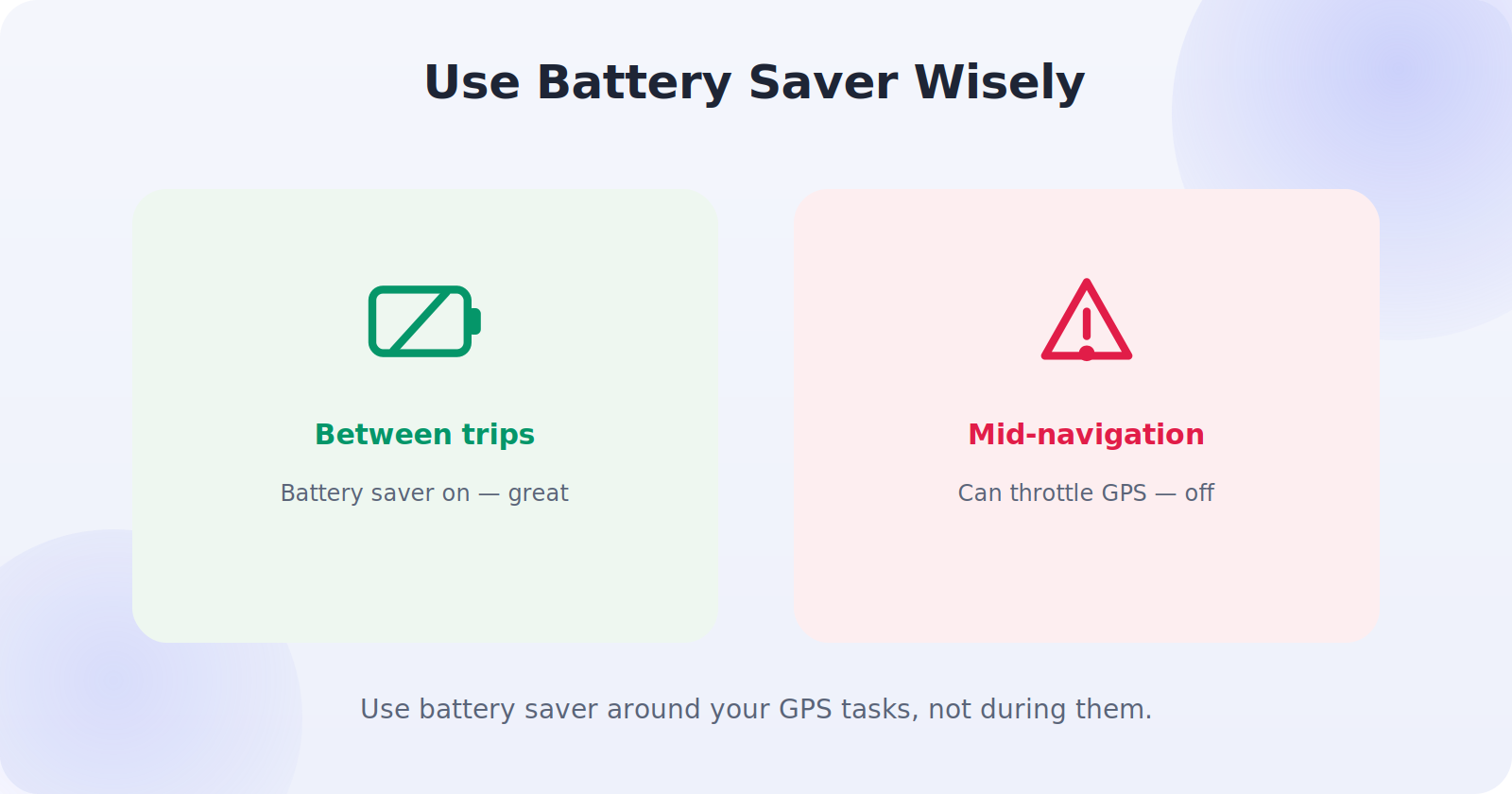
Your phone’s battery-saver mode can extend life significantly, but be aware of the trade-off: it often restricts background location and can interfere with navigation and tracking. The smart approach is to use battery saver when you’re not actively navigating, and turn it off (or whitelist your navigation app) when you need reliable, continuous GPS. That way you get the endurance without sabotaging the location features you actually need in the moment.
Step 6: Close Unused Location Apps
Several apps quietly tracking your location at once multiplies the drain. Make a habit of closing fitness trackers, navigation apps, and location-based games when you’re finished with them, rather than leaving them running in the background. On both platforms you can see which apps have recently used your location — a purple or green indicator and a list in Location Services — which helps you spot the ones quietly draining power.
Step 7: Keep the Phone Cool and Updated
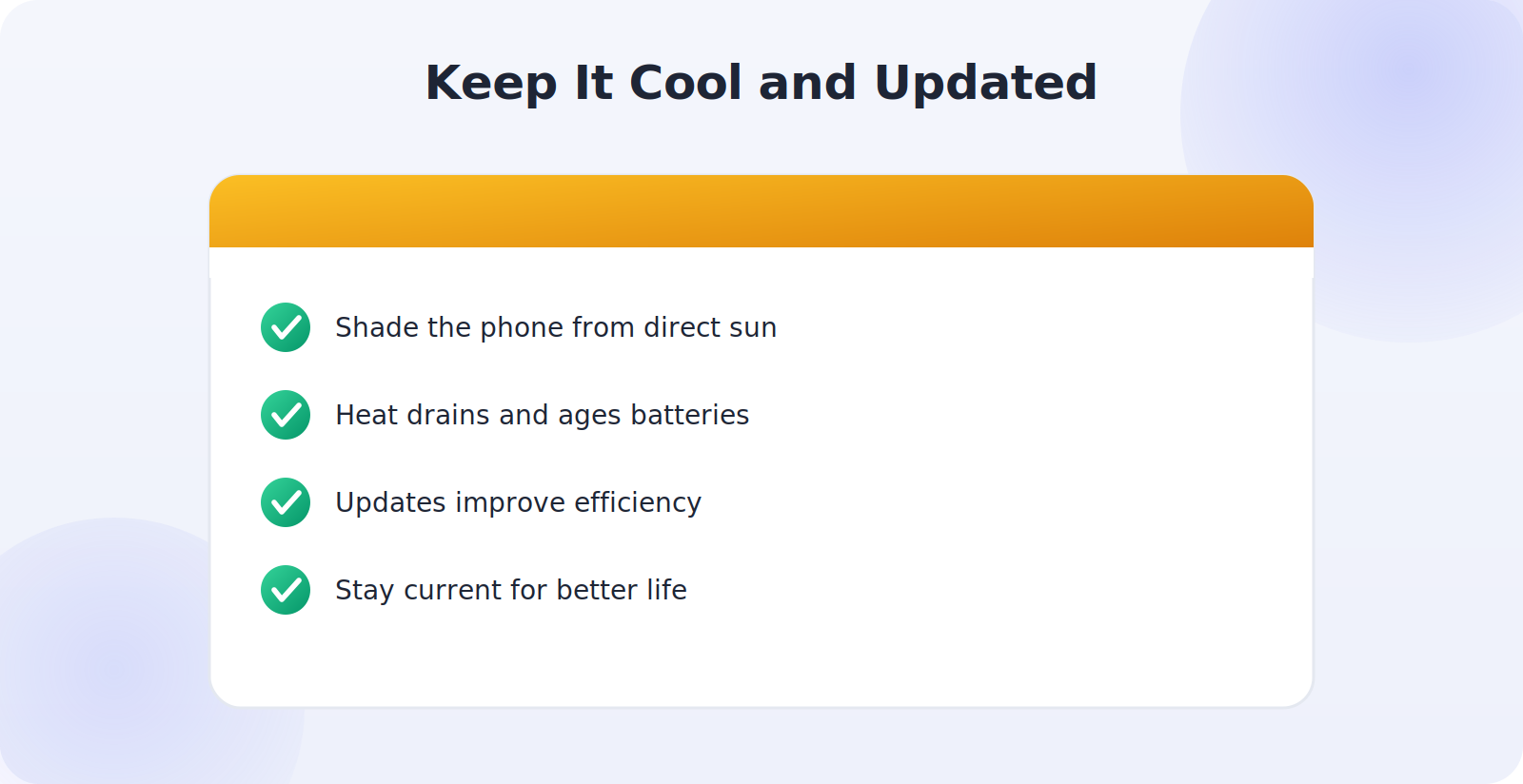
Two background factors affect GPS battery life. Heat is hard on batteries, and a phone working hard on navigation in direct sun — on a car dashboard, say — both drains faster and ages the battery, so keep it shaded and ventilated. And software updates often improve power efficiency, including how the system handles location, so staying current quietly helps your battery last longer during GPS-heavy use.
A Realistic Plan for a Long Trip
Putting it together, here’s how to survive a full day of navigation. Before you set off, download offline maps and tighten your background location permissions. In the car, mount the phone on a charger, dim the screen, and rely on voice guidance. On a hike where charging isn’t possible, lower the brightness, close every other location app, use airplane mode with GPS still active if your tracker supports it, and carry a power bank as backup. With this approach, even a GPS-intensive day need not leave you stranded on a dead battery.
How Much Battery Does GPS Actually Use?
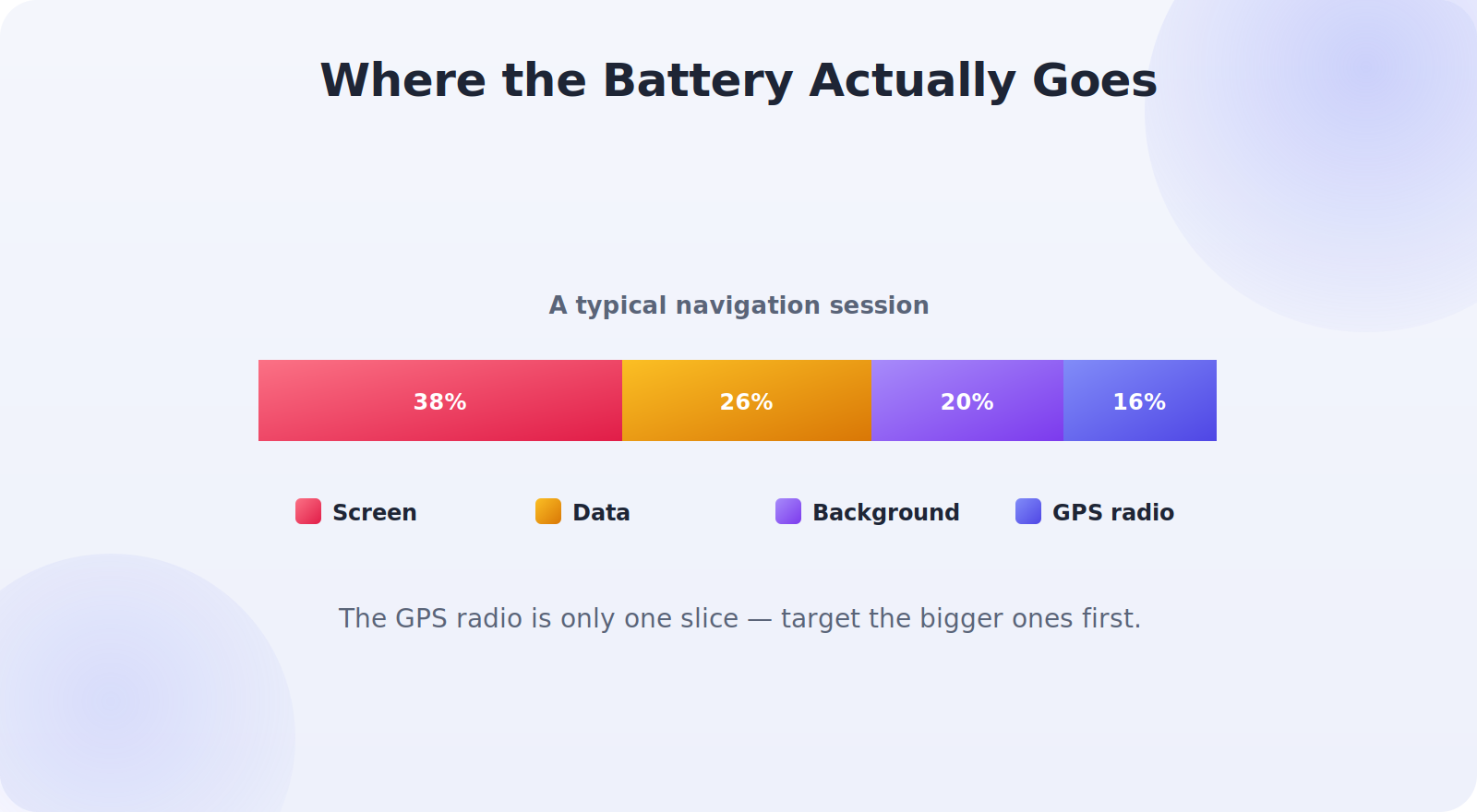
It helps to be realistic about where your battery actually goes, because the GPS radio itself is often not the main villain. On a typical navigation session, the bright, always-on screen usually consumes more power than the location hardware. Mobile data, constantly streaming map tiles and traffic updates, adds another big slice. And background apps quietly checking your location throughout the day can, in aggregate, rival an active navigation session. The GPS radio is a real cost, but it’s one of several — which is good news, because it means there are several levers to pull.
This reframing changes how you save power. Rather than reluctantly turning GPS off, you get far more benefit from dimming the screen, downloading offline maps to cut data streaming, and reining in background location. Target the biggest drains first and you keep full GPS functionality while still transforming your battery life. The goal isn’t less location — it’s smarter location.
Platform-Specific Battery Tools
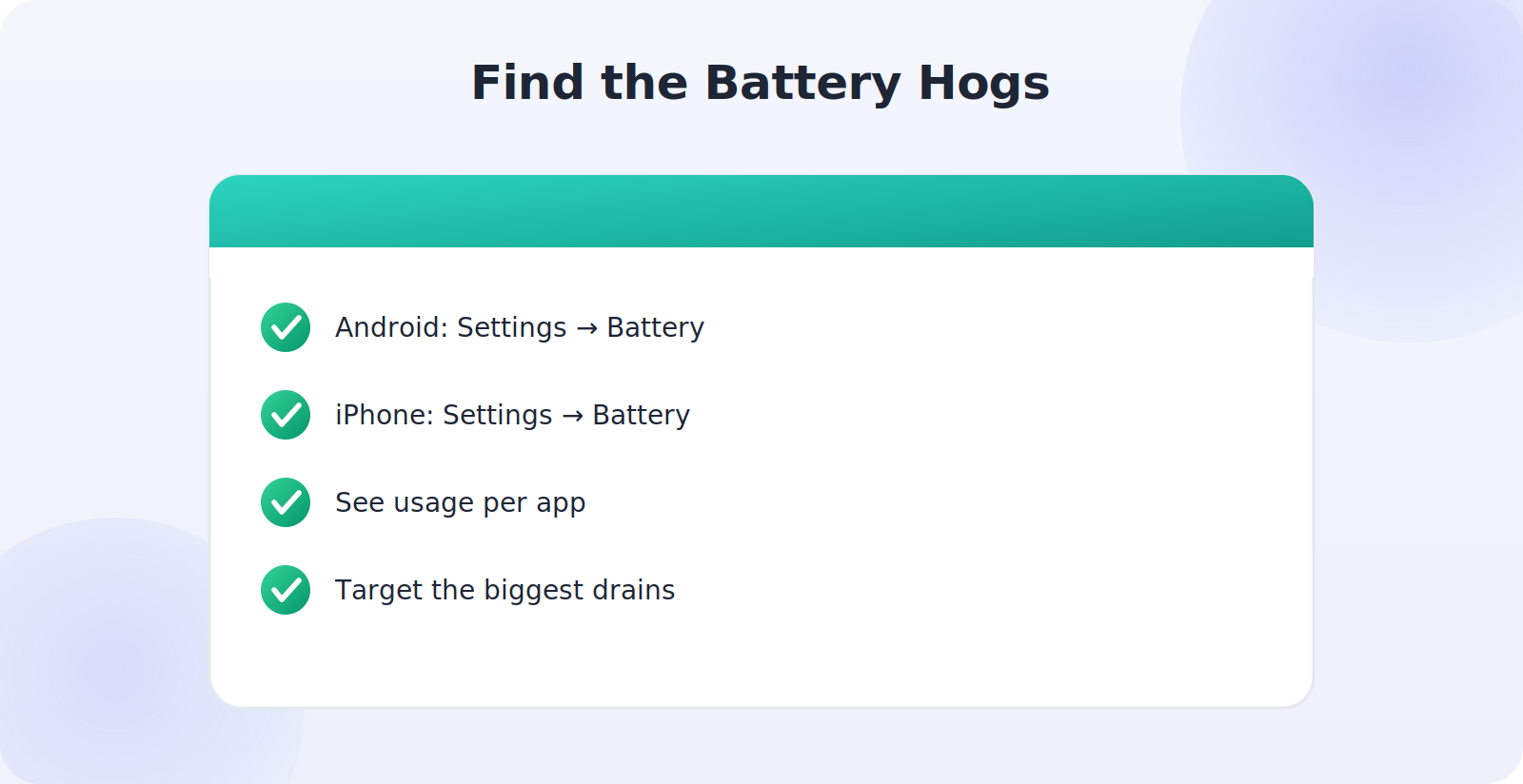
Both Android and iPhone give you tools to see exactly what’s draining your battery, and they’re worth using before you start changing settings blindly. On Android, Settings → Battery shows usage by app, revealing which location-hungry apps are the real culprits. On iPhone, Settings → Battery does the same, with a breakdown of each app’s consumption and how much was screen-on versus background. Both platforms also flag apps using significant background location.
Armed with that information, you can make targeted changes rather than guessing. If one fitness app is responsible for a third of your drain because it’s tracking constantly, you know exactly where to act — tighten its permission or close it when you’re done. A minute spent reading the battery screen often saves more power than a dozen random tweaks.
Smart Charging Habits for GPS-Heavy Days
Sometimes the best battery strategy isn’t saving power but topping it up intelligently. For regular car navigation, a vehicle charger or wireless car mount turns the entire question moot — the phone charges as fast as it drains, so navigate freely with the screen bright and every feature on. A small, well-placed habit like always mounting on the charger when you drive removes battery anxiety from the most common GPS scenario entirely.
For days away from power — hiking, festivals, long days out — a compact power bank is the single best insurance. Combined with the software habits above, a modest power bank can keep location running all day and then some. Think of your battery strategy as two halves: reduce the drain with settings, and top up the supply with smart charging. Together they make even the most GPS-intensive day comfortable.
Matching Your Strategy to the Situation
The smartest approach to GPS battery life is to match your tactics to what you’re actually doing. For everyday around-town use, the set-and-forget wins are tightening background location permissions and using approximate location for apps that don’t need precision — do those once and forget about them. For regular driving, lean entirely on charging: mount the phone on a car charger and stop worrying about drain altogether. For occasional big days outdoors, layer the software savings — offline maps, dimmed screen, closed apps — on top of a power bank for insurance. There’s no single setting that’s right for every scenario; the trick is knowing which lever matters most for the day ahead. Think briefly about your situation before a GPS-heavy outing, pull the one or two relevant levers, and you’ll sail through with charge to spare.
Common Mistakes to Avoid
- Leaving apps on “always” location when “while using” would do.
- Running navigation at full brightness instead of dimming and using voice.
- Skipping offline maps and forcing the phone to stream tiles constantly.
- Leaving battery saver on mid-navigation, which can throttle GPS.
- Letting the phone overheat in direct sun while navigating.
Frequently Asked Questions
Is it better to turn GPS off between uses?
You usually don’t need to. Setting apps to “while using” location means GPS only activates when you’re actually in an app that needs it, which saves power without the hassle of toggling it off and on.
Does dark mode really save battery during navigation?
On phones with OLED screens, yes — dark pixels use less power, so a dark map theme noticeably helps on long drives. On older LCD screens the effect is minimal.
Does GPS use battery when I’m not navigating?
It can, if apps have background location access. The biggest savings come from setting apps to “while using” so they only use location when you’re actively in them.
Do offline maps really save battery?
Yes. With map data stored on the phone, it doesn’t constantly fetch tiles over the network, which cuts both data and battery use — especially in areas with weak signal.
Should I turn GPS off to save battery?
You don’t need to. Tightening background permissions, dimming the screen, and using offline maps let you keep GPS available while slashing its battery cost.
Quick Takeaways
- Set apps to “while using” location, not “always.”
- Use approximate location for tasks that don’t need pinpoint GPS.
- Dim the screen, use voice guidance, and a dark map theme.
- Download offline maps to cut streaming and drain.
- Use battery saver between trips; charge or carry a power bank for long ones.
The Bottom Line
You can absolutely enjoy GPS without watching your battery evaporate. The biggest win is tightening which apps use location in the background; after that, dim the screen during navigation, lean on voice guidance and offline maps, and use battery saver around — not during — your GPS-heavy tasks. Keep the phone cool and updated, close apps you’re done with, and carry a power bank for the big days. With these habits, your phone’s location features stay ready whenever you need them, without leaving you scrambling for a charger.