There’s a special kind of frustration in knowing your phone is somewhere in the house but having it on silent so calling it does nothing. The fix is one of the most satisfying features your phone offers: you can force it to ring at full volume from anywhere, even if it’s set to silent or vibrate. This guide shows you exactly how, on both Android and iPhone, plus a few tricks for when the phone is truly buried.
The beauty of this feature is its simplicity. There’s no app to learn, no settings to wrestle with in the moment — just a single button that turns your missing phone into a beacon you can follow with your ears. It’s one of those small pieces of technology that feels almost magical the first time it rescues you from a frantic search, and once you’ve used it you’ll wonder how you ever managed without it.
Why Calling It Sometimes Isn’t Enough
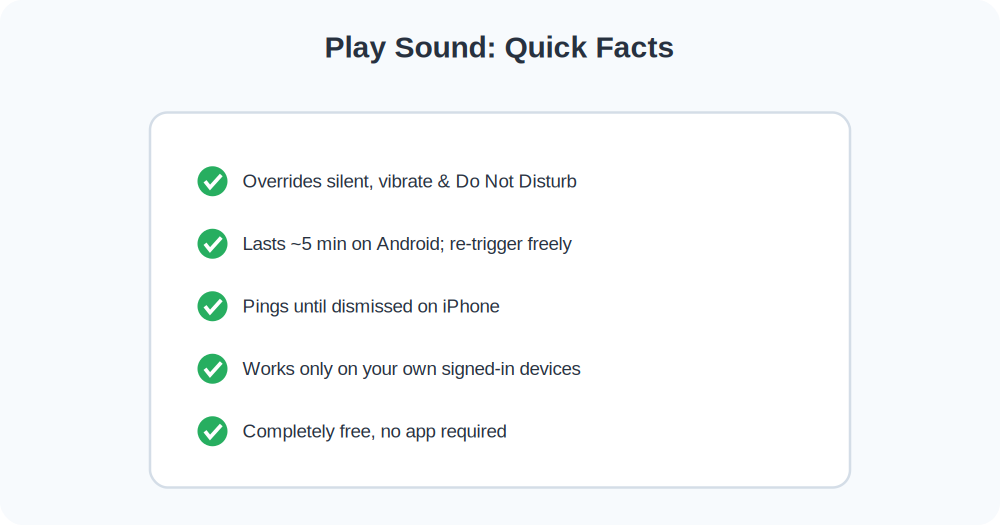
When you call your own missing phone, you’re at the mercy of its current settings. If it’s on silent, Do Not Disturb, or vibrate-only, your call lands quietly with no sound to follow. The “Play Sound” feature in the official finder tools is different: it deliberately overrides those settings and plays a loud, distinctive alert for several minutes — designed precisely for this situation.
On Android: Play Sound
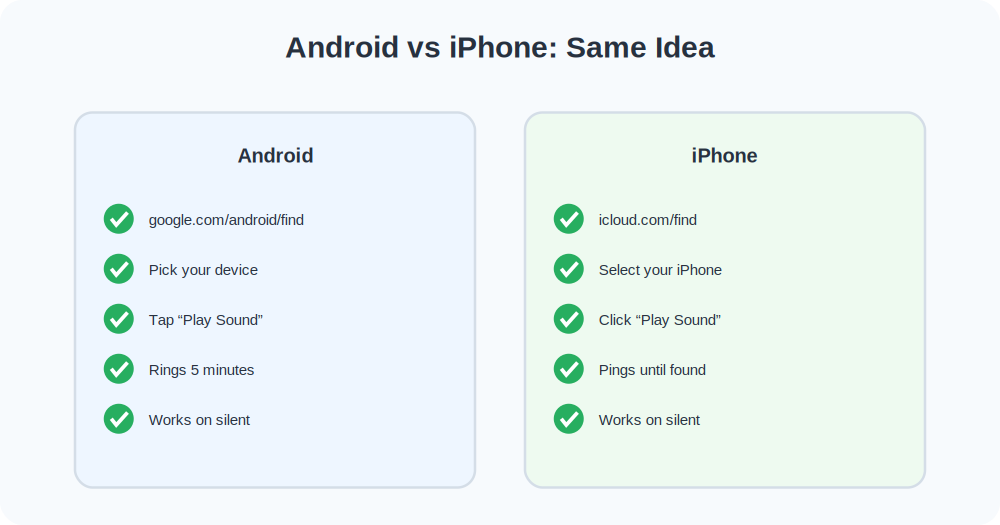
- From any browser or another phone, go to google.com/android/find.
- Sign in with the Google account on your missing phone.
- Select the device from the list at the top.
- Tap Play Sound. Your phone rings at full volume for about five minutes, even on silent.
- When you find it, press the power or volume button to stop the sound.
If you have the Find My Device app on a second Android phone, you can do the same from there — handy if you don’t have a computer nearby.
On iPhone: Play Sound
- Go to icloud.com/find in a browser, or open the Find My app on another Apple device.
- Sign in with your Apple ID and select your iPhone.
- Click or tap Play Sound. The iPhone chimes with a rising tone until you find it and dismiss it.
On Apple Watch and AirPods you can do similar things — the Find My app treats all your Apple devices the same way, so you can ping a lost Watch or a single AirPod too.
Smart Ways to Use the Sound
Work room by room
Trigger the sound, then move slowly and quietly through each room. The alert tone is designed to carry, but soft furnishings muffle it. Pause in doorways and listen before moving on.
Check the muffling suspects
Phones love to hide in places that absorb sound: between sofa cushions, inside a coat pocket on a hook, under a pile of laundry, in a bag, or slipped down the side of a car seat. Trigger the sound and head straight for the soft, enclosed spots first.
Re-trigger as you search
The sound only lasts a few minutes on Android. If you haven’t found it, just tap Play Sound again. There’s no limit to how many times you can do it.
When Play Sound Doesn’t Work
If nothing happens, the phone probably isn’t online. Play Sound needs the phone to have power and a connection so it can receive the command. Check the finder map: if it says the device is offline, the sound is queued and will play the moment the phone reconnects.
- Phone is off or dead: No sound until it powers back on. Use the last known location instead.
- No signal: The command can’t reach the phone. It’ll ring once it finds a network.
- Wrong account: Make sure you signed in to the exact account on that phone.
A Note on Other People’s Phones
These tools only work for devices signed in to your own account, by design. You can’t make a stranger’s phone ring, and you shouldn’t try to. For family devices, set them up through Family Sharing or a shared account so everyone has consented to being locatable.
Frequently Asked Questions
Will Play Sound work if my phone is on Do Not Disturb?
Yes. Play Sound is designed to override silent, vibrate, and Do Not Disturb modes so you can always hear it.
How long does the sound last?
On Android, about five minutes per trigger; on iPhone, it pings until you find it and dismiss it. You can re-trigger as often as you like.
Does it cost anything?
No. It’s part of the free finder tools built into every Android phone and iPhone.
A Real-World Walkthrough: The Couch-Cushion Classic
It’s a familiar scene. You’re heading out the door, you can’t find your phone, and you’re already running late. You’ve called it twice from a smart speaker but it’s on silent, so nothing. Here’s the fast fix:
- Grab any nearby device — a tablet, a laptop, a partner’s phone.
- Open the finder and hit Play Sound.
- Stand still and listen. Follow the tone toward the living room.
- Lift the cushions — there it is, wedged in the back of the sofa.
Total time: under a minute. The trick is simply knowing the feature exists and having it switched on before you need it.
Why the Phone Has to Be Online
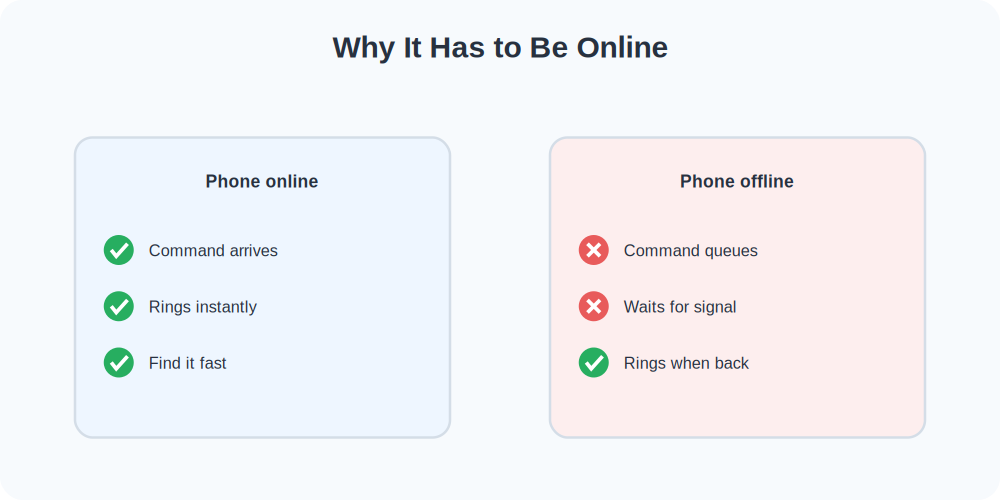
Understanding one simple fact saves a lot of confusion: Play Sound is a command that has to reach the phone. The finder sends the instruction over the internet, and the phone has to be powered on with a network connection to receive it and ring. If the phone is off, dead, or in a dead zone, the command waits in a queue and fires the moment the phone reconnects. That’s actually useful — if you trigger the sound on an offline phone and someone later powers it on or it finds signal, it’ll suddenly ring, sometimes revealing where it ended up.
This is also why the feature is so reliable for phones lost at home. Around the house your phone almost always has Wi-Fi, so the command reaches it instantly and it rings on demand. The harder cases — a phone lost outdoors with a dying battery — are exactly the ones where you fall back on the last known location instead.
What If You Don’t Have Another Device Handy?
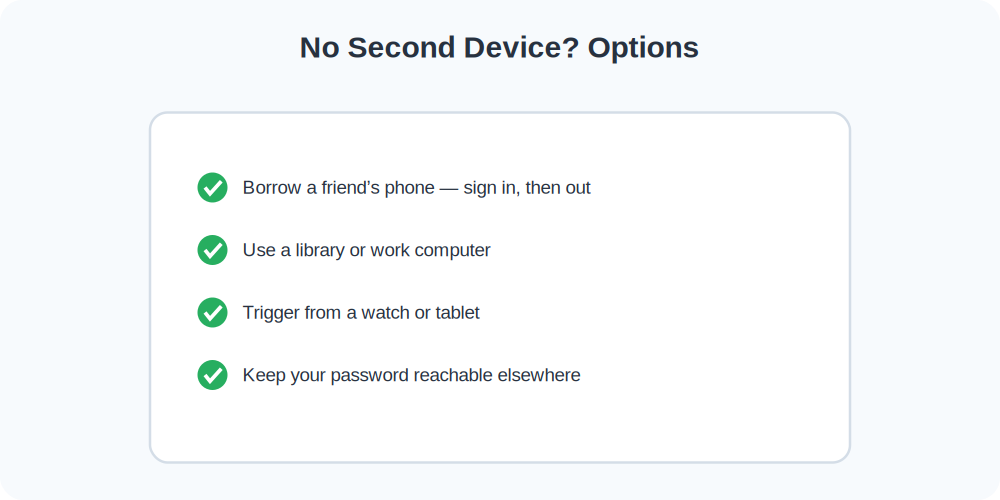
Play Sound assumes you can get to a browser or a second device, but what if you’re out and about with nothing but the missing phone’s absence? You have a few options. Ask a companion to lend their phone — the finder works in any browser, so you just sign in to your account on their device, ring your phone, and sign out again. Public libraries and many workplaces have computers you can use the same way. And if you have a smartwatch or tablet on your account, those can often trigger the sound directly.
This is also a good argument for a low-tech backup: keep your account email and password somewhere you can reach without your phone, such as a password manager you can log into from any browser. The feature is only as useful as your ability to sign in when you need it, and being locked out of your own account is the one obstacle that turns a quick ring into a long ordeal.
Make the Search Systematic
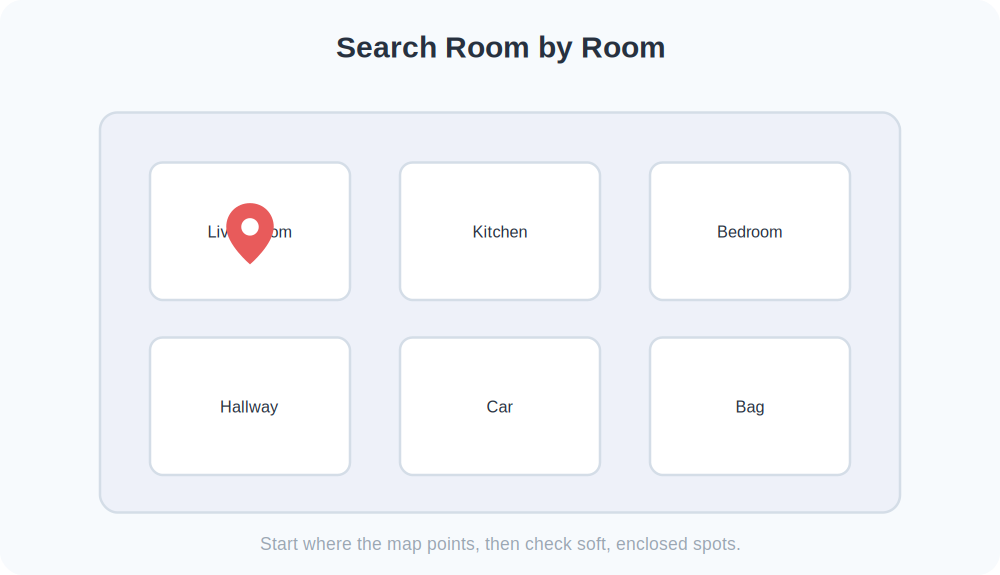
When the tone is playing but you still can’t pin it down, a little method beats wandering. Treat your home or office as a grid. Start at the room the map suggests, stand in the center, and turn slowly while the sound plays so your ears can triangulate the direction. Move toward the loudest point, then check the soft, enclosed spots there first — those are where phones hide and where the tone is most muffled.
If the sound seems to come from “everywhere” because of echo, try the opposite trick: leave the room entirely, then step back in and notice which direction the tone grows. Hard floors and bare walls bounce sound around; doorways and hallways tend to channel it. A few seconds of patient listening usually beats minutes of frantic lifting and shifting.
When the Phone Is Truly Lost, Not Just Hiding
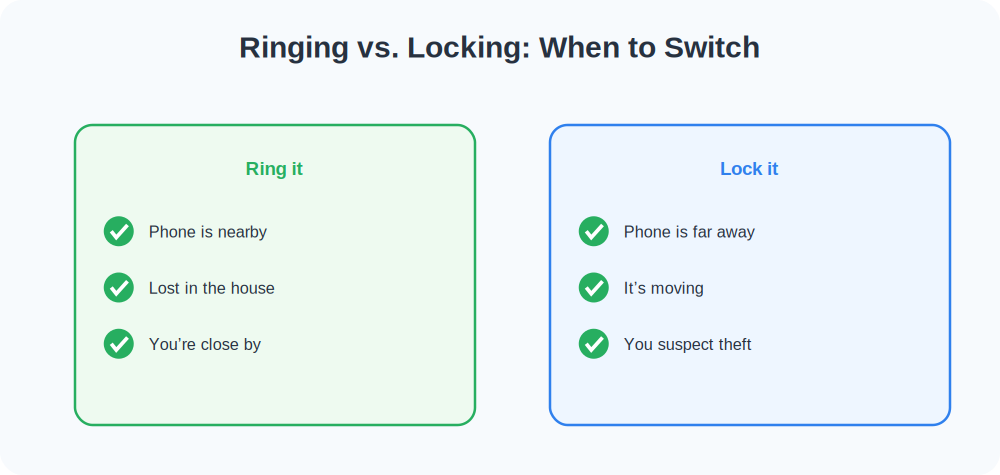
Play Sound is perfect for a phone that’s nearby. When the map shows your phone somewhere you aren’t — a different building, across town, or moving — ringing it isn’t the right tool. At that point you switch strategies: lock the phone to protect your data, watch the map for where it settles, and, if it’s somewhere public, call that place rather than going in person. If the location is an unfamiliar home and you suspect theft, that’s a police matter, not a doorstep visit. Knowing when to stop ringing and start protecting is part of using these tools wisely.
Ring Other Devices Too
The same finder ecosystem can ping more than just your phone, which is handy because small accessories are even easier to lose.
- Apple Watch and AirPods: The Find My app lists them alongside your iPhone. You can play a sound on a lost Watch or even a single misplaced AirPod.
- Bluetooth trackers: Tags attached to keys, wallets, or bags can be made to chime from the same kind of app, extending the “make it ring” trick to non-phone items.
- Other Android devices: Tablets signed in to your Google account show up in Find My Device and can be rung the same way.
If You Share Your Home With Family
Misplaced phones are a daily event in a busy household. Setting up Family Sharing (on iPhone) or a shared family group means you can help each other find devices. A parent can ring a teenager’s phone that’s buried in a backpack, or a partner can locate yours when you’re already late for work. As always, this works best when everyone has opted in and knows the arrangement exists.
Accessibility and Volume Notes
The alert tone is intentionally loud and high-pitched so it carries across a room. If someone in your home is hard of hearing, pair the audible ping with the on-screen map: even when you can’t hear the tone, the finder shows you which room the phone is in, and the screen lights up while the sound plays. On iPhone, the screen also flashes, which helps in a noisy environment.
Common Mistakes to Avoid
- Expecting it to work when the phone is off. Play Sound needs the phone online. If it’s dead, charge a theory from the last known location instead.
- Searching while the sound has already stopped. On Android the tone lasts about five minutes — re-trigger it if your search runs long.
- Giving up after one room. Soft furnishings muffle the tone. Move slowly and pause to listen in each space.
- Not having it set up at all. None of this works unless Find My Device or Find My was switched on beforehand.
Quick Takeaways
- Play Sound overrides silent, vibrate, and Do Not Disturb.
- It works from any browser via the finder, on Android and iPhone.
- The phone must be online to ring; offline, the command queues.
- Re-trigger as needed and search soft, enclosed spots first.
- When the phone is far away, lock it instead of ringing it.
The Bottom Line
If your phone is lost nearby but silent, you don’t need to call it and hope. Open the finder, hit Play Sound, and follow the noise — it’ll ring at full blast regardless of its sound settings. For this to work in a pinch, just make sure Find My Device or Find My is switched on now, while the phone is still in your hand, and you’ll never lose a couch-cushion battle again.