When your phone goes missing and you’re not sure whether it’s lost or stolen, the smartest first move is almost always to lock it remotely. Locking protects your photos, messages, banking apps, and saved passwords behind a passcode, displays a message for an honest finder, and — crucially — keeps the phone trackable so you can still try to recover it. This guide shows you how to lock a phone remotely on both platforms and how to decide between locking and the more drastic step of erasing.
Your phone is a key to your entire digital life — email, banking, photos, messages, social accounts, the lot. That’s exactly why a missing phone feels so exposing, and exactly why remote locking is such a relief. In a few clicks you can seal all of that away behind a passcode while keeping the door open to getting the phone back. This guide shows you how to do it calmly and in the right order.
Why Lock Before Anything Else
In the panic of losing a phone, people sometimes jump straight to erasing it. That’s usually a mistake. Erasing is permanent and typically cuts off your ability to track the device, so if the phone was simply left at a friend’s house, you’ve wiped it for nothing. Locking does almost everything erasing does for your security — it blocks access to your data — while keeping your options open.
Lock to protect, erase to surrender. Lock first, and only erase when you’ve truly given up on getting it back.
How to Lock a Lost Android Phone
- Go to google.com/android/find and sign in with the phone’s Google account.
- Select the device, then choose Secure Device.
- Enter a message to show on the lock screen — for example, a callback number.
- Optionally add a phone number that a finder can call directly from the lock screen.
- Confirm. The phone locks immediately if it’s online, or as soon as it reconnects.
Securing the device also signs out of your Google account on the phone, adding another layer of protection. Tracking continues, so you can keep an eye on the map while you decide your next move.
How to Lock a Lost iPhone (Lost Mode)
- Open icloud.com/find or the Find My app on another Apple device.
- Select your iPhone and choose Mark As Lost.
- Follow the prompts to lock it with your passcode.
- Enter a phone number and a short message to display on the lock screen.
- Confirm. Lost Mode locks the phone and suspends Apple Pay.
Lost Mode is elegant because it keeps Find My fully active. You can watch the phone’s location, and the moment it moves or comes online, you’ll know.
Lock vs Erase: The Honest Comparison
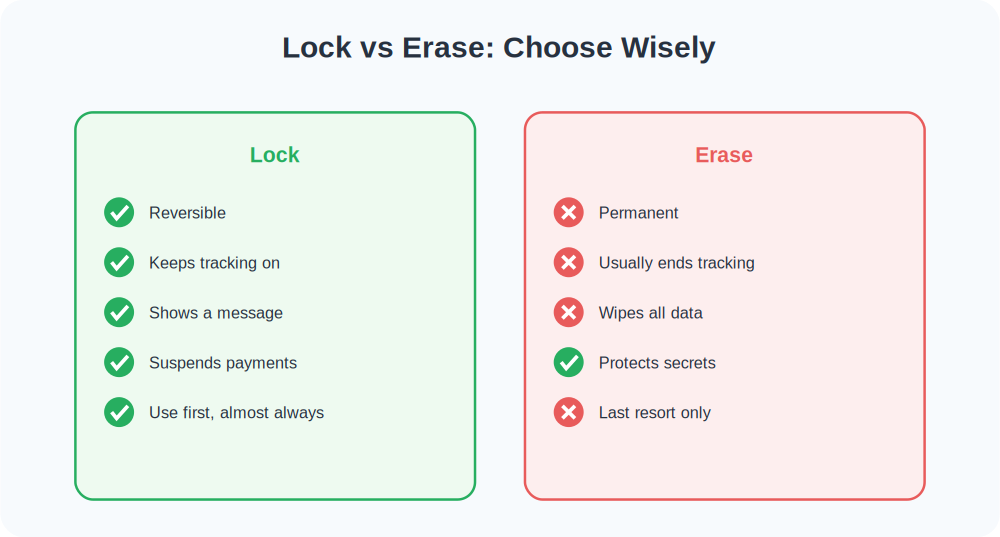
Here’s the decision in plain terms. Lock when there’s any chance of recovery, which is most of the time. It protects your data, shows a message, and keeps tracking alive. Erase only when the phone holds information so sensitive you can’t risk it falling into the wrong hands, or when you’ve accepted the phone is gone for good. Remember that on iPhone, even after erasing, Activation Lock keeps the device tied to your Apple ID.
What a Thief Sees After You Lock
Once locked, the phone is far less useful to anyone who has it. They can’t open your apps, can’t access your accounts, and on iPhone can’t reactivate the device without your Apple ID password. The lock screen shows only your chosen message and callback number. For an honest finder, that message is a lifeline; for a thief, the phone is largely worthless.
After You’ve Locked It
Locking is a holding action, not the end of the story. Once your data is safe behind the lock:
- Keep watching the map for movement or a fresh online status.
- If it surfaces somewhere public, call the venue rather than going in person.
- If you suspect theft, report it to your carrier and the police with the IMEI and last known location.
- Change passwords for any accounts you’re worried about, just to be safe.
Frequently Asked Questions
Can I unlock the phone remotely once I find it?
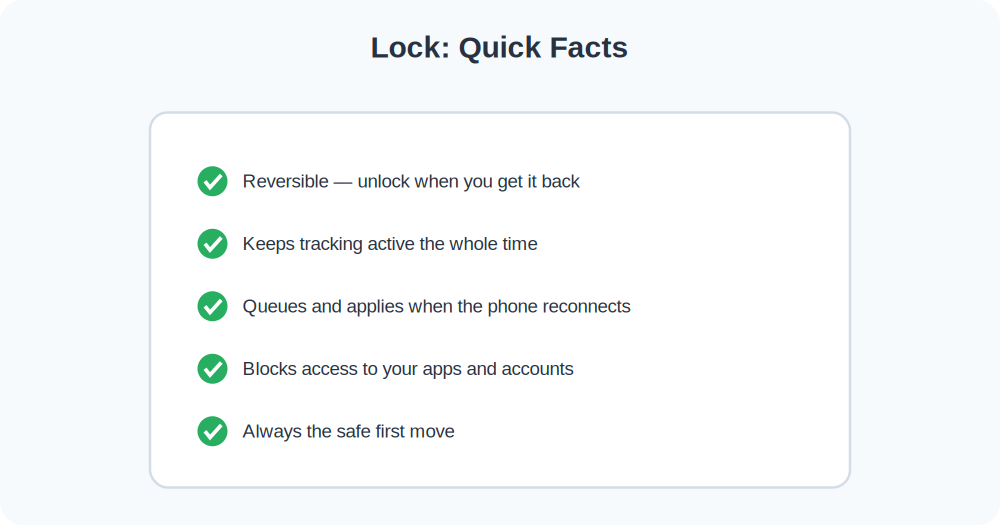
Yes. Locking is reversible. On iPhone, you turn off Lost Mode from Find My; on Android, you simply unlock the phone with your passcode when you get it back.
Does locking stop me from tracking it?
No — that’s the whole point. Locking keeps tracking active. Only erasing typically ends your ability to locate the phone.
What if the phone is offline when I lock it?
The lock command is queued and applies the instant the phone reconnects to any network.
What Locking Actually Does Under the Hood
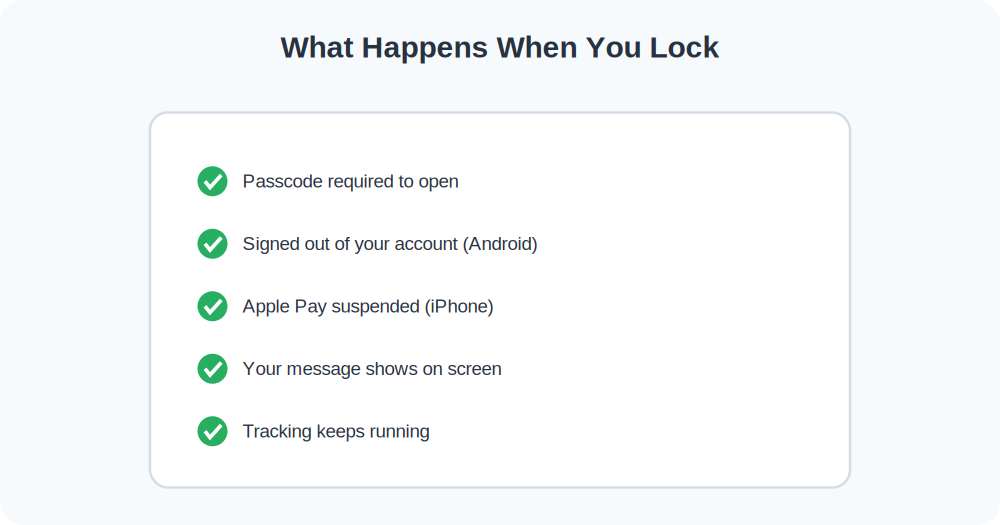
When you lock a phone remotely, a few things happen at once, and knowing them helps you trust the feature. The phone is forced to require your passcode, so a finder or thief can’t open it. On Android, Secure Device also signs you out of your Google account on the phone, cutting off access to Gmail, Drive, and anything else tied to it. On iPhone, Lost Mode suspends Apple Pay so your cards can’t be used, and the device stays bound to your Apple ID through Activation Lock. In both cases, your custom message and callback number replace the normal lock screen.
Crucially, tracking keeps running the whole time. That’s the feature’s superpower: your data is sealed off, but you can still watch where the phone goes. If it’s online, the lock applies instantly; if it’s offline, the command is queued and applies the moment it reconnects — which often coincides with someone picking it up, giving you a fresh location ping at the same time.
How Locking Fits Into the Bigger Recovery Plan
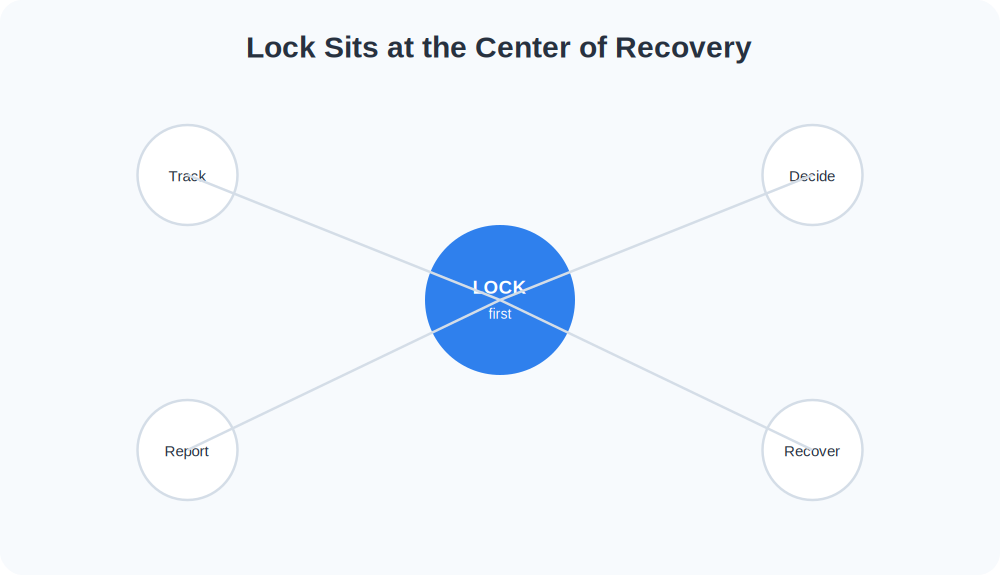
Locking isn’t a standalone action so much as the calm first move in a sequence. Think of it as buying time: the instant you lock, your data is safe, which removes the pressure and lets you think clearly about what comes next. From there, the path branches depending on what the map tells you. If the phone is somewhere familiar, you simply go get it and unlock it. If it’s somewhere public, you call ahead. If it’s clearly been taken, you shift into theft-reporting mode — carrier, police, IMEI — with your data already protected behind the lock.
This is why security professionals consistently recommend locking before doing anything drastic. It costs you nothing, it’s fully reversible, and it keeps every other option open. Erasing, by contrast, slams several doors at once. Whenever you’re unsure which situation you’re in — and in the first few minutes you usually are — locking is the move that can never be the wrong one.
Locking on Older Phones and Edge Cases
Remote lock works on essentially every modern phone, but a few situations are worth knowing about. If the phone has no passcode set, locking it remotely will prompt you to create one, which then becomes required on the device — a good reason to always have a passcode in the first place. If the phone is in airplane mode or has no signal, the lock waits in a queue and applies the instant it reconnects. And if the battery is critically low, the phone may power down before the command lands, in which case it locks when it’s next charged and online.
On shared or older devices that aren’t signed into a finder service at all, remote lock simply isn’t available — which is the whole argument for setting up Find My Device or Find My on every phone you own, today, before anything goes wrong. A phone that isn’t enrolled can’t be locked, rung, or located no matter how much you wish otherwise after the fact.
Locking vs. Your Phone’s Auto-Lock
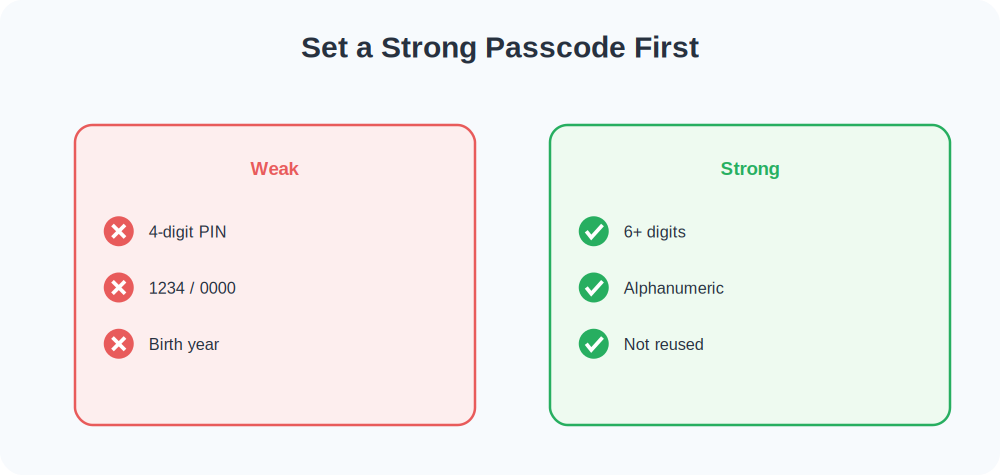
Don’t confuse remote locking with the everyday auto-lock that dims your screen after a minute. Auto-lock is a convenience that secures the phone during normal use. Remote lock is a deliberate security action you trigger from afar when the phone is out of your hands — it forces the passcode, can sign you out of accounts, suspends payments, and displays your recovery message. Both rely on you having a strong passcode, which is the foundation everything else is built on. If you take nothing else from this guide, set a six-digit or alphanumeric passcode rather than a simple four-digit PIN.
Writing a Lock-Screen Message That Works
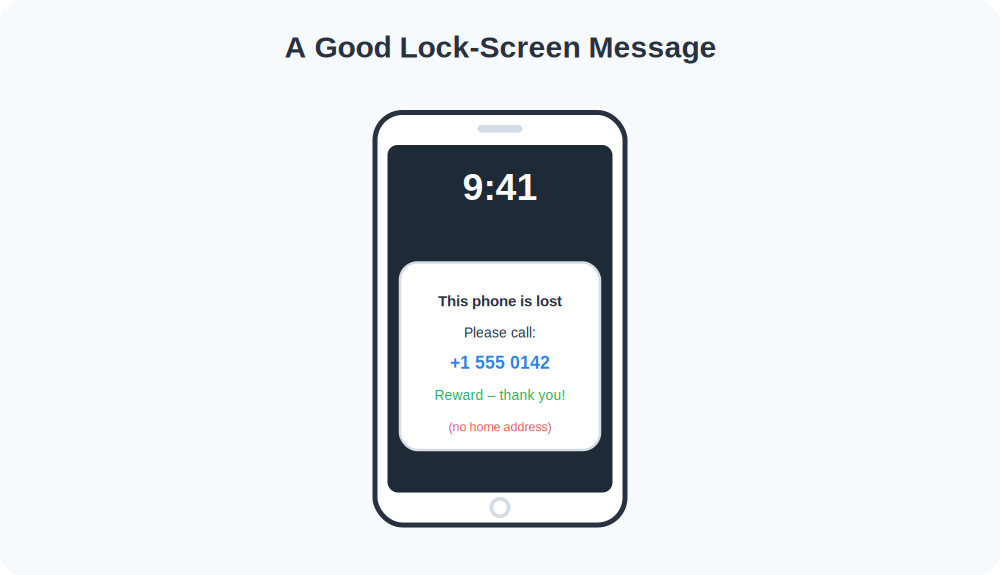
The message you display while the phone is locked does real work, so it’s worth getting right. Most lost phones are found by decent people who simply need a way to reach you. A good message is short, friendly, and gives one clear way to make contact.
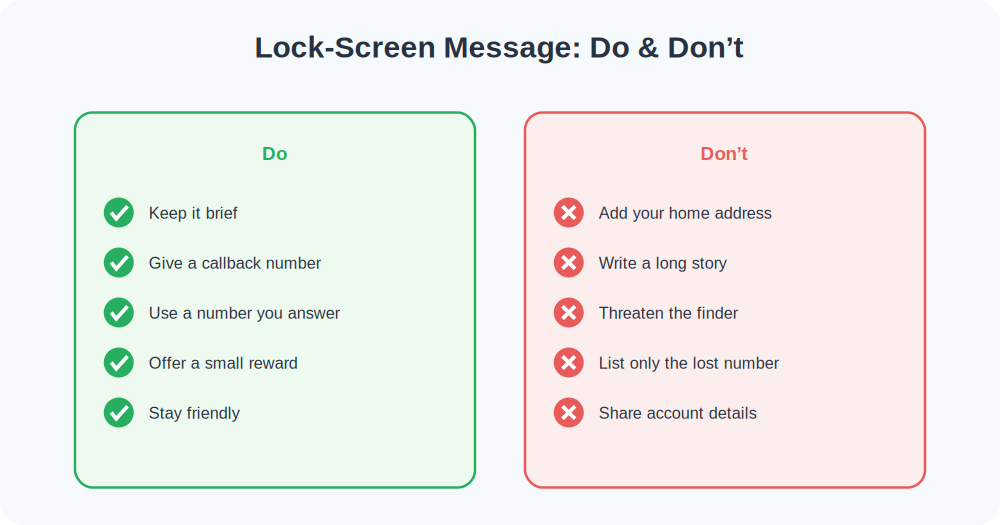
- Keep it brief: “This phone is lost. Please call +1 555 0142. Thank you!”
- Offer a reward if you like: A small, sincere reward can nudge an honest finder to act.
- Use a number you can answer: A partner’s phone or a work line beats a number only reachable on the missing device.
- Never include your home address: You want to be reachable, not locatable in person.
A Real-World Walkthrough
Say you realize at lunch that your phone isn’t in your bag. You don’t know if it slipped out at the gym this morning or was lifted on the train. Here’s the calm sequence:
- From your laptop, you open the finder and lock the phone with Secure Device or Mark As Lost.
- You add the message: “Lost phone — please call my office on +1 555 0142.”
- You watch the map. It pings at the gym — you left it there.
- You call the gym, they confirm it’s at the front desk, and you collect it after work, data safely untouched the whole time.
Because you locked rather than erased, nothing was lost and the phone stayed trackable throughout. That’s the advantage of leading with a lock.
Common Mistakes to Avoid
- Erasing too early. The biggest mistake. If the phone was just misplaced, you’ve wiped it for nothing and lost tracking.
- Putting your home address on the lock screen. A callback number is enough and far safer.
- Going to retrieve it from a stranger’s home. If the location is an unfamiliar residence and theft is likely, that’s a job for the police, not a solo visit.
- Forgetting to keep watching the map. Locking buys time — use it to monitor for movement and act on fresh information.
Locking a Phone You Share or Manage
If you manage a phone for a child, an elderly parent, or as a company device, the same lock features apply — just make sure the arrangement is known and consented to. For company phones, this is usually handled through a mobile device management system your employer controls. For family devices, a shared account or Family Sharing keeps everything transparent. Locking should always be something the device’s user understands is possible, not a secret capability.
Quick Takeaways
- Lock first — it’s reversible and keeps tracking alive.
- Erase only when recovery is hopeless or data is highly sensitive.
- Add a short, friendly callback message — never your home address.
- A locked phone blocks access to your apps and accounts.
- Keep watching the map after locking, and report theft to police.
The Bottom Line
Remote locking is the calm, reversible first response to a missing phone. It shields your personal data, displays a helpful message for whoever finds it, and keeps the device trackable so you can still get it back. Reach for Secure Device or Mark As Lost first, write a short friendly message with a callback number, and save the irreversible erase for when you’re genuinely out of options.