When GPS stops working on an Android phone, everything that depends on it grinds to a halt — navigation spins uselessly, ride-share apps can’t find you, and location-based features simply give up. The frustrating part is that the cause is rarely obvious. It might be a setting, a permission, a stale cache, or just a glitch that a restart would clear. This guide is a complete, step-by-step troubleshooting walkthrough for Android, ordered from the quickest fixes to the more involved ones, so you can get your location working again with the least fuss.
Take heart: a completely dead GPS is rarely a broken phone. The Android location system has a lot of moving parts — settings, permissions, battery rules, caches, and the surroundings you happen to be in — and when one of them is out of place, location stops cold. Find the one that’s off, and everything springs back. This guide helps you find it quickly.
Work through the steps in order and stop when your GPS springs back to life. Most location problems are solved within the first few steps, so you probably won’t need to reach the end.
Step 1: Check Location Is Actually On
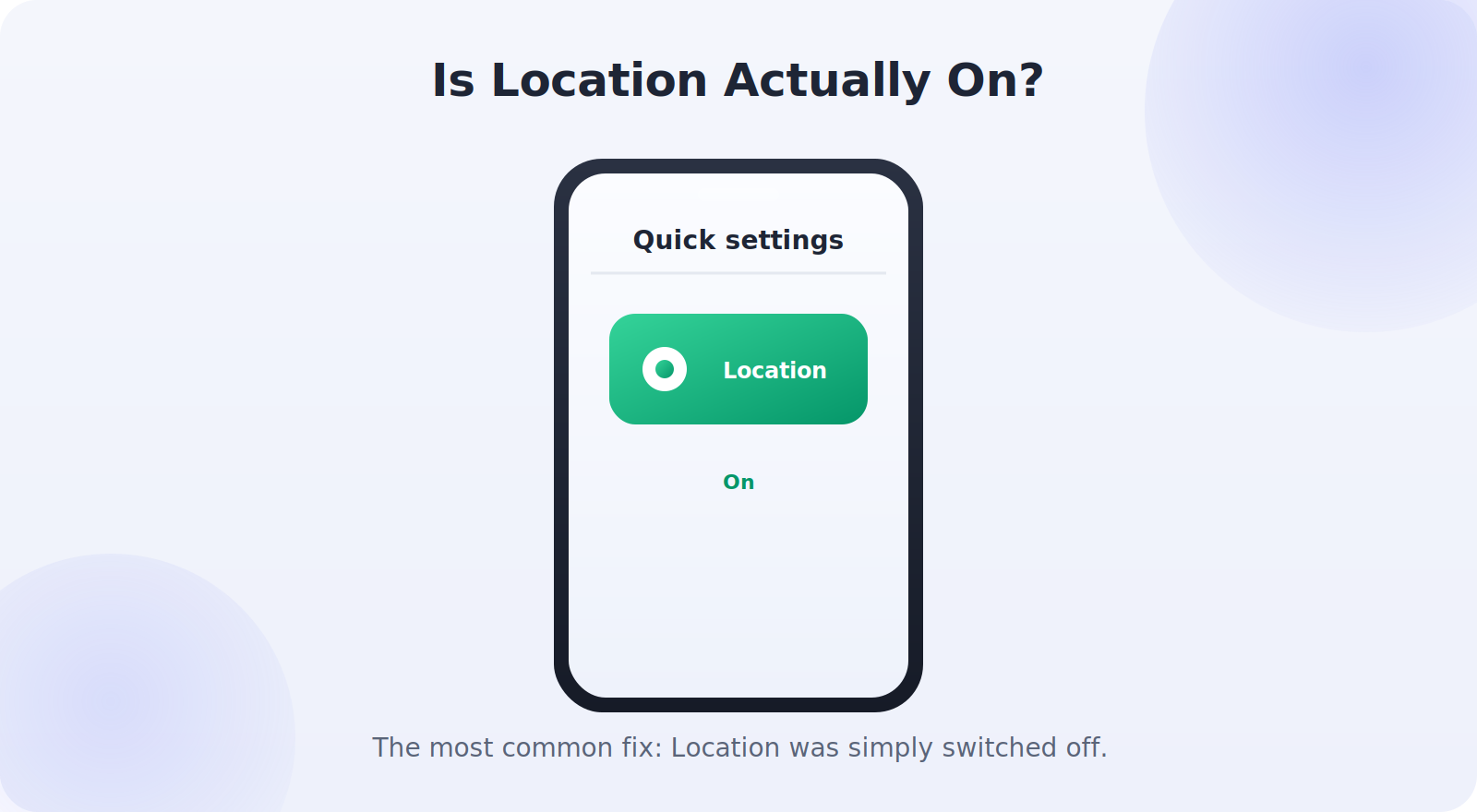
It sounds obvious, but it’s the most common culprit — location gets toggled off by accident, by a battery saver, or after an update. Swipe down the quick-settings panel and confirm the Location tile is on. Then go to Settings → Location and make sure the master switch is enabled and that Google Location Accuracy is turned on under Location services.
Step 2: Restart Your Phone
A restart is the unglamorous fix that resolves a remarkable share of GPS problems. It clears temporary software glitches and forces the phone to reacquire a fresh satellite lock. Power the phone fully off, wait a few seconds, and turn it back on. While you’re at it, toggling airplane mode on for a few seconds and back off resets all the radios, which often jolts a stuck GPS back to life.
Step 3: Check App Permissions
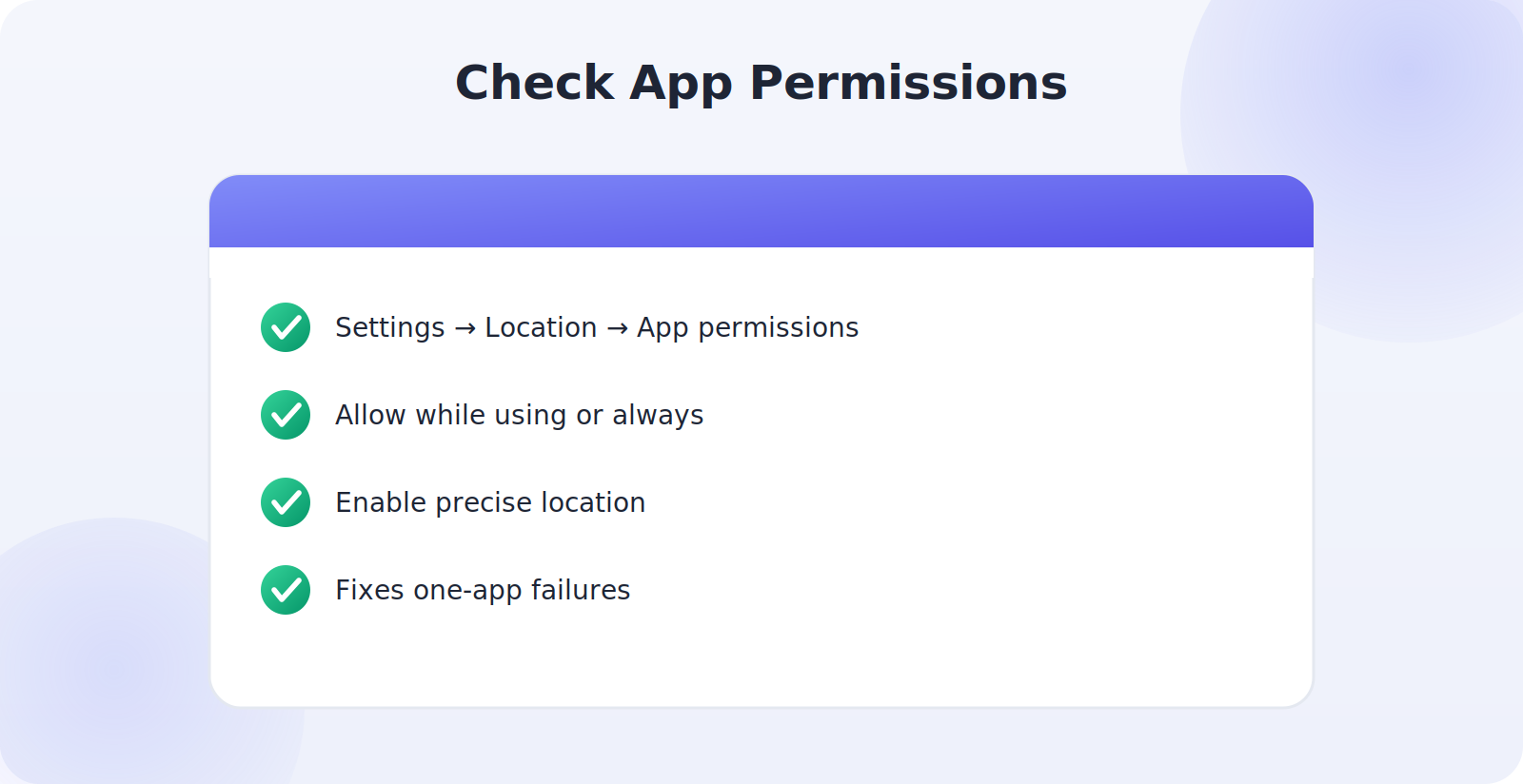
If GPS works in some apps but not others, the problem is almost certainly a permission. Android lets you grant location access per app, and per-app permissions can quietly reset after updates.
- Go to Settings → Location → App permissions (or Settings → Apps and pick the app).
- Make sure the app is set to Allow all the time or Allow only while using, as appropriate.
- Confirm Use precise location is enabled for apps that need exact positioning, like maps.
Step 4: Disable Battery Saver for Location
Battery-saving modes are a frequent, sneaky cause of GPS trouble. To conserve power, they often restrict background location or throttle the GPS radio, which breaks navigation and tracking. Check Settings → Battery and turn off aggressive battery saving while you need GPS. Also look under the specific app’s battery settings for an option like Unrestricted or Don’t optimize, which stops the system from limiting that app’s location access in the background.
Step 5: Update Maps and the System
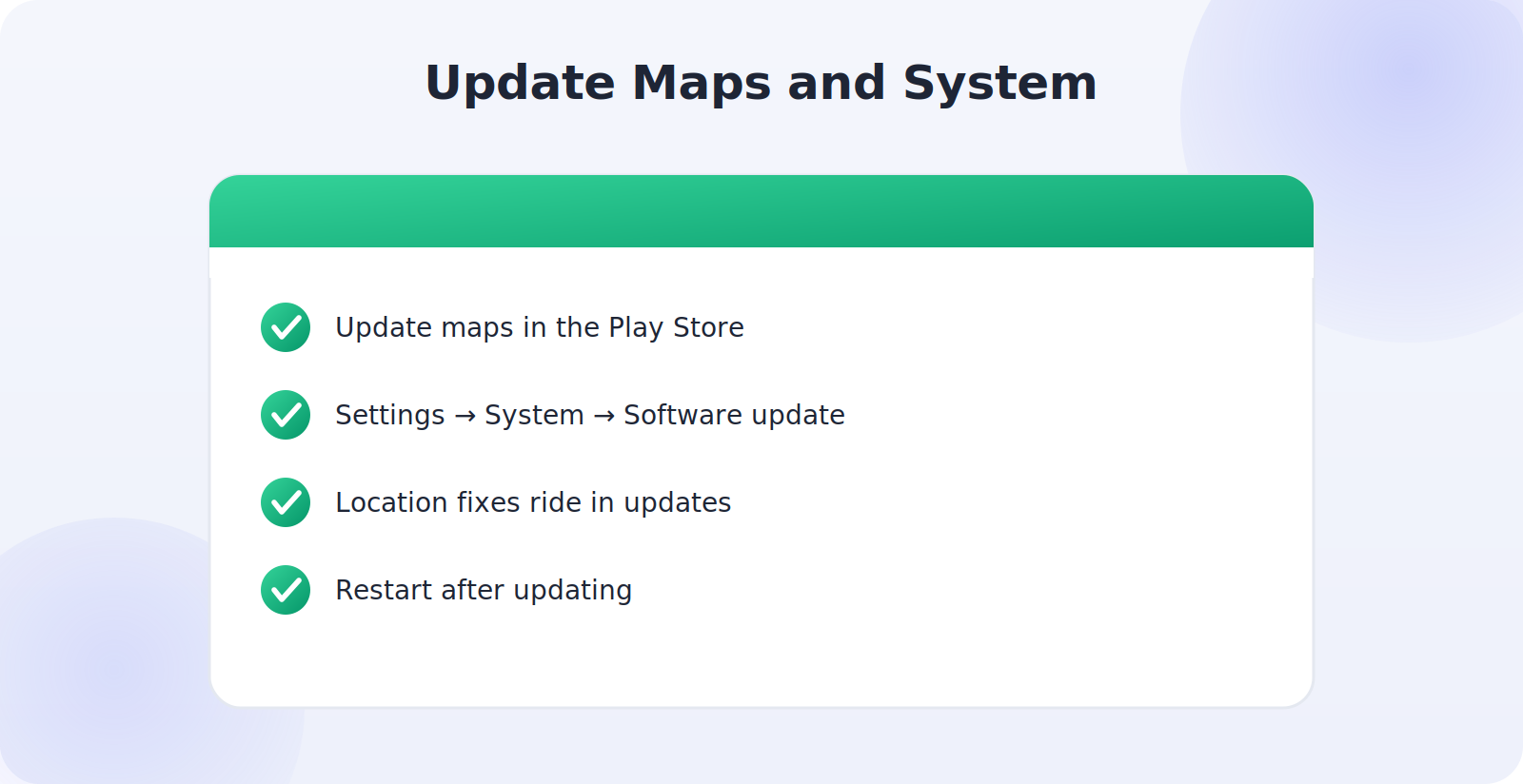
Outdated software is a common source of location bugs. Open the Play Store and update your maps apps and anything location-dependent. Then check Settings → System → Software update for any pending system update, which often includes location fixes and improved satellite data. Keeping both current resolves a surprising number of stubborn GPS issues.
Step 6: Clear the Maps App Cache
A corrupted cache can make a maps app misbehave even when GPS itself is fine. Clearing it is safe and often effective.
- Go to Settings → Apps and select your maps app.
- Tap Storage.
- Choose Clear cache (this keeps your data; avoid “Clear storage” unless you want to reset the app entirely).
- Reopen the app and test location again.
Step 7: Recalibrate and Test With a GPS App
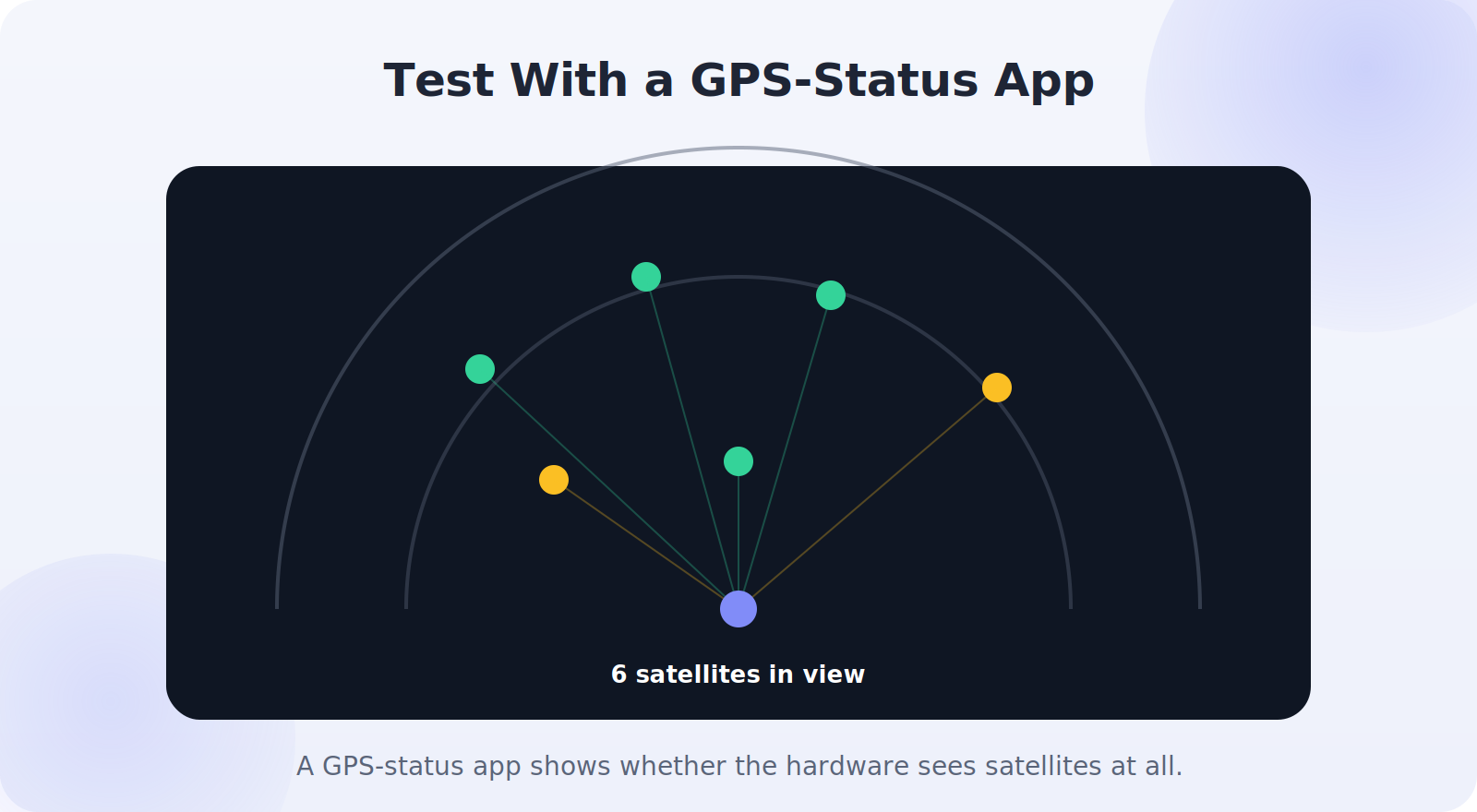
If location is working but inaccurate or slow, recalibrate the compass by moving the phone in a figure-eight motion, or follow the calibration prompt in Google Maps. To confirm the hardware itself is fine, install a simple GPS-status or satellite-test app from the Play Store. These show how many satellites your phone can see and how strong the signal is, which tells you whether the issue is hardware, software, or just your surroundings.
Step 8: Check for Interference and Hardware Issues
If nothing above works, consider physical factors. A thick or metallic case can block the GPS antenna, so try removing it. Test your location in an open outdoor area to rule out your surroundings. If a GPS-status app shows the phone can’t see any satellites even outdoors with a clear sky, you may have a hardware fault — at which point a factory reset (after backing up) is worth trying, and if that fails, a repair or service center can diagnose the antenna.
Resetting Network or App Preferences
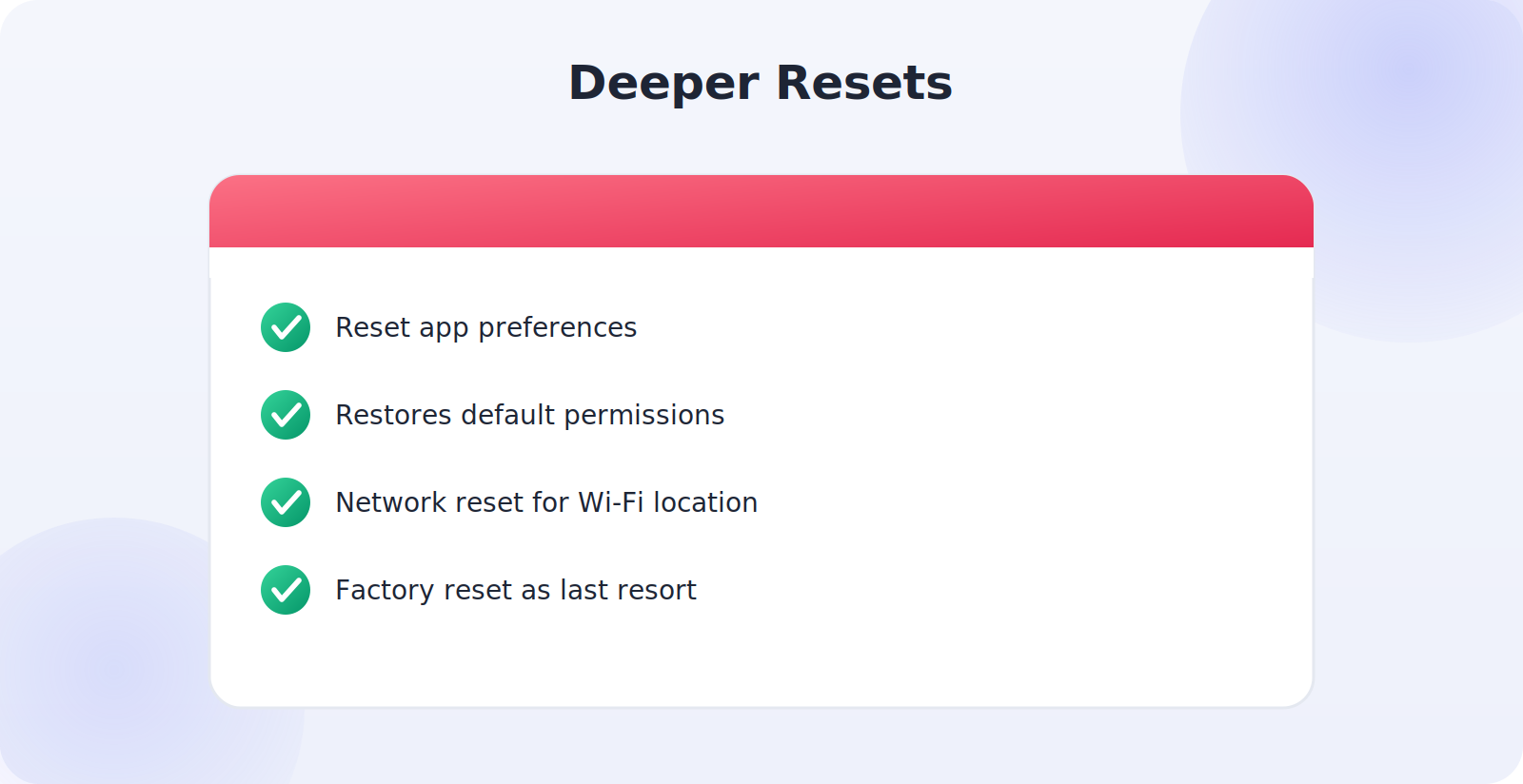
Two deeper resets can help when a setting is stuck. Reset app preferences (Settings → Apps → menu → Reset app preferences) restores default permissions and background settings without deleting data, which can clear a tangled location permission. A network settings reset can also help if Wi-Fi-assisted location is the problem, though it will forget saved Wi-Fi passwords. Use these before resorting to a full factory reset.
Understanding What “GPS Not Working” Really Means
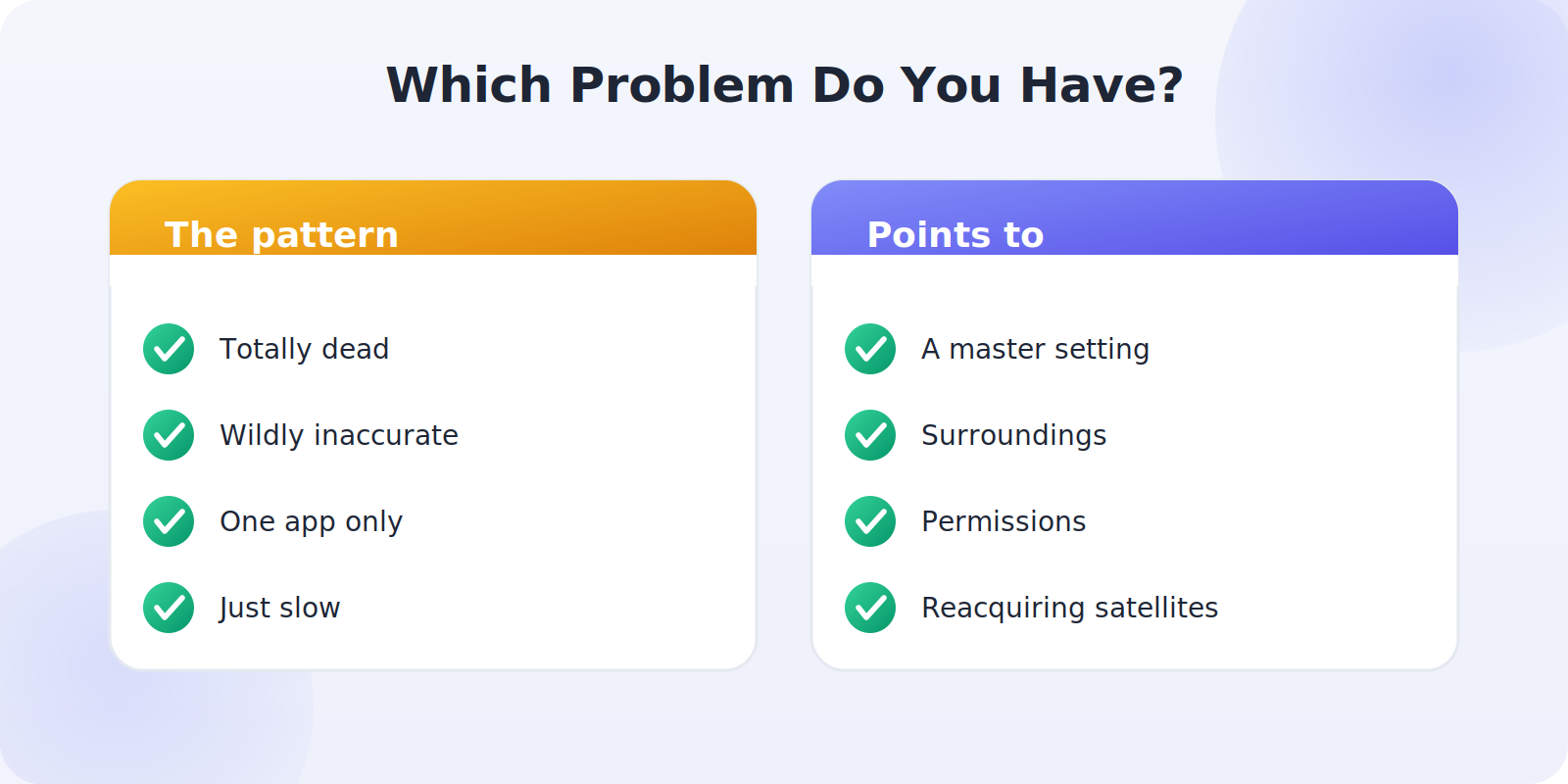
“GPS isn’t working” covers several different problems, and pinning down which one you have speeds up the fix. Sometimes location is completely dead — no app can find you. Sometimes it works but is wildly inaccurate. Sometimes it works in one app and not another. And sometimes it’s simply slow to lock on. Each pattern points to a different cause: a total failure suggests a master setting or a system glitch; a one-app failure points to permissions; inaccuracy points to surroundings or calibration; and slowness often just means the phone is reacquiring satellites after being indoors.
Before diving into fixes, take a second to notice which pattern matches your situation. It tells you where to focus: if maps works but a delivery app doesn’t, you can skip straight to permissions; if everything is dead, start with the master location toggle and a restart. A little diagnosis up front saves you running through steps that were never going to be the problem.
The Quick-Fix Sequence
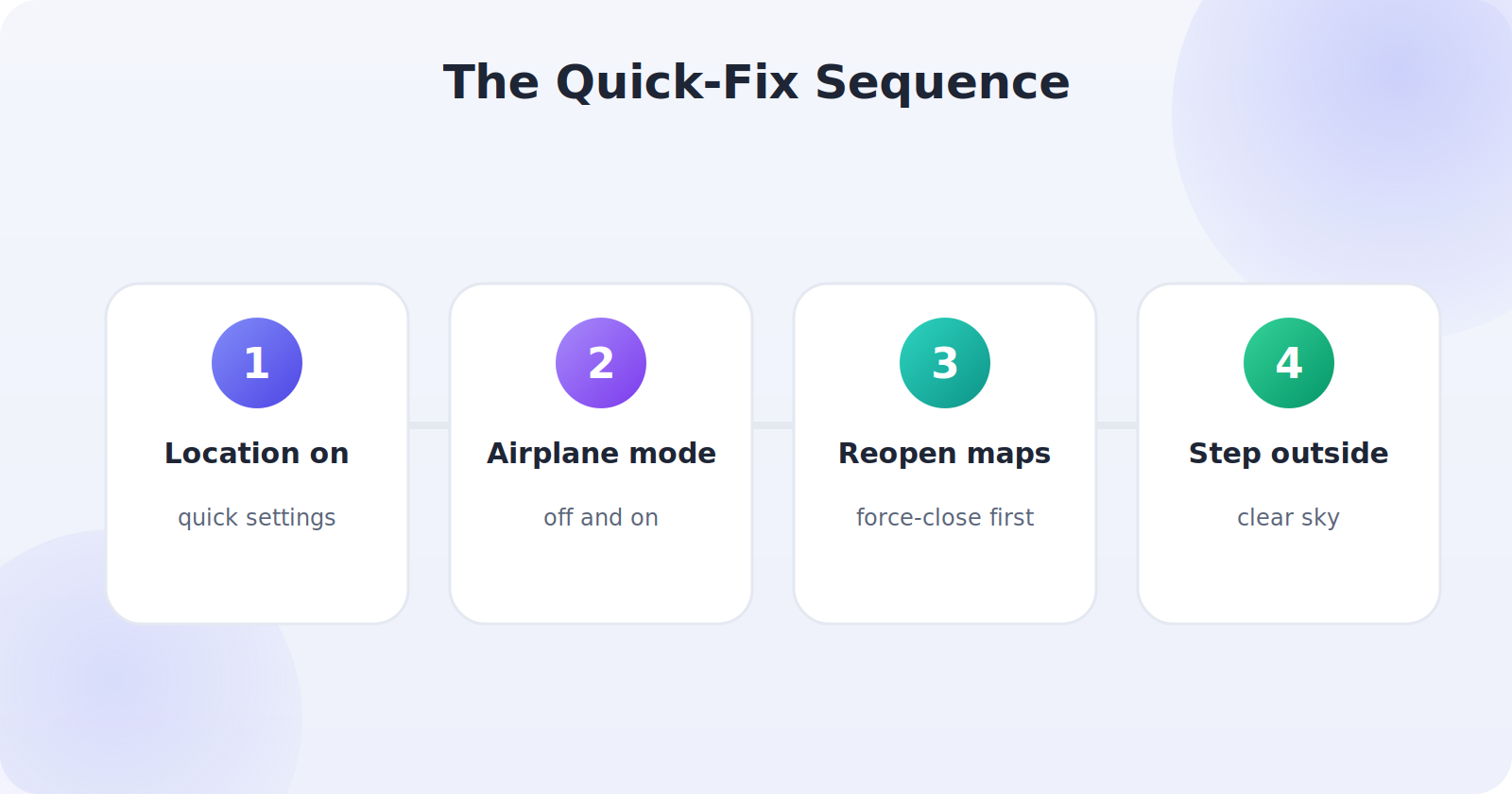
When you just want your GPS back fast, there’s a reliable rapid sequence that resolves the majority of cases in under two minutes. Try these in quick succession before settling in for deeper troubleshooting: confirm Location is on in quick settings, toggle airplane mode on and off, force-close and reopen your maps app, and step outside for a clear view of the sky. This four-move combo clears temporary glitches, resets the radios, refreshes the app, and rules out your surroundings all at once.
If the quick sequence works, you’re done — no need to dig into permissions or caches. If it doesn’t, you’ve at least ruled out the simplest causes and can move confidently into the more thorough steps knowing the problem is something deeper than a momentary hiccup.
When Only One App Has Trouble
If your location works fine system-wide but one particular app can’t find you, the problem lives entirely within that app’s settings, which is good news — it’s usually a quick fix. Beyond checking the app’s location permission, try clearing that app’s cache, making sure it’s updated to the latest version, and confirming it isn’t being restricted by battery optimization in the background. Occasionally an app needs to be fully closed and reopened, or even reinstalled, to re-establish its location access cleanly.
It’s also worth checking whether the app has its own in-app location setting, separate from the system permission. Some navigation and delivery apps have a location toggle buried in their own settings that can be switched off independently. When the rest of your phone locates you fine, the answer is almost always something specific to that one app rather than your GPS hardware.
Preventing GPS Problems Before They Start
Once your GPS is working again, a little maintenance keeps it that way. Keep your phone’s system software and your maps apps updated, since location fixes regularly arrive in updates. After any major update or a factory reset, take ten seconds to confirm Location and Google Location Accuracy are still on, because these can occasionally reset. Avoid the most aggressive battery-saving profiles for apps you depend on for navigation, and whitelist them so the system doesn’t throttle their location in the background. Finally, if you use a thick or metal case, just be aware it can affect reception, and slip it off when you genuinely need the best possible fix. These small habits head off the great majority of the problems this guide exists to solve, so you spend far less time troubleshooting and far more time simply getting where you’re going.
Common Mistakes to Avoid
- Overlooking the master Location toggle being off.
- Leaving battery saver on, which silently throttles GPS.
- Forgetting per-app permissions when only some apps fail.
- Skipping the simple restart that fixes so many cases.
- Testing only indoors, then blaming the phone for poor signal.
Frequently Asked Questions
Why is my GPS suddenly not working after an update?
Updates can reset permissions or battery rules. Re-check the app’s location permission, confirm Location is on, and make sure battery optimization isn’t restricting the app.
How can I tell if it’s a hardware problem?
Install a GPS-status app and test outdoors with a clear sky. If the phone can’t see any satellites even there, after trying the software fixes, it may be a hardware fault worth a repair check.
Why does GPS work in one app but not another?
That’s a per-app permission issue. Check the failing app’s location permission and make sure precise location is enabled for it.
Can a phone case affect GPS?
Yes — thick or metallic cases can dampen the GPS antenna’s reception. If accuracy is poor, try removing the case and testing again.
Will a factory reset fix GPS problems?
It can, if the cause is a deep software issue, but try everything else first and back up your data. If GPS still fails after a reset and outdoors, the problem may be hardware.
Quick Takeaways
- Confirm Location and Google Location Accuracy are on.
- Restart the phone and toggle airplane mode.
- Check per-app permissions and precise location.
- Turn off battery saver and update apps and the system.
- Clear the maps cache; test with a GPS-status app outdoors.
If you have worked all the way through this guide and your location is back, it is worth noting which step fixed it, because the same cause often recurs. A phone that loses GPS after every update points to a permission or battery rule that keeps resetting; one that struggles only in certain places points to surroundings rather than settings. Knowing your phone’s particular weak spot lets you fix it in seconds next time instead of starting from scratch.
The Bottom Line
Fixing GPS on Android is usually a matter of working calmly through the basics: confirm location is on, restart, check permissions, disable battery saver, and update your software. If those don’t do it, clear the maps cache, recalibrate, and test the hardware with a GPS-status app outdoors. The vast majority of location problems fall to one of these steps long before you reach a factory reset, so start at the top and you’ll most likely be back on the map within minutes.