Your phone holds a huge slice of your life — years of photos, contacts, messages, notes, and app data that would be painful, sometimes impossible, to recreate if the phone were lost, stolen, broken, or wiped by mistake. A backup is your insurance against all of that, and setting one up takes just a few minutes. Once it’s running, your phone quietly protects your data in the background, so a cracked screen or a lost handset becomes an inconvenience rather than a catastrophe. This guide shows you exactly how to back up your phone properly on both iPhone and Android, and how to make sure the backup actually works when you need it.
It’s worth doing today rather than tomorrow, because the moment you’d most wish you had a backup — a dropped phone, a theft, a failed update — is precisely the moment it’s too late to make one.
The best thing about a modern backup is that once it’s set up, it asks nothing more of you. It runs quietly overnight, protecting everything you add day by day, so the protection is always current without you lifting a finger. Spend a few minutes now, and you buy yourself lasting freedom from one of the most gut-wrenching things that can happen to a phone owner — losing it all.
We’ll cover cloud backups, local backups, what gets included, and the habits that mean you’ll never face that sinking feeling of realizing your memories are gone for good.
Why Backing Up Matters So Much
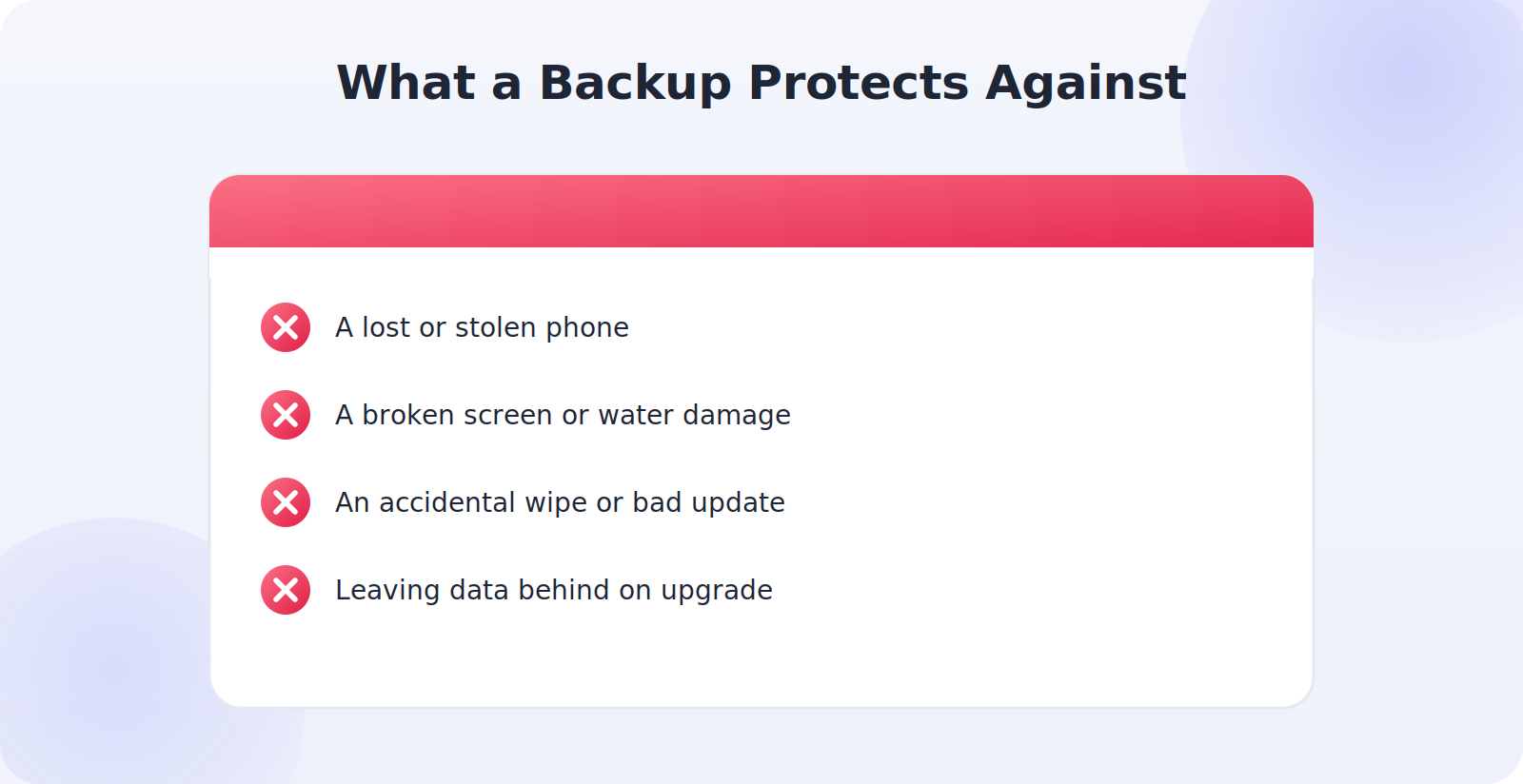
It’s worth being clear about what’s at stake, because it motivates doing this today rather than “someday.” Without a backup, a single unlucky moment can erase everything:
- A lost or stolen phone takes all its data with it.
- A broken screen or water damage can make data unrecoverable.
- An accidental wipe or failed update can clear the device.
- Simply upgrading to a new phone risks leaving data behind.
With a good backup, none of these is a disaster. You restore to a new or repaired phone and carry on as if nothing happened — photos, contacts, and settings intact.
Back Up an iPhone With iCloud
Apple’s iCloud backup is the simplest option for iPhone, running automatically once enabled.
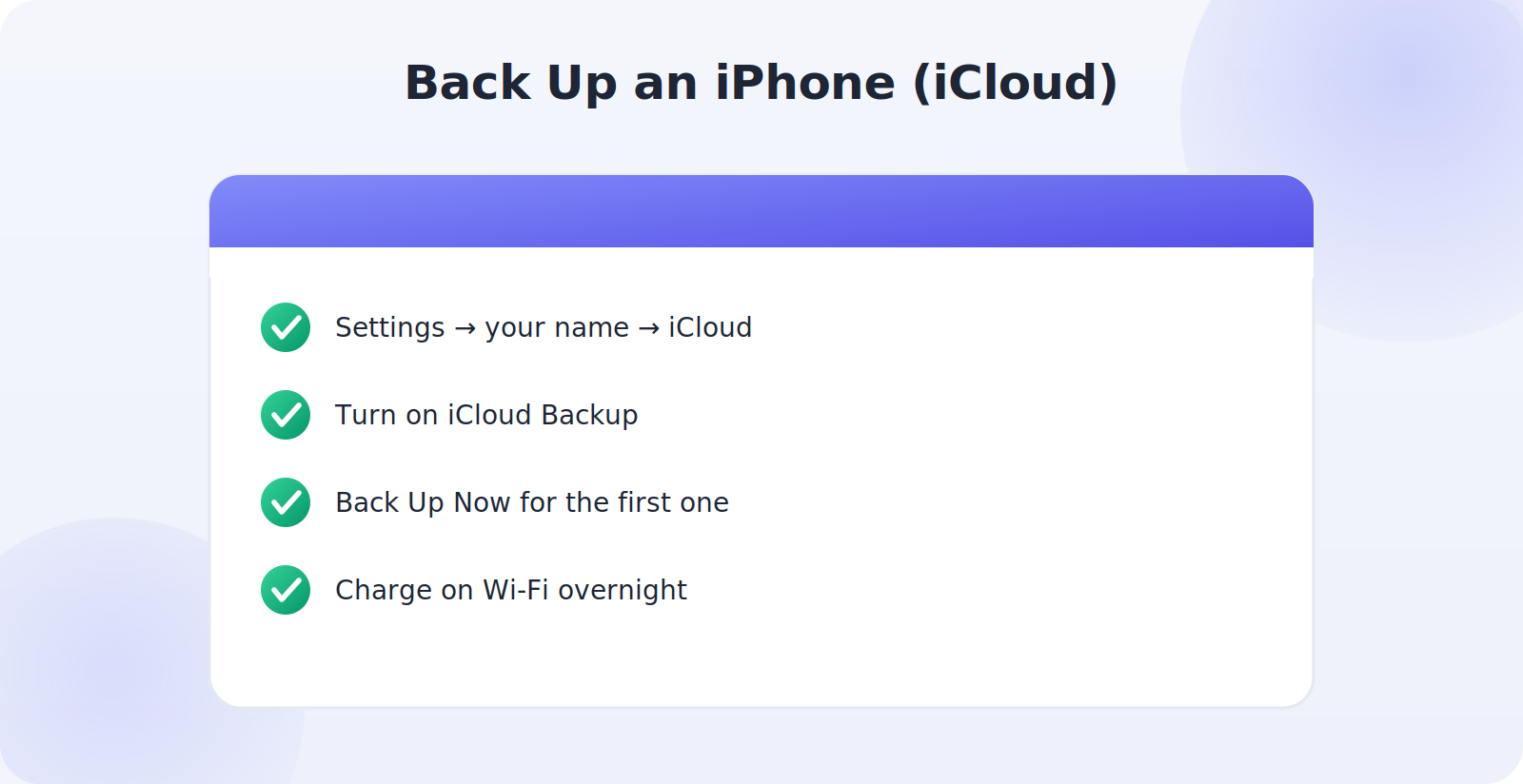
- Go to Settings → your name → iCloud.
- Tap iCloud Backup and switch it on.
- Tap Back Up Now to run the first backup immediately.
- Leave the phone connected to Wi-Fi and power overnight, and it’ll keep backing up automatically.
iCloud backs up your photos, device settings, app data, messages, and more. The free tier is limited in storage, so if you have a lot of photos you may need a larger iCloud plan — well worth it for the peace of mind.
Back Up an Android With Google
Android uses Google’s backup service, which similarly runs in the background.
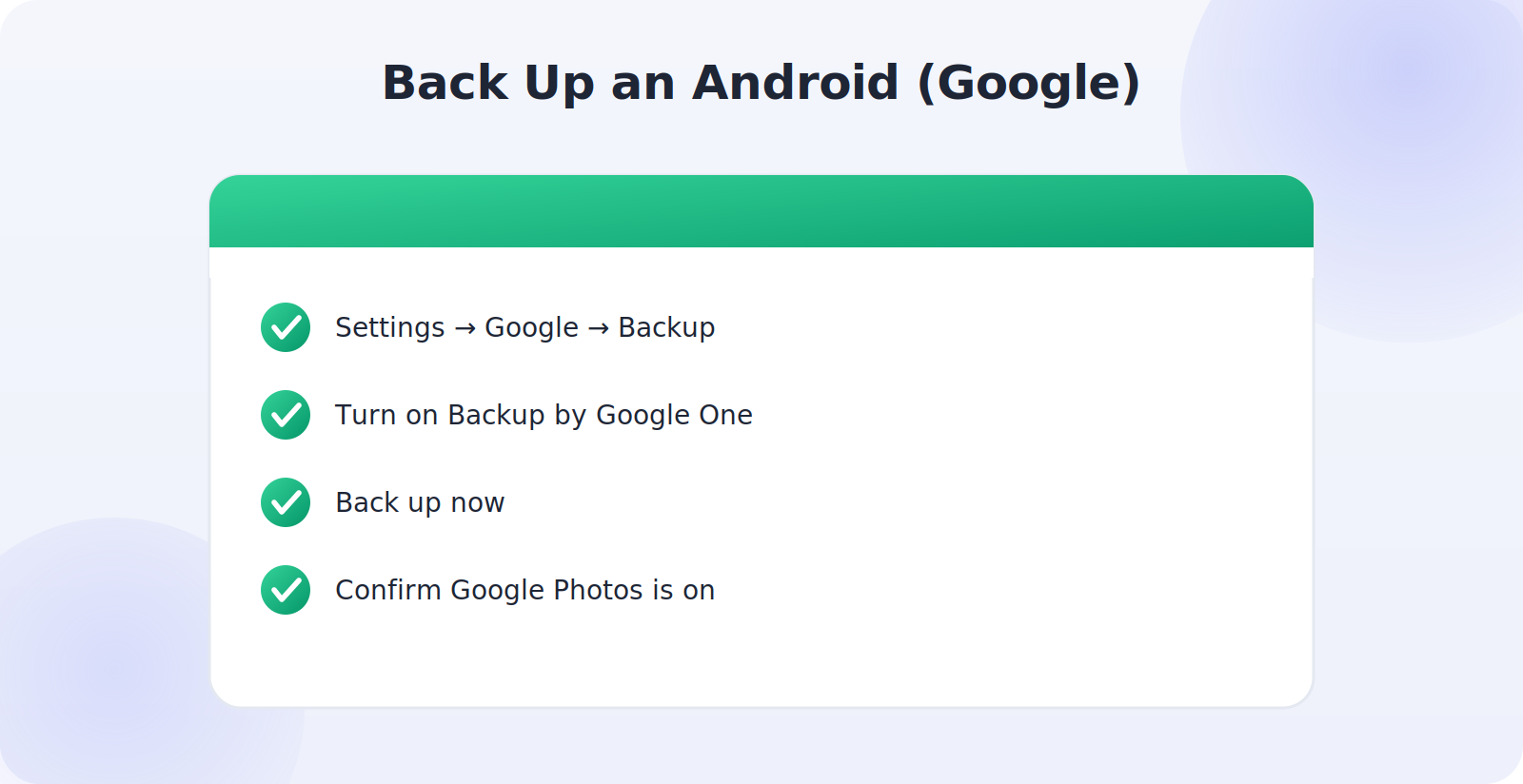
- Go to Settings → Google → Backup (wording varies by phone).
- Make sure Backup by Google One is turned on.
- Tap Back up now to start.
- Confirm your photos are backing up via Google Photos as well.
Google backs up app data, contacts, settings, and call history, while Google Photos handles your pictures and videos. As with iCloud, watch your storage — a larger Google One plan covers a big photo library comfortably.
Don’t Forget Your Photos
Photos and videos are usually the data people care about most and the hardest to recreate, so give them special attention. Both Google Photos and iCloud Photos can automatically upload every picture you take, keeping a safe copy in the cloud. Turn this on and your memories are protected the moment you capture them — even before your next full device backup runs. It’s the single most important backup setting for most people.
Consider a Second, Local Backup
For truly important data, the gold standard is to have more than one backup — the well-known “3-2-1” idea of keeping multiple copies. Alongside your cloud backup, you can create a local one:
- iPhone to a computer: connect to a Mac or PC and back up locally through Finder or the Apple Devices app, optionally encrypted.
- Android to a computer: copy photos and files to your computer, or use your manufacturer’s backup tool.
- External drives: periodically copy your most precious photos to an external drive for extra safety.
A local backup protects you even if you ever lose access to your cloud account, and it makes restoring large amounts of data faster.
Verify Your Backup Actually Works
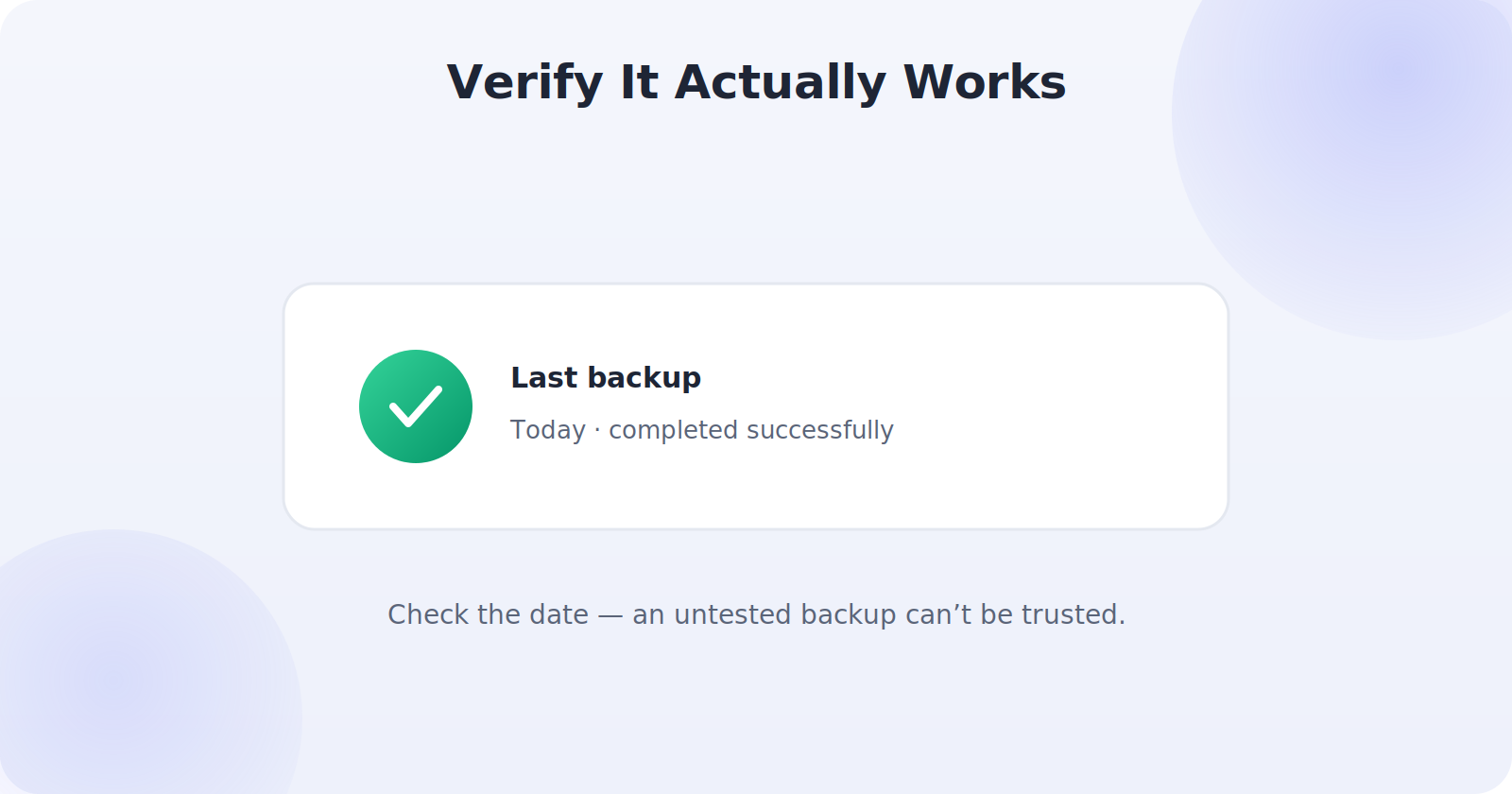
A backup you’ve never checked is a backup you can’t fully trust. Take a moment to confirm yours is genuinely running: on iPhone, check the date of the last successful backup under iCloud Backup; on Android, check the last backup time in your Google backup settings. Make sure the backup date is recent and that it completed successfully. This quick check catches the common problem of a backup that silently stopped — because storage filled up, say — long before you needed it.
Cloud vs Local Backups: Which Do You Need?
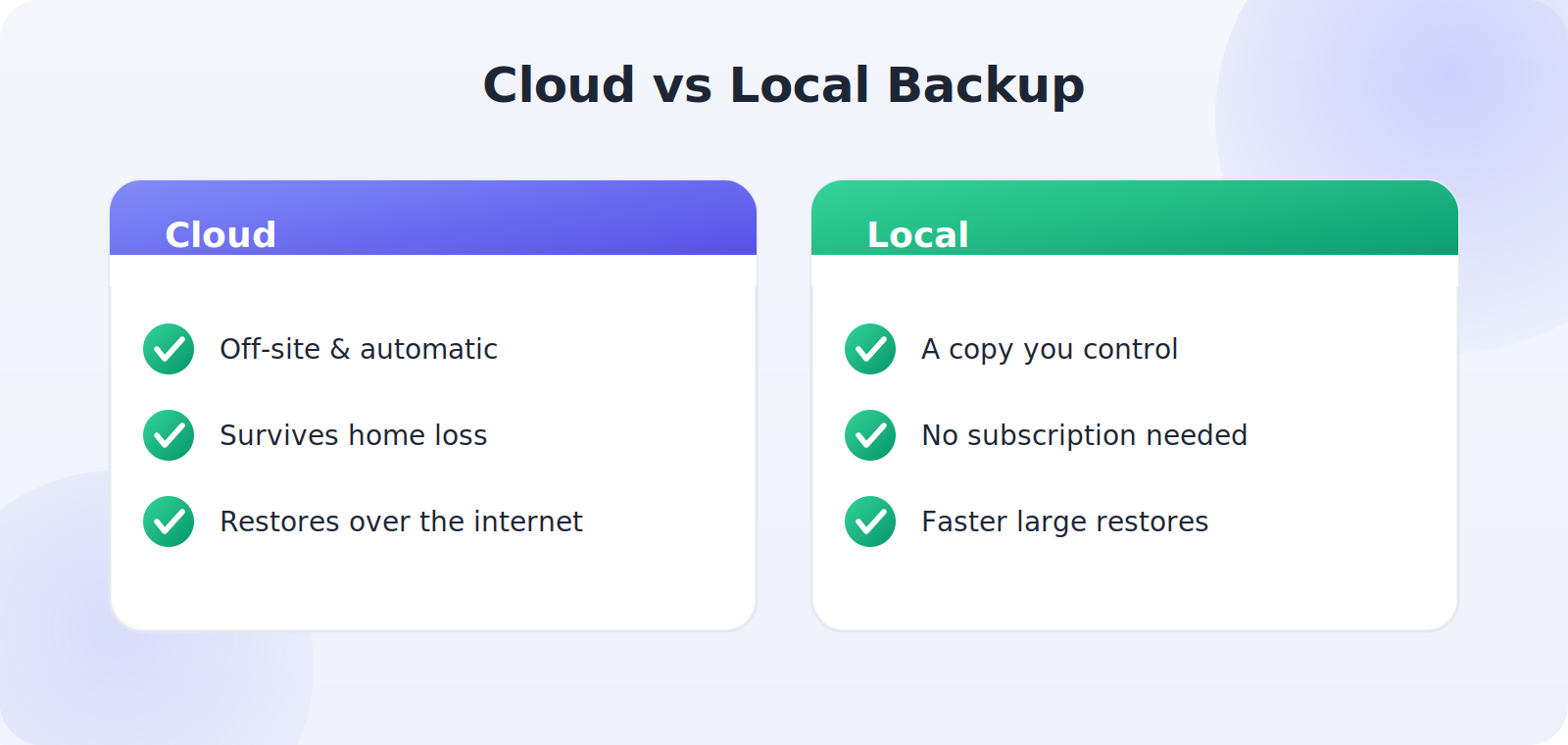
The two kinds of backup solve slightly different problems, and understanding the distinction helps you choose the right mix. A cloud backup — iCloud or Google — stores your data on remote servers, so it survives even if your phone and your home are both lost, and it restores conveniently over the internet to any new device. A local backup keeps a copy on your own computer or an external drive, giving you a fast, private copy you control completely and that doesn’t depend on an internet connection or a subscription.
For most people, an automatic cloud backup is the essential foundation, because it’s effortless and off-site. Adding an occasional local backup of your most precious data — especially photos — gives you belt-and-braces protection: if you ever lost access to your cloud account, or a cloud restore failed, you’d still have your own copy. The two together cover essentially every way you could lose data, which is exactly what a good backup strategy aims for.
Managing Your Backup Storage
The most common reason backups silently fail is running out of storage, so it’s worth understanding how to manage it. Both iCloud and Google offer a small amount of free space and paid tiers beyond that. If your backup stops because storage is full, your recent data simply isn’t protected — often without an obvious warning. Check how much space you’re using in your backup settings, and either upgrade to a larger plan or free up room by clearing out data you don’t need backed up.
A little housekeeping helps too. You can usually choose which apps are included in your backup, so excluding large apps whose data you don’t need to preserve can keep you within a smaller storage tier. That said, for the modest cost of a larger plan, most people find it simplest to buy enough storage to back up everything without having to think about it — the peace of mind is well worth the small monthly fee.
Building a Backup Habit
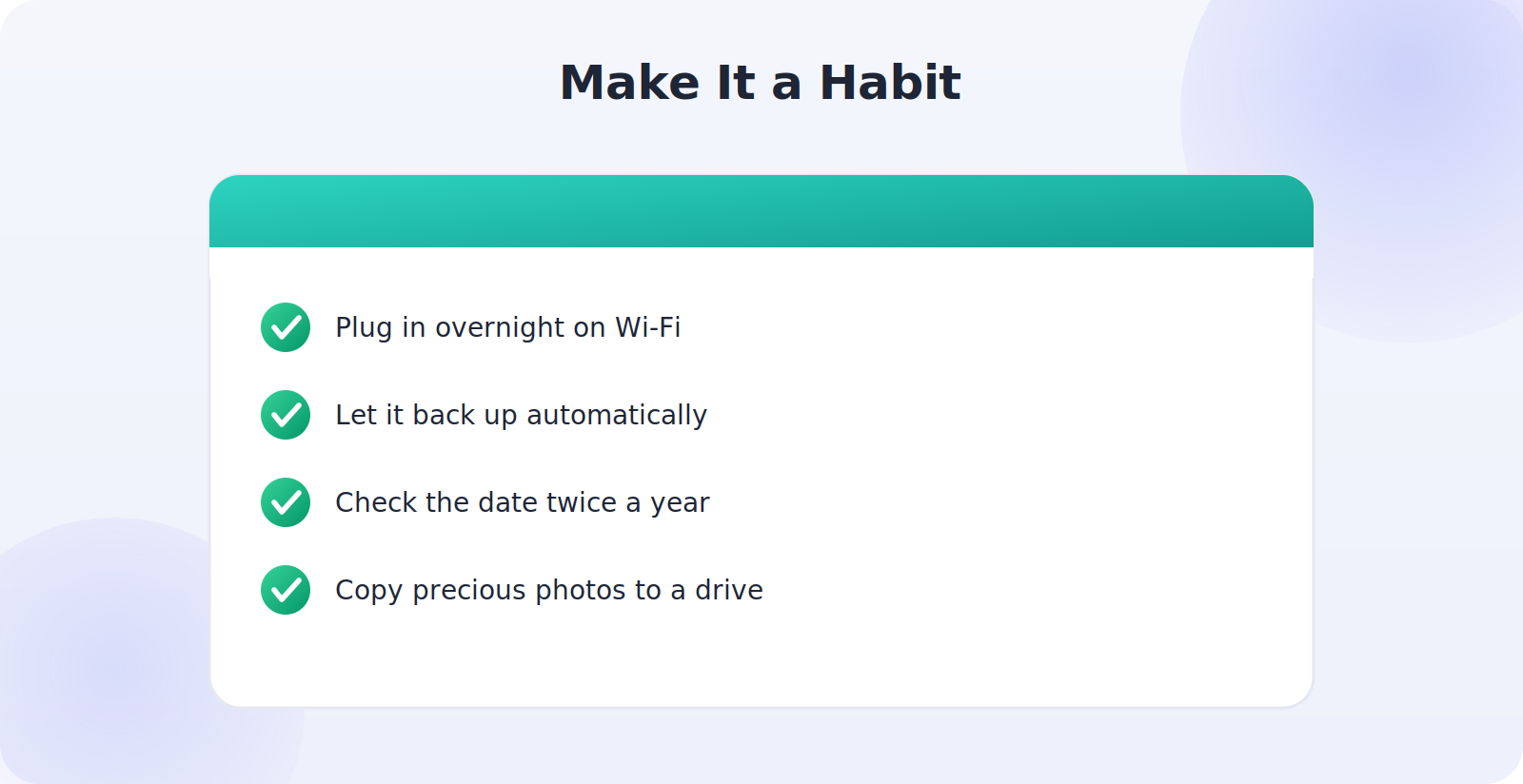
The final piece is turning backup from a one-time setup into a quiet habit you never think about. The simplest approach is to let automation do the work: plug your phone in overnight on Wi-Fi, and both iCloud and Google will back up on their own while you sleep. Beyond that, set yourself an occasional reminder — perhaps when the clocks change twice a year — to verify the last backup date is recent, confirm your storage isn’t full, and copy your most precious photos to a local drive for good measure. These small, infrequent checks catch the rare problem before it matters. With automatic cloud backup running nightly and a light periodic check, your entire digital life stays protected with virtually no ongoing effort — which is exactly how a backup should feel: present, reliable, and completely invisible until the day you’re profoundly glad it was there.
What to Do If a Backup Fails
Occasionally a backup won’t complete, and knowing the common causes lets you fix it fast. The usual culprit is full storage — free up space or upgrade your plan. Next is a poor connection, since backups need Wi-Fi and pause without it, so reconnect and keep the phone plugged in. Sometimes a very large first backup simply needs more time and an overnight window to finish. And an outdated operating system can occasionally cause trouble, so keep your phone updated. Working through these in order resolves nearly every failed backup, and once it’s running again, do confirm the completion date so you know your data is genuinely protected rather than quietly stalled.
Common Mistakes to Avoid
- Never turning backup on, then losing everything with the phone.
- Running out of cloud storage, silently stopping your backups.
- Forgetting photos, the data that’s hardest to recreate.
- Relying on a single backup with no second copy of precious data.
- Never verifying that the backup actually completed.
Frequently Asked Questions
Does backing up use a lot of mobile data?
It can, so both iCloud and Google are set to back up over Wi-Fi by default. Leave your phone on Wi-Fi and charging — overnight is ideal — and backups won’t touch your mobile data allowance.
If my phone breaks, can I still get my backup?
Yes — that’s the whole point. A cloud backup lives on remote servers, so you restore it to a new or repaired phone even if the original is destroyed. This is why an off-site cloud backup is so valuable.
How often should my phone back up?
Ideally daily and automatically. Both iCloud and Google back up in the background when your phone is on Wi-Fi and charging, so leaving it plugged in overnight keeps your backup current without any effort.
Do I have to pay for backups?
The basic tiers are free but limited. If you have many photos, you’ll likely need a larger iCloud or Google One plan — a small monthly cost that’s well worth it for protecting irreplaceable data.
Will a backup include my photos and messages?
Yes, when set up fully. Device backups include app data and settings, photo services back up your pictures, and messages are included in iCloud and Google backups. Confirm photo backup is on separately.
Quick Takeaways
- Turn on iCloud Backup (iPhone) or Google Backup (Android).
- Enable automatic photo backup — the most important setting.
- Keep enough cloud storage so backups don’t silently stop.
- Add a second, local backup for truly precious data.
- Verify the last backup date is recent and successful.
Think of a backup as the cheapest insurance you’ll ever buy: a few minutes of setup and a small storage fee against the total, irreplaceable loss of your photos, messages, and memories. Nobody regrets having a backup; the only regret is the one people feel the day they realize they didn’t. Set yours up today, and that regret is one you’ll never have to know.
The Bottom Line
Backing up your phone is one of those small tasks that pays for itself many times over the first time something goes wrong. Switch on automatic cloud backup, make sure your photos are uploading, keep enough storage so nothing silently stops, and add a second local copy for your most precious data. Then verify it’s actually working. Do this once, and your phone quietly protects your digital life from then on — so a lost, broken, or stolen device costs you a bit of hassle, but never your memories. It is, quite simply, the most important few minutes you can spend protecting the irreplaceable things your phone holds.