As parents age, many families look for gentle ways to stay connected and reassured — to know a parent got home safely, to be able to find them quickly if they become disoriented, or to respond fast in a fall or medical emergency. Phone-based location sharing can offer real peace of mind for everyone, including the parent. The key, as with any family sharing, is that it’s set up with your parent, not imposed on them, and that it preserves their dignity and independence. This guide walks through how to do it kindly and effectively.
Done thoughtfully, this isn’t about keeping tabs on a parent — it’s about extending the years they can live confidently and independently, with the whole family’s mind a little more at ease. The same phone features that help a family coordinate can quietly stand ready to summon help in an emergency, and that combination is what makes them so valuable as we and our parents age.
We’ll cover the conversation, the simplest setups on both platforms, the extra safety features worth enabling, and how to keep the whole thing easy for a parent who may be less comfortable with technology.
Lead With Dignity and Consent
Older adults value their independence deeply, and rightly so. Approach location sharing as a way to support that independence — helping them stay active and safe for longer — rather than as a loss of it. Explain the benefits from their point of view: quick help in an emergency, less worry for the whole family, and the freedom to go about their day knowing someone can find them if needed.
Make it a two-way conversation. Ask what would make them feel safer and more confident, and build the setup around that. A parent who feels consulted and respected is far more likely to embrace the arrangement than one who feels managed.
The goal isn’t to watch over a parent — it’s to help them stay independent safely, with the whole family’s consent and peace of mind.
Keep the Setup Simple
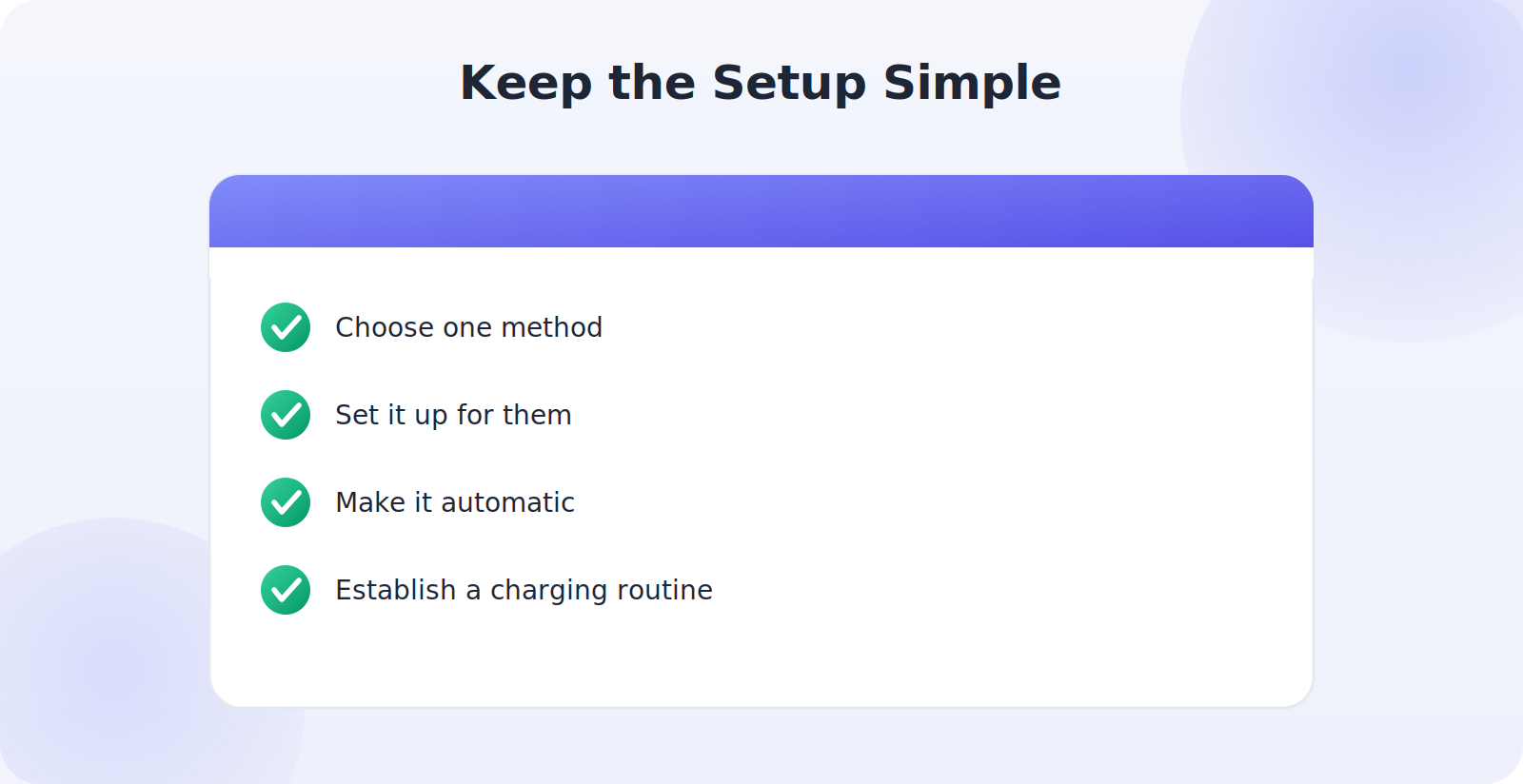
If your parent isn’t especially comfortable with technology, simplicity is everything. Choose one straightforward method, set it up for them, and keep the day-to-day experience as close to “nothing to do” as possible. The best system is one that works quietly in the background without requiring them to remember steps.
Setting It Up on iPhone
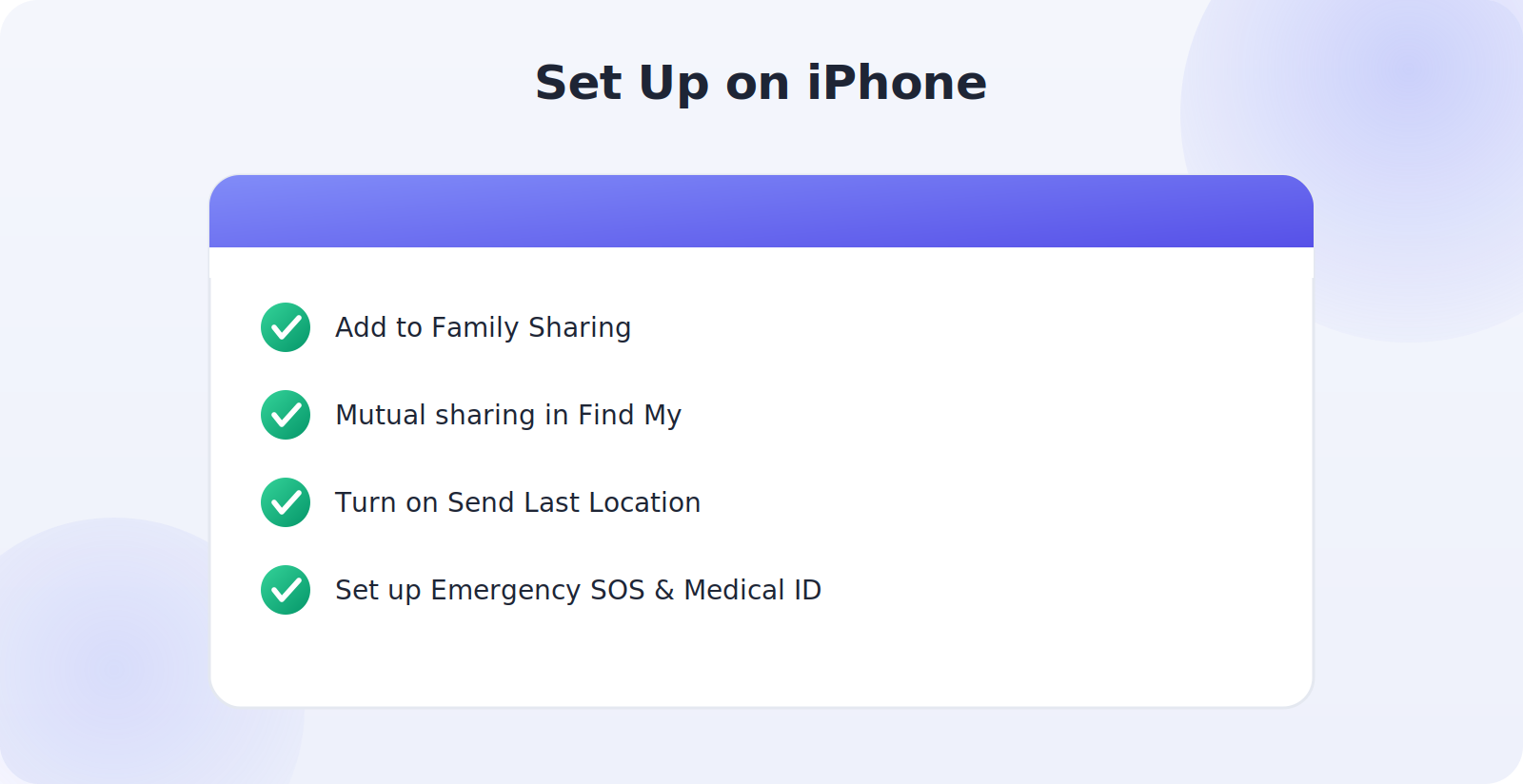
- Add your parent to Family Sharing so accounts are linked.
- In Find My, set up mutual location sharing between you.
- Turn on Send Last Location so a dying battery still reports a final position.
- Set up Emergency SOS and Medical ID for emergencies (more below).
Setting It Up on Android
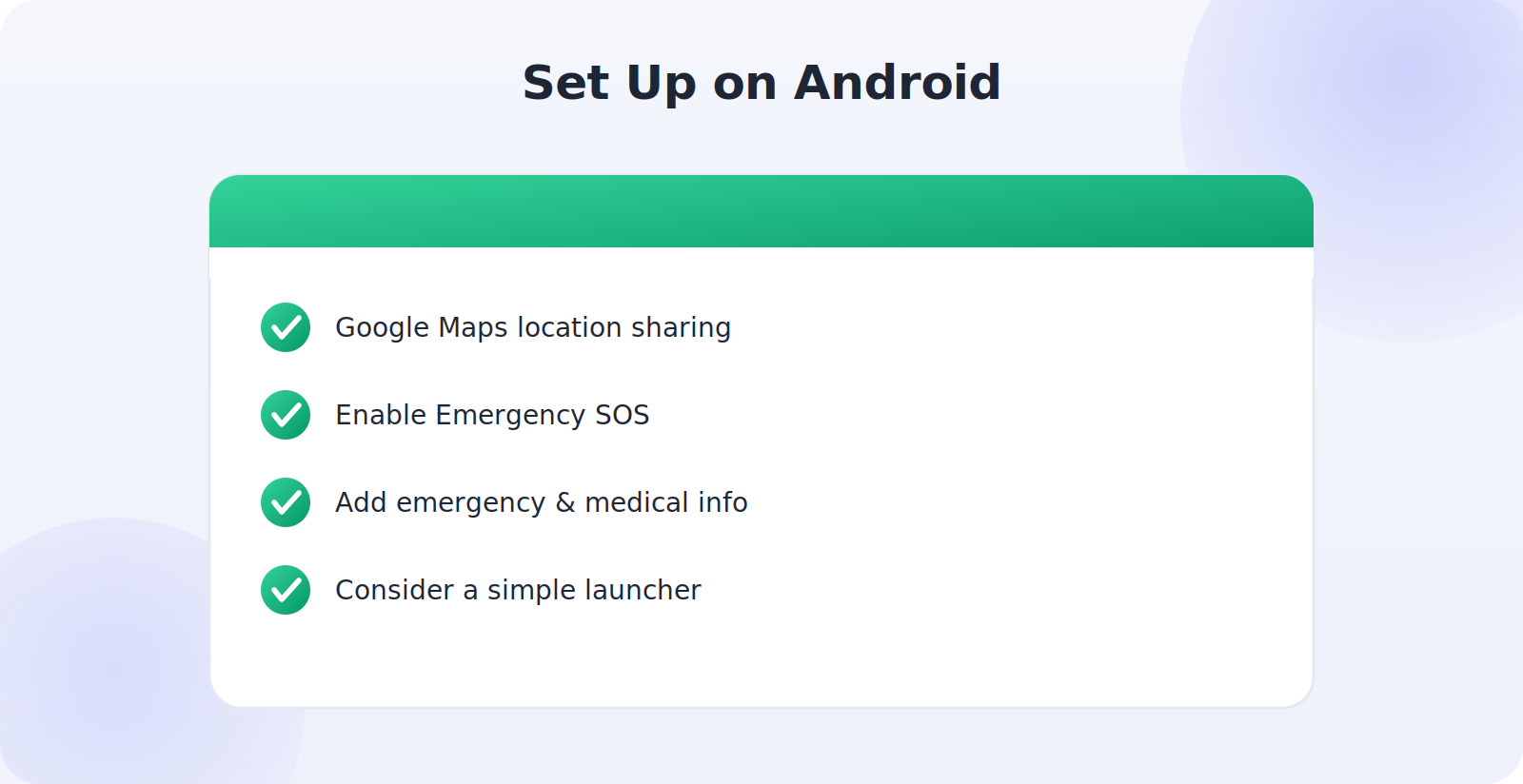
- Set up Google Maps location sharing on a mutual basis.
- Enable the phone’s Emergency SOS feature.
- Add emergency contact and medical information to the device’s safety settings.
- Consider a simple, large-icon launcher if your parent finds the standard interface fiddly.
Enable the Safety Features That Matter Most
For an older parent, a few built-in safety features are arguably more valuable than location itself, and they work hand in hand with it.
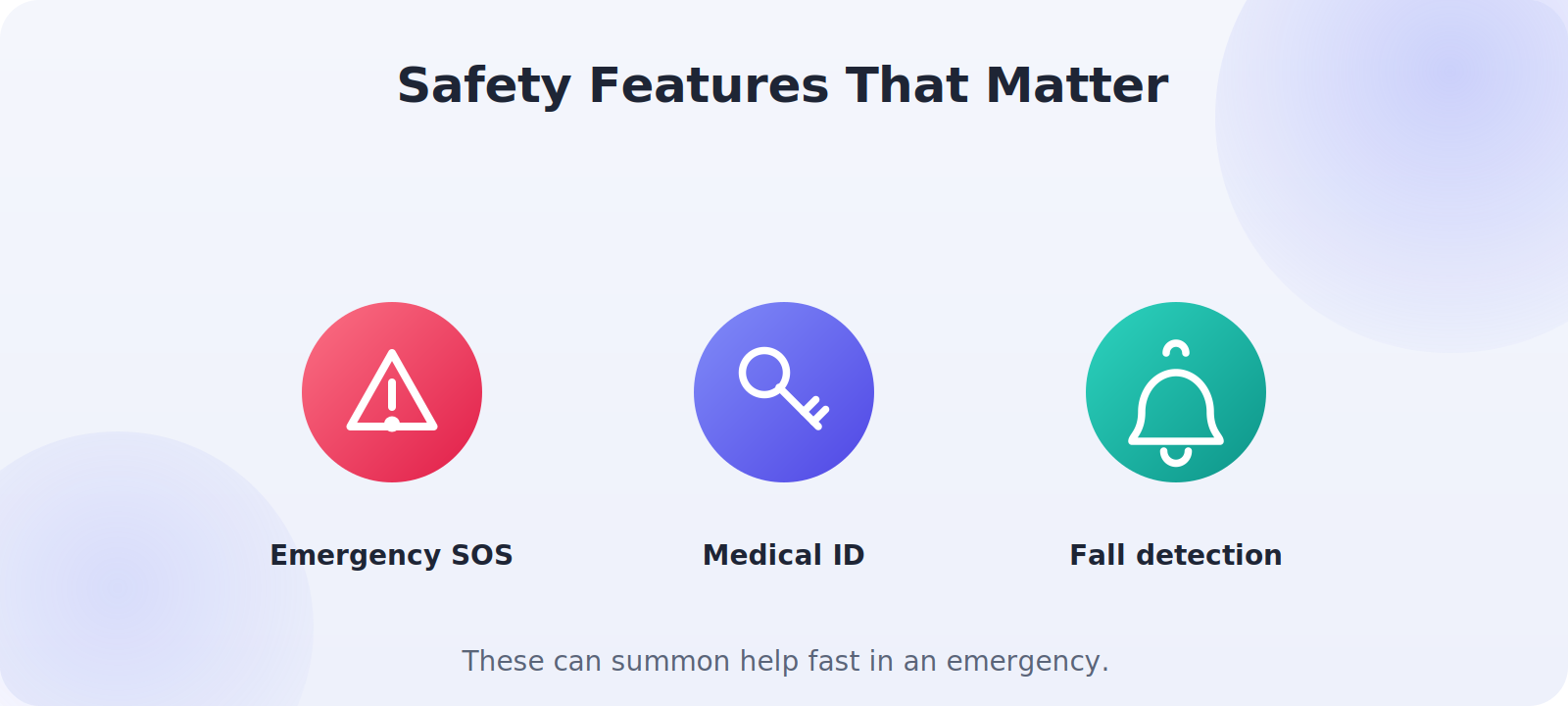
- Emergency SOS: lets your parent call emergency services and alert contacts with their location by pressing the side buttons.
- Medical ID: shows vital health info and emergency contacts on the lock screen for first responders.
- Fall Detection: on supported phones and watches, can detect a hard fall and automatically call for help.
- Send Last Location: ensures a final position is recorded even if the battery dies.
Consider a Smartwatch
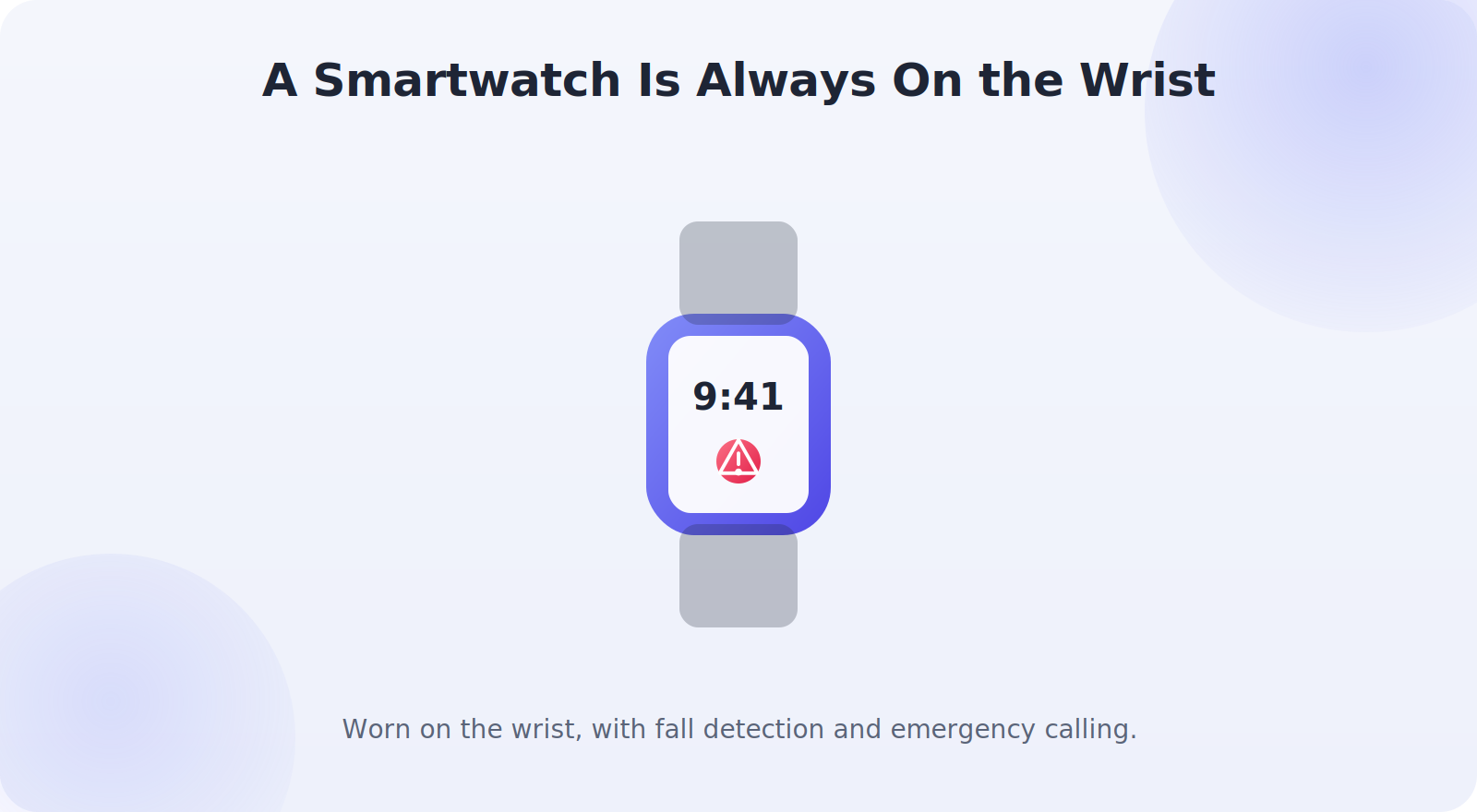
For some older adults, a smartwatch is even better than a phone for safety. It’s worn on the wrist, so it’s always with them — unlike a phone that gets left on a table — and many models include fall detection, emergency calling, and location sharing in one device. If your parent is open to it, a watch can be the single most effective safety tool, especially for someone at risk of falls. Choose one with a simple interface and good battery life.
Make It Sustainable
The best setup is one that keeps working without constant attention. Help your parent get into a simple routine — charging the phone or watch overnight in a consistent spot, for example — so the battery is rarely an issue. Check in occasionally that location sharing is still active and that they’re comfortable with it. And keep the lines of communication open: the technology is there to support your relationship and their independence, not to replace regular contact and care.
Respecting Their Autonomy
Finally, remember that your parent remains an adult with the right to make their own choices. If they decide they don’t want certain features, or want to pause sharing sometimes, respect that. The aim is a collaborative arrangement that gives the whole family confidence — including your parent — rather than a system that makes them feel monitored. Handled with care, location and safety features can help an older parent stay independent and active for longer, which is the best outcome of all.
Understanding the Real Risks You’re Planning For
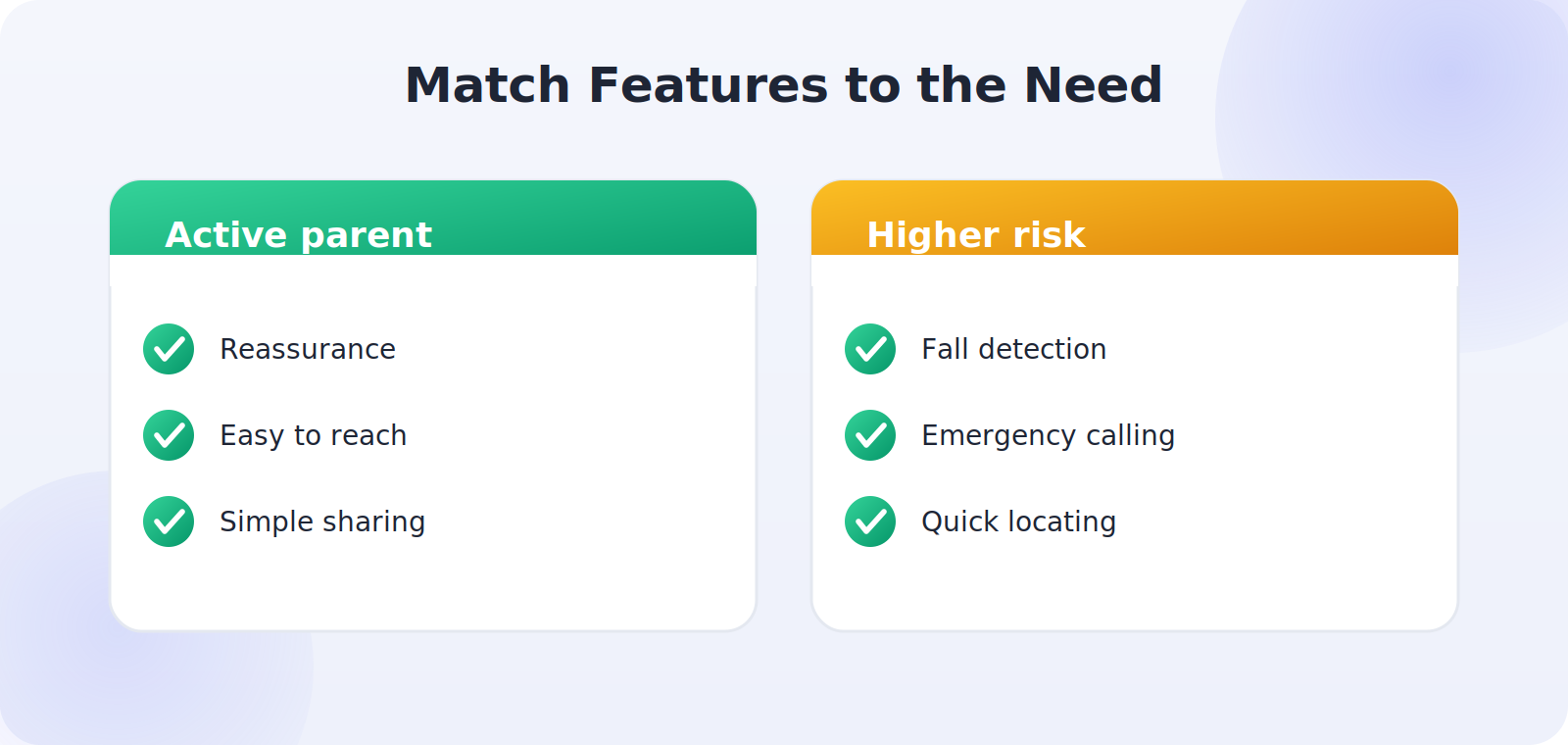
Setting up well starts with being clear about what you’re actually trying to protect against, because different concerns call for different features. For a generally healthy, active parent, the main value is reassurance and the ability to reach them — simple location sharing covers it. For a parent at risk of falls, fall detection and emergency calling matter most. For one with early memory difficulties who might become disoriented, the ability to locate them quickly becomes the priority, alongside Medical ID for responders.
Matching the setup to the real situation keeps it proportionate and useful. There’s no need to enable every feature for every parent; choose the ones that address genuine concerns, and revisit the setup as circumstances change. This thoughtful, needs-based approach is both more respectful of your parent and more effective than a blanket “monitor everything” mindset.
Involving Other Family Members
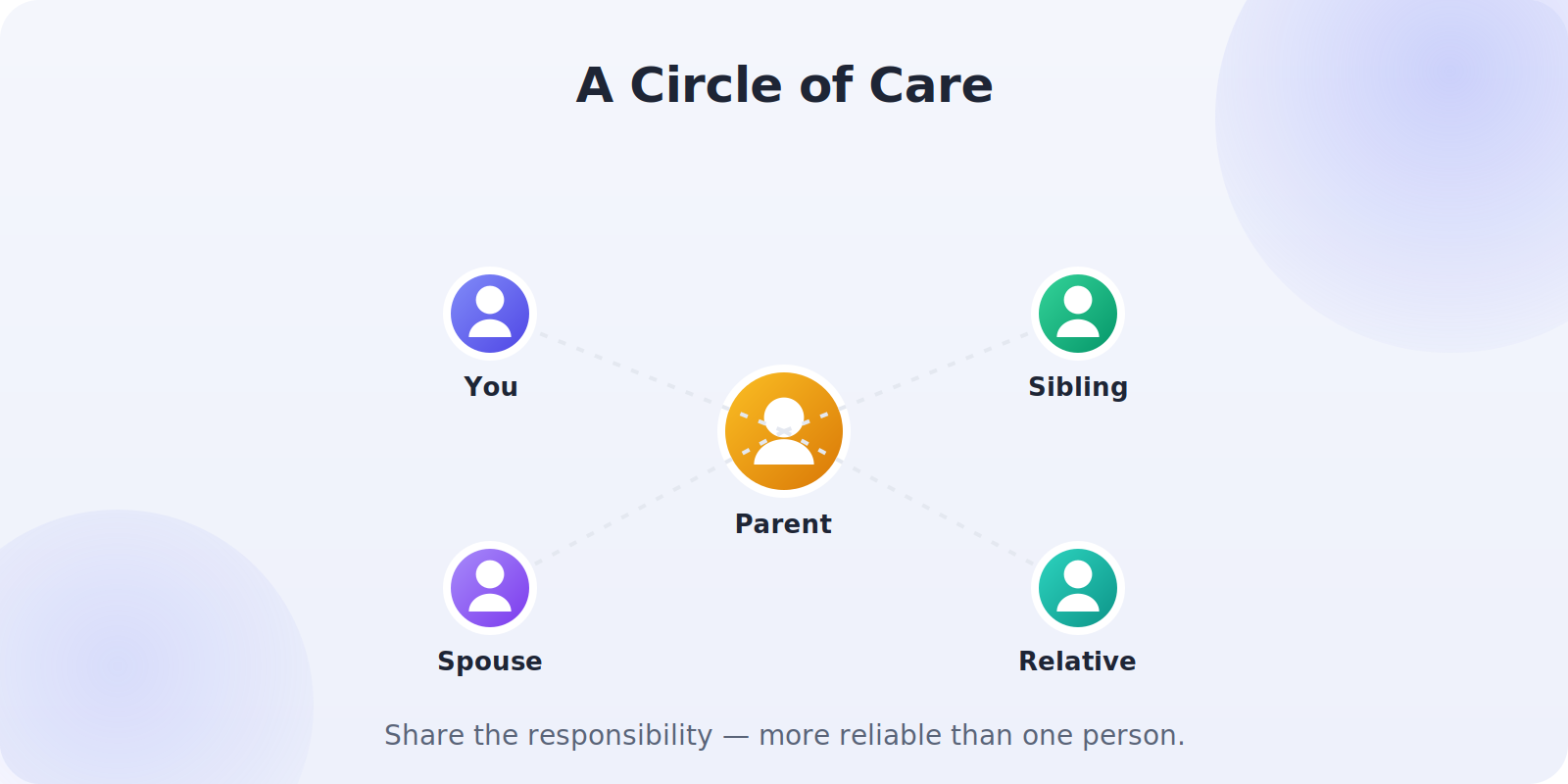
Caring for an aging parent is rarely a one-person job, and location and safety features work better when the responsibility is shared. Set up the arrangement so that more than one trusted family member — siblings, a spouse, a close relative — can see your parent’s location and receive emergency alerts. That way, whoever is closest or most available can respond, and the load doesn’t fall entirely on one person.
It also provides resilience: if one family member’s phone is off or they’re unreachable, another can step in. Have a simple conversation about who does what — who’s the first point of contact, who’s the backup — so that in a real emergency, everyone knows their role. Your parent benefits from a whole circle of care rather than a single point of failure.
Making Technology Easier for an Older Parent
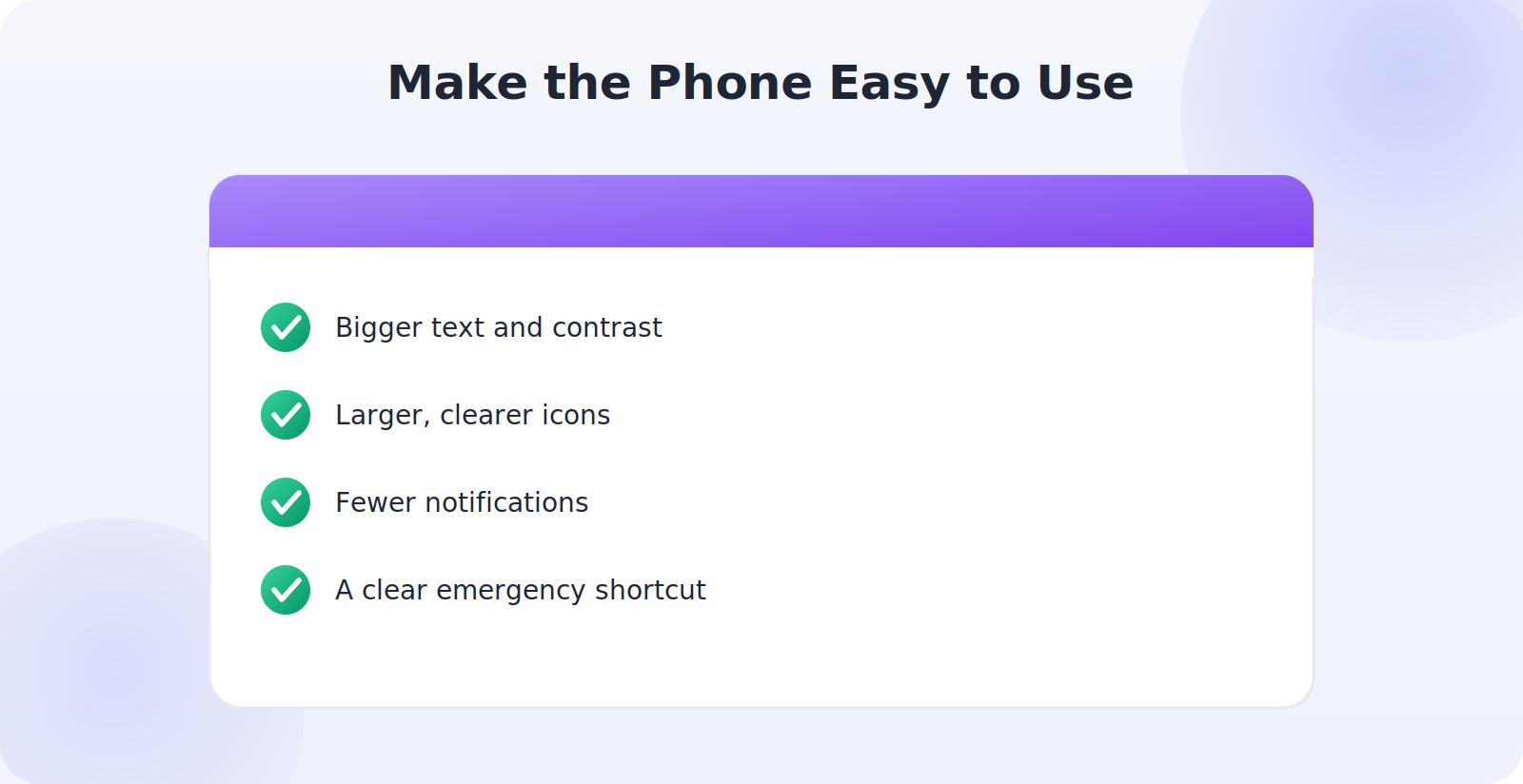
A safety setup only helps if your parent can live with it comfortably, so a few accessibility touches make a real difference. Increase the text size and display contrast so the screen is easy to read. Set up larger, clearer icons or a simplified launcher if the standard interface feels cluttered. Reduce unnecessary notifications so the phone isn’t overwhelming. And place an easy shortcut to calling family or emergency services right on the home screen where it’s impossible to miss.
Walk through everything together more than once, and write down the few steps your parent might need — how to answer a call, how to charge the phone, what the emergency button does — in large, plain language they can refer to. The goal is for the technology to fade into the background, quietly providing safety without demanding attention or causing frustration. A setup your parent finds easy is one they’ll actually keep using.
Reviewing and Adapting Over Time
A parent’s needs aren’t static, so neither should the setup be. What suits an active seventy-year-old may need to change as circumstances evolve, and revisiting the arrangement every so often keeps it appropriate. Check in periodically — is the current setup still helpful? Has anything changed in their health, mobility, or confidence that calls for a different feature? Are they still comfortable with it? Treating this as an ongoing, gentle conversation rather than a one-time setup means the technology continues to serve your parent well, adapting alongside them instead of becoming outdated or, worse, intrusive. It also reassures your parent that they remain in the driving seat of decisions about their own life.
Common Mistakes to Avoid
- Imposing it without consent, which undermines dignity and cooperation.
- Over-complicating the setup so it’s hard for them to use.
- Skipping Emergency SOS and Medical ID, the features that matter most.
- Letting the battery die for lack of a charging routine.
- Treating tech as a substitute for regular contact and care.
Frequently Asked Questions
What if my parent doesn’t want to be tracked?
Respect their choice and look for middle ground — perhaps just Emergency SOS and Medical ID without ongoing location sharing. Framing it around their safety and independence, and keeping it their decision, usually helps.
Can these features work on a basic phone?
Emergency calling works on almost any phone, but location sharing, Medical ID, and fall detection generally need a smartphone or smartwatch. A simple, well-set-up smartphone is often the best balance for an older parent.
What’s the most important safety feature for an elderly parent?
Emergency SOS and Medical ID are arguably the most valuable, since they summon help and give responders vital information fast. Location sharing complements them by helping family find the parent quickly.
Is a smartwatch better than a phone for an older parent?
Often, yes — because it’s worn on the wrist and always present, and many include fall detection and emergency calling. It’s especially worth considering for someone at risk of falls.
How do I set this up if my parent isn’t good with technology?
Choose one simple method, set it up for them, and make it as automatic as possible. Establish an easy charging routine and check in occasionally to confirm everything’s still working.
Quick Takeaways
- Lead with dignity and consent — support independence, don’t restrict it.
- Keep the setup simple and low-maintenance.
- Enable Emergency SOS, Medical ID, and Send Last Location.
- Consider a smartwatch for fall detection and always-on safety.
- Keep communicating — tech supports care, it doesn’t replace it.
More than any single setting, it’s the spirit of the thing that counts: a collaborative, respectful arrangement that helps a parent stay independent and gives the family confidence. Set it up in that spirit, revisit it kindly as needs change, and the technology becomes one more way of saying you care.
It also helps to involve your parent’s wider support network where appropriate. A trusted neighbor, a regular carer, or a close friend who lives nearby can be a valuable part of the safety picture — someone who can check in person if an alert comes through and family are too far away to respond quickly. With your parent’s agreement, sharing the basics of the setup with one or two such people adds a reassuring local layer to the technology, so help is never more than a short distance away. The aim throughout is a web of gentle support that lets your parent carry on living the life they want, with everyone — them most of all — resting a little easier.
The Bottom Line
Helping an elderly parent stay safe with phone location sharing is, at its heart, an act of care — and it works best when it’s collaborative and dignified. Set it up together, keep it simple, and prioritize the safety features that summon help fast: Emergency SOS, Medical ID, and fall detection, perhaps on a smartwatch. Pair location sharing with a sustainable charging routine and regular contact, and you’ll give your whole family — your parent included — real peace of mind while supporting the independence they value.