✅ Quick answer — the 3 fastest iPhone checks:
- Settings › General › VPN & Device Management — a profile you never installed is the biggest red flag.
- Settings › Privacy & Security › App Privacy Report — look for sensor access while the phone was idle.
- Settings › Privacy & Security › Safety Check — review everything you share and every signed-in device.
⚠️ Safety note: If the person spying may be a partner, ex, or someone controlling, removing the app can alert them. Read the safety section below before changing anything.
iPhones have a reputation for being spy-proof, and it is partly deserved: Apple’s sandboxing makes the classic Android-style hidden spy app much harder to pull off. But “harder” is not “impossible”, and iPhone monitoring simply takes different forms — a configuration profile that hands control to someone else, an abused Apple ID that leaks your backups and location, a jailbreak performed while your phone was out of your hands, or family-sharing features quietly repurposed for surveillance.
The good news: you can check for every one of those without installing a single app, using tools already built into iOS. Work through the seven methods below in order — they run from the quickest glance to the deepest check — and note anything unexplained. At the end you’ll find exactly what to do if something turns up.
First, Understand How iPhone Spying Actually Works
Knowing what you are hunting makes every check below sharper. iPhone surveillance comes in four realistic flavors. Account abuse is by far the most common: someone who knows your Apple ID password reads your synced messages, photos, and location from their own device, and nothing on your phone would ever show it. Feature misuse is second: Find My sharing, shared albums, or Family Sharing set up during better times and never revoked. Configuration profiles come third: a management profile installed in two minutes of physical access that grants ongoing control. True installed spyware is the rarest, because it generally requires a jailbroken phone. Notice the pattern — three of the four require no software on your iPhone at all, which is exactly why app-store “spyware scanners” miss most real cases and why the built-in checks in this article find them. Each method below targets at least one of these four paths, and together they cover all of them.
Method 1: Read the battery statistics
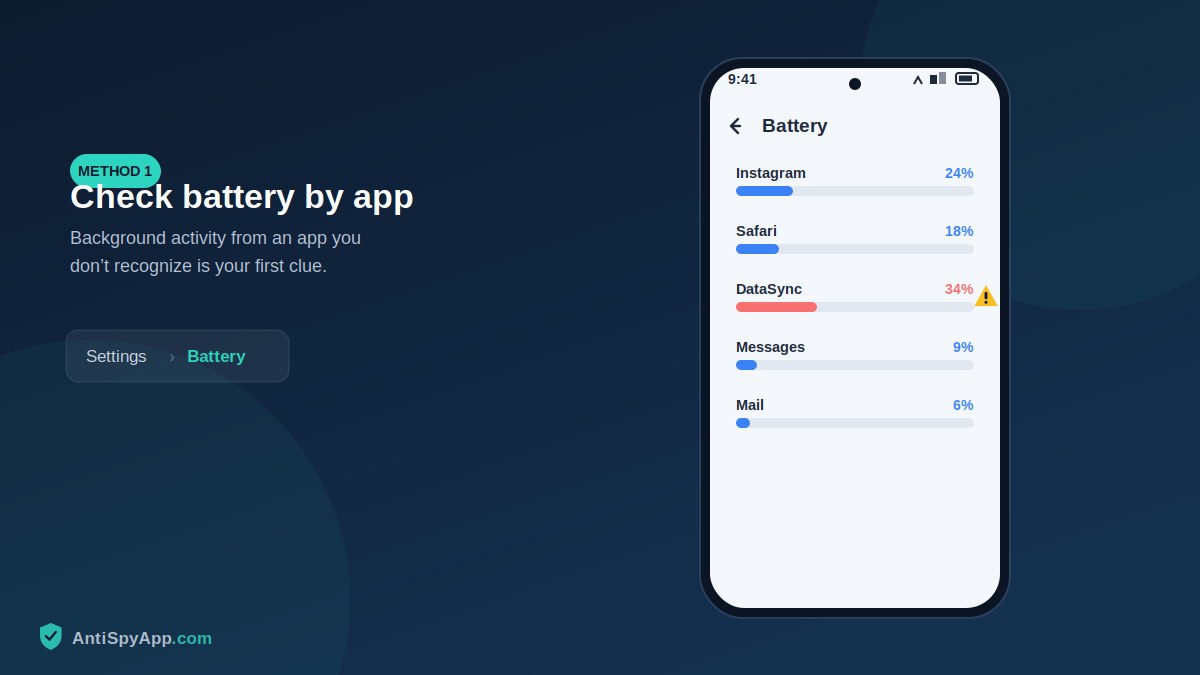
Open Settings > Battery and switch to the Last 10 Days view. iOS lists every app by the percentage of battery it consumed, and tapping Show Activity reveals how much of that was background time. You are looking for two anomalies: an app you don’t recognize at all, or an app you never open showing hours of background activity. Also glance at the battery graph itself — steady drain through the night, when the phone should be flatlining, means something is working while you sleep. Note the names of anything suspicious; you will cross-reference them in the next methods.
Method 2: List every installed app — not just the ones on your home screen
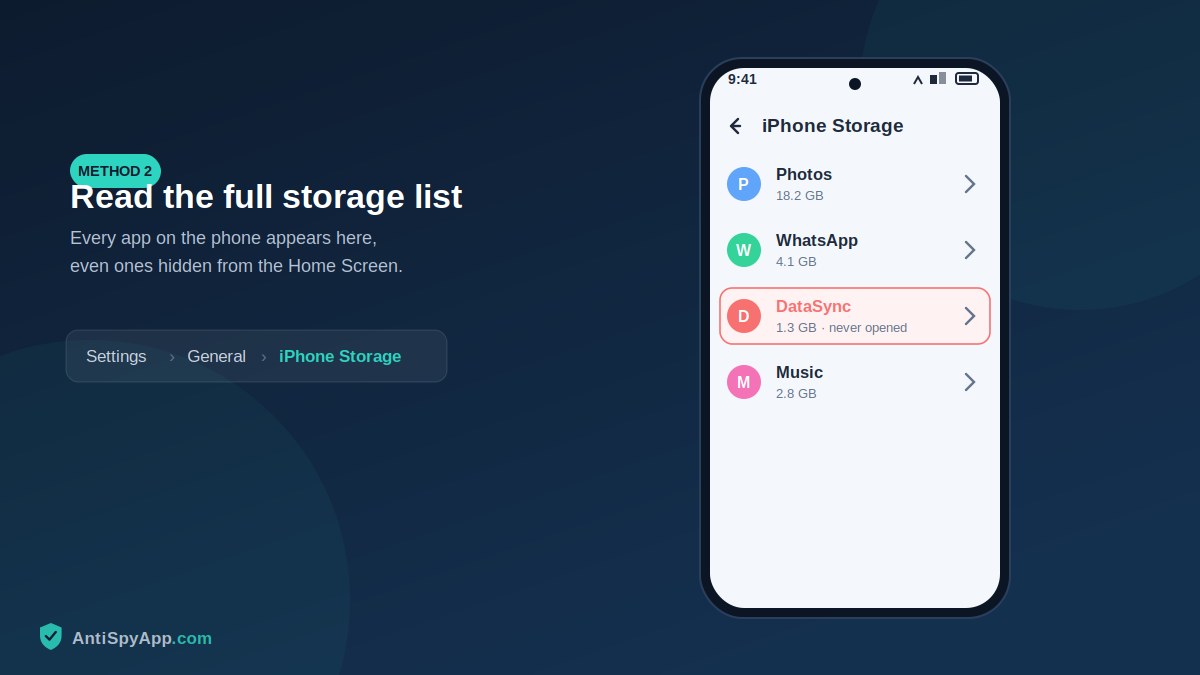
Apps can be hidden from the Home Screen, but they cannot hide from storage accounting. Open Settings > General > iPhone Storage and scroll the complete list slowly. Every app on the phone is here, including ones removed from the Home Screen. Swipe to the last page of your App Library too, and check the Hidden folder introduced in iOS 18 (App Library > Hidden, requires Face ID). Anything you cannot account for, tap it in the storage list to see when it was last used and how big it is — then search its exact name from another device before deciding what it is.
Method 3: Check for configuration profiles and device management
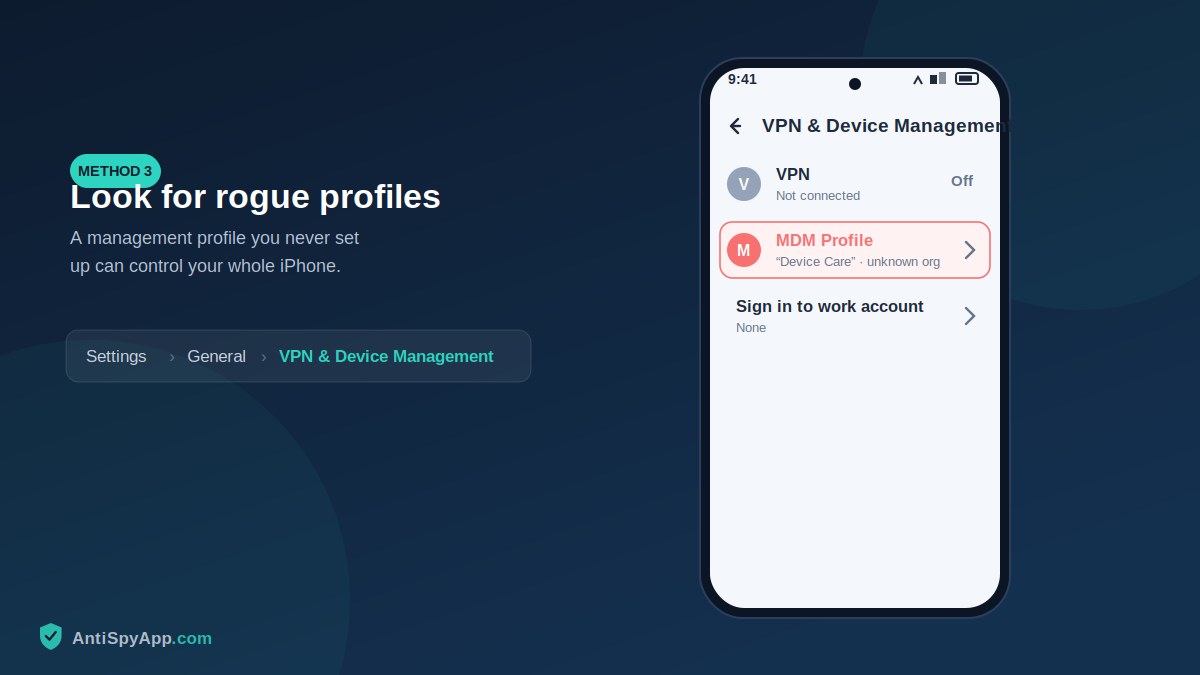
This is the single most important check on an iPhone. Configuration profiles and MDM (mobile device management) give an outside party real control: they can route your traffic, install apps, and enforce settings. They are legitimate on a work phone managed by your employer — and a serious red flag on a personal phone. Go to Settings > General > VPN & Device Management. On a normal personal iPhone this screen is empty or absent. If you find a profile you did not knowingly install, do not panic and do not delete it yet: photograph it, note its name and issuer, and see the “what to do” section below, because deletion is the right move but timing can matter for evidence and safety.
Method 4: Run Apple’s built-in Safety Check
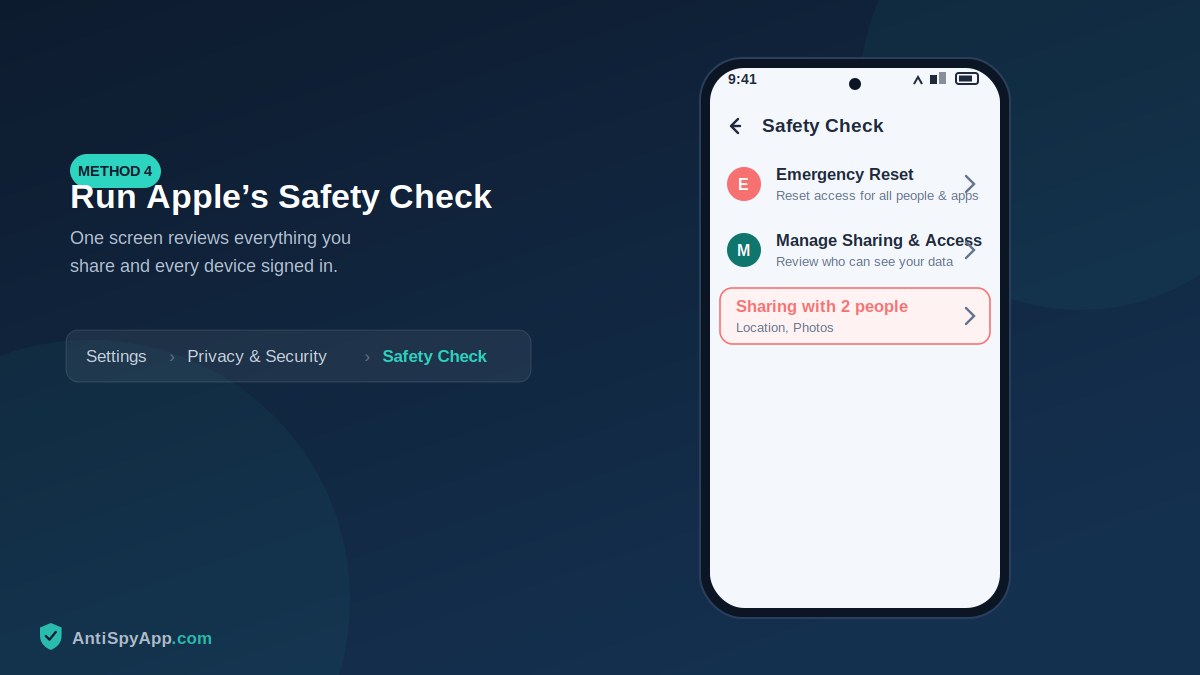
Apple built a tool for exactly the situation this article addresses. Settings > Privacy & Security > Safety Check (iOS 16 and later) shows you, in one place, every person you are sharing information with and every app with access to your data. Choose Manage Sharing & Access to review item by item: location shared through Find My, shared albums, shared notes, app permissions, and which devices are signed into your Apple ID. The Emergency Reset option cuts all sharing with everyone instantly — powerful, but visible to the people you were sharing with, so use it deliberately rather than reflexively. Review mode first; reset only when you have decided.
Method 5: Read the App Privacy Report
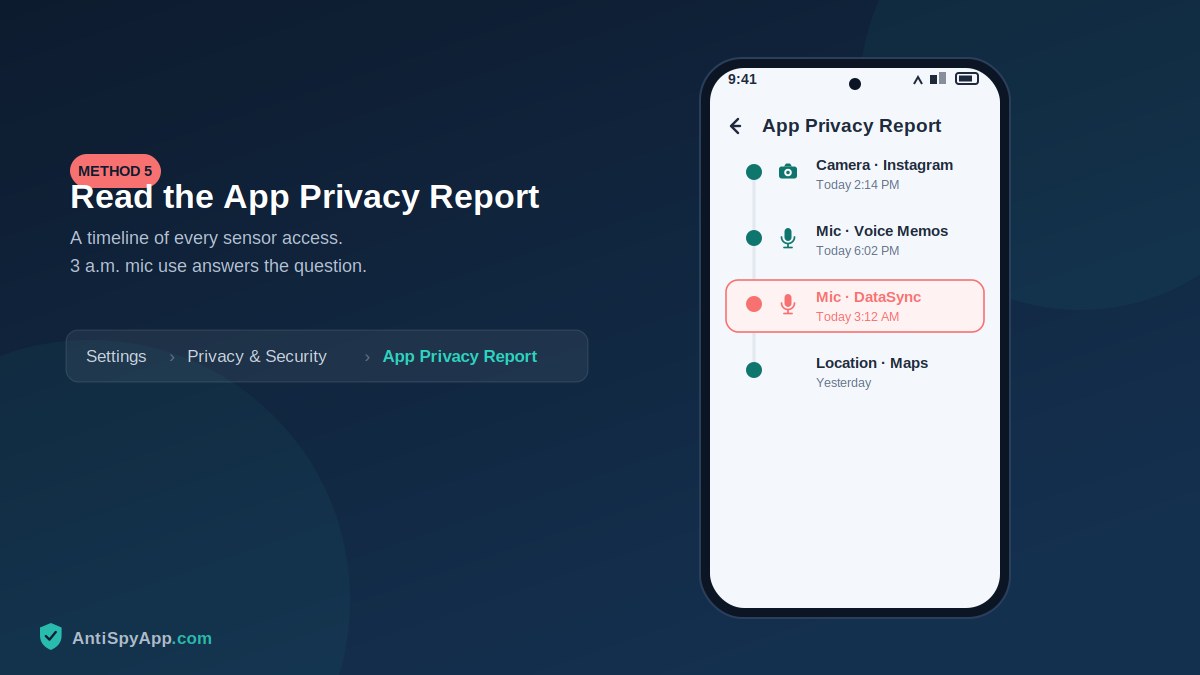
The App Privacy Report (Settings > Privacy & Security > App Privacy Report) is a seven-day log of every time any app touched your location, camera, microphone, contacts, or photos, plus the internet domains apps contacted. Turn it on if it isn’t already, give it a few days, then read it like a detective: sensor access at times you weren’t using the phone, a utility app contacting dozens of unfamiliar domains, location checks every few minutes. The orange (microphone) and green (camera) dots in the status bar are the live version of this log — if a dot appears while the phone lies untouched, open the report immediately to see which app it was.
Method 6: Audit your Apple ID — devices, sharing, and access
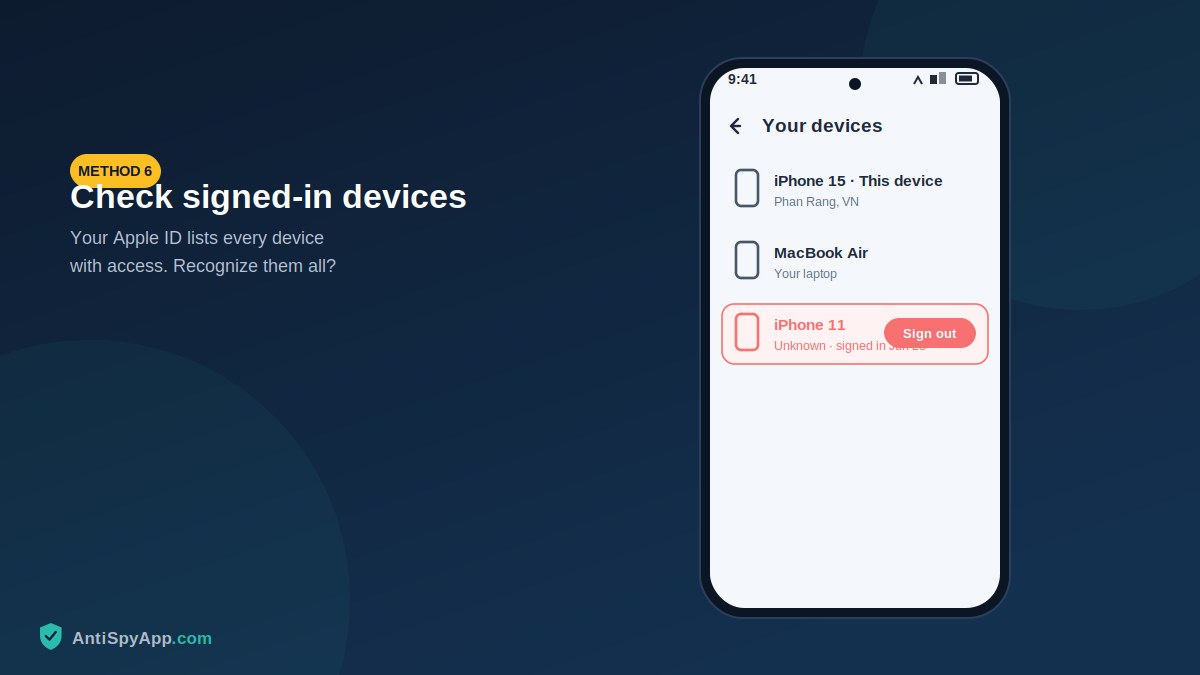
Much iPhone “spying” never touches the phone at all — it goes through the Apple ID. Anyone with your password can see your backups, photos, messages and location from their own device. Open Settings > [your name] and scroll to the device list: every phone, tablet, and computer signed into your account appears there. Remove anything you don’t recognize. Then check Find My > People for location sharing you don’t remember granting, and Family Sharing settings for a “family” you didn’t agree to join. Finally, ask yourself the honest question: does anyone else know your Apple ID password? If the answer is yes, changing it is part of the fix regardless of what else you find.
Method 7: Look for signs of jailbreaking
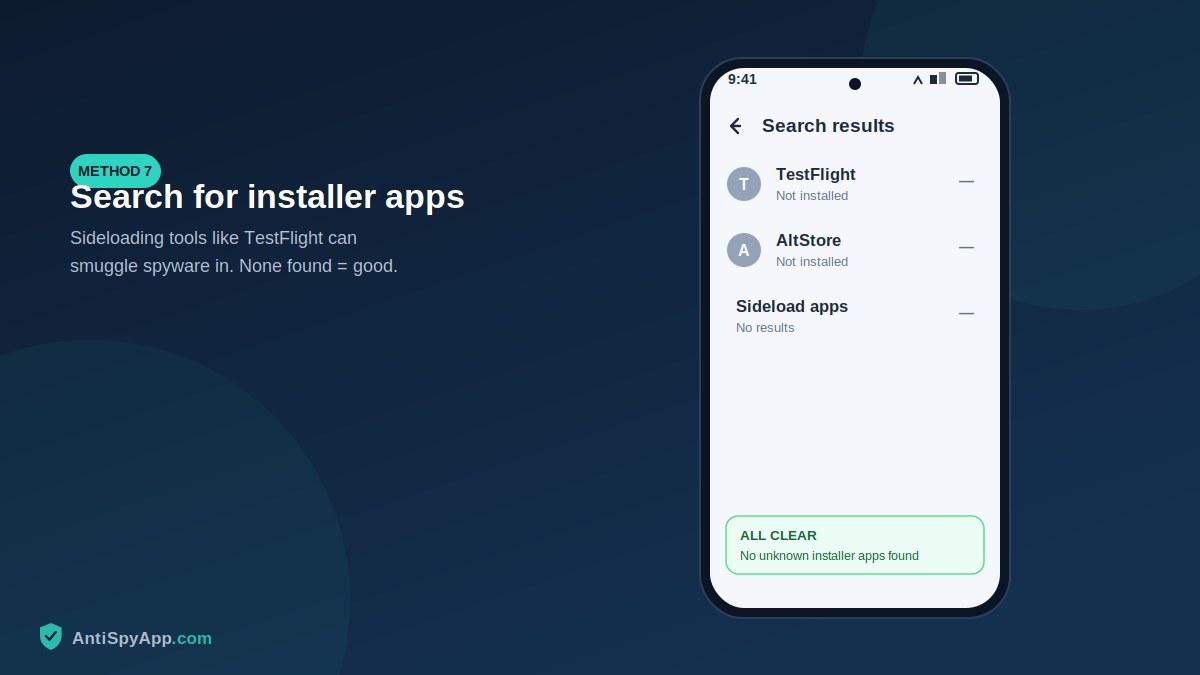
Full-strength iPhone spyware generally requires a jailbreak, and jailbreaks leave traces. Pull down for Spotlight search and type Cydia, then Sileo, then Zebra — these are jailbreak app stores that have no reason to exist on your phone. Other tells: apps that did not come from the App Store, Safari behaving oddly, unexplained crashes and reboots, or an iOS version that stubbornly cannot update. Jailbreaks rarely survive an iOS update, which is why spyware of this class often coincides with a phone that someone has “helpfully” kept on an old iOS version. If you find jailbreak traces you did not create, skip straight to the restore instructions below.
What to Do If You Found Something
Move in this order. Document first: photograph every suspicious profile, device, and setting with a different device. Consider safety: if the person responsible is a partner or family member, cutting their access alerts them — if there is any risk of escalation, contact a support organization from a safer device before acting. Then cut access: change your Apple ID password (Settings > [your name] > Sign-In & Security), enable two-factor authentication, remove unknown devices from the account, delete rogue configuration profiles, and stop unwanted sharing via Safety Check. For jailbreaks or lingering doubt: update to the latest iOS, or do a full erase (Settings > General > Transfer or Reset iPhone > Erase All Content and Settings) and set the phone up as new rather than restoring the old backup. Finally, set a fresh passcode that nobody else knows — six digits minimum, and not a birthday.
Five Habits That Keep Your iPhone Spy-Proof
Prevention takes less time than any investigation. One: use a passcode nobody else knows — not a birthday, not an anniversary, and not shared “for emergencies”; an alphanumeric passcode (Settings > Face ID & Passcode > Change Passcode > Passcode Options) is stronger than six digits. Two: protect the Apple ID like the master key it is: unique password, two-factor authentication on, and recovery contacts you actually trust. Three: keep iOS updated the day updates arrive; updates break jailbreaks and patch the exploits surveillance depends on. Four: review Safety Check and your Apple ID device list quarterly — ten minutes, four times a year. Five: turn on Stolen Device Protection (Settings > Face ID & Passcode), which requires biometrics for sensitive changes even from someone who knows your passcode. Do these five things and every attack path described in this article becomes dramatically harder.
Frequently Asked Questions
Can someone track my iPhone through a link they sent me?
A link can reveal your rough, IP-based location the moment you tap it, and a phishing page behind it can steal your Apple ID password — which is the real prize. What a link cannot realistically do on an updated iPhone is silently install monitoring software. So treat suspicious links as a password threat rather than a malware threat: if you tapped one and entered credentials anywhere, change your Apple ID password now and review your signed-in devices.
Can someone spy on my iPhone just by knowing my number?
No. A phone number alone allows calls, texts, and lookup of publicly available information — not access to your phone’s contents. The realistic risks are your Apple ID password, physical access to the unlocked phone, and tricking you into tapping a malicious link. Guard those three things and you have closed the doors that actually get used.
Do I need an antivirus app for my iPhone?
For detecting this kind of monitoring, the built-in tools in this article do more than any App Store “antivirus” can, because Apple’s sandboxing prevents third-party apps from scanning other apps. Security apps can still add value for web protection and breach alerts, but nothing replaces the profile, Apple ID, and Safety Check reviews above.
Will erasing my iPhone definitely remove spyware?
Erasing all content and settings, updating iOS, and setting up as a new device removes essentially all consumer spyware and undoes jailbreaks. The two things a reset cannot fix are a compromised Apple ID password — change it separately from a clean device — and a monitoring profile reinstalled later by someone who still knows your passcode. New passcode, new password, then the reset actually sticks.
The One-Screen Recap
Battery statistics reveal what worked overnight; iPhone Storage lists every app including hidden ones; VPN & Device Management exposes profiles, and an empty screen there is the single best result you can get; Safety Check shows everyone you share with; the App Privacy Report logs every sensor touch; your Apple ID device list catches account-level snooping; and a Spotlight search for jailbreak stores rules out the deepest compromise. Seven screens, no downloads, perhaps twenty minutes — and repeating just methods 3, 4, and 6 once a quarter keeps the result current. If any screen showed something you could not explain, work through the response section above in order: document, consider safety, cut access, then reset if needed.
Menu paths reflect iOS 17/18 and may differ slightly on older versions. This article is general information, not legal advice.