✅ Quick answer — the 3 fastest checks (2 minutes):
- Open Settings › Battery › Battery usage — look for an unknown app near the top.
- Open the Privacy dashboard (Android) or App Privacy Report (iPhone) — look for camera/mic/location access at odd hours.
- Check Device admin apps and Accessibility › Installed services — anything you can’t explain is a red flag.
⚠️ Safety note: If the person spying may be a partner, ex, or someone controlling, removing the app can alert them. Read the safety section below before changing anything.
Most people who discover a spy app on their phone say the same thing afterwards: the signs were there for weeks, they just didn’t know what they were looking at. Modern spyware and stalkerware are built to be invisible — no icon, no notifications, a deliberately boring name — but they cannot hide the side effects of what they do. Recording calls, copying messages, and streaming your location all cost battery, data, and processing power, and they leave fingerprints in your phone’s own statistics.
This guide walks through the ten most reliable warning signs, roughly in the order you are likely to notice them, and then tells you exactly what to do if several of them apply to you. One important rule before we start: no single sign proves anything. Batteries age, updates introduce bugs, and coincidences happen. What you are looking for is a cluster of signs that appeared around the same time — especially if that time was shortly after someone else had access to your unlocked phone.
Sign 1: Your battery suddenly drains much faster
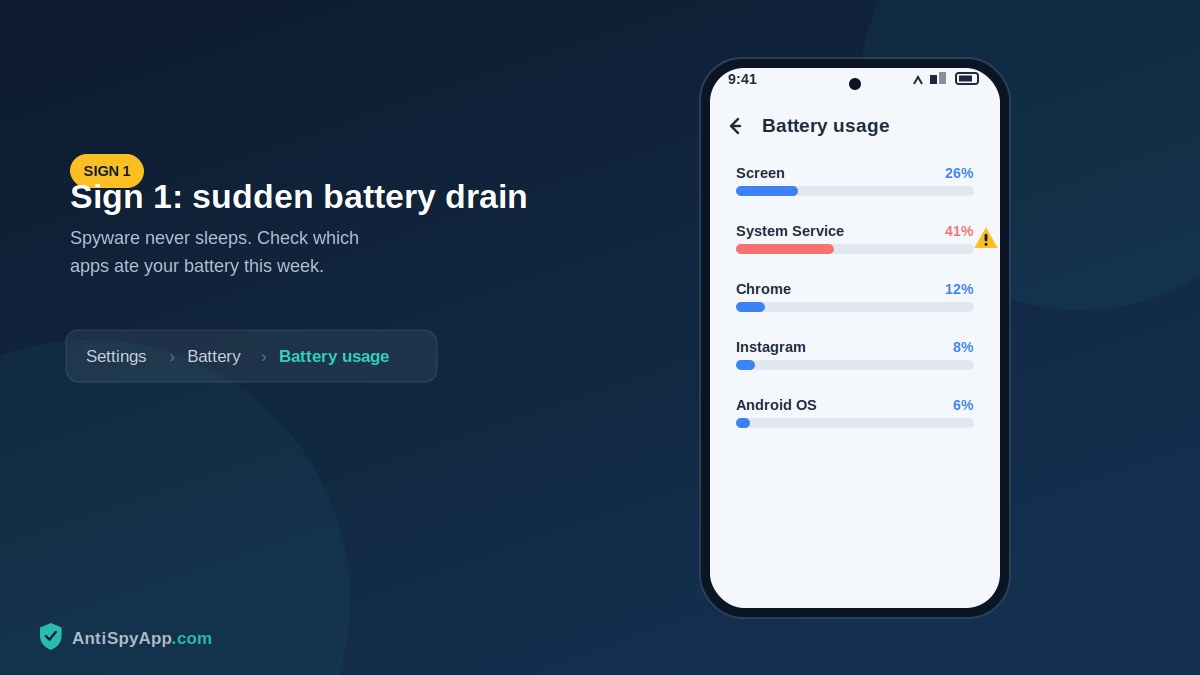
Spyware runs constantly in the background, so battery life is usually the first casualty. The key word is suddenly: a battery that has been slowly getting worse for a year is just aging, but a phone that lasted all day last month and now dies by mid-afternoon is doing new work you did not ask for. Check the evidence rather than guessing — open Settings > Battery > Battery usage (Android) or Settings > Battery (iPhone) and look at which apps consumed power over the last several days. An app you don’t recognize near the top of that list, or “system” processes consuming far more than usual, is worth writing down and investigating. Pay special attention to battery drain overnight, when the phone should be doing almost nothing.
Sign 2: Mobile data usage you can’t explain
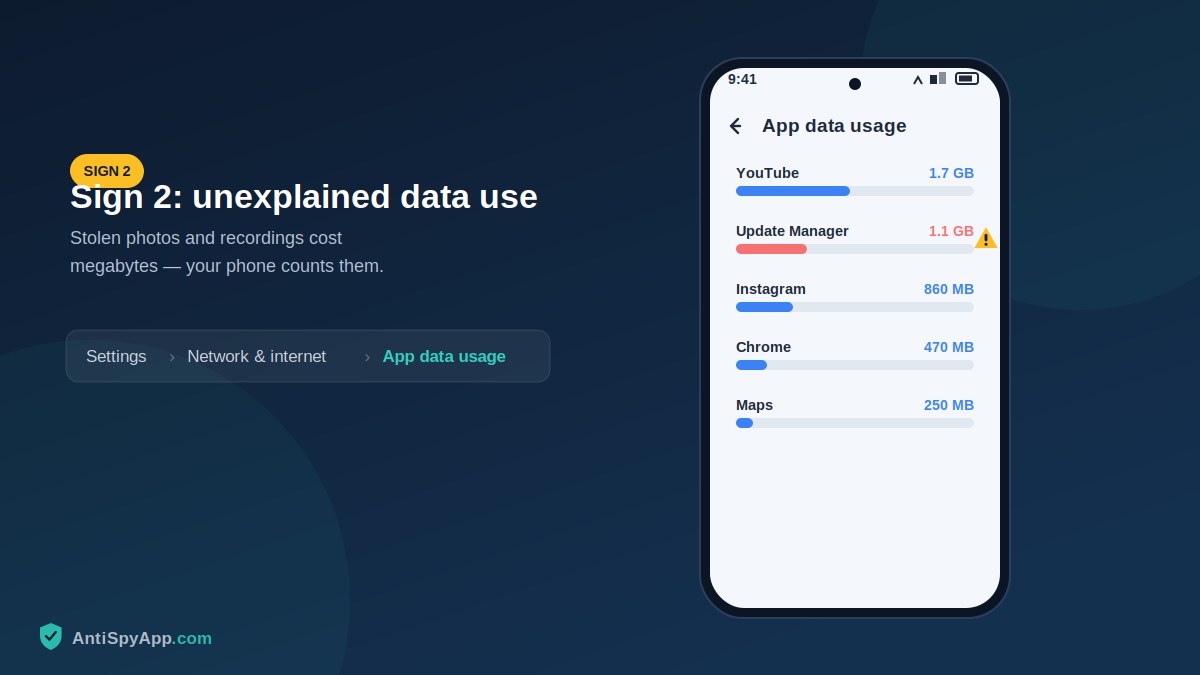
Everything a spy app collects has to be uploaded somewhere. Photos, call recordings, and message logs add up to real megabytes, and your phone counts every one of them. Compare this month’s data usage to previous months in Settings > Network & internet (Android) or Settings > Cellular (iPhone), then look at the per-app list. Streaming and social apps belong at the top; an unnamed service quietly moving hundreds of megabytes does not. Check Wi‑Fi usage too if your phone shows it, because smarter spyware waits for Wi‑Fi to upload so it never appears in cellular statistics. A sudden, sustained jump in data with no change in your habits is one of the strongest signs on this list.
Sign 3: The phone runs warm when you aren’t using it
Heat is work. A phone that is warm after an hour of navigation or gaming is normal; a phone that is warm after sitting untouched on a table for an hour is running something intensive in the background. Combined with sign 1, this usually means constant GPS polling, audio recording, or uploading. Rule out the innocent explanations first: cloud photo backup after a trip, a large app update, or a case that traps heat. If the warmth is new, happens repeatedly while idle, and coincides with faster battery drain, treat it as part of the cluster you are building evidence for.
Sign 4: The screen lights up or the phone restarts on its own
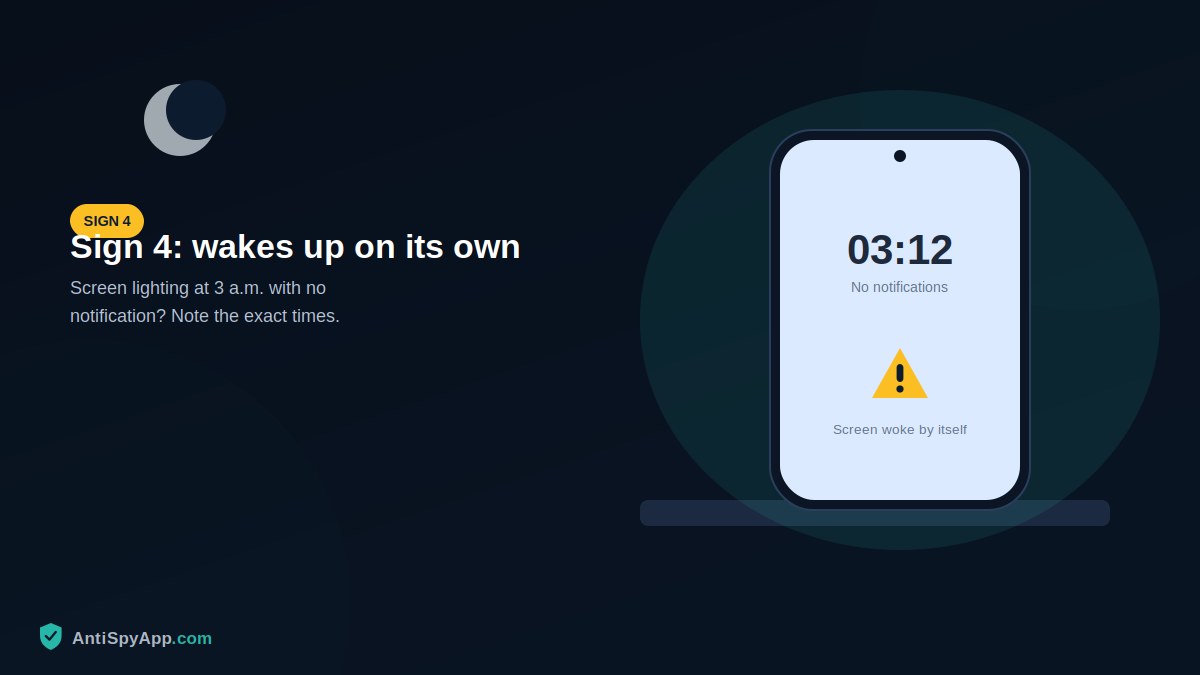
Hidden apps wake the device to do their work, and sometimes they do it clumsily. Watch for the screen turning on when no notification arrived, the phone restarting by itself, or it taking an unusually long time to shut down (spyware can delay shutdown while it finishes transmitting). Occasional glitches happen on every phone, so once again frequency and timing are what matter: if your phone lights up at odd hours several nights in a row, note the times — on Android you can later compare them against the Privacy dashboard to see whether the camera, microphone, or location was accessed at exactly those moments.
Sign 5: Strange text messages full of symbols or codes
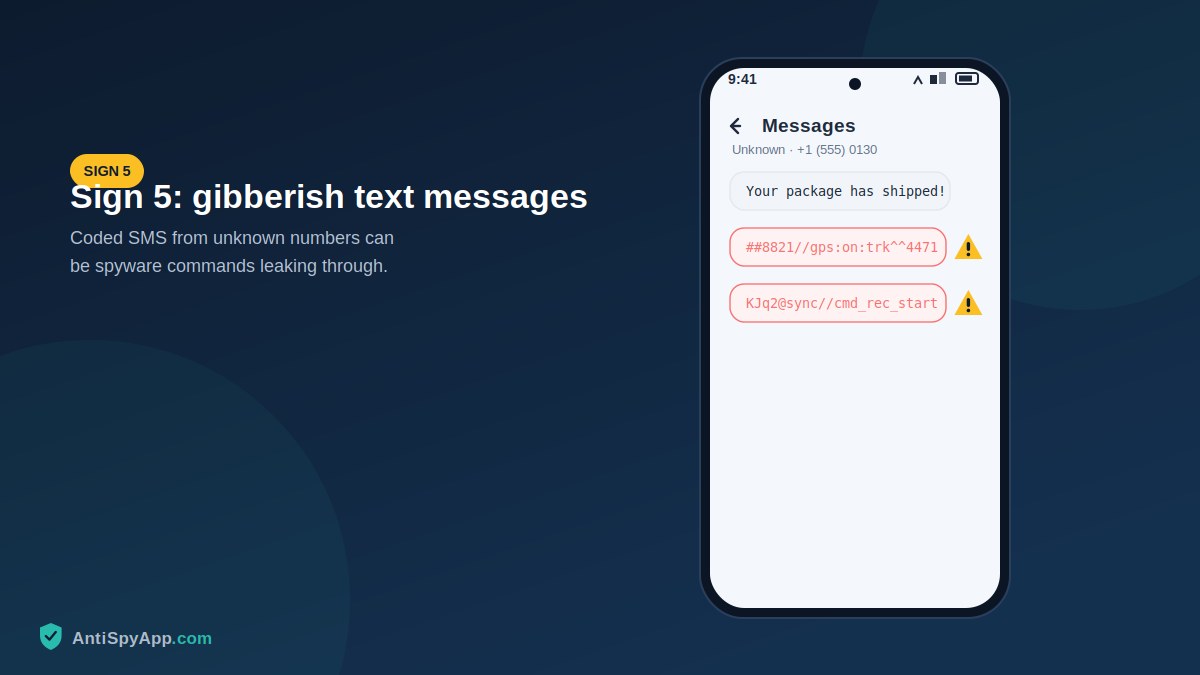
Some spy apps — especially older or cheaper ones — receive their commands by SMS. The controller texts a coded string to the phone, the app intercepts it, executes the command, and deletes the message. When the interception fails, you see the leftovers: texts from unknown numbers containing what looks like random letters, numbers, and symbols. If you have received messages like this, do not reply to them and do not delete them yet; photograph them with another device first. They can matter later as evidence, and their timestamps help establish when the monitoring started.
Sign 6: Odd sounds or echo during phone calls
Clicking, static, faint beeps, or hearing your own voice echo back can indicate call recording software sitting between you and the person you called. To be fair, ordinary network problems cause identical symptoms, so test it: if the sounds happen on every call, in different locations, on both Wi‑Fi calling and cellular, the network is probably not the culprit. A related sign is your voicemail or call forwarding behaving strangely — calls going to voicemail without ringing, or contacts saying they called when your phone never rang. You can check your forwarding status with your carrier or with the dial codes covered in our dial-codes guide.
Sign 7: Camera or microphone indicators appear at random
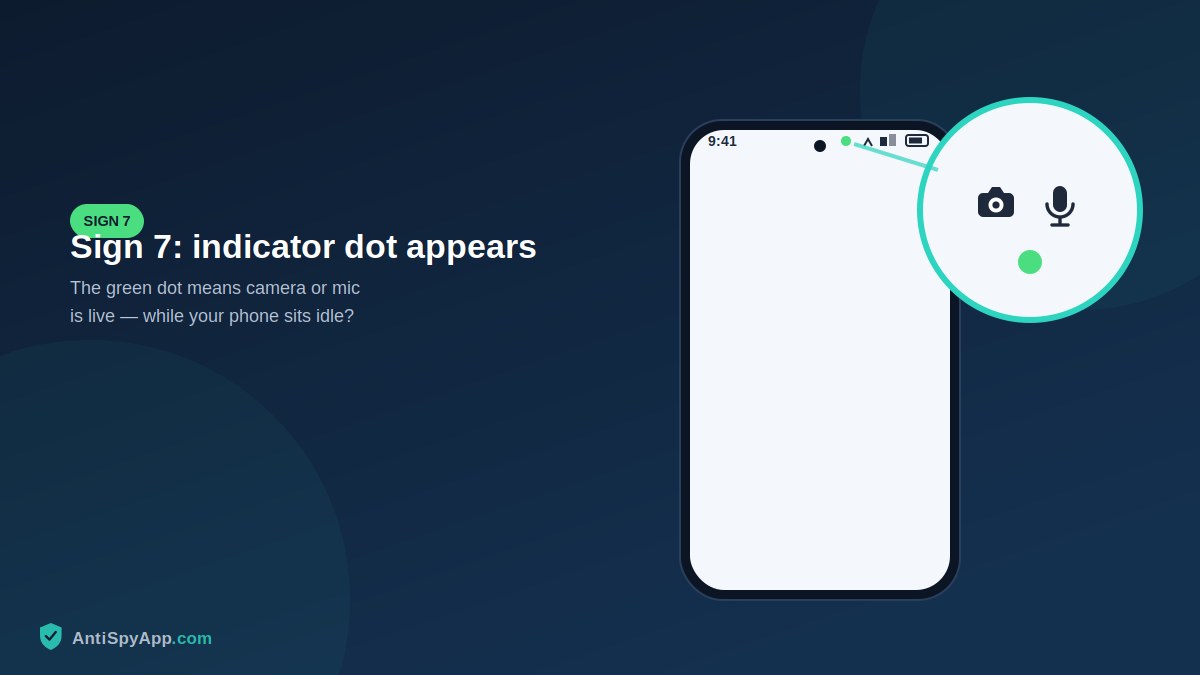
Modern phones tattle on their own sensors. Android 12+ and iOS 14+ show a small green or orange indicator whenever any app uses the camera or microphone. If that dot appears while your phone sits idle on the desk, something is watching or listening. Android users can open the Privacy dashboard (Settings > Security & privacy > Privacy) and iPhone users the App Privacy Report (Settings > Privacy & Security) to see a timeline of exactly which app accessed which sensor and when. Sensor access at 3 a.m., or by an app you never opened, moves you from suspicion to near-certainty — and it gives you the app’s name.
Sign 8: Apps, admin entries, or services you never installed
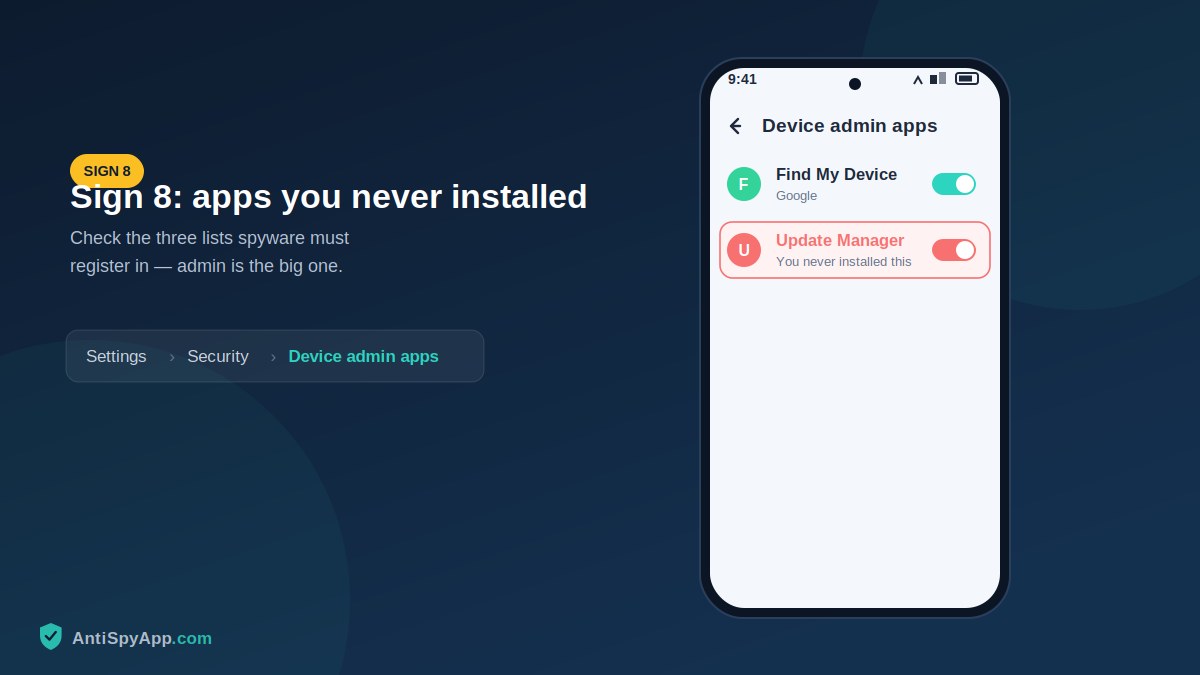
Spyware has to live somewhere. Go through Settings > Apps > See all apps and look for names designed to be skimmed past: “System Service”, “WiFi Sync”, “Update Manager”. Then check the three lists where stalkerware must register to get its power: Device admin apps, Accessibility > Installed services, and Special app access > Usage access. Anything in those lists that you cannot personally account for is the strongest single sign in this article. Search the exact name from a different device — not the phone in question — and note what you find. Our step-by-step Android guide walks through each of these screens in detail.
Sign 9: Security settings changed on their own
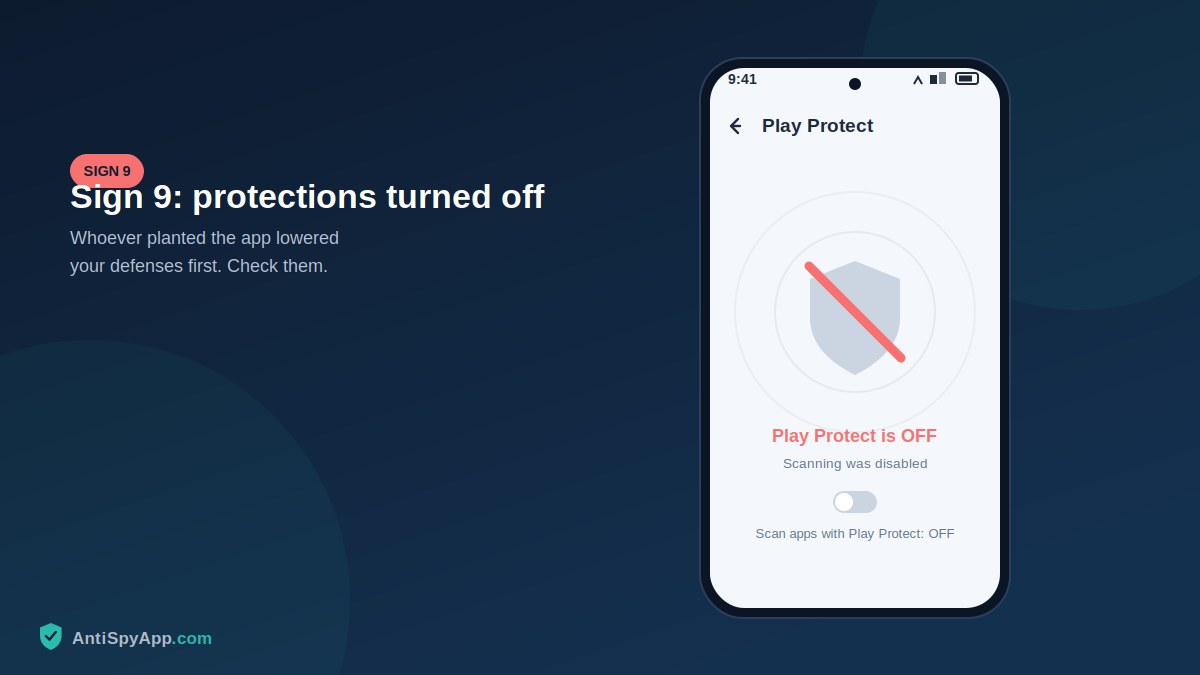
Whoever installs a spy app usually has to lower the phone’s defenses first, and they rarely restore them afterwards. Check whether Google Play Protect is mysteriously turned off (Play Store > profile icon > Play Protect), whether Install unknown apps permission was granted to a browser or file manager, or whether a new VPN or device management profile exists that you never set up (on iPhone: Settings > General > VPN & Device Management). You know your own choices; settings that changed without you are evidence that someone else made choices on your phone.
Sign 10: Someone knows things they shouldn’t know
The most human sign is also the most telling. A person who mentions a private conversation they were never part of, shows up where you happened to be, or reacts to plans you only discussed by text is displaying knowledge that had to come from somewhere. Victims often doubt themselves at exactly this point — don’t. Write down each incident: what they knew, when, and how you had communicated that information. Three or four entries in that log, combined with any technical signs above, form a pattern that is very hard to explain innocently, and a written record is exactly what police or a lawyer will ask for.
What to Do Next: Three Steps
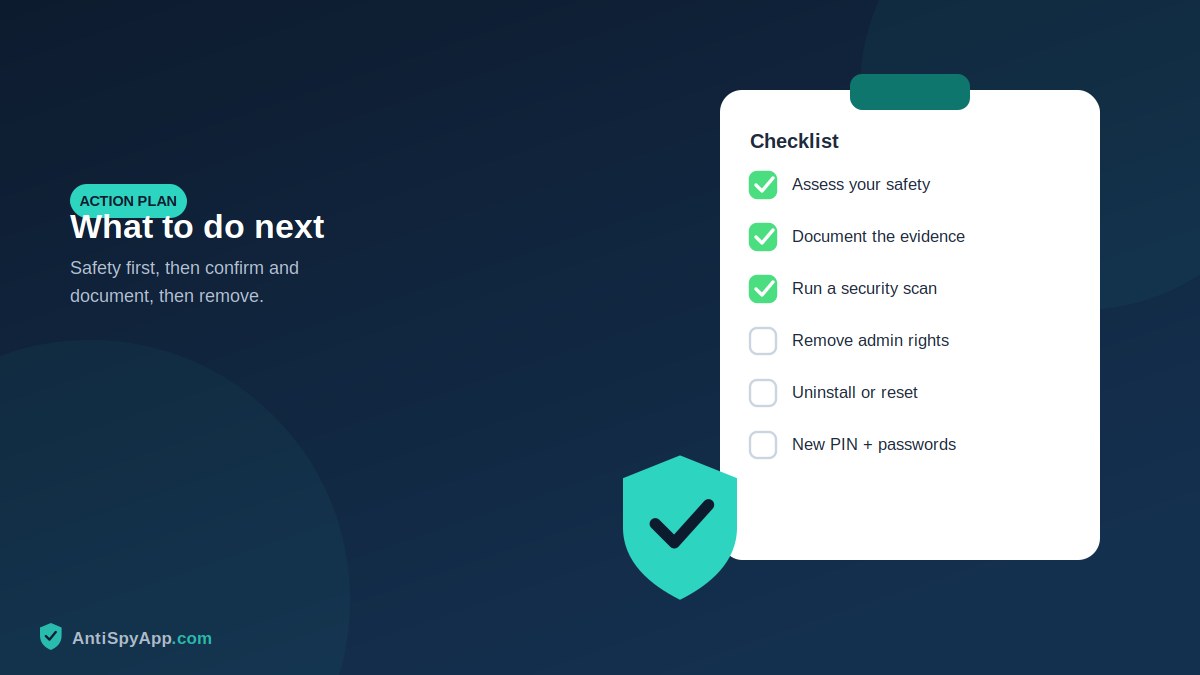
First, assess your safety. If the likely spy is a partner, ex-partner, or family member with controlling behavior, understand that removing the app can alert them immediately. In that situation, use a different device to contact a domestic violence support organization and make a plan before you change anything on the phone.
Second, confirm and document. Run a Google Play Protect scan and a reputable anti-spyware scanner, work through the settings checks in sign 8, and photograph every suspicious screen with a different device. Do not confront anyone with half-evidence; build the full picture first.
Third, remove and lock down. Revoke the app’s device-admin and accessibility privileges, uninstall it, or factory reset the phone for certainty — then set a new screen-lock PIN nobody knows, change your Google or Apple account password from a clean device, and turn on two-factor authentication. Our full 13-step removal guide covers each of these actions with pictures.
Bonus: The Five-Minute Monthly Checkup
Once your phone is clean, keep it that way with a short routine on the first of every month. Open the battery usage list and scan for new names. Glance at the data usage screen and compare it to last month. Open Device admin apps and Accessibility services — both lists should look exactly the way you left them. Confirm Google Play Protect is still on. Finally, open the Privacy dashboard and skim yesterday’s camera, microphone, and location access. Five minutes, five screens, and any future spy app gets caught in its first month instead of its first year. Put a recurring reminder in your calendar; the habit matters more than the tools, because every sign in this article is easiest to spot when you know what your phone’s “normal” looks like.
Frequently Asked Questions
How many of these signs mean I should worry?
There is no magic number, but think in clusters and timing. Two or three technical signs that all began in the same week — especially following a moment when someone had your unlocked phone — justify a full check. Sign 8 (an app or admin entry you can identify) and sign 10 (impossible knowledge) each carry more weight alone than the ambient signs like battery and heat.
Can spyware infect my phone just from a phone call or text?
Receiving a call cannot install anything. A text or email can only lead to infection if you tap its link and then approve an installation — on a normal, updated phone, several deliberate taps stand between a message and working spyware. The realistic paths remain physical access to your unlocked phone and tricking you into installing a disguised app yourself.
Will putting my phone in airplane mode or turning it off stop the spying?
Temporarily, yes — no connection means no uploads, and a powered-off phone records nothing. But the app resumes the moment the phone comes back online, and location history often uploads in a batch afterwards. Airplane mode is a pause button, not a fix; use it if you need privacy for a specific moment, then follow the removal steps for a real solution.
This article is for general information. If you are in immediate danger, contact your local emergency number. Menu paths are based on Android 14/15 and iOS 18 and may vary slightly by device.