Keeping Young Children Safe Online (Under 8s)

Little kids don’t need the whole internet. A five-year-old can’t yet tell an ad from a video, a stranger from a friend, or a real thing from a made-up one. That’s not a flaw to fix quickly. It’s just where they are. So the job for the under-8 years isn’t teaching them to survive the open web. It’s building a small, safe garden they can play in while you stay close by.

Why young children are different
Advice written for tweens and teens usually assumes a child who can read fluently, understand that people online might lie, and pause before tapping something. Under-8s are still building all of that. A six-year-old might read the words on a screen but miss that a cheerful voice is trying to sell them something. A four-year-old will tap a bright button because it’s bright, not because they meant to.
Three gaps matter most at this age. First, young kids can’t judge content well. Scary, sad, or just plain weird material lands hard and sticks, and they often can’t tell you what upset them. Second, they can’t spot ads or manipulation. To a small child, the “buy gems” button and the “play” button look the same. Third, they don’t yet grasp that a friendly stranger is still a stranger. The stranger-danger lesson takes years to sink in, and the online version is harder because there’s no face, no street, no obvious cue.
None of this means keeping them offline entirely. It means the approach flips. With teens you coach and gradually hand over the keys. With little ones you curate the whole environment and stay in the room. The internet isn’t a place you drop them off. It’s somewhere you visit together.
The mindset shift. For teens, the goal is judgment. For under-8s, the goal is a good environment. You’re not training them to handle risk yet. You’re removing most of it and enjoying the safe bits together.
The walled-garden principle
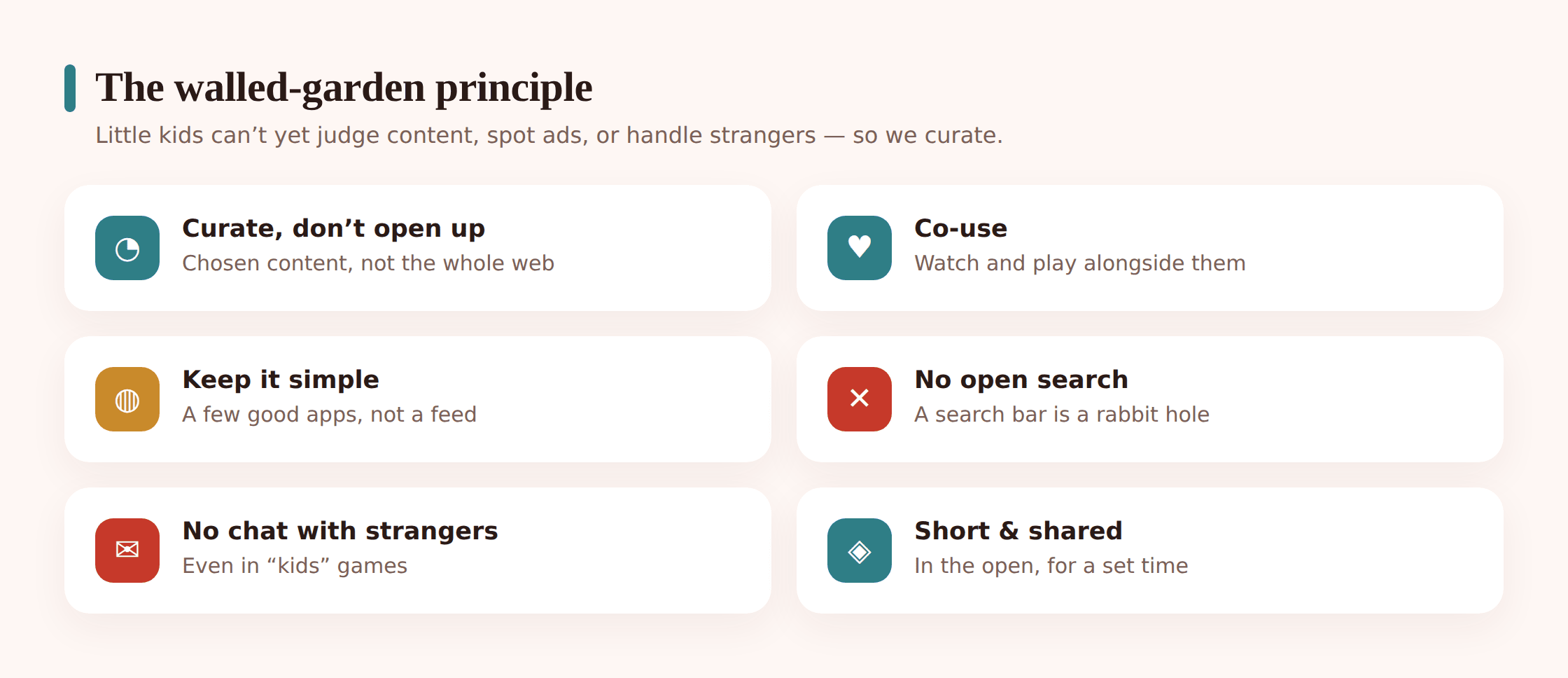
A walled garden is exactly what it sounds like. Instead of giving a young child the open internet with some filters bolted on, you give them a small, fenced space where everything inside has already been checked. They can roam freely, because there’s nowhere unsafe to roam to. The wall does the worrying so your child doesn’t have to.
This is the opposite of how adult tech works. Grown-ups get an open browser and learn to avoid the bad corners. A young child should get the reverse: a short shelf of known-good apps and videos, and no easy door out to everything else. Think of it like a playground with a fence, not a city with a map.
Why a wall instead of a filter? Filters miss things. They’re getting better, but they still let odd videos slip through and still block harmless ones for no reason. A wall works the other way around. Nothing gets in unless you or a trusted kids’ service put it there. For an under-8, that trade is worth it. They lose nothing they’d miss, and you gain real peace of mind.
The wall isn’t permanent. It comes down slowly over years, one brick at a time, as your child grows the skills to handle what’s on the other side. The easing-the-reins section covers that. For now, the fence stays up, and that’s a kindness, not a cage.
Curate, co-use, keep it simple
Three habits do most of the work at this age. Get these right and the technical settings almost take care of themselves.
Curate. Choose the content yourself rather than letting an algorithm choose it. Pick a handful of shows, a few games, a couple of learning apps. Put them on their shelf and leave the rest off. Curation is the single most powerful thing you can do, because a small, hand-picked set of apps is a small, hand-picked set of risks.
Co-use. Be nearby, and better yet, join in. Watch the show, play the level, ask what’s happening. Co-use isn’t supervision in a stern sense. It’s just being present. When you’re there, a strange video gets caught in seconds instead of playing on, and your child learns that screens are something you do with people, not instead of them.
Keep it simple. Fewer apps, fewer features, fewer taps to anywhere risky. Resist the urge to load a tablet with thirty apps “just in case.” A cluttered device is harder to keep safe and more overwhelming for a small child. Simple is safer and calmer for everyone.
Safe tools and how to use them
You don’t need special hardware to do this well, though some of it helps. Here’s what’s actually useful and how to get the best from each.
Kids’ modes and child profiles
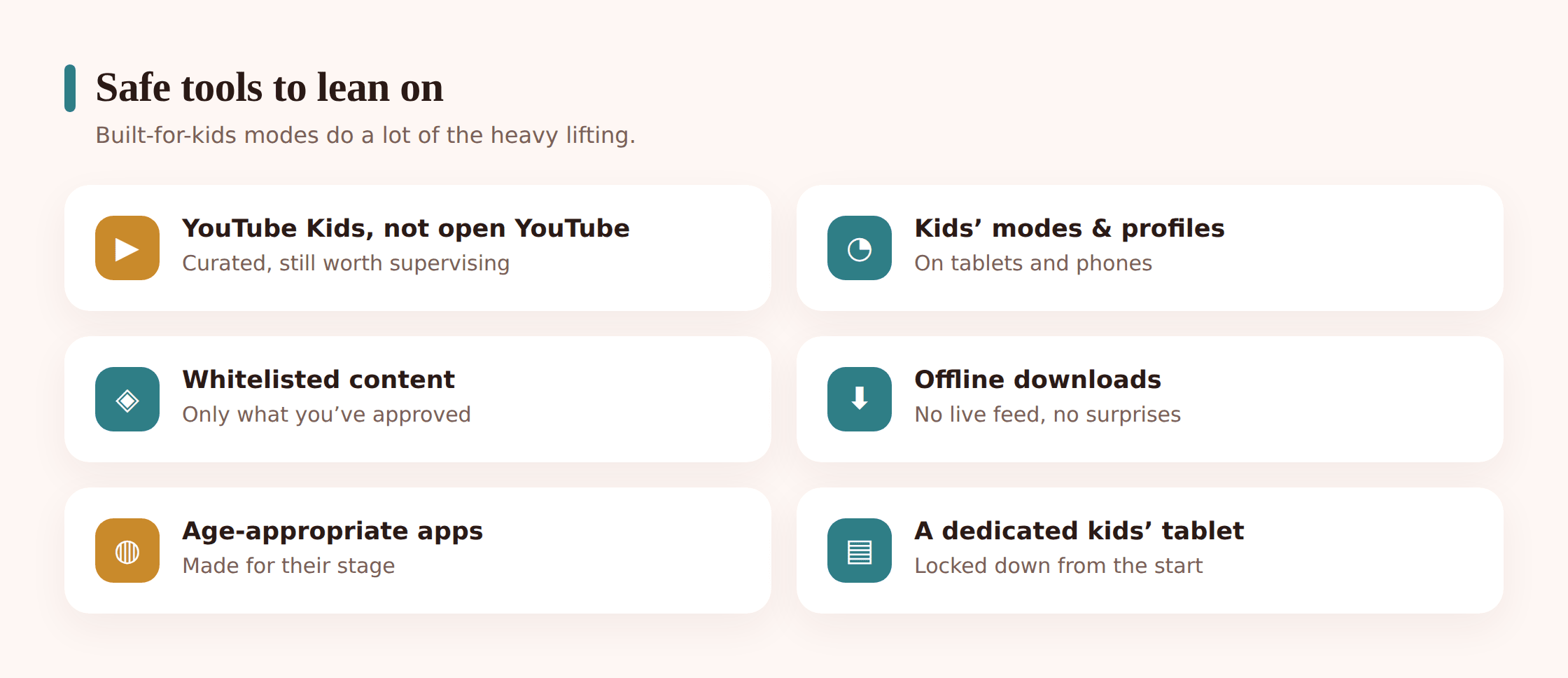
Most tablets and many phones have a built-in kids’ mode or the option to create a separate child profile. This is your first and most important tool. A child profile keeps their apps, their limits, and their content walled off from your grown-up stuff, so there’s no accidental wandering into your email, your browser, or the app store. Set one up and have your child use only that profile.
YouTube Kids vs open YouTube
This is the big one, so it gets its own line: under-8s should not be on the open YouTube app. Open YouTube is a bottomless, algorithm-driven feed built for adults, and even with restricted mode it surfaces things no small child should see. YouTube Kids is a walled version with curated content and parent controls, and it’s a far better fit. Even then, use the “approved content only” setting where you hand-pick what’s available, rather than letting the app auto-select by age. We go deeper in our guide on whether YouTube is safe for kids.
Curated and whitelisted content
Some apps and services let you build an allow-list, sometimes called a whitelist, where only the shows, games, or sites you approve are reachable. This is the walled garden in its purest form. If your child’s tablet or streaming app offers approved-content-only or allow-listing, use it. It turns “block the bad stuff” into “only show the good stuff,” which is much easier to get right.
Offline downloads
Downloading a few episodes or a couple of games for offline use is quietly one of the safest setups going. Offline content can’t autoplay into something new, can’t show live ads, and can’t connect to strangers, because it’s not connected to anything. A tablet in aeroplane mode with three downloaded shows is close to a perfect walled garden. Great for car trips, waiting rooms, and quiet-time at home.
Age-appropriate apps and kids’ tablets
Look for apps built specifically for young children, the ones with no open chat, no web links, and no ads or clearly labelled kid-safe ads. App age ratings help here, though they’re a starting point, not a guarantee; our note on app age ratings explains what they do and don’t tell you. Kids’ tablets, the chunky ones in rubber cases, often come with a walled content service and locked-down defaults out of the box, which saves you some setup. Our full kid-safe tablet setup walks through the hardware side.
Setting it up, step by step
Here’s a practical run-through for locking down a device for an under-8. Do it once, calmly, and it’ll hold for a good while. If you want the platform-specific screens, our guide to parental controls on Android and iPhone has the taps.
Step 1 — Make a child profile
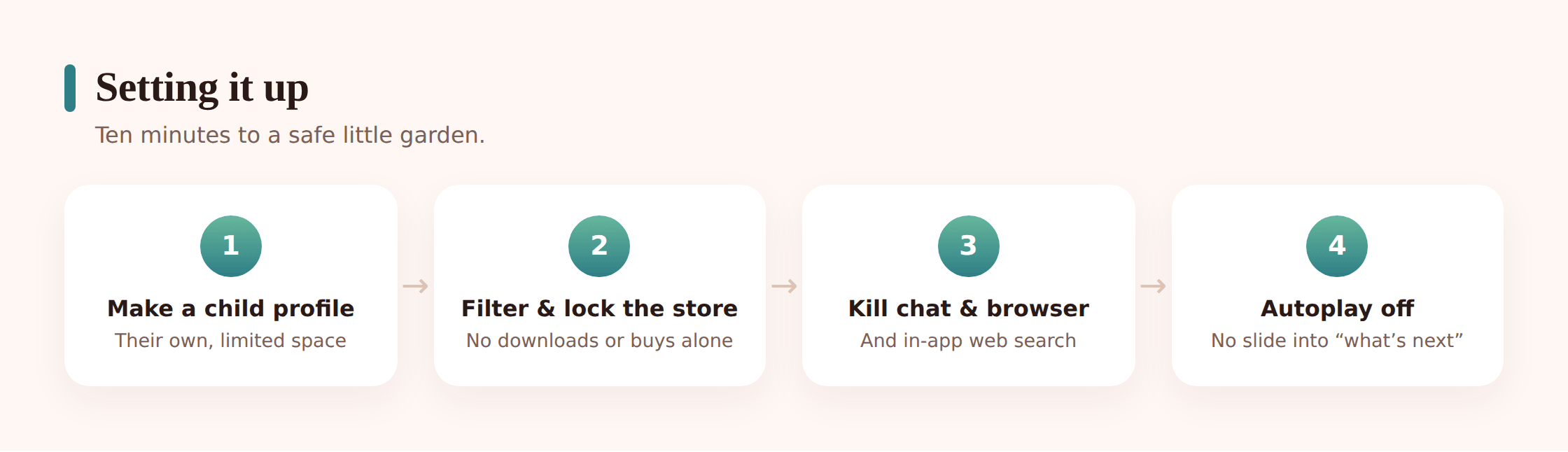
Create a separate profile or kids’ mode for your child, and set it as the only thing they use. Give it its own PIN or passcode that they don’t know, so it can’t be exited into your adult account. This one step does a surprising amount of the work.
Step 2 — Curate the app shelf
Add only the apps you’ve chosen: a few shows, a game or two, a learning app. Remove everything else from their view. A short shelf is the heart of the walled garden.
Step 3 — Turn on content filtering
Set content filters to the strictest age band available, and where you can, switch to approved-content-only so you hand-pick what’s reachable rather than trusting an age slider.
Step 4 — Lock the app store and purchases
Require your password or fingerprint for every download and every purchase, and turn off one-tap or stored-payment buying inside apps. This stops accidental installs and the classic surprise bill from a game full of gem buttons. Our note on in-app purchases and kids covers the money side.
Step 5 — Disable in-app browsers and chat
Turn off or block any built-in web browser, and switch off chat, comments, and messaging features in every app that has them. If an app can’t have its chat disabled and your child doesn’t truly need it, take the app off the shelf.
Step 6 — Turn off autoplay
Autoplay is how a fine video quietly becomes a not-fine one. Switch it off everywhere you can, so each thing your child watches is a small, deliberate choice rather than an endless feed.
Step 7 — No open web search
Don’t give an under-8 an open search bar or a general browser. If they need to find something, you find it together. Open search is a door to the whole internet, and that’s the one door the walled garden is meant to keep shut.
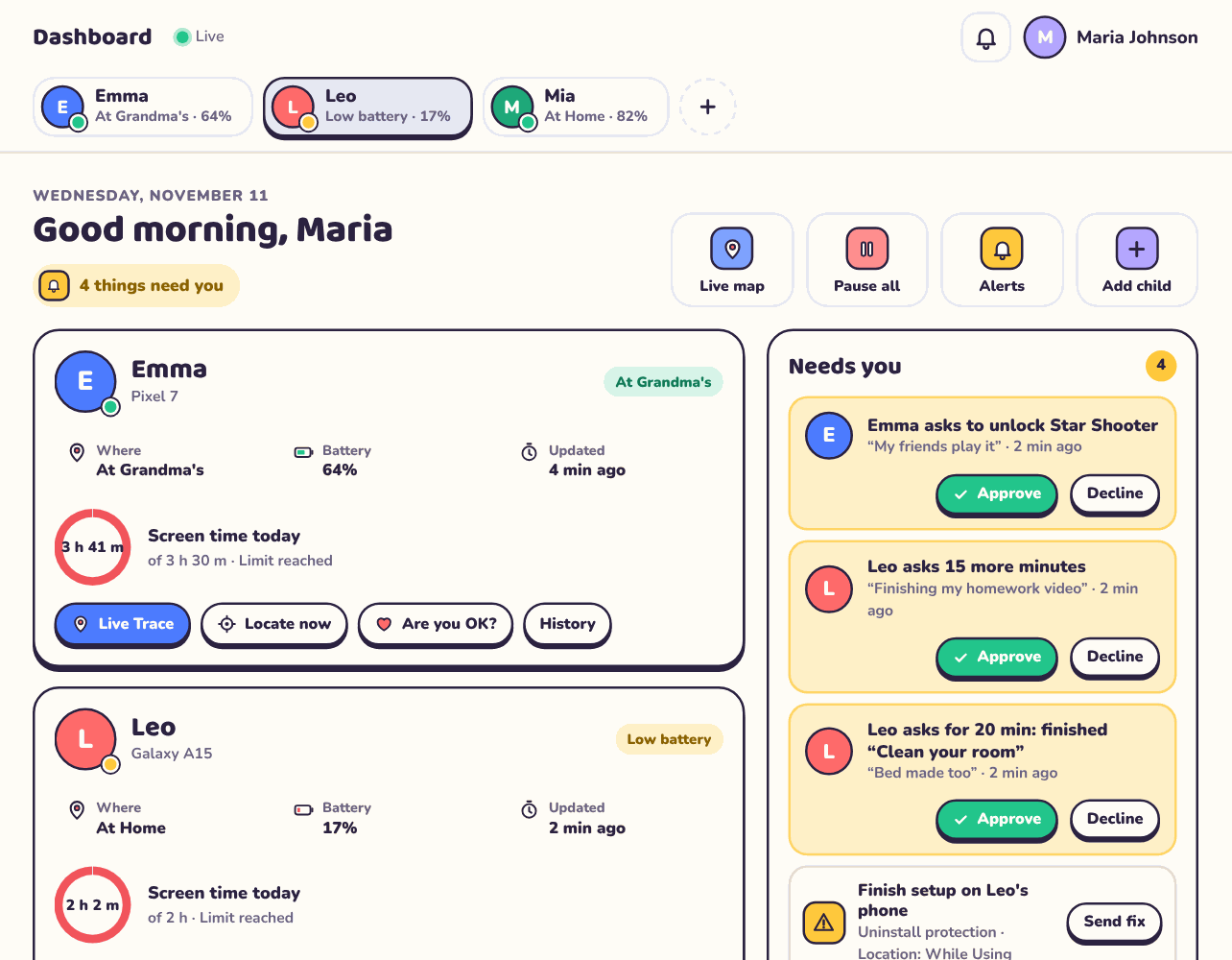
Where FreePhone fits. FreePhone is a transparent, consent-based Android parental tool, and it’s most useful once kids are older and carrying their own phones. For the under-8s, the real work is curation and co-use, not monitoring software. Get the walled garden and the habits right first; the tools for tracking activity come into their own later, out in the open, when your child has a device of their own.
The stranger risk in “kids” games
This one surprises parents, so it’s worth being plain about. Plenty of games marketed to children include chat, voice, or the ability to play alongside strangers. The game looks like it’s for kids. The chat inside it is open to anyone. A six-year-old building blocks in a colourful world can, in some games, be typed at or spoken to by an adult they’ve never met.
Predators know children gather in these spaces, and open chat is where contact starts. It usually looks harmless at first, because that’s the point. A friendly message, a compliment, an offer to help in the game. A young child has no way to read that for what it might be. Our guide on how to protect kids from online predators goes deeper, and if it’s already happened, a stranger messaging your child walks through what to do.
For under-8s the answer is simple: no open chat, full stop. Turn it off in the game’s settings if you can. If it can’t be turned off, either play only in a private or solo mode, or choose a different game. There are plenty of lovely kids’ games with no chat at all. You lose nothing your child needs by keeping the strangers out.
The quiet rule. If your young child is playing a game where strangers can talk to them, treat that as a setting to fix today, not a maybe. Open chat plus a small child is the one combination worth being strict about.
Healthy habits that stick
The settings build the fence. The habits are what make the garden a happy place. These matter as much as any toggle.
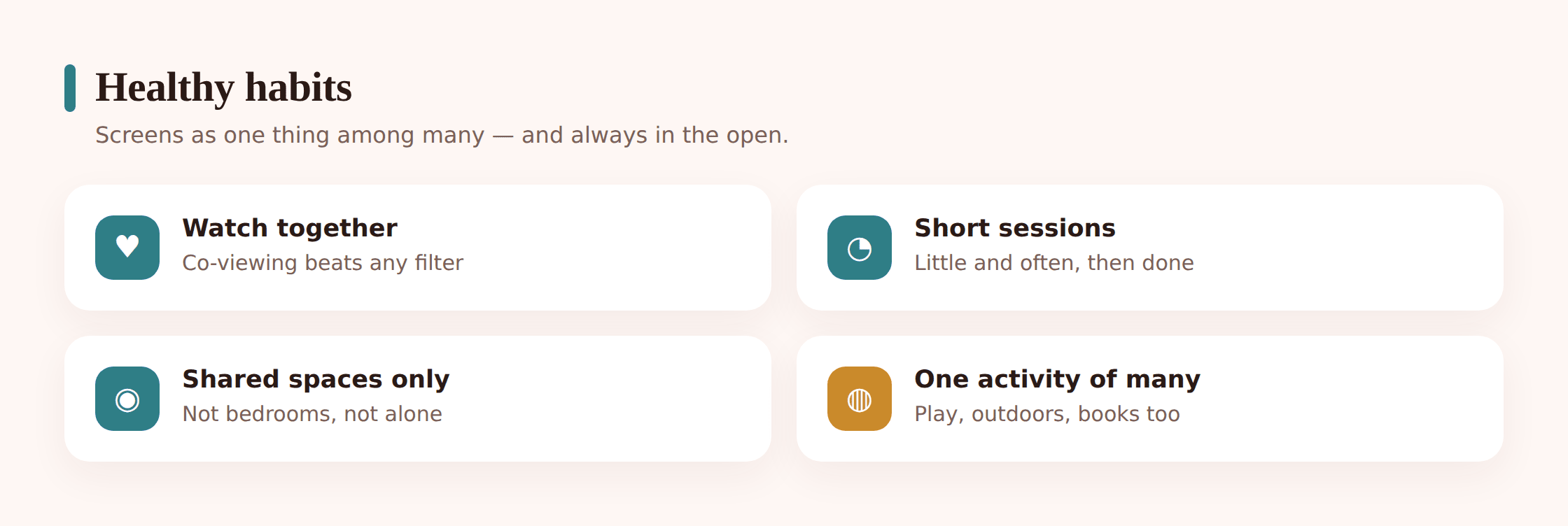
- Co-view when you can. Watching or playing together turns screen time from a solo babysitter into shared time. You’ll catch anything odd instantly and you’ll enjoy the good bits with them.
- Keep sessions short. Small children do better with short, defined bursts than long open-ended stretches. “One episode, then we build the train track” works better than an unmarked hour.
- Screens in shared spaces. Keep devices in the kitchen or living room, not bedrooms. It’s easier to stay nearby, and it quietly signals that screens are a family thing, not a private one.
- Screens as one activity among many. A tablet should sit alongside blocks, books, mud, and drawing, not above them. When screens are just one option on a full shelf of play, they stop being the whole shelf.
- Name the wind-down. Give a warning before the end, and have a next thing ready. The switch-off tantrum shrinks a lot when there’s somewhere pleasant to land.
For the wider picture of daily balance, our guide to screen time for toddlers covers how much and when, which pairs naturally with the safety side here.
Easing the reins as they grow
The walled garden isn’t forever. As your child moves through the under-8 years and into the early tween ones, you loosen things gradually, matching the freedom to the skill. The idea is a slow handover, not a sudden gate thrown open on a birthday.
What does loosening look like? Maybe you move from approved-content-only to a slightly wider age filter once they can tell you when something feels wrong. Maybe you allow a searched-for video, with you sitting beside them, before you allow open search alone. Maybe a chat feature opens up first for a known real-life friend, with you nearby, long before it opens to anyone. Each step is small, deliberate, and paired with a conversation.
The conversations grow alongside the freedoms. Around this age you can start the gentle, ongoing chat about online safety, keeping it calm and matter-of-fact; our guide on how to talk to kids about online safety has age-friendly ways in. The goal across these years is a child who, brick by brick, learns to be their own fence, so that by the time the wall is fully down they’ve built good judgment to stand in its place.
Go at your child’s pace, not the calendar’s. Some seven-year-olds are ready for a wider garden; some nine-year-olds still need the fence firmly up in places. You know yours. Watch how they handle each small freedom, and let that guide the next one.
FAQ
Is YouTube Kids actually safe?
It’s much safer than open YouTube, which is the real comparison. YouTube Kids curates content and gives you parent controls, so it’s a genuine step up. It isn’t flawless, and the odd off video can slip through the auto-selected feed. The fix is to switch on approved-content-only and hand-pick what your child can watch, rather than trusting the age setting. Used that way, it’s a solid choice for under-8s. Our full take is in is YouTube safe for kids.
Can my 6-year-old be contacted by strangers in a game?
Yes, in many games that look child-friendly. If a game has open chat, voice, or public multiplayer, an adult stranger can potentially reach your child inside it. For this age the answer is to turn chat off in the game’s settings, play only in private or solo modes, or pick a game with no chat at all. Don’t assume a colourful kids’ game is closed off just because it’s aimed at children.
Should my young child have their own browser or search?
No, not yet. An open browser or search bar is a door to the entire internet, which is exactly what the walled garden is designed to keep shut for under-8s. When your child needs to find something, do it together on your device. Open, solo search can wait until they’re older and you’ve talked through how to judge what comes back.
Do I really need a separate child profile?
It’s the single most useful thing you can set up. A child profile keeps their small, safe world walled off from your adult apps, the app store, and your accounts, with a passcode they don’t know so they can’t slip out of it. It takes a few minutes and it prevents a lot of accidental wandering. Well worth doing before anything else.
Are kids’ tablets worth buying?
They can be, especially if you’d rather not do all the setup yourself. Kids’ tablets usually ship with a walled content service and locked-down defaults, which does a chunk of the work out of the box. That said, a regular tablet with a child profile and the settings in this guide gets you to the same place. Either can work; it’s about how much you want to configure by hand. Our kid-safe tablet setup covers both routes.
My child saw something upsetting online. What now?
Stay calm and don’t make them feel in trouble; they need to know they can tell you these things. Comfort first, ask gently what they saw, and reassure them. Then quietly tighten the setup so it’s less likely to happen again, using the steps above. If it keeps happening or something more serious was involved, our guide on protecting kids from online predators and your instinct to seek help both apply.
The under-8 years are the walled-garden years, and that’s a good thing. You don’t have to teach a small child to survive the open internet. You just have to build them somewhere safe and small, sit with them in it, and take the fence down slowly as they grow into the wider world. Curate, co-use, keep it simple. The rest follows.