Teen Driver Safety: A Parent’s Guide (Phone & Location)
The day your teen drives off alone for the first time is a strange one. You’re proud. You’re also watching the driveway long after the car’s gone. The good news is that most of what keeps a new driver safe isn’t luck or gadgets — it’s a few habits you set together, and a phone that stays out of their hand.
- What actually puts new drivers at risk
- The biggest win: no phone in hand
- Set up Driving Focus (iPhone & Android)
- Write a new-driver agreement together
- Calm location check-ins, the honest way
- Where FreePhone helps — and where it doesn’t
- Graduated freedom and the trust ladder
- After a near-miss or a ticket
- Insurance and telematics apps
- FAQ
What actually puts new drivers at risk
A new driver isn’t a bad driver. They’re an inexperienced one. Their eyes haven’t yet learned to read a road three moves ahead, and their hands haven’t done a wet roundabout at dusk a hundred times. That gap closes with miles, not lectures. But a handful of things widen it, and it’s worth naming them plainly.
- The phone. A buzz, a glance, a reply. Two seconds looking down at 30 mph is a long way blind. This is the risk you have the most control over, which is why it gets its own section below.
- Inexperience. Judging a gap, reacting to the unexpected, knowing when a road is quietly dangerous — that’s all learned. Early on, everything is a first.
- Night driving. Less light, more tired, harder to judge speed and distance. A new driver at 11pm is doing something genuinely harder than the same drive at noon.
- Passengers. A car full of friends is a car full of noise and dares and “watch this”. One quiet passenger is fine. Three loud ones change how a nervous new driver behaves.
- Speed. Not always showing off — often just not feeling how fast is too fast for the conditions yet. That instinct comes later.
Notice what’s not on that list: your teen being reckless on purpose. Most new drivers want to do it right. Your job isn’t to catch them out. It’s to shrink the risks they can’t yet see, and to be the calm voice they’ll actually call when something goes wrong.
The biggest win: no phone in hand
If you do one thing, do this. A driver who isn’t touching their phone has removed the single most common, most avoidable distraction there is. Everything else on this page matters, but nothing matters more.
The trap is that “I’ll just glance at it at the lights” turns into a habit, and habits carry into moving traffic. So the rule is simple and total: while the car is moving, the phone is not in their hand. Not for music, not for maps, not for a “quick” reply. Set the playlist and the destination before the wheels turn, then leave it alone.
Two honest points to make with your teen. First, hands-free isn’t harmless — talking through the speakers still pulls attention off the road, so early on, calls can wait too. Second, “text me when you park” is the answer to every “but I need to reply”. You’ll get your reply. It’ll come from a parked car. That one phrase, agreed up front, quietly ends most of the pressure to check the phone while driving.
Set up Driving Focus (iPhone & Android)
You don’t have to rely on willpower. Both phone platforms can detect driving and go quiet on their own. Set this up together, on their phone, before the first solo drive.
On an iPhone — Driving Focus
- Open Settings > Focus > Driving.
- Set it to turn on Automatically (the phone senses motion and a car connection) or when connected to CarPlay.
- Turn on Auto-Reply so texts get a “I’m driving, I’ll reply when I stop” message. You choose who it replies to.
- Silence notifications while it’s on. The screen stays dark; the buzzing stops.
On an Android phone — Driving Mode / Do Not Disturb While Driving
- In Settings, search for Driving Mode (in Google Assistant / Google settings on many phones) or Do Not Disturb with a driving schedule.
- Let it start automatically when it detects driving or connects to the car’s Bluetooth.
- Turn on auto-replies to texts and silence notification sounds and vibrations.
- If you use Google Maps, it can run in a simplified driving view so nothing else pops up over it.
These features are built for exactly this and they’re free. Set them up once, together, and the phone starts protecting the drive for you.
Write a new-driver agreement together
Rules a teen helped write are rules a teen keeps. So don’t hand them a list. Sit down and build it together, then both of you sign it. It’s not a punishment sheet — it’s the deal that earns them the keys, and it spells out how they earn more.
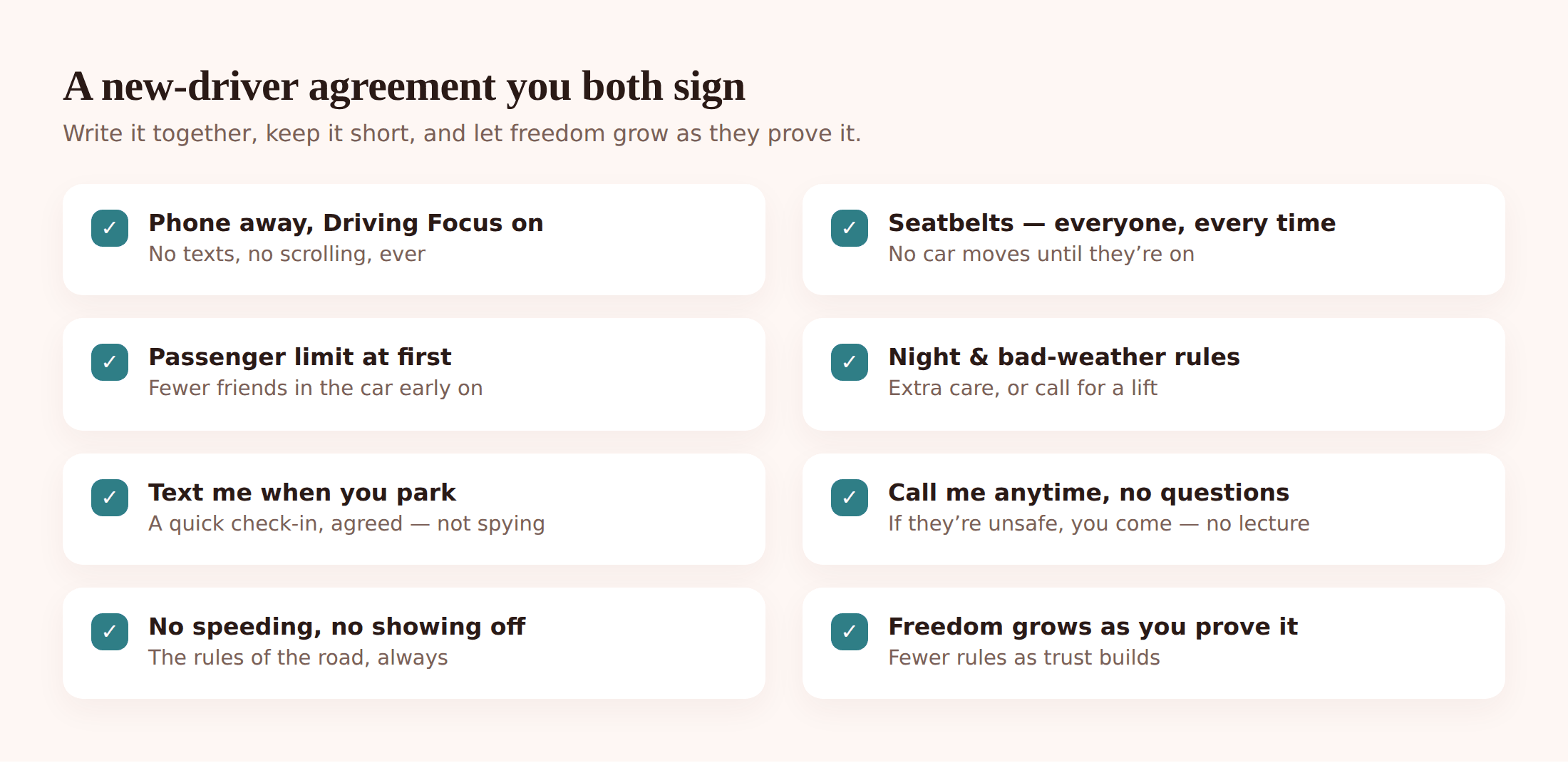
Keep it short enough to actually remember. A good one covers:
- Phone away. In the glovebox or bag, silenced, every drive. Non-negotiable.
- Seatbelts. Everyone, every time, before the car moves.
- Passenger limits at first. For the first few months, maybe no friends in the car, or just one. Loosen it as they prove themselves.
- Night and curfew rules. A home-by time to start with, and a plan for how it stretches later.
- Weather. Ice, fog, heavy rain — permission to say “I’m going to wait it out” or “come get me” without any grief.
- Call me anytime, no questions. The most important line. If they’re unsafe, stranded, or someone’s been drinking, they call and you come, and you don’t argue about it that night. This is the clause that saves lives.
- Earning freedom. Write down what “proving themselves” looks like and what it unlocks — later curfew, more passengers, longer trips.
If you want a fuller template to adapt, our family phone agreement guide has one you can lift the structure from, and it pairs naturally with a driving version.
Calm location check-ins, the honest way
Here’s the line that matters: a check-in is agreed, a stakeout is not. You’re not watching a dot to catch a lie. You’re both using location so nobody has to wonder, and so your teen can keep their hands off the phone and still let you know they’re safe.
Start with the simplest tool of all — a habit. “Text me when you park” costs nothing and teaches the right instinct: the phone comes out only when the car is stopped. For longer or newer drives, a shared location adds a quiet backstop so you’re not refreshing your worry.
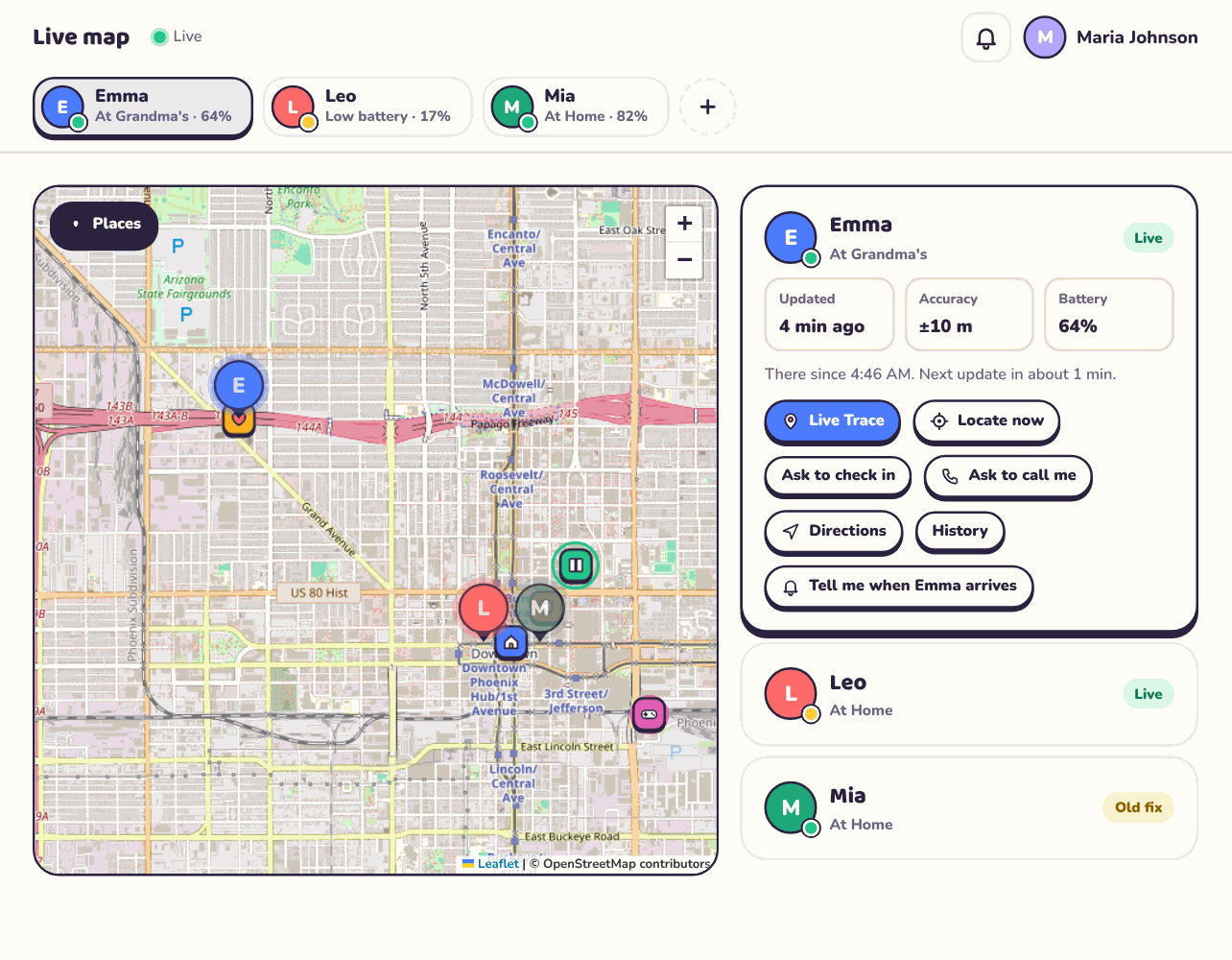
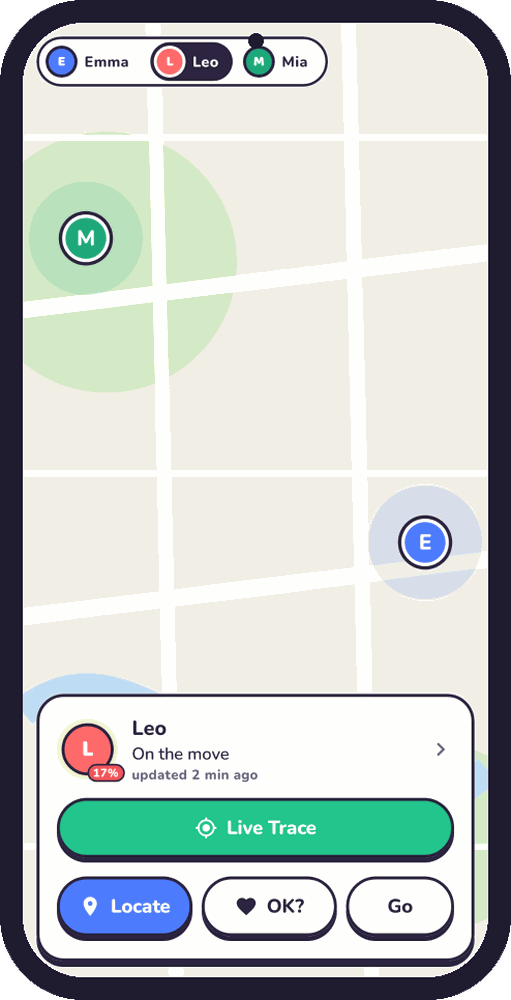
FreePhone’s Location & Places is built for this kind of calm check-in. A few ways families use it:
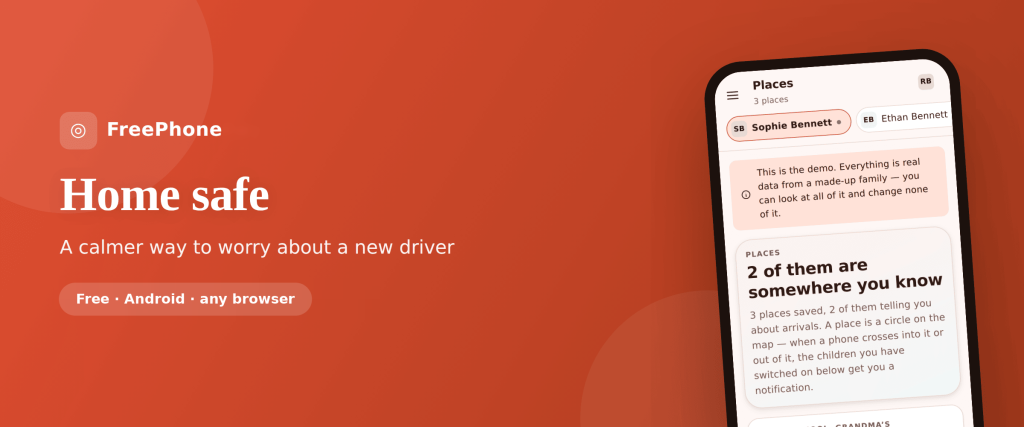
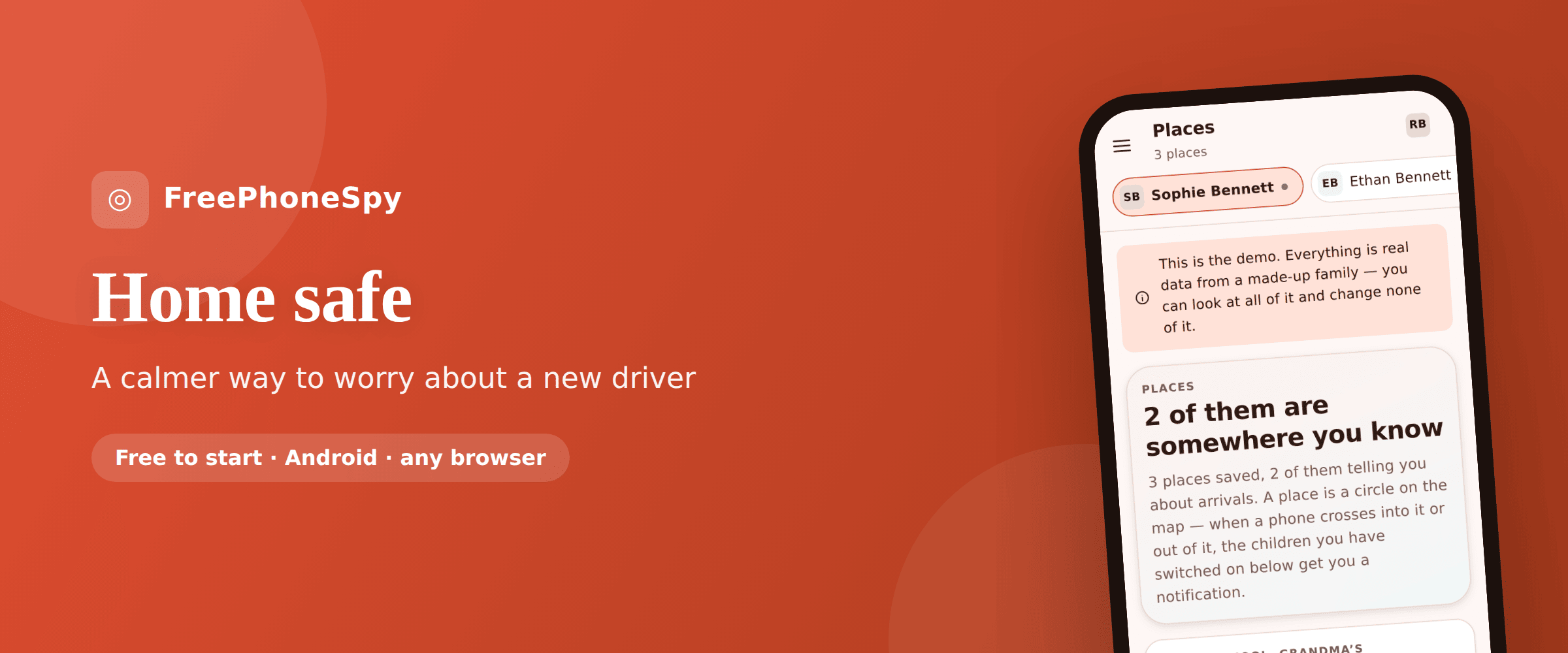
- Saved Places with arrive alerts. Mark home, school, work, a friend’s house. Get a gentle “arrived at work” or “left school” alert instead of texting to ask. If Sophie leaves school early, you know — and you can ask her about it like a parent, not interrogate a screen.
- Locate-now for peace of mind. Running late and not answering? One check tells you they’re moving and fine, and you can put the phone down.
- A live-location window on a long drive. Heading to a match two towns over? Open a live-location window for the trip so you can see progress, then let it close. It’s for the drive, not forever.
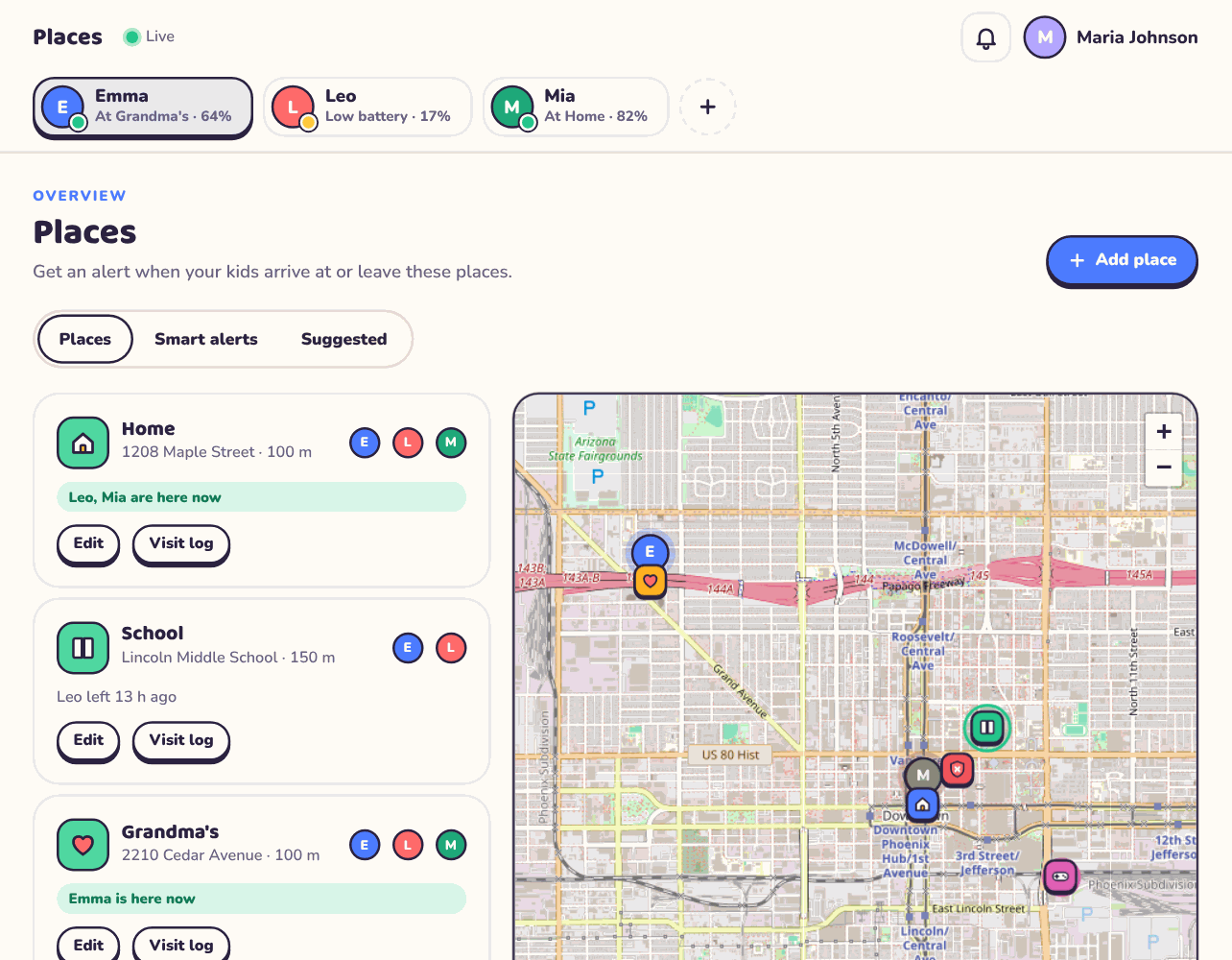
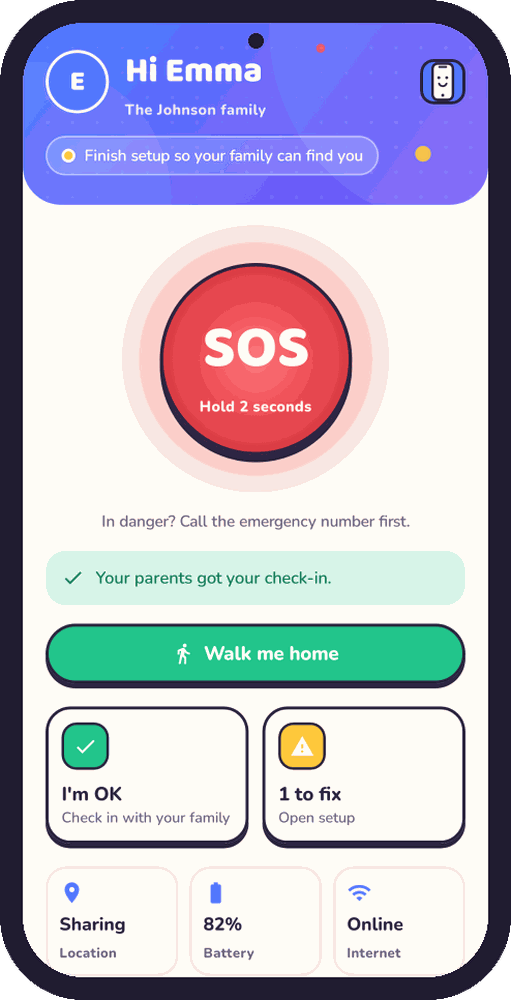
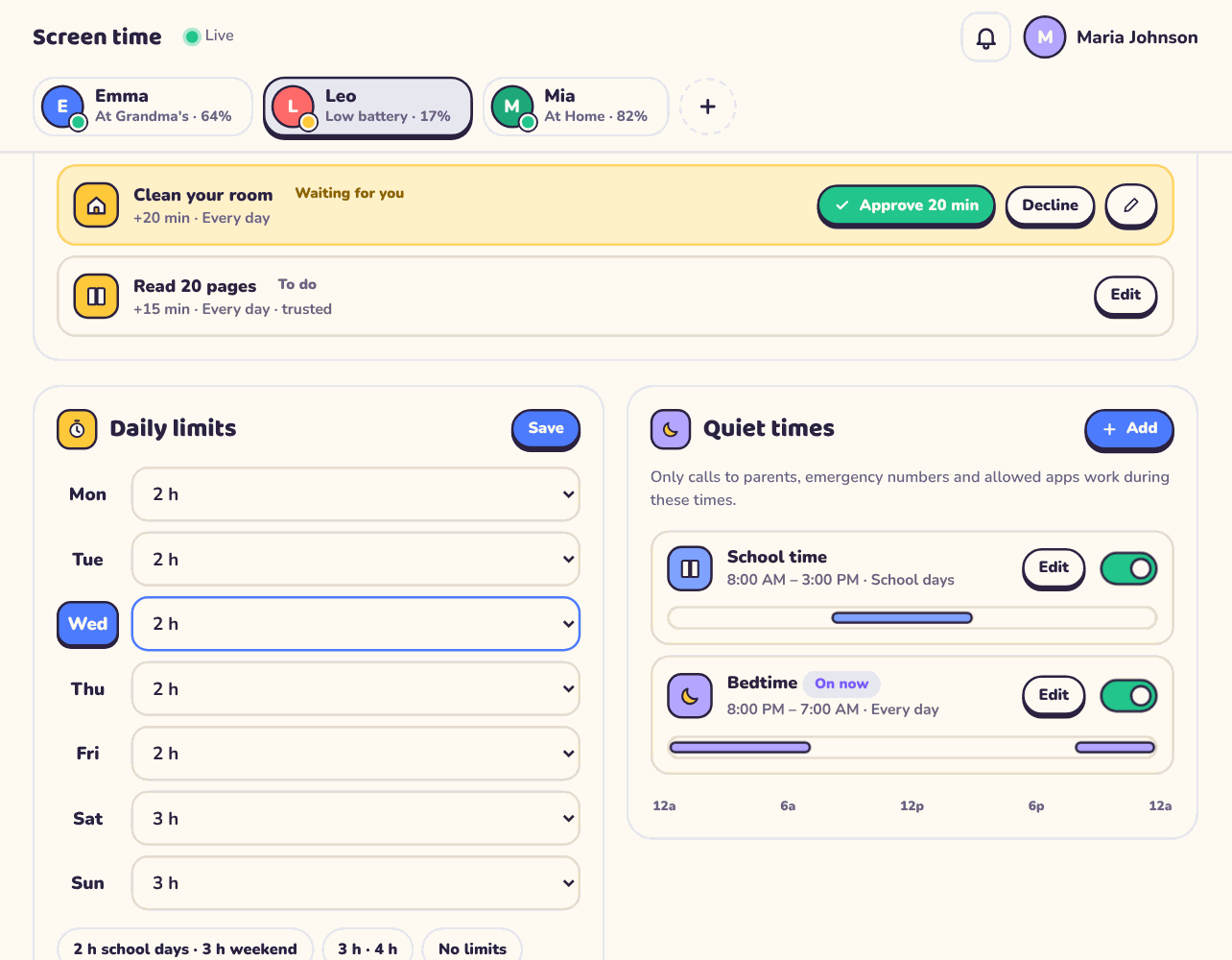
You can also lean on quiet times and screen time and app limits to keep the most distracting apps quiet at the times that matter, as a backup to the phone’s own driving mode — and switch on FreePhone’s optional driving reports, which flag phone use while driving. If your whole family shares location, our family location sharing guide covers doing it in a way everyone’s signed up for.
Where FreePhone helps — and where it doesn’t
Being honest about this matters, so here it is plainly. FreePhone covers the location half of new-driver safety: did they get there, are they moving, did they arrive safe. If you switch them on, optional driving reports score each car trip for speeding, hard braking, hard starts and phone use while driving, and crash detection works in any car: after a hard impact the phone asks “Are you OK?”, and if there’s no answer or your teen taps “I need help”, you get an alarm and Live Trace starts. What it is not is an insurer’s telematics programme, so it won’t earn you a premium discount.
Two other honest notes. FreePhone runs on Android — FreePhone Kids on your teen’s Android phone, paired with a 6-digit code, run from the parent app or any browser. If your teen carries an iPhone, use Apple’s own Driving Focus and Family Sharing location for the driving pieces (an iPhone child app is in development). And it’s free, with every feature included — no trial, no paid tier, no ads — so a new-driver safety net doesn’t have to be another subscription.
Graduated freedom and the trust ladder
The whole point of the rules is to retire them. A new driver who’s been safe for three months has earned something, and the agreement should say so. Think of it as a ladder: each rung they climb by proving themselves, and each rung loosens a rule.
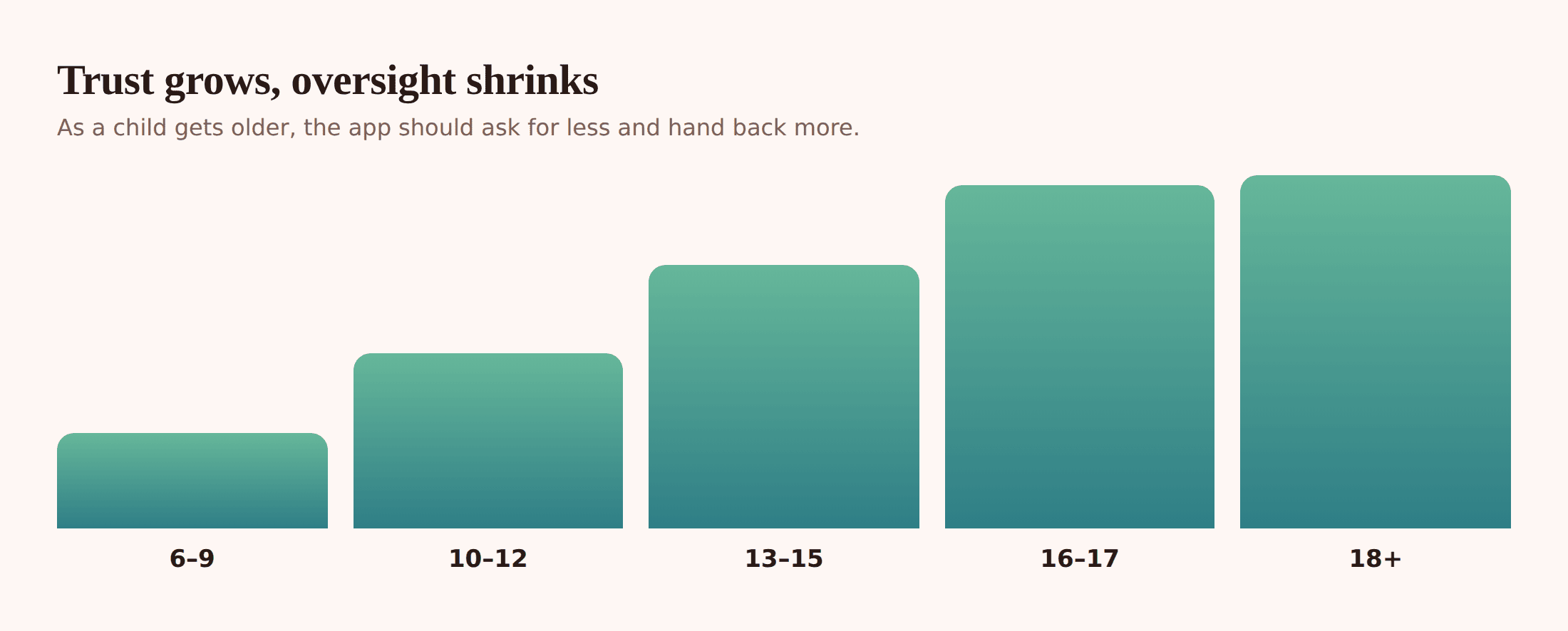
What climbing the ladder looks like in practice: passenger limits ease first, then curfew stretches later into the evening, then the location check-ins get lighter — from a live window on every trip, to arrive alerts only, to the occasional “text me when you get there”. The dot fades as the driver grows. That’s the goal. A seventeen-year-old who’s driven safely for a year shouldn’t be watched like they did on day one, and telling them so out loud is one of the best motivators you have.
Keep the safety floor no matter how high they climb: phone away, seatbelts, and “call me anytime, no questions” never expire. Everything above that floor is negotiable and earnable.
After a near-miss or a ticket
Something will go wrong. A scraped bumper, a speeding ticket, a “Mum, I’m okay but the car isn’t” phone call. How you handle the first one sets whether they call you for the second.
Lead with the person, not the car. “Are you hurt?” comes before anything about the paintwork or the insurance. Then, once everyone’s safe and calm — not that night, but soon — have the real conversation. What happened? What would you do differently? Was there a rule that would’ve helped, or one that got in the way?
- Don’t just punish. Grounding them from the car teaches them to hide the next mistake, not avoid it. Understanding what went wrong is what actually changes driving.
- Adjust the agreement. If they got a ticket for speeding at night, maybe night driving tightens up again for a while — not as revenge, but as a rung they step back down and re-earn.
- Reward the honesty. If they called you instead of driving home unsafe, or told you the truth about a scrape, say out loud that that’s exactly what you wanted. That’s the behaviour you’re trying to build.
- Keep the “no questions” promise. If they used their get-out-of-jail call — you came and got them, no lecture that night — honour it. Breaking that promise once means they’ll drive home drunk next time rather than call.
A mistake handled well makes a safer driver. A mistake handled with fury makes a secretive one.
Insurance and telematics apps, briefly
Worth knowing about, honestly. Many insurers offer a telematics or “black box” option — an app or a small device that measures how the car’s actually driven: speed, braking, cornering, time of day. Drive well and the premium drops, which for a new driver’s eye-watering insurance can be real money.
The trade-off is that it’s genuine monitoring of driving behaviour, so bring your teen in on it — same principle as everything else here. Framed right, it’s a shared win: “drive smoothly and we both pay less” is a goal you’re on the same side of. FreePhone’s own driving reports work the same way: switch them on together, look at the trip scores side by side, and treat a rough trip as a conversation, not a punishment. Use an insurer’s app if you want the premium discount, and FreePhone for location, driving reports and the crash safety net.
Not sure your teen’s ready for any of this, or wondering when monitoring makes sense at all? Our guide on what age to monitor a child’s phone walks through matching the safety net to their age and independence.
FAQ
Should I track my teen’s location without telling them?
No. Beyond the trust it breaks, it defeats the point — the safety net only works if they know it’s there and helped set it up. FreePhone is transparent by design; your teen sees the app and agrees to it. A driver who trusts you is one who’ll actually call when they’re in trouble.
Can FreePhone tell me how fast my teen is driving or if they crashed?
Yes, if you turn it on. Optional driving reports score each car trip for speeding, hard braking, hard starts and phone use while driving. Crash detection works in any car: after a hard impact the phone asks “Are you OK?”, and no answer or “I need help” sends you an alarm and starts Live Trace. Alongside that you get location, saved Places, arrive/leave alerts, quiet times and app limits.
What’s the single most useful thing I can do?
Get the phone out of their hand while the car moves. Set up Driving Focus (iPhone) or Driving Mode / Do Not Disturb (Android), turn on auto-reply, and make “text me when you park” the family rule. That one habit removes the most common distraction there is.
My teen has an iPhone — does FreePhone work?
The FreePhone child app is Android-only. On an iPhone, use Apple’s built-in Driving Focus for the phone-away piece and Family Sharing location for check-ins. The rest of this guide — the agreement, the trust ladder, the calm conversations — applies to any phone.
How do I set up a location check-in without it feeling like spying?
Do it together and keep it light. Agree on saved Places with arrive alerts for the regular runs, use locate-now only when they’re not answering, and open a live-location window just for long or new drives, then let it close. Loosen it as they prove themselves. See Location & Places for the setup.
Is it free?
Yes. FreePhone is free with every feature included — location, driving reports, crash detection and app limits — with no trial, no paid tier and no ads. You can set up a new-driver safety net without another monthly bill. Get started here.