Video Streaming & Kids: Parental Controls for Netflix, Disney+ & More
Netflix, Disney+, Prime Video, Apple TV+, Max. If your household is like most, you’re paying for at least two of these, and your kids know how to open every one of them. The good news is that each service has real parental controls built in: separate kids’ profiles, maturity-level filters, a PIN you can lock onto the grown-up profile, and switches to calm the endless autoplay. The catch is that they’re all named slightly differently, tucked in different corners of different apps, and off by default. This guide walks through the controls that actually matter, service by service, in plain terms, and the habits that make them stick. It’s about curated subscription streaming, so if you’re worried about YouTube, that’s a different animal covered separately.
Why a kids’ profile matters
Left on the main account, a streaming app shows your child everything. The thriller you were half-watching, the true-crime documentary with the graphic thumbnail, the trailer for something rated for adults that autoplays the second the app opens. A kids’ profile changes what the app is willing to show in the first place. It filters the whole catalogue down to titles below a maturity level you choose, swaps the interface for a simpler one, and usually strips out the mature artwork and trailers that live on the main home screen.
That last part is easy to underestimate. Even if your eight-year-old never presses play on anything unsuitable, the rows of thumbnails, the hovering previews, the “because you watched” suggestions built from the adults’ habits all sit there in view. A dedicated kids’ profile is the difference between a curated space and an open catalogue with a soft warning. It’s not a babysitter, but it’s a much better starting point than sharing your own profile and hoping.
What streaming controls do and don’t do
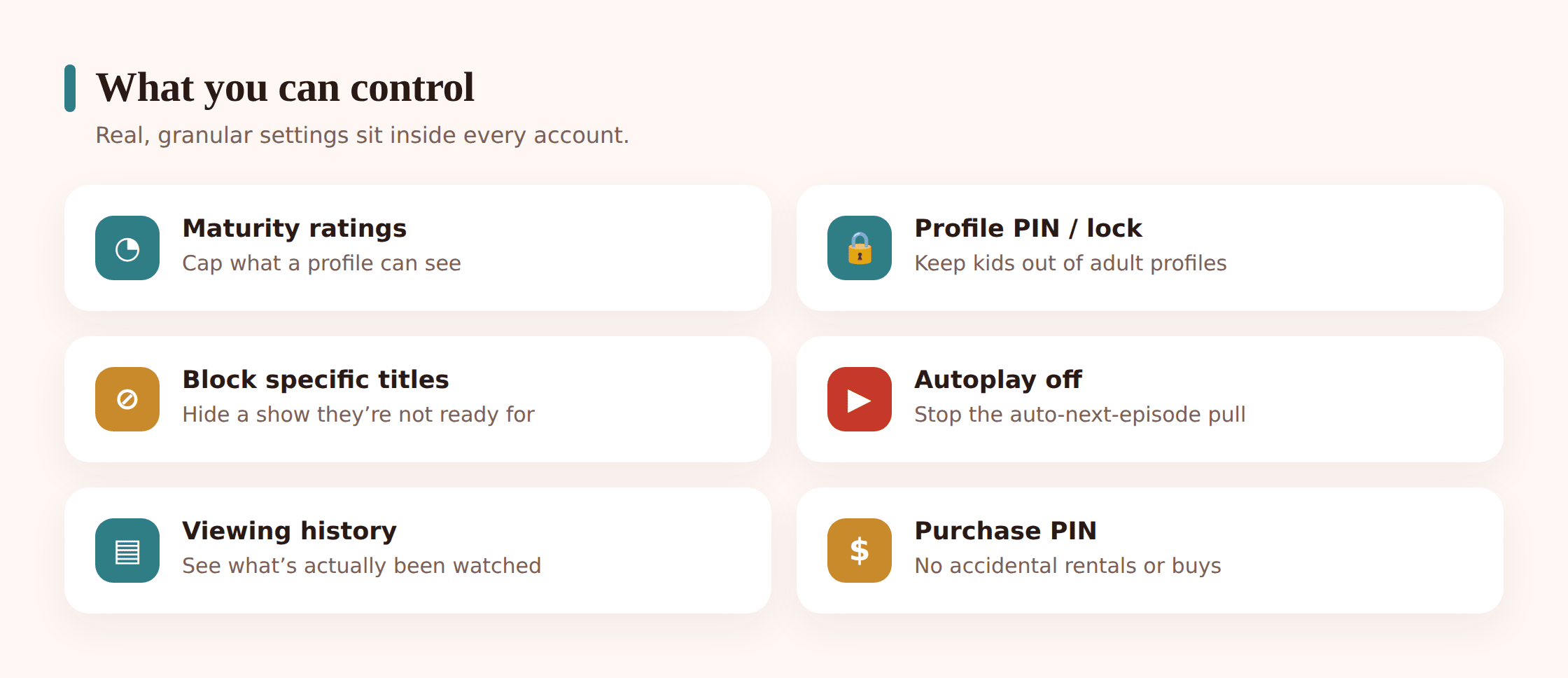
Across every service, the controls cluster around the same four jobs. First, they gate the catalogue by maturity rating, so titles above the level you set don’t appear or won’t play. Second, a profile lock or PIN stops a child hopping from their profile onto yours, or into a title you’ve individually restricted. Third, an autoplay toggle controls whether the next episode, or a preview, fires automatically. Fourth, most keep a viewing history you can check to see what actually got watched.
Get those four right on each service and you’ve covered most of what matters. What they don’t do is parent for you. A maturity filter set to “kids” still contains plenty your particular child might find dull, silly, or occasionally unsettling. Ratings are broad brushstrokes decided by a rating board, not a read on your family’s values. The filter can’t tell that your seven-year-old has nightmares after mild peril, or that you’re fine with cartoon slapstick but not with romance plots. That judgment stays yours, which is why co-viewing and checking the history still count.
They also only cover the service they live in. A child with a kids’ profile locked down on Netflix can still open YouTube, a browser, or a game. Streaming controls are one piece of a wider plan. For the user-generated side, see is YouTube safe for kids? For the device underneath it all, our guide to setting up a kid-safe tablet covers the layer these apps sit on. And for how much screen time is reasonable in the first place, screen time by age is the companion piece to this one.
Setting up a kids’ profile, step by step
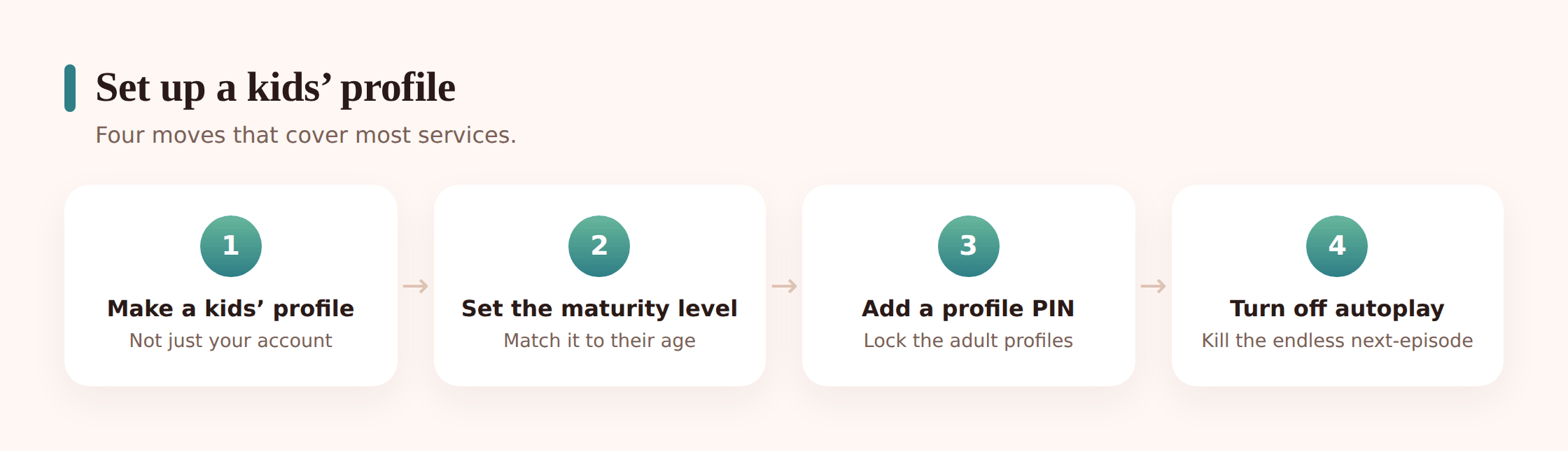
The specifics vary, but the shape of the job is the same on every service. Here’s the sequence that works, whichever app you’re in.
Step 1 — Create a dedicated profile for the child
From the account or profile menu, add a new profile and mark it as a kids’ profile (some services call this a “Kids” experience or a child profile). This is the switch that turns on the simplified interface and the default content filtering. Don’t share your own profile with your child, and don’t just rename an adult profile. The “kids” designation is doing real work behind the scenes.
Step 2 — Set the maturity level
In that profile’s settings, choose the maturity rating ceiling, usually by an age band or a rating label. Titles above it won’t appear or won’t play on that profile. Start a notch stricter than you think you need. It’s easier to loosen later than to explain why something slipped through.
Step 3 — Lock the adult profiles with a PIN
Set a profile PIN on your own profile and any other adult profile in the account. This is the step people skip, and it’s the one that holds everything together. Without it, a child can leave their kids’ profile and tap straight onto yours, filter and all undone. Choose a PIN your child won’t guess, not their birthday.
Step 4 — Turn off autoplay
In playback settings, switch off autoplay of the next episode and, where offered, autoplay of previews on the kids’ profile. This is the single change that most reduces the “just one more” pull. More on why below.
Step 5 — Restrict any specific titles you want gone
If a particular show sits inside the maturity band but you still don’t want it available, most services let you block individual titles by name for a profile. Add the handful you care about.
Step 6 — Repeat on every device
Profiles and PINs generally sync to the account, so they follow the child to the TV, the tablet, and the phone. But autoplay settings and a few others are sometimes per-device. Check the kids’ profile on each screen your child actually uses.
Service by service
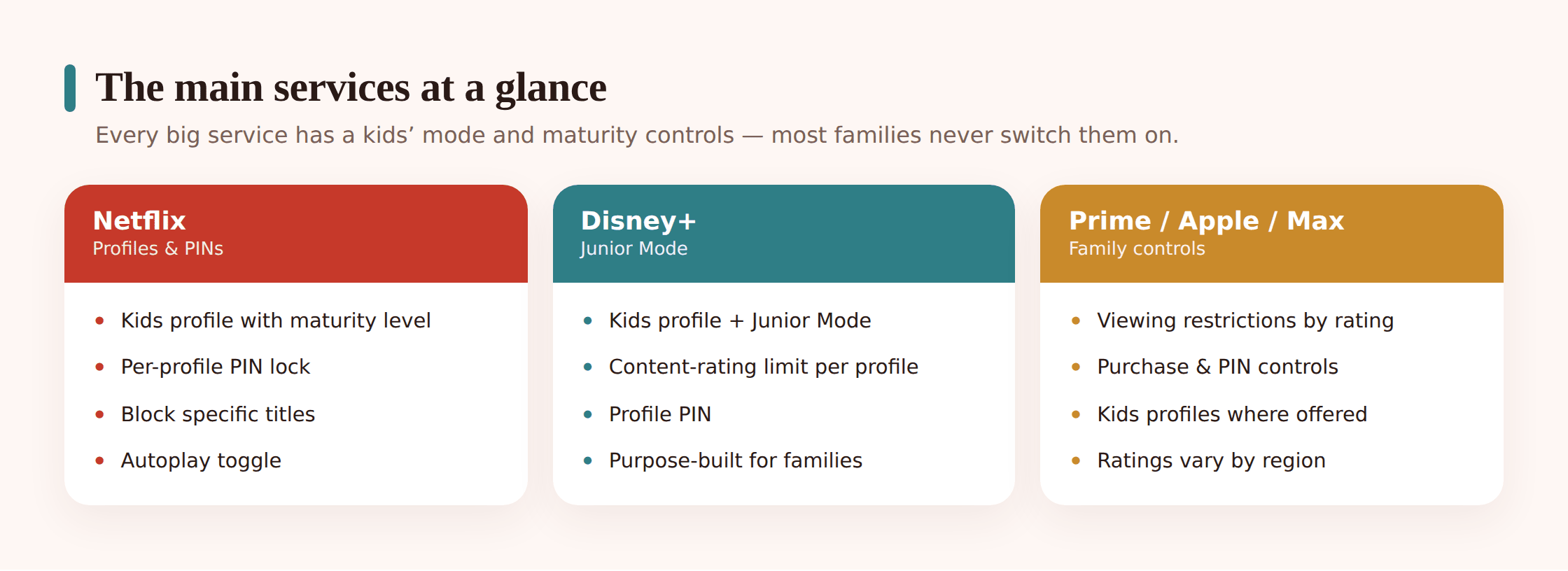
The four controls exist on every major platform. What differs is what they’re called and how deep they go. Here’s the shape of each, in general terms. Menu names and regional rating labels change over time, so treat these as the features to look for rather than exact tap-by-tap paths.
Netflix
Netflix lets you create a Kids profile that shows a child-friendly interface and only titles for younger viewers. On any profile you can set a maturity rating ceiling, and you can add a profile lock (a four-digit PIN) to individual profiles, most importantly the adult ones, so kids can’t wander over. There’s a per-title title restriction field where you type shows or films to block by name. Autoplay of the next episode and autoplay of previews are both toggles in the profile’s playback settings. A viewing activity log under each profile shows what’s been watched. Netflix does most of this from its website, which is easier than the TV app.
Disney+
Disney+ has a clearly marked Kids Profile toggle when you create a profile, which locks the experience to content rated for younger audiences and simplifies the interface. Each profile carries a content rating setting tied to your region’s system. You can set a Profile PIN and, helpfully, a separate lock that stops anyone leaving a kids’ profile without the PIN. Junior Mode keeps very young children penned into the simplest interface. Autoplay is a switch in playback settings. Because Disney+ carries some general-audience adult titles in certain regions, the maturity setting matters even for families who think of it as “the kids’ app.”
Amazon Prime Video
Prime Video handles this through Amazon Kids profiles and account-level Parental Controls. You set viewing restrictions by rating, and a Prime Video PIN that’s required to play titles above the rating you allow. On shared devices the PIN is the main gate, since Prime Video’s profile separation has historically been looser than Netflix’s or Disney’s. Purchase and rental controls matter here too, because Prime Video sits next to a store, so lock down buying as well as viewing. Check the specific device, as the controls surface differently across a Fire TV, a smart TV app, and a browser.
Apple TV+
Apple TV+ leans on the device’s own Screen Time controls rather than a separate in-app kids’ mode. On an iPhone, iPad, or Apple TV, you set Content & Privacy Restrictions under Screen Time to cap the ratings for movies and TV shows, and that limit applies across the TV app. Within a Family Sharing group you manage a child’s account and its restrictions from the parent device. There’s no standalone “Apple TV+ kids profile” in the Netflix sense. The rating cap is the control, and it’s set at the device or family level.
Max
Max offers a Kids profile option that restricts the catalogue to child-appropriate titles and simplifies the layout. Each profile has a maturity rating setting, and you can add a profile PIN to adult profiles so children can’t switch into them. Because Max carries a lot of clearly adult programming alongside its family films, the kids’ profile and a PIN on your own profile are both worth setting from day one, not as an afterthought.
Other services
Hulu, Paramount+, Peacock, and the rest follow the same template: a kids’ profile or kids’ mode, a rating-based restriction, some form of profile or account PIN, and an autoplay toggle. When you sign up for a new one, run the same four checks. If you can’t find one of the four, a quick search for the service name plus “parental controls” usually turns up the current location, since these menus get reorganised now and then.
Side-by-side comparison
A rough map of what to expect. Features and names shift over time and by region, so confirm in the app, but this is the lay of the land.
| Service | Kids’ profile | Maturity rating filter | Profile PIN / lock | Autoplay control |
|---|---|---|---|---|
| Netflix | Yes, dedicated Kids profile | Yes, per profile | Yes, PIN per profile plus per-title blocks | Yes, next-episode and previews |
| Disney+ | Yes, Kids Profile and Junior Mode | Yes, per profile | Yes, Profile PIN plus exit lock | Yes |
| Prime Video | Yes, via Amazon Kids | Yes, viewing restrictions by rating | Yes, Prime Video PIN (account-level) | Yes |
| Apple TV+ | Via device Screen Time / Family Sharing | Yes, through Content Restrictions | Yes, Screen Time passcode | Yes, device playback settings |
| Max | Yes, Kids profile | Yes, per profile | Yes, PIN on adult profiles | Yes |
Managing it across TVs, tablets and phones
A kids’ profile is only as good as its weakest screen. Your child probably watches on the living-room TV, a tablet in their room, and a phone in the car. Most of the profile settings, the maturity level, the PIN, the per-title blocks, are stored on the account, so they follow the profile onto every device automatically. That’s the part that mostly takes care of itself.
The gaps are the per-device settings and the accounts sitting outside the family system. Autoplay is sometimes remembered per device, so switching it off on the TV won’t always switch it off on the tablet. Downloads for offline viewing can behave differently from streaming. And a smart TV or a games console often has its own profile signed into the app, which may be your adult profile rather than the child’s. When your kid turns on the TV and Netflix opens straight to your profile, none of the kids’ settings apply.
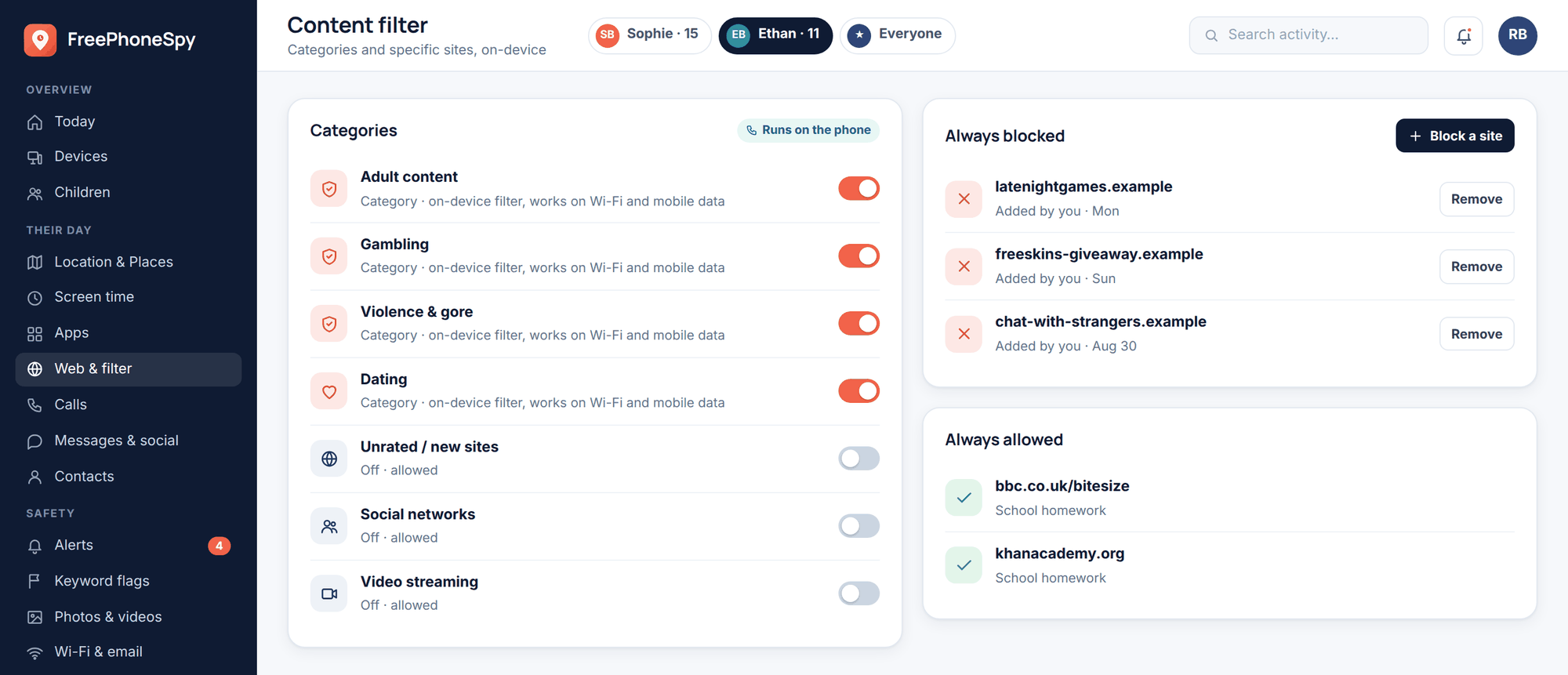
The practical rule: whatever device your child reaches for, open the app there once and confirm it lands on the kids’ profile, that autoplay is off, and that leaving the profile asks for the PIN. Then check the layer beneath the apps. The tablet or phone itself has its own screen-time and content controls that sit under every streaming app at once, which is where a device-level tool earns its place.
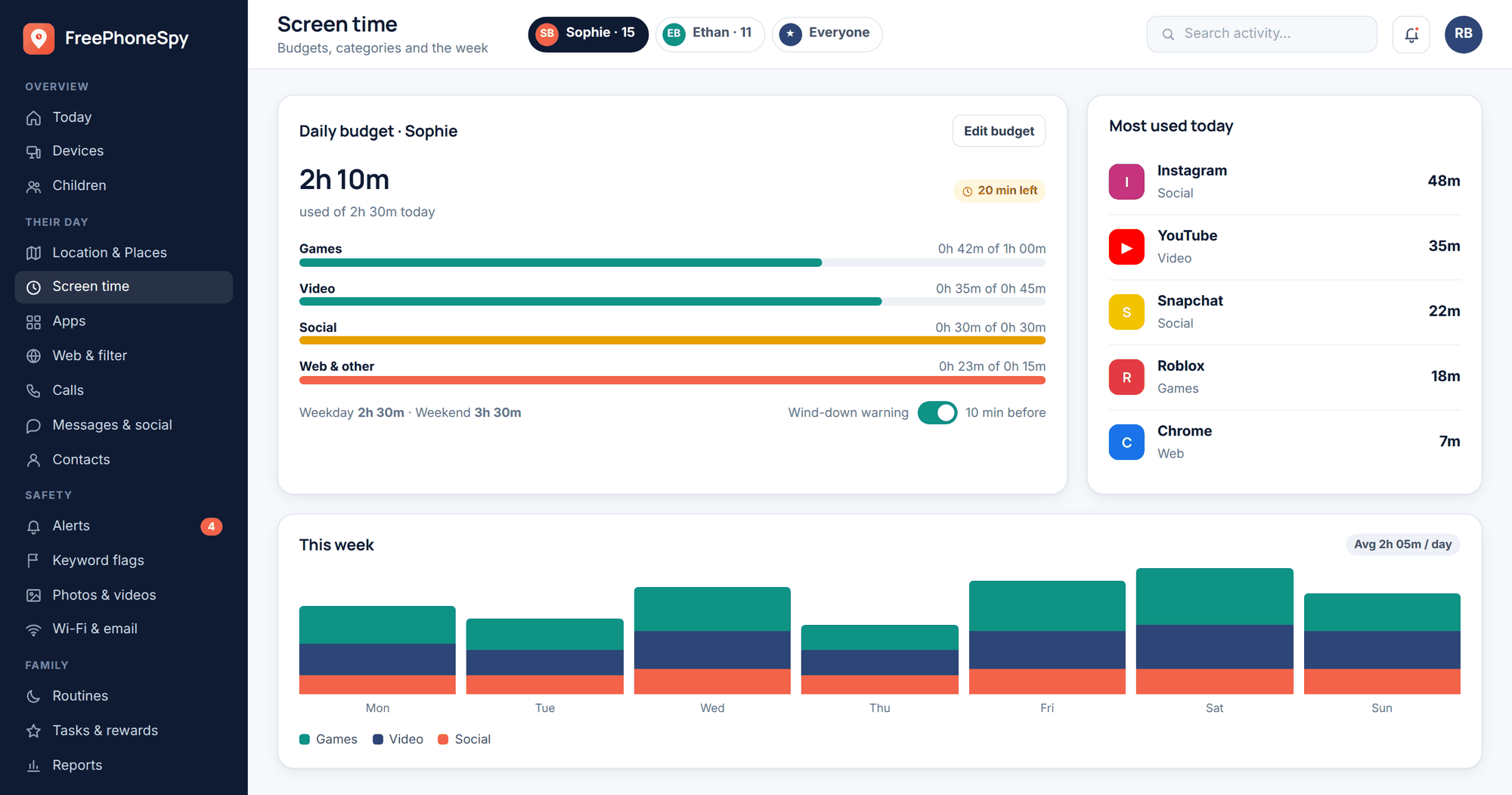
On Android, a transparent, consent-based family tool like FreePhoneSpy can complement these in-app controls by giving you agreed visibility into overall app time on a phone you own and manage with your child’s knowledge, so you can see whether “twenty minutes of Disney+” is really turning into two hours across three apps. Used openly, it backs up the streaming settings rather than replacing the conversation. Whatever tool you choose, the principle holds: your child should know it’s there and understand why.
Healthy viewing habits
Controls set the boundaries. Habits decide what happens inside them. A few things matter more than any single setting.
Autoplay’s quiet pull
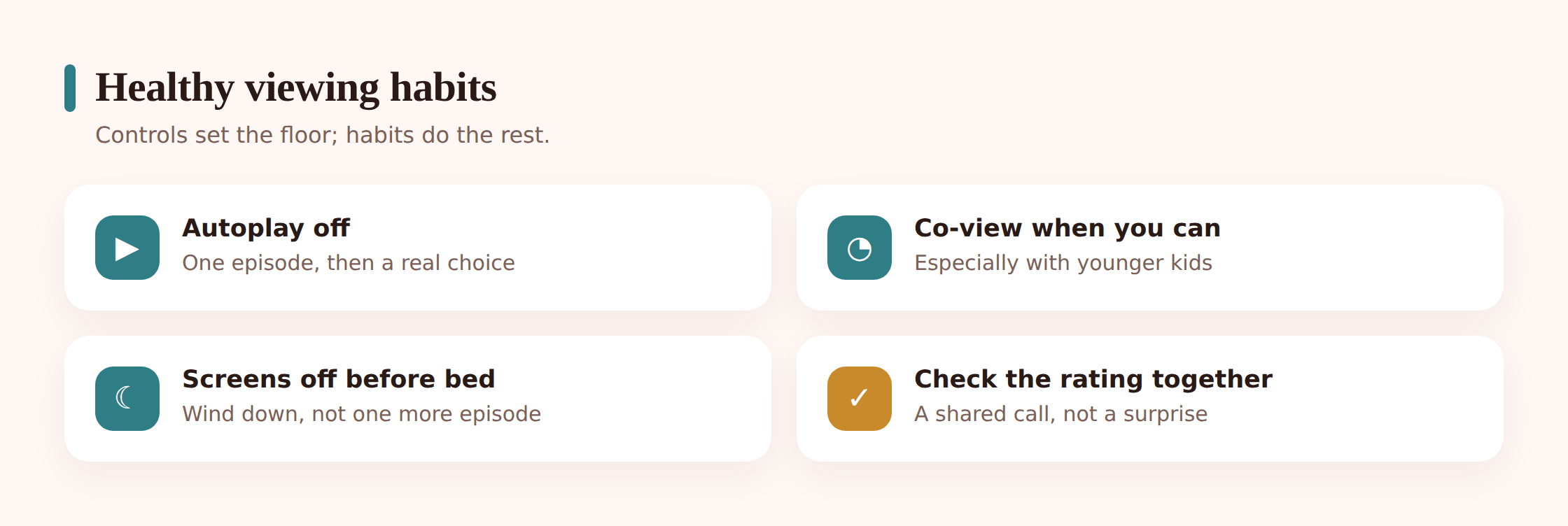
Autoplay is designed to keep you watching, and it works on adults, so it works far better on kids. The moment an episode ends, a countdown starts and the next one begins whether anyone chose it or not. Turning it off restores a natural stopping point, a small pause where a child can actually decide to switch off rather than being carried into episode four. It’s the highest-leverage setting on this whole page, and it’s the one most often left on. Do it on every kids’ profile, on every device.
Co-viewing
Watching together, at least some of the time, does what no filter can. You see what your child sees, you catch the thing the rating board didn’t flag as an issue for your family, and you get the natural openings to talk about it. Younger children in particular process what they watch better with an adult nearby to ask “was that character being kind?” Co-viewing isn’t practical for every episode of everything, but making it the norm for anything new, or anything they’re a little too young for, is worth the time.
Bedtime and screens
Streaming last thing at night is a common battle, and a losing one for sleep. The pull of “one more episode” collides with a bedtime, and autoplay makes it worse. A simple rule that screens go off a set time before bed, and that the tablet charges outside the bedroom overnight, does more for sleep than any content setting. For the youngest kids, the calculus is different again. Our guide to screen time for toddlers covers why very young children need far less, and far more of it shared, than older ones.
Keep it a conversation
The history log is a tool for talking, not for catching. Glance at what your child has been watching, and if something surprises you, ask about it rather than confronting them with it. Maybe a friend recommended it, maybe autoplay dragged them somewhere, maybe they were curious. The point of every setting on this page is to teach balance and judgment your child eventually carries on their own, not to build a wall they spend their energy climbing.
Quick setup checklist
- Created a dedicated kids’ profile on each service, not a shared or renamed adult profile.
- Set the maturity rating ceiling on every kids’ profile, starting a notch strict.
- Added a PIN or profile lock to your own and every other adult profile.
- Turned off autoplay of next-episode and previews on the kids’ profiles.
- Blocked any specific titles you want gone even within the allowed band.
- Confirmed the kids’ profile loads correctly on the TV, tablet, and phone.
- Checked the device-level screen-time and content controls underneath the apps.
- Wrote the PINs somewhere you’ll actually find them again.
- Agreed a bedtime cut-off and where screens charge overnight.
- Put a date in the calendar to revisit the maturity levels as your child grows.
Parent FAQ
Isn’t a kids’ profile enough on its own?
It’s a strong start, but not the whole job. A kids’ profile filters the catalogue and simplifies the interface, but if your own adult profile has no PIN, a child can leave theirs and open yours in two taps. The kids’ profile and a lock on the adult profiles are a pair. One without the other leaves the door open.
My child figured out the PIN. Now what?
Change it to something they won’t guess, avoiding birthdays and simple sequences, and treat the moment as a conversation rather than an arms race. A child who’s motivated enough to crack a PIN is telling you they want more freedom or more of a particular show. That’s worth talking through directly. Tightening the number alone rarely settles it for long.
Do maturity ratings mean the same thing on every service?
Roughly, but not exactly. Each service maps to your region’s rating system, and how strictly a given show is rated can vary. A title flagged as fine on one service’s “kids” filter might sit a band higher on another. That’s part of why co-viewing anything new still matters. The filter is a guide, not a guarantee.
Can I stop the app suggesting mature titles on the home screen?
A properly set kids’ profile largely handles this, because it only shows titles within the allowed band and strips out the adult artwork and trailers. If mature suggestions are still appearing, the app is almost certainly on an adult profile rather than the child’s, so check which profile is loaded before assuming the filter has failed.
What about titles that are inside the age band but I still don’t want?
Most services let you block individual titles by name for a profile, which is the tool for exactly this. The maturity filter is a broad setting; the per-title block is the fine adjustment for the handful of shows that clear the rating but don’t clear your judgment.
Should I hide these settings from my child?
No. Covert restrictions tend to breed resentment and workaround-hunting, and they miss the point, which is to build judgment rather than just enforce a rule. Set the controls together, explain why, and treat them as a family agreement you revisit as your child grows. Openness is what makes them last.