Is Steam Safe for Kids? A Parent’s Guide
Steam isn’t a game. It’s the front door to almost every PC game your kid will ever want, plus a store, a marketplace, a chat network, and millions of user profiles behind it. That makes it powerful and, for a ten-year-old, a bit of a minefield. The short answer: Steam can be made reasonably safe for a child, but not out of the box. You have to turn on the controls yourself, and know what you’re actually locking down. This guide walks through how Steam works, where the sharp edges are, and how to set it up so your kid can enjoy PC gaming without wandering into the parts that aren’t meant for them.

What Steam actually is
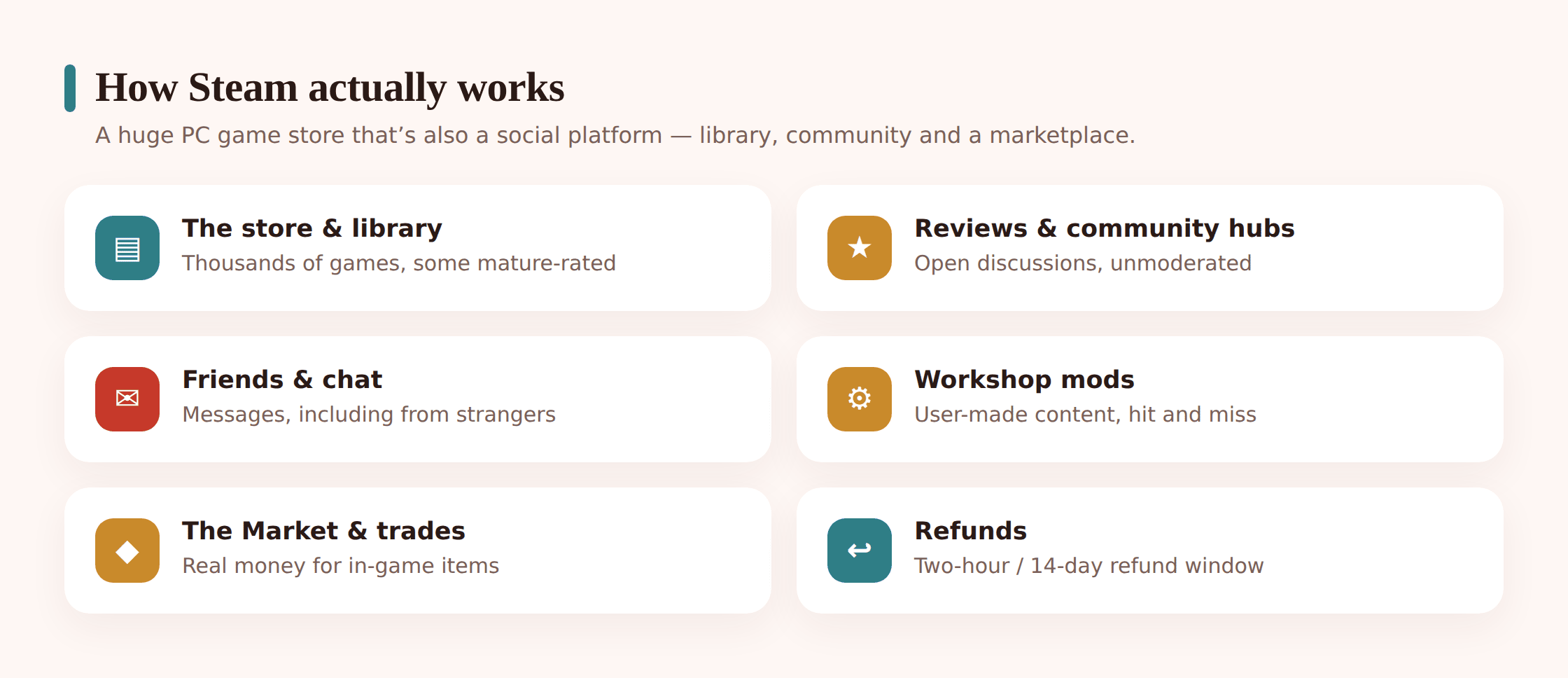
Most parents think of Steam as “the thing games download from.” It’s more than that, and the extra parts are where supervision matters. Here’s what your child is really signing into.
The store and your library
The store is where games are bought and downloaded. Some are free, most cost money, and prices swing wildly during Steam’s famous seasonal sales, which is precisely when impulse buying spikes. Once a game is bought it lives in your library, tied to the account, and installs to the PC. A single family account can hold hundreds of games, and by default a child using that account sees all of them, including anything you bought for yourself.
User reviews and community hubs
Every game has a page stuffed with user reviews and a “community hub” full of screenshots, videos, guides, and discussion threads that other players post. None of it is age-gated, and Steam’s moderation is light. A review for a cartoonish kids’ game can still contain crude jokes, and community hubs for popular titles collect memes and off-topic chatter that you wouldn’t hand a nine-year-old.
Friends, chat, and profiles
Steam has a full social layer. Kids can add friends, send messages, join group chats, and view public profiles. Friend requests can come from strangers. Profiles can carry links, custom text, and showcases that Steam doesn’t vet. Chat is real-time and mostly unfiltered.
The Workshop
The Workshop is Steam’s hub for user-generated content: mods, custom maps, skins, and add-ons that players make and share for free. It’s one of the best things about PC gaming, and also completely community-run. A family-friendly game can have Workshop mods that add mature content, so the platform’s age rating on the base game doesn’t always cover what’s bolted onto it.
The Market and trading
The Steam Community Market lets players buy and sell in-game items, cards, and cosmetics for real money that sits in a Steam Wallet. Some games attach real cash value to virtual items, and there’s a whole economy of trading them. We’ll come back to why this one deserves a hard look.
Refunds and mature games
Steam offers refunds on most purchases within 14 days if the game’s been played under two hours, which is a genuine safety net for accidental buys. And the store carries the full range of age ratings, including Mature and Adult Only titles. Some adult games are hidden behind a content filter you have to opt into; others are only a click away on a store page.
Where the real risks are
Not everything on Steam is a hazard, and it helps to be specific rather than vaguely worried. These are the areas worth your attention, roughly in order of how often they actually cause trouble.
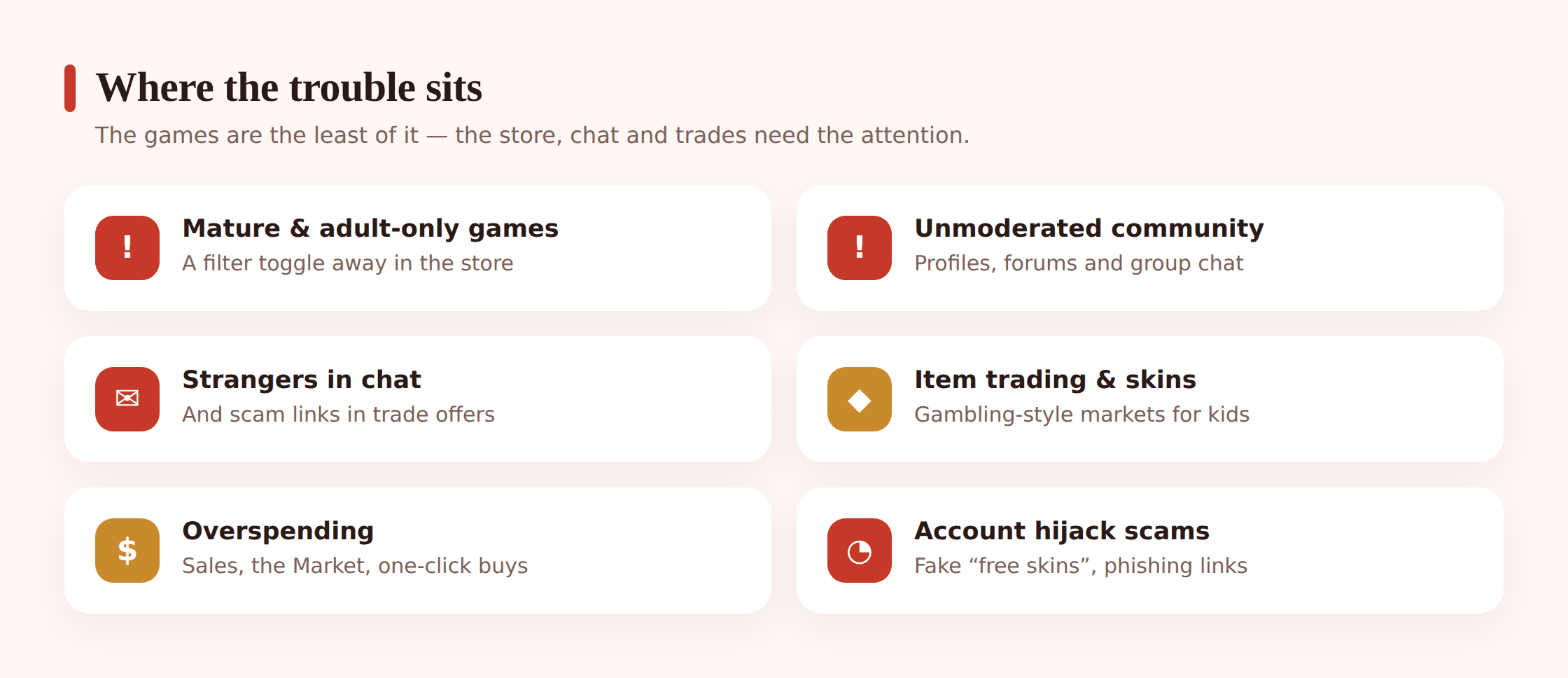
| Risk area | What it looks like | How worried to be |
|---|---|---|
| Mature and Adult Only content | Store pages, screenshots, and Workshop mods with violence, sexual content, or crude themes | High for younger kids; manageable with the content filter and Family View |
| Community discussions and profiles | Unmoderated reviews, forum threads, and user profiles with crude or adult material | Moderate; the community can be switched off entirely for a child |
| Chat with strangers | Friend requests and messages from people your child doesn’t know | Moderate to high; depends on the child and the games they play |
| Scam links and account theft | Fake “free skin” links, phishing sites, and rigged trade offers sent in chat | High; kids are prime targets and accounts get hijacked this way |
| Overspending | Sale impulse buys, in-game purchases, wallet top-ups | Moderate; capped easily once you know where to look |
| Gambling-style item trading | Buying, selling, and “unboxing” items with real cash value | Moderate; worth a direct conversation, not just a setting |
Mature content is a click, not a wall
Steam’s store default hides some adult-only titles, but Mature-rated games with strong violence or language sit in plain view, and the community content around any game isn’t rated at all. For a young child, browsing the store unsupervised is a bit like leaving them alone in a video shop where the back room isn’t locked. This is the single strongest reason to restrict store and community access on a young kid’s account.
Strangers and chat
Steam chat connects your child to a global player base. Most people are fine. But friend requests from strangers are common, especially in popular multiplayer games, and text chat carries no meaningful filter. The grooming risk here is the same one that exists across every social gaming platform, and it’s handled the same protective way: keep young kids off open chat with strangers, and keep the conversation with your own child going so they’ll flag anything that feels off. Our online gaming safety guide covers the friend-request and stranger-contact side in more depth, and much of what applies to Discord applies to Steam chat too.
Scam links and account hijacking
This is the one that catches even savvy teenagers. Because Steam items and accounts have real value, they attract scammers. A classic move: a stranger (or a friend whose account was already stolen) messages your kid with a link to “vote for my team,” “get a free knife skin,” or “check out this trade.” The link leads to a fake Steam login page that harvests the password, and the account, wallet, and tradeable items are gone within minutes. Teach your child a flat rule: never log in through a link someone sends, and never accept a trade or click a “free item” link from anyone. Steam Guard (the two-factor login on the Steam Mobile app) is the strongest single defense, and it should be on.
Overspending and the sales trap
Steam’s sales are designed to be exciting, and a wallet loaded with birthday money can empty fast across a dozen cheap games. Add in-game stores and Market purchases and the total creeps up quietly. The fix is partly a setting and partly a habit, and it overlaps with the wider problem of in-app purchases and surprise charges that hits every platform kids touch.
Gambling-style item economies
Some games sell “cases” or “crates” that you open for a random item, and those items can then be sold on the Market for real money. The mechanics borrow heavily from gambling: a small stake, a random reward, a rare big win. Plenty of adults find it a lot; for a child, the loop is worth naming out loud rather than just blocking, because understanding why it’s built that way is more durable than a filter they’ll eventually get around.
Family View and Steam Families
Steam gives you two overlapping tools, and it’s worth knowing which does what.
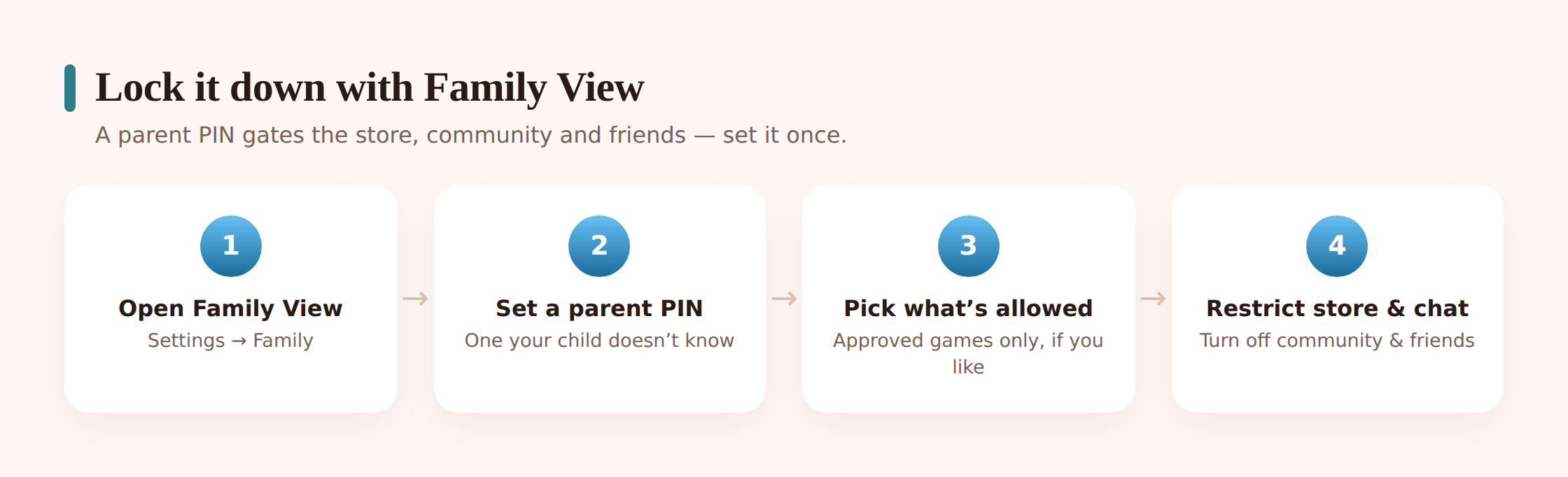
Family View is the older, PIN-based lockdown. You pick which parts of Steam a child can reach (the store, the community, friends and chat, the library) and lock everything else behind a parental PIN. It’s the closest thing to a classic parental-control mode, and it runs on the PC where the game plays.
Steam Families is the newer system that lets up to six people share a household, share eligible games with each other, and gives a parent role over child accounts, including the ability to approve or block specific game purchases and see playtime. Steam has been folding parental settings into Families, so depending on when you read this, some options may live in one place or the other. The concepts are the same: an adult in charge, children with limited reach, and a PIN or approval step protecting the settings.
Setting up Family View step by step
These steps are for the PC where your child plays. You’ll want to be signed into the account they’ll use.
Step 1 — Open the settings
In the Steam client, click Steam > Settings (on Mac, Steam > Preferences), then find the Family section. Look for Family View or the Steam Families options.
Step 2 — Start Family View
Choose to set up or manage Family View. Steam walks you through a short wizard that asks which parts of Steam should stay available to your child while Family View is active.
Step 3 — Pick what stays open
Tick only what this child needs. For a young kid, that’s usually the library (so they can launch their own games) and little else. You can leave the store, the community and profiles, and friends and chat switched off. Everything you leave unticked gets locked behind the PIN.
Step 4 — Choose an approved-games approach
Family View lets you limit access to specific games in the library, so a shared account full of your own mature titles can be narrowed down to just the ones meant for your child. Select the games they’re allowed to launch.
Step 5 — Set the PIN
Create a four-digit Family View PIN. Pick something your child can’t guess (not their birthday) and don’t reuse a PIN they already know. Steam may ask you to confirm it by email.
Step 6 — Test it
Exit back to the normal Steam view and try to reach the store or a blocked game. You should hit the PIN prompt. If you can still get in without it, Family View didn’t save, so run through the wizard again.
To change anything later, you enter the PIN to unlock Family View, make the change, and lock it again. If your household uses Steam Families, you can also approve specific purchases and view playtime from the parent account, which is handy once a kid is old enough to buy their own games but you still want a say.
Money: the store, the Market, and trading
Steam money lives in a Steam Wallet, topped up by card, PayPal, or gift cards. The single best move for a child’s account is to never link a credit card to it and to fund it with gift cards instead. That turns spending into a fixed, visible budget: when the gift card balance runs out, buying stops, and there’s no bill to be surprised by.
Family View’s store lock stops browsing-and-buying outright. If you’d rather allow the store but keep a lid on it, the gift-card-only approach does most of the work. For the Market and trading, the protection is partly the wallet limit and partly Steam Guard: an account without a linked card and with two-factor login is a poor target for both accidental spending and scam trades.
Remember the refund window too. If your kid buys the wrong game, or an impulse purchase turns out to be a mistake, Steam refunds most games within 14 days as long as they’ve been played under two hours. It’s not a licence to buy carelessly, but it does take the panic out of a genuine slip.
| Money control | What it does |
|---|---|
| Gift-card-only wallet | Caps total spending at a fixed amount; no linked card means no surprise bills |
| Family View store lock | Blocks store browsing and purchases behind the PIN |
| Steam Guard (2FA) | Protects the account and wallet from scam trades and hijacking |
| 14-day refund window | Reverses most accidental or regretted game buys |
| Steam Families purchase approval | Lets a parent approve or block a child’s specific game purchases |
The phone side of the picture
Here’s the honest limitation: Steam is a PC platform, so the controls above live on the computer. But your kid’s phone is part of the same picture. They’ll watch Steam game streams, chat with the same friends on other apps, look up mods on their phone, and get scam links through messengers that have nothing to do with Steam. Locking down the PC while leaving the phone wide open only moves the problem.
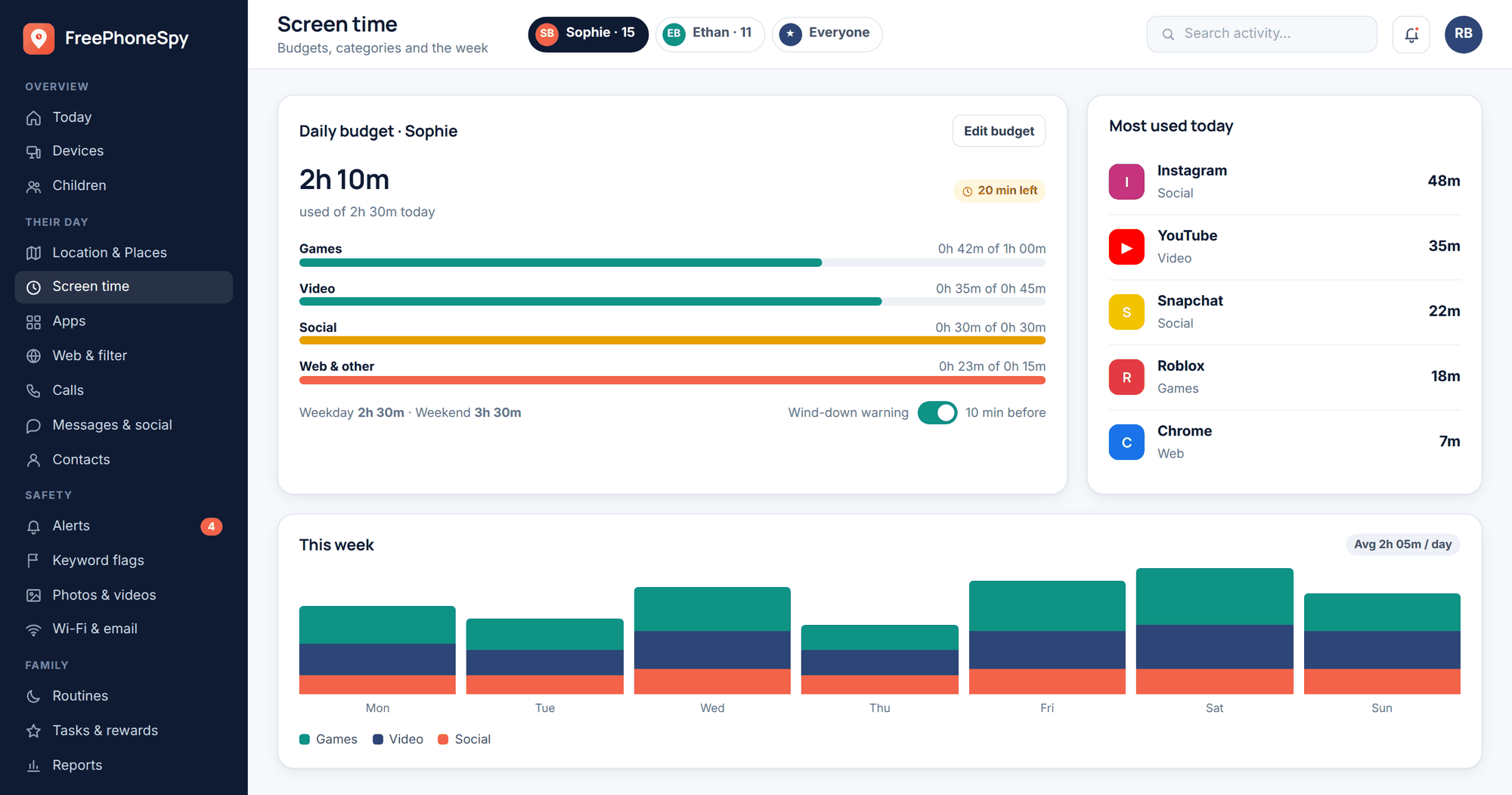
That’s where a phone-side tool earns its place. FreePhoneSpy is an Android app for your child’s own phone, set up openly with them, that handles the things the PC can’t reach: setting screen-time limits so gaming doesn’t swallow the evening, and blocking specific apps or websites you’ve agreed are off-limits. It’s the complement to Steam’s own settings, not a replacement for them. Think of the PC controls and the phone controls as two halves of one plan, each covering what the other can’t.
Talking to your kid about it
Every setting on this page is a backstop, not the main event. The main event is your kid actually understanding what they’re dealing with, because they’ll be gaming long after these controls loosen, and the judgment you build now is what carries over.
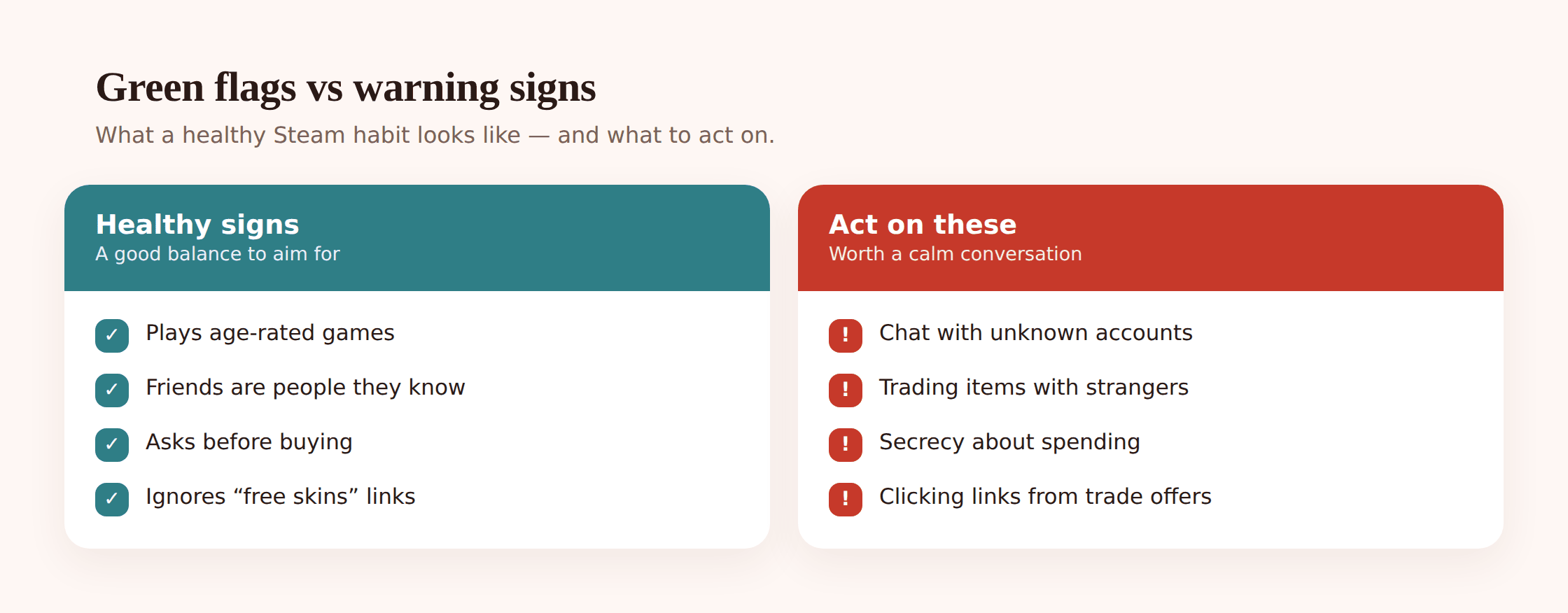
Keep it concrete and keep it short. A few things worth landing:
- Nobody legitimate ever needs your Steam login, and “give me your password for a free skin” is always a scam.
- Don’t log in through a link someone sends you, even a friend, because their account might already be stolen.
- A friend request from a stranger isn’t a friend. Show me anything from someone you don’t know in real life.
- Cases and crates are built to feel like winning. That’s the whole point of them. Spending real money on a random chance is a bad deal even when it works.
- If something in a chat, a review, or a mod makes you uncomfortable, close it and come tell me. You won’t be in trouble for something someone else sent.
Set the ground rules as a two-way thing. Ask what games their friends are playing and why they want them; a lot of the “everyone has it” pressure eases when a kid feels heard rather than interrogated. Revisit the settings on birthdays. The store lock that’s right for a nine-year-old is faintly insulting to a fourteen-year-old, and loosening controls as they earn it is exactly how the judgment gets built. For the broader parenting-around-gaming picture beyond Steam, our guides on online gaming safety and console parental controls pick up where this one leaves off.
Quick setup checklist
- Give your child their own Steam account joined to your Steam Family, rather than handing over yours.
- Turn on Steam Guard two-factor authentication and use a unique password.
- Set up Family View and lock the store, community, and chat behind a PIN for younger kids.
- Use the approved-games list so only age-appropriate titles can launch.
- Fund the wallet with gift cards, not a linked credit card.
- Turn on the store’s mature-content filter and leave adult-only content hidden.
- Talk through the scam-link and stranger-request rules before handing the account over.
- Cover the phone half with screen-time limits and app blocking on their Android device.
- Diarise a check-in to revisit the settings as your child gets older.
Parent FAQ
What age is Steam appropriate for?
Steam’s own terms require account holders to be 13 or older, and a child under that age should be using an account you supervise, not one of their own. Beyond the age minimum, suitability depends far more on which games and which parts of Steam you allow than on the platform itself. With Family View locking the store, community, and chat, a younger child can safely launch a small set of approved games; the open store and social features are better saved for older kids.
Can my child buy games without me knowing?
Only if the account can spend. Remove any linked card and fund the wallet with gift cards, and purchases stop at the balance you’ve loaded. Family View’s store lock blocks buying entirely behind the PIN, and Steam Families can require a parent to approve specific purchases. Between those, unexpected buys are easy to prevent.
Is Steam chat safe?
Steam chat connects your child to a global player base with little filtering, so for younger kids it’s best kept off or limited to real-world friends. The bigger, practical danger in chat isn’t bad language, it’s scam links and rigged trade offers aimed at stealing the account. Steam Guard two-factor login and a firm “never click a login link someone sends” rule handle most of it.
What is the Steam Workshop and is it safe for kids?
The Workshop is where players share free mods and add-ons for games. Most are harmless and many are genuinely great, but it’s community-made and not age-rated, so a family-friendly game can have mods that add mature content. For younger children, either steer them to mods you’ve looked at yourself or keep Workshop content off the account.
Should I worry about item trading and cases?
It’s worth a conversation more than a panic. Some games sell random-reward “cases” that borrow gambling mechanics, and items can carry real cash value on the Market. Keeping a card off the account removes most of the financial risk, and explaining plainly why the loop is designed to feel rewarding tends to stick better than a silent block.
Does Family View work if we all share one PC and one account?
Yes, that’s exactly what it’s for. Family View sits on top of a shared account and hides whatever you lock behind the PIN, including specific games in the library. It’s a solid fallback, though a separate child account inside a Steam Family is cleaner if you can manage it, because it keeps your own mature games off your kid’s login completely.