✅ Quick answer — the 3 fastest tracking checks:
- Check location permissions — any app set to “Allow all the time” that you can’t explain.
- Open Google Maps › Location sharing and Find My › People — end shares you don’t want.
- Review devices signed in to your Google/Apple account and sign out anything unknown.
⚠️ Safety note: If the person spying may be a partner, ex, or someone controlling, removing the app can alert them. Read the safety section below before changing anything.
“Is my phone being tracked?” is really three different questions. Is an app on the phone reporting my location? Is an account I’m signed into sharing it? Or is a separate device — an AirTag in a bag, a tracker on a car — following me around? Each has its own detection method, and a thorough check covers all three. The ten methods below do exactly that, in about twenty minutes, using only what is already on your phone.
Work through them in order and keep a note of anything you cannot explain. Most people finish this checklist with a clean result and better-configured privacy settings; if you are not one of them, the final section tells you what to do next.
Method 1: Watch the location indicator icons
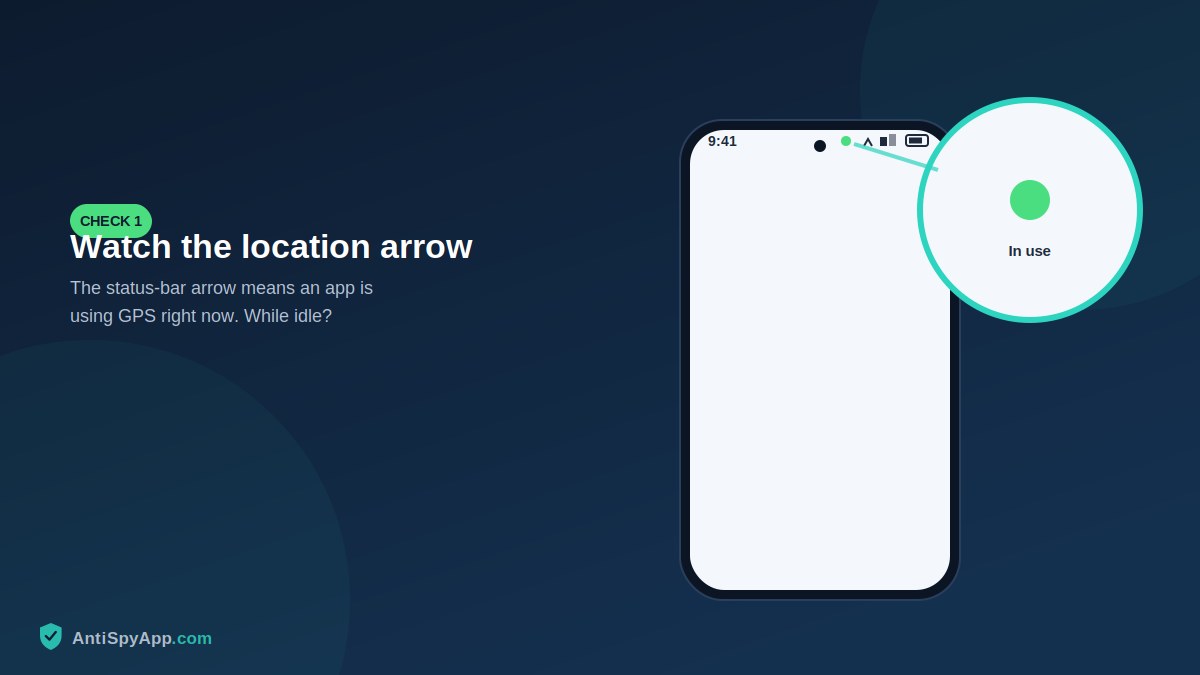
Both platforms warn you in real time. iPhones show a small arrow in the status bar when any app uses location; Android shows a location icon or, on Android 12+, a green indicator. Seeing it while you navigate is normal. Seeing it repeatedly while the phone sits idle is the cheapest, fastest warning sign there is. When it appears unexpectedly, note the exact time — the next method turns that timestamp into a name.
Method 2: Read the privacy dashboard or App Privacy Report
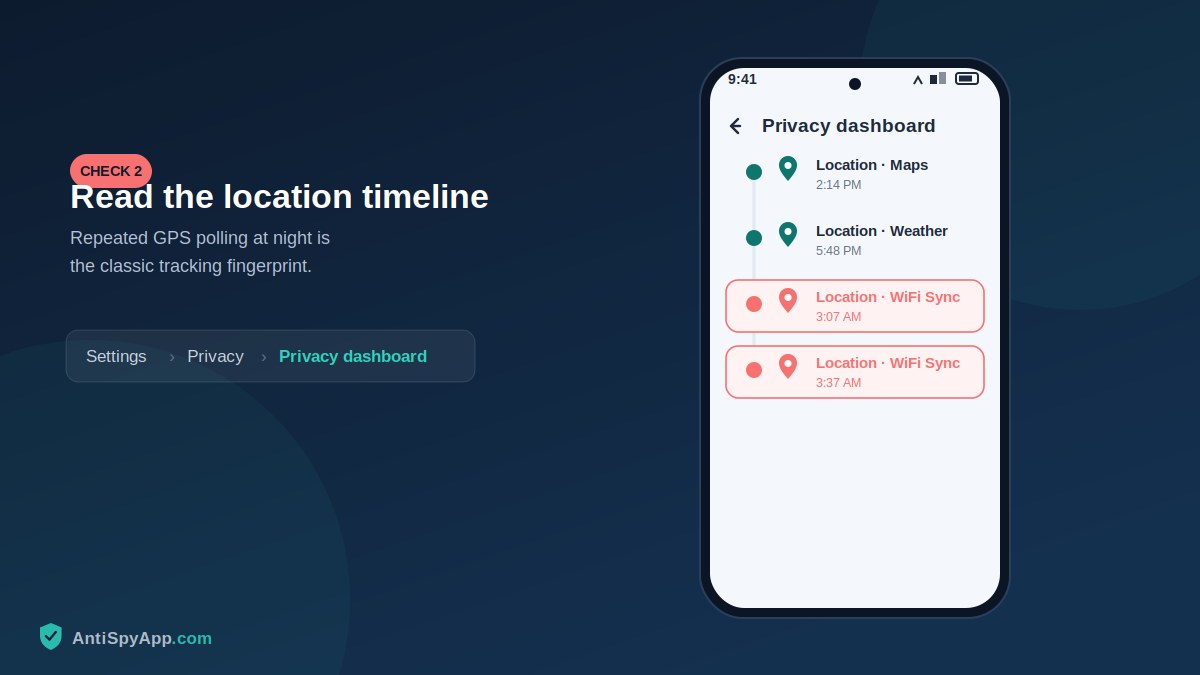
Your phone keeps a log of every location access. On Android, open Settings > Security & privacy > Privacy > Privacy dashboard and tap Location for a 24-hour timeline showing which app checked your position and when. On iPhone, Settings > Privacy & Security > App Privacy Report keeps seven days of the same. Read it against your memory of the day: a weather app checking location twice is fine; anything polling your position every few minutes around the clock is building a movement profile. Whatever you find here is a fact, not a suspicion — the log names the app.
Method 3: Audit which apps hold the location permission
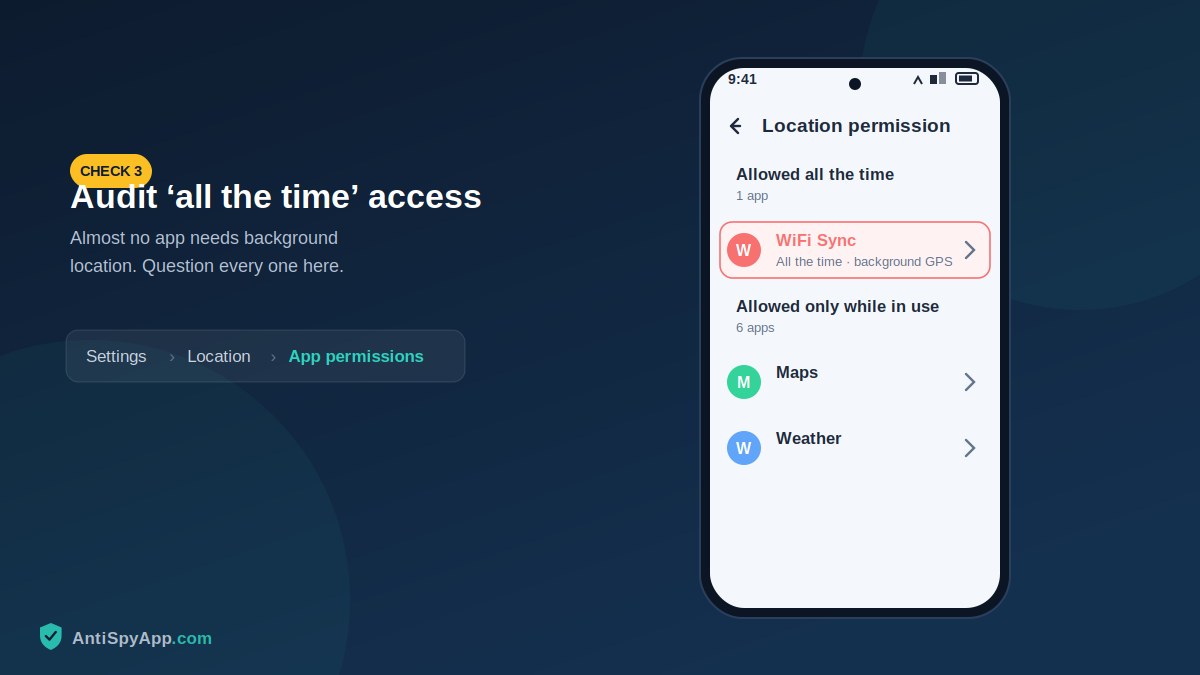
Now close the doors you find open. On Android go to Settings > Location > App location permissions; on iPhone, Settings > Privacy & Security > Location Services. The list that matters is “Allowed all the time” (Android) or “Always” (iPhone) — those apps can track you with the screen off. That list should be tiny: typically Find My / Find My Device and little else. Downgrade everything else to “While using” or “Ask every time”, and remove access entirely from apps with no business knowing where you are. While here, check whether Precise location is on for apps that only need your city.
Method 4: Check Google Maps location sharing
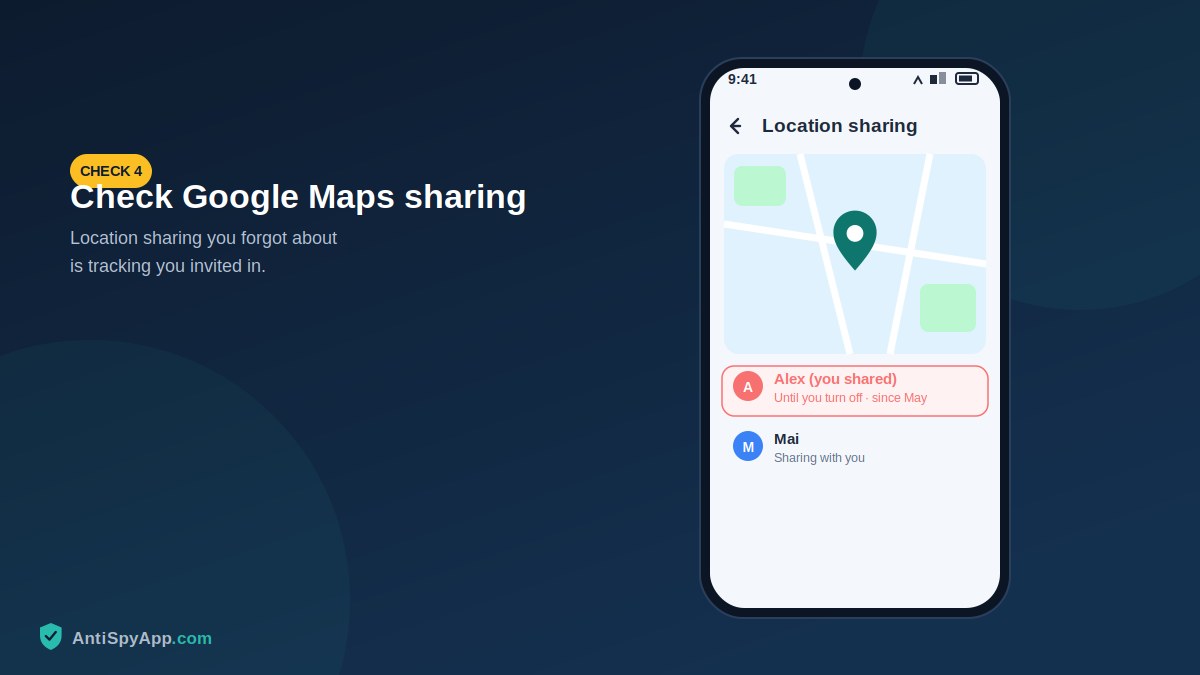
The most common “tracking” discovered in real life is not malware at all — it is Google Maps location sharing switched on months ago and forgotten, or enabled by someone else in two minutes with the phone unlocked. Open Google Maps, tap your profile icon > Location sharing. Anyone you are sharing with appears here, including shares set to “until you turn this off”. Stop anything you don’t actively want. Then check the mirror image: Google Timeline (profile icon > Your Timeline) — if Timeline is on and someone else knows your Google password, they can read your entire movement history from any browser, which brings us to method 6.
Method 5: Check Find My / Find My Device sharing
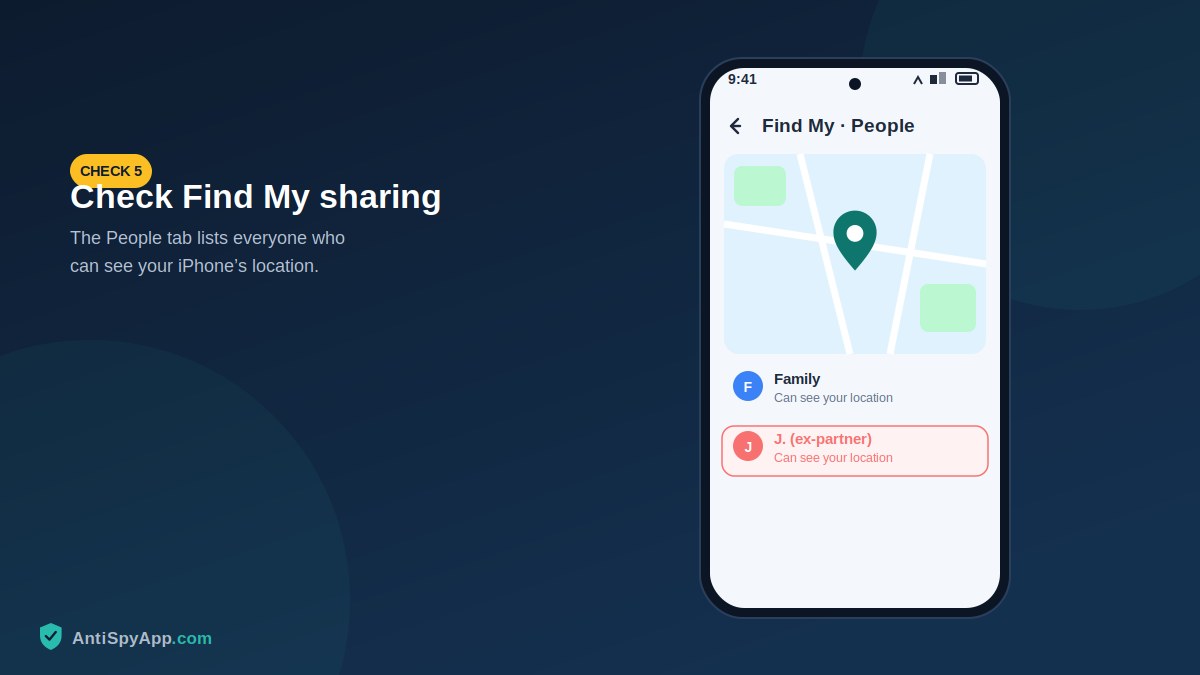
Apple’s and Google’s device-finding networks double as people-tracking when misused. On iPhone, open Find My > People: everyone who can see your location is listed, and Settings > [your name] > Find My > Share My Location shows the master switch. On Android, review Settings > Google > Find My Device and any family-group location sharing under Google Family Link or Samsung’s equivalents. Family features are legitimate for parents and minors; between adults, location sharing should exist only with informed, current consent — “I agreed to it once during a trip in 2024” is worth revisiting.
Method 6: Review every device signed into your accounts
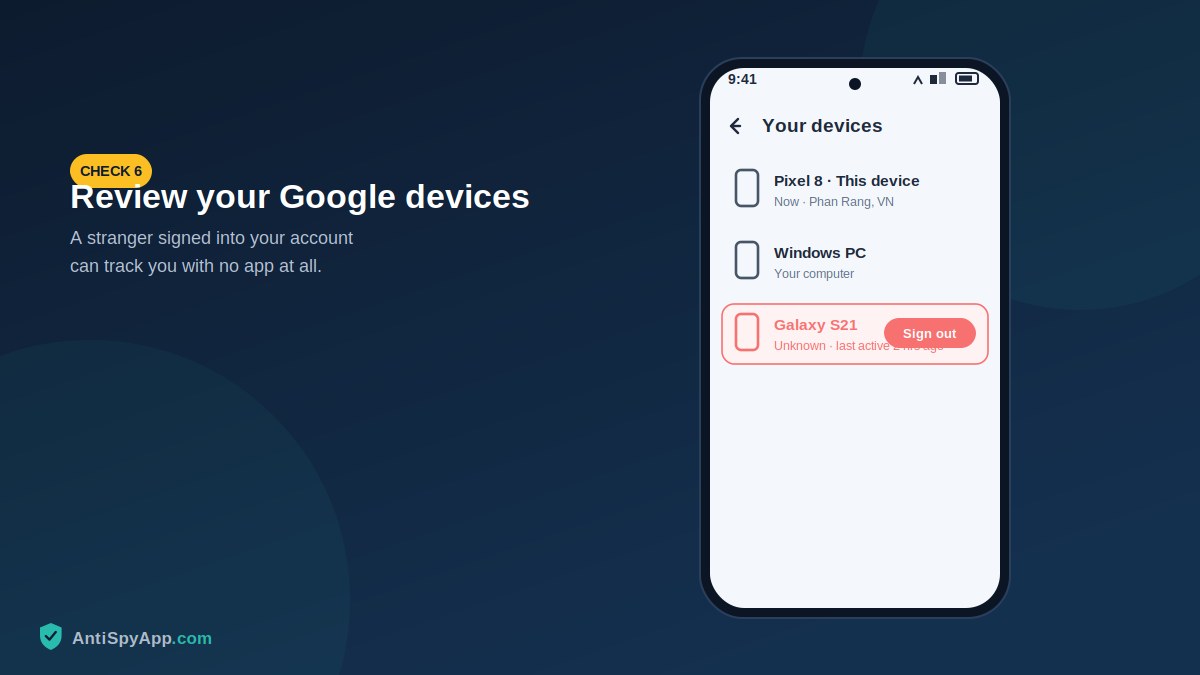
If someone knows your Google or Apple password, they don’t need to touch your phone — your account will report your location to them politely. Visit myaccount.google.com > Security > Your devices (and “Recent security activity” on the same page), or on iPhone open Settings > [your name] and scroll to the device list. Sign out every device you do not recognize, then change the password and enable two-factor authentication. Do this from a device you fully control. Account-level tracking is invisible to every scan you can run on the phone itself, which is why this method belongs on the list even though it never touches the handset.
Method 7: Scan for AirTags and Bluetooth trackers
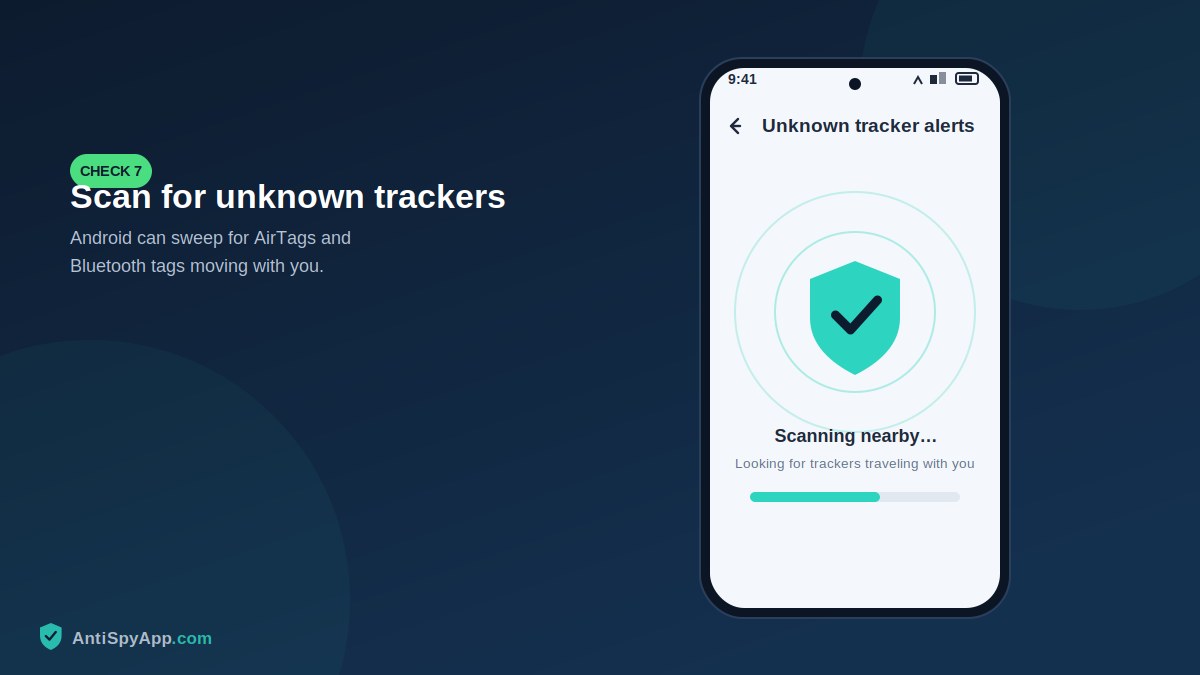
Tracking doesn’t have to live on your phone — a coin-sized tag in a coat pocket, bag lining, or car does the job. Both platforms now defend against this. iPhones alert you automatically when an unknown AirTag travels with you; take those alerts seriously and use the option to make the tag play a sound. On Android, go to Settings > Safety & emergency > Unknown tracker alerts and run a manual scan whenever you feel followed. For a physical search, check bags, coat pockets, under car seats, in wheel wells, and behind bumpers — our dedicated tracker guide covers the full search pattern. If you find a tracker you cannot explain, photograph it, note its serial (visible via NFC tap), and consider involving the police before destroying it.
Method 8: Dial the call-forwarding check codes
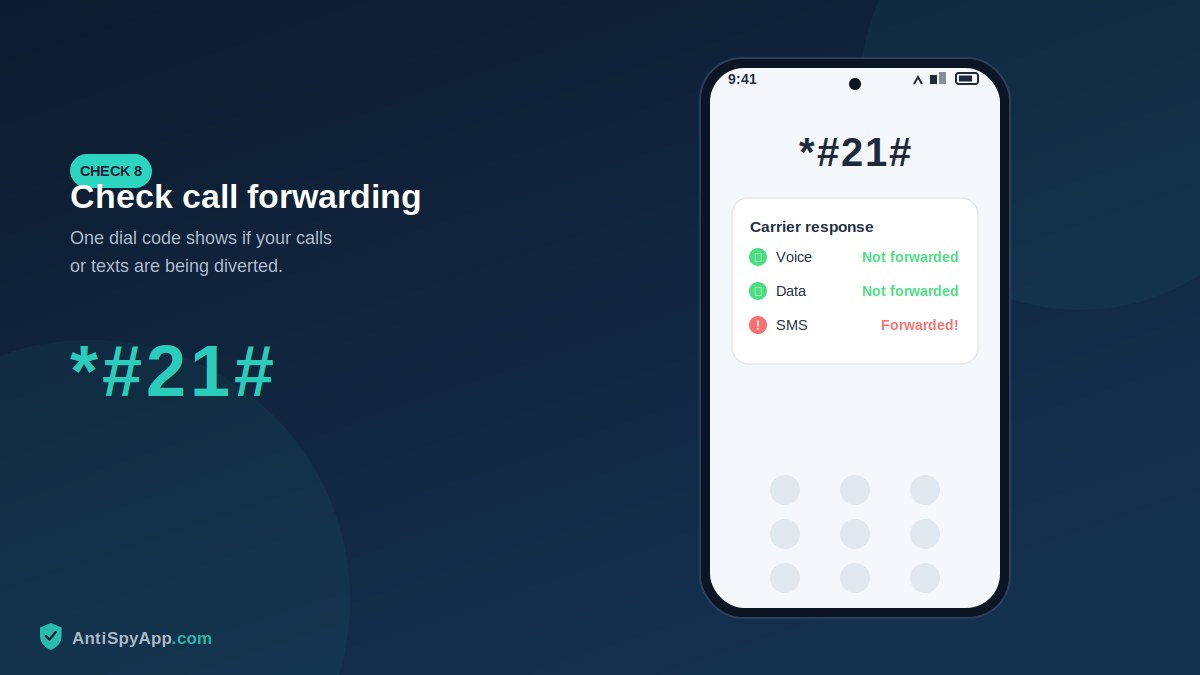
Old-fashioned but worth thirty seconds: call forwarding can silently send copies of your calls elsewhere. Open the dialer and enter *#21# (unconditional forwarding status), then *#62# (forwarding when unreachable) and *#67# (when busy). Your carrier returns a status screen showing whether voice, data, and SMS are being diverted and to what number. Anything forwarding to a number you don’t recognize can be cancelled with ##002#, which erases all forwarding rules. These are carrier codes, so support varies by network and they may not work on some plans — if they fail, your carrier’s app or support line can check the same settings.
Method 9: Hunt for stalkerware on the phone itself
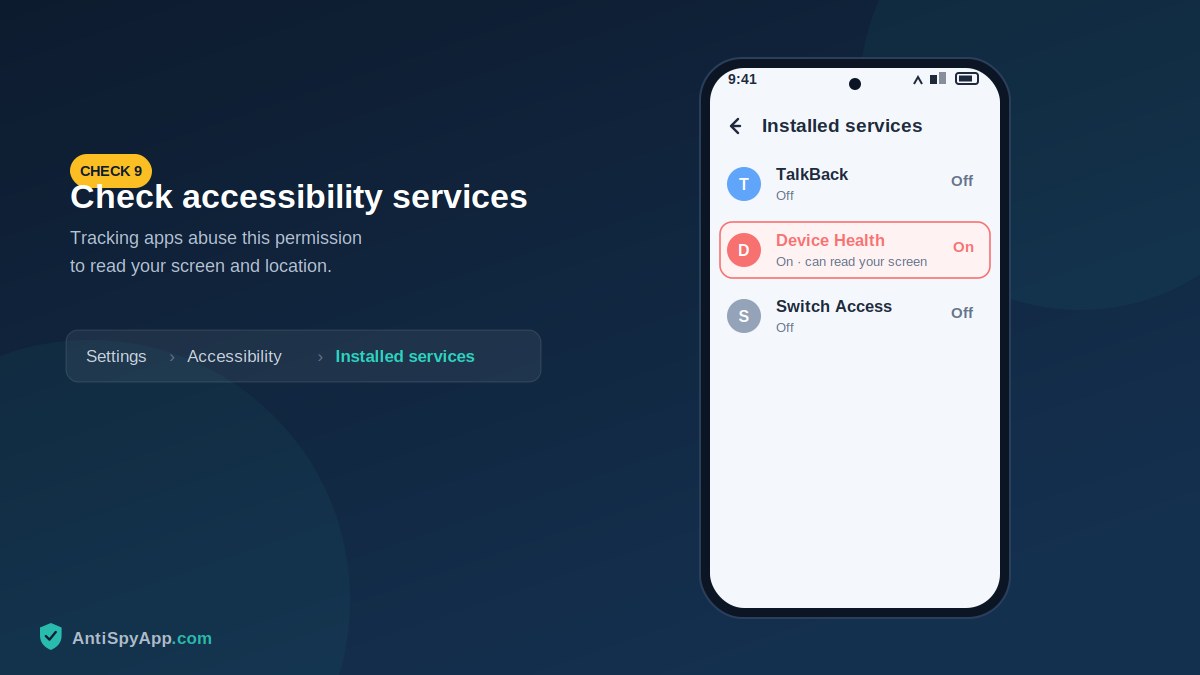
Everything so far covered legitimate features being misused. Dedicated stalkerware is the nastier case, and it hides in predictable places: Settings > Apps > See all apps (unfamiliar names), Device admin apps, and Accessibility > Installed services on Android; unexplained configuration profiles under Settings > General > VPN & Device Management on iPhone. Run a Google Play Protect scan on Android — it flags known stalkerware by name. This is a summary of a much deeper process; our 13-step Android guide and 7-method iPhone guide walk every screen with pictures, and both link from this article.
Method 10: Let the phone’s vital signs confirm it
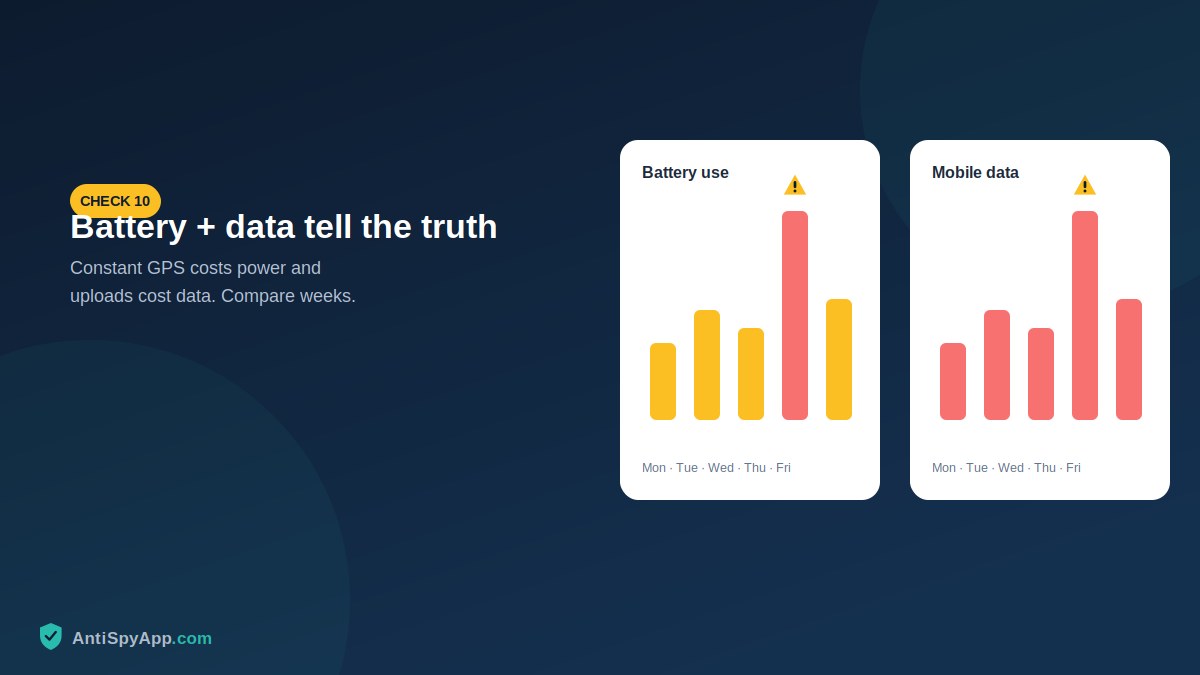
Constant tracking has a metabolism: GPS burns battery, uploads burn data. Check Settings > Battery for drain that continues while the phone is idle and for unknown apps in the usage list, and your data usage screens for a month-over-month jump you can’t explain. These vital signs can’t identify a tracker by themselves, but they corroborate. A clean bill of health across methods 1–9 plus normal battery and data is a genuinely reassuring result — and now you know exactly how to repeat the checkup, which is worth doing monthly.
What to Do If You Confirmed Tracking
Match the response to what you found. An app with location access: revoke the permission or uninstall the app. Sharing you didn’t consent to: end it in Maps or Find My — but note that the other person can see the sharing stopped. A stranger device in your account: sign it out, change the password from a clean device, add two-factor authentication. A physical tracker: document it before disabling it. Stalkerware: follow the full removal guide, and if the person responsible may escalate, contact a support organization from a safer device before removing anything — your safety plan comes before the phone’s cleanup. In every case, photograph what you found first; evidence you deleted cannot be shown to anyone later.
Frequently Asked Questions
What’s the difference between tracking by apps, by accounts, and by devices?
They fail differently, so they must be checked differently. App tracking lives on the phone and shows up in permission lists and privacy dashboards (methods 1–3). Account tracking lives in the cloud — Maps sharing, Find My, a stranger signed into your Google or Apple account — and is invisible to anything you scan on the handset (methods 4–6). Device tracking is a physical object near you and shows up only to Bluetooth scans and your own hands (method 7). A complete answer to “am I being tracked?” always covers all three, which is why shortcuts like installing a single scanner app so often produce false confidence.
Can my phone be tracked when it’s turned off?
Apps and spyware cannot run on a powered-off phone. Two narrow exceptions exist: recent iPhones and some Android phones remain findable through the Find My network for a while after shutdown (a feature of your own account, visible to whoever accesses that account), and your carrier always knows roughly where the phone last connected. For app-level tracking — the subject of this guide — off means off.
Does a VPN stop location tracking?
A VPN hides your internet traffic and masks your IP-based location from websites. It does nothing about GPS: an app with location permission still reads your true position and reports it, VPN or not. Permission audits (method 3) protect your location; VPNs protect your traffic. You may want both, but don’t confuse the two.
Someone always seems to know where I am, but every check came back clean. Now what?
Trust the pattern and widen the search. Re-run method 7 in different locations (tracker alerts need the tag to move with you), check your car thoroughly, and consider the low-tech explanations: shared calendars, social media location tags, a mutual friend relaying information, or an old device of yours still signed into your accounts. If it continues, document each incident with dates and consult local police or a support organization — a consistent pattern of impossible knowledge is worth taking seriously even before you can explain the mechanism.
The Twenty-Minute Recap
Indicators and privacy logs catch tracking as it happens; permission audits close the doors apps use; Maps and Find My reviews end forgotten or forced sharing; the account device lists expose cloud-level snooping; a Bluetooth scan and physical search cover trackers that never touch your phone; dial codes rule out call diversion; the stalkerware checks handle the malicious case; and battery plus data confirm the overall picture. Repeat methods 2, 3, and 6 monthly and the whole checklist quarterly. Tracking thrives on the fact that nobody ever looks — and you now know exactly where to look.
Dial codes and menu paths vary by carrier, device brand, and OS version. This article is general information; if you are in immediate danger, contact your local emergency number.