Your lock screen is the front door to your entire digital life — your messages, photos, email, banking apps, and saved passwords all sit behind it. A weak passcode is like a flimsy lock on that door, and yet many people still use codes a stranger could guess in seconds. Setting a strong passcode and lock screen takes two minutes and dramatically improves your security, protecting you if your phone is ever lost or stolen. This guide shows you how to choose a genuinely strong passcode, set up biometric unlock safely, and configure your lock screen to keep your private information private.
It’s the one security setting that protects everything else on the device, which is why it’s worth getting right before anything else you do to secure your phone.
The reassuring part is that strong security here costs you almost nothing in daily convenience. Thanks to Face ID and fingerprint unlock, you can protect your phone with a genuinely tough passcode and still get in with a glance or a touch. You get bank-vault security with everyday ease — the best of both worlds, once it’s set up right.
We’ll cover what makes a passcode strong, the smart way to use Face ID and fingerprint unlock, and the lock-screen settings that stop someone seeing your notifications and data without unlocking the phone.
Why Your Passcode Matters More Than You Think
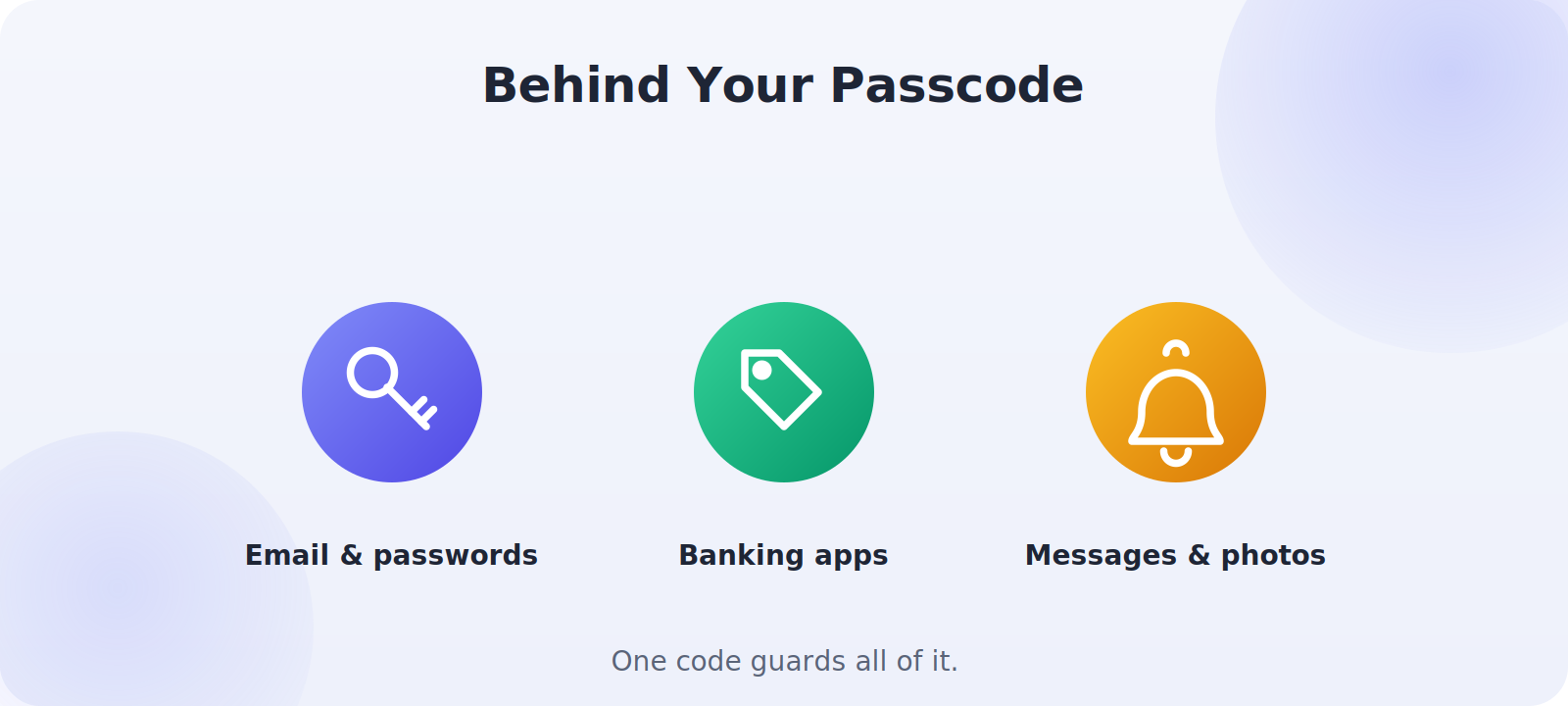
It’s easy to underestimate how much sits behind your lock screen. If someone gets past it, they potentially have access to your email (which can reset your other passwords), your banking and payment apps, your private messages and photos, and your saved logins. A strong passcode is the foundation that everything else — including your phone’s encryption — rests on. It’s genuinely the most important security setting on your device.
Choose a Strong Passcode
Not all passcodes are equal. A little thought here makes a big difference:
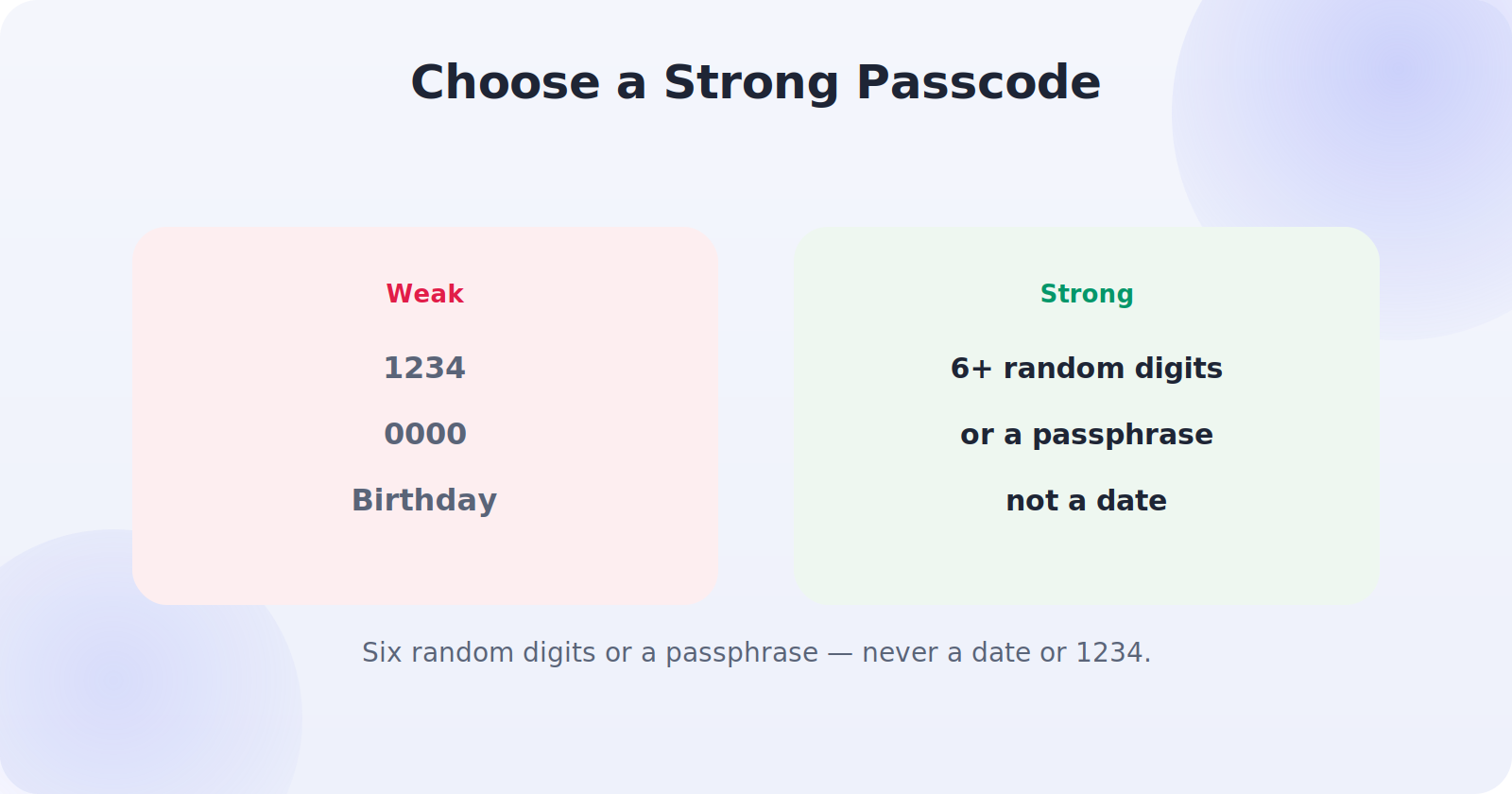
- Use six digits, not four. Even better, use a longer alphanumeric passcode for serious security.
- Avoid obvious codes: no 1234, 0000, repeated digits, or your birth year.
- Don’t use dates a stranger could find, like your birthday or anniversary.
- Avoid patterns that are easy to shoulder-surf or smudge onto the screen.
- Make it memorable but not guessable — a random-feeling number you can still recall.
Set It Up on iPhone
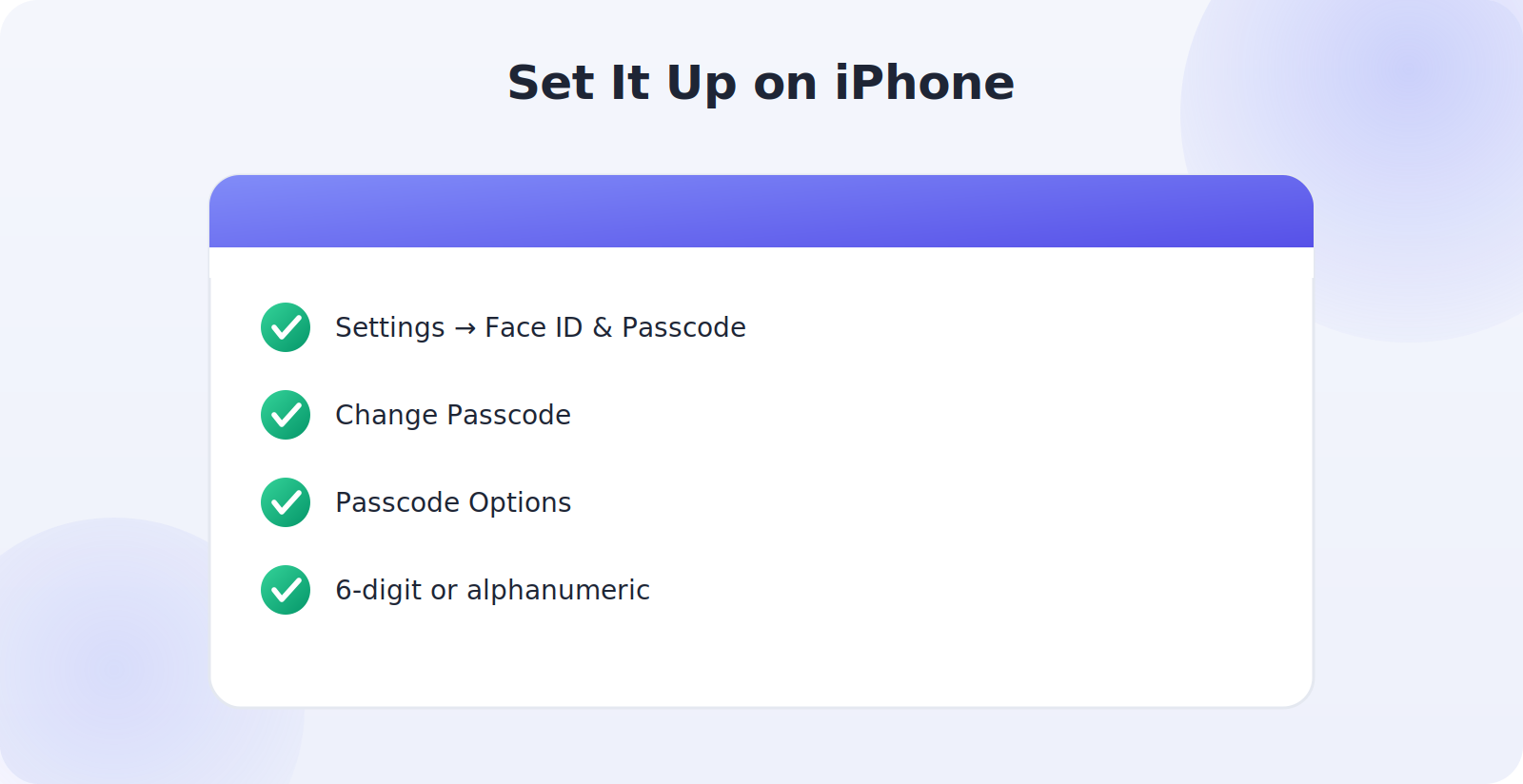
- Go to Settings → Face ID & Passcode (or Touch ID & Passcode).
- Tap Change Passcode, or Turn Passcode On if you don’t have one.
- Tap Passcode Options to choose a 6-digit, custom numeric, or custom alphanumeric code.
- Enter your new strong passcode and confirm it.
Set It Up on Android
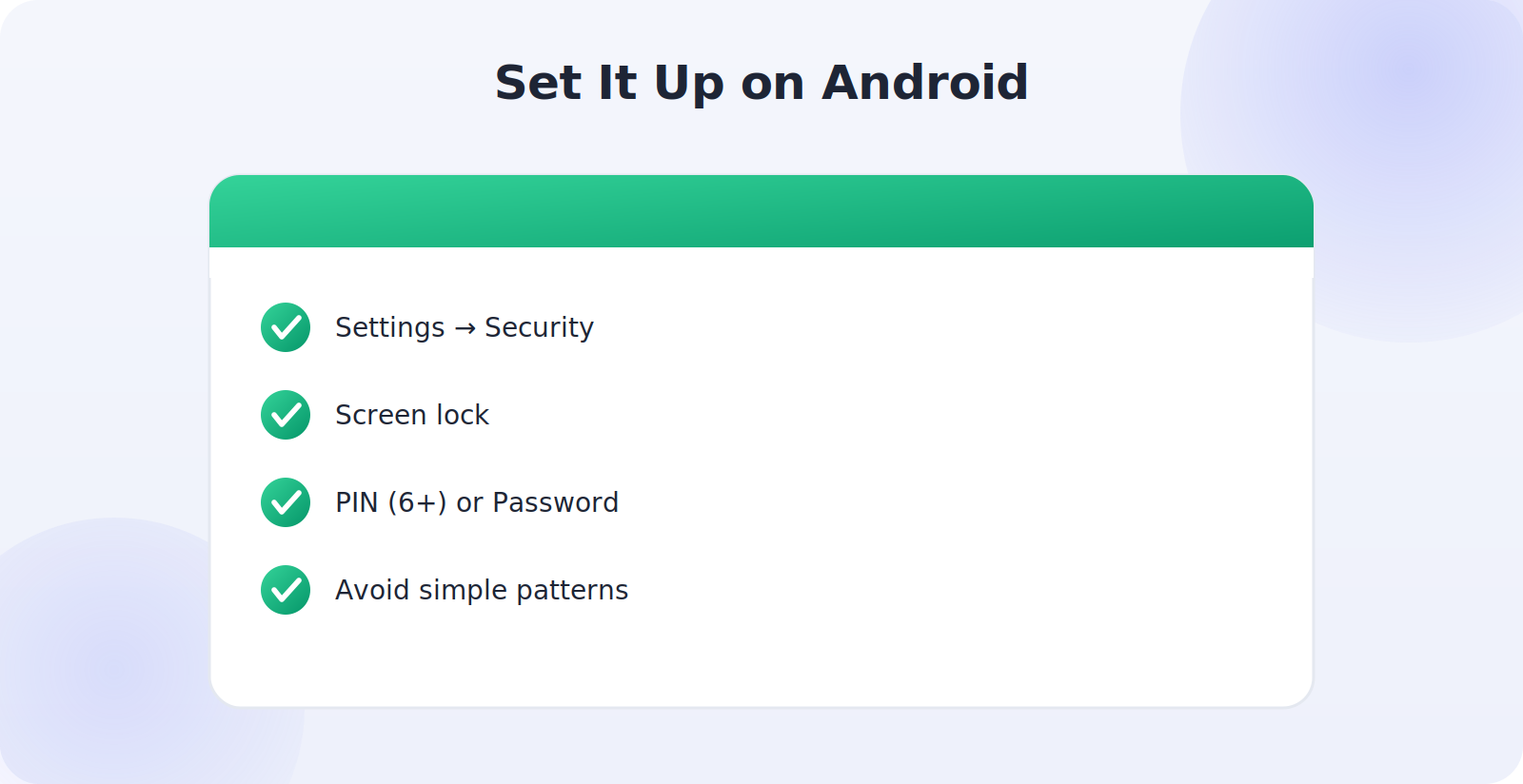
- Go to Settings → Security (or Security & privacy).
- Tap Screen lock.
- Choose PIN (six or more digits) or Password for the strongest option.
- Enter and confirm your new lock, avoiding simple patterns.
If you use a pattern lock, be aware it’s generally weaker — patterns are easier to guess and to smudge-track on the screen. A PIN or password is more secure.
Use Biometrics the Smart Way
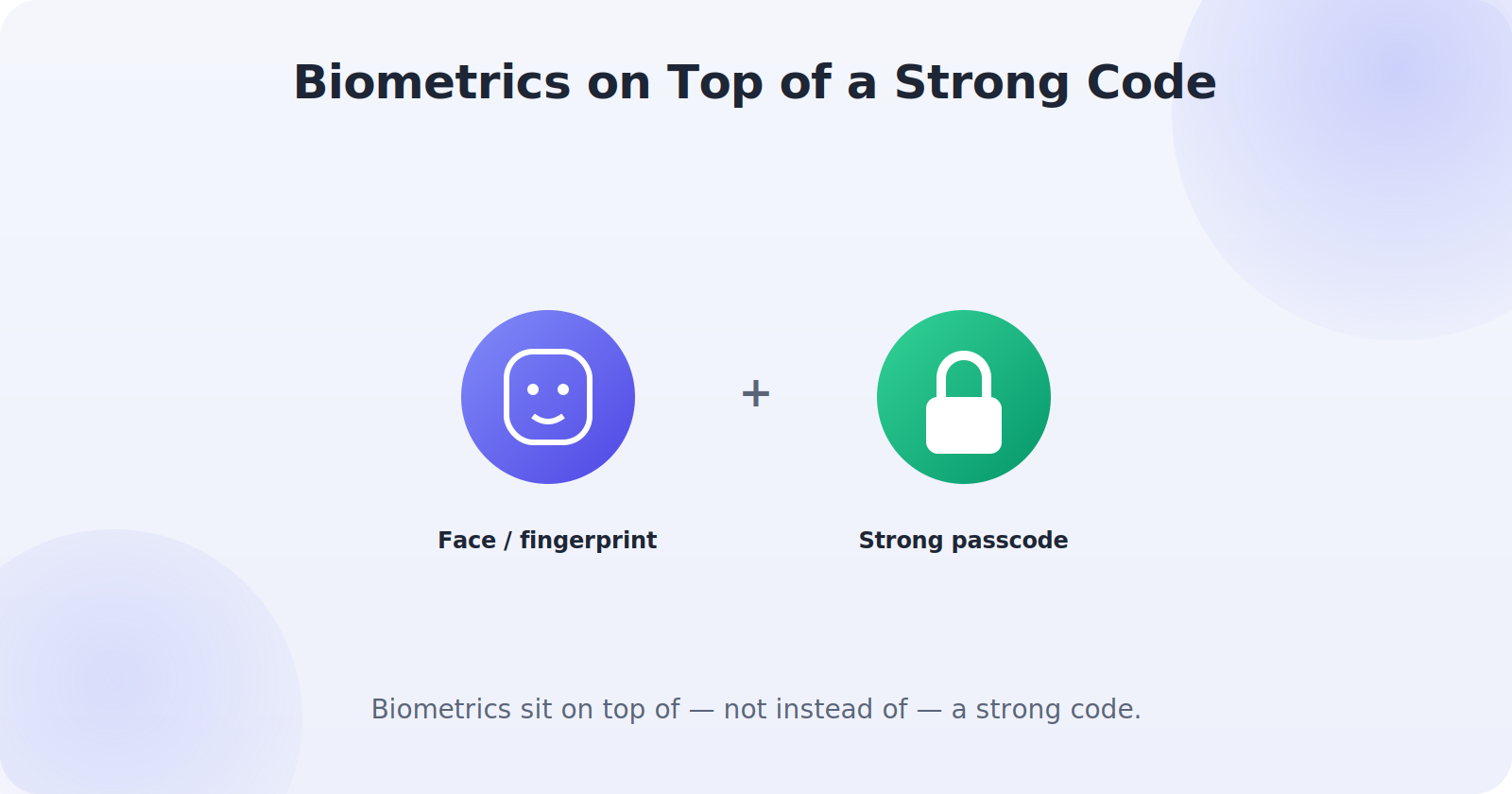
Face ID, Touch ID, and fingerprint unlock are wonderfully convenient, and used well they actually improve your security — because they let you have a long, strong passcode without the hassle of typing it constantly. The key point: biometrics don’t replace your passcode, they sit on top of it. Your passcode is still the fallback and the foundation, so make it strong. Set up biometrics for everyday convenience, and rely on your strong passcode underneath.
Lock Down Your Lock Screen
A strong passcode is only half the job — your lock screen can still leak information if it’s not configured well. Review these settings so a locked phone doesn’t reveal your private data:
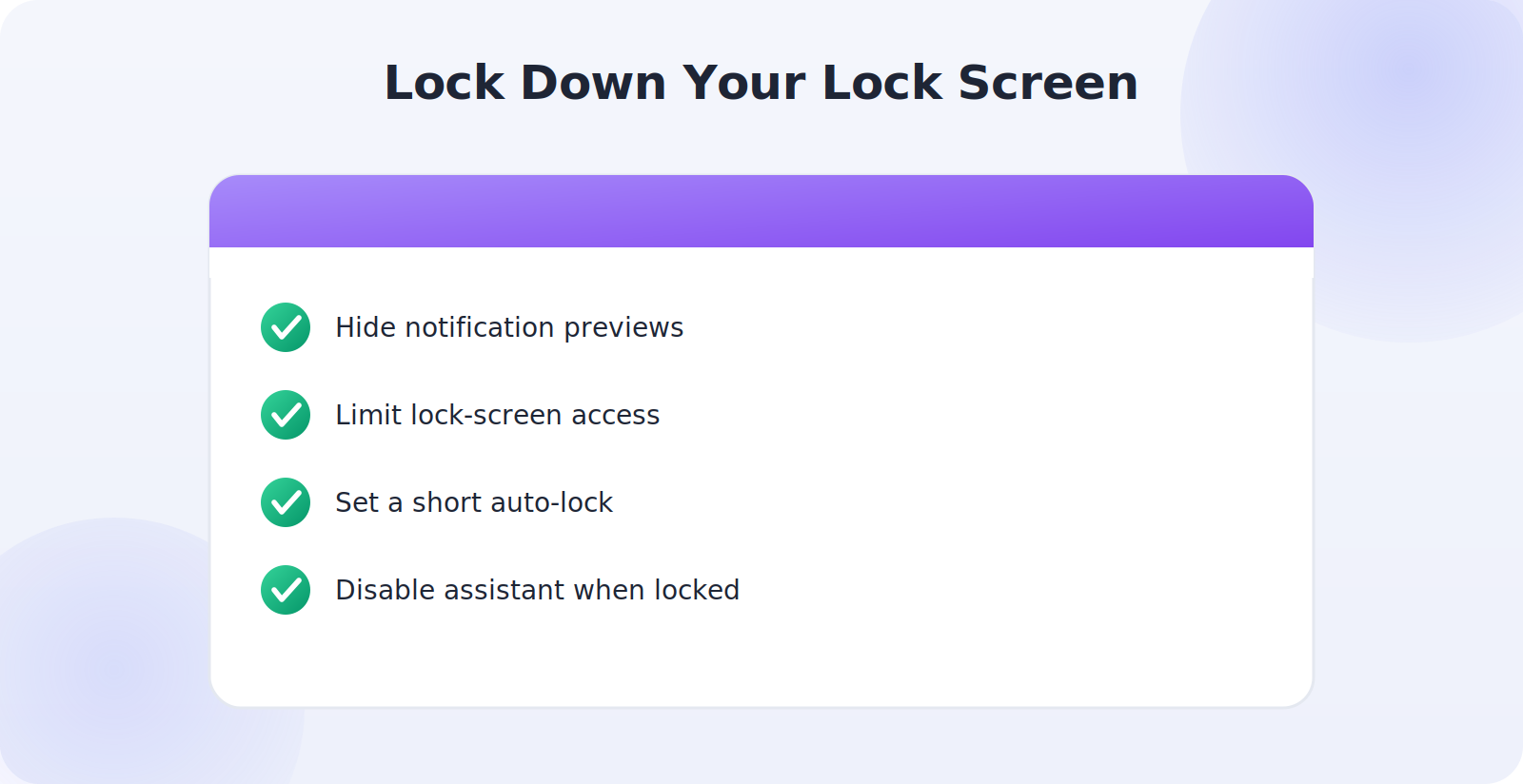
- Hide notification previews: set messages and notifications to show only when unlocked, so texts and codes aren’t visible on the lock screen.
- Limit lock-screen access: restrict what can be reached without unlocking, like the wallet, control center, or reply features.
- Set a short auto-lock: so your phone locks itself quickly when idle.
- Disable voice assistant from the lock screen if you’re concerned about it being used without unlocking.
Turn On Auto-Erase (Optional but Powerful)
For an extra layer of protection, both platforms can be set to protect your data against someone repeatedly guessing your passcode. On iPhone, the Erase Data option wipes the phone after ten failed passcode attempts. Android offers similar protections on many devices. This is a strong safeguard if you carry sensitive information, though only enable it if you’re confident you won’t lock yourself out — and only with a reliable backup in place, since it does exactly what it says.
How Attackers Actually Crack Passcodes
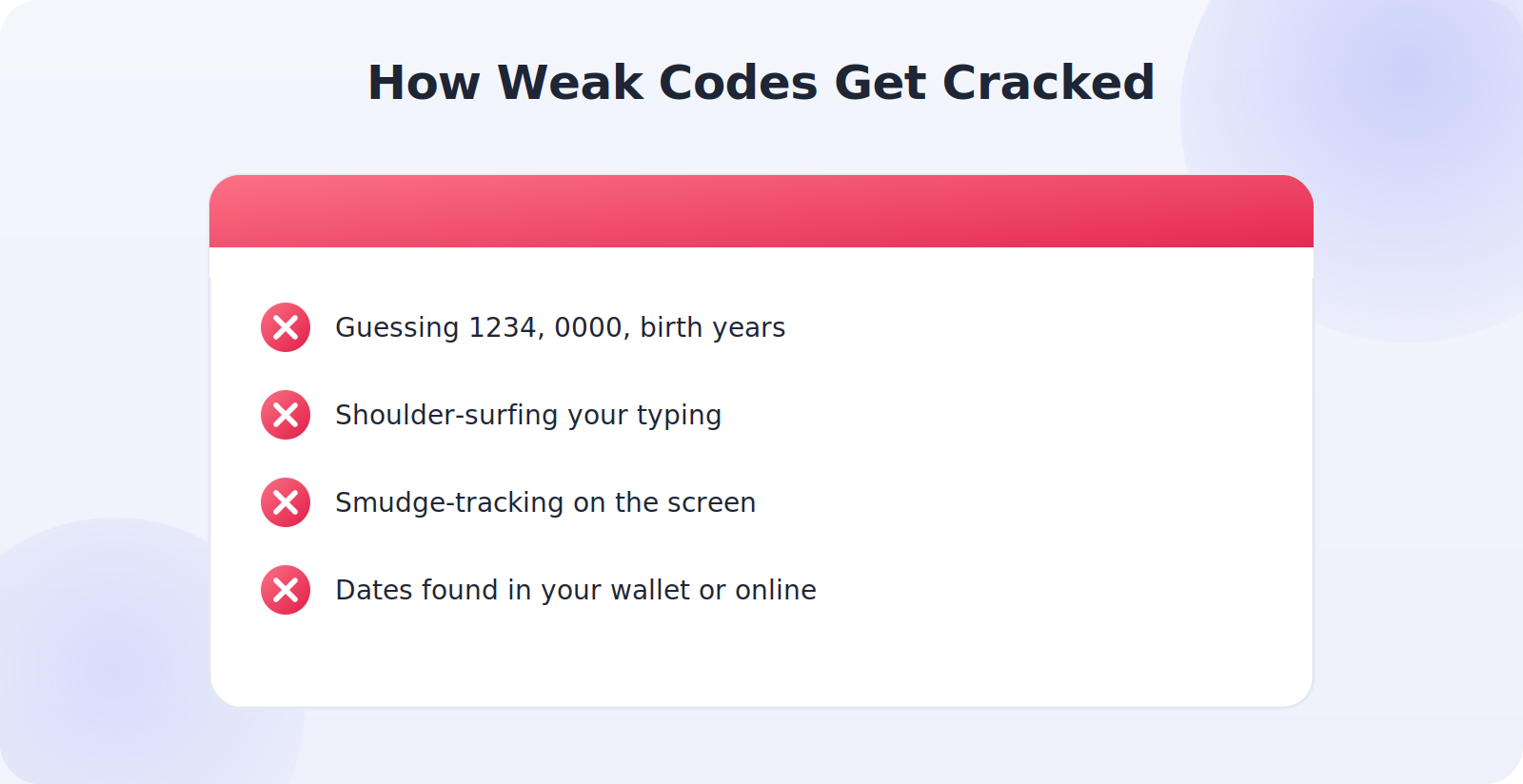
Understanding how weak passcodes get broken makes it obvious why the advice here matters. The simplest attack is just guessing: a surprising share of people use 1234, 0000, or a birth year, and a thief tries those first. Next is shoulder-surfing — watching you type your code — and smudge tracking, reading the greasy fingerprints your pattern or PIN leaves on the screen. Finally, dates like birthdays and anniversaries are weak because a thief who has your wallet or has looked you up online can often find them.
A strong passcode defeats all of these at once. Six random-feeling digits are far too many to guess before the phone locks the attacker out; an alphanumeric passcode is stronger still. Because it’s not a date or a pattern, it can’t be inferred from your personal details or smudged onto the glass. This is why the small effort of choosing a good code — and shielding it as you type — delivers such an outsized improvement in your actual security.
What Happens If Your Phone Is Stolen
A strong passcode changes the entire outcome of a phone theft. With a weak or absent code, a thief gets your unlocked digital life — email, banking, messages, saved passwords — within moments. With a strong passcode on a modern, encrypted phone, they get an expensive but useless brick: your data stays encrypted and inaccessible, and your accounts stay protected while you remotely locate, lock, or erase the device.
This is why the passcode pairs so powerfully with your phone’s find-and-erase features and your backups. Together they mean a stolen phone is a manageable annoyance rather than an identity-theft emergency. The strong passcode buys you the time and protection to respond calmly — lock the phone, change any critical passwords, and erase it remotely — secure in the knowledge that your data was never exposed in the first place.
Layering Your Phone’s Defenses
A strong passcode is the foundation, but it works best as part of a small stack of protections that reinforce one another. Pair it with your phone’s find-and-erase feature, so a lost or stolen phone can be located, locked, or wiped remotely. Combine it with a reliable backup, so erasing the phone remotely costs you nothing but the hardware. Add two-factor authentication on your important accounts, so even if someone somehow got in, your email and banking stay protected. And configure your lock screen so it gives nothing away while locked. Each layer covers a different scenario, and together they turn your phone from a single point of failure into a genuinely hardened device. The beauty is that once these are all set up — a task of maybe fifteen minutes total — they run silently in the background, asking nothing of you until the day one of them saves you real trouble. That quiet, layered protection is what modern phone security looks like, and it’s well within everyone’s reach.
Teaching Good Passcode Habits to Family
Once your own phone is locked down, it’s worth helping the people close to you do the same, because a family is only as secure as its least-protected phone. Encourage older relatives and younger family members to move off obvious codes like 1234 or a birthday and onto a strong six-digit passcode, and help them set up biometrics so the stronger code isn’t a daily burden. Explain, gently, why hiding notification previews matters, and make sure their phones lock quickly when idle. A short, patient conversation — framed around keeping their photos and messages safe rather than around fear — can meaningfully protect someone you love, and it spreads the same quiet security you’ve built for yourself.
Common Mistakes to Avoid
- Using a four-digit or obvious code like 1234 or a birthday.
- Relying on a weak pattern that’s easy to guess or smudge-track.
- Showing notification previews that reveal texts and codes while locked.
- Setting a long auto-lock, leaving the phone unlocked and idle.
- Treating biometrics as a replacement for a strong passcode rather than an addition.
Frequently Asked Questions
What if I forget my strong passcode?
This is why a reliable backup matters. If you’re locked out, you can typically erase and restore the phone from your backup. To avoid it, choose a code that’s random-feeling but genuinely memorable to you, and consider a secure record of it.
Can someone unlock my phone with my face or fingerprint while I’m asleep?
Both platforms have safeguards, and you can quickly disable biometrics to require the passcode when needed. Knowing how to trigger passcode-only mode on your phone is a useful thing to learn for sensitive situations.
Is a six-digit passcode much stronger than four?
Yes — it dramatically increases the number of possible combinations, making it far harder to guess. A custom alphanumeric passcode is stronger still for sensitive needs.
Are Face ID and fingerprint unlock safe?
Yes, and they let you keep a long, strong passcode without constant typing. They sit on top of your passcode rather than replacing it, so keep that underlying code strong.
Should I hide notifications on my lock screen?
For privacy and security, yes — hiding previews stops texts, verification codes, and other sensitive information from being readable without unlocking the phone.
Quick Takeaways
- Use a six-digit or alphanumeric passcode, never 1234 or a birthday.
- Prefer a PIN or password over a pattern on Android.
- Use biometrics on top of — not instead of — a strong passcode.
- Hide notification previews and limit lock-screen access.
- Set a short auto-lock, and consider auto-erase with a backup.
In the end, a strong passcode is the small, daily discipline that underpins everything else about your phone’s security. It takes a heartbeat longer to type a good code than a lazy one, and a moment to shield the screen as you do — and in exchange, your entire digital life stays locked away from anyone who picks up your phone. That is an extraordinary return on a tiny habit, and it’s available to everyone who takes two minutes to set it up.
The Bottom Line
A strong passcode and a well-configured lock screen are the foundation of your phone’s security, and setting them up takes only a couple of minutes. Choose a six-digit or alphanumeric code that isn’t a date or an obvious pattern, layer convenient biometrics on top, and tighten your lock-screen settings so a locked phone gives nothing away. Add a short auto-lock and, if you carry sensitive data, consider auto-erase with a solid backup. Do this, and even a lost or stolen phone keeps your digital life firmly behind a locked door. In a world where our phones hold almost everything, that locked door is worth every second it takes to build.