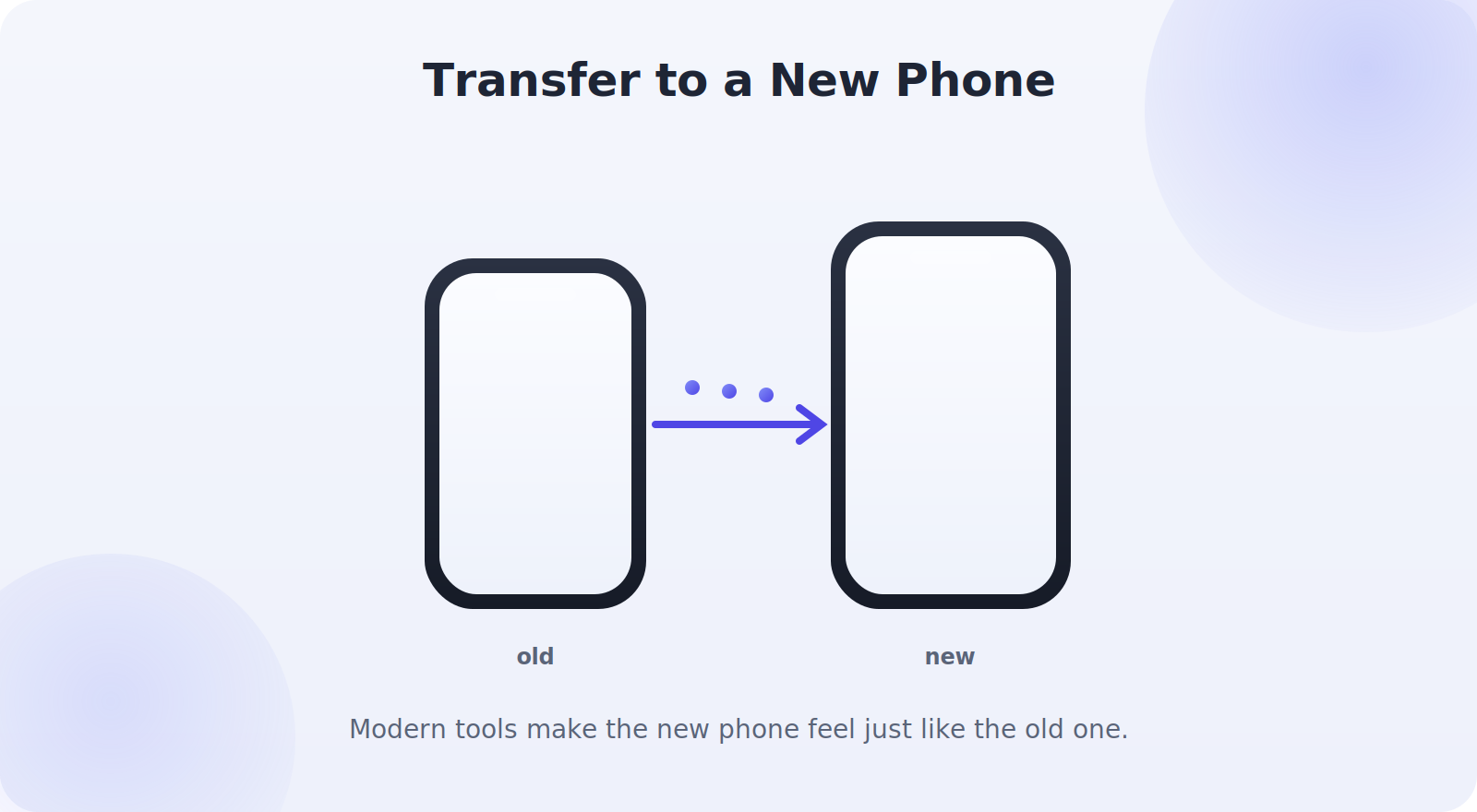
Getting a new phone is exciting — right up until you realize you need to move years of photos, contacts, apps, and settings across without losing anything. The good news is that transferring everything to a new phone has become remarkably smooth, whether you’re staying on the same platform or switching between iPhone and Android. With a little preparation, your new phone can end up looking and working almost exactly like your old one within an hour or two. This guide walks you through every path: iPhone to iPhone, Android to Android, and switching between the two.
And you don’t need to be technical to do it well; the phones themselves guide you through nearly every step, leaving you just a short checklist of items to confirm at the end.
What used to be a dreaded chore — hours of manually re-downloading apps and hunting for lost contacts — has become a largely automatic process the phone handles for you. The trick is simply knowing which path fits your situation and which handful of items need a manual nudge. Get those right, and the move is genuinely painless.
We’ll cover what to do before you start, the fastest transfer methods, and how to handle the few things — like authenticator apps and certain messages — that need a little extra care.
Before You Start: Prepare Both Phones
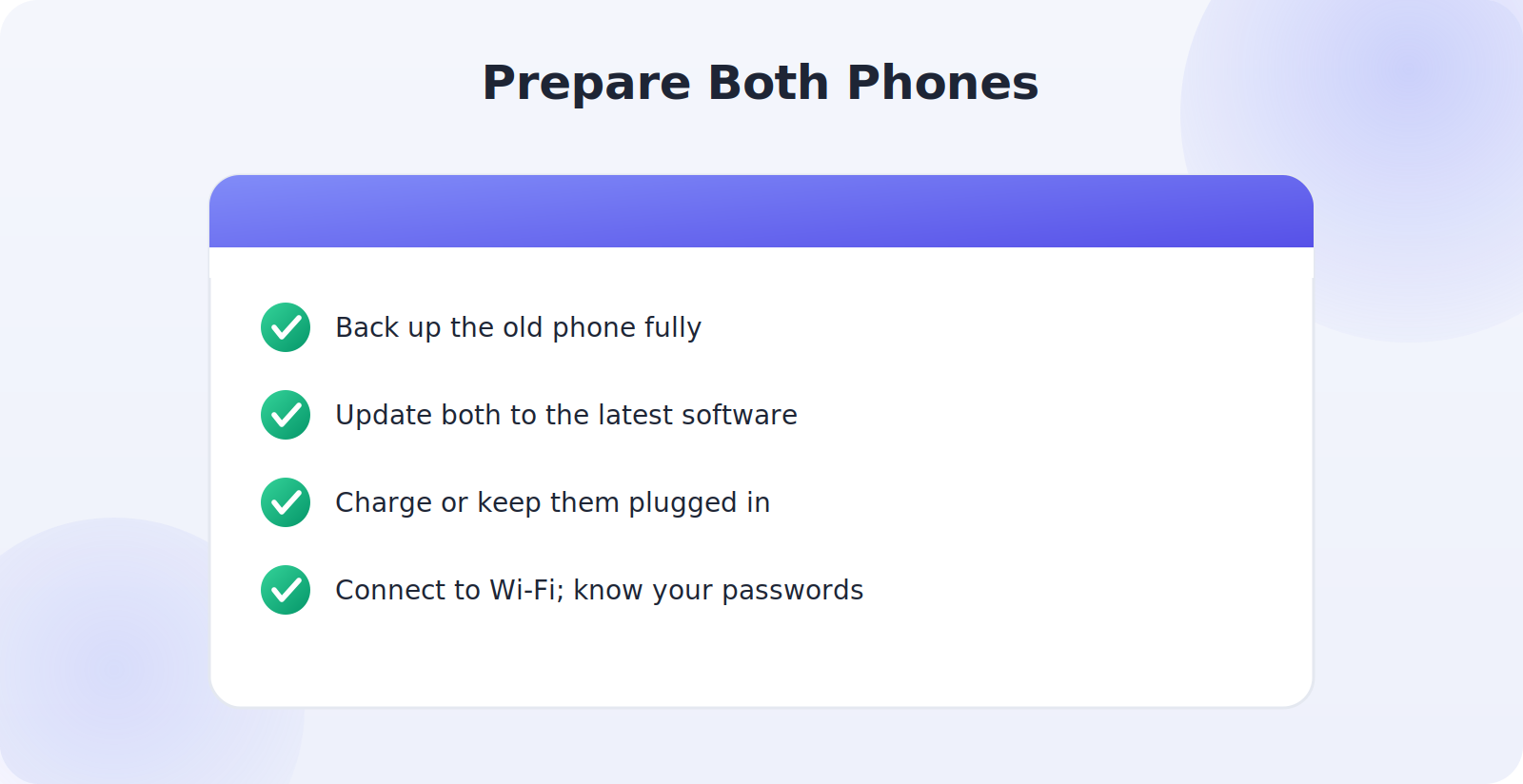
A few minutes of prep prevents most transfer headaches. Do these first, whatever phones you’re using:
- Back up your old phone fully, so you have a safety net if anything goes wrong.
- Update both phones to the latest software for the smoothest transfer.
- Charge both devices or keep them plugged in — transfers can take a while.
- Connect to Wi-Fi and make sure you know your account passwords.
iPhone to iPhone
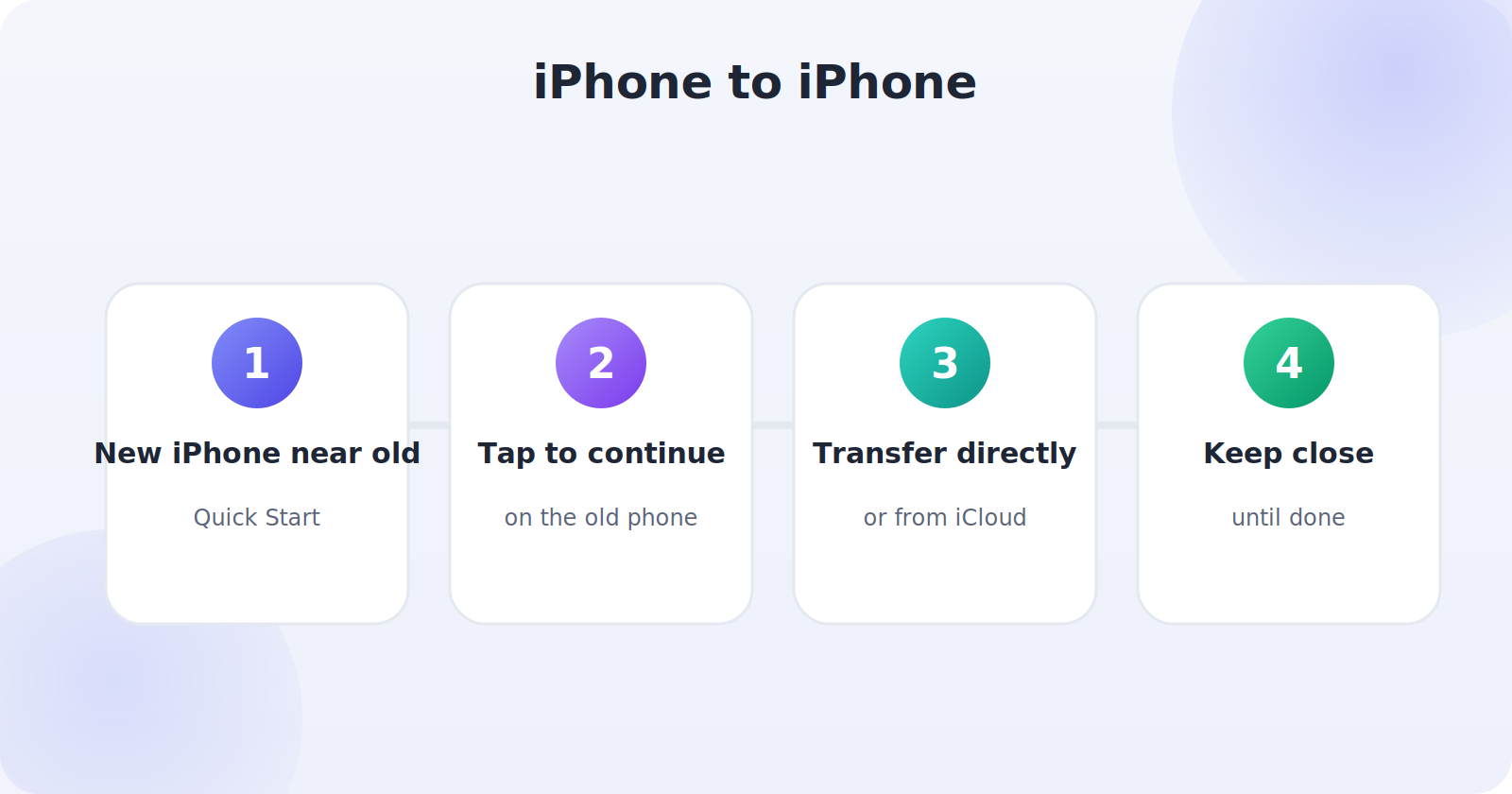
Apple’s Quick Start makes iPhone-to-iPhone transfer almost magical.
- Turn on your new iPhone and bring it near your old one.
- A Quick Start prompt appears on the old phone — tap to continue.
- Choose to transfer directly from the old iPhone, or restore from an iCloud backup.
- Keep the phones close and connected until everything — apps, photos, settings — has moved across.
Android to Android
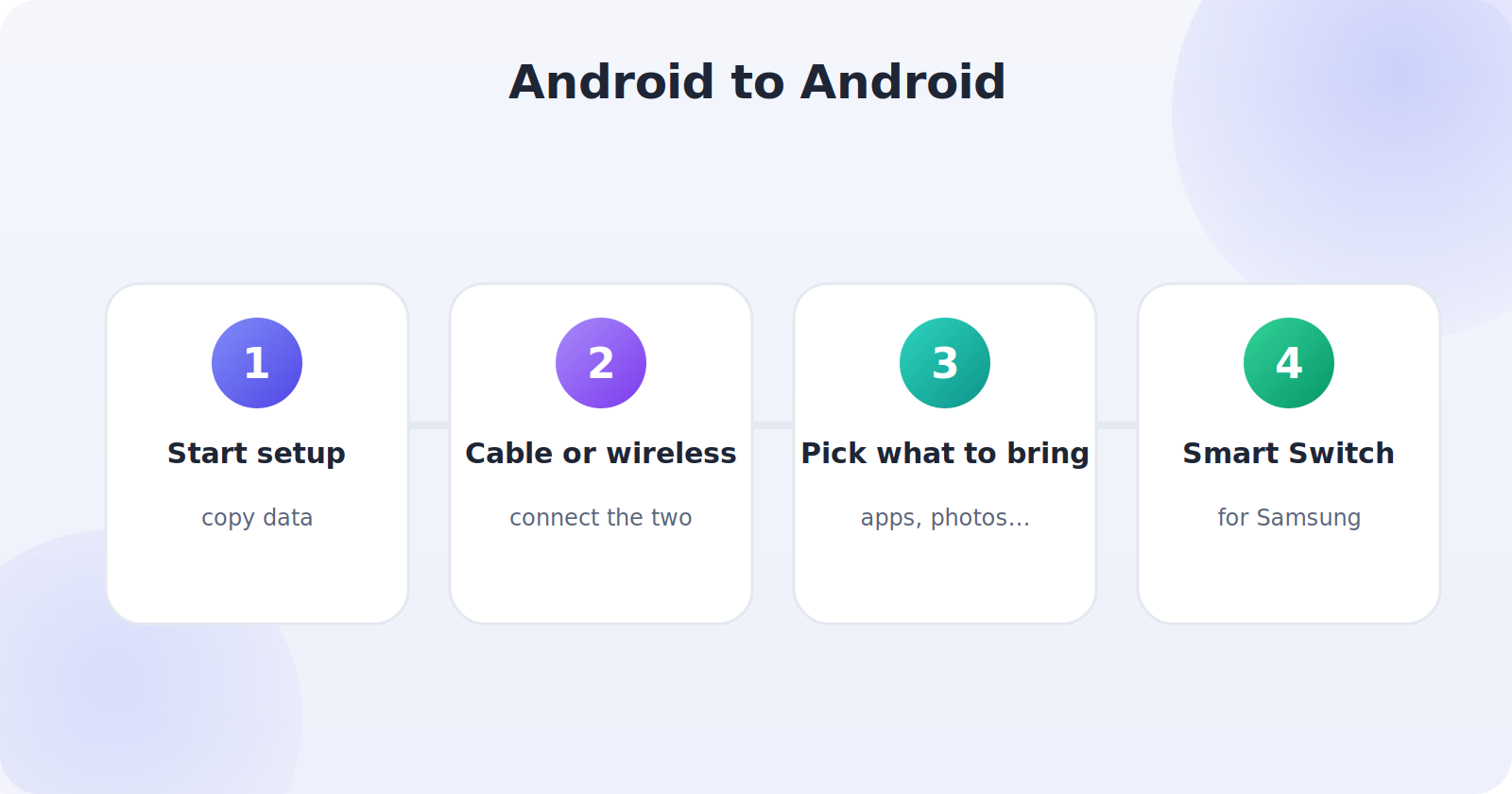
Android offers a similar guided transfer during setup, often branded by your phone’s maker.
- Start setting up your new Android phone and choose to copy data from another device.
- Connect the two phones with a cable, or transfer wirelessly as prompted.
- Select what to bring: apps, photos, contacts, messages, and settings.
- For Samsung and some other brands, a dedicated tool like Smart Switch handles the move.
Switching Between iPhone and Android
Switching platforms takes a little more care, but it’s very doable, and both companies provide tools to help.
Android to iPhone
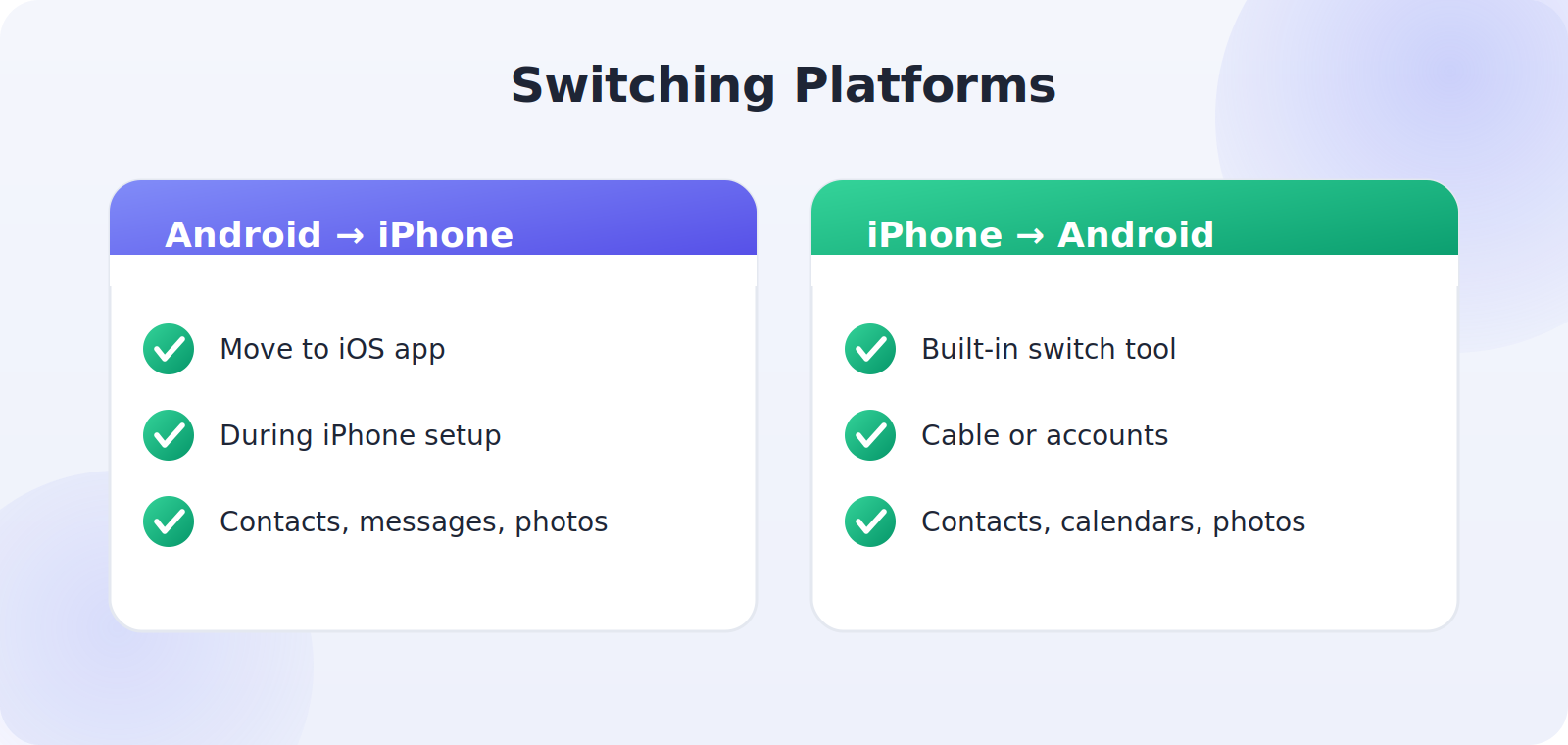
Apple’s Move to iOS app, installed on your Android phone, transfers contacts, messages, photos, and more to a new iPhone during its setup. Start the iPhone setup, choose to move data from Android, and follow the prompts on both devices.
iPhone to Android
Most Android phones include a switching tool that can pull data from an iPhone, either via cable or through your Google and Apple accounts. Google’s and manufacturers’ tools walk you through moving contacts, calendars, photos, and messages across.
Handle the Tricky Items
A handful of things don’t always move automatically and deserve a manual check. Sort these out so nothing important is left behind:
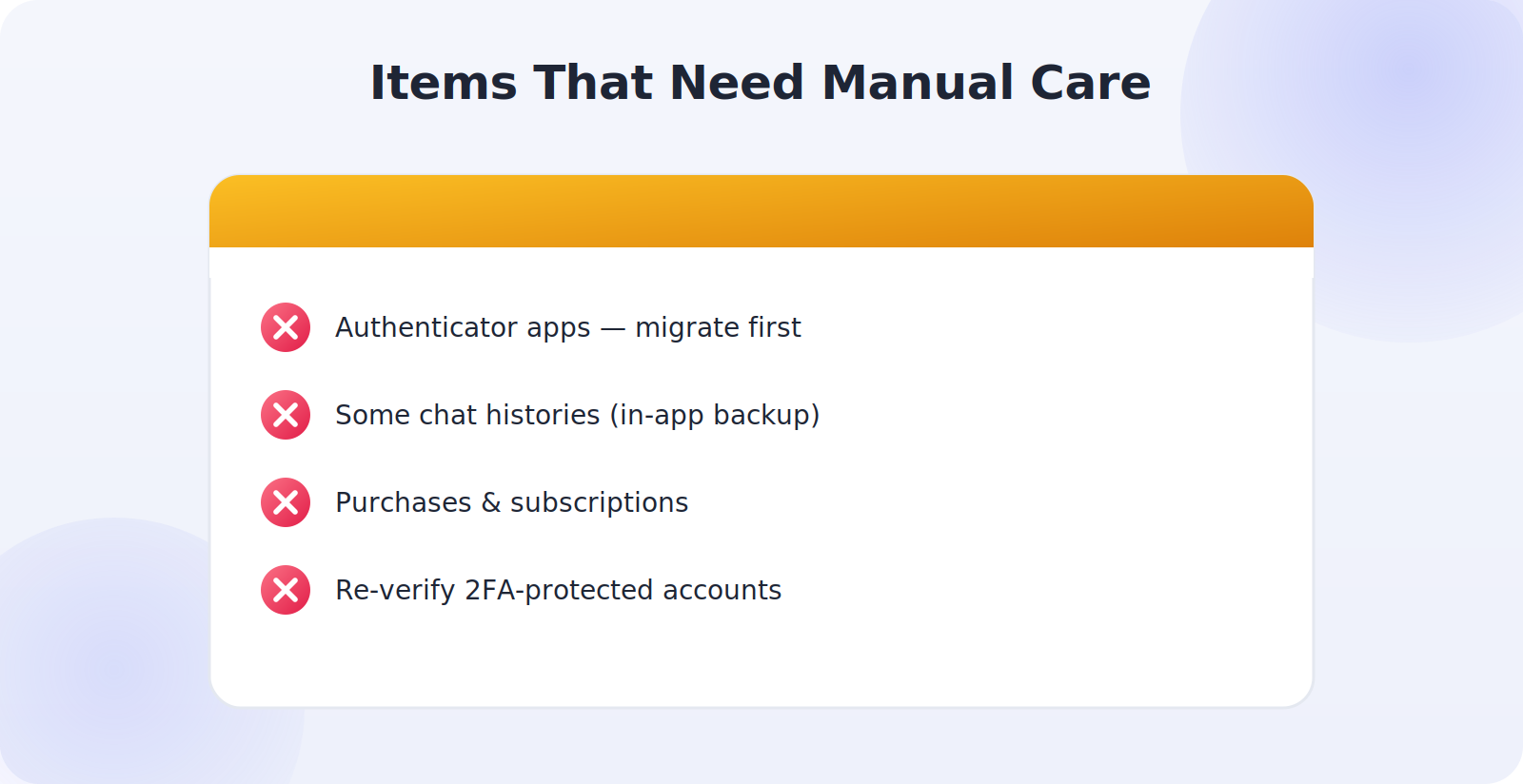
- Authenticator apps: two-factor codes often need to be migrated deliberately, before you wipe the old phone. Use the app’s transfer feature.
- Some messaging apps: chat history for apps like WhatsApp may need its own in-app backup and transfer step.
- Purchases and subscriptions: re-sign in to app stores and streaming services on the new phone.
- Two-factor-protected accounts: have your recovery methods handy in case you need to re-verify.
Don’t Wipe the Old Phone Yet
It’s tempting to reset your old phone immediately, but wait until you’ve confirmed everything transferred. Spend a day or two using the new phone and checking that your photos, contacts, apps, messages, and especially your authenticator codes are all present and working. Only once you’re sure should you wipe the old device — and when you do, do it properly, especially if you’re selling or giving it away. Keeping the old phone intact as a fallback for a little while is cheap insurance.
What Actually Transfers — and What Doesn’t
Setting the right expectations makes the whole process smoother. When you use the built-in transfer tools, most of what you care about comes across automatically: your photos and videos, contacts, calendars, messages, installed apps, and many of your settings. A same-platform transfer — iPhone to iPhone or Android to Android — typically moves nearly everything, so the new phone feels almost identical to the old one.
A few things reliably need manual attention, and knowing them in advance prevents nasty surprises. App logins often don’t transfer, so you’ll re-sign in to many apps. Authenticator codes need deliberate migration. Some chat histories require their own in-app backup. And when switching between iPhone and Android, a bit more may not carry over cleanly because the platforms store some data differently. None of this is a problem if you expect it — you simply handle these items as a short checklist after the main transfer.
A Post-Transfer Checklist
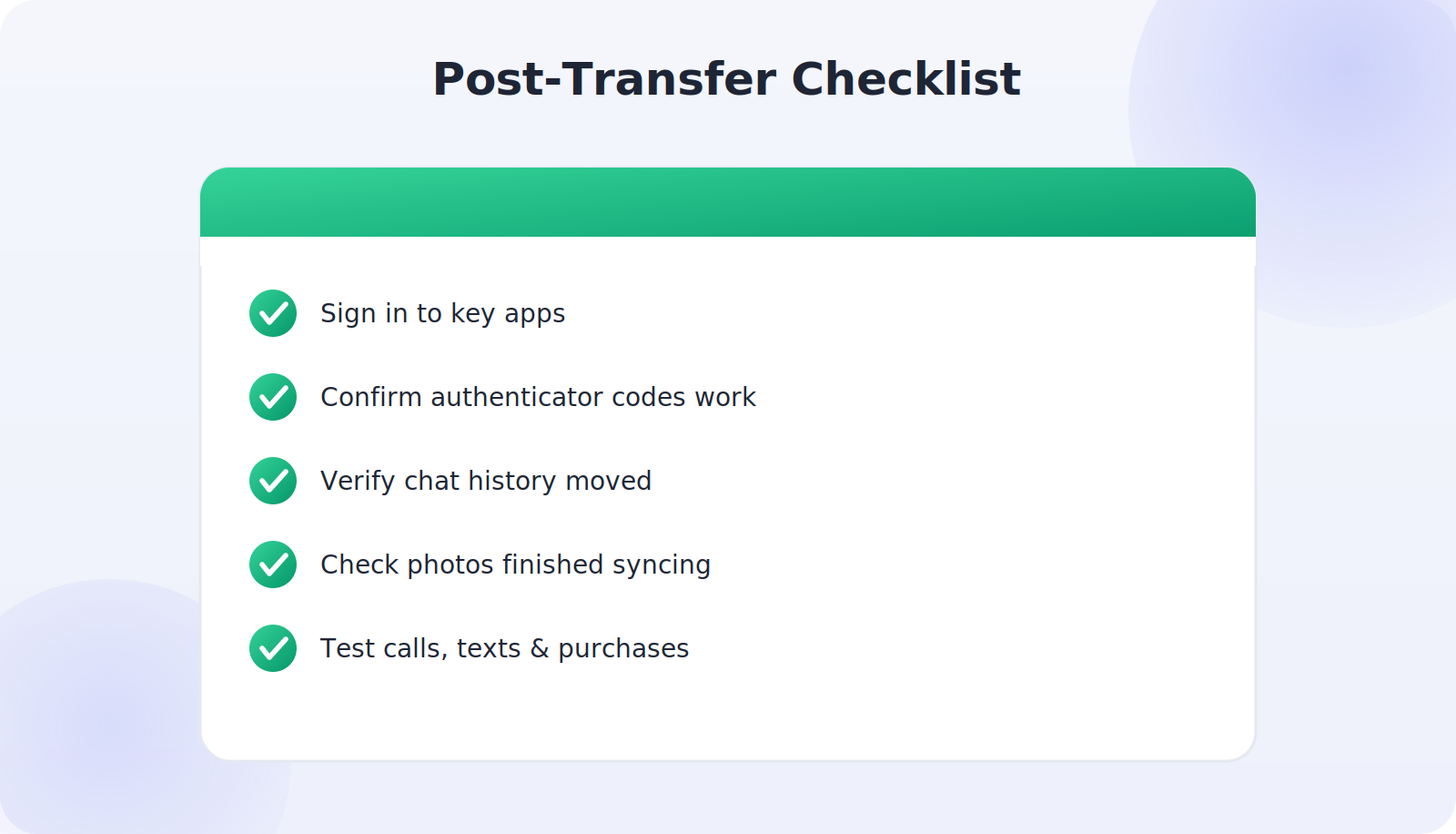
Once the main transfer finishes, a short checklist catches everything the automatic tools don’t. Open your key apps and confirm you’re signed in, re-signing in where needed. Check that your authenticator codes are present and generating valid codes for your important accounts. Open your messaging apps and verify your chat history came across, restoring from an in-app backup if not. Confirm your photos and videos are all there, and that any cloud photo library has finished syncing. Test that you can send and receive calls and texts. And check that purchases and subscriptions — streaming services, paid apps — are active on the new phone. Ticking off this list takes a few minutes and turns “I think everything moved” into genuine certainty, so you can confidently move on and, when you’re ready, wipe the old phone knowing you left nothing behind.
Recycling or Passing On the Old Phone
Once your new phone is fully confirmed, your old one still deserves a proper send-off. If you plan to sell, trade in, or give it away, wipe it correctly first: back up (you already have), sign out of your Apple ID or Google account to release the activation lock, remove your SIM and memory card, and factory reset. If the phone is too old to pass on, recycle it responsibly rather than tossing it in a drawer or the bin — but still wipe it first, since even a scrapped phone can hold recoverable personal data. Handling the old phone thoughtfully closes the loop on your upgrade cleanly and securely.
Timing Your Upgrade for a Smooth Move
A little thought about when you transfer makes the whole thing easier. Give yourself an unhurried window — an evening at home rather than five minutes before you dash out — since a large transfer can take an hour or two and you don’t want to interrupt it. Do it somewhere with solid Wi-Fi and keep both phones plugged in throughout. If you rely on your phone for work or two-factor codes during the day, transferring in the evening means any brief hiccup won’t leave you stranded when you need the phone most. It also helps to keep your old phone active and nearby for a day or two afterward, so if you discover something didn’t come across, the original is right there to pull it from. Treating the upgrade as a relaxed, planned task rather than a rushed one turns what people dread into something genuinely straightforward — and you end the evening with a new phone that feels reassuringly like an old friend.
Setting Up the New Phone Just Right
Once your data has landed, take a few minutes to make the new phone truly yours rather than a carbon copy that’s slightly off. Re-enable the settings that matter most: confirm your backup is switched on so the new phone is protected from day one, set up your passcode and biometrics, and turn on Find My or Find My Device. Sign back into your authenticator-protected accounts and test that your two-factor codes work. Arrange your home screen and notifications the way you like, and grant or deny app permissions thoughtfully as apps ask — a new phone is a natural moment to be deliberate about which apps get your location and data. Taking this short setup pass means your new phone doesn’t just contain your old data; it’s properly secured, backed up, and configured, so you start your time with it on the strongest possible footing. A little care here pays off every single day you use the device.
Common Mistakes to Avoid
- Not backing up first, leaving no safety net.
- Forgetting authenticator apps, then getting locked out of accounts.
- Wiping the old phone too soon, before confirming the transfer.
- Letting a phone die mid-transfer, interrupting the process.
- Overlooking app-specific backups like chat history.
Frequently Asked Questions
Do my apps re-download automatically?
Largely yes — the transfer tools reinstall your apps, though you’ll often need to sign in to each one again. Have your passwords or a password manager handy to make re-signing in quick.
Can I transfer without Wi-Fi?
Some methods use a direct cable or device-to-device connection that doesn’t need Wi-Fi, but Wi-Fi makes wireless transfers and cloud restores far smoother. Where possible, connect to Wi-Fi for the transfer.
How long does transferring to a new phone take?
Usually under an hour or two, depending on how much data you have. Large photo libraries take longer, so keep both phones charged and connected to Wi-Fi throughout.
Can I move data from iPhone to Android and vice versa?
Yes. Apple’s Move to iOS handles Android-to-iPhone, and Google’s and manufacturers’ switch tools handle iPhone-to-Android. Some app data may need manual steps.
Will my two-factor codes transfer automatically?
Not always — authenticator apps often need a deliberate migration. Transfer them before wiping your old phone, and keep account recovery methods handy just in case.
Quick Takeaways
- Back up and update both phones before you start.
- Use Quick Start (iPhone) or the setup wizard (Android) to copy data.
- Move to iOS and switch tools bridge iPhone and Android.
- Migrate authenticator apps and app-specific chats manually.
- Confirm everything moved before wiping the old phone.
The Bottom Line
Transferring everything to a new phone is far easier than it used to be, as long as you prepare and take the tricky items seriously. Back up and update both devices, use the built-in transfer tools for your platforms, and give special attention to authenticator apps and app-specific chat backups. Keep your old phone intact until you’re certain everything moved across, then wipe it properly. Follow these steps and your shiny new phone will feel like home within a couple of hours — with all your data, and none of the stress. The upgrade you may have been quietly dreading turns out to be one of the easier things you’ll do all week — and you get to enjoy your new phone from the very first hour, fully set up and ready to go, instead of spending the next several days piecing it back together by hand.