A small Bluetooth tracker — an AirTag, a Tile, a SmartTag, or one of the many alternatives — is one of the cheapest, most satisfying pieces of tech you can own. Clip one to your keys, slip it in your bag, or stick it in your car, and you gain the power to find that item from your phone in seconds. But the little disc only works its magic once it’s set up correctly and paired to your account. This guide walks you through setting up a tracker from the box to your first successful find, on both iPhone and Android, so you get it right the first time.
The best part is how little it asks of you. Once a tracker is paired — a two-minute job — it works quietly in the background for a year or more on a single battery, ready the instant you need it. Get the setup right once, and you essentially forget about it until the happy moment it saves you from a frantic search.
We’ll cover the main tracker types, the step-by-step pairing process, how to attach and name your trackers sensibly, and the settings that make them genuinely useful rather than a gadget that ends up in a drawer.
Which Tracker Are You Setting Up?
Before you start, it helps to know which ecosystem your tracker belongs to, because setup differs a little for each.
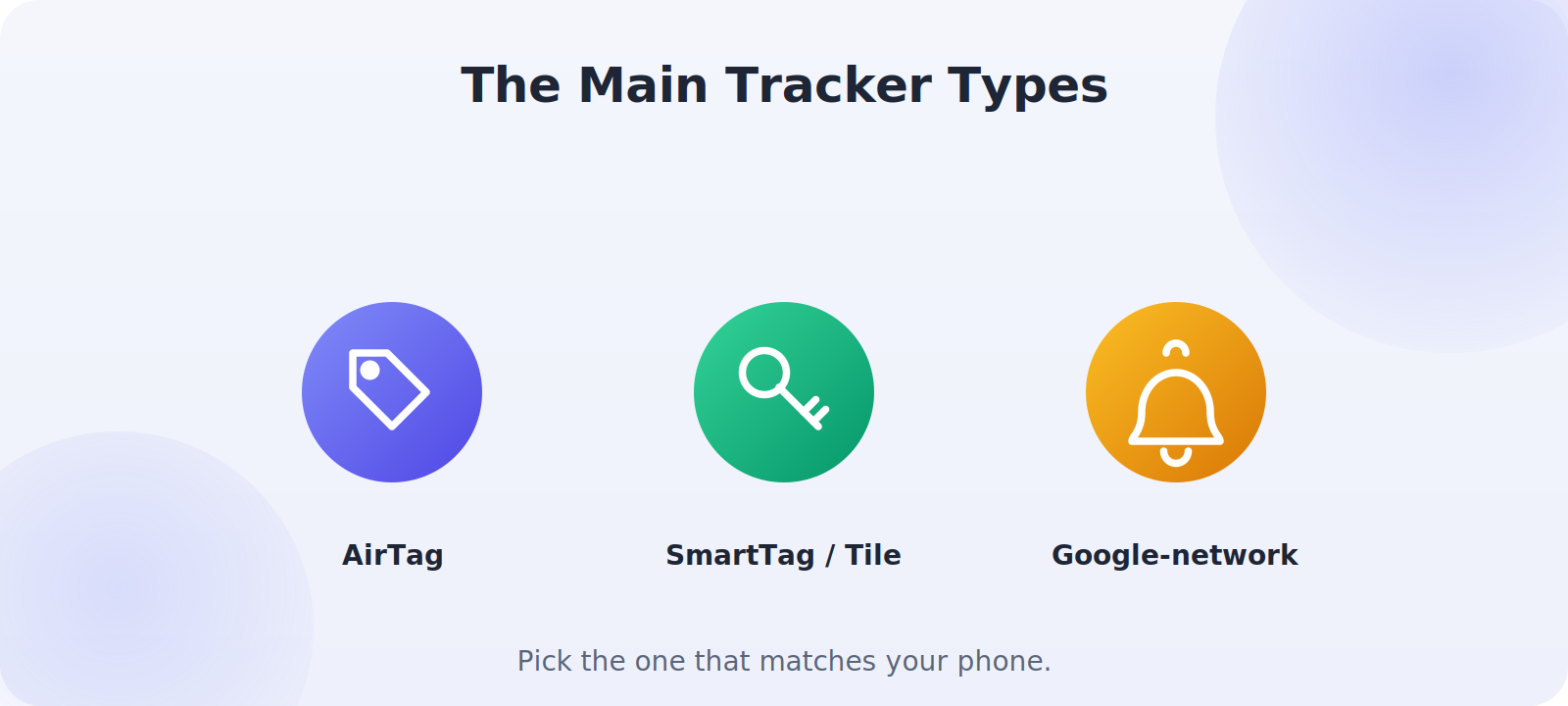
- Apple AirTag: pairs with iPhone through the Find My app and taps into Apple’s vast Find My network. Best for iPhone users.
- Samsung SmartTag: pairs with Samsung Galaxy phones through SmartThings Find. Best in the Samsung ecosystem.
- Tile: a cross-platform option with its own app that works on both iPhone and Android.
- Google-network trackers: newer tags that work with Android’s Find My Device network, from brands like Chipolo and others.
Setting Up an AirTag on iPhone
Apple designed AirTag setup to be almost effortless. Make sure your iPhone has Bluetooth on and you’re signed in to iCloud with Find My enabled.
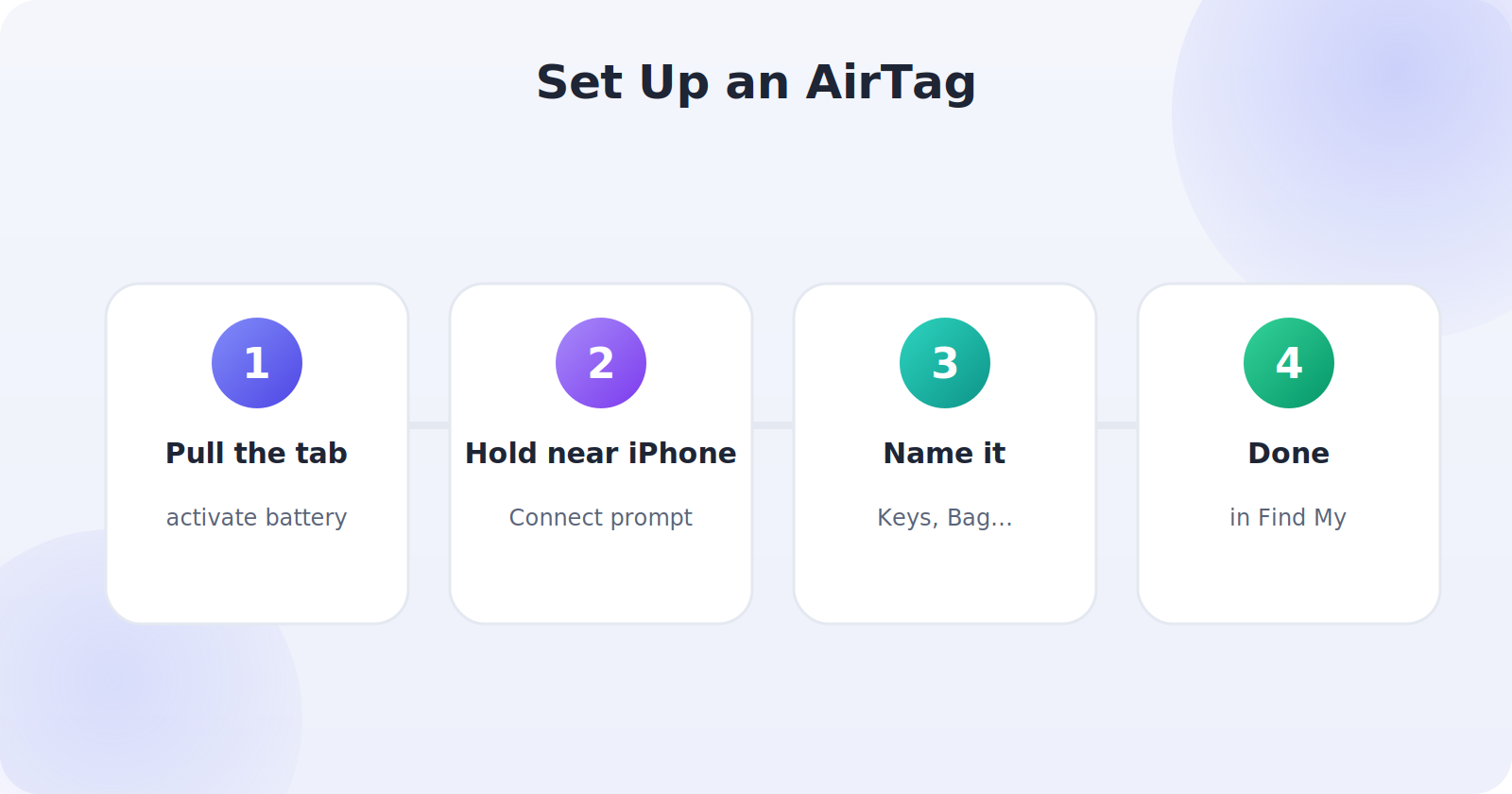
- Pull the tab out of a new AirTag to activate the battery.
- Hold the AirTag near your unlocked iPhone and wait for the Connect prompt to pop up.
- Tap Connect, then choose a name (or a custom label) for the AirTag.
- Confirm to register it to your Apple ID, and you’re done — it now appears in the Find My app under Items.
Setting Up a Tracker on Android
Android setup depends on the brand, but the pattern is similar: install the companion app and follow its pairing flow.
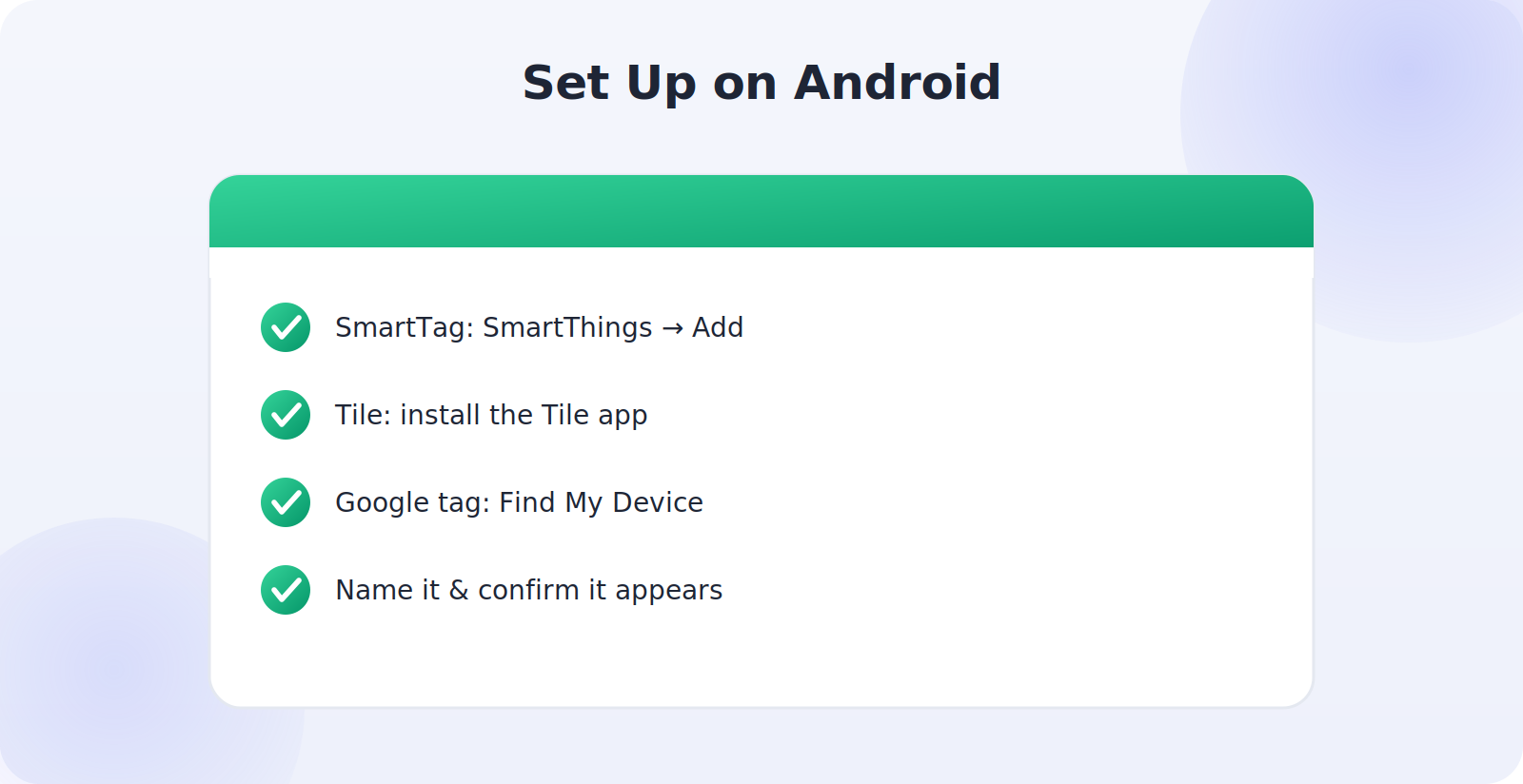
- Samsung SmartTag: open SmartThings, tap Add, and follow the prompts to pair via SmartThings Find.
- Tile: install the Tile app, create or sign in to an account, and tap to activate your Tile.
- Google-network tags: many pair straight through the Find My Device app or their own companion app.
- In each case, name the tracker and confirm it appears in the app’s list of items.
Attach It Where It Counts
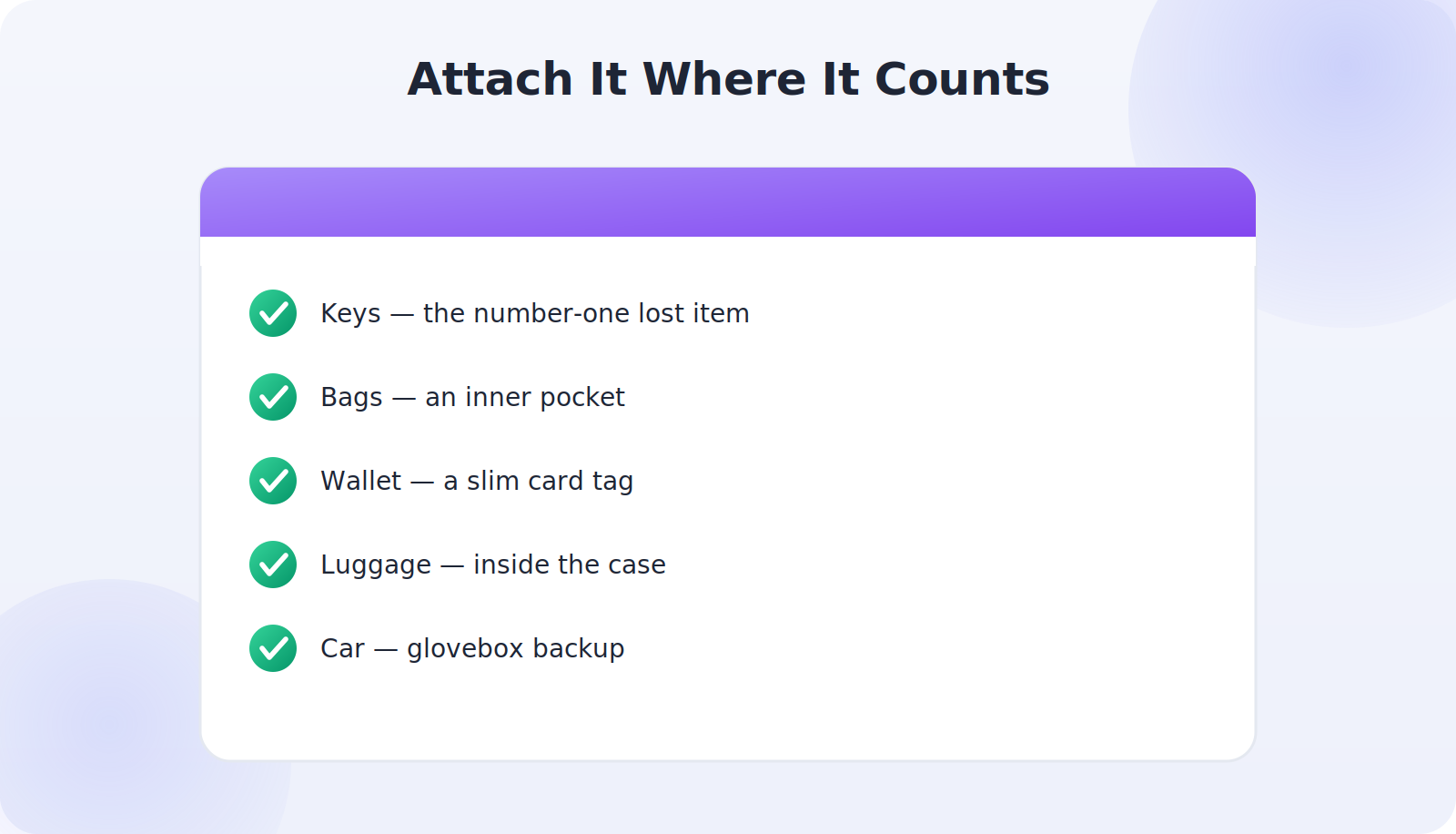
A tracker is only useful if it’s actually on the thing you tend to lose. Think about your personal pattern and place them accordingly:
- Keys: a keyring holder is the classic — keys are the number-one lost item.
- Bags and backpacks: tuck one into an inner pocket where it won’t fall out.
- Wallet: slim card-style trackers slot into a card pocket.
- Luggage: drop one inside a suitcase before you travel.
- Car: hide one in the glovebox or under a mat as a backup locator.
Name and Organize Your Trackers
If you own more than one tracker, clear names save real confusion later. Instead of leaving them as “AirTag” and “AirTag 2,” label them Keys, Work Bag, Suitcase, and so on, ideally with the matching icon your app offers. When you’re standing in a hurry trying to find your keys, a clearly named item in the list makes the whole thing instant rather than a guessing game.
Test It Before You Rely On It
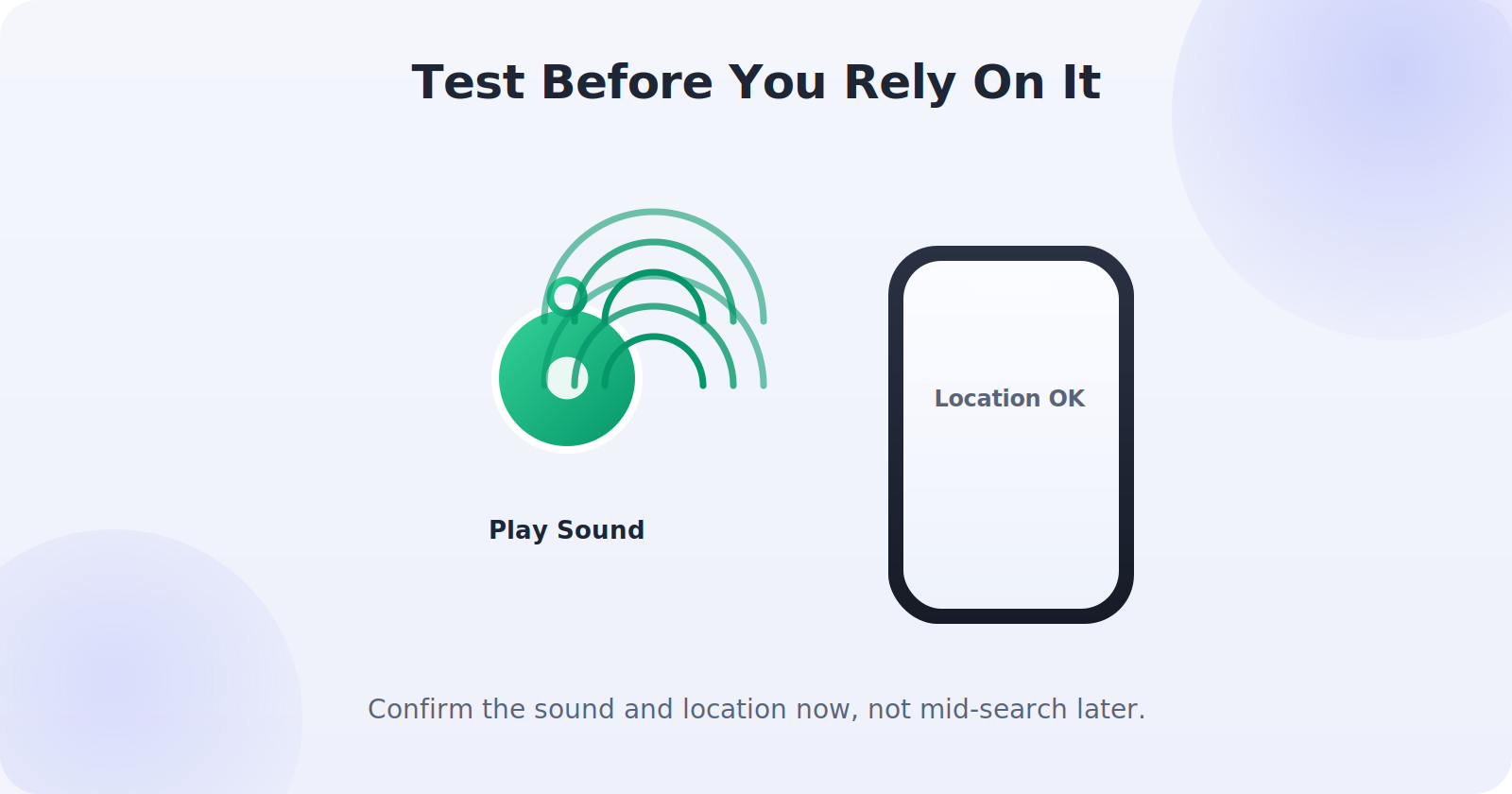
Don’t wait until you’ve genuinely lost something to discover your tracker works. Once it’s paired, test it: from your phone, trigger the tracker to play a sound and confirm you can hear it, then walk into another room and check that the app shows its location. This quick test confirms the pairing took, the battery is good, and you know how the find feature works — so when you actually need it, there’s no fumbling.
Understanding the Battery
Most Bluetooth trackers run on a small coin-cell battery that lasts about a year, and the good ones are user-replaceable — a genuine plus, since a tracker with a dead battery is just a plastic disc. Your companion app will usually warn you when the battery runs low. When that happens, pop the tracker open, swap in a fresh coin cell of the right type, and you’re good for another year. It’s worth keeping a spare battery or two at home so a low-battery warning never leaves you stuck.
How Bluetooth Trackers Actually Work
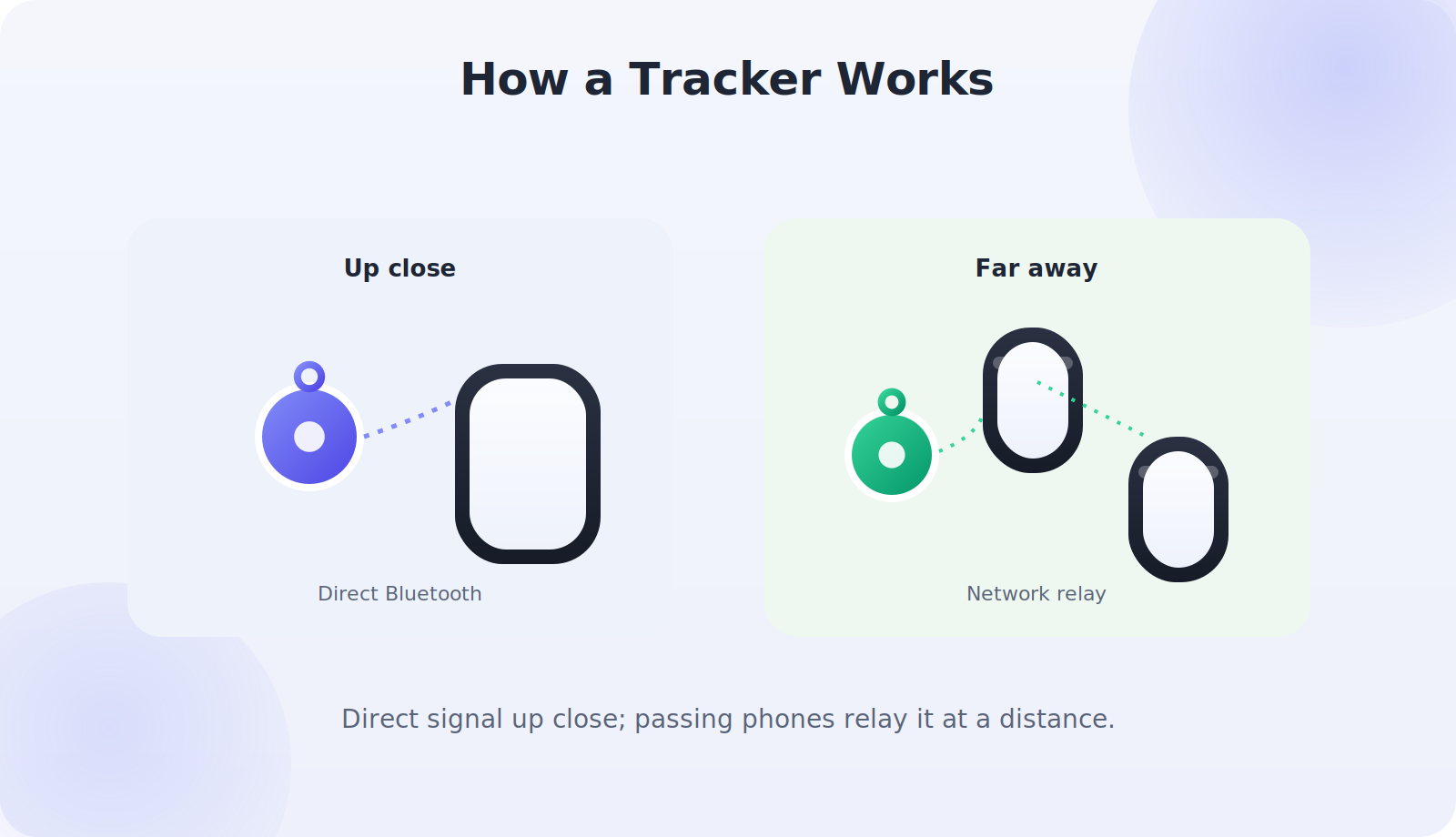
Understanding the basic idea helps you use a tracker well and set realistic expectations. A tracker is a tiny device that broadcasts a low-energy Bluetooth signal. Your own phone can detect that signal directly when you’re within range — roughly a room or two — which is how ringing and precise finding work up close. The clever part is what happens when the item is farther away: the major trackers tap into a vast finding network, anonymously borrowing other people’s passing phones to spot your tracker and relay its location back to you, all privately and automatically.
This two-tier design — direct Bluetooth up close, network relay at a distance — is why a tracker can help you find keys down the sofa and a bag left across town. It also explains the limits: a tracker in a remote spot with no people around may not update until someone eventually passes it. Knowing this, you’ll never be surprised by how your tracker behaves, and you’ll understand exactly why the size of a tracker’s network matters so much when choosing one.
Getting the Permissions Right
For a tracker to work fully, its app needs the right permissions on your phone, and skipping these during setup is a common reason trackers seem to “not work.” The app will typically ask for Bluetooth access (essential — it’s how the tracker is detected), location access (so it can record where items are found), and notifications (so it can alert you). Grant these when prompted, and on iPhone make sure the relevant Find My settings are enabled; on Android, confirm location and Bluetooth are on for the companion app.
It’s worth being a little generous with these particular permissions, because a tracker is essentially useless without them — a location-finding tool that can’t see Bluetooth or location has nothing to work with. If your tracker ever seems to stop updating, a quick check that its app still has these permissions is the first thing to try, since app updates or a new phone can occasionally reset them.
Making Trackers Part of Your Routine
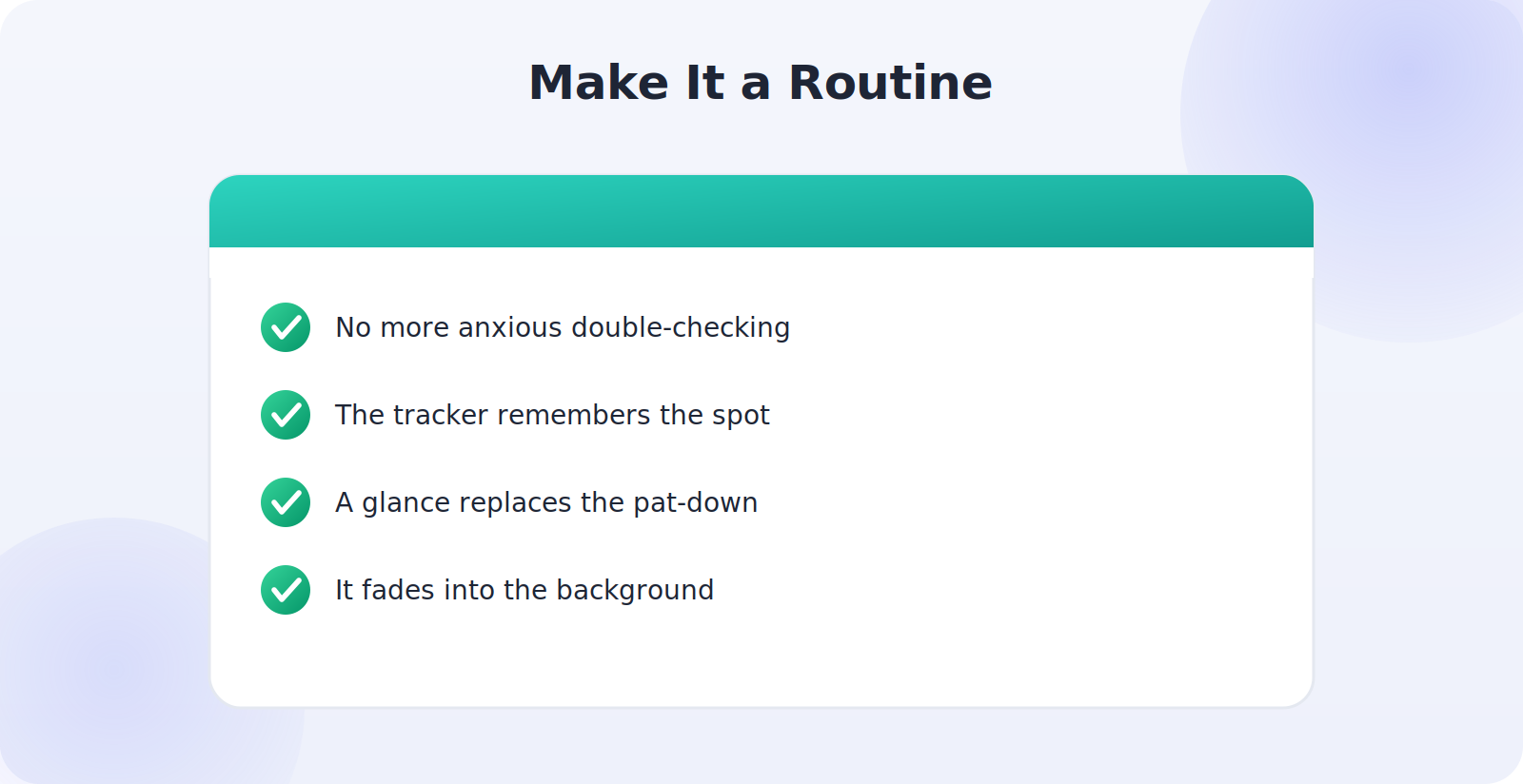
The final step in setting up a tracker isn’t technical at all — it’s letting the tracker change your habits for the better. Because you now know exactly where your keys or bag are at any moment, you can relax the anxious double-checking that used to eat up your time. When you set an item down somewhere unusual, there’s no need to memorize the spot; the tracker remembers for you. And when you’re heading out the door, a quick mental note that everything important is tracked replaces the frantic pat-down of pockets. Over a few weeks, the tracker fades into the background of your life, quietly doing its job, and you only really notice it on the day it turns a potential disaster — a bag left in a taxi, keys dropped in the park — into a minor, quickly-solved blip. That quiet reliability, more than any single feature, is what makes a well-set-up tracker such a genuinely useful thing to own.
Keeping Your Trackers Working
A little ongoing care keeps your trackers reliable for years. The main thing is the battery: when your app warns you a tracker is low, swap the coin cell promptly so you’re never caught out. It’s worth noting the battery type each tracker uses and keeping a couple of spares at home. Beyond that, occasionally confirm your trackers still appear in the app and that its permissions survived any phone updates, since a location tool needs Bluetooth and location access to function. With those small habits, a set of trackers quietly protects your belongings for years, asking almost nothing of you in return.
Common Mistakes to Avoid
- Not pulling the battery tab on a new tracker, so it never powers on.
- Leaving trackers with default names, which gets confusing with more than one.
- Never testing the tracker before relying on it in a real search.
- Attaching it insecurely, so it falls off the very item it’s meant to protect.
- Ignoring the low-battery warning until the tracker goes silent.
Frequently Asked Questions
Why won’t my tracker pair?
Usually it’s Bluetooth being off, the battery tab not removed, or the companion app lacking permissions. Turn on Bluetooth, confirm the battery is active, grant the app Bluetooth and location access, and try again close to your phone.
Do trackers work without internet?
Direct Bluetooth finding works offline when the item is nearby. The network relay that locates far-away items needs other passing phones to have a connection, but you don’t need internet just to ring a nearby tracker.
Do I need a subscription to use a tracker?
No — the major trackers like AirTag, SmartTag, and network-based tags work without a subscription. Some brands offer optional premium features, but the core find functionality is included.
Can I use an AirTag with an Android phone?
AirTags are designed for the Apple ecosystem and need an iPhone to set up and use fully. Android users are better served by Tile, Samsung SmartTag, or Google-network trackers.
How many trackers can I set up?
Plenty — you can register many trackers to one account and name each for a different item. Most people end up with several once they see how useful they are.
Quick Takeaways
- Pick a tracker that matches your phone’s ecosystem.
- Pull the battery tab, then pair via Find My, SmartThings, or the app.
- Name each tracker clearly and attach it to what you actually lose.
- Test the sound and location before you rely on it.
- Keep a spare coin-cell battery for when the warning appears.
The Bottom Line
Setting up a Bluetooth tracker takes just a few minutes and pays you back every time you’d otherwise be turning the house upside down for your keys. Choose a tracker suited to your phone, pair it through the right app, name it clearly, and attach it securely to the item you tend to misplace. Test it once so you know it works, keep an eye on the battery, and you’ll have a reliable little helper ready the moment something goes missing. It’s a small investment that quietly removes one of daily life’s most common frustrations. And because the setup is a one-time effort, the payoff compounds every day you own it — a rare case of a few minutes of work that keeps giving back for years.