Ever notice the little location arrow appear in your status bar and wonder which app just checked where you are? You’re right to be curious. Many apps request location access during setup and then quietly use it far more than you’d expect — sometimes constantly, in the background. Fortunately, both Android and iPhone now make it easy to see exactly which apps are using your location, how often, and whether they’re doing it in the background. This guide is a practical walkthrough for auditing your location access and tightening anything that looks excessive.
What’s changed for the better is transparency: where location use was once invisible, both Android and iPhone now surface it clearly, right down to a timeline of which app checked your position and when. That visibility is a gift — it turns a vague unease into concrete information you can act on, and it’s the foundation of every good privacy decision you’ll make about your phone.
Think of it as a quick privacy checkup. In ten minutes you can see precisely who’s been watching your location, decide whether each app deserves that access, and dial back the ones that don’t — improving both your privacy and your battery life in the process.
Read the Location Indicator First
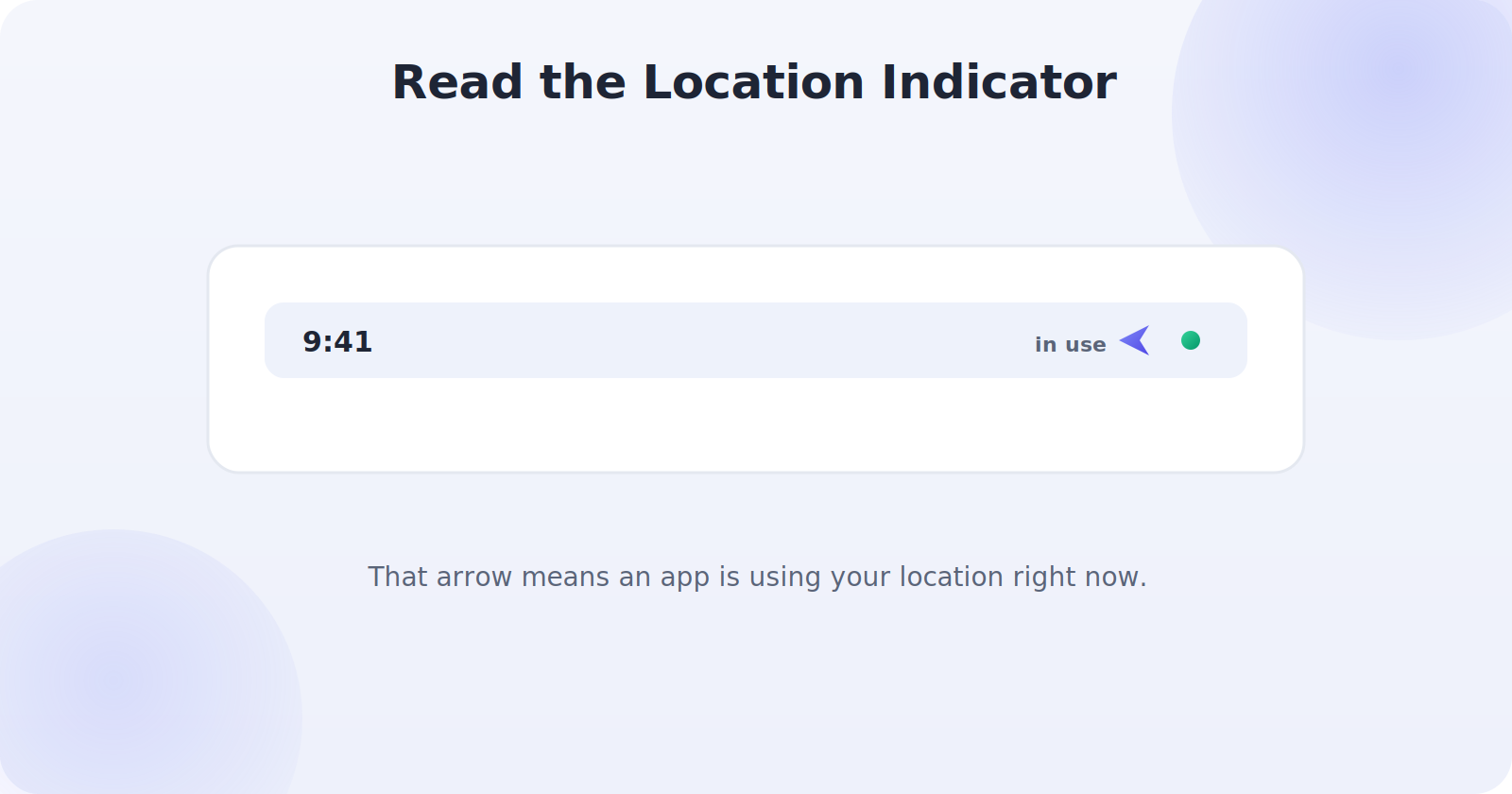
Before diving into menus, learn to read the live indicator your phone already shows you. When an app uses your location, a small arrow or dot appears in the status bar.
- On iPhone: a small arrow appears near the top, and a colored dot indicates active location use. The Control Center shows which app most recently used it.
- On Android: a location icon appears in the status bar; pulling down the notification shade often reveals which app is responsible.
This live indicator is your first clue. If you see it light up when no app should reasonably need your location, that’s a sign to investigate further in the settings.
Check the Full List on iPhone
iPhone gives you a clear, per-app breakdown of location access.
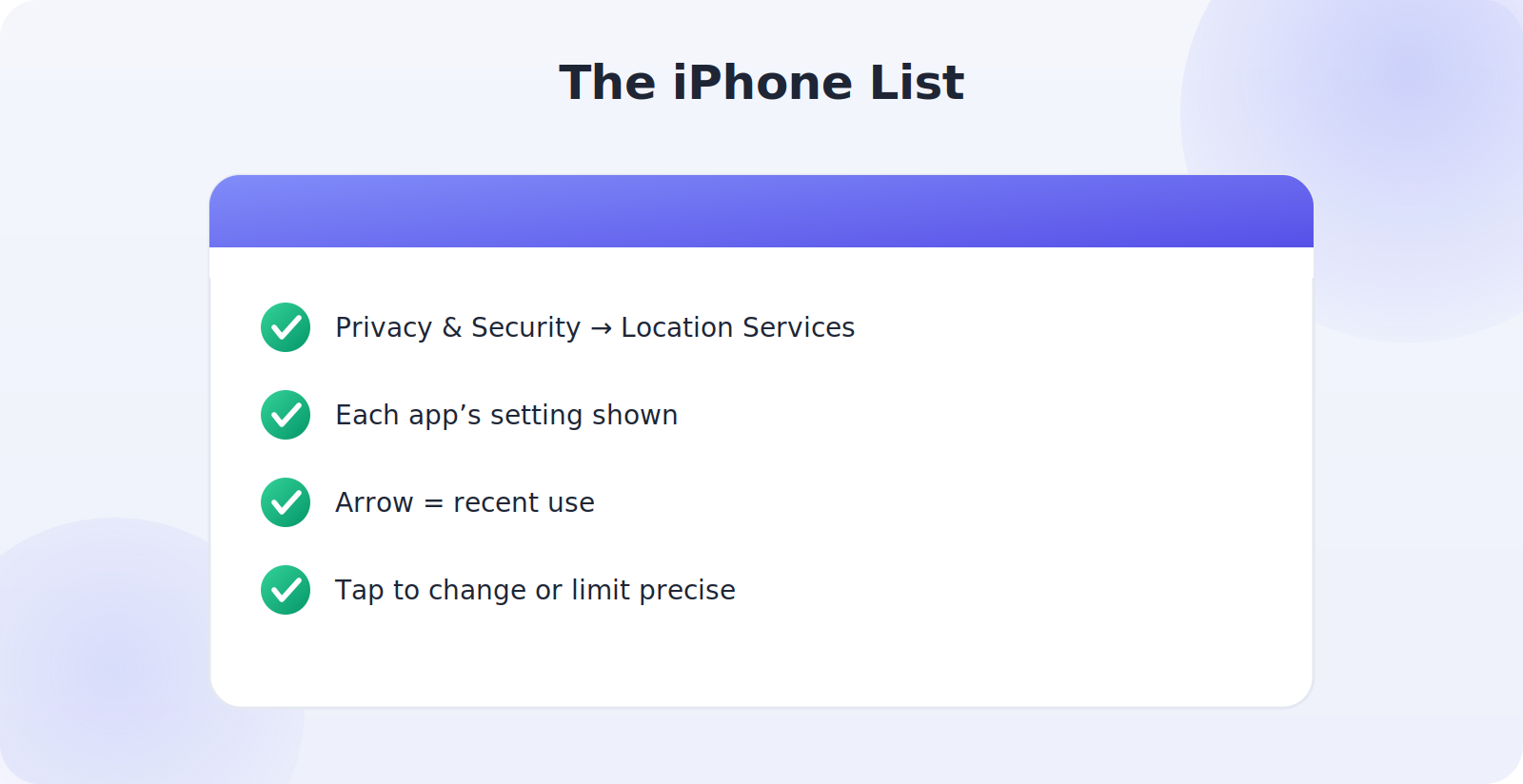
- Open Settings → Privacy & Security → Location Services.
- Scroll through the list of apps — each shows its current setting (Never, Ask Next Time, While Using, or Always).
- Look for a small arrow next to an app, which indicates recent location use.
- Tap any app to change its permission or turn off Precise Location.
Check the Full List on Android
Android offers similar visibility, plus a handy dashboard of recent access.
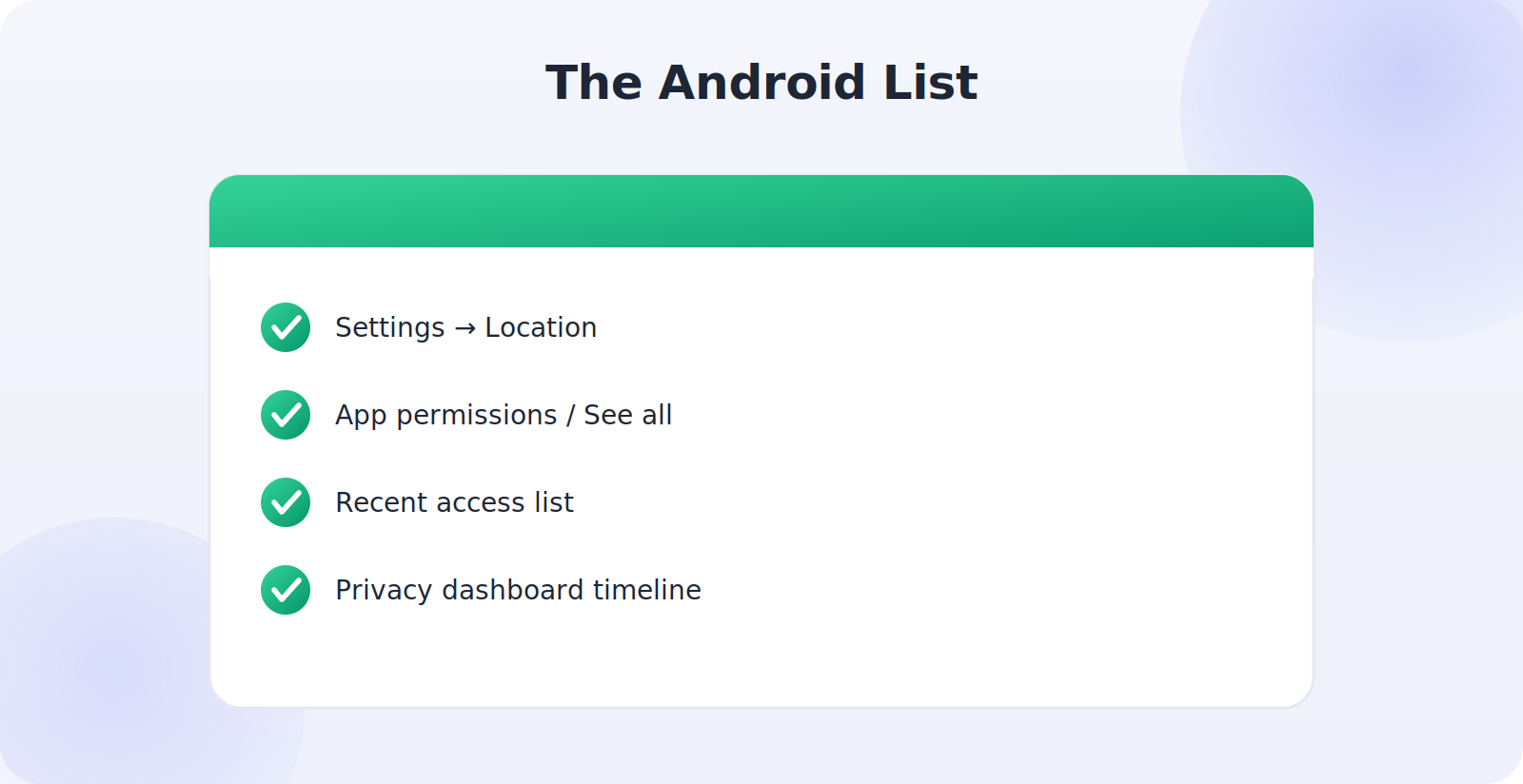
- Open Settings → Location.
- Tap App permissions (or Location → See all) to view each app’s access level.
- Check Recent access to see which apps used your location lately.
- For deeper insight, the Privacy dashboard shows a timeline of location (and other) access by app.
Use the Privacy Reports
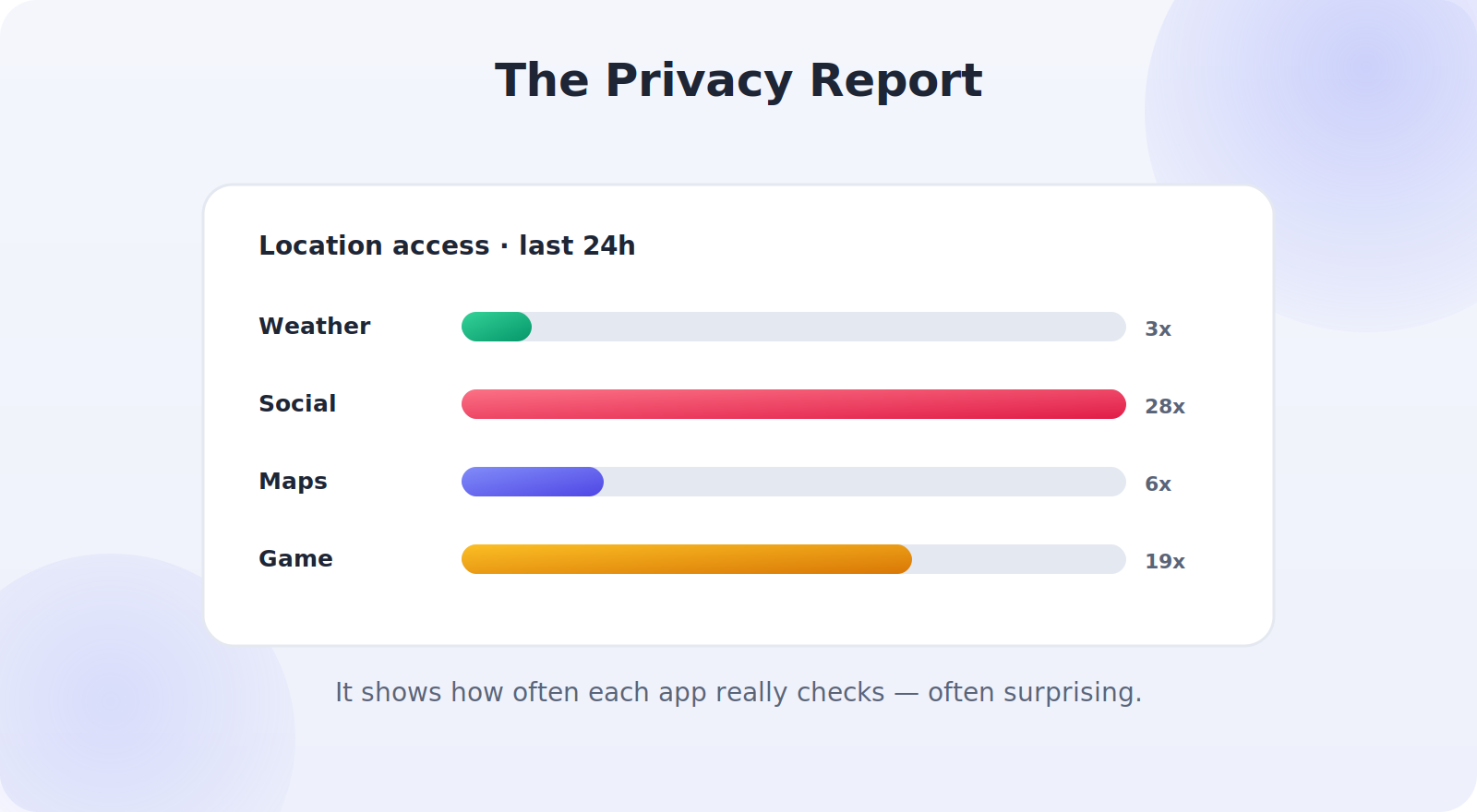
Both platforms now offer richer privacy reports that go beyond a simple list. iPhone’s App Privacy Report (under Privacy & Security) logs how often each app accessed your location, camera, microphone, and more, and which domains they contacted. Android’s Privacy dashboard shows a 24-hour timeline of sensor and location access. These reports are the most powerful way to catch an app that’s using your location far more than you’d expect — the kind of pattern a single settings screen won’t reveal.
Spot the Apps That Overreach
As you review, watch for access that doesn’t match an app’s purpose. Some patterns are worth a closer look:
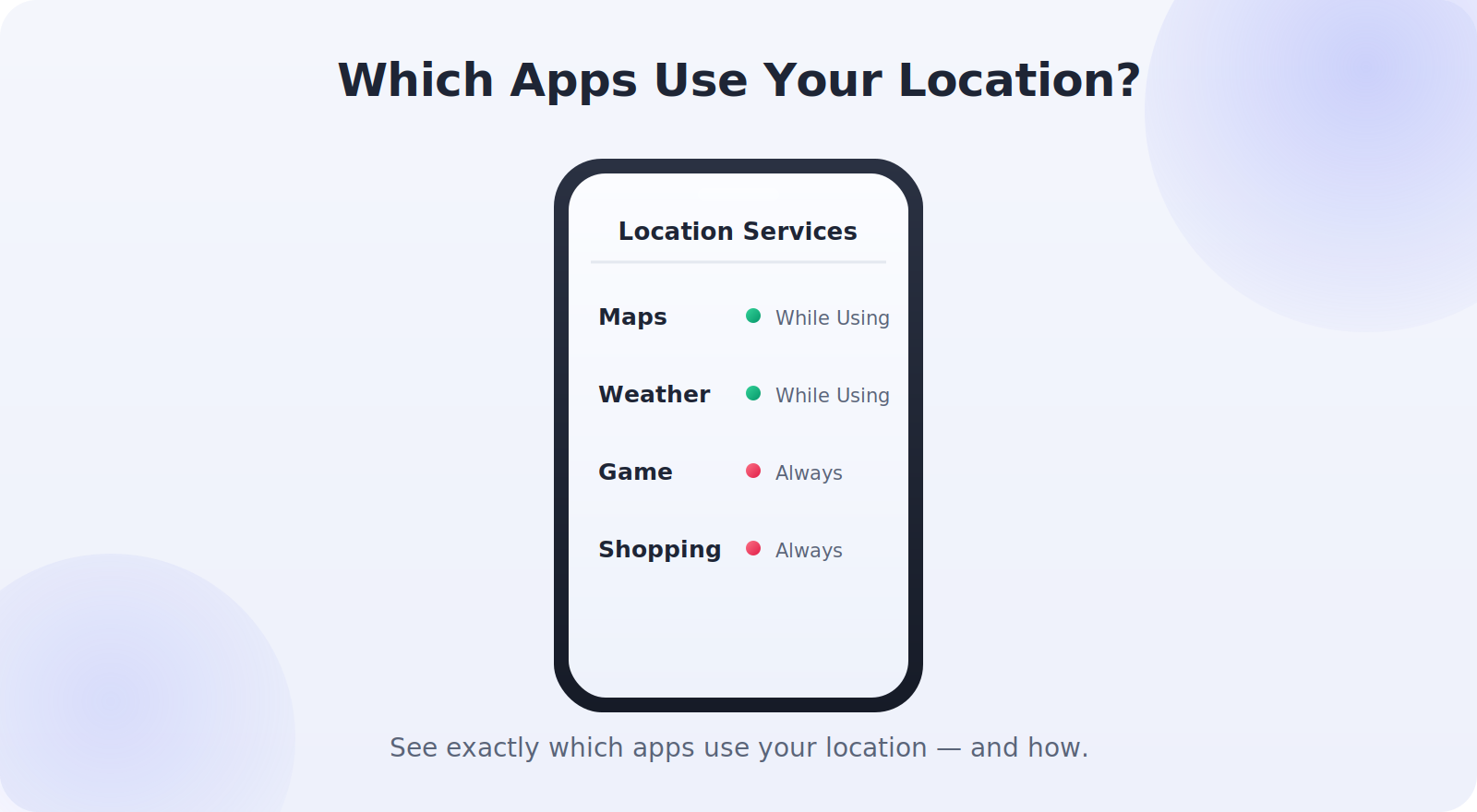
- A game or utility with “always” location that has no obvious reason to track you.
- Background access for an app you only use occasionally, like a shopping or social app.
- Frequent location checks shown in the privacy report for an app that shouldn’t need them.
- Precise location for apps that only need your area, like weather or news.
None of these are necessarily sinister — sometimes it’s lazy app design rather than malice — but each is a candidate for tightening. If an app’s location use doesn’t match what it does for you, restrict it.
Tighten Access in Three Tiers
When you decide an app has too much access, you have three levels to choose from, and picking the right one keeps the app useful while protecting your privacy.
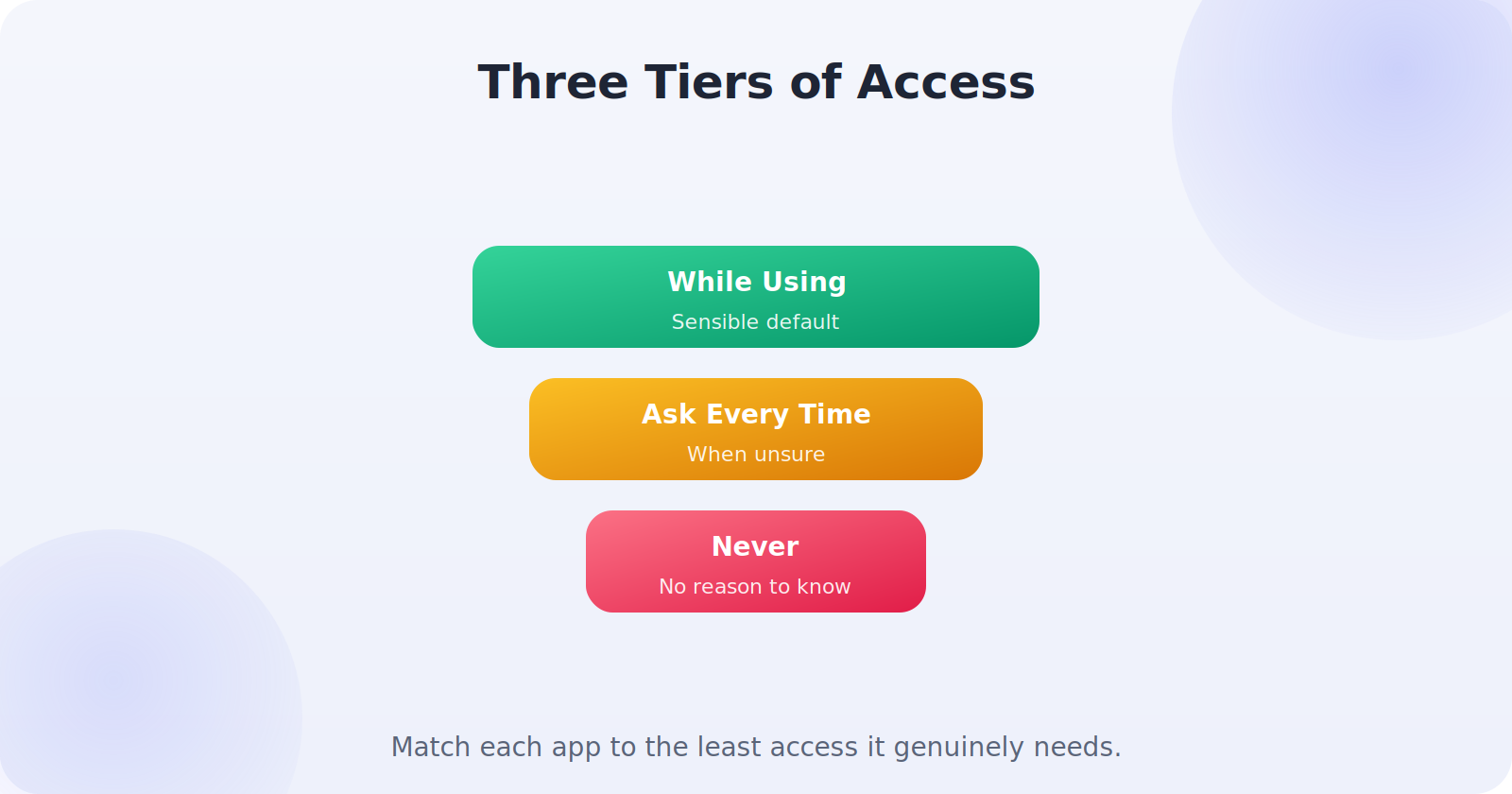
- While Using / Only while using: the sensible default for most apps — they get location only when open.
- Ask Every Time: good for apps you’re unsure about; you approve each session.
- Never / Don’t allow: for apps that simply don’t need to know where you are.
Make It a Regular Habit
A location audit isn’t a one-time job, because new apps arrive, updates can reset permissions, and your needs change. Make a habit of glancing at your location settings every few months, and especially after installing several new apps or a major system update. Each review takes only a few minutes and keeps your location footprint exactly as small as you want it. Over time you’ll develop an instinct for which apps deserve access and which don’t.
Why Apps Want Your Location
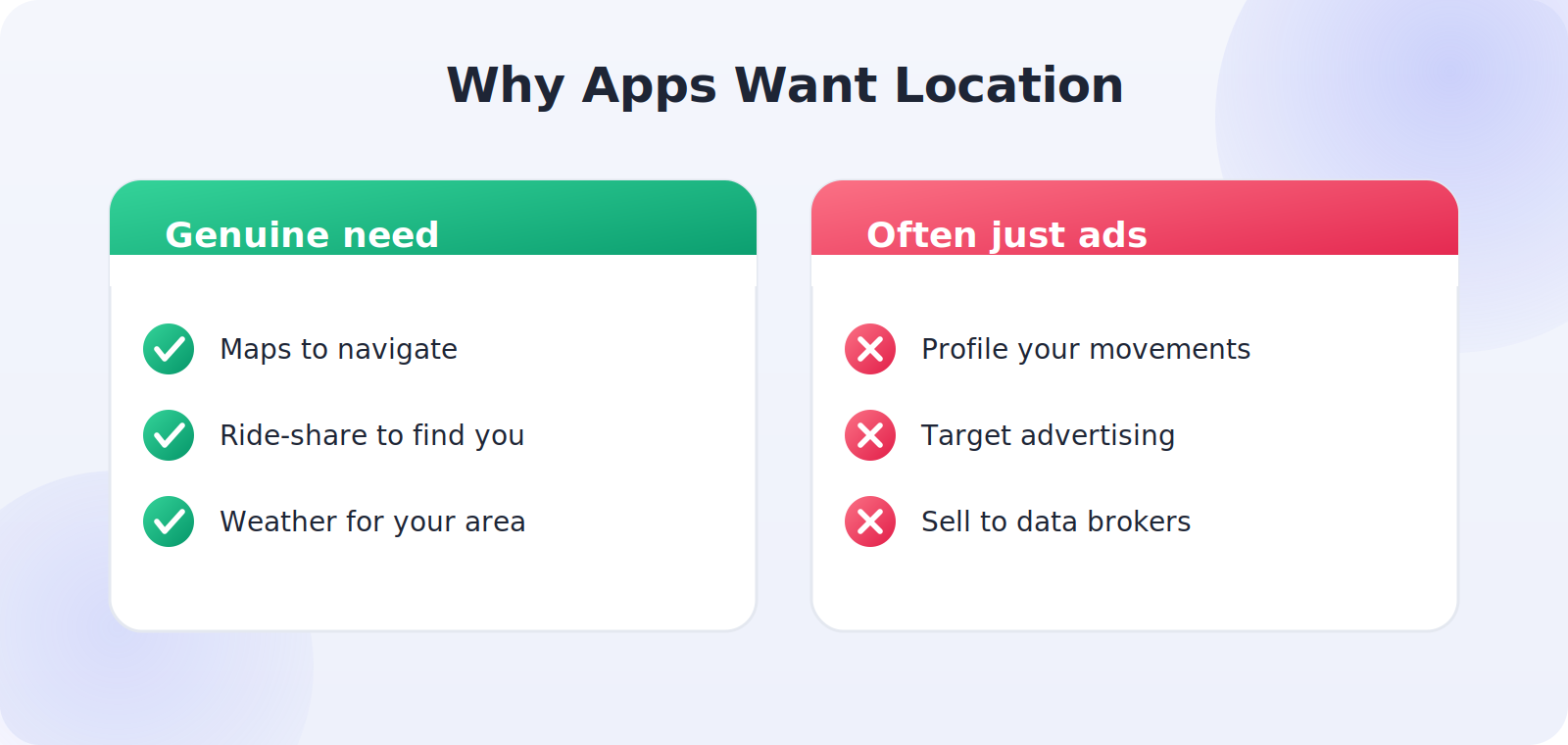
Before you judge an app’s access, it helps to understand why apps ask for location in the first place, because the reasons range from essential to questionable. Some genuinely need it: maps to navigate, ride-share to find you, weather to show your local forecast. Others use it to add features you might value, like location-tagged photos or nearby recommendations. But many request it largely for advertising and analytics — building a profile of your movements to target ads or sell to data brokers — which has nothing to do with the service they provide you.
This is exactly why an audit is so useful. The app whose location access makes perfect sense is the navigation tool you opened to get directions; the one worth scrutinizing is the simple game or flashlight-style utility quietly checking your position in the background. Knowing the difference lets you keep the access that serves you and cut the access that serves someone else at your expense.
What the Privacy Report Reveals
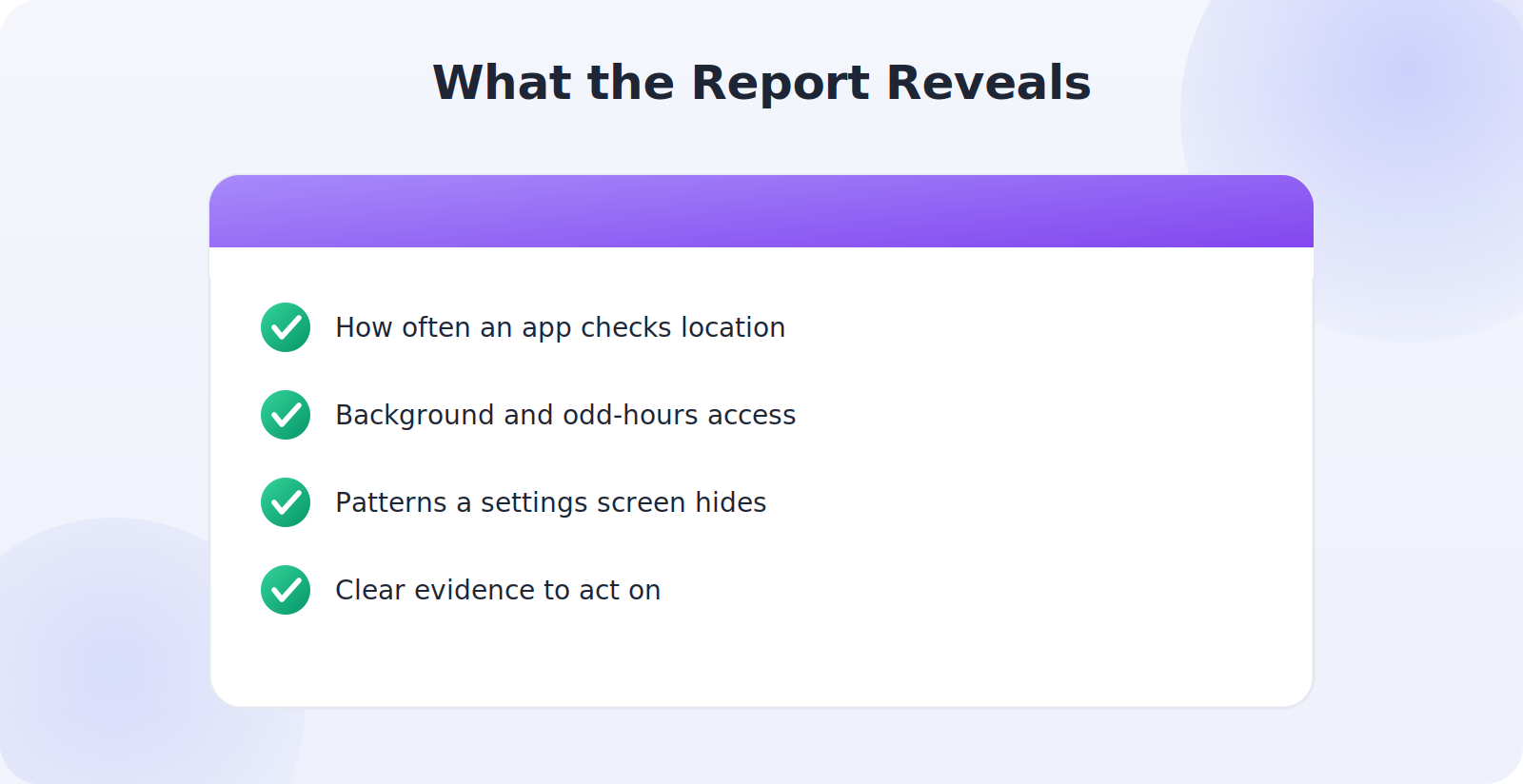
The most eye-opening part of any location audit is the detailed privacy report, because it shows patterns a single settings screen can’t. Where the permissions list tells you an app can use your location, the privacy report tells you how often it actually does — and that gap is frequently surprising. An app you’d expect to check your location once might be doing so dozens of times an hour, or in the small hours of the morning when you’re asleep.
When you spot a pattern like that, you’ve found exactly the kind of overreach worth acting on. Frequent or odd-hours location access by an app that has no reason for it is a clear signal to tighten its permission to “while using” or revoke it entirely. The privacy report turns a vague sense that “something’s using my location” into specific, actionable evidence, which is what makes it the most powerful tool in your audit.
Turning Awareness Into Better Habits
The real value of a location audit isn’t just the immediate cleanup — it’s the instinct it builds. After a few reviews, you start to notice the permission prompt when you install a new app and pause before tapping “allow.” You begin choosing “while using” without thinking, reserving “always” for the handful of apps that truly earn it. You glance at the location indicator when it appears and actually register what it’s telling you. That awareness, more than any single settings change, is what keeps your location footprint small over the long run. The audit teaches you to treat your location as something valuable that apps must justify access to, rather than a default they’re entitled to — and once that mindset takes hold, good privacy habits follow naturally, with very little ongoing effort required.
Beyond Location: A Fuller Privacy Picture
Once you’re comfortable auditing location, it’s worth applying the same lens to your phone’s other sensitive permissions, because the tools are right there alongside the location controls. The same privacy report that shows location access also reveals which apps have used your camera, microphone, contacts, and photos — and the same questions apply: does this app’s access match what it actually does for you? An app that needs your camera to scan documents makes sense; the same app quietly accessing your microphone or contacts might not. Reviewing these together during your periodic check gives you a fuller picture of your privacy than location alone, and the habit you built auditing location transfers directly. A few extra minutes turns a location checkup into a complete privacy checkup, leaving you confident that every app on your phone has exactly the access it needs and nothing more.
It’s also worth remembering that you’re not locked into any choice you make. If you restrict an app and later find you’ve curtailed something useful — a maps feature that needs background access, say — you can loosen it again just as easily. This makes auditing genuinely low-risk: you can be aggressive in tightening permissions, knowing that the moment an app misbehaves or asks for access at a sensible time, restoring it is a two-tap fix. Treat the audit as an experiment you can always undo.
Common Mistakes to Avoid
- Ignoring the live location indicator when it appears unexpectedly.
- Granting “always” by default instead of “while using.”
- Never checking the privacy report, which reveals overreaching apps.
- Leaving precise location on for apps that only need your area.
- Auditing once and forgetting, letting permissions drift over time.
Frequently Asked Questions
Why does the location arrow appear when I’m not using any app?
A background app is checking your location. Use the privacy report or recent-access list to identify it, then tighten its permission to “while using” if it doesn’t need background access.
Does checking location settings cost anything or change my apps?
No — reviewing is free and safe, and changing a permission simply limits when an app can see your location. Apps keep working; they just get location only when you’ve allowed it.
How do I know which app is using my location right now?
Watch the location indicator in the status bar. On iPhone, Control Center shows the most recent app; on Android, the notification shade or Privacy dashboard reveals it.
What is the App Privacy Report?
It’s an iPhone feature that logs how often apps access your location, camera, microphone, and more, plus the domains they contact — a powerful way to spot overreaching apps. Android’s Privacy dashboard is the equivalent.
Should I set every app to “while using”?
It’s a good default. Reserve “always” for apps that genuinely need background location, like navigation or fitness tracking, and use “never” for apps that don’t need location at all.
Quick Takeaways
- Learn to read the live location indicator in the status bar.
- Review the per-app list in Location Services (iPhone) or Location (Android).
- Use the App Privacy Report or Privacy dashboard to catch overreach.
- Tighten access to while-using, ask-every-time, or never.
- Re-audit every few months and after major updates.
The Bottom Line
Finding out which apps use your location is quick, revealing, and genuinely empowering. Read the live indicator, review the per-app lists on iPhone or Android, and lean on the App Privacy Report or Privacy dashboard to catch the apps quietly tracking you far more than they should. Then tighten each app to the least access it needs — while using, ask every time, or never. Make it a habit every few months, and you’ll keep your location footprint small, your privacy intact, and your battery a little healthier too. Best of all, the awareness you build doing it stays with you, quietly shaping smarter choices every time a new app asks for access.