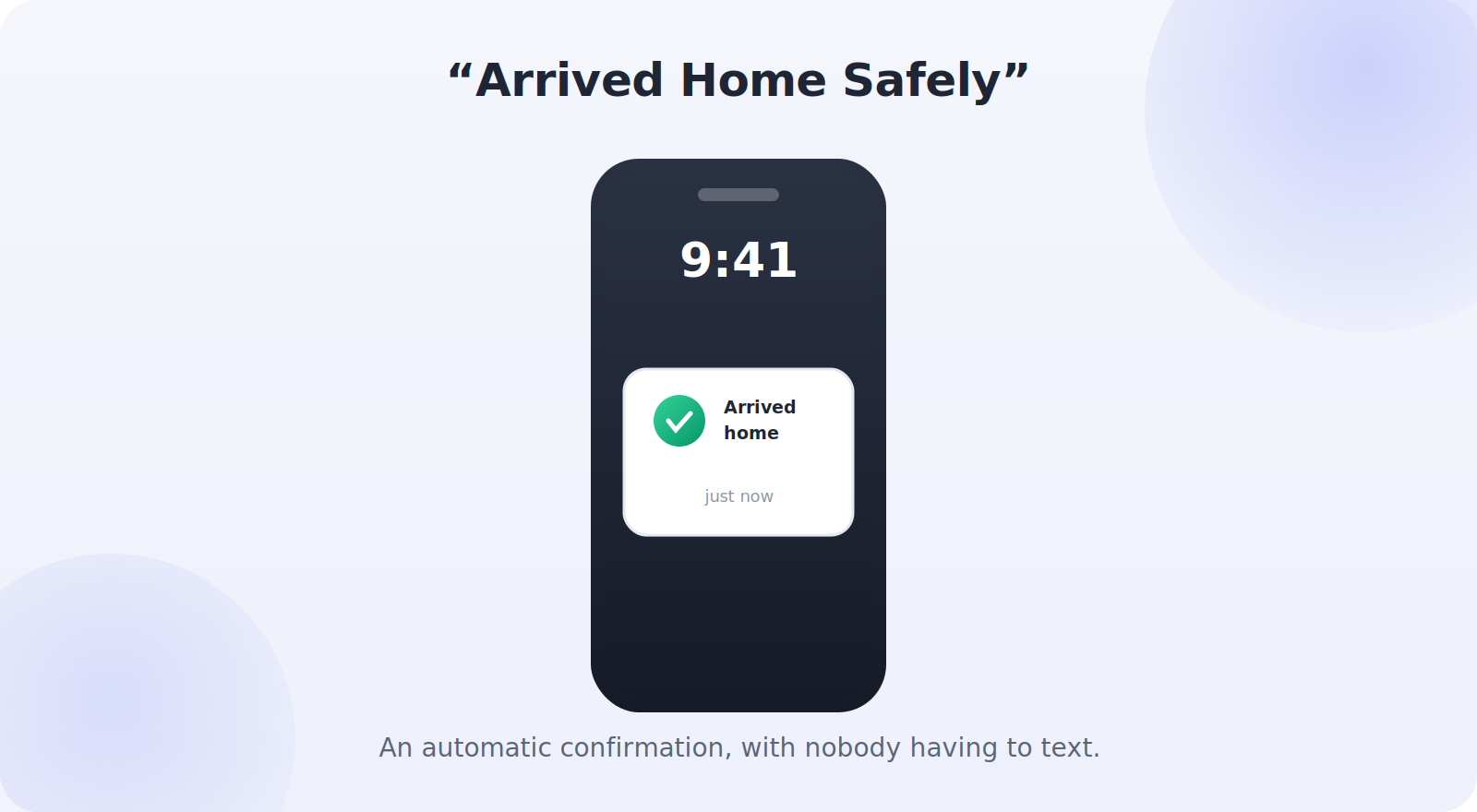
There’s a particular comfort in getting a quiet notification that says a loved one has arrived safely — your child reaching school, a partner getting to work, an older parent returning home. Location alerts, sometimes called geofencing notifications, do exactly this: they let your phone tell you automatically when a family member arrives at or leaves a chosen place, without anyone having to remember to text. Set up thoughtfully and with everyone’s agreement, they replace a lot of “are you there yet?” messages with calm, automatic reassurance. This guide shows you how.
These alerts are quietly clever: once set up, they ask nothing of anyone day to day, yet they replace a surprising amount of low-level worry with a small, automatic reassurance. The setup takes a few minutes, works on the phones your family already has, and — done with everyone’s agreement — tends to make a household feel more connected rather than more watched.
As with all family location features, these work best when they’re mutual and consented to, so we’ll cover the setup on both platforms and the etiquette that keeps them feeling helpful rather than intrusive.
What Location Alerts Actually Do
A location alert works by drawing an invisible boundary — a geofence — around a place like home, school, or work. When the chosen person’s phone crosses that boundary, arriving or leaving, your phone gets a notification. It’s the same underlying idea your phone uses for location-based reminders, applied to the people you’ve agreed to share with.
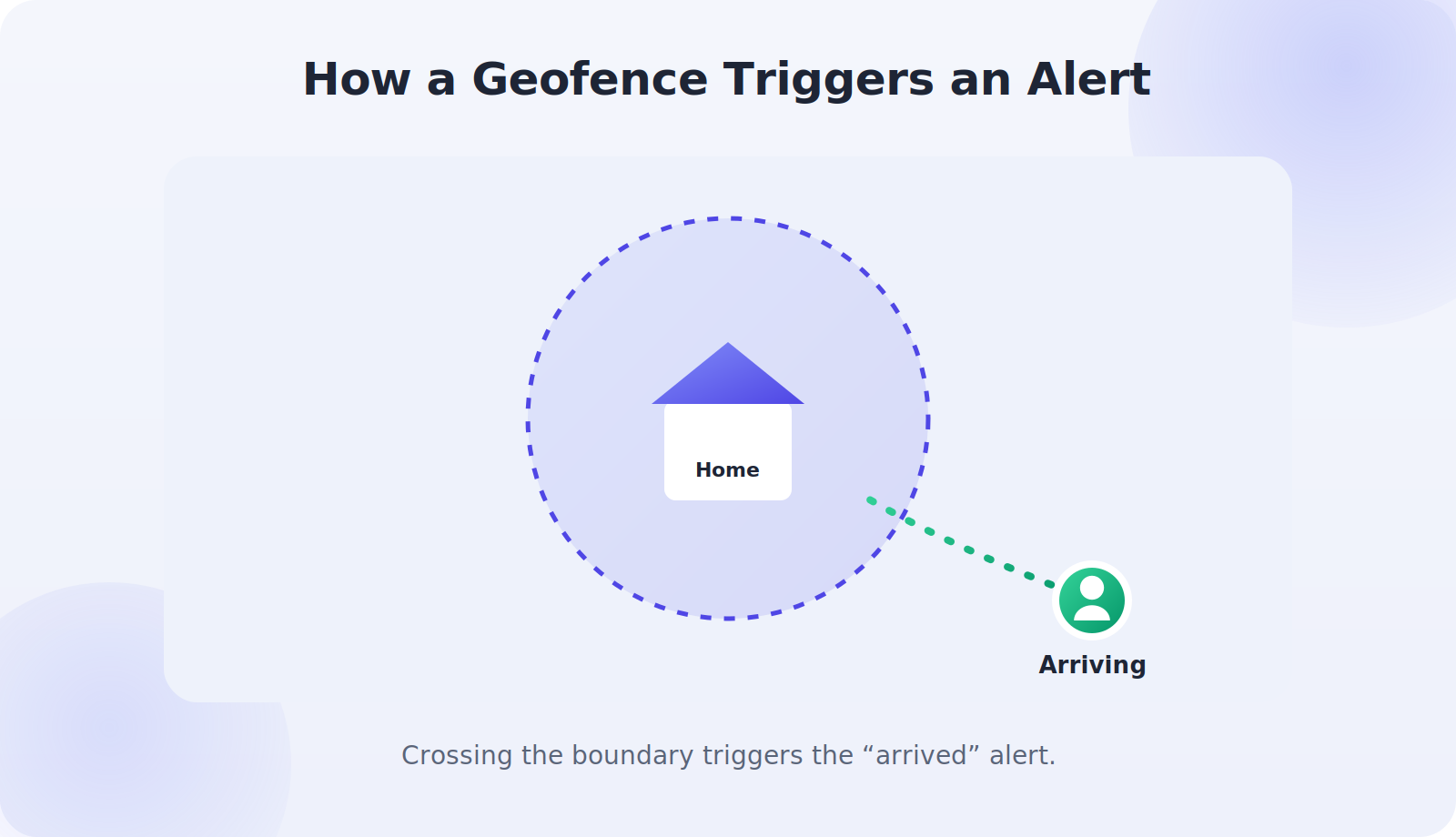
Crucially, these alerts are built on top of consensual location sharing. The other person has agreed to share their location with you, and the alert is simply a convenience layered on that agreement — not a way to monitor someone who hasn’t opted in.
Setting Up Alerts on iPhone
Apple’s Find My makes arrival and departure notifications straightforward, once location sharing is in place.
- Make sure the person is already sharing their location with you in Find My.
- Open Find My, tap the person under People.
- Scroll to Notifications and tap Add.
- Choose Notify Me, select Arrives or Leaves, and pick the location.
- The person is told that you’ve set up the alert, keeping it transparent.
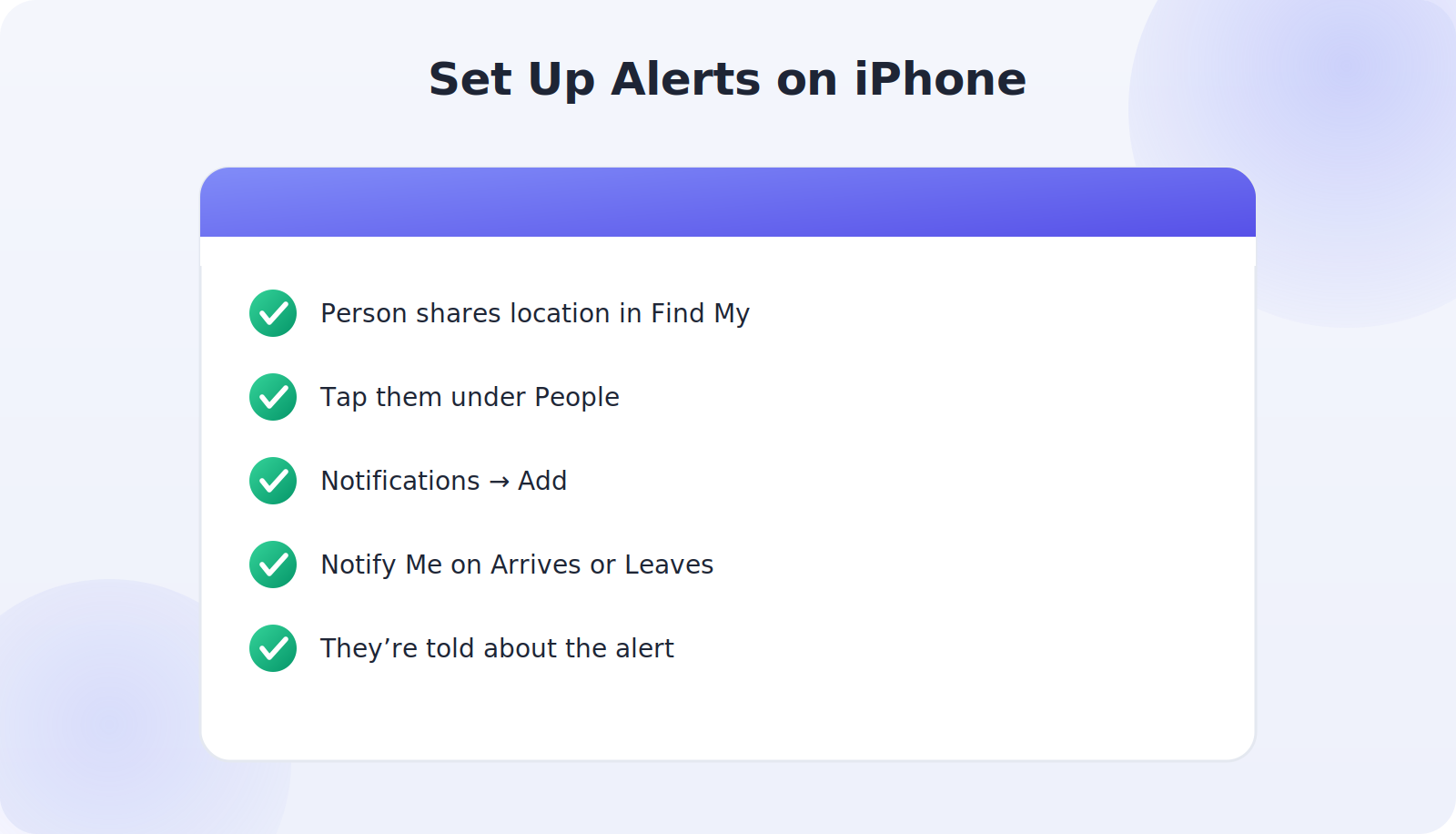
That last point matters: Apple notifies the other person when you create an alert about them, which keeps the whole thing honest and consensual by design.
Setting Up Alerts on Android
On Android, you can achieve the same result through Google Maps location sharing combined with the phone’s reminder and routines features, or through a reputable family-safety app.
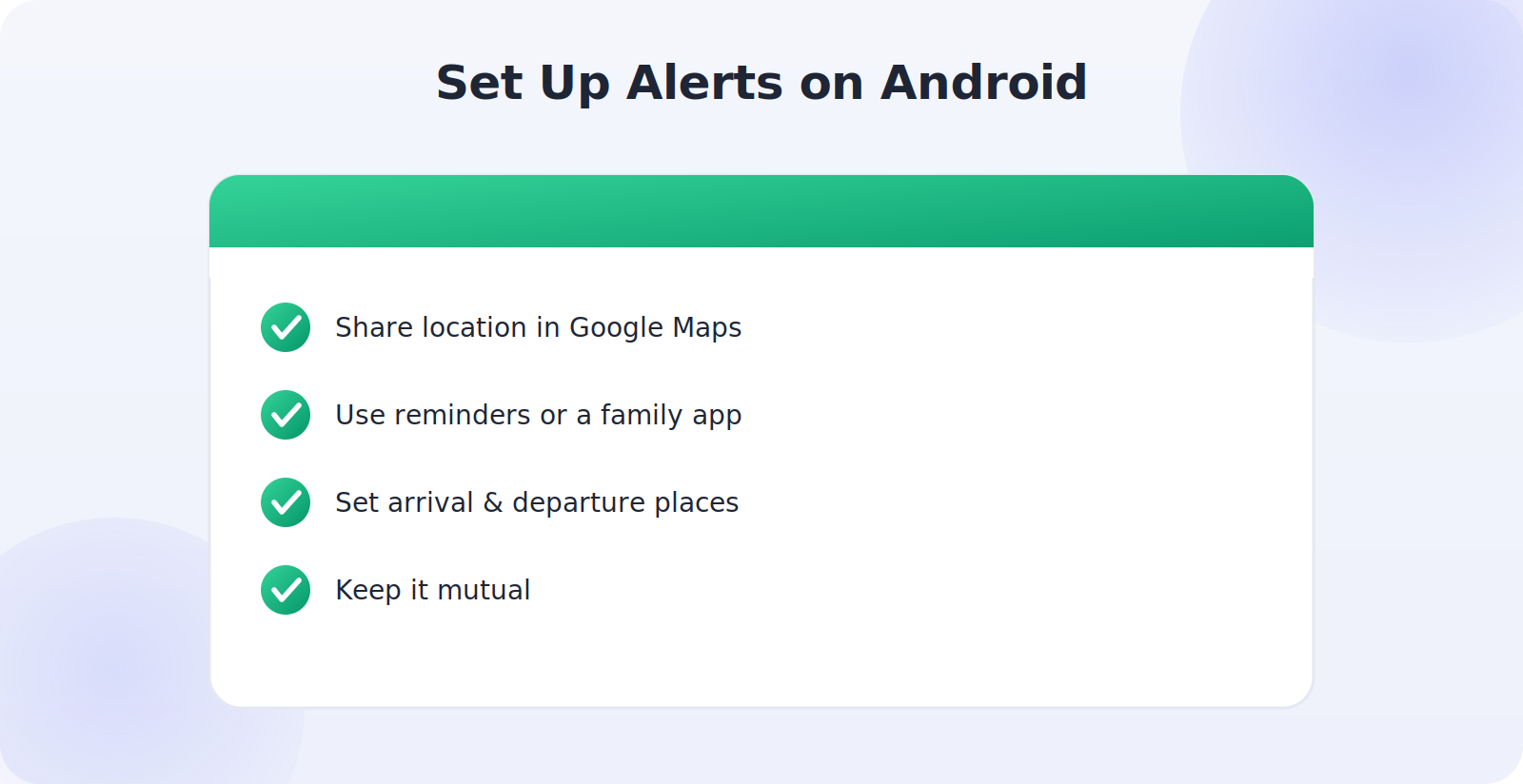
- Ensure the family member is sharing their location with you in Google Maps.
- Use Google’s location-based reminders or a family-safety app to set arrival and departure alerts.
- Configure the places that matter — home, school, work.
- Keep it mutual, so everyone benefits and no one feels singled out.
Cross-Platform and Family-Safety Apps
Mixed-device families, or those who want a single dashboard, often turn to dedicated family-safety apps that support both iPhone and Android and specialize in place alerts. These can be convenient, but choose carefully: prefer well-reviewed apps from reputable companies, check what data they collect, and make sure everyone in the family consents to being part of it. The built-in tools are free and privacy-friendly, so weigh whether you really need a third-party option before installing one.
Set Up the Places That Matter
A handful of well-chosen locations covers most families’ needs. Think about the arrivals and departures that genuinely bring peace of mind:
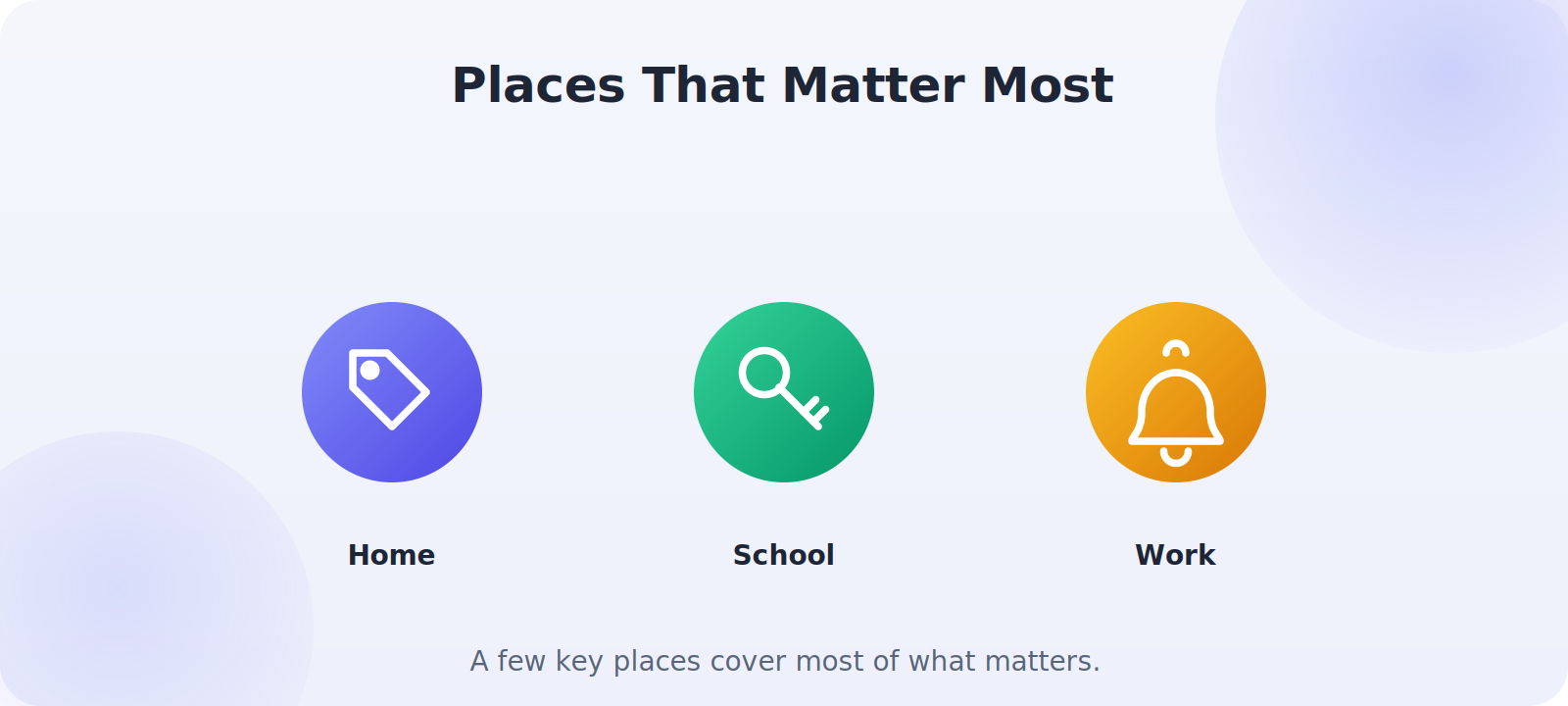
- Home: the classic — a quiet confirmation everyone’s back safely.
- School: reassurance that a child arrived and left at the expected times.
- Work: a simple “made it” for a partner’s commute.
- A relative’s house: useful when family members travel between homes.
Resist the temptation to geofence every possible location. A few meaningful alerts are reassuring; dozens become noise — and start to feel like monitoring rather than care.
Alert Etiquette: Keep It Reassuring
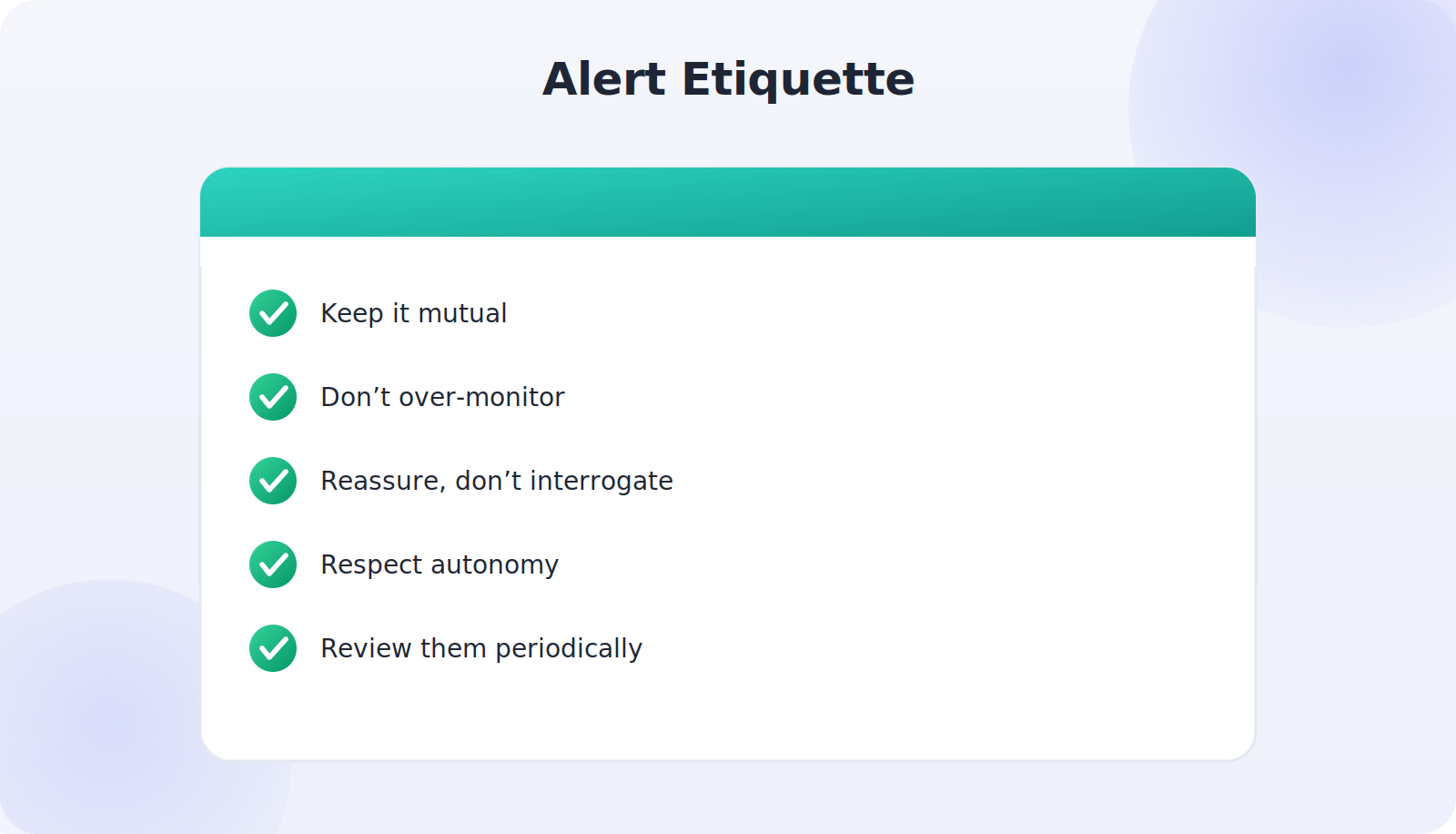
The difference between a welcome alert and an intrusive one is mostly about how you use it. A few guidelines keep these notifications on the right side of that line:
- Keep it mutual. If you get an alert when they arrive home, they should be able to do the same for you.
- Don’t over-monitor. Pick a few meaningful places, not a constant log of every movement.
- Use alerts to reassure, not interrogate. “Glad you got home” beats “why were you late?”
- Respect autonomy, especially for teens and adult family members who value their privacy.
- Review them periodically, turning off any that no longer serve a purpose.
Troubleshooting Alerts
If alerts aren’t arriving, the usual causes are simple. The other person’s location sharing may have stopped, their phone may be offline or low on battery, or location services may be switched off. Background app permissions can also matter — a family-safety app may need permission to run in the background and use location even when closed. Check those basics and most alert problems resolve quickly.
Why Automatic Alerts Beat Manual Check-Ins
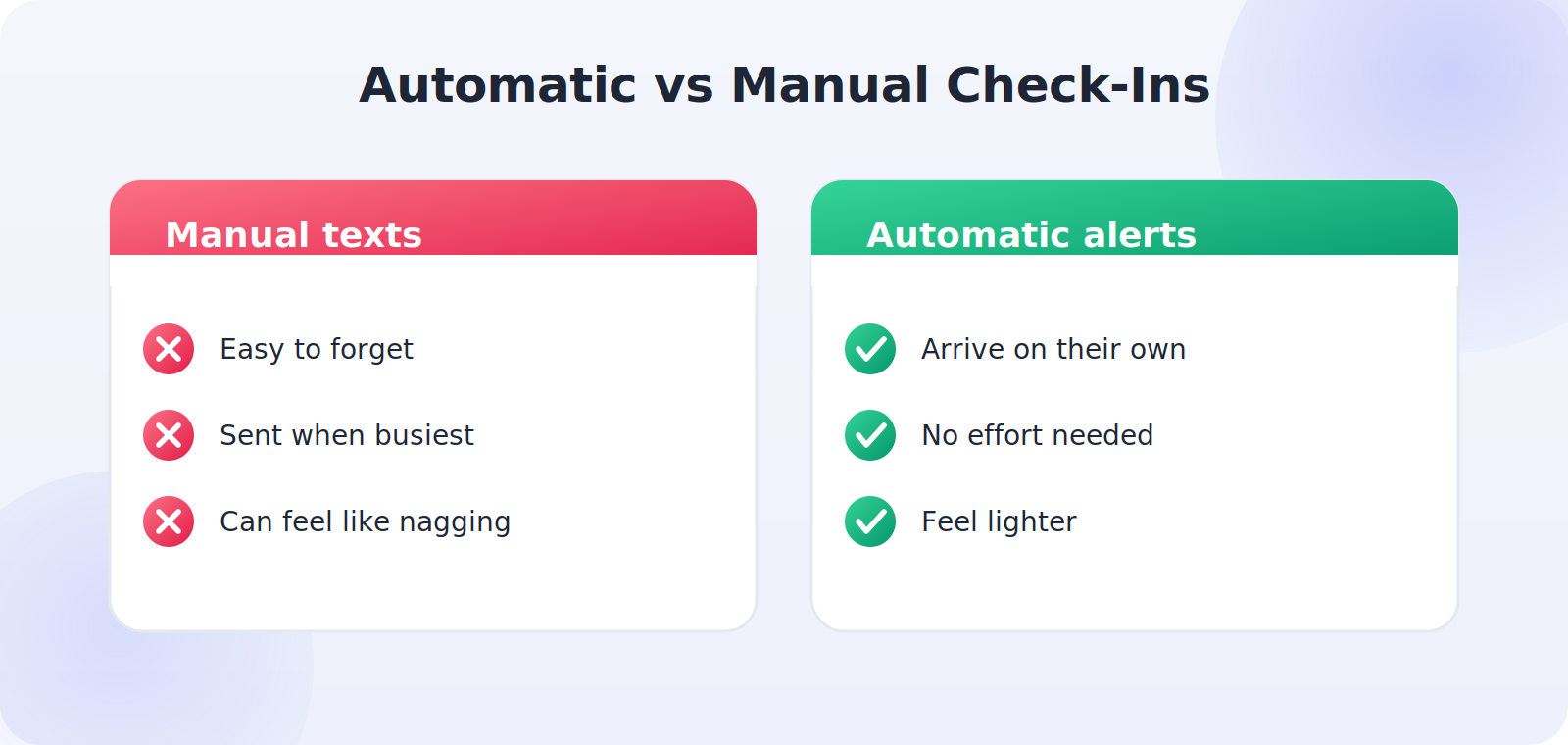
Before automatic alerts, families relied on the manual check-in: the text that says “home safe,” the call to confirm arrival. These work, but they depend on someone remembering to send them at exactly the moment they’re busiest — arriving somewhere, juggling bags, greeting people. The message gets forgotten, and the person waiting starts to worry over nothing. Automatic alerts solve this elegantly: the phone handles the confirmation, so the reassurance arrives whether or not anyone remembers to send it.
There’s a subtler benefit too. Because the alert is automatic and low-effort, it removes the slight pressure and nagging quality that check-in requests can carry. Nobody has to ask “text me when you get there,” and nobody has to feel monitored by the request. The information simply flows in the background, which often makes the whole arrangement feel lighter and more natural than manual check-ins ever did.
Combining Alerts With Other Safety Features
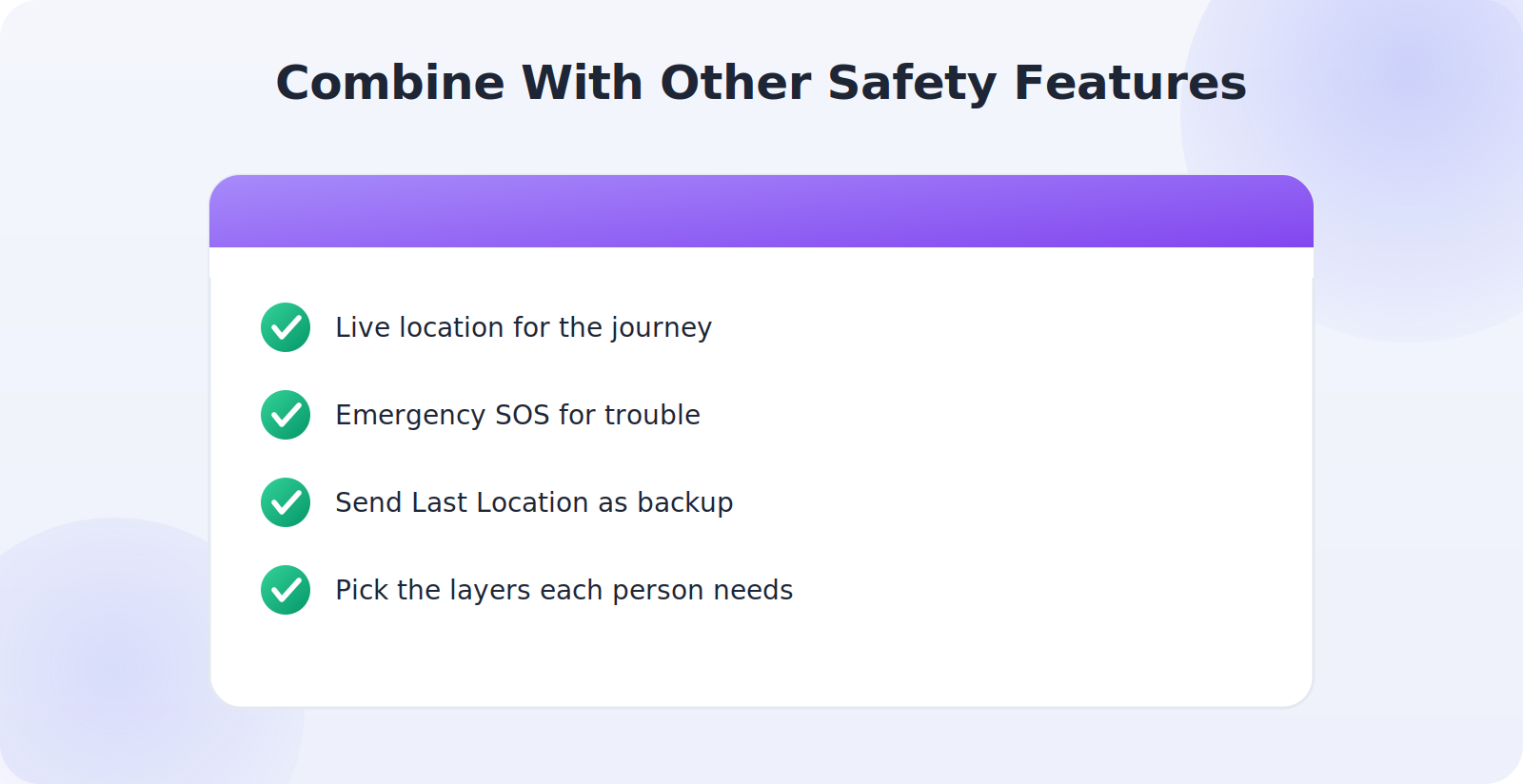
Arrival alerts are most powerful as one part of a broader, gentle safety setup. Paired with live location sharing, you not only know when someone arrives but can see their progress on the way. Combined with Emergency SOS, a family member can summon help and share their location instantly if something goes wrong en route. And alongside Send Last Location, you’re covered even if a phone dies just before arrival.
Think of these features as a layered set rather than competing options. For a child’s commute to school, an arrival alert plus location sharing might be plenty. For an older parent, you might add Emergency SOS and Medical ID. Choosing the combination that fits each family member’s needs — no more, no less — gives you meaningful reassurance without tipping into over-monitoring.
Tuning Alerts So They Stay Useful
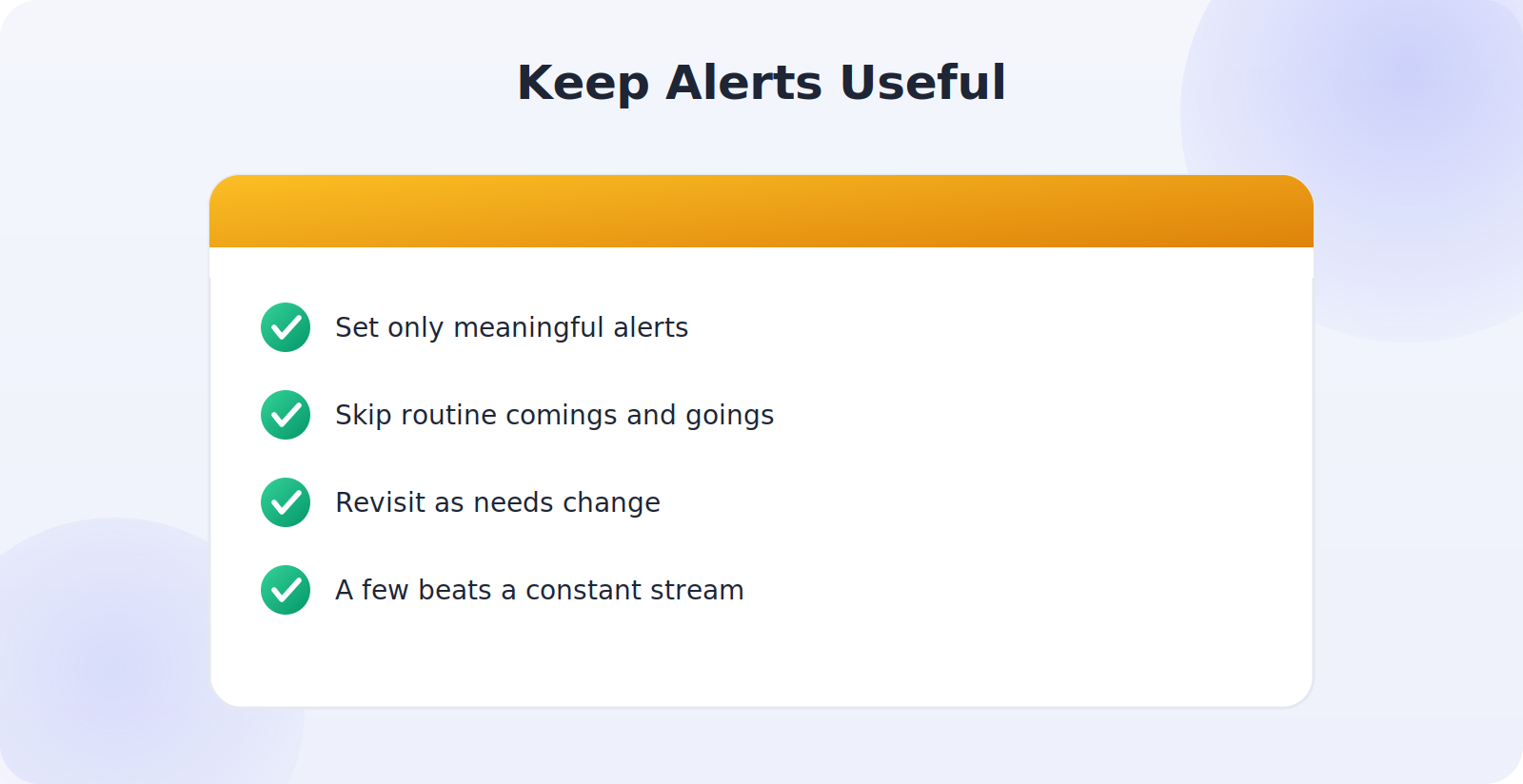
The quickest way to make helpful alerts annoying is to have too many of them. If your phone buzzes every time anyone arrives or leaves anywhere, you’ll soon start ignoring the notifications entirely — which defeats the purpose. Be selective. Set alerts only for the arrivals and departures that genuinely matter to you, like a child reaching school or an older parent getting home, and skip the routine comings and goings that don’t need confirming.
It’s also worth revisiting your alerts every so often, because needs change. The school-arrival alert that mattered last term may be unnecessary now; a new situation might call for a different one. Treating your alerts as a small, living set that you prune and adjust keeps each one meaningful. A handful of well-chosen, genuinely reassuring notifications is worth far more than a constant stream you’ve learned to tune out.
Alerts for Different Family Situations
The beauty of arrival alerts is how they flex to fit different family needs. For parents of school-age children, an alert when a child reaches school and another when they get home turns the school run into something you can stop worrying about. For partners with long or unpredictable commutes, a simple “arrived at work” removes a daily flicker of concern. For families caring for an older relative, an alert when they return home after an outing offers quiet reassurance that all is well. The same modest feature serves a toddler-to-grandparent range of situations, which is exactly why it’s worth setting up thoughtfully for the people in your life who’ll benefit most.
Common Mistakes to Avoid
- Setting alerts on someone who hasn’t consented to location sharing.
- Geofencing too many places, turning reassurance into surveillance.
- Making it one-directional instead of mutual.
- Using alerts to question or confront rather than reassure.
- Installing a data-hungry app when the built-in tools would do.
Frequently Asked Questions
Can I set an alert without the other person knowing?
These features are built on consensual sharing, and on iPhone the person is notified when you create an alert about them. Keeping alerts transparent is both the intended design and the right approach.
Why isn’t my arrival alert firing?
Usually because location sharing stopped, the phone is offline or low on battery, or a family-safety app lacks background location permission. Check those basics and alerts typically resume.
Will the other person know I’ve set up an alert?
On iPhone’s Find My, yes — Apple notifies them when you create an alert about them. In general, these features are built on consensual sharing, and keeping alerts transparent is the right approach everywhere.
Can I get an alert when my child arrives at school?
Yes. Once your child is sharing their location with you, you can set an arrival alert for the school location on both iPhone and Android.
Do location alerts drain the battery?
The impact is modest. Location sharing and geofencing use power sparingly, far less than active navigation. A normal overnight charge easily covers it.
Quick Takeaways
- Alerts notify you automatically when family arrive at or leave a place.
- They’re built on consensual location sharing — set that up first.
- Use Find My (iPhone) or Google Maps plus reminders/apps (Android).
- Choose a few meaningful places; don’t geofence everything.
- Keep alerts mutual and use them to reassure, not interrogate.
Kept mutual, meaningful, and few in number, arrival alerts are among the most quietly useful family features a phone offers — a small, automatic way of saying “I’m glad you’re safe” without anyone having to lift a finger. That’s reassurance worth setting up.
Finally, give the people receiving alerts a little context so the notifications land the way you intend. A quick word — “I’ve set this up just so I don’t worry, not to keep tabs on you” — frames the alerts as the gesture of care they’re meant to be. When everyone understands an arrival notification simply means “all’s well,” the feature settles into the background of family life as a small, welcome source of calm. That shared understanding, more than any setting, is what turns location alerts into something a family genuinely values rather than quietly resents.
The Bottom Line
Location alerts turn a stream of “are you there yet?” texts into quiet, automatic reassurance — a notification that a loved one arrived safely, with nobody having to remember to message. Build them on top of consensual, mutual location sharing, set up a few meaningful places like home and school, and keep the tone reassuring rather than watchful. Set up this way, arrival alerts are a small, thoughtful feature that helps a family feel connected and calm without anyone feeling tracked.