If you only do one thing to protect your Android phone, make it this: switch on Find My Device. It’s Google’s free, built-in locator, and it’s the difference between calmly pulling up a map when your phone goes missing and frantically tearing the house apart. The catch is that it has to be turned on before you lose the phone — you can’t enable it remotely after the fact. This guide walks you through the full setup, how to test it, and what to do when your phone stubbornly refuses to appear.
Think of it like a smoke alarm for your phone. You set it up once, hope you never need it, and feel enormously grateful the day you do. The difference is that this alarm is free, takes minutes to install, and works from any browser in the world. By the end of this guide you’ll have it switched on, tested, and ready — plus you’ll understand the handful of settings that make it actually work when the pressure is on.
The whole process takes about three minutes, and once it’s done you can forget about it until the day you really need it.
What Find My Device Actually Does
Find My Device is a service tied to your Google account. When it’s on, your phone quietly reports its location to Google whenever it has power and a network connection. From any browser or another Android device, you can then see that location on a map, make the phone ring at full volume, lock it with a message, or erase it entirely.
It’s worth being clear about what it is not: it’s not a live spy tool, it can’t locate a phone that’s switched off or out of battery in real time, and it only works on devices signed in to your own account. That’s by design — it’s built to help you find your phone, not anyone else’s.
Step 1: Turn On Find My Device
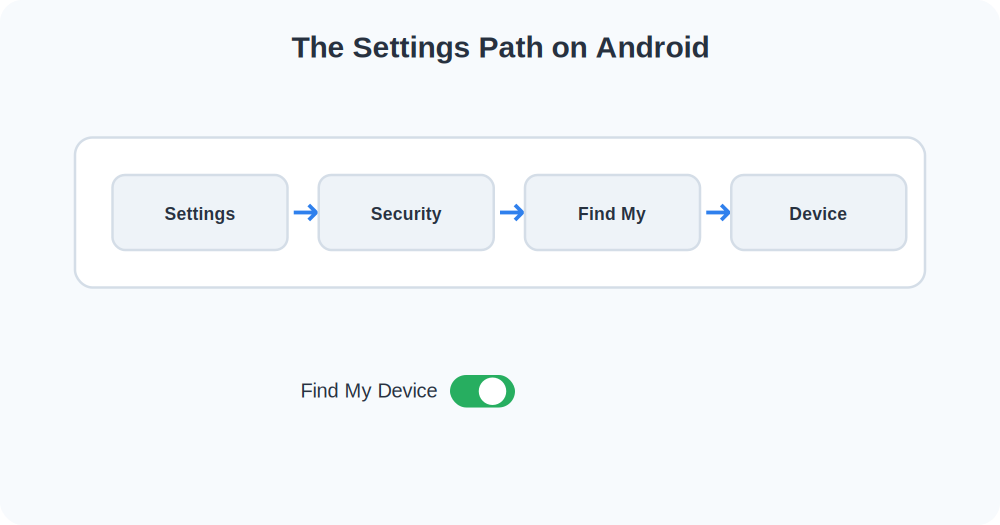
Menu names differ a little between Samsung, Pixel, Xiaomi, and other brands, but the path is almost always under Security or Google settings.
- Open Settings.
- Tap Security & privacy (on Pixel) or Google → All services (on many other phones).
- Find and tap Find My Device.
- Toggle it On. That’s the core step.
Samsung phones have their own parallel service called SmartThings Find, and there’s no harm in having both enabled. Google’s Find My Device works across all Android brands, so it’s the one to prioritize if you only set up one.
Step 2: Make Sure Location Is On
Find My Device is useless without location services. Go back to Settings → Location and confirm the master toggle is on. While you’re there, tap into Location services and make sure Google Location Accuracy is enabled — this lets your phone use Wi-Fi and mobile networks to improve its position, which matters a lot indoors.
Step 3: Confirm Your Google Account
Your phone can only be found through the Google account it’s signed in to. Open Settings → Passwords & accounts (or Settings → Google) and note which account is there. Critically, make sure you actually remember the password. The number of people who can’t find their lost phone simply because they’re locked out of their own Google account is genuinely high.
Knowing your Google password is half of finding your phone. Sort it out today, while you have the phone in your hand.
Step 4: Test It Right Now
Don’t wait for an emergency to discover something’s misconfigured. Test it immediately:
- On a computer or another phone, open a browser and go to google.com/android/find.
- Sign in with the same Google account that’s on your phone.
- Your phone should appear on a map within a few seconds, with its battery level and last-seen time.
- Tap Play Sound — your phone should ring at full volume for five minutes, even if it’s on silent.
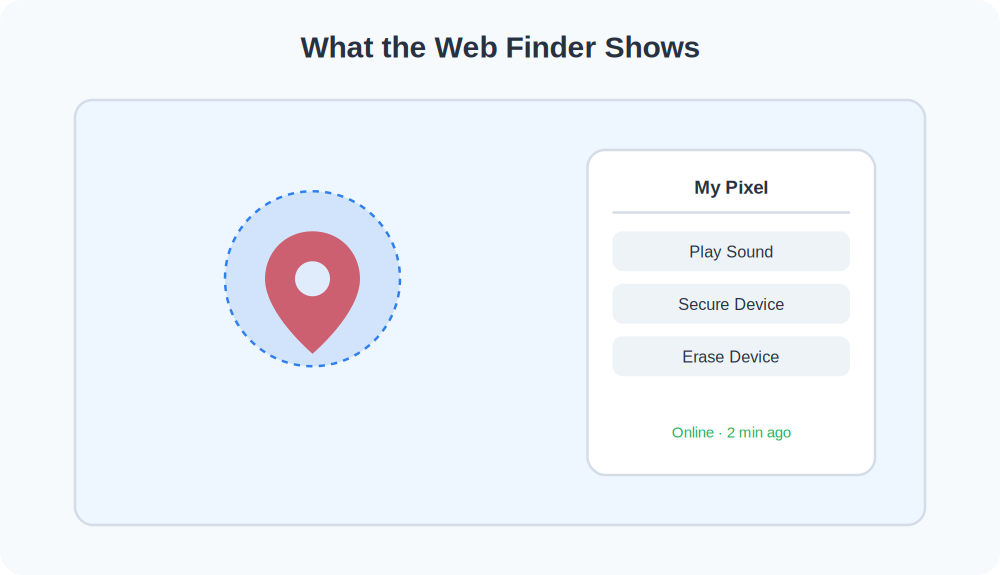
If the phone rang and showed up on the map, you’re done — everything works. Bookmark that finder page so you’re not hunting for the URL under stress.
When Your Phone Won’t Show Up
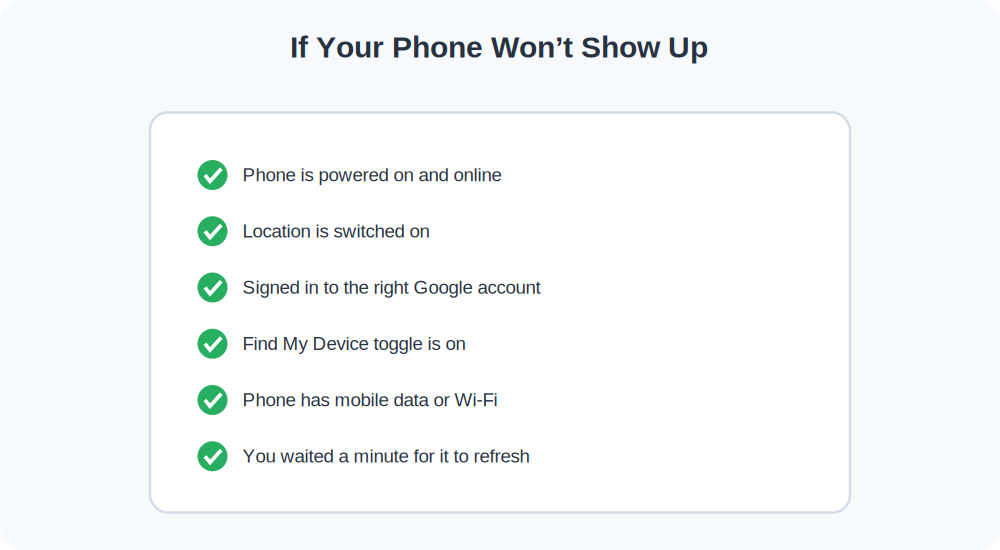
If the finder says your device is offline or can’t find it, work through this list before assuming the worst:
It says “offline” or “last seen”
That usually means the phone currently has no internet connection — it’s off, out of battery, in airplane mode, or in a dead zone. The good news: the last-seen location and time are still shown, which is often enough to go retrieve it.
It doesn’t appear at all
Double-check you signed in to the correct Google account — many people have two or three. Then confirm Find My Device and Location are both on. If you’ve just turned them on, give the phone a few minutes and refresh the page.
The location looks wrong
Indoor locations rely on Wi-Fi positioning and can drift by a building or two. Step outside, wait for GPS to lock, and the accuracy usually tightens up considerably.
Bonus: Add a Lock-Screen Owner Message
Even with Find My Device on, it’s worth adding your contact details to the lock screen so an honest finder can reach you instantly. Go to Settings → Display → Lock screen and look for Add text on lock screen (the wording varies). Add a secondary phone number or email — never your home address.
Frequently Asked Questions
Does Find My Device drain my battery?
Barely. It reports location occasionally rather than constantly, so the impact is negligible — far less than a navigation app running in the foreground.
Can I find my phone if it’s on silent?
Yes. The Play Sound feature overrides silent mode and rings at full volume, which makes finding a phone lost around the house genuinely easy.
Do I need to install an app?
No. The web finder works in any browser. There’s also a Find My Device app if you want to locate one phone from another, but it’s optional.
Understanding How Your Phone Reports Its Location
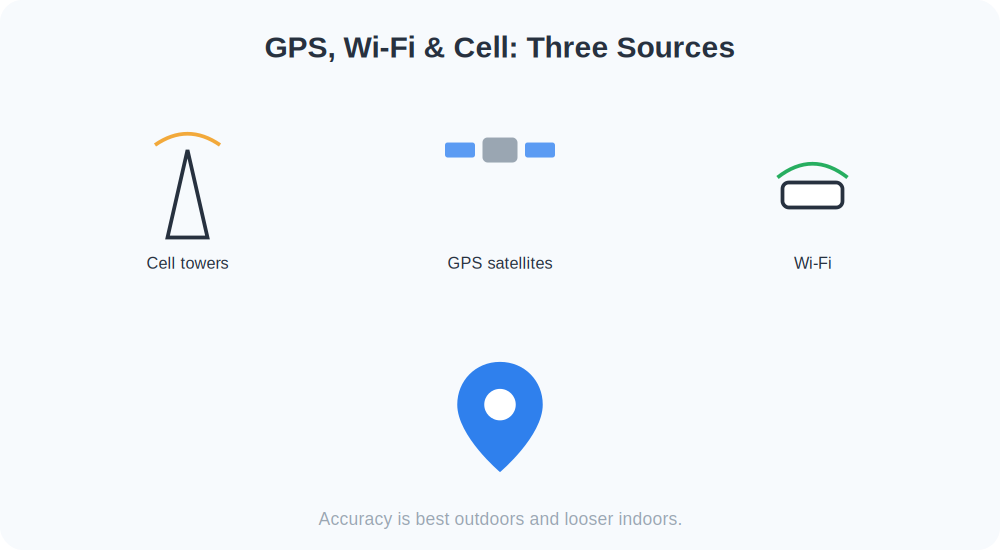
It helps to know what’s happening behind the scenes, because it explains both why Find My Device is so useful and where its limits are. When your phone reports its position, it isn’t relying on a single source. It blends three together. GPS talks to satellites and is most accurate outdoors with a clear view of the sky. Wi-Fi positioning compares the networks your phone can see against a giant database of known network locations, which is what makes indoor location possible at all. And cell-tower data gives a rough area based on which towers your phone is connected to, working even when GPS and Wi-Fi are weak.
Your phone fuses these into one best guess. That’s why accuracy varies so much: in an open park you might be pinned to within a few meters, while deep inside a shopping mall the system might only know which building you’re in. It also explains the golden rule of this whole feature — it needs power and a network. A phone that’s switched off, out of battery, or with no signal can’t report a live position, though it can usually still show you where it was last seen.
Find My Device vs. Third-Party Tracker Apps
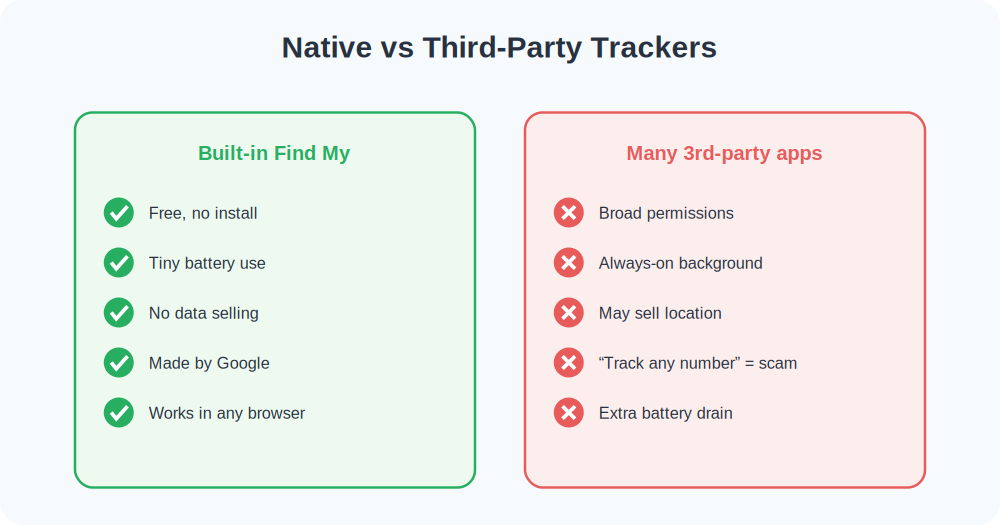
You’ll see plenty of third-party “phone tracker” apps in the store, and it’s worth understanding why the built-in option is almost always the better choice. Google’s Find My Device is free, requires no extra install, drains virtually no battery, and is backed by Google’s own location infrastructure. Many third-party apps, by contrast, ask for sweeping permissions, run constantly in the background, and sometimes monetize your location data. For finding your own lost phone, the native tool does everything you need without the privacy trade-offs.
Be especially wary of any website or app promising to “track any phone by number” without installing anything on that phone. That’s not how phone location works — legitimate tracking always runs through an account signed in on the device itself. Those sites are typically scams or data-harvesting traps, and no honest tool can pinpoint a stranger’s phone on a map from the number alone.
Brand-by-Brand Notes
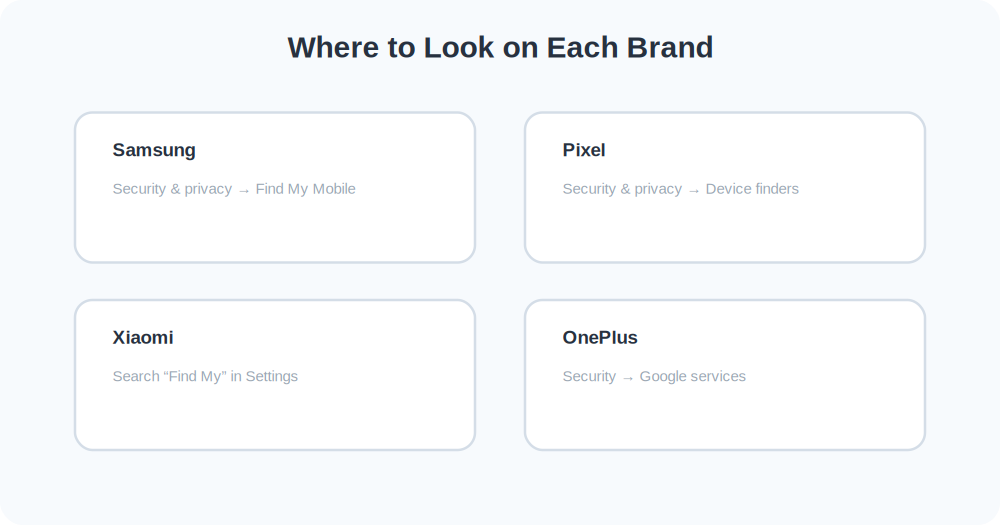
Android isn’t one single phone — every manufacturer skins it a little differently, which is why the menus you see may not exactly match a friend’s phone. Here’s where to look on the most common brands.
Samsung
Samsung runs its own locator, SmartThings Find, alongside Google’s. You’ll find it under Settings → Security and privacy → Find My Mobile. It can locate Galaxy phones even offline using nearby Samsung devices, much like Apple’s network. Turn it on, but keep Google’s Find My Device enabled too, because it’s the one that works no matter whose computer you borrow to search.
Pixel
Google’s own phones keep things simple: Settings → Security & privacy → Device finders → Find My Device. Pixels also support Google’s newer offline finding network, which uses other Android phones nearby to help locate a Pixel that has no signal of its own.
Xiaomi, OnePlus, and others
On Xiaomi (MIUI/HyperOS), look under Settings → Privacy protection → Special permissions or search “Find My Device” in the settings search bar. OnePlus and most other brands keep it under Security or the Google services menu. When in doubt, use the search icon at the top of Settings and type “find my” — it’ll jump you straight there.
A Real-World Walkthrough
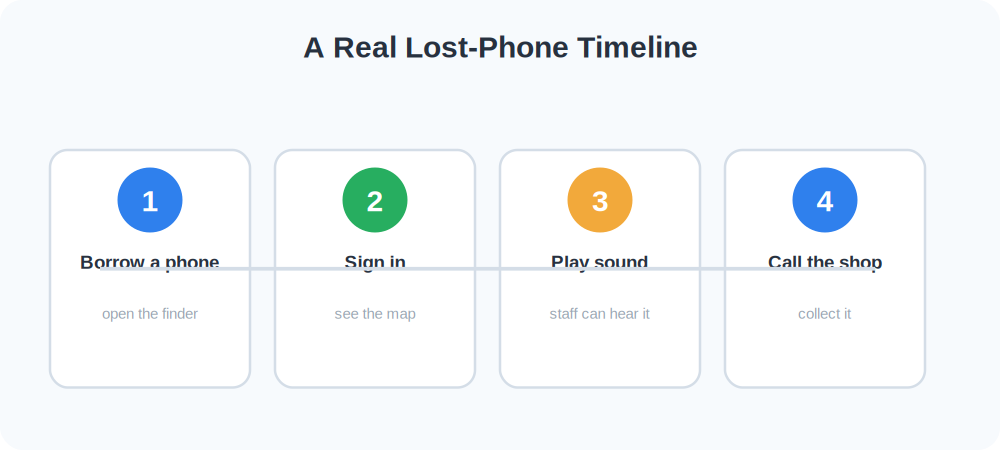
Imagine you set your phone down on a shop counter, get distracted, and walk out without it. Twenty minutes later you reach for it and it’s gone. Here’s how the setup you just did pays off:
- You borrow a friend’s phone and open google.com/android/find in the browser.
- You sign in with your Google account and see your phone on the map — still at the shop.
- You tap Play Sound so a staff member can hear it behind the counter.
- You call the shop, mention your phone is ringing there, and they set it aside for you.
Without Find My Device on, that same scenario becomes a stressful guessing game. With it on, it’s a five-minute errand. That contrast is the entire reason this setup is worth doing today.
Common Mistakes to Avoid
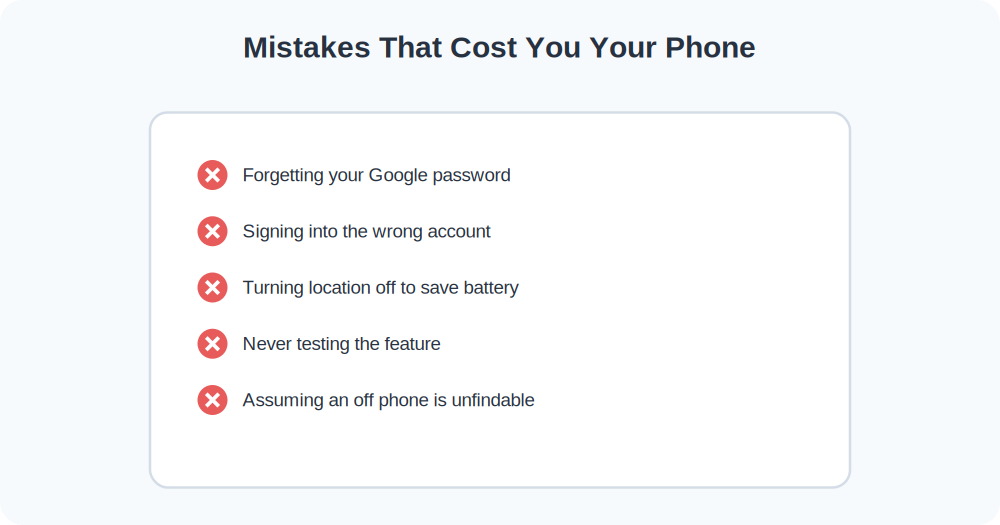
- Forgetting your Google password. The most common reason people can’t find their phone is being locked out of the account that finds it. Store it in a password manager you can reach from another device.
- Signing in to the wrong account. If you have a personal and a work Google account, note which one is the phone’s primary account.
- Leaving location off to save battery. The battery savings are tiny; the cost when you lose the phone is enormous.
- Never testing it. An untested safety net isn’t a safety net. Run the test once so you know it works.
Keeping It Working Long-Term
Find My Device is essentially maintenance-free once it’s on, but two habits keep it reliable. First, keep your phone’s software updated — system updates occasionally refresh how the service connects. Second, after any major change like a factory reset, a new SIM, or signing into a different Google account, take ten seconds to confirm the toggle is still on. These events can sometimes reset your preferences.
Quick Takeaways
- Find My Device is free, built in, and uses almost no battery.
- It must be switched on before you lose the phone — you can’t enable it remotely.
- You also need Location on and your Google password memorized.
- Test it once at google.com/android/find so you know it works.
- A switched-off phone still shows its last known location.
The Bottom Line
Find My Device is the single best safety net for an Android phone, and it costs nothing. Turn it on, confirm location is enabled, make sure you know your Google password, and run a quick test today. Three minutes now buys you a calm, recoverable outcome the day your phone disappears — instead of a frantic, helpless one.