Losing your phone is one of those small disasters that turns your whole day upside down. One minute it’s in your pocket, the next you’re patting yourself down on a train platform wondering whether you left it at the coffee shop or whether someone lifted it. The good news is that modern phones are surprisingly easy to find — if you set them up correctly ahead of time and stay calm when it counts. This guide walks you through exactly what to do, in the order that gives you the best chance of getting your phone back safely.
We’ll cover both Android and iPhone, what to do when the battery is dead, how to protect your personal data, and when it’s time to stop searching and call your carrier or the police. None of this requires any shady “track any number” website — just the free tools already built into your phone.
First, Understand How Your Phone Reports Its Location
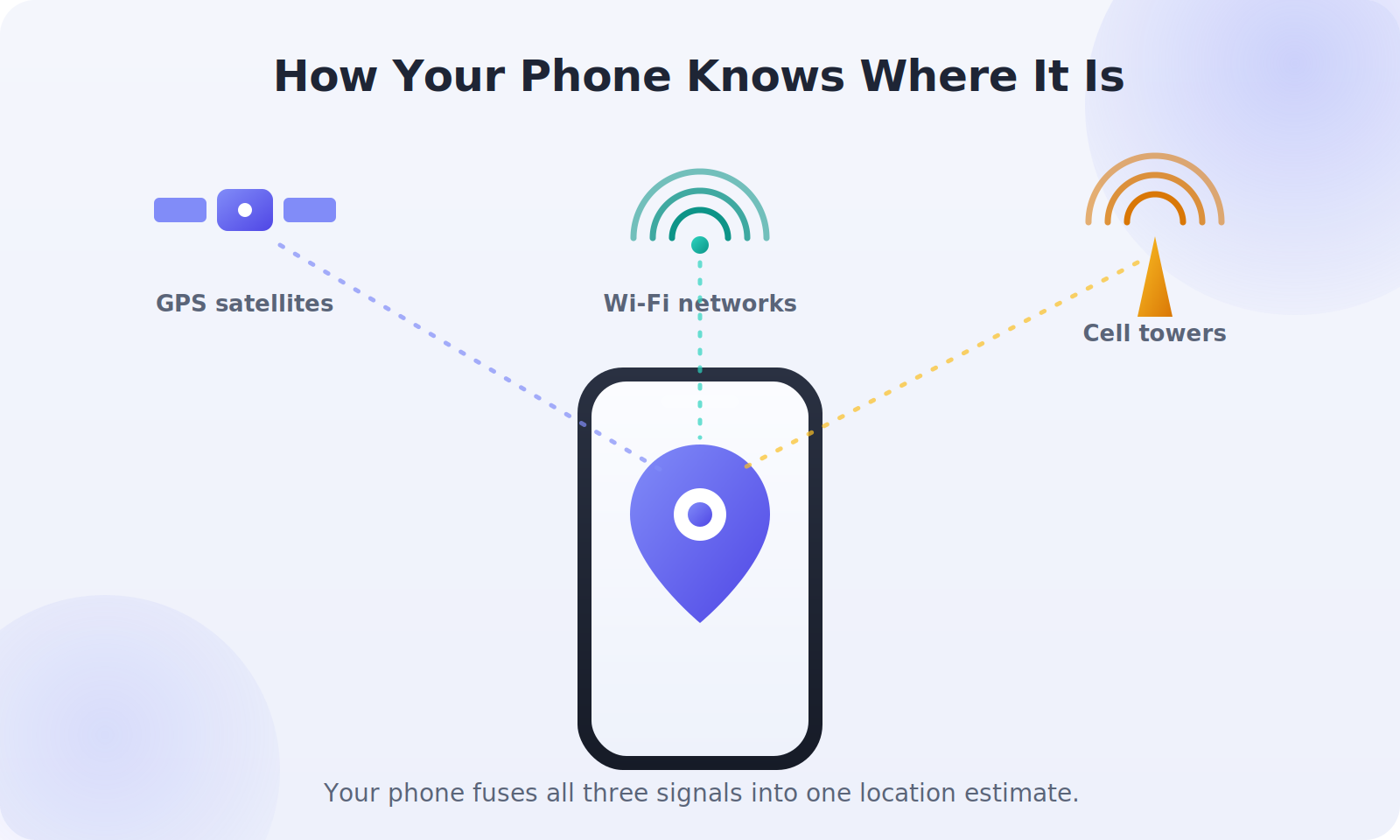
Before you go hunting, it helps to know how your phone figures out where it is. Phones don’t rely on a single magic signal. They combine three sources: GPS satellites for outdoor accuracy, Wi-Fi networks whose locations are already mapped, and cell towers that give a rough area even when GPS is weak. Your phone fuses these together to produce one best-guess position.
This matters for two reasons. First, accuracy varies. Outdoors with a clear sky, your phone might be accurate to a few meters. Inside a concrete building, it might only know which block you’re on. Second, every one of these methods needs power and a network. A phone that’s switched off or out of battery can’t report a live position — though, as you’ll see, it can often still tell you where it was last seen.
Tracking a device isn’t about pinpointing a person in real time like in the movies. It’s about getting a reliable estimate and acting on it quickly.
Set Up Find My Device Before You Ever Lose Your Phone
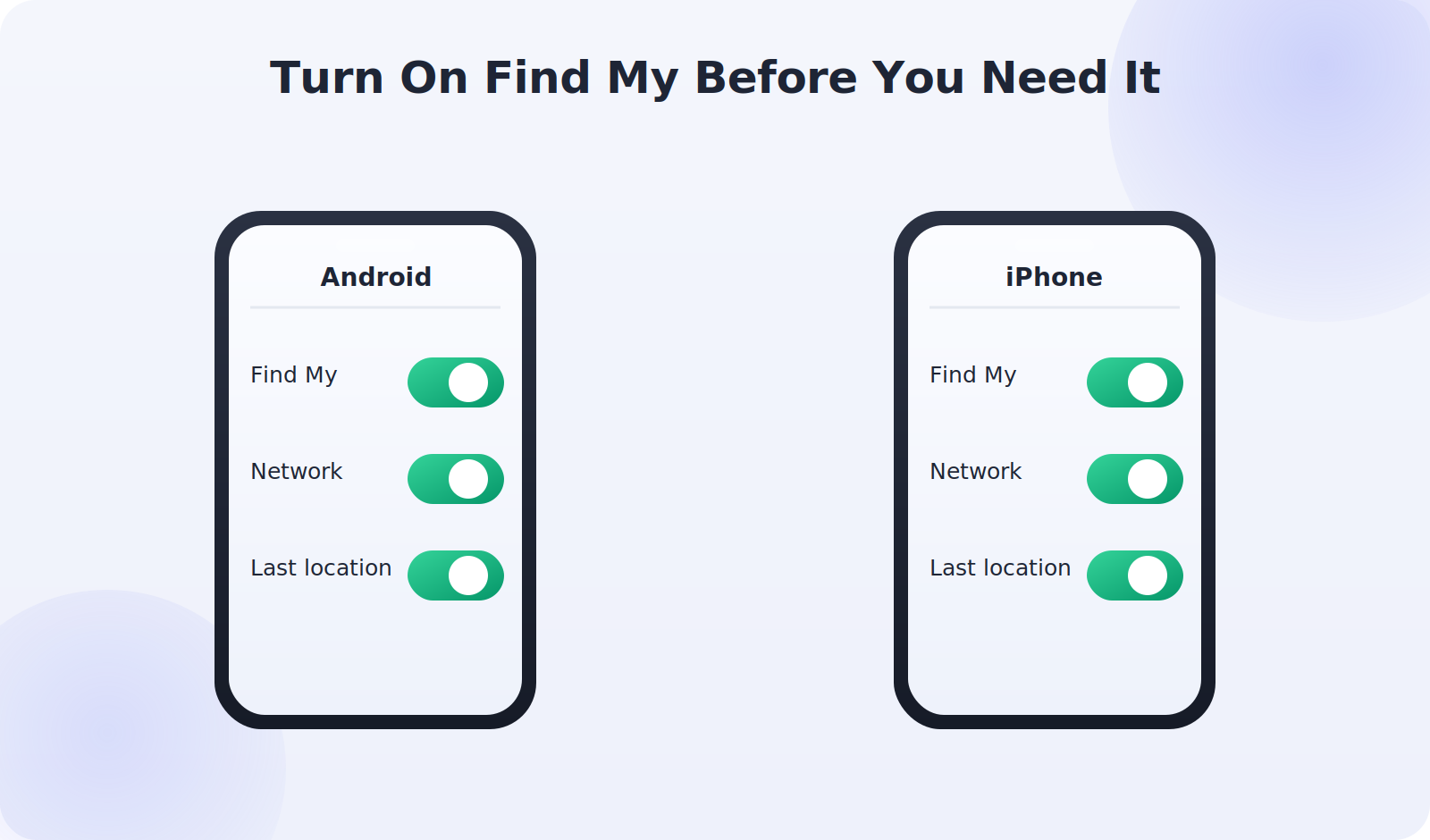
The single most important step happens before anything goes wrong. Both Google and Apple build a free finder service into every modern phone, but it only works if it’s switched on and signed in. Take two minutes right now to check yours.
On Android
- Open Settings and tap Security & privacy (or Google on some phones).
- Find Find My Device and make sure the toggle is on.
- Go back to Location and confirm location services are enabled.
- Make sure you’re signed in to a Google account you actually remember the password for.
- Test it: visit google.com/android/find on any computer and confirm your phone appears.
On iPhone
- Open Settings and tap your name at the top.
- Tap Find My, then Find My iPhone.
- Turn on Find My iPhone, Find My network, and Send Last Location.
- The Find My network lets nearby Apple devices help locate your phone even when it’s offline.
- Test it at icloud.com/find from any browser.
That “Send Last Location” setting is the quiet hero here. When your battery is about to die, your phone sends its final position to the cloud automatically. So even a dead phone often leaves behind a useful breadcrumb.
Step 1: Don’t Panic — Retrace and Ring
If your phone has just gone missing, resist the urge to immediately wipe it. Start simple. Use another phone, a friend’s device, or any web browser and try calling it. If it’s nearby and not on silent, you might hear it under a cushion or in a coat pocket within seconds.
If calling doesn’t work because the ringer is off, the finder tools can force it to ring at full volume anyway — even if you left it on silent. That’s usually the fastest way to find a phone that’s simply lost in the house or office rather than truly gone.
Step 2: Open the Finder and Read the Map Carefully
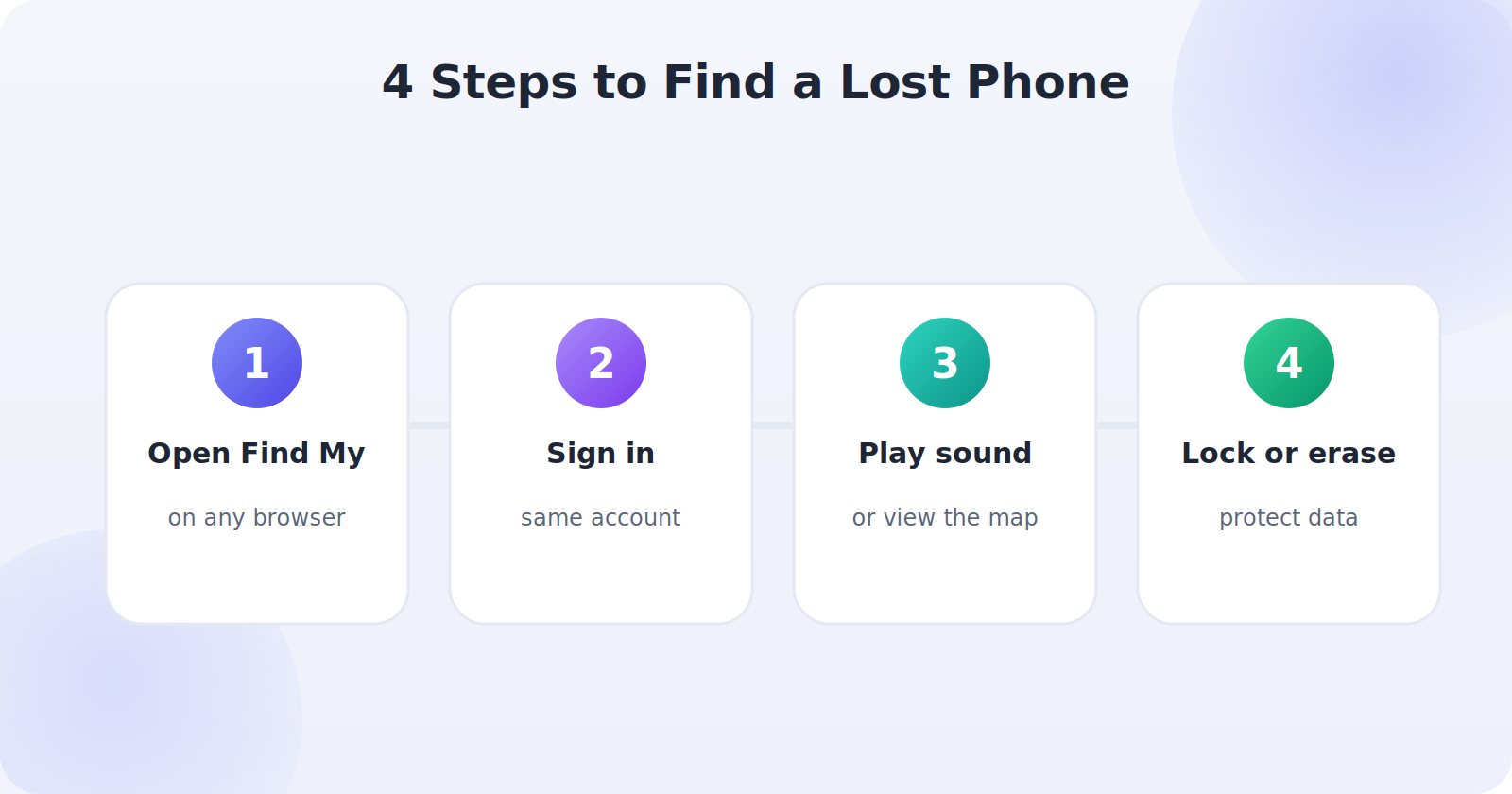
Head to google.com/android/find (Android) or icloud.com/find (iPhone) and sign in with the same account that’s on the lost phone. Within a few seconds you should see a map with a pin showing your phone’s estimated location.
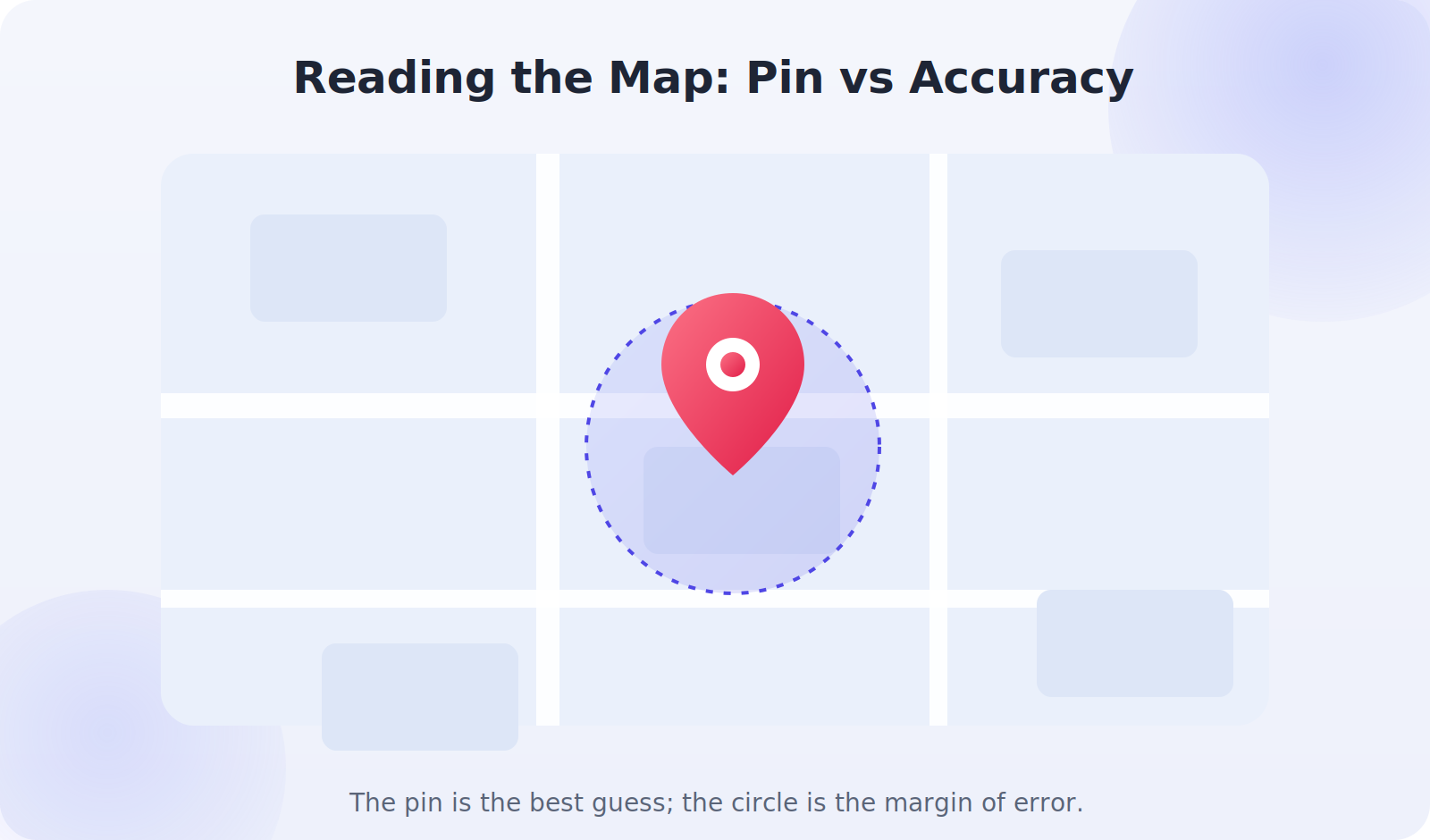
Here’s where people get confused, so read this part closely. The map shows two things: a pin and, usually, a shaded circle around it. The pin is the phone’s best-guess location. The circle is the margin of error. If the circle is small, you can trust the pin. If it’s large, your phone could be anywhere inside that circle, so treat the pin as “somewhere in this neighborhood” rather than “exactly here.”
Give the map a minute to refresh. Location updates aren’t instant — the phone has to wake up, get a signal, and report back. If the pin jumps around, wait for it to settle before you go anywhere.
Step 3: Decide — Recover, Lock, or Erase
Now you make a judgment call based on where the phone is and how confident you are.
If it’s somewhere safe and familiar
If the pin lands on your home, your office, or a friend’s house, you probably just misplaced it. Play the sound and go collect it. No need for drastic measures.
If it’s somewhere public or unknown
If the phone is at a restaurant, a gym, or a store, call the venue and ask if someone handed it in. Do not go knocking on a stranger’s door based on a map pin, especially given that accuracy circle. If the location looks like a private residence you don’t recognize, that’s a matter for the police, not a solo visit.
If you think it’s gone for good
This is when you protect your data. Both finder tools let you remotely lock the phone with a passcode and display a message, or erase it entirely. Locking is reversible and keeps tracking active. Erasing is permanent and usually ends your ability to locate the phone — so use it only when you’ve given up on recovery or the device holds sensitive information.
Step 4: Put a Message on the Lock Screen
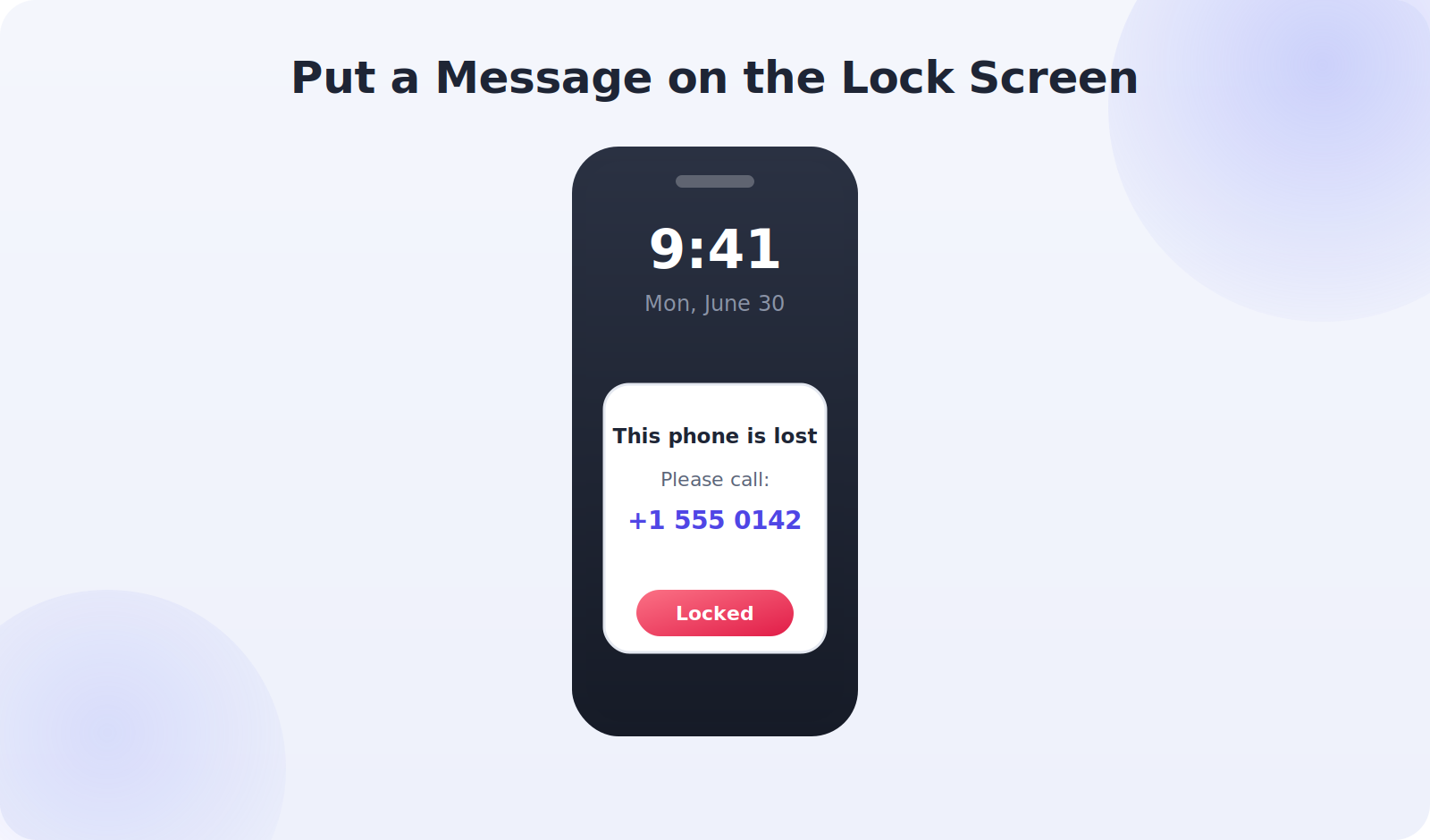
Before you erase anything, use the lost mode feature. It locks the phone and lets you display a custom message and a callback number right on the lock screen. Most phones are found by honest people who genuinely want to return them — they just need a way to reach you.
Keep your message short and warm: something like “This phone is lost. Please call +1 555 0142. Reward offered — thank you!” Avoid putting your home address. A phone number an honest finder can call is all you need.
When Tracking Won’t Work (and What to Do Instead)
It’s important to set honest expectations. There are situations where live tracking simply isn’t possible:
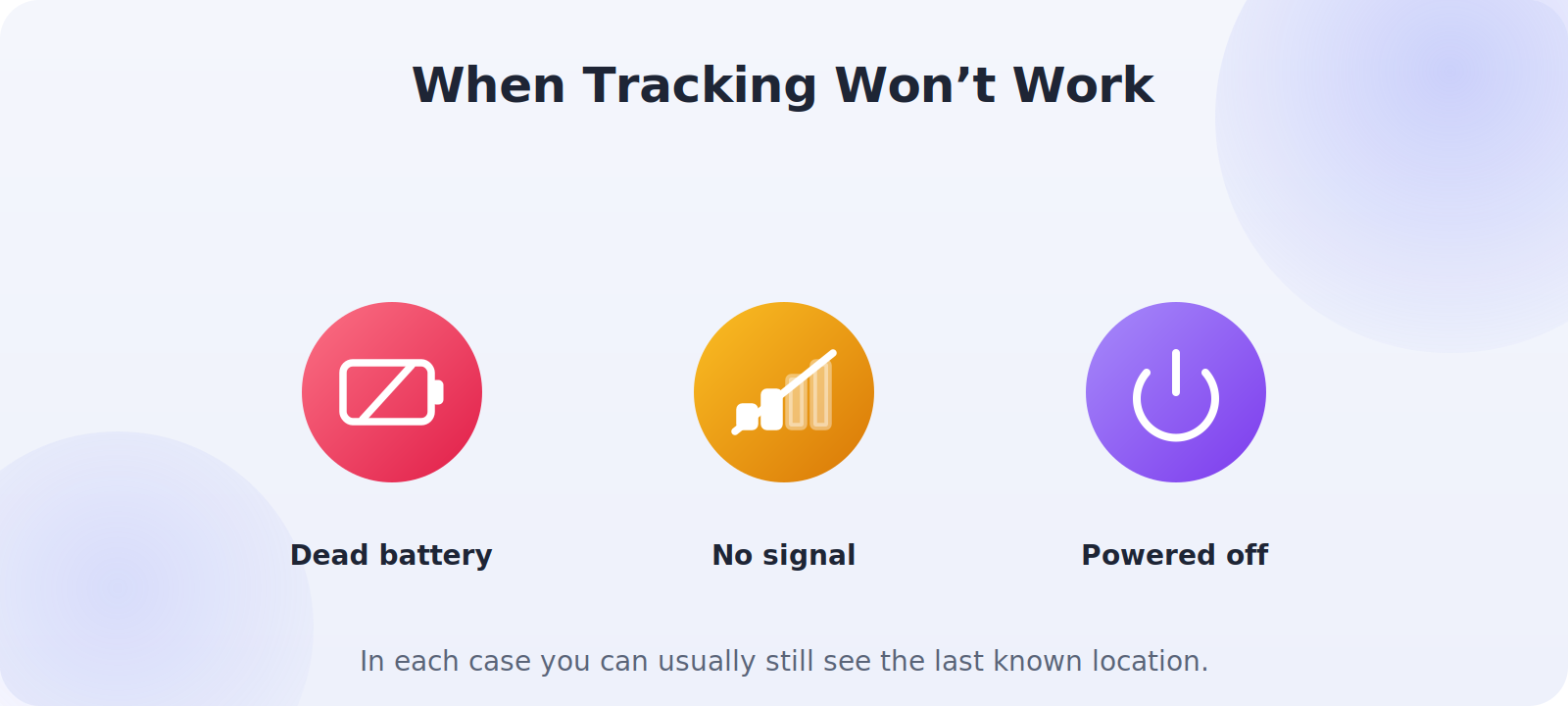
- Dead battery: No power means no signal. Check the last known location instead.
- No network: Underground, in the wilderness, or in airplane mode, the phone can’t report in.
- Powered off: A switched-off phone goes dark, though Apple’s Find My network can sometimes still detect recent iPhones nearby.
- Factory reset: If a thief wipes the phone, your finder link is usually broken.
In every one of these cases, your fallback is the last known location the phone reported before it went dark. It won’t be live, but it’s often enough to point you in the right direction — or to give the police a starting point.
Understanding “Last Known Location” — Your Most Useful Clue
People often overlook the most valuable piece of information a finder gives them: the last known location. This is the final spot your phone reported before it lost power, lost signal, or was switched off. Even when the live map shows nothing, this breadcrumb usually survives.
Why is it so useful? Because most lost phones don’t travel far before going dark. A phone that slid out of your bag on the bus reports its last location somewhere along that bus route. A phone dropped on a trail reports its last position near where you were hiking. Treat the last known location as a strong starting point rather than a dead end. Note the time stamp too — if the phone reported its position ten minutes ago, the trail is fresh; if it was six hours ago, the situation has likely changed.
If you’re working with the police on a theft, the last known location plus the time stamp is exactly the kind of detail they can act on. Write it down or take a screenshot before it gets overwritten by a newer (and possibly less useful) update.
Step 6: Report a Stolen Phone Properly
If you’re confident your phone was stolen rather than lost, treat it as a theft, not a treasure hunt. Here’s the responsible sequence:
- Lock the phone remotely and switch on lost mode so your data is protected.
- Call your carrier and ask them to suspend service and blacklist the phone’s IMEI. A blacklisted IMEI can’t be activated on most networks, which makes the phone far less useful to a thief.
- File a police report. You’ll usually need the IMEI number and the last known location. Many insurers and carriers require a report number before they’ll help.
- Change your passwords for email, banking, and social accounts, just in case.
- Let the professionals handle recovery. Hand the location data to the police rather than confronting anyone yourself.
Your IMEI is the phone’s unique fingerprint. You can find it by dialing *#06# on the phone, or — if it’s already gone — on the original box, your carrier account, or your Google/Apple account’s device list. It’s worth writing it down somewhere safe today.
A Quick Word on Doing This Legally and Ethically
Everything in this guide is about finding your own phone, or a device you legitimately own and manage. That distinction matters. Locating a phone you own is completely normal. Secretly tracking someone else’s phone without their knowledge or consent is a different matter entirely — it can be illegal, and it’s a serious breach of trust.
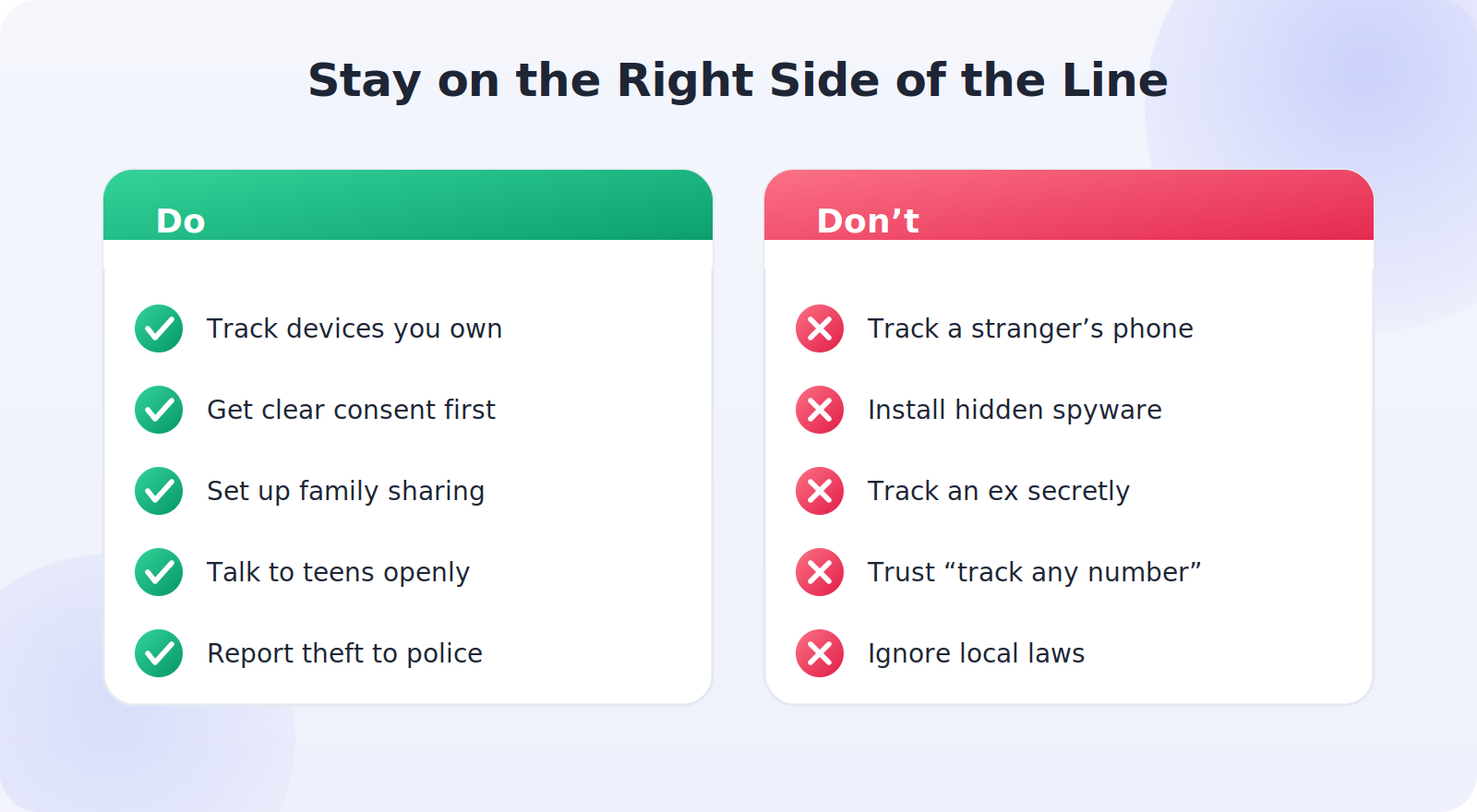
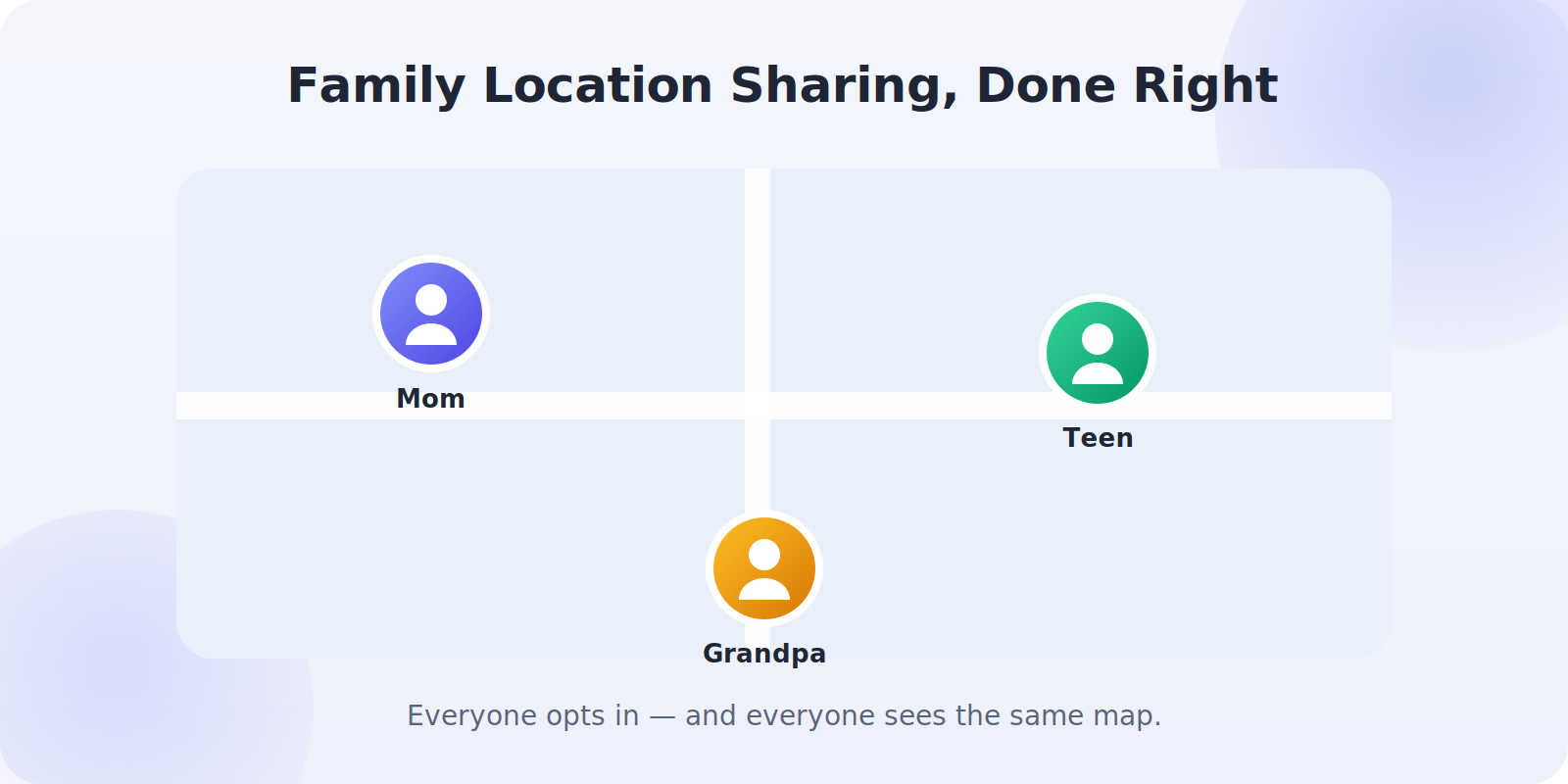
If you’re setting up tracking for your family, the healthy approach is shared and transparent, not secret. Family location features work best when everyone has opted in and everyone can see the same map. For kids and teens, a short, honest conversation about why you’re sharing locations does far more for safety than secret surveillance ever could.
Prevention: Make Your Next Phone Easy to Find
The best lost-phone story is the one that ends in five minutes. A little preparation makes that far more likely. Run through this checklist on every phone you own:
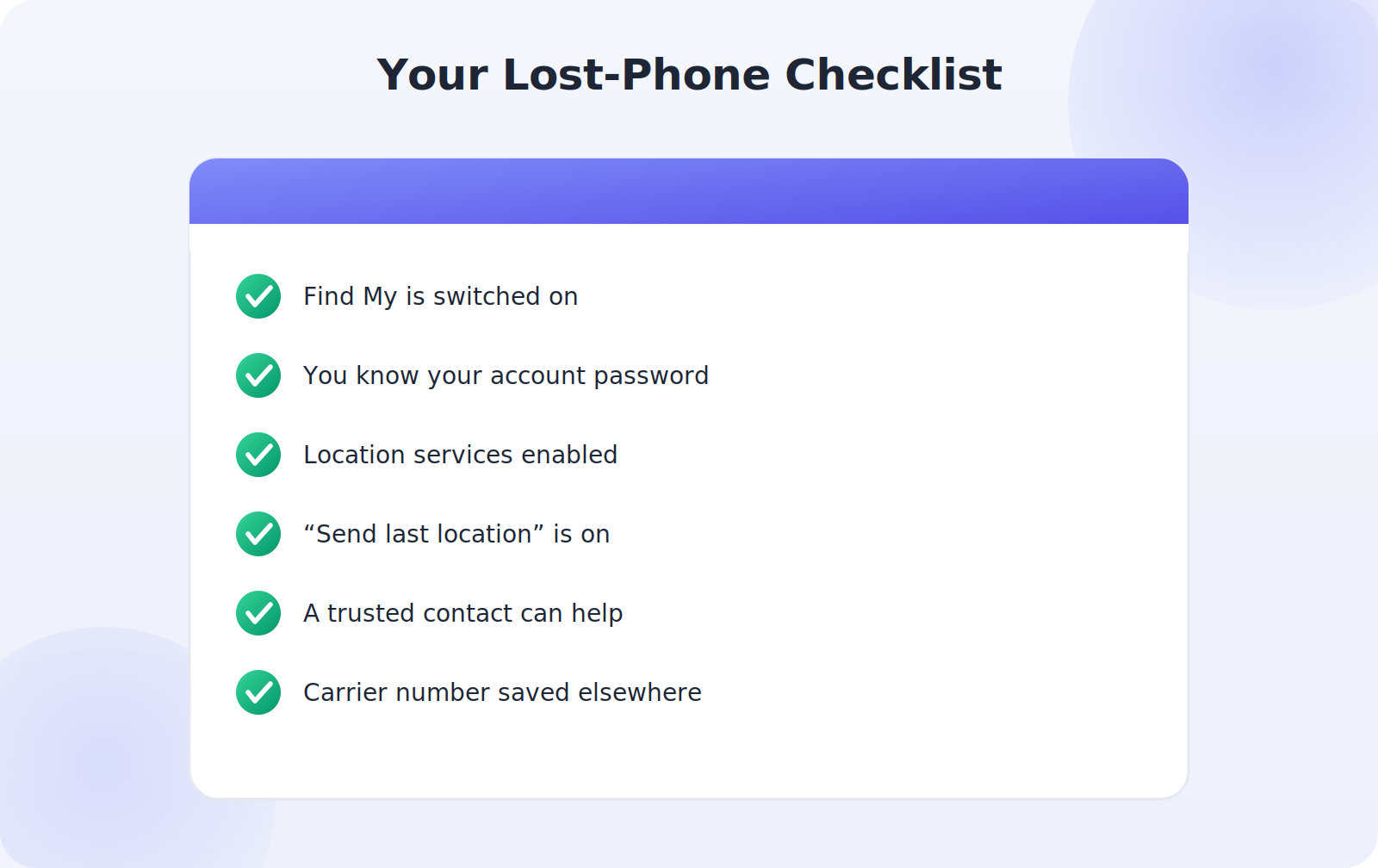
- Find My / Find My Device is switched on and tested.
- You actually remember your Google or Apple account password.
- Location services are enabled.
- “Send last location” is turned on.
- A trusted family member is set up in your location-sharing group.
- Your carrier’s support number and your IMEI are saved somewhere other than the phone.
Consider adding owner information to your lock screen too — a secondary email or a partner’s phone number — so an honest finder can reach you even before you’ve activated lost mode.
Frequently Asked Questions
Can I find my phone if it’s turned off?
Not live, in most cases. A powered-off phone can’t report its position. However, you can almost always see its last known location, and recent iPhones can sometimes be detected by the Find My network even while off. Always check the finder before assuming it’s hopeless.
Can I track my phone using just the phone number?
No — not in the way those flashy websites promise. A phone number alone won’t give you a live GPS location. Real recovery relies on the finder service tied to your account, not the number. Be very skeptical of any site that claims to pinpoint any number on a map; these are typically scams or data-harvesting traps.
Is it free to find my own phone?
Yes. Google’s Find My Device and Apple’s Find My are completely free and built into your phone. You never need to pay a third-party service to locate a device you own.
What if my phone is at an unfamiliar address?
Don’t go there yourself. If the location looks like a stranger’s home and you suspect theft, lock the phone, note the address and IMEI, and let the police follow up. Your safety is worth more than any device.
The Bottom Line
Finding a lost or stolen phone comes down to two things: preparation and a calm, ordered response. Switch on your finder service today, remember your account password, and keep your IMEI somewhere safe. Then, if the worst happens, work through the steps in order — ring it, locate it, decide whether to recover, lock, or erase, and escalate to your carrier and the police if it’s truly gone.
Do that, and what feels like a catastrophe in the moment usually turns into a minor, recoverable hiccup. Take two minutes now to check your settings — your future self will be grateful.