How to Set Up Phone Monitoring for the First Time: A Step-by-Step Guide
Setting up monitoring on your child’s phone for the first time can feel like a bigger step than it actually is. The technical part is short. The part that matters most happens before you touch a single setting, at the kitchen table, in a conversation. Get that order right and everything else falls into place. This guide walks you through the whole thing, start to finish, the way a calm friend who has done it before would.
A quick word on what this guide is and isn’t. It’s for a parent putting monitoring on a device they own or manage, used by their own child, with that child’s knowledge. It is not a manual for watching an adult, a partner, or anyone who hasn’t been told. Those uses aren’t just a bad idea, they’re the wrong tool entirely, and often illegal. Everything below assumes you’re doing this the open way, because the open way is the only version that actually works over time.
1. Start with the conversation
Before you download anything, have the talk. This isn’t a formality to rush through so you can get to the “real” setup. It is the real setup. A phone your child knows is monitored, and understands why, is far safer than one running a hidden app they’ll eventually find and resent.
Pick a relaxed moment, not the middle of an argument about screen time. Keep it short and honest. You might say something like: “You’re getting more freedom online, and I want to keep you safe while you learn the ropes. I’m going to set up an app we can both see. Let me show you what it does.” Then actually show them.
What to cover
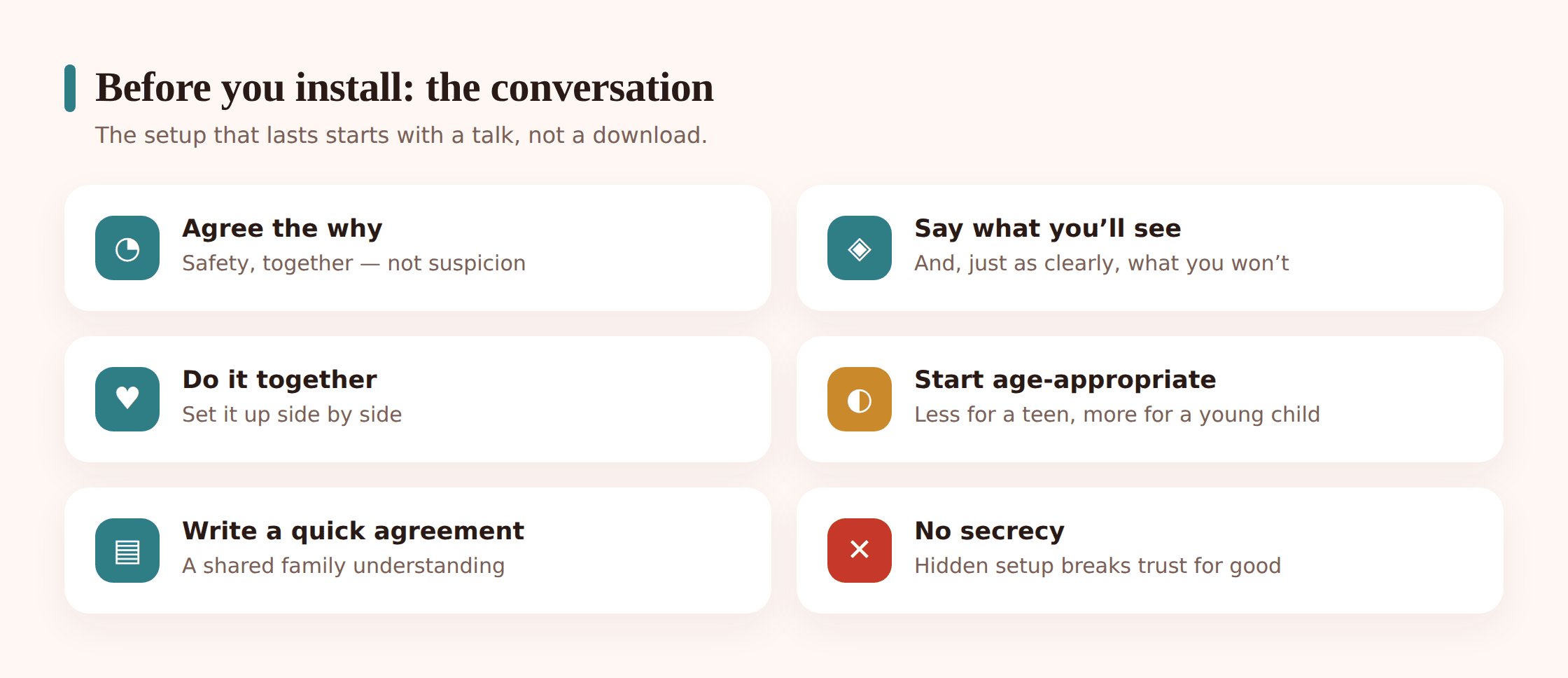
- Why. Frame it as safety and support, not suspicion. The goal is catching real danger early, not reading every message for fun.
- What you’ll see. Be specific. Location, screen time, maybe which apps get used and for how long. Say it plainly.
- What you won’t do. Just as important. You’re not going to narrate their group chats back to them or comment on every website. Naming the limits builds trust fast.
- How it changes over time. Make clear this loosens as they show they can handle more. Monitoring should shrink as trust grows, and telling them that up front takes the sting out of it.
The strongest way to lock this in is to write it down together. A family phone agreement turns a one-off chat into something you both signed, with clear expectations on each side, including what you as the parent will and won’t do. It reframes monitoring as part of a two-way deal rather than a punishment handed down.
2. Choose what to monitor, by age
The most common first-timer error is switching on everything at once. Don’t. Start with the minimum that fits your child’s age and the specific worry you have, then add only if a real need shows up. Less is genuinely more here, both for trust and for your own sanity when the alerts start arriving.
Think of it as a ladder. A younger child needs more scaffolding; an older teen needs mostly a safety backstop and a lot of room. Here’s a rough guide, not a rulebook.
Younger children (roughly 8 to 11)
- Location, so you know they got to school and back.
- Screen-time limits and a bedtime cut-off.
- App and website blocking for age-inappropriate content.
Early teens (roughly 12 to 14)
- Location, kept lighter, more “arrived safe” than constant tracking.
- Screen-time overview and gentle limits you set together.
- Alerts for genuine red flags rather than reading full message content.
Older teens (roughly 15 to 17)
- Mostly a safety backstop: location they can see is on, and alerts for serious concerns only.
- Minimal day-to-day checking. This age is about handing over control, not holding it.
Before reaching for a dedicated app at all, it’s worth setting up the free tools already on the phone. For younger children especially, setting up Google Family Link covers app approvals, screen time and location, and pairs neatly with setting up built-in parental controls on the device itself. A monitoring app then adds the pieces those tools don’t cover, rather than duplicating them.
3. The setup, step by step
Now the practical part. This is described in general terms because the exact taps differ between apps, but the shape is the same everywhere. You do this on your child’s Android device, with them present, ideally letting them tap the buttons. Set aside fifteen quiet minutes and follow it in order.
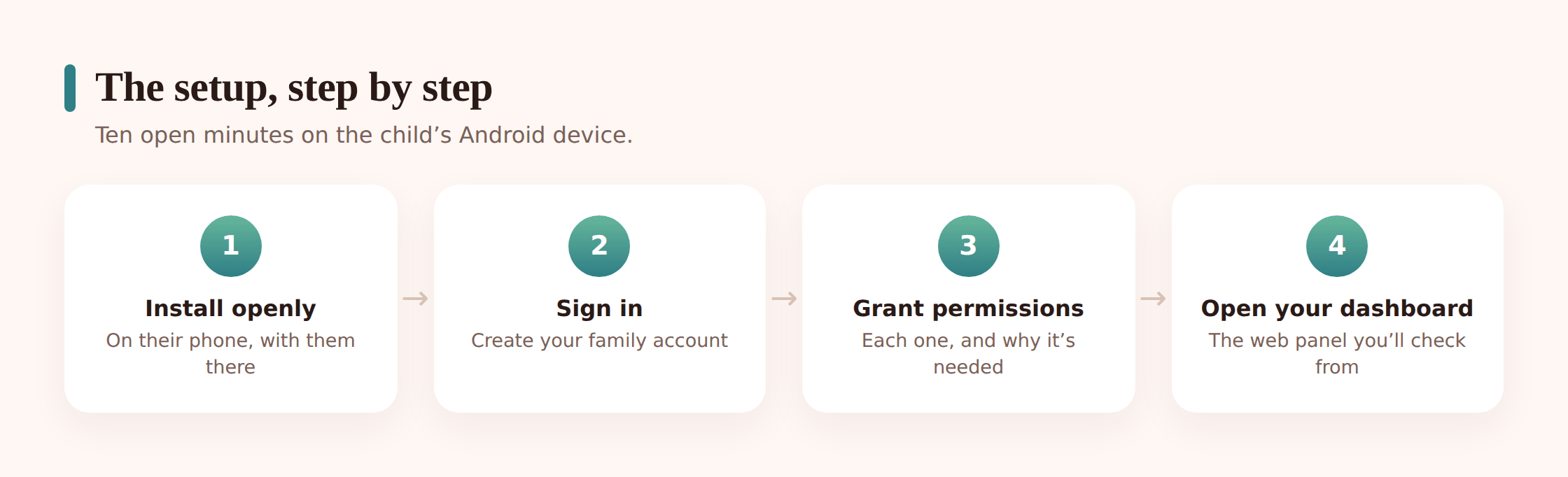
- Have the phone and its passcode ready. This is your child’s device, unlocked, in front of both of you. If they set the passcode, they can type it. The whole thing stays open.
- Create your account first. Sign up on the monitoring service using your own email and a strong, unique password. This is the account you’ll log into later to view things, so use one only you control.
- Install the app on the child’s phone. Download it to their Android device the same way you’d install anything. Let your child watch the icon appear on the home screen. It is meant to be visible, not tucked away.
- Sign in on the device. Open the app and sign in with the account you just made, or enter the pairing code it gives you. This links their phone to your dashboard.
- Grant the permissions it asks for, one at a time. Android will pop up a series of requests. Read each one aloud so your child hears exactly what’s being allowed. More on why each matters just below.
- Confirm the link. Back on your own device or a browser, check the child’s phone now shows up in your panel. If it does, the connection worked. If not, sign out and back in on the phone.
- Do a five-minute test together. Move to another room, check the location updated, glance at screen time. Seeing it work removes the mystery for both of you.
Why each permission is needed
Android asks for permissions because it’s protecting your child, which is exactly the point. Nothing here works without them, and each maps to a feature you actually chose. Explaining them out loud does two jobs: it satisfies the phone, and it shows your child there’s nothing sneaky going on.
- Location. Powers the “arrived safe” map. Without it, you get no location at all.
- Usage access. Lets the app see which apps were opened and for how long, which is what screen-time reports are built from.
- Notifications or accessibility. Some features summarise activity or send alerts through these. Grant them only if you’re using the feature they enable.
- Battery and background running. Android likes to close apps to save power. Allowing background activity keeps monitoring updating instead of silently stopping.
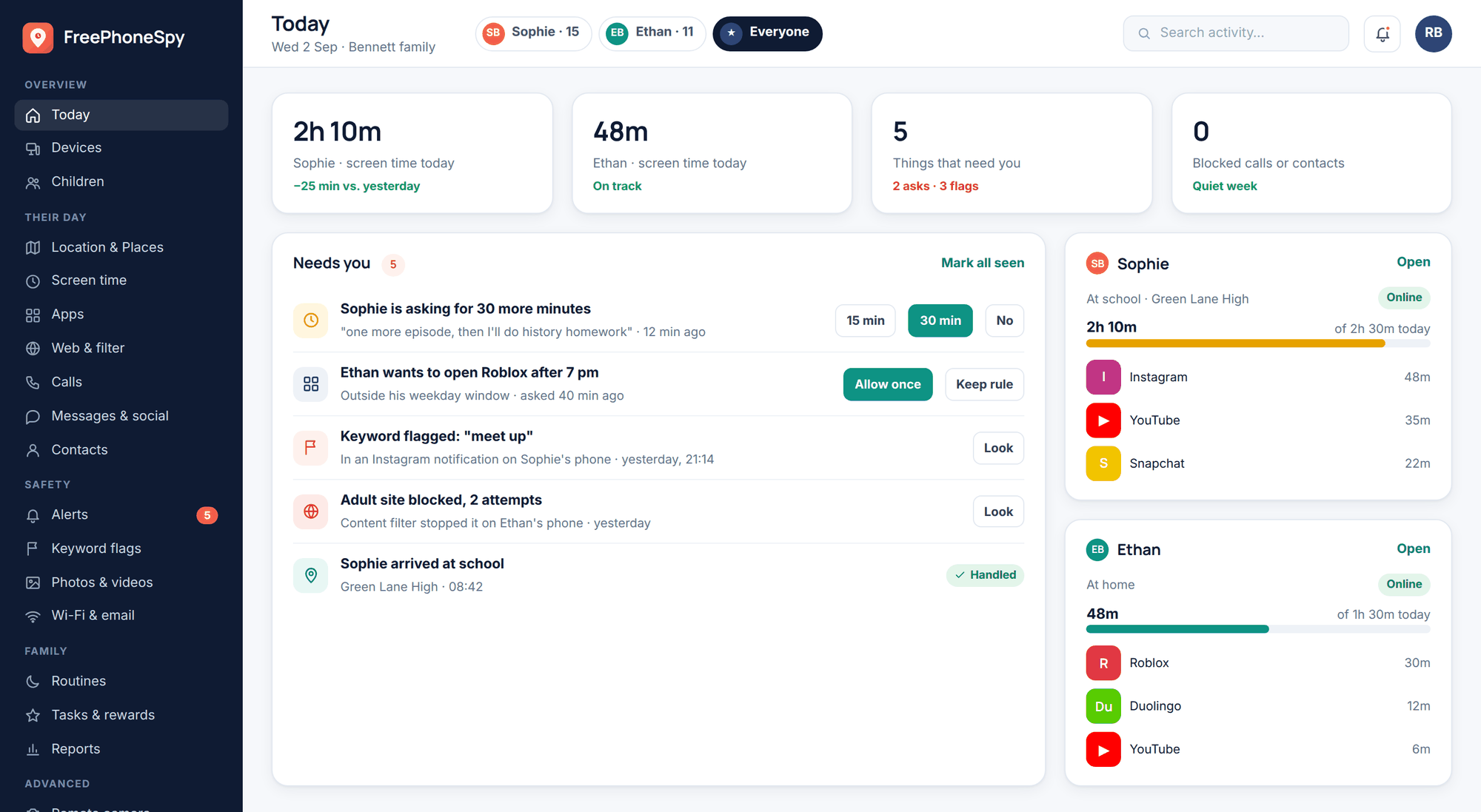
4. Set up the panel you’ll view from
Once the phone is linked, the app you installed largely fades into the background. From then on you look at things through a separate dashboard, usually a web panel you open in any browser, or a companion parent app on your own phone. Get this set up now while you’re in the swing of it.
- Log in to the panel. Open the service’s website or parent app and sign in with the account from step two. Your child’s device appears as its own entry.
- Take the tour. Most panels walk you through the main sections on first login: location, screen time, activity, alerts. Click through it once so you know where things live.
- Bookmark it and secure it. Save the login somewhere safe, turn on two-factor authentication if it’s offered, and never share the password. This panel holds your child’s information, so treat it as carefully as you’d want your own handled.
- Decide how you’ll check. A set rhythm beats constant refreshing. Many parents settle on a quick daily glance plus a proper weekly review, sometimes with the child alongside.
5. Configure the basics
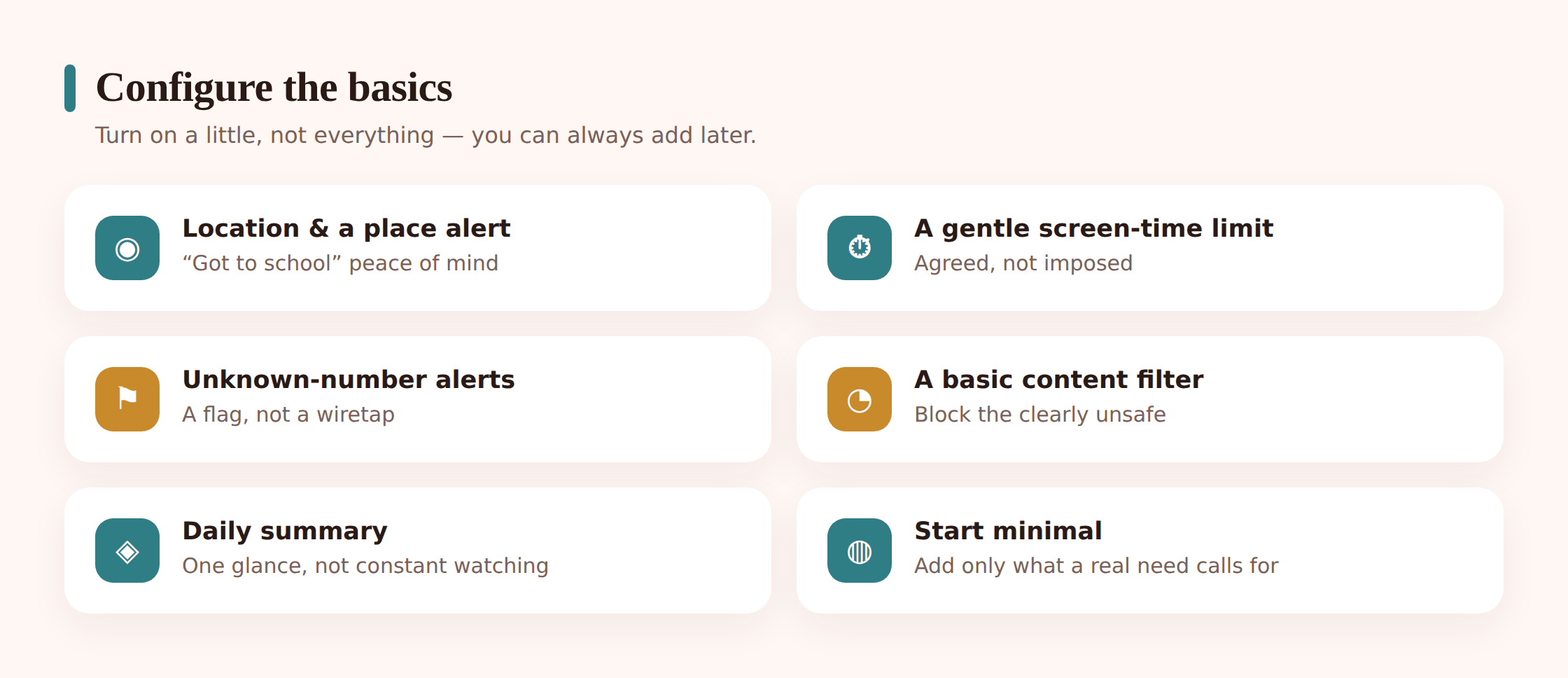
With the panel open, set up just the core features you chose earlier. Resist the urge to flip on every toggle you see. You can always add later; peeling things back after you’ve overreached is much harder.
Location
Turn it on and check the map shows the right place. If the panel offers place alerts, set one or two that genuinely help, arrived at school, left home, rather than a blanket net around the whole town.
Screen time
Look at the current usage before setting any limit, so your numbers are realistic rather than a guess. Agree the limits with your child, and where you can, set them in the panel together so the figure isn’t a surprise.
Alerts
This is where restraint pays off most. Configure alerts for real safety concerns, contact from strangers, certain risky keywords, and leave the rest off. An alert for every notification trains you to ignore all of them. A handful of meaningful ones you’ll actually read.
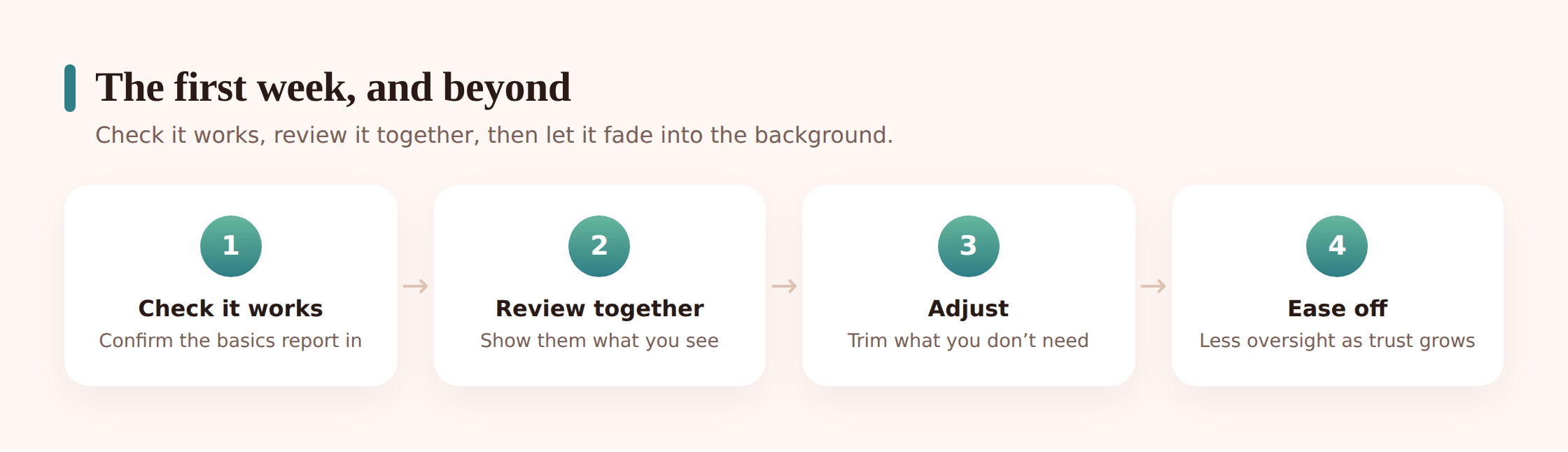
6. Your first-week checklist
The first week is about confirming it works and settling into a rhythm, not policing. Go gently. You’re both learning the tool together, and the tone you set now sticks.
- Confirm location updates correctly over a normal day out.
- Check screen-time figures look sensible and roughly match reality.
- Make sure the app is still running after a phone restart and a night on charge.
- Test that at least one alert actually reaches you.
- Sit down together at the end of the week and look at the panel side by side.
- Ask your child how it feels. Adjust anything that seems heavy-handed.
- Turn off any feature you set up but haven’t looked at once.
That last two points matter more than the technical checks. Reviewing together turns monitoring from surveillance into a shared habit, and pruning what you don’t use keeps the whole thing proportionate. If a feature earned its place, keep it. If it just sat there, it was probably too much.
7. Common mistakes to avoid
Almost every first-timer trips on the same handful of things. None are hard to sidestep once you know they’re coming.
- Monitoring everything at once. The overreach mistake. It overwhelms you with noise and signals distrust to your child. Start minimal.
- Being secretive. Hiding the app or installing it while they sleep undoes the entire point. If they find it, and they usually do, you’ve traded a small worry for a big breach of trust.
- Using it to control rather than protect. Monitoring exists to catch danger, not to micromanage who they text or comment on every site they visit. The moment it becomes a tool for control, cooperation ends.
- Setting it and forgetting it. What was right at twelve is wrong at fifteen. Revisit the settings every few months and ease off as your child earns more room.
- Skipping the agreement. Without something written down, expectations drift and every disagreement becomes your word against theirs.
Where FreePhoneSpy fits
To be straight with you about our own tool: FreePhoneSpy is built for exactly the open, consent-based approach this guide describes. It’s an Android app you install on your child’s phone with their knowledge, and you view everything from a dashboard in any web browser, no special software on your end. It’s free to start, so you can try the approach without committing anything. It works best set up the way we’ve laid out here, with the conversation first and the agreement written down. It is not, and shouldn’t be used as, a hidden app for watching someone without their knowledge.
FAQ
Should I tell my child before or after I install it?
Before, always. The conversation comes first, then you set it up together, ideally with them tapping the buttons. Installing first and explaining later, or never, turns a safety tool into something they discover and resent. Openness is what makes it work.
What’s the minimum I should start with?
For most families, location plus a screen-time overview is plenty at the start. Add app blocking for younger children. Leave message and content monitoring off unless a specific, real concern makes you need it. You can always add later; walking things back is harder.
My teenager says it means I don’t trust them. What do I say?
Acknowledge the feeling, it’s fair. Explain it’s a light safety net for a world that’s genuinely risky, not a verdict on them, and that it loosens as they show they can handle more. Offering to review together, and to monitor less, usually turns the objection into a deal you both accept.
How often should I actually check the dashboard?
Less than you’d think. A quick daily glance and a proper weekly review, ideally with your child, is enough for most families. Constant refreshing raises your anxiety and theirs without adding safety. Set alerts for the things that truly matter and let the rest sit.
Is it legal to monitor my child’s phone?
Monitoring your own minor child on a device you own or manage is generally lawful, and doing it openly keeps you well inside both the law and good practice. Monitoring another adult, or anyone without their knowledge, is a different matter and often illegal. This guide is only for the first case.
First-time setup really does come down to one idea: the tool matters far less than the way you introduce it. Start with the talk, write down what you agreed, switch on only what you need, and check in together as you go. Do that and monitoring becomes a quiet backstop your child understands rather than a secret they’ll one day uncover. Take the fifteen minutes, do it in the open, and let it fade into the background where it belongs.