Setting Up a First Social Media Account Safely: A Step-by-Step Guide
You’ve made the call. After the back-and-forth about age limits and readiness, you’ve decided your teen is ready for a first account. That’s the hard part done. What’s left is the part nobody really explains: how to actually set the thing up so it’s locked down from the first login instead of wide open by default. Social apps ship with the settings tuned for growth, not for a fourteen-year-old’s safety, and the good ones are buried three menus deep. This guide walks you through it, together, one screen at a time.
Do it together, not for them
The single biggest thing you can do for a first account happens before you touch a single setting: sit down and do it side by side. Not you setting it up and handing over a finished profile. Not them setting it up alone and showing you afterward. Both of you, one phone, going through each screen while you explain why a given toggle matters.
There’s a reason for this beyond control. If your teen watches you flip an account to private and hears you say why, they learn what the setting does. Six months from now, when a friend asks why they can’t see their story, your teen will actually know the answer. Set it up for them and you’ve taught them nothing except that a parent handled it. The goal isn’t a locked account — it’s a kid who understands why it’s locked and can make the next decision themselves.
It also changes the tone. Doing it together makes the whole thing feel like a shared project rather than a list of restrictions imposed from above. You’re not the person taking things away. You’re the person who knows where the good settings are hidden. That’s a much better seat to be in when something goes wrong later and they need to come to you.
If you’re still weighing up whether this is the right moment at all, that’s a different conversation — we cover it in the decision to allow social media. This guide assumes you’ve already crossed that bridge and now want to do the setup right.
Before you tap “sign up”
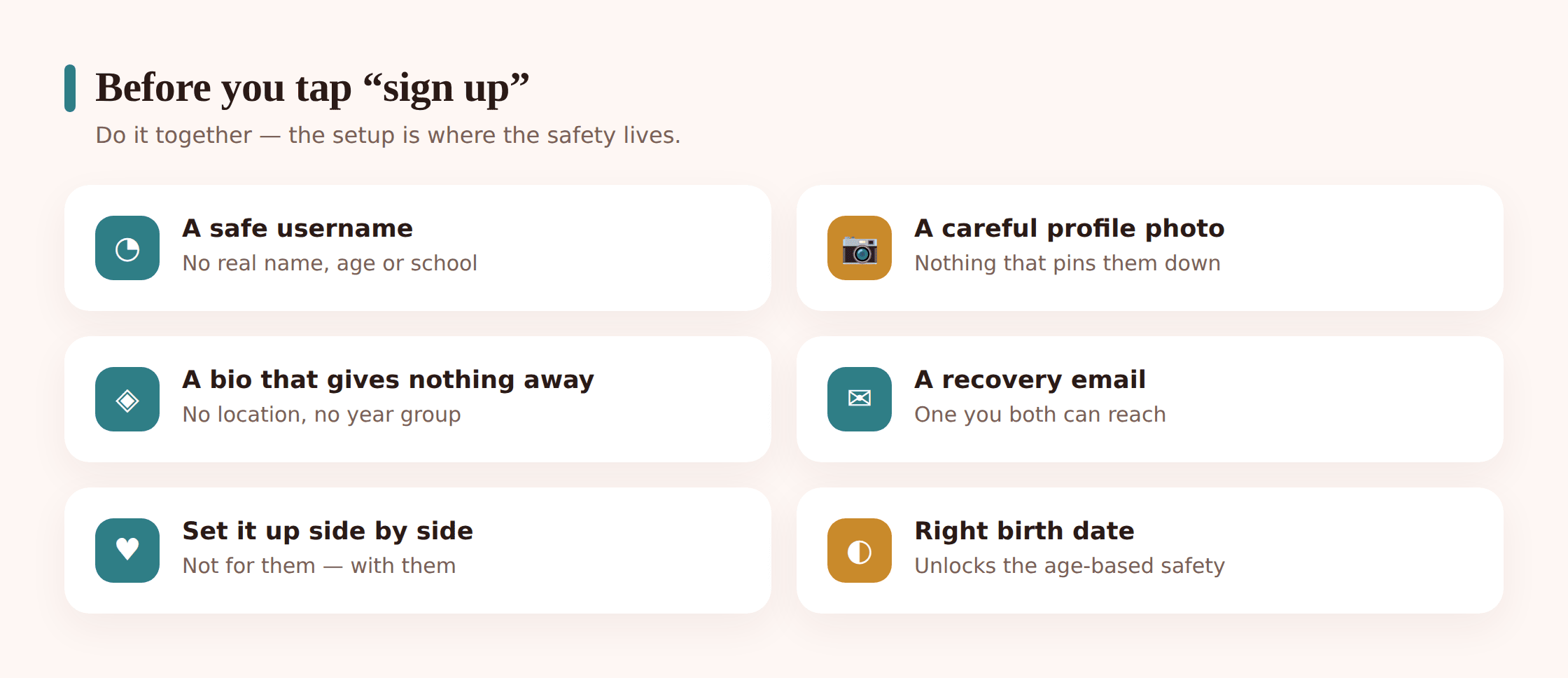
A little groundwork makes the setup itself go smoothly. None of this takes long.
- Pick the email address first. Use an email you both have access to, ideally the one from their first email account that you already help manage. This becomes the recovery lifeline, so it matters that it’s reachable.
- Check the real age requirement. Most mainstream platforms set the floor at 13. Enter the true date of birth. Faking an older age doesn’t just break the rules — it strips away the extra protections these apps apply automatically to teen accounts, which are some of the best safeguards you get for free.
- Have a password plan. Decide up front that this account gets its own strong, unique password, not the one recycled from three other logins. We’ll set it during the walkthrough.
- Agree the ground rules first. It’s much easier to talk about who they’ll follow and the “come to me” rule before the account exists than to renegotiate once friends are already messaging.
The setup sequence at a glance
1. Create the account with the real birthday and your shared recovery email.
2. Choose the username and build the profile — nothing that gives away who or where they are.
3. Switch the account to private before you do anything else, so it’s locked while you finish.
4. Work through the privacy menu — messages, tags, activity status, comments, location, suggestions.
5. Set the password and turn on two-factor authentication.
6. Handle the content and story settings.
7. Follow the first handful of people you both know and trust.
A note that applies to everything below: menus move. Every app reorganizes its settings a couple of times a year, renames things, and shuffles toggles between “Privacy” and “Account” and “Security.” The names and locations here are the general shape, not a guarantee. If a setting isn’t where this guide says, use the app’s own search inside settings — most have a search bar now — and look for the idea, not the exact label.
Choosing a safe username & profile
Here’s a thing people miss: even on a fully private account, certain details stay public. The username, the display name, the profile photo and often the bio show up in search results and next to any comment your teen leaves elsewhere. So this layer needs care regardless of how locked down the rest is.
The username
Aim for something that identifies your teen to friends but tells a stranger nothing. The rules of thumb:
- No full name. A first name or a nickname is fine. First-and-last hands anyone a search term to find them everywhere else.
- No birth year. “emma2011” quietly announces both an age and roughly when they were born. Drop the numbers, or use ones that mean nothing.
- No school, town or team. “maddie_westfield_high” narrows down where to physically find a child. Keep place out of it entirely.
- Nothing suggestive or “older.” A username that reads as flirty or adult invites exactly the wrong attention. Keep it plain.
A hobby plus a first name works well — something like “leo_draws” or “priya_hoops.” Easy for real friends to recognize, useless to a stranger.
The profile photo
A clear face photo isn’t necessary and, for a younger teen, is worth avoiding. Good alternatives: a pet, a drawing, a favorite band or team crest, a photo taken from behind or at a distance, a cartoon avatar. If they really want a face, pick one that doesn’t also show the front of the house, a school uniform with a crest, or a location tag in the background.
The bio
The bio is where kids instinctively want to list everything — age, school, town, “DM me,” a Snapchat handle, a linked account. That’s precisely the information a stranger uses to seem familiar. A safe bio gives nothing concrete away. An emoji or two, a hobby, an inside joke among friends. No age, no location, no school, no phone number, and no “add me on [other app]” that chains accounts together for anyone who finds one of them.
The privacy settings to switch on
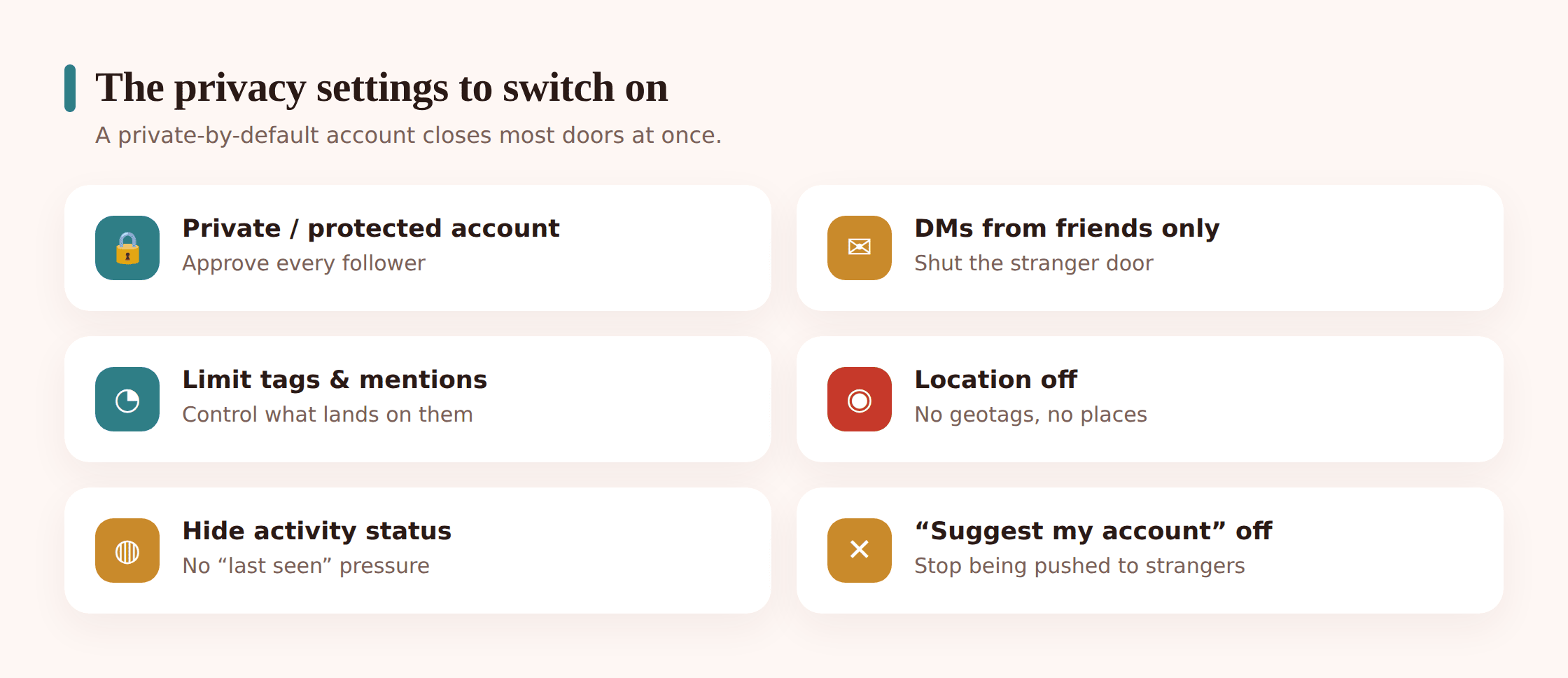
This is the heart of the setup. Every platform words these differently and puts them in different places, but the underlying controls are broadly the same across Instagram, TikTok, Snapchat and the rest. Here’s what to look for, roughly in order of importance.
- Private / protected account — do this first. This is the master switch. On a private account, only approved followers see the posts, and anyone new has to send a follow request your teen actively accepts. On several apps, teen accounts now default to private, but confirm it rather than assuming. This one setting does more than all the others combined.
- Who can message or DM you — set to friends only. Change this so only people your teen already follows, or who they’ve accepted, can send a direct message. This shuts the door on the most common way strangers make first contact.
- Who can tag or mention you. Limit tags and @-mentions to people they follow. This stops a stranger from dragging your teen’s name into a random post or pulling them into a public thread.
- Hide activity status. Turn off the little “active now” or “last seen” indicator. There’s no reason for the internet to know when your child is online, and it removes a small pressure to reply instantly.
- Limit who can comment. Restrict comments to followers, and switch on any offensive-comment or hidden-words filter the app offers. Some platforms let you auto-hide comments containing certain words — worth turning on.
- Location off. Disable location tagging on posts, and turn off any live-location or map feature (Snapchat’s map is the big one — set it to “Ghost Mode”). In the phone’s own settings, deny the app precise location access entirely if you can.
- Turn off “suggest my account to others.” Most apps have a setting that recommends the account to contacts, to friends-of-friends, and across the company’s other apps. Switch it off so your teen isn’t being pushed out to strangers.
- Review “who can see your following/followers list.” Where the option exists, keep it limited. A visible follower list is a ready-made map of your child’s friends for anyone who wants one.
Work down this list together on the actual phone. It usually takes ten minutes. For more on the day-to-day of using these apps once they’re set up, our guide to social media safety picks up where this one leaves off.
Locking it down: password & 2FA
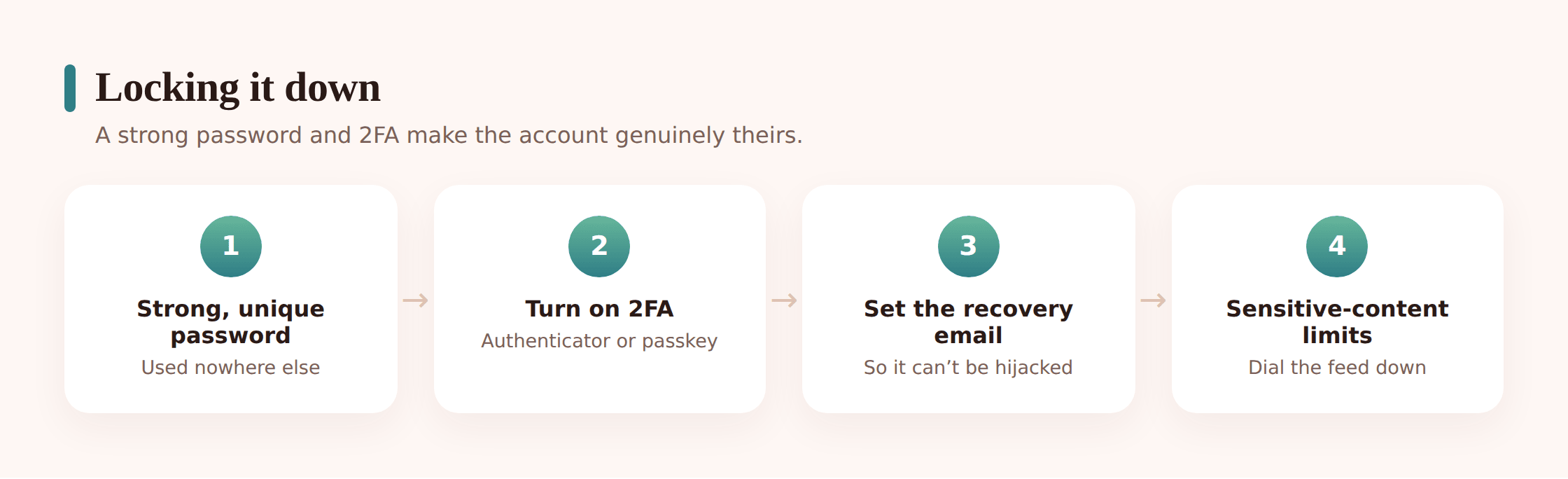
Privacy settings keep strangers out of the content. This layer keeps them out of the account itself. A hijacked social account is a genuinely bad day — someone messaging your child’s friends while pretending to be them, or locking your teen out entirely — and it’s almost entirely preventable.
A strong, unique password
The account needs its own password, used nowhere else. The reason is simple: passwords leak from other services all the time, and if this account shares one, a breach somewhere unrelated hands over the keys here too. Longer beats complicated — a passphrase of a few unrelated words is both stronger and easier to remember than “P@ssw0rd!”. Let the phone’s password manager or a family one generate and store it. We go deeper on this in passwords & 2FA.
Two-factor authentication
Turn this on now, while you’re already in the settings. Two-factor means that even if someone gets the password, they still can’t log in without a second code. Look for it under “Security” or “Login.” You’ll usually get a choice:
- An authenticator app (Google Authenticator, Authy, or the one built into the phone) is the most robust option — codes are generated on the device and don’t travel over text.
- Text-message codes are a solid second choice and better than nothing. They can be intercepted in rare, targeted cases, but for an ordinary teen account they raise the bar enormously.
Whichever you pick, save the backup or recovery codes the app gives you somewhere safe — not in the phone’s notes app. These are what get you back in if the phone is lost.
Recovery email and phone
Confirm the recovery email is the shared one you both reach, and add a recovery phone number. This is quietly one of the most important steps: if the account is ever compromised or locked, recovery flows back through here. Because you help manage that email, you have a real path to help your teen recover the account rather than losing it. That’s not surveillance — it’s the safety net you’d want for any account a fourteen-year-old owns.
Content and story settings
Two more areas worth a minute each once the core is done.
Sensitive-content controls
Most platforms now have a “sensitive content,” “content preferences” or “restricted mode” setting that limits how much edgy, violent or adult-adjacent material the algorithm serves up in the explore or for-you feeds. For teen accounts this is often set to the strictest level by default — check it’s there and dialed up. It’s not a perfect filter, and nothing catches everything, but it meaningfully cuts what gets pushed at a new user.
Who can see stories and posts
If the app has stories, set who can view them to followers only, and use any “close friends” feature if your teen wants to share more openly with a small trusted circle. Turn off resharing of their stories to others’ feeds where that’s an option. The principle throughout: your teen chooses who sees their stuff, and the default is “people I actually know,” not “everyone.”
The family agreement to pair with it
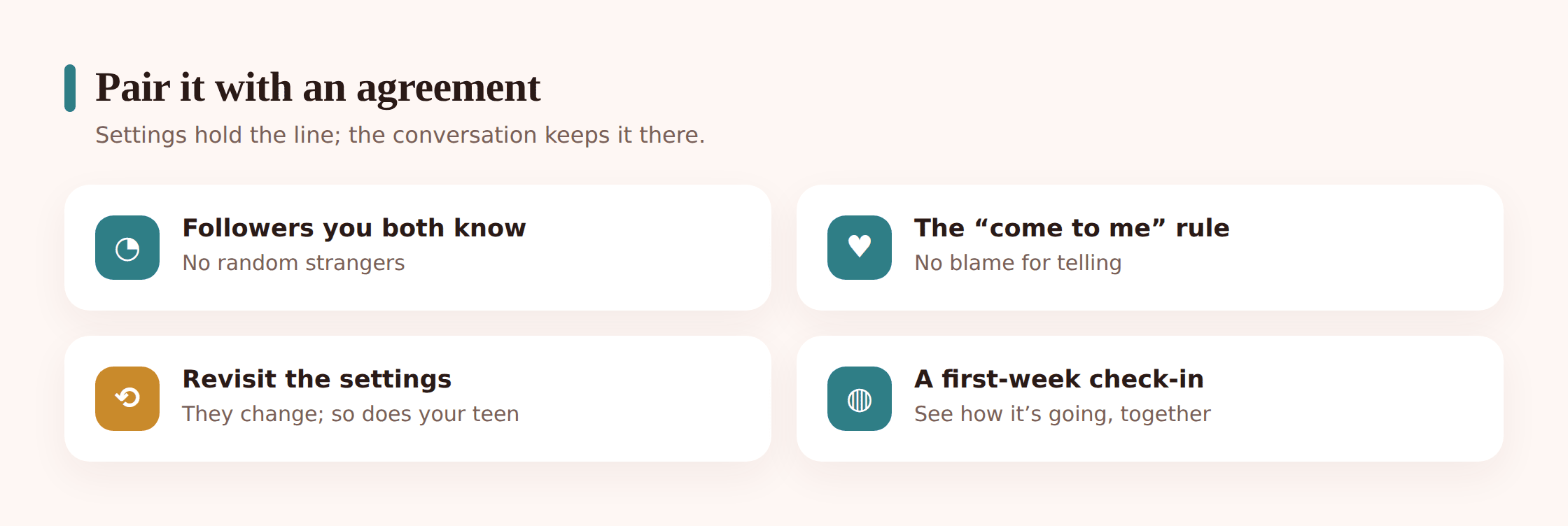
Settings do half the job. The other half is the handful of understandings you agree on together — not a contract you impose, but a few clear expectations you both sign up to. Keep it short enough that everyone remembers it.
- Only follow, and accept, people you both actually know. Real-life friends, family, classmates. Not “a friend of a friend,” not someone who followed first, not an account just because it’s popular. If they don’t know the person offline, the answer is no for now.
- The come-to-me rule. This is the most important one. If anything feels off — a stranger messaging, a request for photos, something scary or upsetting, a mistake they’ve made — they come to you, and they will not be in trouble for coming. Say it out loud, and mean it. The moment a kid fears the reaction more than the problem is the moment they stop telling you.
- No sharing what pins you down. No live location, no school name, no home address, no “I’m home alone” posts, no meeting anyone in person from the app without talking to you first.
- We revisit the settings together. Apps change, and so do the rules. Agree that every so often you’ll open the privacy menu together and check nothing’s been reset by an update or quietly loosened.
If you already have a broader family phone agreement, fold these into it rather than making a separate document. One set of expectations the whole family knows beats several nobody reads.
The first-week check-in
The first week or two is when habits form, so it’s worth a light-touch check-in — not an interrogation, just a normal chat.
- Ask how it’s going. Who have they connected with? Seen anything weird or funny? Keep it curious, not suspicious. You’re building the habit of talking about it, which matters more than any single answer.
- Re-open the privacy settings together. Confirm nothing got switched during setup that shouldn’t have, and that the private toggle held. This also quietly reinforces that checking settings is just a normal thing you do.
- Watch the follow requests. A flood of requests from accounts nobody recognizes is worth noticing early. On a private account they’re harmless until accepted — the lesson is simply to decline the ones they don’t know.
- Notice how it’s landing. Is the app fun, or is it already generating anxiety — comparison, pressure to reply, a bad mood after scrolling? A first account is also a trial run. It’s completely fine to pause it if the fit is wrong right now.
After the first couple of weeks, the check-ins can stretch out. The aim over months and years is to do less, not more — to hand over the wheel a little at a time as your teen shows they can handle it. A first account set up carefully, together, is the foundation that makes loosening the reins later feel safe instead of scary.
Should the account be private?
Yes — start private, without hesitation. On a private or protected account, only approved followers see the posts and every new follower has to be actively accepted. It’s the single most effective setting available, and for many teen accounts it’s now the default anyway. A public account can come later, if ever, once your teen is older and you’ve both talked it through. There’s no downside to starting locked.
Should I have their password?
For a first account, especially for a younger teen, holding the login and recovery details is reasonable and worth being open about — “I’ll have this so I can help if the account’s ever hacked or locked.” That’s different from routinely reading their private messages, and it helps to be clear about the difference. As your teen gets older and shows they can manage the account well, having their day-to-day password matters less; the recovery email you help manage becomes the real safety net.
The settings aren’t where this guide says. What now?
That’s normal — apps reorganize their settings menus a few times a year and rename things constantly. Look for the idea rather than the exact label, and use the search bar inside the app’s settings if it has one (most do now). Search “private,” “message,” “location” or “two-factor” and you’ll usually land close. The categories in this guide — privacy, security, content — are stable even when the individual toggles move around.
Which platform is safest for a first account?
None is simply “safe” or “unsafe” — each has strong privacy tools and each has risks, and the safety comes mostly from how it’s set up and used rather than the logo. That said, pick one to start with rather than opening several at once, choose the one your teen’s real friends actually use so the pull toward other apps is weaker, and set it up properly using the steps above before moving on to any others.
Do I need to follow their account?
Following each other is a natural, low-key way to stay connected and is generally a good idea for a first account — it’s presence, not surveillance, and it keeps the whole thing out in the open. What matters more than the follow itself is the tone: you’re there as a familiar face, not a monitor scoring every post. If your teen bristles at the idea, that’s worth talking about openly rather than insisting silently.
What if they want to change a setting later?
Expect it, and treat it as a conversation rather than a battle. “Can I make my account public?” or “Can I turn off the location thing back on for the map so my friends can see me?” are exactly the discussions you want to be having — they mean your teen is thinking about the settings, which is the whole point. Revisit it together, weigh the reason, and adjust as they earn it. The settings you chose on day one aren’t meant to be permanent; they’re a starting position you loosen over time.
Setting up a first account well isn’t about building the most restrictive profile possible. It’s about starting from a safe default, understanding together why each piece is there, and leaving room to open up as your teen grows into it. Do the setup carefully once, pair it with a couple of clear agreements, check in early, and you’ve given your child a much better first experience than the wide-open default the app would have handed them on its own.