How to Transfer Everything to a New Phone
New phone in hand, old phone still full of your life. Photos, chats, the app that holds your bank login, the game with two years of progress. Moving it all across sounds scary, but most of it copies itself if you set things up in the right order. The parts that don’t copy cleanly are few, and they’re the ones worth slowing down for. Here’s how to do the whole thing without losing anything.
Before you start: the checklist
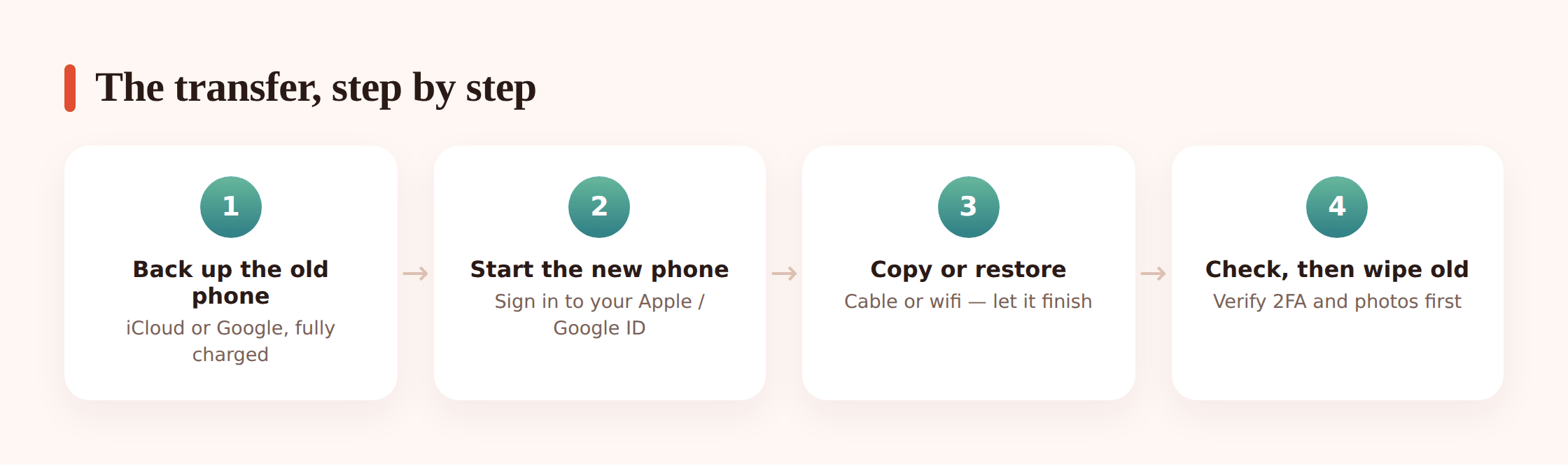
Five minutes of prep here saves an hour of panic later. Don’t skip the backup, and don’t wipe the old phone until the end.
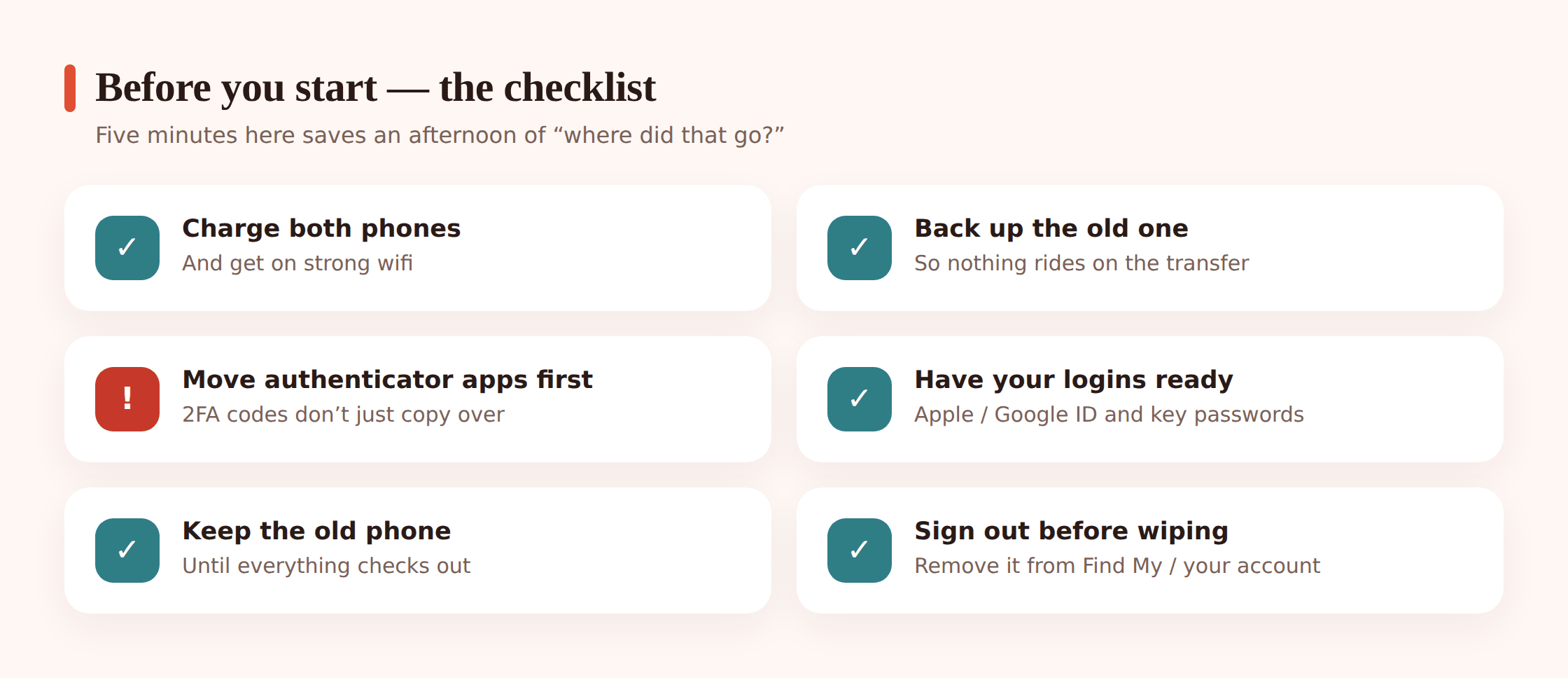
- Charge both phones past 50%, or keep them plugged in. A transfer that dies halfway is a mess to restart.
- Get on strong wifi. You may be moving tens of gigabytes. Cellular data will crawl and can cost you.
- Back up the old phone first. Google backup on Android, iCloud or a computer backup on iPhone. This is your safety net if anything goes sideways.
- Know your account logins. Your Google account and Apple ID passwords, not just the fingerprint. You’ll be asked to sign in on the new phone.
- Write down your 2FA situation. Where do your authenticator codes live? Which apps text you a code? More on this below, because it trips people up.
- Keep the old phone for a few days. Don’t trade or reset it until you’ve opened the new one and confirmed everything’s there.
Which method fits your move
The right tool depends on where you’re coming from and going to. Same operating system is easy. Crossing between Android and iPhone works, but you’ll lose a few things and set some up again by hand.
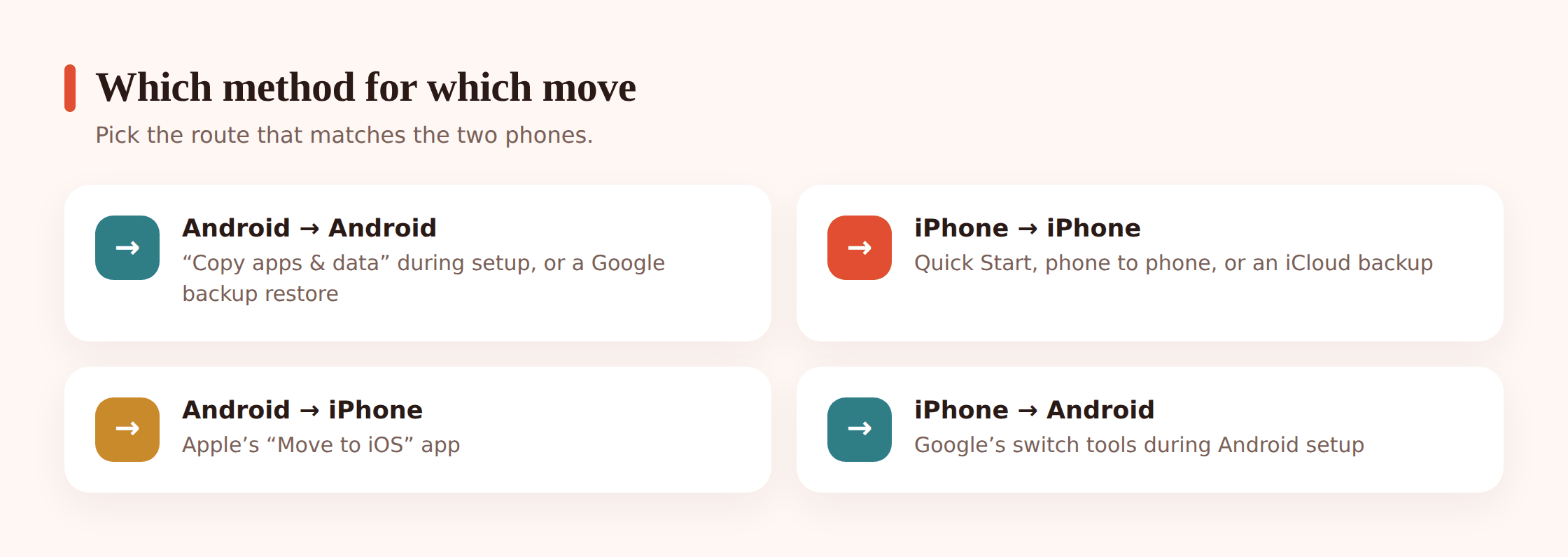
| Your move | Best tool | How complete |
|---|---|---|
| Android to Android | Built-in “Copy apps & data” (cable or wifi), or a Google backup restore | Almost everything |
| iPhone to iPhone | Quick Start (phone to phone), or an iCloud / computer backup | Almost everything |
| Android to iPhone | Apple’s “Move to iOS” app | Core data, not apps |
| iPhone to Android | Google’s setup copy, or the “Switch to Android” app | Core data, not apps |
One thing that’s true for every move: contacts, calendar and email that are synced to an account don’t really “transfer” at all. You sign into that account on the new phone and they reappear. So the messy part is only ever the stuff living on the device itself.
Android to Android, step by step
New Android phones walk you through this during first-time setup. If you already tapped past it, you can reset the new phone or use a Google backup restore instead.
Start setup on the new phone
Power it on, pick your language and wifi. When it asks to copy apps and data from another device, say yes. If you already finished setup, go to Settings and reset the phone to get this screen back, or restore from your Google backup.
Connect the two phones
A USB-C cable between them is fastest and most reliable. No cable? Choose wireless, and the phones pair over wifi. Have the old phone unlocked and nearby.
Sign in and choose what to copy
Sign into your Google account. You’ll see a list: apps, photos, messages, contacts, call history, settings, even your wallpaper. Leave it all ticked unless you want a clean-out.
Let it run, then finish setup
Small transfers take minutes, big ones can take an hour. Apps download in the background afterward, so the phone is usable before it’s truly finished. Give it time on wifi.
What comes across: your apps (re-downloaded fresh from the Play Store), photos and videos, SMS and MMS messages, contacts, call log, and most system settings. App logins are hit and miss. Some apps restore you signed in, others make you log in again, which is normal.
iPhone to iPhone, step by step
Apple’s Quick Start is the smoothest transfer of the lot. Keep the two iPhones next to each other and it does most of the talking.
Bring the phones together
Turn on the new iPhone and hold it near the old one. A Quick Start card pops up on the old phone. Tap Continue, then point the old camera at the swirling pattern on the new screen.
Choose transfer from iPhone
Enter your old passcode on the new phone and set up Face ID or Touch ID. When asked, pick “Transfer from iPhone” to copy directly device to device, rather than downloading from iCloud.
Keep them close and plugged in
A progress bar shows the copy. Keep both phones nearby and charging. Bigger libraries take a while, so let it sit.
Restore from a backup instead (optional)
No old phone in front of you? On the new one, choose to restore from an iCloud backup, or plug into a computer and restore a saved backup there. Same result, just from the cloud or disk instead of the other phone.
What comes across: apps, app data, home screen layout, photos, messages including iMessage, settings, and more. This is the most complete transfer available. The main thing you’ll still do by hand is re-enter a few passwords and confirm your authenticator app, covered below.
Android to iPhone
Apple makes a free Android app called Move to iOS. It moves the essentials over wifi, but it can’t bring your Android apps, and paid apps you’ll re-buy or re-download from the App Store.
Get to the transfer screen on the iPhone
During iPhone setup, on the “Transfer Your Apps & Data” screen choose “From Android.” If you already finished setup, you’ll need to reset the iPhone to see it.
Install Move to iOS on the Android phone
Get it from the Play Store, open it, and agree to the terms. Tap Continue until it asks for a code.
Enter the code and pair
The iPhone shows a code. Type it into the Android phone. They connect over a private wifi network the iPhone creates.
Pick your data and wait
Choose contacts, message history, photos and videos, mail accounts and calendars. Keep both phones untouched until the iPhone’s bar is full, not the Android’s.
What it moves: contacts, message history, camera photos and videos, web bookmarks, mail accounts, calendars, and some free apps that exist on both stores. What it doesn’t: your actual Android apps and their data, music files, and most app logins. Budget some time on the other side to install apps fresh and sign back in.
iPhone to Android
Most new Android phones can pull data straight from an iPhone during setup, and Google also offers a “Switch to Android” app. Either way, the shape is the same.
Start the Android setup copy
On the new Android phone, at the copy-data step, choose to bring data from an iPhone. Connect the two with a cable if you have the right adapter, or follow the on-screen wireless option.
Sign in and confirm
Sign into your Google account and follow the prompts. You may be asked to turn off iMessage on the iPhone so future texts arrive on the Android, an easy step to forget.
Choose what to bring
Photos, videos, contacts, calendar events, and messages where supported. Let it finish before you unplug.
What moves: photos and videos, contacts, calendar, and often messages. The gaps: iOS apps have no Android equivalent to restore, so you reinstall from the Play Store, and iMessage chats don’t carry into Android’s messaging. Turn off iMessage before you retire the iPhone or texts from other iPhone users can go missing.
The tricky ones: WhatsApp, photos, 2FA
These are the items that don’t ride along in the main transfer, or that break in ways you won’t notice until later. Handle each one on purpose.
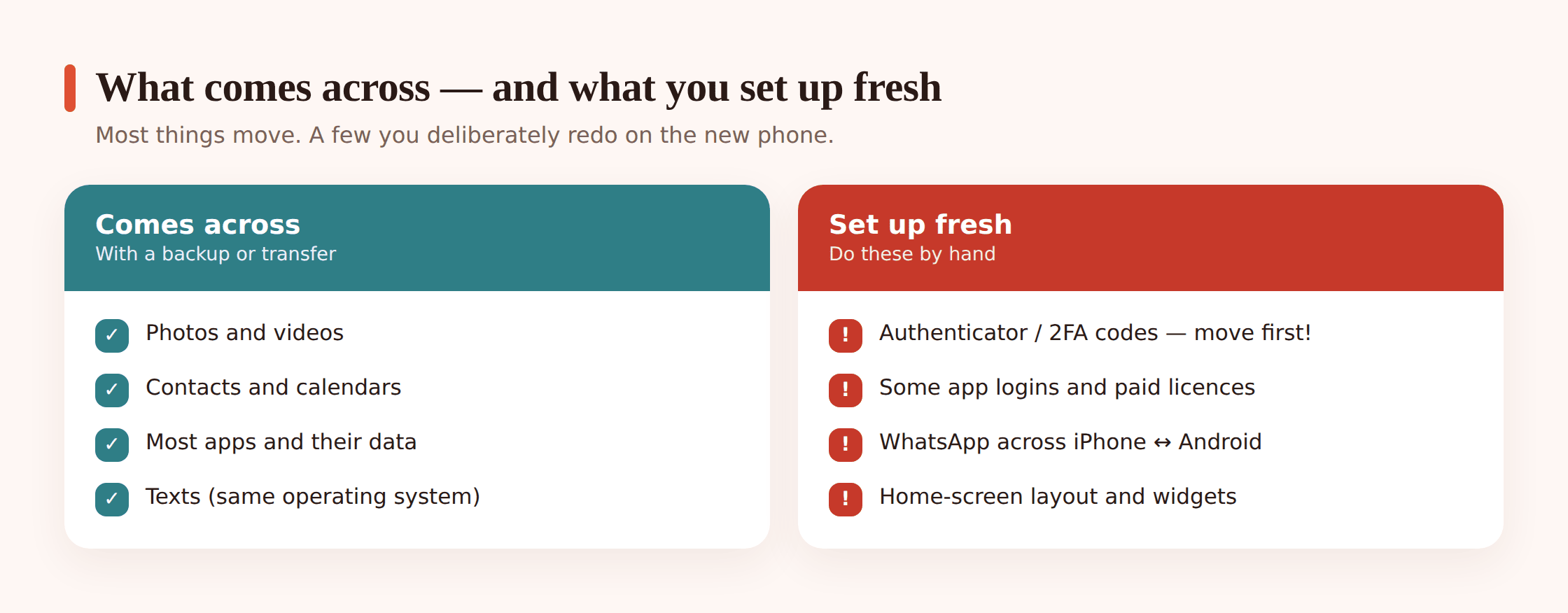
- Your authenticator / 2FA codes, which usually do not copy across automatically.
- A fresh WhatsApp backup, made on the old phone right before you move.
- Any photos or videos not yet backed up to the cloud.
WhatsApp chats
Same operating system is easy: make a backup in WhatsApp’s chat settings on the old phone (to Google Drive on Android, iCloud on iPhone), then install WhatsApp on the new phone, verify your number, and restore. Cross-OS between Android and iPhone is now possible but fiddly, usually needing the phones cabled together during setup and the steps followed in exact order. Make that fresh backup first no matter what. If a restore comes up short, our guide to recovering deleted WhatsApp messages walks through backup restores in detail.
Photos and videos
The reliable path is to let a cloud service hold them so they don’t depend on any single phone. Turn on Google Photos backup on Android or iCloud Photos on iPhone, wait for it to finish on the old phone, then sign into the same account on the new one and they stream down. Anything shot in the last day that hasn’t synced yet is the risk, so confirm the backup is current before you reset anything.
Contacts
If your contacts are saved to your Google or Apple account, they need no transfer at all. Sign in on the new phone and they populate. The only contacts at risk are ones saved to the phone or SIM itself, so check that your contacts show your account as their home before you move.
Messages and SMS
Same-OS transfers carry your texts. Cross-OS is patchier: Move to iOS and the Android switch tools bring message history when they can, but threads don’t always survive intact. If a specific conversation matters, screenshot it before you switch as a backstop.
Authenticator apps and two-factor
This is the one people regret. Authenticator apps like Google Authenticator, Authy or Microsoft Authenticator hold the codes that log you into your important accounts. Those codes often do not come across in a normal transfer. Move them before you wipe the old phone. Most authenticators have an export or account-transfer feature built for exactly this, so use it while both phones are working. If you reset the old phone first and the codes were only there, you can get locked out of your own accounts and into a slow recovery process.
After the move, then wipe the old phone
Resist the urge to factory reset the old phone the moment the new one lights up. Check first, wipe last.
Sign into your key apps
Open your bank, email, messaging and photo apps on the new phone and confirm you’re actually signed in and seeing your data. Log into any that ask.
Test your 2FA
Trigger a login that needs a code and make sure your authenticator or text codes arrive on the new phone. Fix this now, while the old phone is still around as a fallback.
Re-download what didn’t come
Cross-OS moves especially will leave gaps. Go through the app store and reinstall anything missing, then sign back in.
Sign out, then factory reset the old phone
On Android, remove your Google account in Settings, then factory reset. On iPhone, sign out of your Apple ID (this turns off Activation Lock) before you Erase All Content and Settings. Signing out first is what makes the phone safe to sell or hand on. Pull the SIM and any memory card too.
If you ever misplace a phone mid-move, don’t panic and don’t reset from afar too early. Our guide on how to find a lost or stolen phone covers locating and locking it first.
If it’s a child’s monitored phone
Setting up a phone for a kid is its own project, and worth doing deliberately. If you’re starting from scratch, see setting up a new phone for a child and the wider child’s first phone guide.
If the child’s phone runs FreePhoneSpy and they’re moving to a new Android, you don’t lose their history. Install the app on the new phone and re-pair it to your panel with a 6-digit code, and the existing history stays right where it is in your view.
FAQ
Do I need the old phone to transfer, or can I do it from a backup?
Both work. Phone-to-phone (a cable or the wireless pairing) is fastest and most complete. If the old phone is broken or gone, restore from a Google, iCloud or computer backup instead, as long as you made one.
Will my apps come across already logged in?
Some will, many won’t. Same-OS transfers restore a lot of app data, but plenty of apps ask you to sign in again for security. Have your passwords ready and expect to log into your bank and email fresh.
Can I move WhatsApp between Android and iPhone?
Yes, but it’s the fussy one. It usually needs the phones cabled together and the steps done in a set order during setup. Make a fresh WhatsApp backup on the old phone first, whichever direction you’re going.
What almost never transfers automatically?
Authenticator (2FA) codes. Move them deliberately using your authenticator’s export or transfer feature before you reset the old phone, or you risk locking yourself out of accounts.
How long does a transfer take?
Anywhere from a few minutes to over an hour, depending on how many photos and apps you have, and on the speed of your connection. Keep both phones charged and don’t interrupt it.
When is it safe to wipe the old phone?
Only after you’ve opened the new phone, signed into your key apps, and confirmed 2FA works. Then sign out of your accounts on the old phone and factory reset it. Wait a few days if you can.