Blocking websites is one of the most practical things a parent can set up — and the art of it is being firm enough to matter without breaking the phone's normal use. Here's how to do it, from the free built-in options through to dedicated tools, plus the part most guides skip: how to keep the block in place once it's set.
A note on lawful use: the methods here are for protecting your own minor children or managing devices you own with the user informed. Monitoring another adult’s device without their knowledge is illegal in most places. Always check the rules where you live first.
Blocking websites is mostly about content filtering, and the honest truth is that no filter is perfect — the web is too big and changes too fast. The realistic goal is to close off the clearly harmful categories (adult content, gambling, self-harm material) so a child doesn't stumble into them, while accepting that a determined teenager can eventually find ways around any filter. That's why filtering works best as one layer alongside conversation, not as a wall you assume is complete.
The built-in options
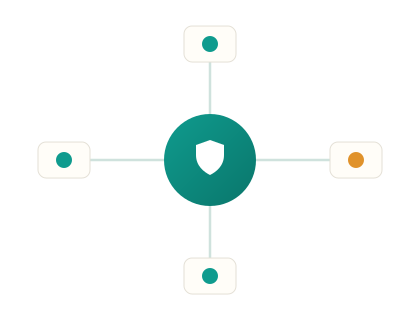
Apple's Screen Time content restrictions can limit adult websites or allow only specific sites, and Google's Family Link offers site filtering on Android. Many home routers also include parental filtering that covers every device on your network — useful for the home, though it doesn't follow the phone onto mobile data.
When to step up to a dedicated tool
Built-in tools are great until you want finer control: scheduling, cross-platform consistency, or a log of what was blocked and when. A dedicated app blocker and site blocker add maintained category filtering (so you don't hand-list every site), custom block and allow lists, schedules (games pause during homework automatically), and a record of attempts — all managed from one dashboard rather than two separate phones. That logging is quietly valuable: a category being repeatedly tested tells you where a calm conversation would help.
Making the block actually stick
On a child's device, the block is only useful if it can't be trivially switched off. Choose a tool that protects its own settings, and on the built-in options use a separate passcode the child doesn't know. Start with the clearly harmful categories rather than locking everything down, watch for false positives in the first week, and use an allow-list to quickly fix anything caught unfairly. The goal is a phone that still feels normal, with the genuinely harmful corners quietly closed off.
Pair blocking with conversation
Filtering is a backstop, not a substitute for teaching judgement — the skill that protects a child once they're on a friend's phone or out in the world. Explain why something is blocked, and loosen restrictions as your child matures and earns trust. Our guide on controls versus conversation covers getting that balance right.
Blocking at the network level too
One layer many parents overlook is the home network. Most modern routers include parental controls that can filter websites for every device connected to your Wi-Fi, and you can often set a DNS-based filtering service to block whole categories before a request even leaves the house. The advantage is breadth — it covers the games console, the smart TV and the tablet, not just the phone. The limitation is equally important to understand: network filtering stops at your front door, so the moment a phone switches to mobile data or connects to a friend's Wi-Fi, those rules no longer apply. That's exactly why on-device controls and network filtering work best together rather than either alone.
Review and adjust over time
Blocking isn't a set-and-forget job. Apps and sites change, your child grows, and a block list that fit a nine-year-old will frustrate a thirteen-year-old. Put a reminder in your calendar to review the settings every few months: loosen what's no longer needed, tighten anything that's slipped, and talk through any blocks your child has been bumping into. Treating it as a living arrangement — rather than a wall you build once — keeps it both effective and fair, and signals to your child that the goal is their safety and growing independence, not control for its own sake.
Related reading
Want finer control?
Setup takes about 5 minutes on a device you own or manage.
- Create your secure account
- Install on the target device you own/manage
- View activity in your private dashboard