How to Track Your Child’s Phone Location: A Parent’s Guide
You want to know they got to school. You want to know they’re safe on the walk home. That’s the whole reason most parents set up location tracking, and it’s a good one. Done openly, with your child in on it, a family locator is a quiet safety net, not a leash. Done in secret, it’s the opposite, and it teaches exactly the wrong lesson. This guide walks through the honest version: what location tracking actually gives you, how to set it up on a child’s Android step by step, and how to keep it feeling like care rather than control.
Tracking the right way: openly, together
Let’s settle the framing first, because it changes everything that follows. Location tracking a child is fine, healthy even, when three things are true: it’s your own child, on a device you own or manage, and they know it’s on. That’s the whole test. A ten-year-old who understands “the map is on so I can see you got to Grandma’s” is being kept safe. The same child tracked in secret is being watched, and one day they’ll find out, and that discovery costs you far more trust than the tracking ever bought you.
So skip anything that sells itself as hidden, undetectable, or a way to catch them out. Those tools aren’t for parenting; they’re for controlling adults who haven’t agreed, which is a different and often illegal thing entirely. If you’d feel the need to hide the app from your child, that feeling is the signal to stop and talk to them instead. The good news is that the open way is also the easy way, and it works better, because a kid who trusts the system leaves it running.
What location tracking actually gives you
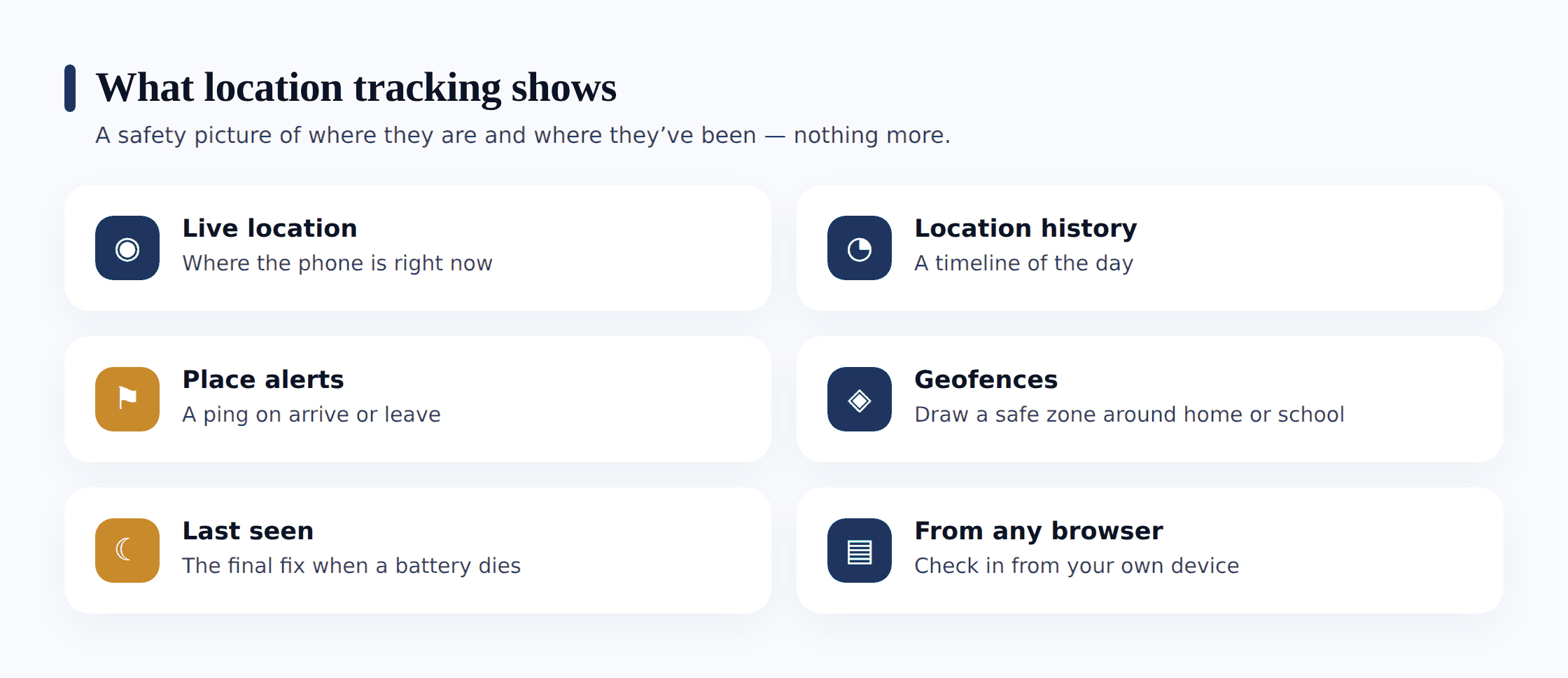
People picture a dot on a map, and that’s part of it, but a good family locator does more than one thing. Here’s what you’re actually getting, and what each piece is for.
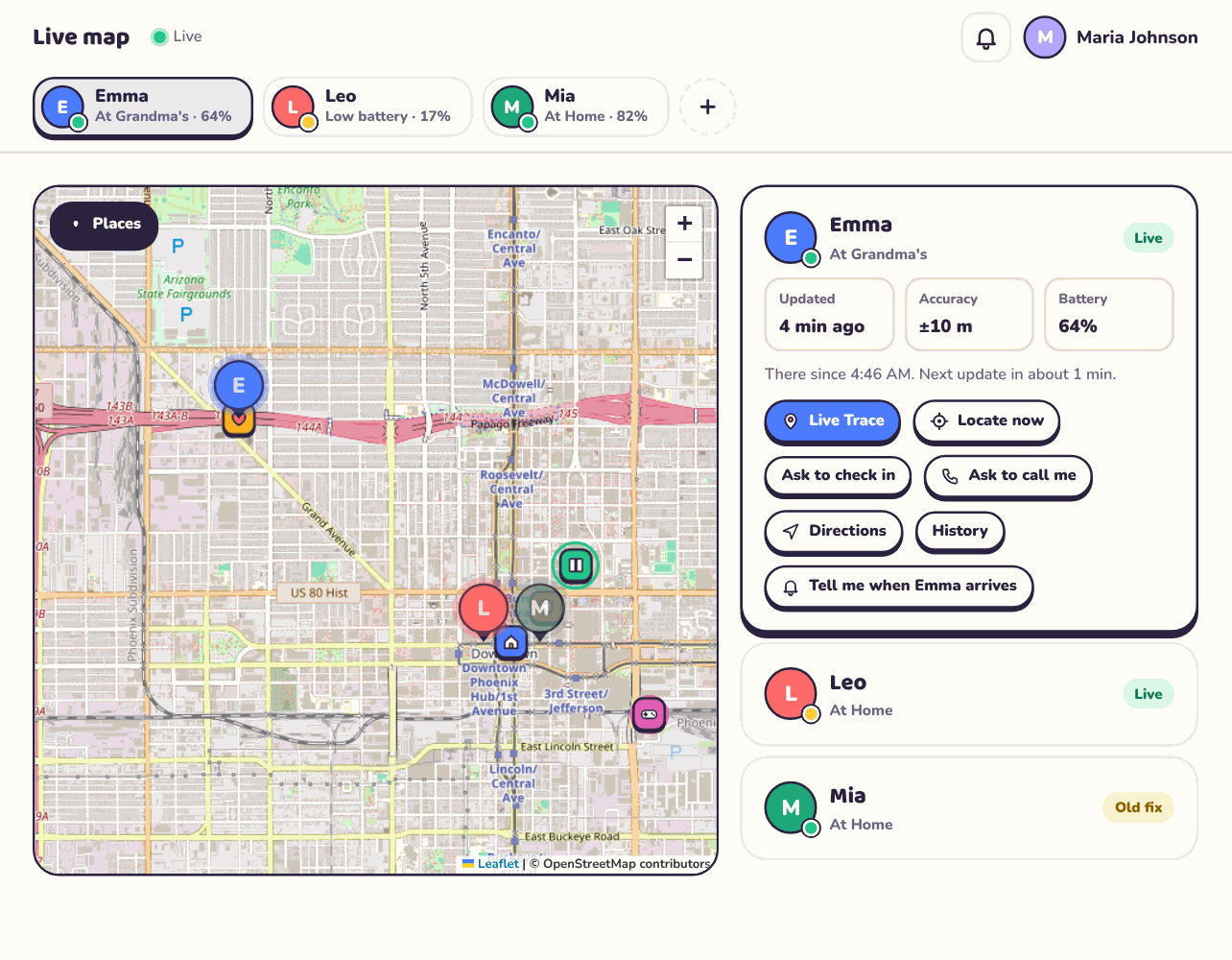
- Live or current location. A dot on a map showing where the phone is right now, updating as they move. This is the “are they on the way home yet?” answer. Most tools also give you a locate-now button for a fresh fix on demand.
- Location history, or a timeline. A record of where the phone has been through the day. You rarely need it, but when your kid says “I was at Sam’s” and you’re not sure, a timeline settles it calmly, without an interrogation.
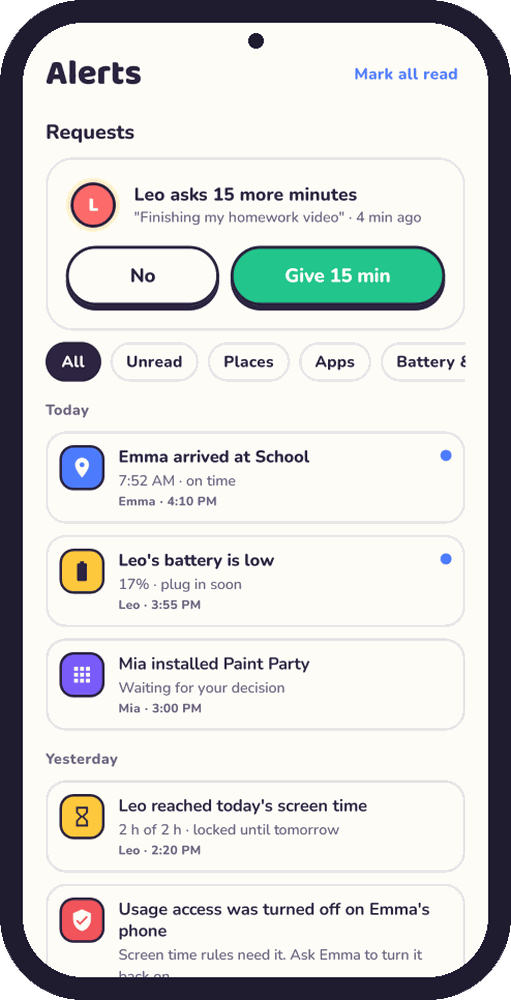
- Place alerts. A quiet ping when the phone arrives at or leaves a place you’ve saved, like school or home. This is the feature parents end up loving most, because it means you don’t have to keep opening the app. The phone tells you “arrived at school, 8:42” and you get on with your morning.
- Geofences and safe zones. A place alert is really a small circle drawn around a location, a “geofence.” Cross into it or out of it and the alert fires. Home, school, a grandparent’s house, the sports club: each becomes a safe zone that watches itself.
- Last-seen, when the battery dies. If the phone runs flat or loses signal, a good tool holds the last known position with a timestamp: “last seen near the library, 4:15.” That’s often exactly the reassurance you need.
If you’re curious about the machinery underneath all this, why the dot is sometimes spot-on and sometimes drifts a block, our explainer on how location tracking actually works covers the GPS, wi-fi and cell signals that make it possible. You don’t need it to set things up, but it demystifies the quirks.
How to set it up on a child’s Android
Setting up open location sharing on an Android phone takes about ten minutes. The order below matters a little, because the conversation comes first and the settings come second. Do it sitting next to your child, not while they’re at school.
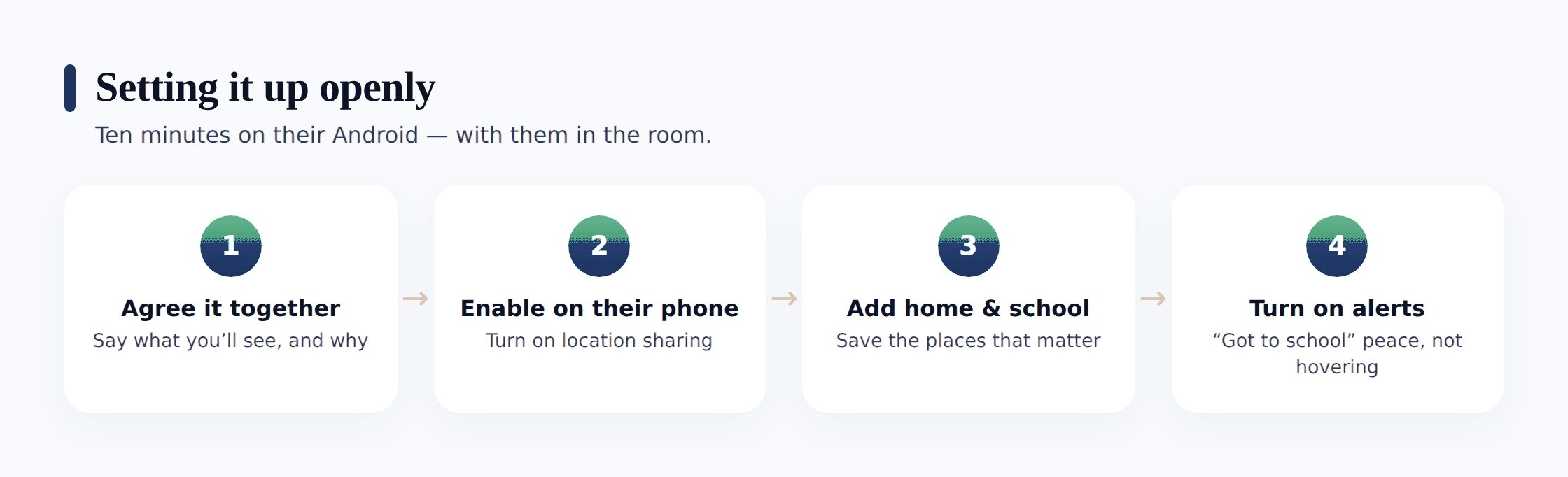
- Agree it together. Sit down at a calm moment and say plainly what you want and why: “I’d like to see your location so I know you got to school and got home safe. Not to check up on you, just so I’m not worrying.” Let them ask questions. Offer to share your location back, so it’s mutual. This five-minute talk is the most important step here; every setting after it is just plumbing.
- Enable location on the phone. On the child’s Android, open Settings → Location and switch it on. Set the mode to high accuracy (sometimes called “Google Location Accuracy”) so the phone uses GPS, wi-fi and mobile data together for the best fix. Make sure mobile data or wi-fi is available, because location needs a data connection to report back.
- Turn on location sharing. Install and open your chosen family-locator app on the child’s phone, sign in, and grant location permission. On modern Android you’ll be asked to allow location “all the time” rather than “only while using the app.” A locator genuinely needs “allow all the time,” because it has to report position when the app isn’t open on screen. Grant it, and grant precise (not just approximate) location.
- Add home and school as places. In the app, save your key locations by name: home, school, and maybe a grandparent’s house or the club they walk to. Drop the pin accurately and keep the circle sensibly sized, big enough to cover the whole school grounds, small enough that it doesn’t trigger from three streets away.
- Turn on arrival and leave alerts. For each place, switch on the alerts you actually want. “Arrived at school” and “left school” are the classic pair. Resist the urge to alert on everything; a phone that pings you twelve times a day trains you to ignore it. Pick the two or three moments that would genuinely reassure you.
- View from any browser. Check that you can see the map from your own phone or a web panel in any browser. Open it once together with your child watching, so they can see exactly what shows up on your end. No surprises is the whole point.
If you’d rather set this up as something the whole household does, not just a parent-watching-child arrangement, our guide to setting up family location sharing walks through mutual, everyone-sees-everyone sharing, which many teens accept far more readily than a one-way arrangement.
Accuracy and battery, honestly
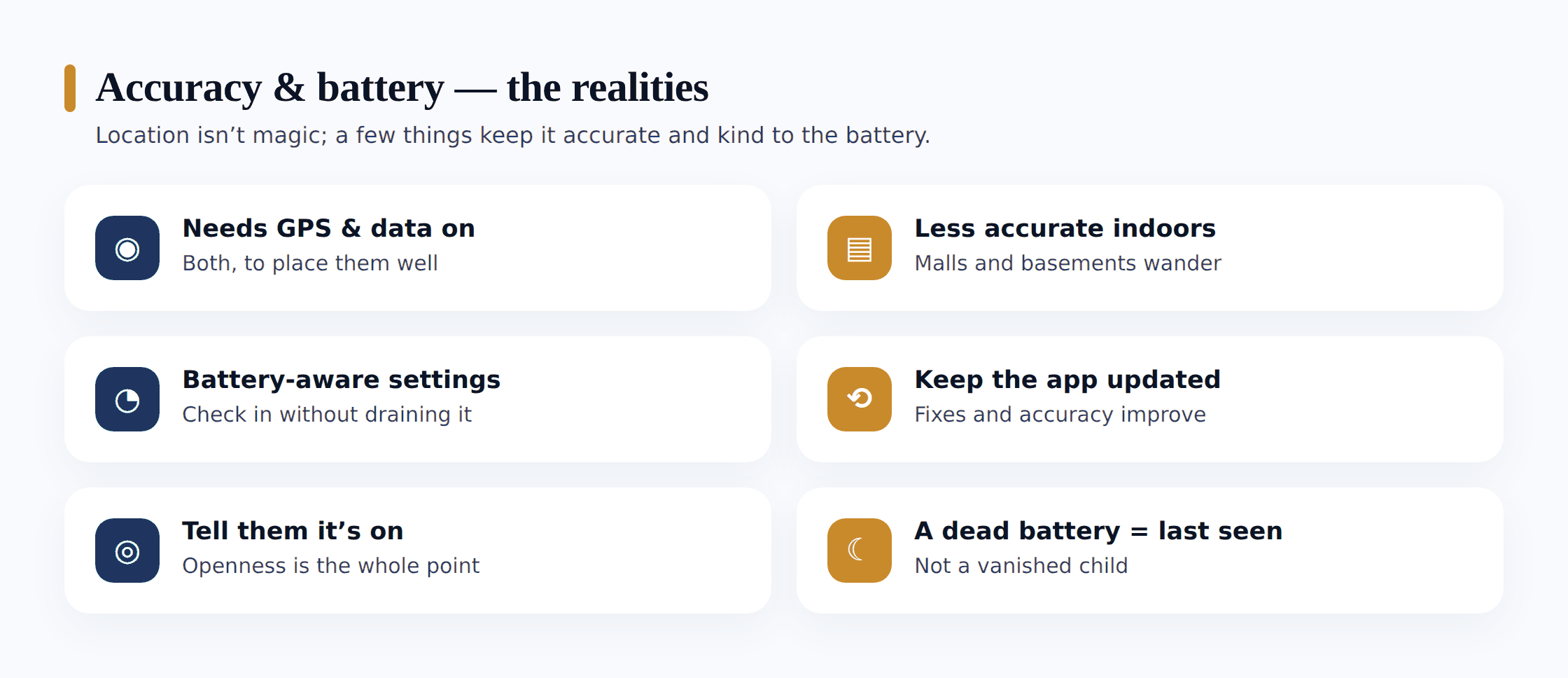
Before you panic the first time the dot sits on the wrong side of the street, know that location is an estimate, and a few realities shape how good it is.
- It needs GPS and a data connection. The phone works out where it is from satellites, wi-fi and cell towers, then needs mobile data or wi-fi to send that back to you. No signal, no update. A phone in a basement or a deep-country dead spot will simply show “last seen” until it reconnects.
- It’s less accurate indoors. Satellite signals struggle to punch through roofs, so inside a big school building the dot may drift or lag. Wi-fi positioning helps a lot in towns and malls, but expect a wider margin indoors than out. A dot that says “at school” but sits on the car park next door is usually just this.
- It costs some battery, so be battery-aware. Constant high-accuracy fixes draw power. If your child’s phone is dying by lunchtime, ease the update frequency rather than switching tracking off, and make sure only apps that truly need background location have it. A locator that reports every few minutes rather than every few seconds is plenty for safety and far gentler on the battery.
- Keep the app updated. Location handling changes with each Android version, and app updates fix the bugs that cause drift or missed alerts. An out-of-date locator is the most common reason a setup that “used to work” goes quiet. Leave auto-updates on.
- Expect the odd jump and the odd gap. The dot leaping to a new spot usually means the phone got a fresher, more confident fix and corrected itself. A gap usually means signal loss or a paused app. Neither means anything is wrong, and neither means your child is hiding.
How much tracking, by age
The right amount of tracking isn’t fixed; it shrinks as your child grows. What’s sensible and reassuring for an eight-year-old feels like hovering to a sixteen-year-old, and the whole point is to loosen your grip as they earn it. Here’s a rough map.
Young child (roughly 7–10)
Be more hands-on. At this age a phone or a GPS watch is largely a safety device, and full location plus arrival alerts for school and home is entirely reasonable. Keep it simple and keep it open: they should know the map is on and why. You’re the one holding the safety net while they learn the routes and routines of getting around.
Tween (roughly 11–13)
Still location-on, but start narrowing it to the moments that matter, arrivals and departures rather than a live watch. This is the age to make it mutual if you haven’t, and to explain the “why” more than the “what.” Let them see it works both ways. Begin handing over small freedoms and noticing that the alerts, not constant checking, are enough.
Teen (roughly 14–17)
Shift to a lighter, agreed check. Most teens will accept location sharing when it’s framed as safety and it’s genuinely two-way, family-wide sharing rather than parent-surveils-teen. Lean on place alerts so you’re not watching a dot, and drop into the live map only when there’s a real reason. Talk about when they get to switch it off entirely, because that day should be in view.
Doing it respectfully
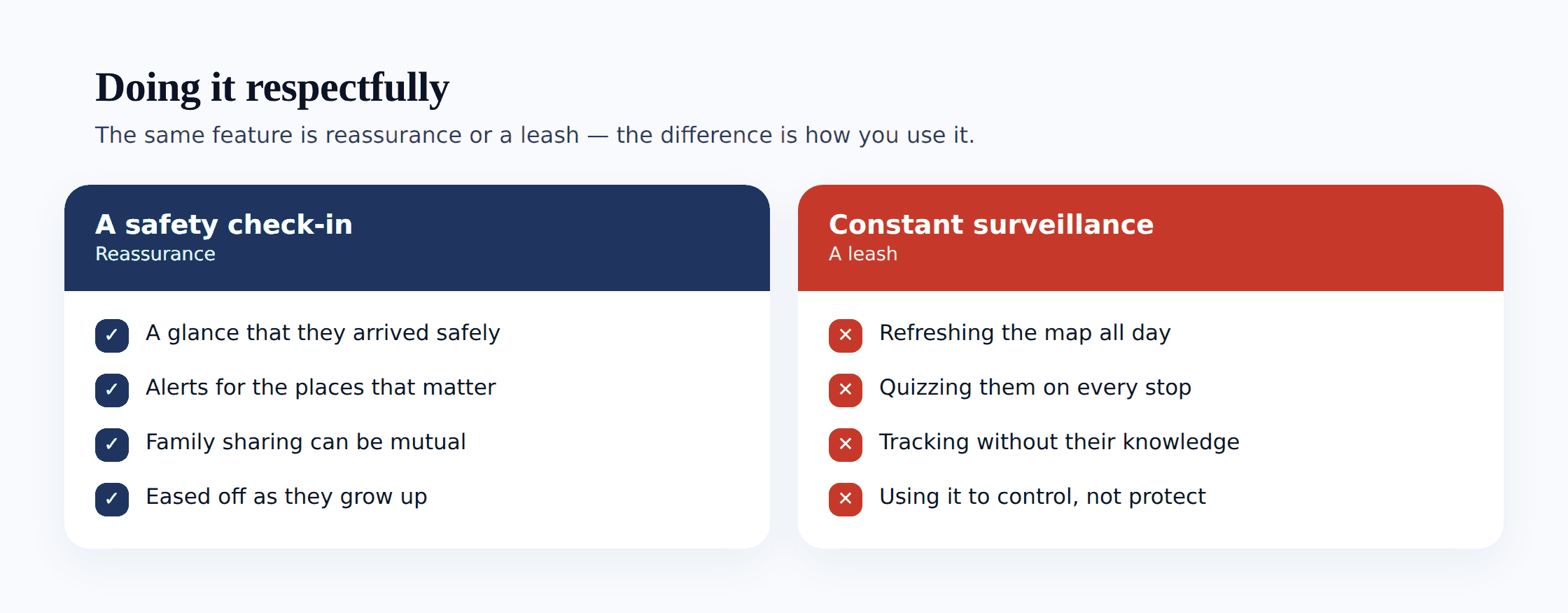
The setup is easy. Doing it in a way that strengthens your relationship instead of straining it takes a little more care. A few principles keep location tracking on the right side of the line.
It’s a safety check-in, not constant surveillance. You do not need to watch the dot move across town. Set your alerts, trust them, and look at the map only when there’s an actual reason: they’re late, they didn’t answer, plans changed. A parent refreshing a live location every ten minutes isn’t safer; they’re just anxious, and the child can feel it. Let the place alerts do the watching so you don’t have to.
Make it mutual where you can. Family location sharing works far better as a two-way street. When your teen can see your location too, the whole thing reframes from “I’m tracking you” to “we know where each other are.” That’s how adults who share location with a partner do it, by agreement, both ways, and it’s a fine model for a family.
Don’t weaponise it. The fastest way to lose a teen’s cooperation is to use the map as a gotcha. If you spot they’re somewhere unexpected, ask them about it as a person, not as a prosecutor holding evidence. The moment location becomes a way to catch them out, they’ll find ways to defeat it, and you’ll have traded a small safety tool for a big trust problem.
Ease off as they grow. Say out loud, early, that this isn’t forever. “We’ll keep this on while you’re getting used to going places on your own, and we’ll dial it back as you show me you’ve got it.” A tracking arrangement with a visible off-ramp feels like support. One with no end in sight feels like a cage. The controls are meant to come off; plan for it.
If the alerts side of things is what interests you most, safe zones, arrival pings, custom geofences, our deep-dive on geofencing and location alerts unpacks how to set them up so they’re genuinely useful rather than a stream of noise.
Where FreePhone fits
If you want a tool built for exactly this, FreePhone is a parental and family locator for Android, set up openly with your child rather than hidden from them. You install it on their phone with them present, grant location permission together, and then view everything from any web browser, no special app on your own device needed. You get live location and a locate-now button, location history to look back over the day, and saved places with arrive-and-leave alerts so you’re pinged when they reach school and when they leave, without staring at a map.
It stays visible on the device by design, because it’s meant as a safety check-in, not covert tracking. It’s Android-only and free, with every feature, so you can set up the location side, add home and school as places, and see whether the open approach fits your family. That’s the honest version of tracking a child’s phone: on the phone you manage, with the child who knows, for the reason you’d happily tell them out loud.
FAQ
Should I track my child’s location without them knowing?
No. Secret tracking is the wrong approach, and with an older child it can even cross legal lines depending on where you live. It also backfires: the day they discover it, you lose more trust than the tracking ever gave you. Set it up openly, with their knowledge. A child who knows the locator is on, and why, is being kept safe. One who doesn’t is being spied on. Same technology, completely different relationship.
What age should I start tracking my child’s phone location?
Whenever they first start going places without you and carry a phone or GPS device, tracking is reasonable, often around seven or eight. Be more hands-on when they’re young and the phone is mainly a safety tool, then steadily lighten the touch. By the teen years, aim for an agreed, mostly mutual arrangement and plan for when it comes off entirely. The right amount always shrinks as they grow.
Why is my child’s location wrong or not updating?
Usually signal, not deception. Location needs GPS plus a data connection; indoors, in dead spots, or on a flat battery the phone can’t report, so you see “last seen” with an old timestamp. A dot that drifts a block is the phone struggling for a precise fix, especially inside buildings. Check the timestamp and accuracy circle before you worry, make sure high-accuracy mode is on, and keep the app updated.
Does location tracking drain the battery?
It uses some, mostly from the GPS chip and from apps holding background location. You can tame it: set the app to report every few minutes rather than constantly, keep high-accuracy mode on only where you need sharp fixes, and make sure only the locator has “all the time” location. For safety purposes you rarely need second-by-second updates, and a gentler cadence barely dents the battery.
Is it better to track one-way or share location as a whole family?
Mutual sharing tends to work better, especially with tweens and teens. When everyone in the family can see everyone else, it stops feeling like one person being watched and becomes a shared safety habit. Younger children may not need to see yours, but offering it anyway signals that this is about care, not control, and makes the arrangement much easier for an older child to accept.
Tracking a child’s phone location, done well, is one of the quietest, kindest tools in a parent’s kit. It answers the small questions that would otherwise nag at you, did they get there, are they safe, without demanding you hover. The trick is the same one that runs through all good parenting: do it in the open, with them, for reasons you’d say to their face. Set up the places that matter, turn on the couple of alerts that reassure you, and then trust the net to hold while you get on with your day. And keep the end in mind, because the best version of this is the one you slowly, proudly, no longer need.