How to Monitor Your Child’s YouTube Activity
YouTube is the app kids open more than almost any other, and it’s the one parents feel least in control of. A single search for a cartoon can hand a seven-year-old a recommendation sidebar that drifts somewhere stranger within three clicks. Autoplay keeps the next video rolling long after anyone chose to keep watching. And the main app carries everything from gentle science explainers to material no child should stumble into. What this page offers is a way to stay close to what your child watches out in the open — leaning on YouTube’s built-in controls, a watch history the two of you can scroll through side by side, and the kind of ongoing talk that outlives any toggle. A single principle threads through every section below: nothing done behind your child’s back, no phone but the one you own or manage, and no account but your own child’s.
Why YouTube specifically worries parents
Nearly every app puts parents a bit on edge. YouTube stands apart because its greatest strength — a system forever calculating the next thing to show — is also what makes it so unpredictable. There’s no single hazard here to point at and switch off. Instead there’s a cluster of mechanisms, each sensible in isolation, that together produce the disquiet. Spelling each one out is what turns a vague dread into something a parent can respond to.
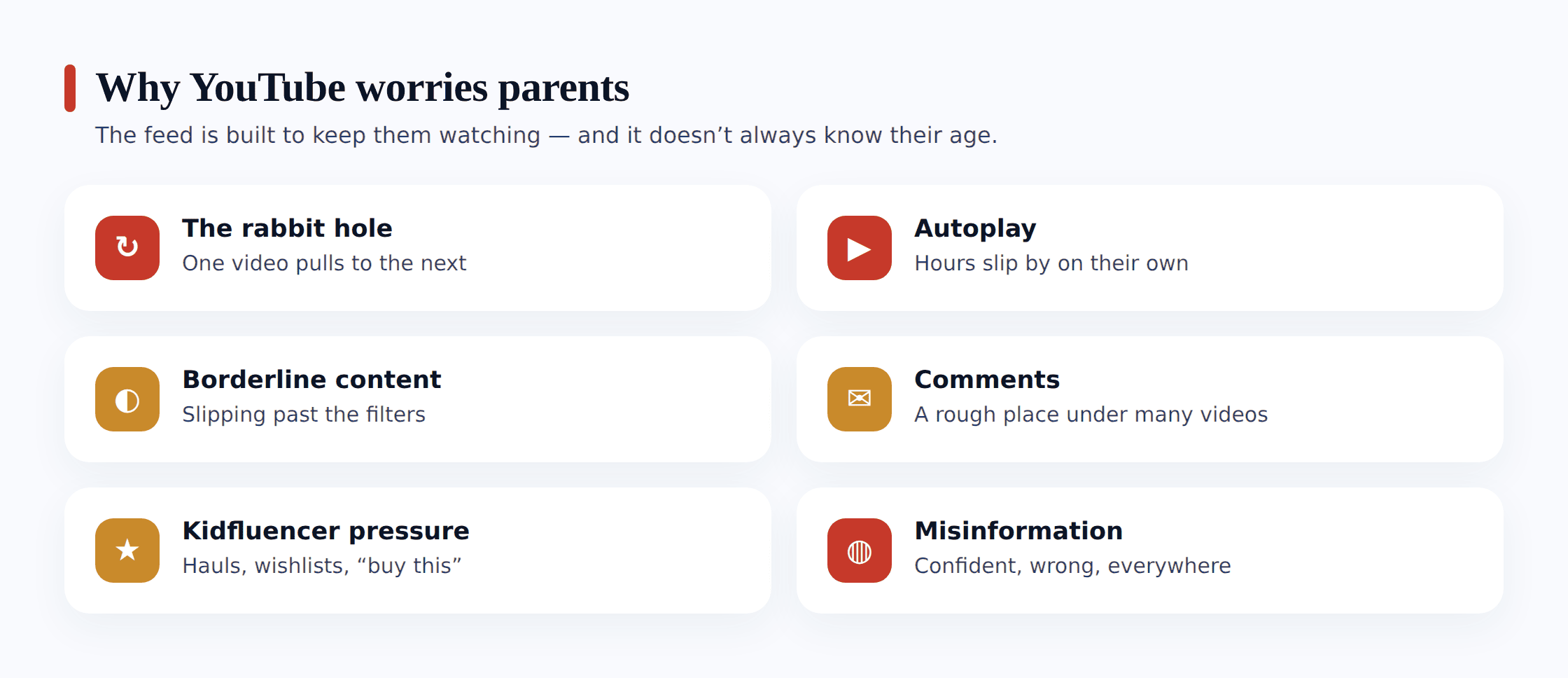
- The recommendation rabbit hole. The sidebar and home feed are built to keep someone watching, and they learn fast. A few curious clicks on a mildly edgy video teach the algorithm to serve more of the same, and a child can slide from a football skills clip to something far angrier or stranger without ever searching for it.
- Autoplay. When one video ends the next starts on its own, chosen by the machine rather than the child. That’s how a twenty-minute sit-down turns into two lost hours, and how content nobody picked lands in front of a kid who was really just waiting for their favourite creator’s next upload.
- Borderline content slipping past. Plenty of videos aren’t flagged as adult but still aren’t right for a nine-year-old — jump-scare “kids” cartoons, prank channels, creators who swear casually, and clickbait thumbnails engineered to be irresistible.
- Comments and the culture around them. The comment section under many videos is a stream of adult opinion, arguments and links, and it sits one scroll below content aimed squarely at children.
- Kidfluencers, unboxing and buy-me pressure. A huge slice of children’s YouTube is other kids opening toys, showing off hauls and hyping products, and the pull to own the same things is relentless and mostly invisible to a child as advertising.
- Misinformation dressed as fact. Confident, well-edited videos push health myths, conspiracy angles and plain nonsense, and a young viewer has few tools to tell a real explainer from a persuasive fake.
- Ads. Beyond the videos themselves, the ads served against them aren’t always age-appropriate, and younger children rarely register where the video stops and the pitch begins.
Reading the platform on its own merits helps as well. Our deeper look at whether YouTube is safe for kids unpacks how the app is built and where the age lines fall, at more length than there’s room for here. And since YouTube is just one of several video apps fighting for the same evening hours, the guide to parental controls for video streaming apps places it in the broader frame.
Which YouTube for which age
Ahead of any toggle or filter, settle a more basic thing: which YouTube should sit on the phone in the first place. There are three of them, really, each pitched at a different stage of childhood.
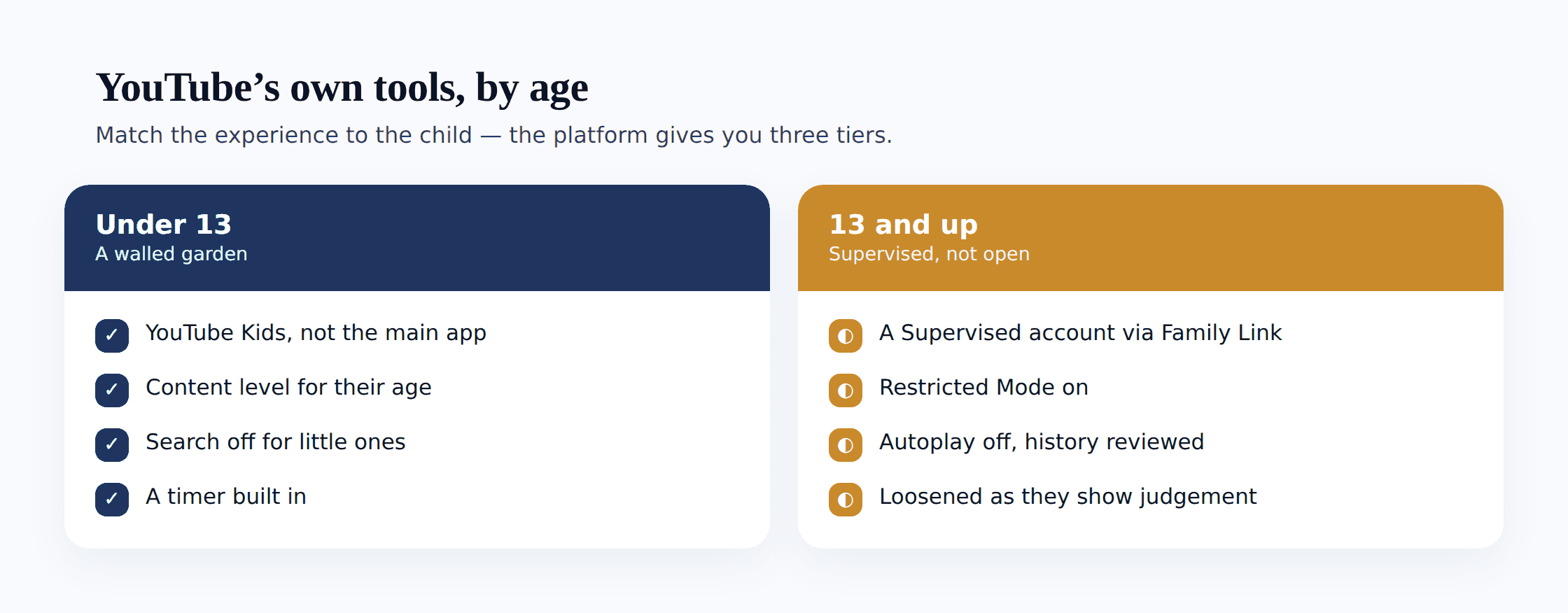
Under 13: YouTube Kids. This is the walled version, with its own app, a curated set of channels, and content tuned by age band — Preschool, Younger, or Older. You can lock it to only approved videos and channels you’ve hand-picked, turn search off entirely, and set a built-in timer. It isn’t flawless; the odd off-tone video slips through, which is why the block and report buttons matter. But for a small child it’s the truthful response to the whole idea of “monitoring” — you build the sandbox instead of chasing whatever surfaces in the open app.
Tweens and young teens: a supervised experience. For a child who’s outgrown YouTube Kids but isn’t ready for the full app, Google offers a supervised Google Account linked through Family Link, with three content settings — “Explore,” “Explore More,” and “Most of YouTube.” These raise the ceiling as your child grows, keeping the most mature content out while opening up more of the library. It’s the middle gear, and it’s meant to be used out loud.
Thirteen and up: the main app, with settings. A standalone YouTube account carries a minimum age of 13, and that line tracks something real — the open platform leans on discernment that a younger viewer is still developing. Once a teen clears it, your role turns from fencing things off to trimming and checking in out loud: Restricted Mode on, autoplay switched off, and a history the two of you scroll now and then.
How to actually see what they watch
There’s no need to intercept a thing to know what your child watches on YouTube. The platform logs it plainly by itself, and every honest way in is something your child can be aware of.
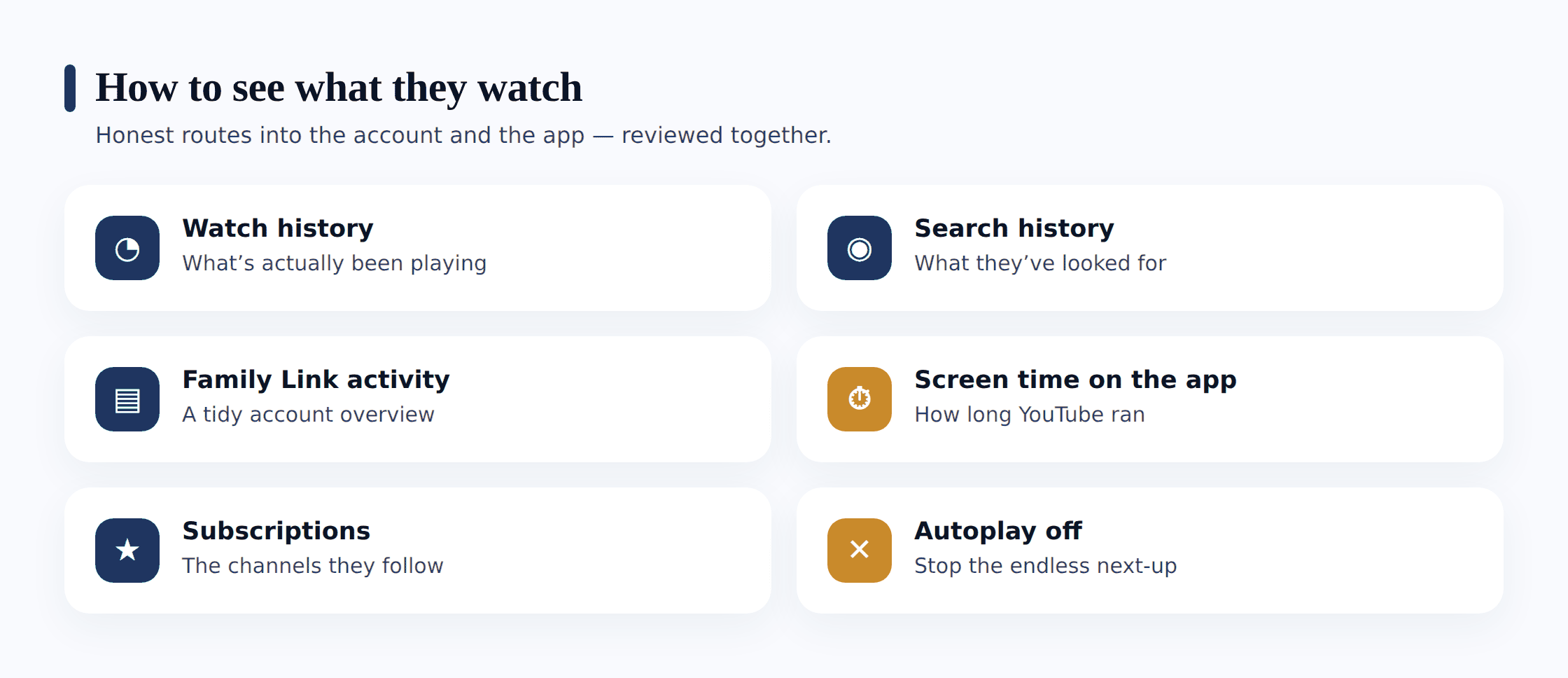
Watch history on the account. Signed into the account your child uses, open History and you’ll see the videos played, most recent first, alongside the search history that led there. On a supervised account you can review this from your own Family Link app. This is the single most useful window you have — not a snooped one, but the account’s own log, best opened with your child rather than behind them.
Family Link activity. For a supervised child, the Family Link app shows how long the YouTube app was used and when, sitting alongside the rest of the phone’s app activity. It tells you the shape of things — that YouTube ran for three hours yesterday, mostly after 9pm — without opening a single video.
Device-level screen time on the YouTube app. Android’s own Digital Wellbeing, Family Link, or a monitoring app your child knows about will each show the YouTube app’s daily minutes and the times it’s busy. This is where the autoplay problem becomes visible: not in any one video, but in the wall of evening hours that no one really chose. Reviewing app usage this way pairs naturally with our guide to how to monitor app usage and screen time, which covers the same open, device-level approach across every app.
YouTube’s own tools, set up openly
The most useful controls here are ones YouTube built itself, and every one of them works best sat side by side with your child rather than switched on in secret.
Setting YouTube up together
- Pick the right version for their age — YouTube Kids for under-13s, a supervised account through Family Link for tweens, the main app with settings for teens 13 and up.
- Turn autoplay off. On any version, the autoplay toggle sits right on the player. Switching it off means the next video is a choice your child makes, not one the machine makes for them — the single biggest brake on the rabbit hole.
- Switch on Restricted Mode. In the main app’s settings, Restricted Mode filters out much of the more mature content and hides comments. It’s not perfect and a determined teen can turn it off, so treat it as a helpful floor, not a wall — and as something you agreed on, not slipped past them.
- Set the content level on a supervised account. Choose Explore, Explore More, or Most of YouTube to match your child’s age, and raise it as they grow.
- Turn on the built-in timer in YouTube Kids, or an app limit in Family Link, so each sitting closes at a point you both settled on instead of trailing off indefinitely.
- Review and prune subscriptions together. The channels your child follows shape the whole home feed — a quick look through them, keeping the good ones and dropping the ones that drifted, resets the algorithm more than any filter.
One more habit worth building: clearing or pausing history when the feed has gone off the rails. Because recommendations are built from what’s been watched, wiping a run of videos your child didn’t really want — or pausing history for a while — genuinely calms the suggestions down. It’s a reset you can do together whenever the sidebar starts serving things that make either of you wince.
Watch history as a conversation
Watch history is the most powerful thing in this whole guide, and also the easiest to misuse. Opened as a checkpoint — “let me see what you’ve been watching so I can catch you out” — it teaches a child to clear it, use a friend’s account, or watch on a device you don’t see. Opened as a conversation, it becomes one of the better talks you’ll have.
Sit down with the history now and then and be genuinely curious rather than prosecutorial. “This creator keeps coming up — what do you like about them?” tells you far more than a raised eyebrow at a title. It also gives you an opening to teach the skills that outlast any setting: how to pause when autoplay tries to decide for them, how to read a clickbait thumbnail for what it is, how to notice when a video is really an ad in disguise, and how to use the flag and “don’t recommend this channel” buttons themselves. A child who can curate their own feed is safer than one whose feed you police.
When a creator turns up that you’re unsure about, watch a few minutes together before you judge. Some channels look alarming from the thumbnail and are harmless; others look wholesome and carry a nasty undertone in the comments or the asides. Your child usually knows which, and asking beats assuming.
YouTube-specific signs worth noticing
There’s no need to sit through every clip to spot what actually counts. The tells that deserve your notice are tied to the way YouTube itself operates, and they surface in how your child acts and in what the feed starts serving — rarely in one lone video.
- A recommended video that clearly scared or unsettled them — a child who comes away from the app quiet, jumpy, or asking odd questions has often met something the algorithm served, not something they searched for.
- Hours of autoplay with nothing chosen — a history that’s a long chain of loosely related videos, none of them a deliberate pick, is the rabbit hole made visible.
- A creator or channel you can’t place — a new name dominating the watch history, especially one heavy on pranks, “challenges,” or a persona that feels older than your child.
- Buy-me pressure spiking — sudden, specific demands for a toy, game or brand that trace straight back to an unboxing or haul channel they’ve been watching on repeat.
- Cleared history or a switch to a different account — history that’s suddenly empty, or watching signed out or on a friend’s login, is worth an open, calm question about what changed and why.
If you find something worrying
Say you’re scrolling the watch history together and a genuinely disturbing video sits in the list, or the recommendations have curdled into something dark, or a creator your child adores turns out to push something you won’t have in the house. How you handle the minutes right after matters more than the thing you stumbled on.
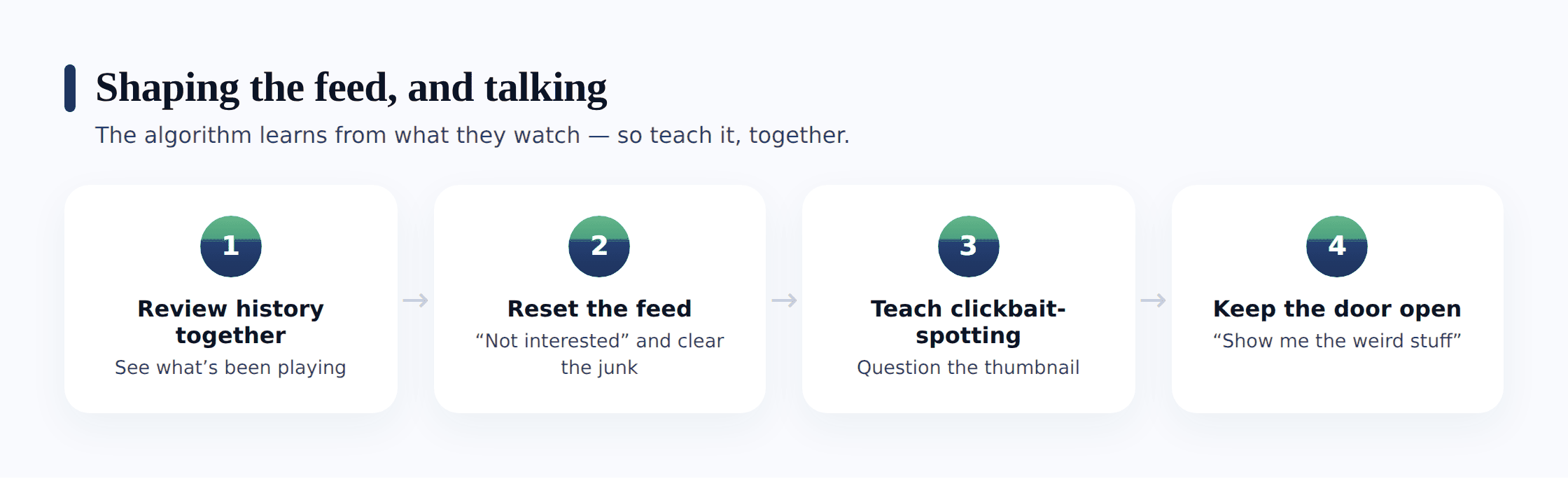
Trace the path that led there. A distressing clip in the history is much more likely to be something autoplay or a recommendation pushed forward than something your child went hunting for. Begin from that assumption. “How did you land on this one?” invites a real answer; “Why were you watching this?” shuts it down, and tends to earn you a shrug in place of the story.
Reset the feed there and then. This is one worry with a concrete, shared fix. Together, remove the video from history, tap “don’t recommend this channel,” pause history for a stretch if the whole feed has gone off, and prune the subscription that fed it. Your child sees, hands-on, that the algorithm can be steered rather than simply endured — a genuinely useful lesson.
Don’t let showing you cost them anything. When your child is the one who pointed out the unsettling video, responding by deleting the app and pocketing the tablet drives home exactly one message: next time, keep it to yourself. Meet it instead with a level head, a clean-up you do side by side, and a plain “Thank you for bringing this to me” — and the door stays open for whatever shows up after.
If what turns up crosses into real harm — material that sexualises children, content promoting self-harm, or a creator working the comments or links to reach your child directly — give it the weight it demands. Keep a record of what you found before you act, then flag the video and the channel through YouTube’s report menu. The CEOP Safety Centre handles reports of child sexual abuse material for UK families; those in the US should turn to the NCMEC CyberTipline at report.cybertip.org. Should your child want someone to talk to, Childline takes free, confidential calls on 0800 1111. And where anything sexual touches your child — or the load is simply too heavy to carry by yourself — get the police involved. A gut that says criminal is worth trusting.
Where FreePhone fits
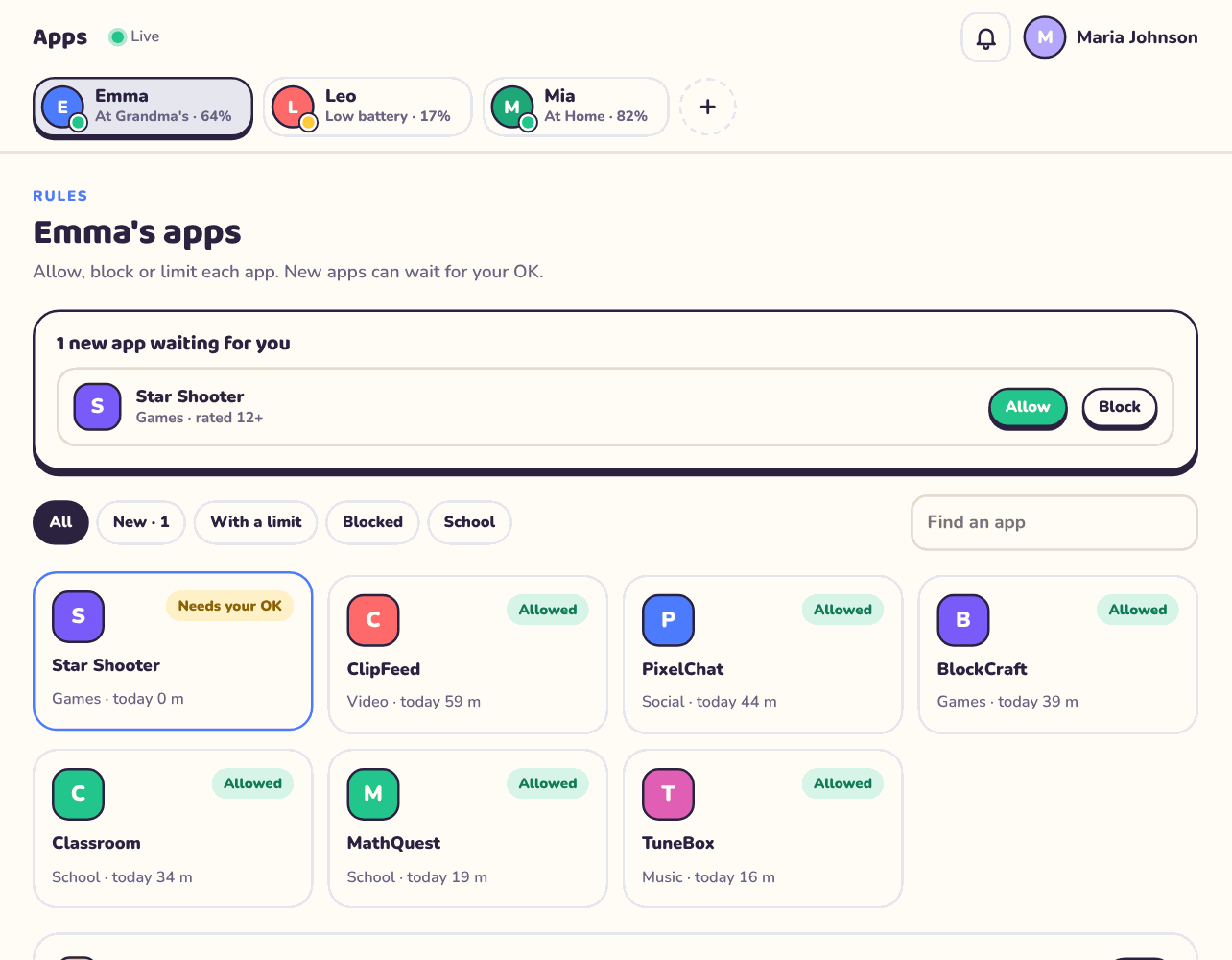
A brief, honest word on where our own tool belongs, because it was made to reinforce this approach rather than work against it. FreePhone gets installed alongside your child, nothing hidden — the phone shows a “What my parents can see” screen that spells out precisely what’s being shared. Around YouTube, what it hands you is device-level insight: how heavily the YouTube app runs and when — those creeping late-evening autoplay stretches most of all — plus a daily limit or a quiet time the two of you agree on. It doesn’t filter content or see what’s watched; the truthful window onto their viewing is the account’s own history, opened side by side. It lives on your child’s Android handset, you read it in any browser, and it’s free, with every feature. Use it to spot a pattern and open the conversation that pattern calls for — never as a replacement for YouTube Kids, Family Link, and the regular check-ins that carry the real weight.
Questions parents ask
Can I see everything my child watches on YouTube?
To a large degree, yes — and openly. The account keeps its own watch history and search history, and on a supervised account you can review it from Family Link. That’s the honest window, best opened together rather than behind your child’s back. Device-level screen time adds the shape of the habit — how many hours, at what times. Between the two you get a genuinely full picture without needing anything covert.
What’s the difference between YouTube Kids and the main app?
YouTube Kids is the walled version for under-13s, with a curated library, age bands, an optional search-off mode, and a timer — you shape a sandbox. The main app is the full platform, meant for 13 and up, where the job is shaping and reviewing rather than walling off. In between sits a supervised account through Family Link, with content levels you raise as your child grows. Match the version to the age.
How do I stop the recommendations getting worse?
Turn autoplay off so the next video is a choice, not the machine’s decision. Then prune subscriptions and use “don’t recommend this channel” and the flag button on anything off-key — because the feed is built from what’s watched, this steers it directly. When it’s really drifted, clear a run of history or pause it for a while to reset. Doing this together teaches your child they can steer the feed themselves.
Does Restricted Mode block everything inappropriate?
No — treat it as a helpful floor, not a wall. Restricted Mode filters out a lot of mature content and hides comments, but some borderline videos slip through and a determined teen can switch it off. It’s genuinely worth having on, especially alongside autoplay off and a supervised content level, but it works best paired with reviewing history together rather than trusted to do the whole job alone.
Could I point this at another person’s YouTube?
No. The whole of this concerns your own child, on a phone you own or look after, with them in the know. Slipping into some other adult’s YouTube — a partner’s, an ex’s, whoever — breaches their privacy seriously and breaks the law in plenty of places. That’s not monitoring, and it’s not a thing we back or make possible. This page is only ever about protecting a child, in the open.
Keeping tabs on your child’s YouTube was never about hoarding a copy of every clip. The genuine work is a quieter thing — matching the version to their age, killing autoplay so nothing rolls on by itself, a watch history you open together out of interest rather than suspicion, and a child who has learned to hit pause, see a clickbait thumbnail for the bait it is, and speak up about the video that felt off. A gentle, open hand — settled between the two of you, alert to real harm, relaxing as they grow up — tames the rabbit hole far more surely than any hidden log, and it keeps the trust between you whole. Point yourself there, and the safety mostly takes care of itself.