How to Monitor App Usage and Screen Time on Your Child’s Phone
There’s a difference between guessing how much time your child spends on their phone and actually seeing it. Guessing leads to nagging. Seeing the numbers — together, out in the open — leads to a real conversation. This is a practical guide to reading app-usage and screen-time data on your child’s Android phone, understanding what it’s telling you, and turning it into healthier habits without turning yourself into the screen police.
Why seeing the data actually helps
Most family arguments about phones happen in a fog. You feel like your child is on it constantly. They feel like you’re exaggerating. Neither of you has anything solid to point at, so it becomes a battle of impressions, and impressions never settle anything.
App-usage data cuts through that. When you can both look at the same weekly chart, the conversation changes shape. It stops being “you’re always on your phone” and becomes “you did four hours on this app on Sunday — what was going on there?” One is an accusation. The other is a genuine question, and kids answer genuine questions far more honestly.
Here’s what the data quietly gives you:
- A read on balance — is the phone crowding out sleep, homework, friends, and moving around?
- An early warning when one app starts taking over, before it becomes a habit that’s hard to shift.
- A window into late-night use you’d otherwise never see, because you’re asleep.
- A heads-up about an app you didn’t know was installed — a reason to ask, not to panic.
- A shared set of facts so limits feel fair rather than plucked from thin air.
None of that is about control for its own sake. It’s about noticing things early enough to talk about them calmly, while they’re still small.
What the data shows you
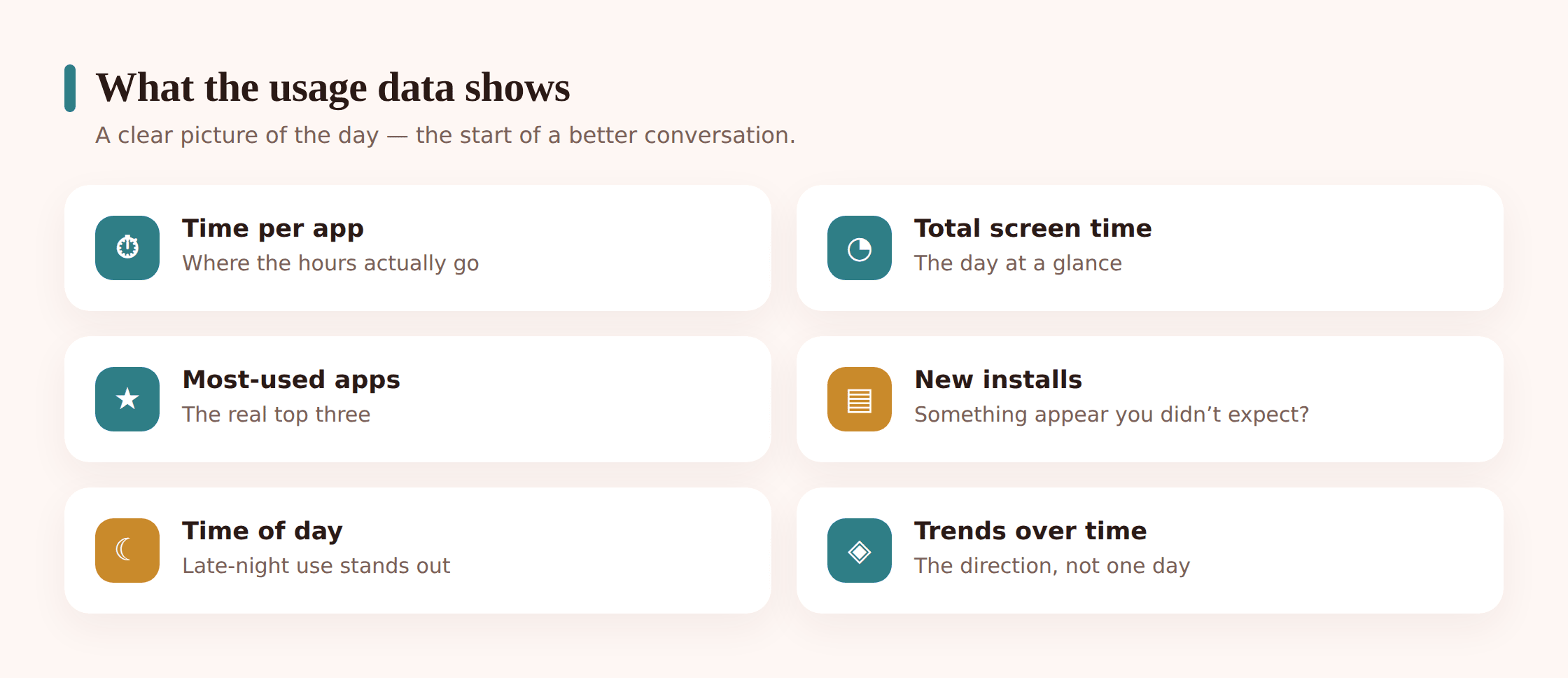
Once you open a screen-time report — on the phone itself or in a family dashboard — you’ll see a handful of things. It’s worth knowing what each one means, because some numbers matter more than others.
- Total screen time per day and week. Useful as a trend, less useful as a single figure. A big day after an exam finishes is not the same as a big day every day.
- Time per app. This is the one that tells the real story. Two hours split across ten apps is very different from two hours on one video feed.
- Most-used apps, ranked. The top three usually account for most of the time. Watch what sits at the top and whether it shifts.
- New installs. Apps that appeared this week. Most will be harmless. The odd one is worth a friendly question.
- Time of day. When the usage happens — after school, during homework, or well after lights-out.
- Trends over weeks. The direction of travel. Slowly climbing, holding steady, or dropping off.
Notice how many of those only make sense over time. A single day tells you almost nothing. The shape across two or three weeks tells you nearly everything.
The tools that show it
You don’t need anything exotic to start. Android ships with a capable tool built in, and there are a couple of layers you can add if you want a fuller family view.
Digital Wellbeing (built into Android). Open Settings and look for Digital Wellbeing and parental controls. It shows a dashboard of daily screen time, a breakdown by app, unlock and notification counts, and lets you set per-app timers and a bedtime wind-down. It’s free, it’s already there, and for an older teen managing their own habits it’s often all you need.
Google Family Link. For younger children, Family Link puts the app-activity view and the controls on your phone instead of theirs. You see daily and weekly app usage, get a breakdown per app, and can set an overall daily limit, individual app limits, and a downtime schedule — all remotely, all visible to your child on their device. If you haven’t set it up yet, our walkthrough on how to set up Google Family Link takes you through it step by step.
A family monitoring dashboard. A tool like FreePhoneSpy adds an app-usage and screen-time overview you can read from any browser, with agreed limits on top. It’s useful when you want one place to see the picture rather than picking up the phone each time. Only worth using when your child knows it’s there and you’ve set it up together.
Per-app timers. The most surgical tool of all. Instead of capping the whole phone, you cap the one app that’s causing trouble — say 45 minutes on a video app — and leave everything else alone. When the timer runs out, the app greys out until tomorrow.
Start with what’s already on the phone. Before adding anything, spend a week just reading Digital Wellbeing or Family Link. You’ll learn more from watching the real numbers for seven days than from installing three new tools on day one.
Reading the numbers without overreacting
This is the part most guides skip, and it’s the part that decides whether monitoring helps your family or wrecks the trust in it. The data is easy to pull. Reading it calmly is the skill.
Look for patterns, not single days. One five-hour Saturday during the school holidays is not a crisis. The same five hours every weekday, climbing week on week, is a pattern worth talking about. Always zoom out before you react. Ask what the last three weeks look like, not what yesterday looked like.
Context changes everything. Two hours in an app could be your child grinding through a group project with friends, or two hours of numb doomscrolling. The number is identical. The meaning is opposite. The only way to tell them apart is to ask, which is exactly why the data leads to a conversation rather than a verdict.
Some screen time is genuinely good. Video calls with a grandparent, a coding app, homework research, a creative tool, messaging close friends — these show up in the totals too, and they’re not the problem. A big number made mostly of good stuff is not the same as a big number made of one endless feed. Read the mix, not just the total.
The number is a starting point, not a sentence. If your first instinct on seeing a high figure is to confiscate the phone, pause. Screenshot it, sit with it for a day, then bring it to your child as a question. Reacting in the heat of the moment teaches them to hide their usage, which is the opposite of what you want.
Spotting a problem worth a closer look
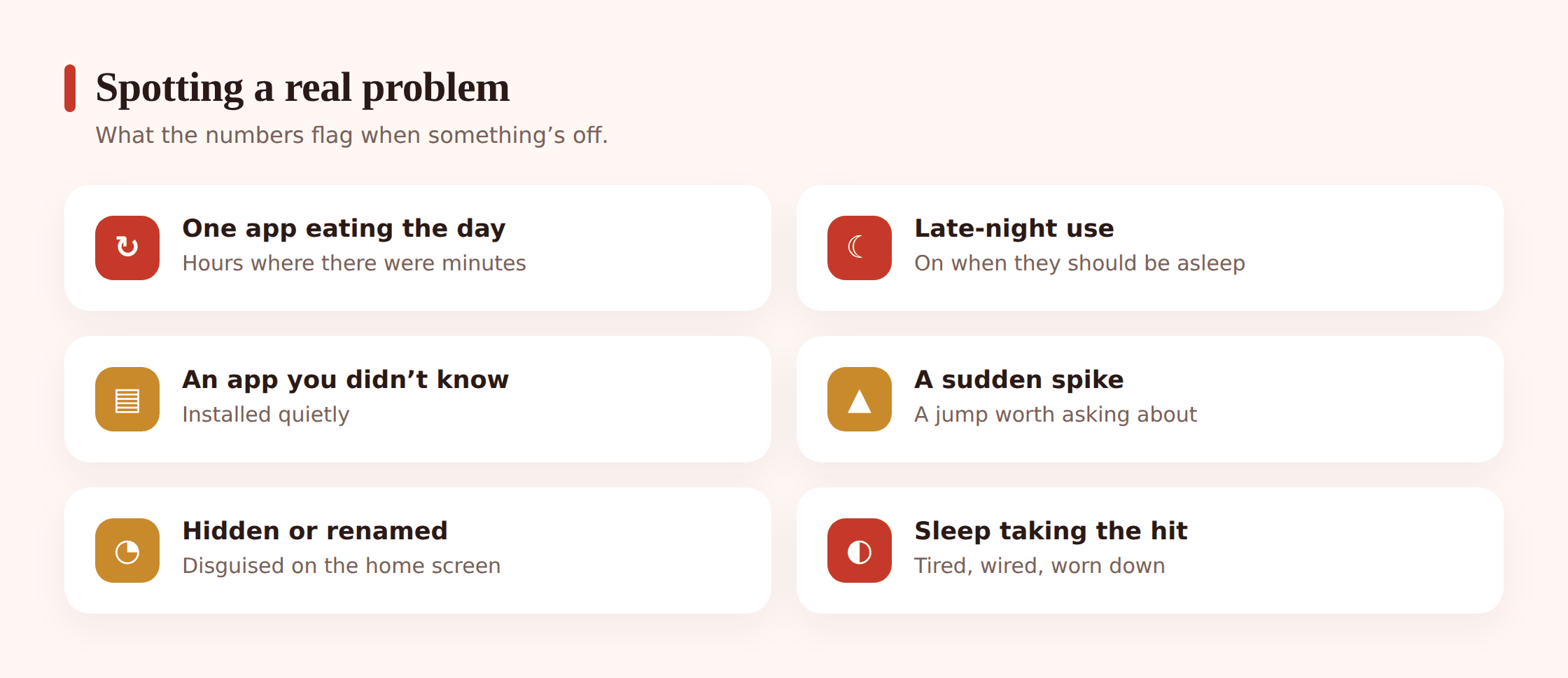
Most of what you see will be ordinary. But a few signals genuinely earn a closer look — not an interrogation, just a curious question.
- One app pulling away from the pack. When a single app’s time keeps climbing while everything else holds steady, it’s worth understanding why it’s become so sticky.
- Regular late-night use. Steady activity after bedtime is one of the clearer signs that the phone is eating into sleep, and sleep is where a lot of mood and focus quietly lives.
- A big, sudden change. Usage that doubles in a week, or a favourite app that suddenly drops to zero, can both mean something shifted — good or bad — that’s worth checking in on.
- An app you don’t recognise. A new install with a generic name is usually nothing. Occasionally it’s a hidden-vault app or something a friend recommended. Either way, asking beats assuming.
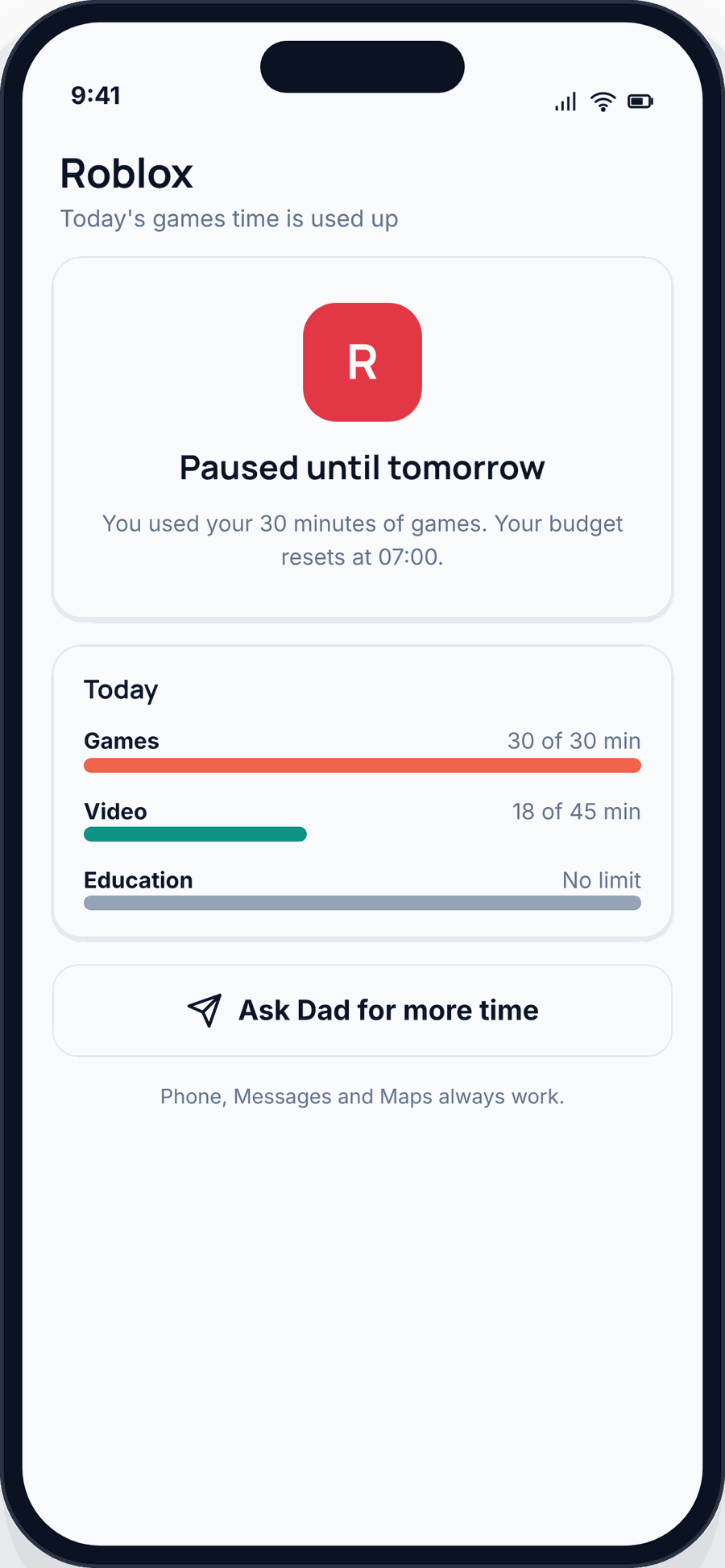
Gaming deserves a special mention here, because it’s the usage pattern that most often tips from healthy into a genuine problem, and the data shows it clearly — long unbroken sessions, late nights, distress when the game is interrupted. If the numbers on one game are starting to worry you, our guide to spotting and handling gaming addiction walks through the warning signs and what actually helps.
Reviewing it with your child
The single biggest thing that decides whether this works: do you look at the data with your child, or at them? Monitoring done behind a child’s back breeds resentment the moment they find out — and they always find out. Monitoring done together becomes a normal family habit, like checking a bank balance.
A simple weekly rhythm works well:
Pick a calm, regular moment. Sunday evening, a car ride, over a snack. Not straight after a bad number lands, and never mid-argument.
Look at the screen together. Literally sit side by side and scroll the report. Let them narrate it. “Oh yeah, that was the group thing for the history project.” You’ll learn more from their commentary than the chart alone.
Ask, don’t announce. “What do you make of this one?” beats “This is far too much.” Kids who feel consulted engage. Kids who feel judged go quiet and get sneaky.
Involve them in the plan. If something needs to change, let them help design the fix. A limit your teen suggested is a limit they’ll actually keep. A limit you imposed is a challenge they’ll try to beat.
Notice the good, out loud. “You cut the late-night stuff right down this week — nice.” Praise costs nothing and it makes the next review something they don’t dread.
Setting limits and downtime that stick
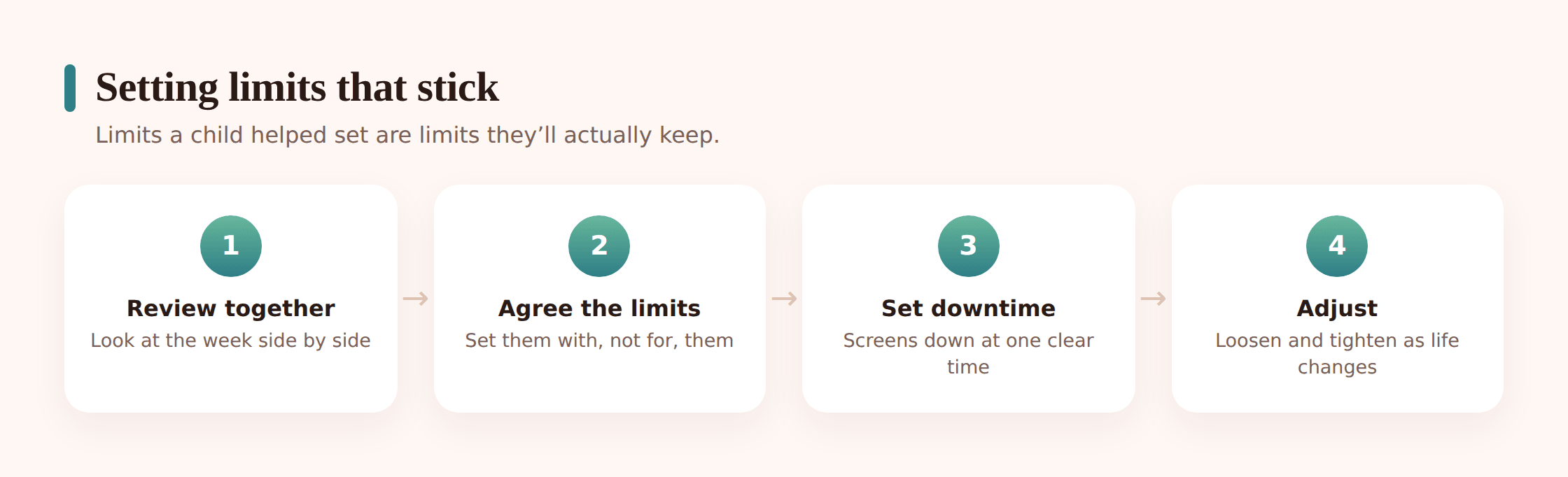
Data on its own changes nothing. At some point you turn what you’ve seen into a couple of gentle rails. The trick is setting limits that fit the day rather than fighting it.
- Target the app, not the phone. If one app is the issue, put a timer on that app and leave the rest. Blanket caps punish the homework apps along with the time-sinks and breed resentment fast.
- Anchor downtime to real moments. Schedule phone-down windows around dinner, homework, and an hour before sleep. Downtime that maps onto the actual day gets far less pushback than an arbitrary 9pm cut-off.
- Protect sleep first. If you change one thing, make it a wind-down that quiets the phone at night. It’s the limit with the biggest payoff for the least argument.
- Build in flexibility. Life has exceptions — a project deadline, a film night, a long call with a friend who moved away. A limit with no give feels unfair, and unfair rules get worked around.
- Review and loosen over time. Limits aren’t forever. As your child shows they can manage their own time, hand more of it back. The goal is a kid who self-regulates, not one who needs a timer at seventeen.
Agreed beats imposed, every time. A limit your child helped set is a promise they made. A limit you dropped on them is a wall they’ll test. Same number, completely different result — the difference is whether they were in the room when it was decided.
An age-based approach
What counts as a sensible amount of screen time shifts a lot between a seven-year-old and a sixteen-year-old, and so does how closely you watch it. A younger child needs tighter limits and a parent holding the controls. A teenager needs a lighter touch, more say, and a clear path toward managing it all themselves.
The monitoring follows the same curve. Early on, you’re setting the boundaries and reviewing the reports. In the middle years, you’re reviewing together and negotiating. By the late teens, you’re mostly stepping back and being available when they want to talk. For a proper breakdown of what’s reasonable at each stage, our guide to screen time by age lays out age-appropriate limits you can adapt to your own child.
Turning numbers into habits
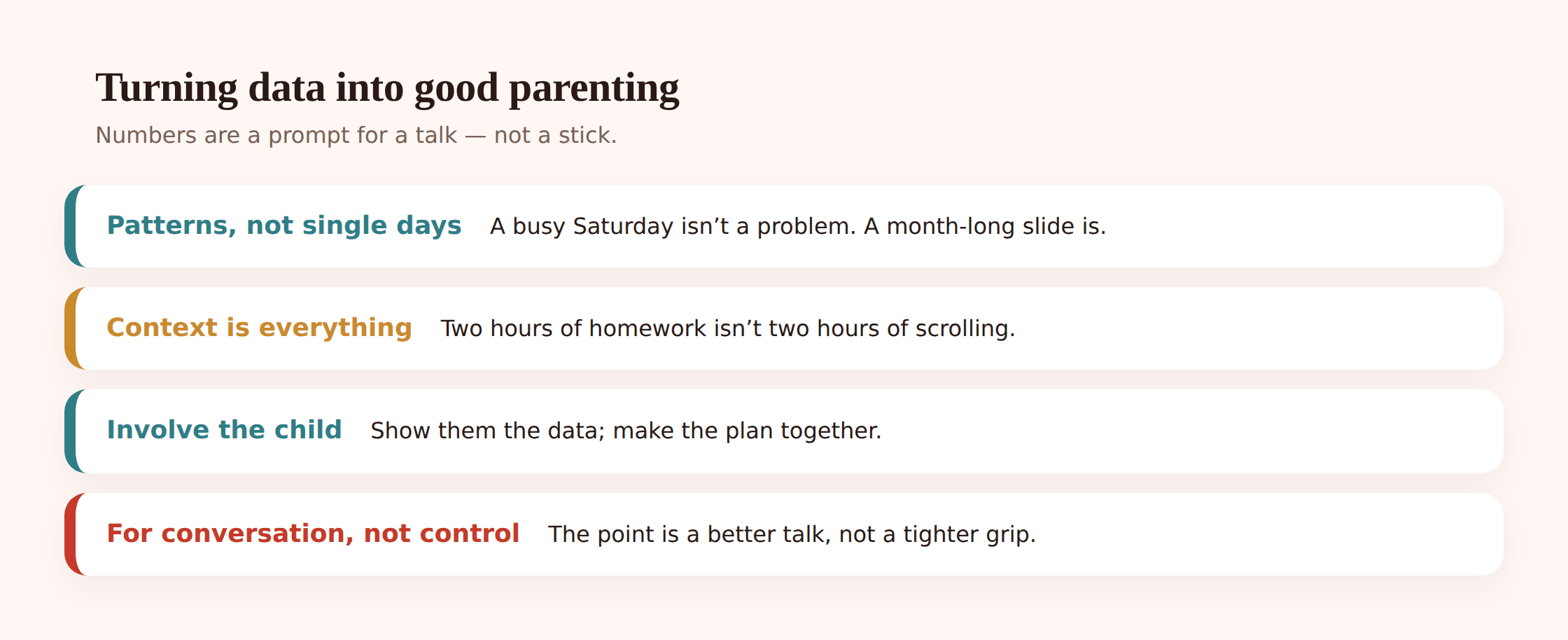
Watching the data is a means, not the end. The real aim is a child who develops a healthy relationship with their phone — who notices themselves doomscrolling and stops, who chooses to leave it in another room, who doesn’t feel a jolt of panic when it’s out of reach.
You get there by making the numbers part of an ongoing, low-drama conversation rather than a monthly showdown. Talk about your own screen time too — let them see you check your report, wince at it, and change something. A parent who monitors their own habits out loud teaches more than any limit does.
And keep the tone right. The child who trusts that you’ll ask before you assume, and consult before you clamp down, is the child who’ll come to you when something online genuinely worries them. That trust is worth protecting, and it’s built one calm review at a time.
Where FreePhoneSpy fits
If you want one place to see the whole picture, FreePhoneSpy gives you an app-usage and screen-time overview alongside the limits you’ve agreed on. It’s built to be transparent: you set it up with your child, they know it’s running, and it’s designed for a family working on healthy habits together — not for watching anyone in secret. It works on Android, you read it from any browser on your own phone or laptop, and it’s free to start, so you can see whether a shared view helps before committing to anything. Used the right way, it’s simply the dashboard behind the conversation — the numbers in one spot so you can talk about them, not a substitute for the talking.
Questions parents ask
Should I tell my child I can see their app usage?
Yes, always. Tell them what you can see, why you’re looking, and what you’ll do with it. Openness is what makes this work — a child who knows the reports exist treats their time differently and doesn’t feel spied on. Hidden monitoring, once discovered, costs you far more trust than the data is ever worth.
What screen-time number should I be aiming for?
There’s no single magic figure, and chasing one misses the point. A balanced week — sleep protected, homework done, friends seen, some moving around — matters more than any total. Look at the mix and the trend, not a target number. Our screen-time-by-age guide gives sensible ranges you can adapt.
My child says checking their usage is an invasion of privacy. Are they right?
It’s a fair concern worth taking seriously, and the answer changes with age. For a younger child on a phone you manage, seeing app usage is ordinary parenting. For a teenager, it should shift toward reviewing together and stepping back as they earn more space. Do it openly, explain the why, and loosen your grip as they show they can manage — that’s the difference between guidance and surveillance.
The built-in tools or a separate app — which should I use?
Start with what’s already there. Digital Wellbeing and Family Link are free and capable, and for many families they’re plenty. A separate dashboard helps when you want one shared view across devices or a browser you can check from anywhere. Add it if the built-in tools leave a gap, not by default.
What if the data shows something that really worries me?
Don’t react in the moment. Note what you saw, take a day to sit with it, then bring it to your child as a calm question rather than an accusation. If it points to something serious — a possible addiction, contact from a stranger, distressing content — the data has done its job by surfacing it early. Use it as the opening line of a conversation, not the closing argument.
Seeing your child’s app usage isn’t about catching them out or counting every minute. It’s about swapping guesswork for facts, and facts for better conversations. When you both look at the same chart, agree the limits together, and ease off as trust grows, the phone stops being a battleground and becomes just another thing your family figures out as you go. Start by reading one week of the data you already have — and let what you see be the start of a talk, not the end of one.