How to Recover Deleted WhatsApp Messages (Android & iPhone)
You deleted a WhatsApp chat you needed. Or the app cleared it, or the phone reset. The good news: WhatsApp keeps backups, and a deleted chat can often come back. The catch is timing. Restore before a fresh backup overwrites the old one, and understand what you’ll trade to get those messages back.

The two facts that decide everything
Before you touch anything, two things about how WhatsApp deletes messages will tell you what’s even possible.
“Delete for me” vs “Delete for everyone.” When you long-press a message, WhatsApp offers both. “Delete for me” removes it from your phone only. “Delete for everyone” pulls it from the other person’s phone too, if you tap it fast enough. Here’s what matters for recovery: if someone else deleted a message for everyone, you can’t magically read the original text. WhatsApp replaces it with a grey “This message was deleted” placeholder. That’s by design, and no legitimate tool undoes it. But your own deleted chats — a thread you cleared, a conversation you removed by mistake — those live in your backups and can come back.
Backups overwrite each other. WhatsApp keeps one rolling backup per account in the cloud, plus a few days of local copies on Android. Each new backup replaces the last cloud copy. So if you deleted a chat this morning and WhatsApp runs its nightly backup tonight, tonight’s backup captures the phone without that chat — and the version that still had it is gone. This is the whole game. Act before the next backup runs.
Which method to try first
Not every route works on every phone, and some cost you more than others. Roughly, here’s the order worth trying.
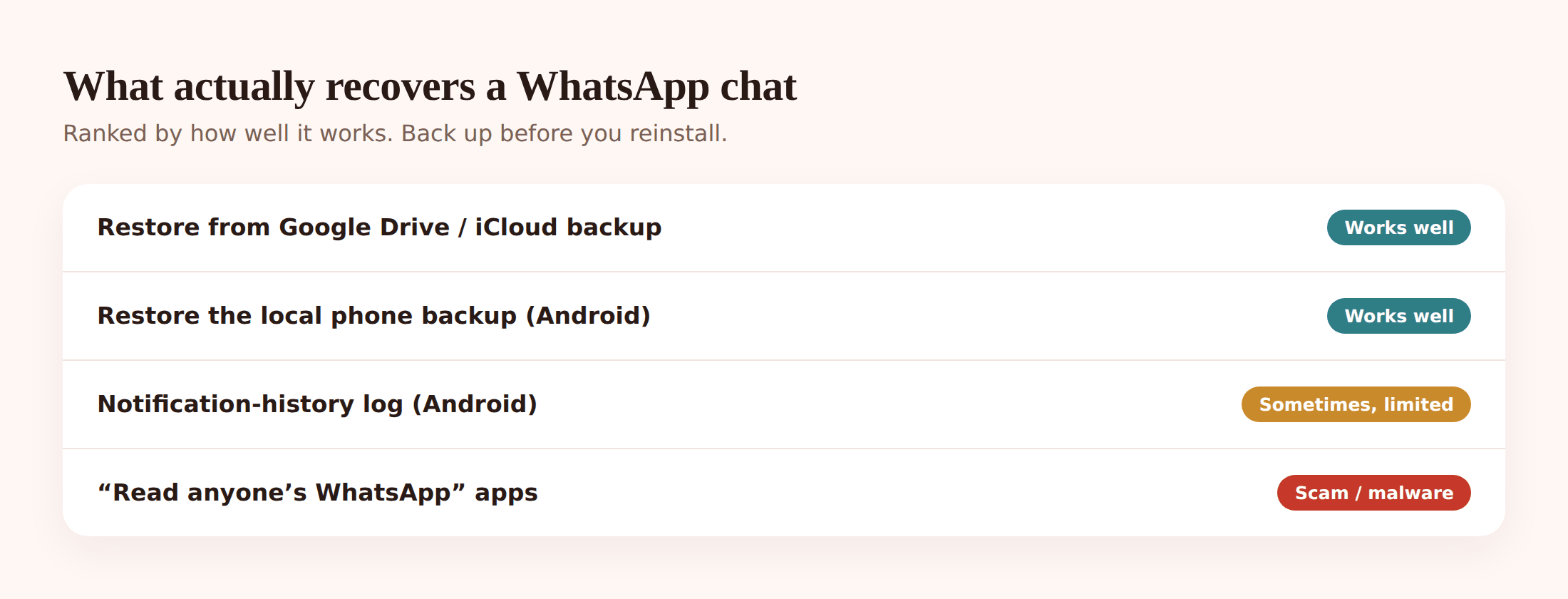
| Method | Platform | Recovers | Cost / risk |
|---|---|---|---|
| Google Drive backup | Android | Everything up to the last backup | Lose messages sent since that backup |
| Local phone backup | Android | Up to the last few days | Same rollback trade-off |
| iCloud backup | iPhone | Everything up to the last backup | Lose messages sent since that backup |
| Notification history | Android | Text of one recent, notified message | Partial, only if you set it up beforehand |
| Third-party “recovery” app | Any | Usually nothing | Scam, malware, or wasted money |
Recover on Android, step by step
Android gives you two backups: the one in Google Drive, and a local copy stored on the phone itself. Try Google Drive first, because it’s the cleanest.
Restore from the Google Drive backup
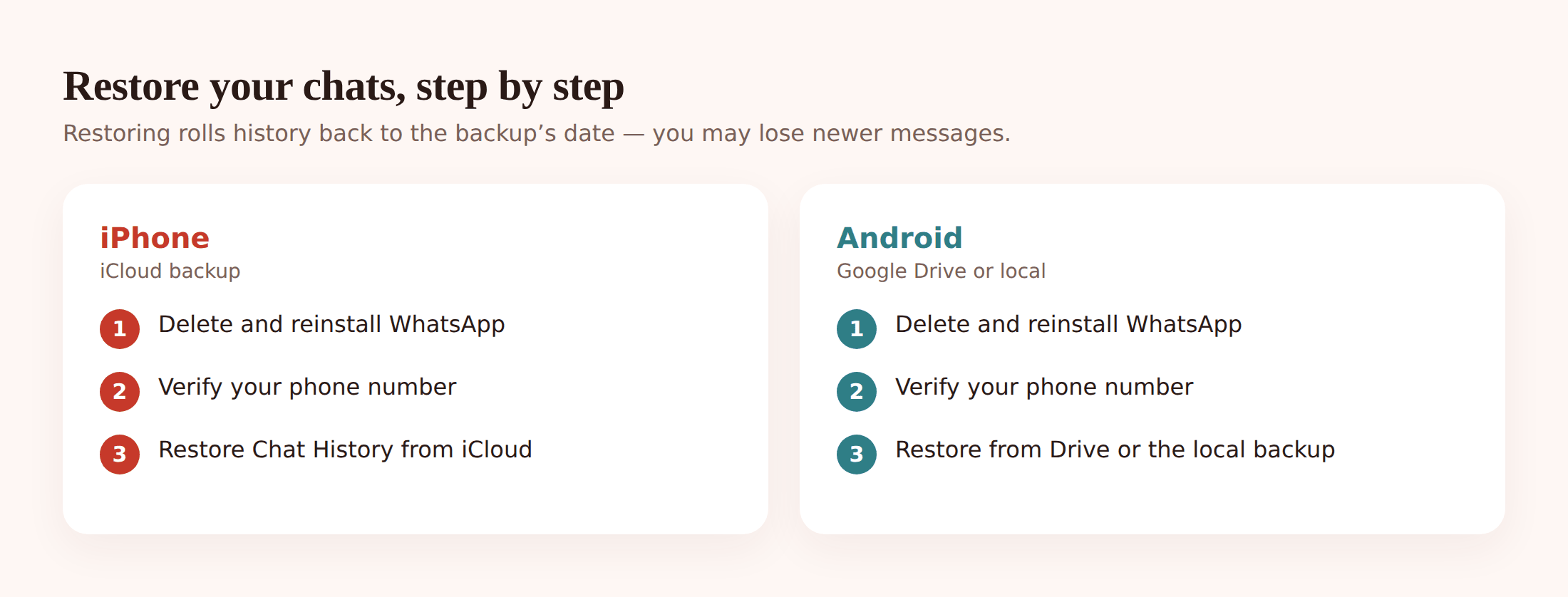
1. Check the backup date first
Open WhatsApp > Settings > Chats > Chat backup. Look at “Last backup.” If it’s from before you lost the chat, that backup still has your messages. If it’s from after, restoring won’t bring the chat back — skip to the local backup below.
2. Uninstall WhatsApp
Restoring only happens during a fresh install. Uninstall the app. Do not run a manual backup on the way out, or you’ll overwrite the good copy.
3. Reinstall and verify your number
Install WhatsApp from the Play Store, open it, and verify the same phone number the backup belongs to. Use the same Google account too.
4. Tap “Restore” when prompted
WhatsApp detects the Google Drive backup and offers to restore. Tap Restore and wait. Your chats reappear, rolled back to the backup’s date.
Restore from the local backup on the phone
Android also keeps local backups for a few days, stored on the phone’s internal storage. This is your fallback if the Drive backup is too new, because the local copies may include a slightly different date.
1. Find the database files
Using a file manager, go to Internal storage > Android > media > com.whatsapp > WhatsApp > Databases (older phones: Internal storage > WhatsApp > Databases). You’ll see files like msgstore.db.crypt14 plus dated ones like msgstore-2026-09-01.1.db.crypt14.
2. Pick the backup from the right day
The plain msgstore.db.crypt14 is the most recent. The dated files are older daily copies. Find the one dated before you deleted the chat. Rename the current msgstore.db.crypt14 to something else, then rename your chosen dated file to msgstore.db.crypt14 exactly.
2. Reinstall WhatsApp
Uninstall, reinstall, verify your number. When WhatsApp offers to restore from local backup, accept it. It reads the file you just put in place.
Set how often Android backs up
While you’re in Settings > Chats > Chat backup, set backup frequency to Daily. More frequent backups mean less lost the next time something goes wrong. This is the same panel you’ll use to prevent this happening again.
Recover on iPhone, step by step
iPhone uses iCloud instead of Google Drive, but the shape is identical: check the backup date, delete the app, reinstall, restore.
1. Confirm iCloud backup was on
Open WhatsApp > Settings > Chats > Chat Backup and look at the last backup date. No backup listed means there’s nothing to restore from, and unfortunately the chat can’t be recovered this way. If the date is before you lost the chat, continue.
2. Delete WhatsApp
Press and hold the WhatsApp icon, remove the app. Don’t run a manual backup first.
3. Reinstall from the App Store
Download WhatsApp again, open it, and verify the same phone number tied to the iCloud backup. Use the same Apple ID.
4. Tap “Restore Chat History”
WhatsApp finds the iCloud backup and offers Restore Chat History. Tap it and wait for the download. Your chats return as of the backup’s date.
The big caveat: backups roll time back
So weigh it. If the deleted chat matters more than three days of recent messages, restore. If not, it may not be worth it. There’s no way to restore a single conversation from a whole-account backup — WhatsApp treats the backup as one unit. Before you restore, it can help to screenshot recent important threads so you don’t lose their content in the rollback.
The notification-history trick (Android)
If you only lost one recent message and you don’t want to roll a backup back, Android’s notification history might have kept the text.
When a WhatsApp message arrives, Android shows a notification, and that notification text is logged separately from the chat. If the sender later deletes the message for everyone, the chat shows the grey placeholder, but the notification log may still hold the original words. On many Android phones you enable this under Settings > Notifications > Notification history. Turn it on, and it starts logging from that point forward.
Be honest about the limits. It only works for messages that actually triggered a notification, and only if you turned the log on before the message arrived. It doesn’t capture photos, voice notes, or anything you dismissed and it rolled off. It’s a nice bonus for a single line, not a real recovery system. Third-party notification-log apps do the same thing with a longer memory, but grant them permissions carefully and stick to well-known ones.
Avoid the “WhatsApp recovery” scams
Search “recover WhatsApp messages” and you’ll hit a wall of apps and websites promising to pull back anything, including other people’s chats. Treat all of it as suspect.
- Any app or site claiming to read someone else’s WhatsApp is lying. WhatsApp is end-to-end encrypted. There’s no legitimate tool that reads chats off the network.
- Tools that ask you to install an APK from outside the Play Store, grant Accessibility or Device Admin permissions, or disable Play Protect are how malware gets on your phone. Say no.
- Sites that ask you to enter a phone number and “verify you’re human” through endless surveys are harvesting data and ad clicks. They recover nothing.
- Paid “recovery experts” who guarantee results for a fee are almost always a con. Real recovery is the free backup process above, or it’s not possible.
The honest reality: if your own backup doesn’t have the chat, no app or service can conjure it back. Anyone claiming otherwise wants your money, your data, or your phone.
This is also why FreePhoneSpy — our transparent, consent-first parental tool for Android phones you own — doesn’t read WhatsApp: the chats are encrypted, so at most a monitoring panel shows a WhatsApp notification line, never the conversation. For your own kids, that means leaning on device settings and an open conversation about who they talk to, not recovery tricks. If you’re weighing that up, is WhatsApp safe for kids covers it more fully.
Prevent it forever
The only reliable recovery is a backup you already have. Set it up once and the next accidental delete is a five-minute fix instead of a lost conversation.
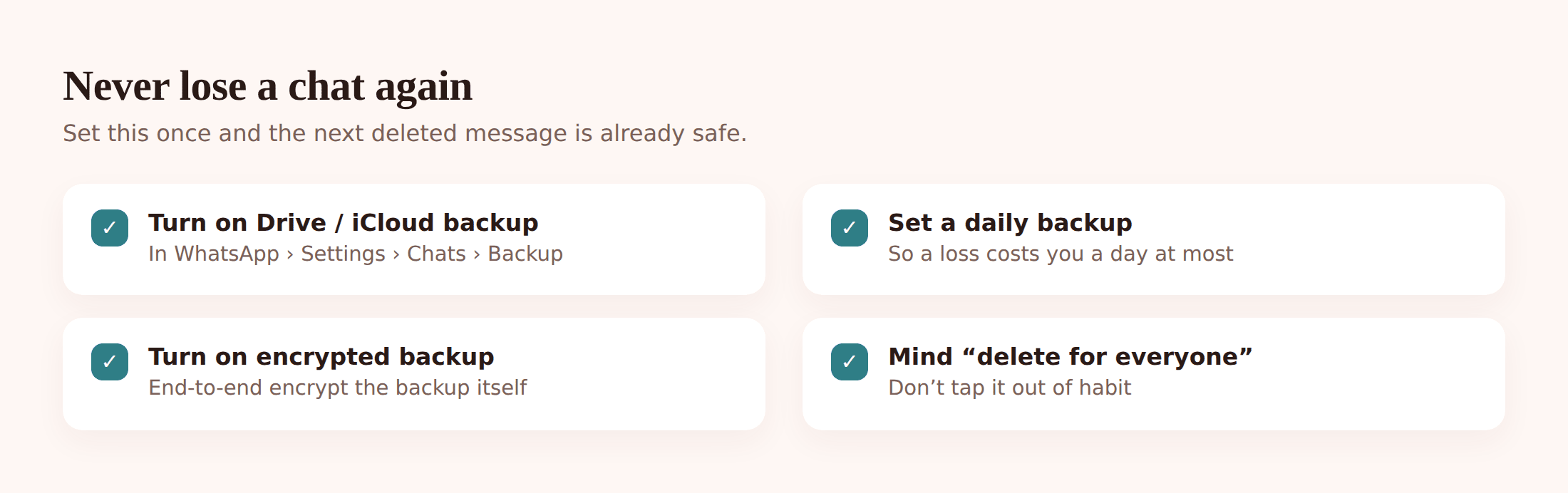
1. Turn on cloud backup
Android: Settings > Chats > Chat backup > pick a Google account and back up. iPhone: Settings > Chats > Chat Backup > Back Up Now, with iCloud enabled.
2. Set it to daily
In the same panel, choose Daily backup frequency. A day-old snapshot is the most you’ll ever lose.
3. Turn on end-to-end encrypted backup
Under Chat backup > End-to-end encrypted backup, switch it on and save the password or key somewhere safe. This protects the backup itself. Just don’t lose the key — without it, the backup can’t be restored.
4. Break the “delete for everyone” habit
Most accidental losses are a mis-tap. Slow down on the delete menu, and when you do delete, be sure it’s “for me” or “for everyone” on purpose.
- Cloud backup switched on (Google Drive or iCloud)
- Backup frequency set to Daily
- End-to-end encrypted backup enabled and the key stored safely
- You know where the local Databases folder lives on Android
- Notification history turned on for quick single-message recovery
The same logic covers more than chats. If you’ve lost other things off your phone, recovering deleted text messages and recovering deleted photos follow the same backup-first approach. And if the phone itself went missing, start with finding a lost or stolen phone.
FAQ
Can I recover a WhatsApp message someone deleted for everyone?
Not the original text through any normal means. WhatsApp replaces it with a “This message was deleted” placeholder on purpose. The one exception is if you’d already turned on Android notification history and the message triggered a notification before it was deleted — the log may still hold the words.
Will restoring a backup delete my recent messages?
Yes. Restoring rolls your entire chat history back to the backup’s date. Anything sent or received after that snapshot is lost. Screenshot recent important chats before you restore.
I don’t have a backup. Can I still recover my chats?
Realistically, no. WhatsApp doesn’t keep a hidden copy on its servers, and no third-party app can pull encrypted chats back. If there’s no Google Drive, iCloud, or local backup, the chat is gone. This is why setting up daily backup now matters.
Are WhatsApp recovery apps safe?
Most aren’t. Apps and sites promising to recover — or worse, read someone else’s — WhatsApp messages are typically scams or malware. The only genuine recovery is restoring your own backup. Don’t pay for it, and don’t grant deep permissions to unknown apps.
How long does WhatsApp keep the local backup on Android?
Roughly the last several days of daily copies, stored in the WhatsApp Databases folder. The most recent is msgstore.db.crypt14; older dated files sit alongside it. They get overwritten as new ones are made, so act before they cycle out.
Does end-to-end encrypted backup make recovery harder?
No, as long as you keep the password or 64-digit key. Restoring an encrypted backup just asks for it. The risk isn’t recovery — it’s losing the key, which makes the backup unusable. Store it somewhere you won’t lose it.