How to Protect Your Child’s Privacy & Digital Footprint
Your kid’s phone leaks more about them than they realise. Not because they’re careless, but because most apps are built to collect, and most default settings are set to share. The good news: a couple of afternoons of tidying, plus a few habits you teach along the way, cuts most of it. Here’s how to lock down what your child shares, what their apps take, and the accounts that tie it all together — and how to hand that skill to them so they keep it going without you.
What a digital footprint actually is
A digital footprint is the trail your child leaves behind online. Some of it they make on purpose — posts, comments, photos, the username they’ve used since they were nine. Some of it gets made about them: apps logging their location, sites tracking what they click, data brokers quietly stitching it all into a profile.
Two things make this worth caring about. First, it lasts. A post feels temporary, but screenshots don’t expire, and search engines have long memories. Second, people look. Colleges glance at applicants. Employers search names before interviews. And it’s not always humans — automated systems and data brokers buy and sell profiles built from scraps most people never think about.
This isn’t a reason to panic, and it’s not a reason to scare your kid off the internet. A footprint is normal. The goal is a clean one — private by default, with the sensitive stuff kept sensitive. A teen who understands this ends up with an advantage, not a scar.
The mental model that sticks: “Would I be fine with this being public, forever, attached to my name?” If yes, share away. If you hesitate, that hesitation is the answer.
The three privacy fronts
It’s easy to feel like online privacy is one giant, vague problem. It isn’t. It’s three specific ones, and each has a short fix-list.
- What your child shares. Posts, photos, location tags, live location, personal details in bios and quizzes. This is the front they control most directly.
- What apps take. Permissions to location, contacts, microphone, camera, plus ad tracking that follows them across apps. Most of this is invisible until you go looking.
- Their accounts. Passwords, two-factor authentication, and whether their logins have turned up in a data breach. This is the boring one that matters most when something goes wrong.
Work through them in that order. Sharing habits pay off immediately, app clean-up closes the quiet leaks, and account hygiene is the safety net under both.
Lock down what they share
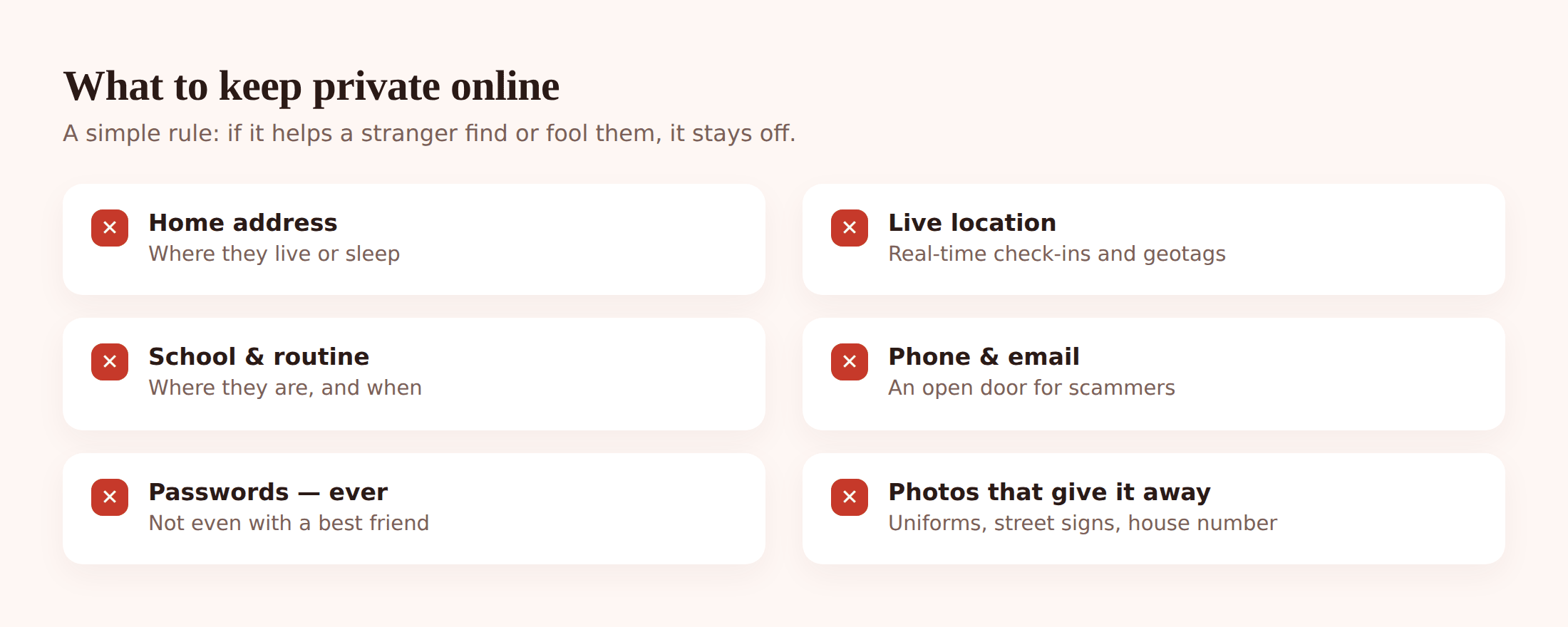
Strangers don’t need much. A school logo on a jumper, a street sign in the background, a “walking to practice!” post at the same time every Tuesday — put those together and someone knows where your kid is and when. You’re not teaching paranoia here. You’re teaching them to not hand out the pieces.
Tighten the sharing basics
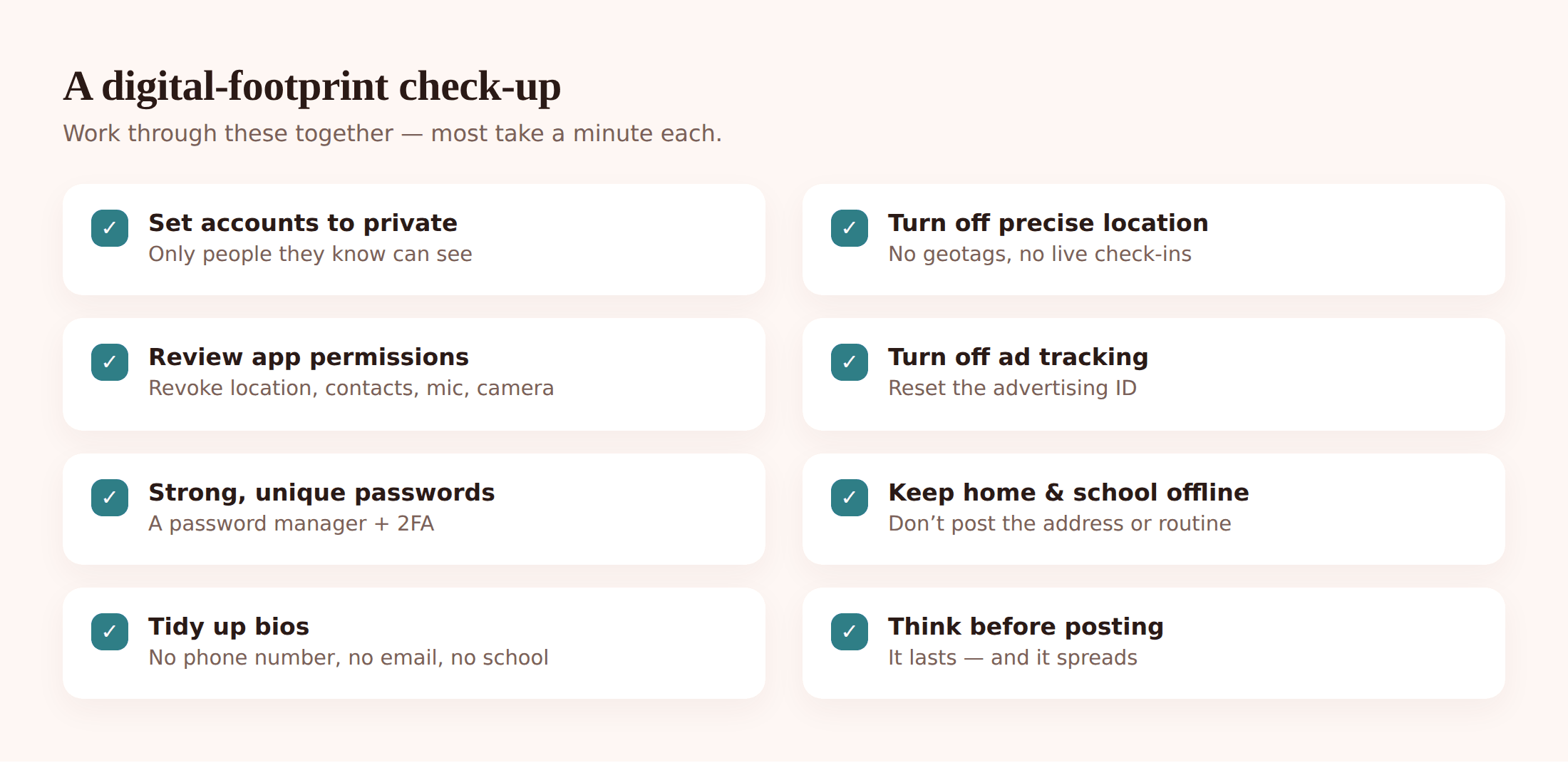
- Set accounts to private. On every social app, switch the profile to private so only approved followers see posts. Do this together, on each app, once.
- Turn off precise location and geotagging. Stop photos and posts from stamping the exact spot they were taken. Look for “location” or “tag location” in each app’s post settings.
- Skip the home/school/routine posts. No house number, no school name in the bio, no “same walk every morning.” Patterns are what strangers use.
- Strip personal info from bios. Full name, birthday, phone number, email — none of it needs to be public. A first name or a nickname is plenty.
- Be wary of quizzes and mini-games. “What’s your pirate name?” often means “hand over your data.” Fun, harmless-looking, and frequently built to harvest.
- Pause before posting. The single best habit: a two-second “do I want this public forever?” check. Model it out loud so it rubs off.
Followers matter as much as settings. A private account still leaks if it’s approved 400 strangers. Sit down together and prune the follower list to people they actually know. For the bigger picture on platforms, group chats and DMs, our guide to social media safety for kids goes deeper.
Clean up app permissions
Here’s the uncomfortable part. A flashlight app doesn’t need your child’s contacts. A photo filter doesn’t need their microphone all the time. But apps ask for everything, people tap “Allow,” and the access sticks around for years. The fix is a permissions sweep, and it takes maybe fifteen minutes.
Do a permissions sweep
- Open the permission manager. On Android: Settings → Privacy → Permission manager. On iPhone: Settings → Privacy & Security. You’ll see permissions grouped by type — Location, Contacts, Microphone, Camera.
- Go type by type. Tap Location and read the list of apps that can use it. Anything that doesn’t genuinely need it, set to “Deny” or “Ask.” Repeat for Contacts, Microphone and Camera.
- Prefer “While using” over “Always.” For the apps that do need location, “while using the app” is almost always enough. “Always” is the one to hunt down and switch off.
- Turn off ad personalisation. On Android: Settings → Privacy → Ads → delete or reset the advertising ID. On iPhone: Settings → Privacy & Security → Tracking → turn off “Allow Apps to Request to Track.”
- Read the privacy report. iPhone’s App Privacy Report (Settings → Privacy & Security) shows which apps touched the camera, mic and location, and who they phoned home to. Android’s dashboard does similar. Eye-opening for a kid to see.
If certain apps or sites aren’t age-appropriate at all, blocking beats managing permissions. Our walkthrough on blocking apps and websites covers that cleanly, and the same principles apply across parental controls on Android and iPhone.
Accounts, passwords and 2FA
This is the least fun section and the most important. When a kid’s account gets taken over, it’s almost never a Hollywood hack. It’s a reused password that leaked from some old site, tried on their email, and it worked.
Get accounts to solid
- Unique password per account. The one rule that matters most. If the same password protects their email, their games and their socials, one leak opens all of them.
- Use a password manager. Nobody can remember thirty strong passwords, and they shouldn’t try. A password manager makes and stores them, and fills them in. Set one up as a family.
- Turn on two-factor authentication. 2FA means a stolen password alone isn’t enough — a login also needs a code on the phone. Switch it on for email first, then socials, then anything with money attached.
- Check for breaches. Sites like Have I Been Pwned tell you if an email has shown up in a known leak. If it has, change that password everywhere it was reused.
- Protect the email above all. The email account is the master key — password resets for everything else land there. Give it the strongest password and 2FA, no exceptions.
A password that’s easy to remember and hard to crack: three or four random unrelated words stuck together, like otter-lamp-cactus-9. Long beats complicated. A manager handles the rest so they never have to.
Location and hidden metadata
Location is sneaky because it leaks in ways that aren’t obvious. A photo can carry the GPS coordinates of where it was taken, baked into the file. Share that image and you may be sharing the location too, even with the caption saying nothing.
- Photo metadata. Turn off location for the camera app, so new photos don’t store GPS. When sharing older photos, many apps strip this automatically — but assume they don’t, and check.
- Live location. Sharing live location with a close friend for an afternoon is fine. Sharing it indefinitely, or in a group full of half-strangers, is not. Teach the “turn it off when you’re done” habit.
- Public wifi. Cafe and mall wifi is convenient and not private. Fine for browsing, not for logging into a bank or anything sensitive. Mobile data is safer for that.
Browsers track too. A quick win: switch the default search to a privacy-respecting one, turn on “block third-party cookies,” and clear the ad ID as covered above. None of this is dramatic. It just stops the quiet profiling that adds up over months.
Teach them to own it
Every setting in this article can be undone by a kid who doesn’t understand why it’s there. So don’t just flip switches — explain them. A teen who gets why precise location is off will keep it off on the next app they install. One who was never told will re-enable it the first time an app nags.
Respect that teens deserve some privacy, too. There’s a real line between keeping a child safe and surveilling them, and crossing it damages the trust you need for any of this to work. Our piece on monitoring versus spying lays out where that line sits. The short version: openly agreed guardrails while they’re young, loosening as they show they can handle it, aimed at a capable and private-by-default teen — not a watched one.
Model it. If you narrate your own “nope, not posting that” moments, and you keep your own accounts tidy, it lands far better than a lecture. Kids copy what you do, not what you say. And if they’re ever curious whether a device is watching them, being able to talk openly about it — the way our is my phone being monitored guide does — beats them finding out sideways and losing trust.
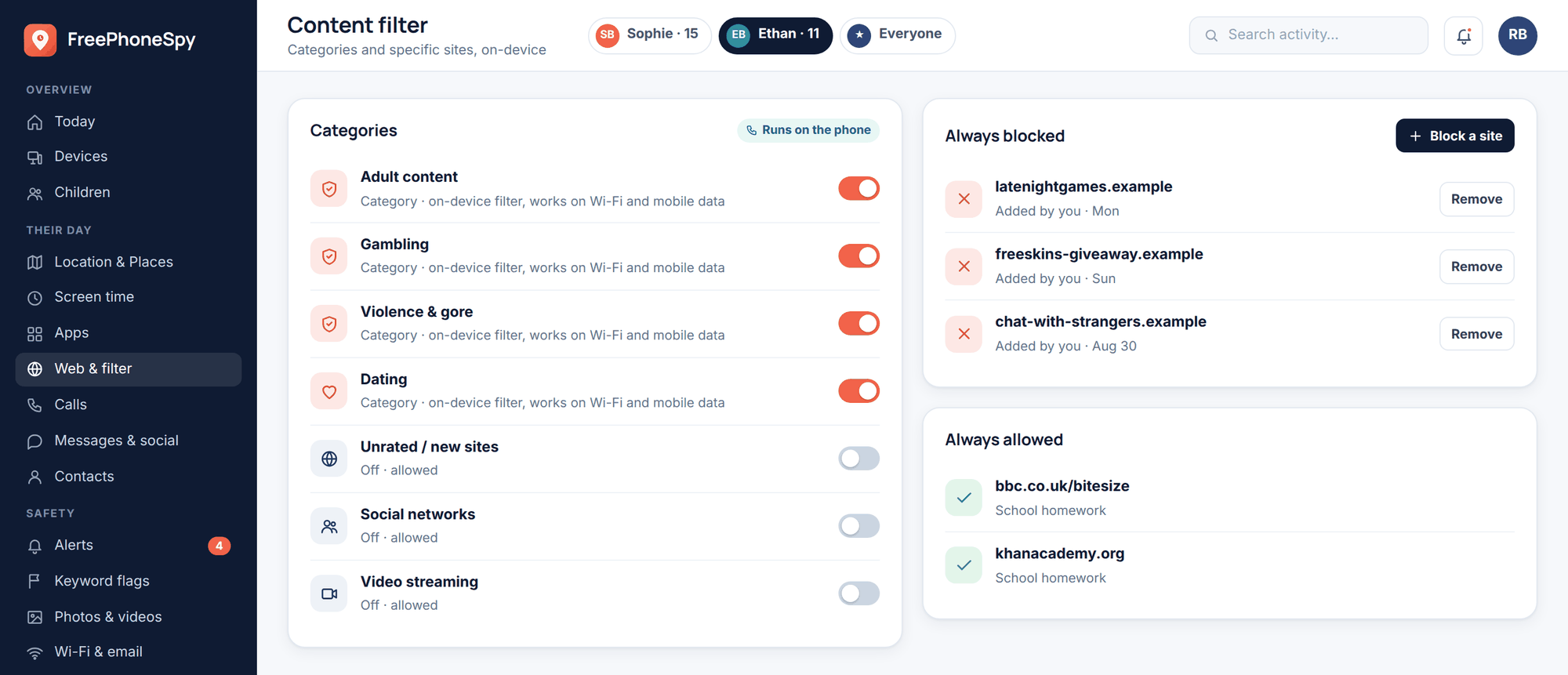
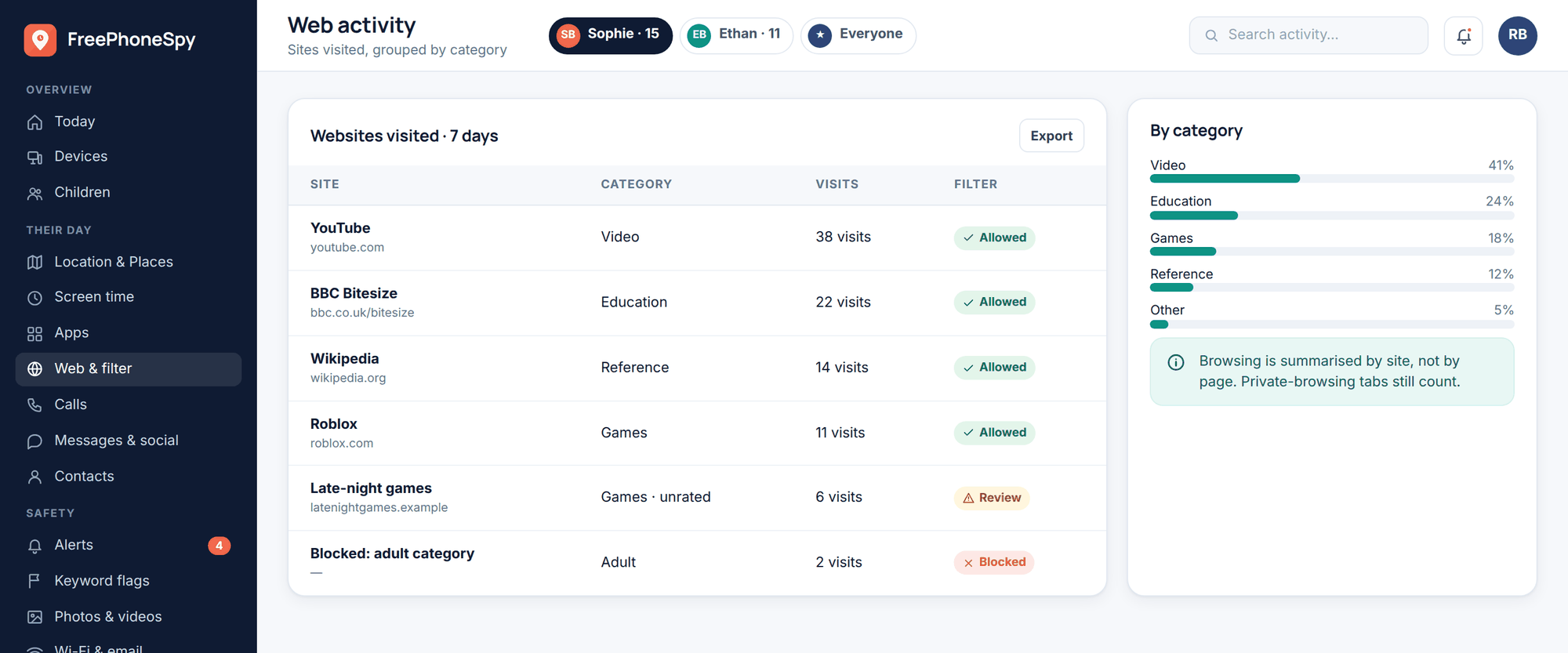
If you want a hand keeping the safer-browsing side going, FreePhoneSpy can help — its web and content filter, app limits and alerts nudge a younger child toward safer browsing and sharing, all through a web panel and with the child in the loop. It’s transparent monitoring for Android, consent-first, and it’s a support for the habits above, not a replacement for them. Real privacy still comes from the settings and the conversations. (On iPhone, Apple’s built-in Screen Time and privacy tools cover a lot of this ground.)
A family privacy check-up
Run this together every few months. It takes twenty minutes and catches the drift that happens as new apps get installed and settings quietly reset.
- Social accounts still set to private, follower lists still people they know.
- Precise location off; geotagging off in camera and posting apps.
- Permissions sweep redone — new apps reviewed for location, contacts, mic, camera.
- Ad personalisation off; advertising ID reset.
- No home, school or routine details in bios or recent posts.
- Every account has a unique password stored in the manager.
- 2FA on for email and the main social apps.
- Email address checked against a breach list; reused passwords changed.
- Live-location shares switched off where they’re no longer needed.
FAQ
My child’s already posted years of stuff. Is it too late?
No. Set accounts private, delete the posts that give away location or personal details, and prune old followers. You can’t erase everything, but you can shrink what’s public a lot — start with anything showing home, school or a daily routine.
Do I really need a password manager for a kid?
Yes, and it’s easier than the alternative. Kids have more accounts than we did, and expecting them to invent and remember unique passwords guarantees reuse. A manager removes the temptation entirely. Set it up as a family and it protects everyone.
Isn’t turning off location a safety risk if I need to find them?
Those are different things. Turn off public and app location — the geotags on posts, the ad tracking, the “always on” permissions. A family location-sharing arrangement between you and your child, agreed openly, is separate and stays on. One is privacy from strangers; the other is a family agreement.
How is protecting their privacy different from spying on them?
Direction and consent. This is about your child’s privacy from the wider internet — apps, brokers, strangers, future employers — done openly, with them involved. Spying is covert and points inward at the child. Our monitoring versus spying guide walks through the difference.
What’s the single most important thing to do first?
Unique passwords plus 2FA on the email account. Email is the master key to everything else, and a reused password is how most account takeovers actually happen. If you only do one thing tonight, do that.
Does FreePhoneSpy protect my child’s privacy?
It supports the safer-browsing side — filtering, app limits and alerts, openly and on Android with the child aware. But the privacy that matters here comes from the settings and habits in this article. Think of the product as a helper for younger kids, not the answer on its own.