How to Recover Deleted Photos (Android & iPhone)
You deleted a photo you wanted. Maybe it was a whole album, maybe your kid tapped the wrong thing. Take a breath. On most phones a deleted photo isn’t gone right away — it sits in a trash folder for about a month, and even after that there are a few real ways to get it back. Here’s what actually works, in the order you should try it.

Act fast: why timing matters
Two things are working in your favor, and both have a clock on them.
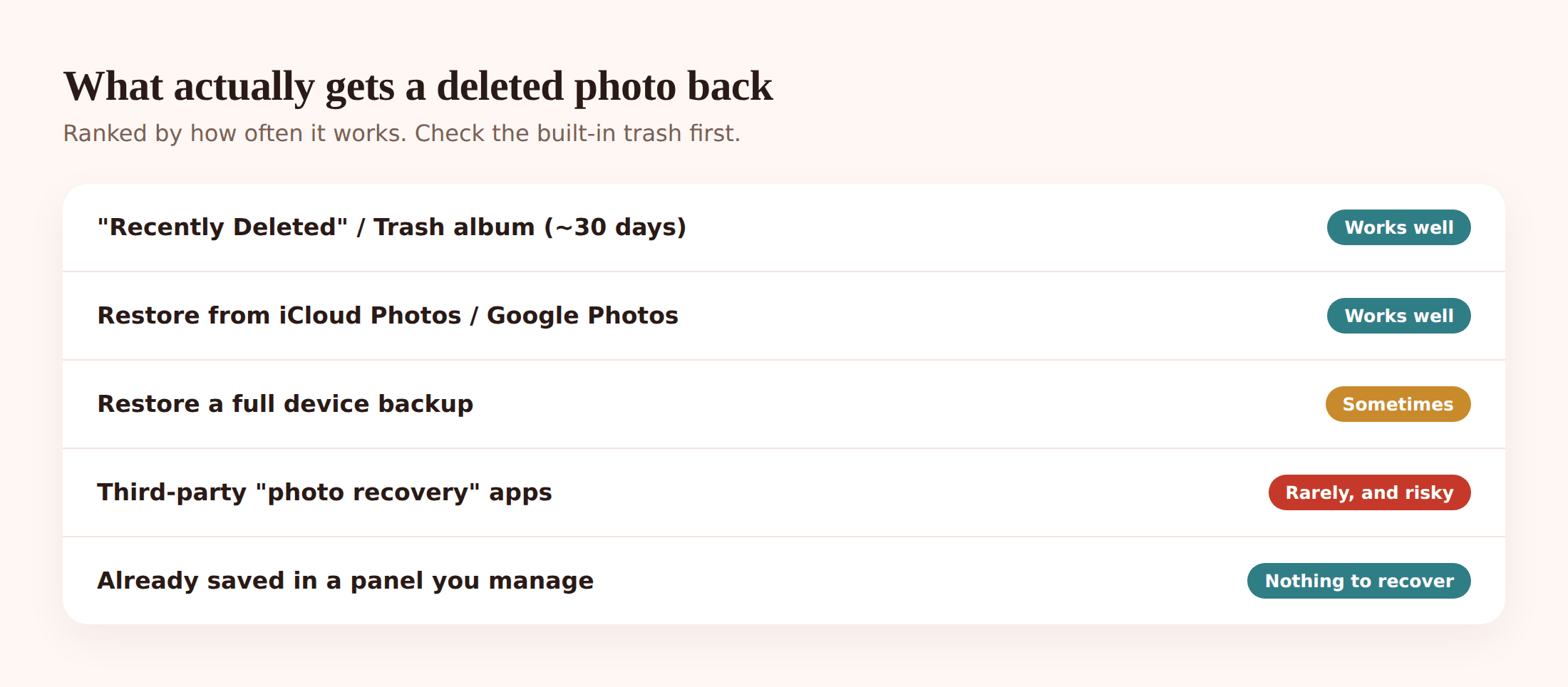
First, most photo apps don’t really delete when you tap delete. They move the photo to a trash or “recently deleted” folder and hold it there for a window — usually around 30 days, sometimes 60. That’s your easiest recovery, and it’s the first place to look.
Second, even when a file is truly removed from storage, the actual data often lingers on the chip until something writes over it. That’s why the single most useful thing you can do right now is stop using the phone’s camera and stop saving new files. Every new photo, video, app download, or update can land on top of the space your deleted photo used to occupy. Once it’s overwritten, no tool on earth brings it back.
Check the obvious first
Nine times out of ten, the photo is sitting in a trash folder and you can restore it in three taps. Don’t skip this for a fancier method.
iPhone: Recently Deleted
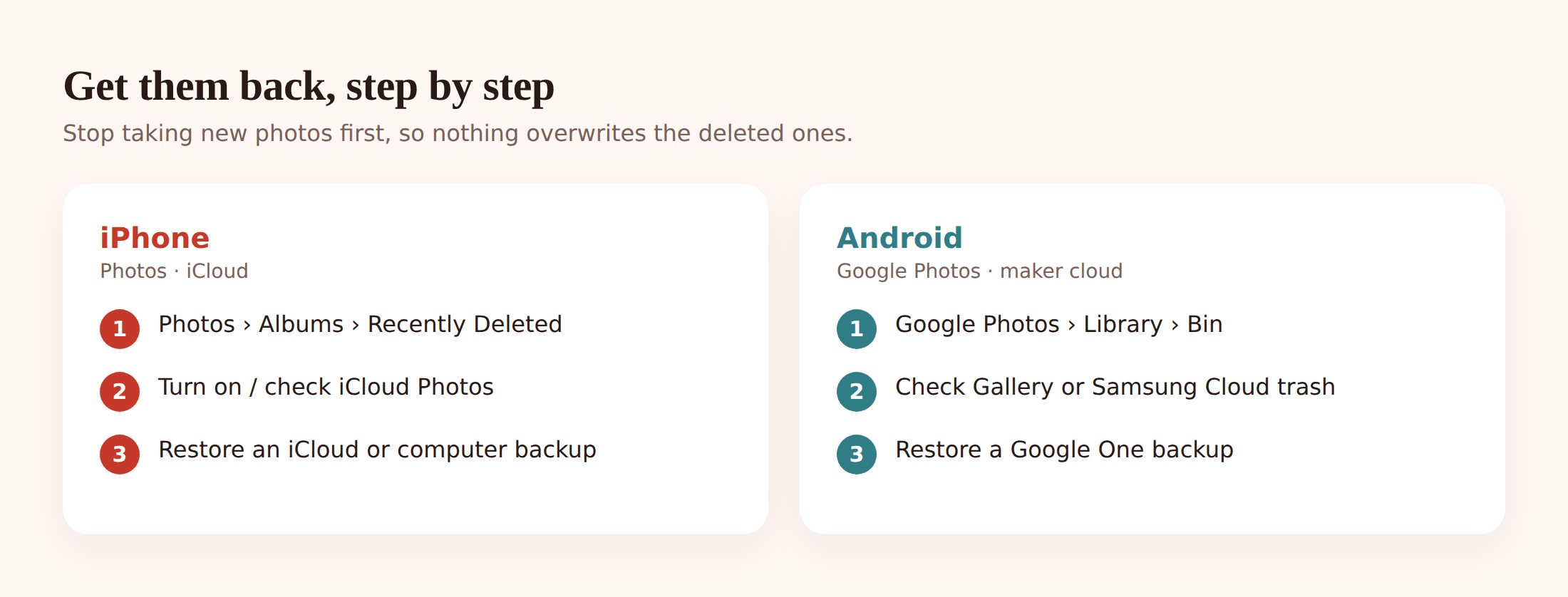
Open Photos, tap Albums, scroll to the bottom to Recently Deleted. Photos stay here for up to 30 days. Tap the album (Face ID or your passcode unlocks it), pick the photos, tap Recover. They go straight back to your library.
Google Photos: Bin
Open Google Photos, tap the Collections or Library tab, then Bin (Trash). Items stay 30 to 60 days depending on your backup. Long-press a photo, select what you want, tap Restore. It returns to your gallery and your account.
Samsung Gallery: Trash
On a Samsung phone, open Gallery, tap the menu (three lines or dots), then Trash. Samsung holds deleted photos for around 30 days. Tap and hold to select, then Restore. Some Samsung phones also keep a separate Google Photos bin, so check both.
If your photo’s in one of these, you’re done. If not, keep reading — the backup routes below reach photos that already left the trash.
iPhone: deeper recovery
Past the Recently Deleted album, everything on iPhone comes down to backups. If you never backed up, these won’t help — but most people have at least one of them turned on without realizing it.
iCloud Photos (if it was on)
If iCloud Photos was syncing, your library lives in the cloud, not just the phone. Deleting on the phone deletes it everywhere, but it still lands in Recently Deleted for 30 days — and you can reach that from any device. Sign in at iCloud.com, open Photos, then Recently Deleted, and recover from there. Handy when your phone is lost but the account isn’t.
Restore from an iCloud or computer backup
This one has a big catch. Restoring from a full device backup replaces your phone’s current state with the backup’s state — so anything created after that backup is lost. Only do this if the missing photos matter more than recent data, or restore to a spare device to fish them out. On the phone: Settings > General > Transfer or Reset iPhone > Erase, then during setup choose Restore from iCloud Backup and pick a backup from before the deletion. A computer backup (Finder or iTunes) works the same way.
iCloud.com Recently Deleted
Worth repeating on its own: the web version of Recently Deleted is the fastest deep check. No app, no restore, no data loss — just log in and look. If the photo left the phone’s trash but the account still holds it, this catches it.
Android: deeper recovery
Android gives you more places to check, because photos can be backed up by Google, by your phone maker, and sometimes stored on an SD card.
Google Photos Bin and your account
Already covered above, but confirm you’re signed into the right Google account — people who have two accounts often look in the wrong bin. If backup was on, the photo may still be in your account even after the phone’s own gallery cleared it.
Device gallery trash
Beyond Google Photos, your phone’s built-in gallery (Samsung, Xiaomi, OnePlus and others) usually keeps its own recycle bin for about 30 days. Open the gallery app, find its menu, and look for Trash or Recently Deleted. This is a separate bucket from Google’s.
Google One backup restore
If you back up the whole device with Google One, a restore can bring back app data and settings, but photos are handled through Google Photos rather than the device backup — so the Google Photos bin and your account are still the real photo source. Check there before assuming a full restore is needed.
Samsung Cloud
On Samsung, go to Settings > Accounts and backup and look at Samsung Cloud (where still available in your region). It may hold a separate copy of gallery photos and its own trash. Restore from there if Google didn’t have it.
SD card recovery
If the photos were on a removable microSD card, you have a better shot than with internal storage. Power off the phone, take the card out, and read it on a computer with a card reader. A reputable desktop recovery tool can scan the card directly, which avoids writing new data to the phone. Cards are also easier because you can stop using them entirely while you work.
The “photo recovery app” trap
Search the app store for “photo recovery” and you’ll get dozens of results promising to undelete anything in seconds. Most of them can’t do what they claim, and some are worse than useless.
Here’s what to watch for:
- Overpromising. An app installed after deletion often can’t reach truly deleted files on modern Android or iPhone without root or a jailbreak — the system won’t let it. Any app claiming a magic deep scan of internal storage on an unrooted phone is stretching the truth.
- Scary permissions. If it wants root access, device admin, or sweeping permissions just to “scan,” walk away. Those are the keys to your whole phone.
- Pay-to-reveal. A classic pattern: the app “finds” hundreds of recoverable photos as blurry thumbnails, then demands payment to unlock them. Often there’s nothing real behind the blur.
- Ads and data harvesting. Free recovery apps stuffed with ads frequently make their money from your data, not from helping you.
So when is paid software worth it? Rarely — but two cases are legitimate. A well-reviewed desktop recovery tool that scans an SD card or a phone connected to a computer can genuinely find files, because it reads the storage directly. And for truly irreplaceable photos — a one-of-a-kind memory, legal evidence — a professional data-recovery lab can sometimes recover from a chip that software can’t touch. It’s expensive and not guaranteed. Save it for photos you can’t live without.
One more point, because these are your private pictures: think about who you hand them to. A cloud “recovery service” that asks you to upload your whole library, or a cheap app from an unknown developer, is a bad trade. Handle personal photos carefully, and prefer methods that keep the data on your own devices.
A note on phones you manage
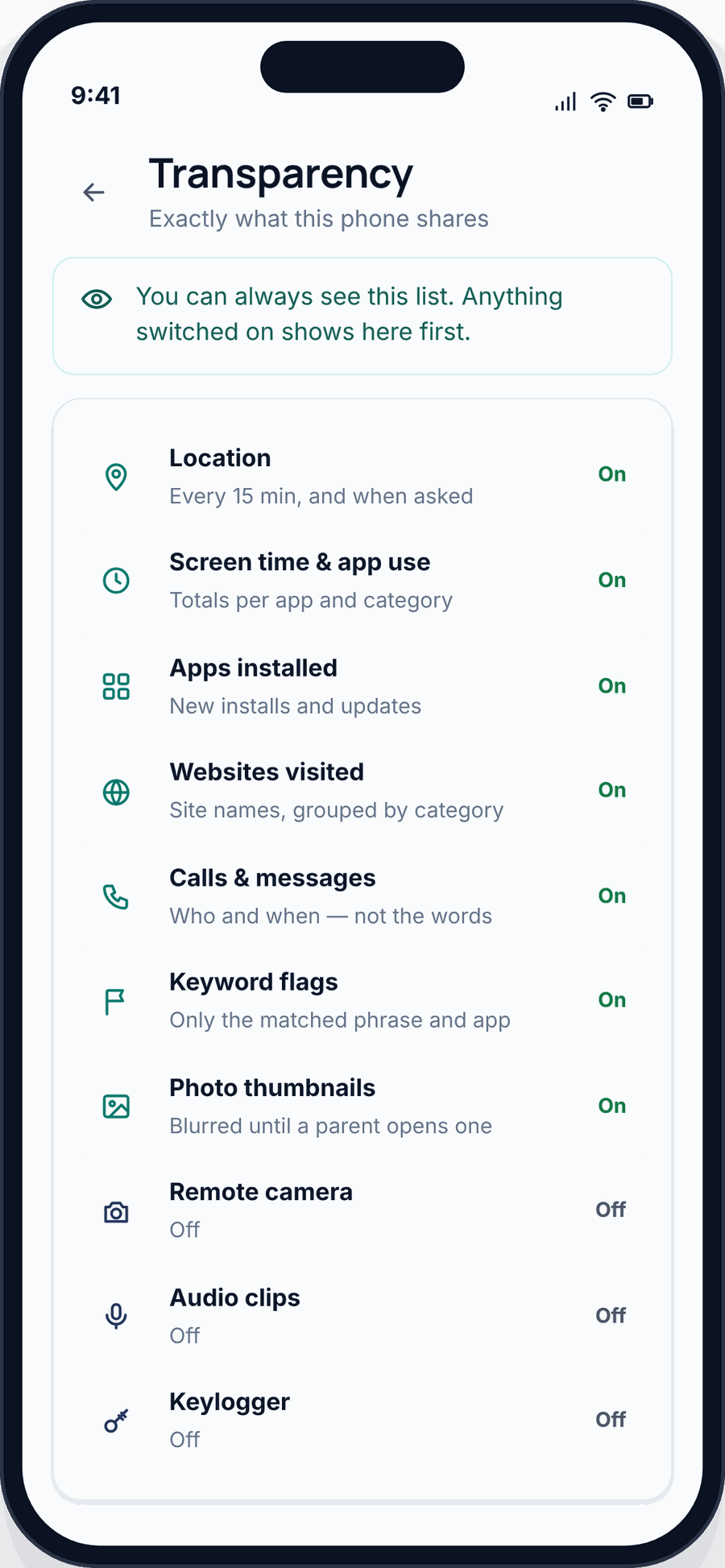
If you’re a parent and the deleted photos were on a child’s phone you set up and manage openly, you may already have a copy without knowing it. FreePhoneSpy is transparent parental monitoring for Android — on a child’s phone you manage with their knowledge, camera and flagged photos are saved to your web panel as they’re captured, so a photo the child later deletes from the phone can still be sitting in the panel.

That only applies to your own children and devices you own with consent — it’s not a way to reach anyone else’s pictures, and it’s not something to install quietly. Used honestly, it’s just a second copy of photos you were already entitled to. If that’s your situation, the complete guide to child phone monitoring walks through doing it the right way.
Never lose them again
The best photo recovery is not needing one. A few settings, turned on once, mean a stray delete or a lost phone stops being a crisis.
Here’s what backup and cloud sync buys you, at a glance:
| Setup | If you delete a photo | If the phone is lost |
|---|---|---|
| No backup at all | Trash only (~30 days), then gone | Photos gone with the phone |
| Cloud sync on (iCloud / Google Photos) | Recoverable from cloud trash on any device | Photos safe in your account |
| Cloud sync + a second copy | Recoverable even after cloud trash clears | Fully covered |
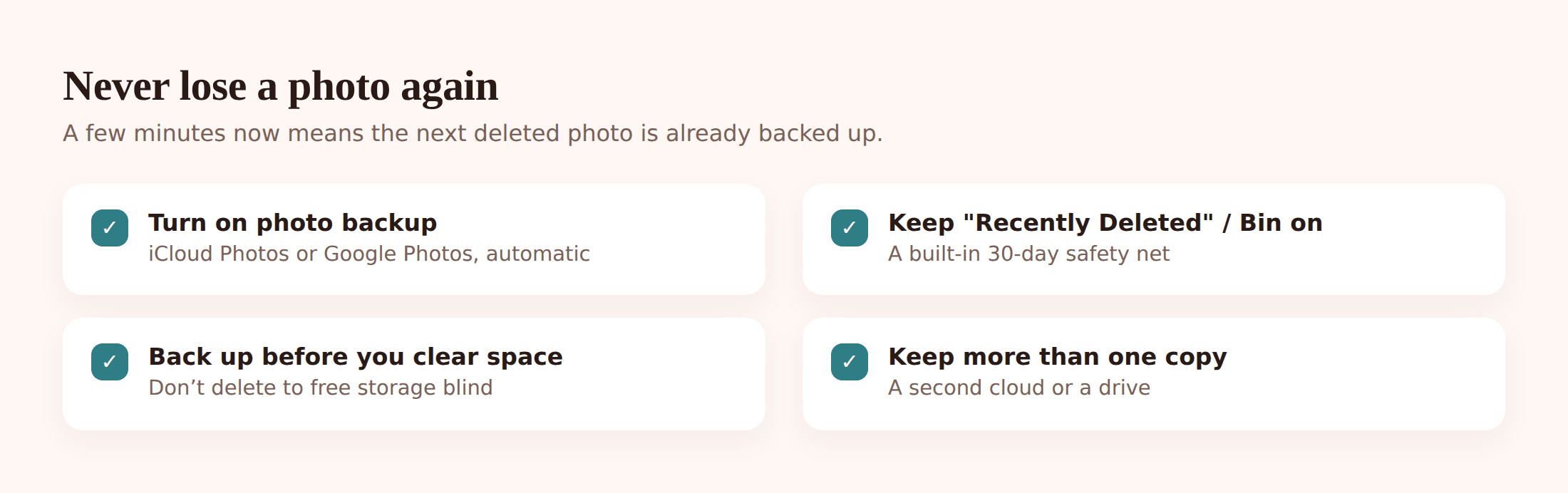
- Turn on iCloud Photos or Google Photos backup. This is the big one. Your library syncs to the cloud, and deletes become reversible from any signed-in device.
- Leave “Recently Deleted” / Trash enabled. Don’t empty it out of habit. That 30-day window is a free safety net.
- Keep more than one copy. Cloud plus an occasional export to a computer or external drive means no single failure loses everything.
- Back up on a schedule. Whether it’s automatic nightly cloud backup or a monthly copy to your laptop, pick something and let it run.
- Don’t trust one account forever. Know your login and recovery details. A locked-out account is as bad as a lost phone.
While you’re tightening things up, it’s worth knowing your phone’s other safety nets too — how to recover deleted text messages and what to do to find a lost or stolen phone before the photos on it become the problem.
FAQ
Can I recover photos deleted more than 30 days ago?
From the trash folder, usually no — it clears on its own. Your remaining shots are a backup made before you deleted (iCloud, Google Photos, computer), an SD card scan if the photos were on a card, or a professional lab for something irreplaceable. On unrooted internal storage after the window closes, odds are low.
Do free photo recovery apps actually work?
Rarely on modern phones. Without root or a jailbreak, an app usually can’t reach truly deleted internal files, and many exist to sell you a paid unlock or harvest data. Check your trash and cloud backups first. If you go paid, use a reputable desktop tool on an SD card or connected phone.
Will restoring a backup erase my current photos?
A full device restore can. It replaces the phone’s current state with the backup’s, so anything created after that backup is lost. If you only need a few photos, restore to a spare device or use the cloud’s own Recently Deleted instead of wiping your main phone.
I deleted photos from my child’s phone by accident. Now what?
Same steps as any phone: check the gallery trash and Google Photos bin, then any cloud backup on that account. If you manage the phone openly with a tool that saves photos to a panel, check there too — a copy may already be waiting.
Are my photos safe if I use a cloud recovery service?
Be careful. A service that wants you to upload your whole library is taking custody of your private pictures. Prefer methods that keep photos on devices you control — the phone’s own trash, your cloud account, an SD card scan on your own computer.
Does turning off my phone help recover photos?
For truly deleted files on internal storage, yes — it stops new data from overwriting them. Power down and don’t take more photos until you’ve tried the trash and backup routes. For an SD card, remove it and read it on a computer instead.