Family Location Sharing: How to Set It Up (With Consent)
You want to know your daughter got to school. Your dad lives alone and you’d like a quiet way to check he made it home. Your partner’s flight lands late and you’re doing the pickup. Sharing location can answer all three without a single phone call — as long as everyone in the picture knows and agrees. That last part isn’t a footnote. It’s the whole thing.
This is about location sharing that people opt into. Kids who know the app is there. Partners who both turn it on. An elderly parent who agreed to it over a cup of tea. Done that way, it’s a safety net. Done in secret, it’s surveillance — and with another adult, it’s often illegal. We’ll be clear throughout about which is which.
Why families share location
Most families don’t want a live feed of each other all day. They want answers to small, specific questions. Did she get to school? Are they off the train yet? Which entrance are you at? Location sharing turns those into a glance instead of a text you have to wait on.
Think of the Bennetts, the family we use in our examples. Priya Bennett doesn’t watch her son Kai’s dot move across town. She’s got a saved place called “School” and an alert that fires when he arrives. Green tick, phone back in pocket. On a normal day she never opens the map at all. That’s the healthy version — you set it up so the phone tells you when something’s worth knowing, and stays quiet otherwise.
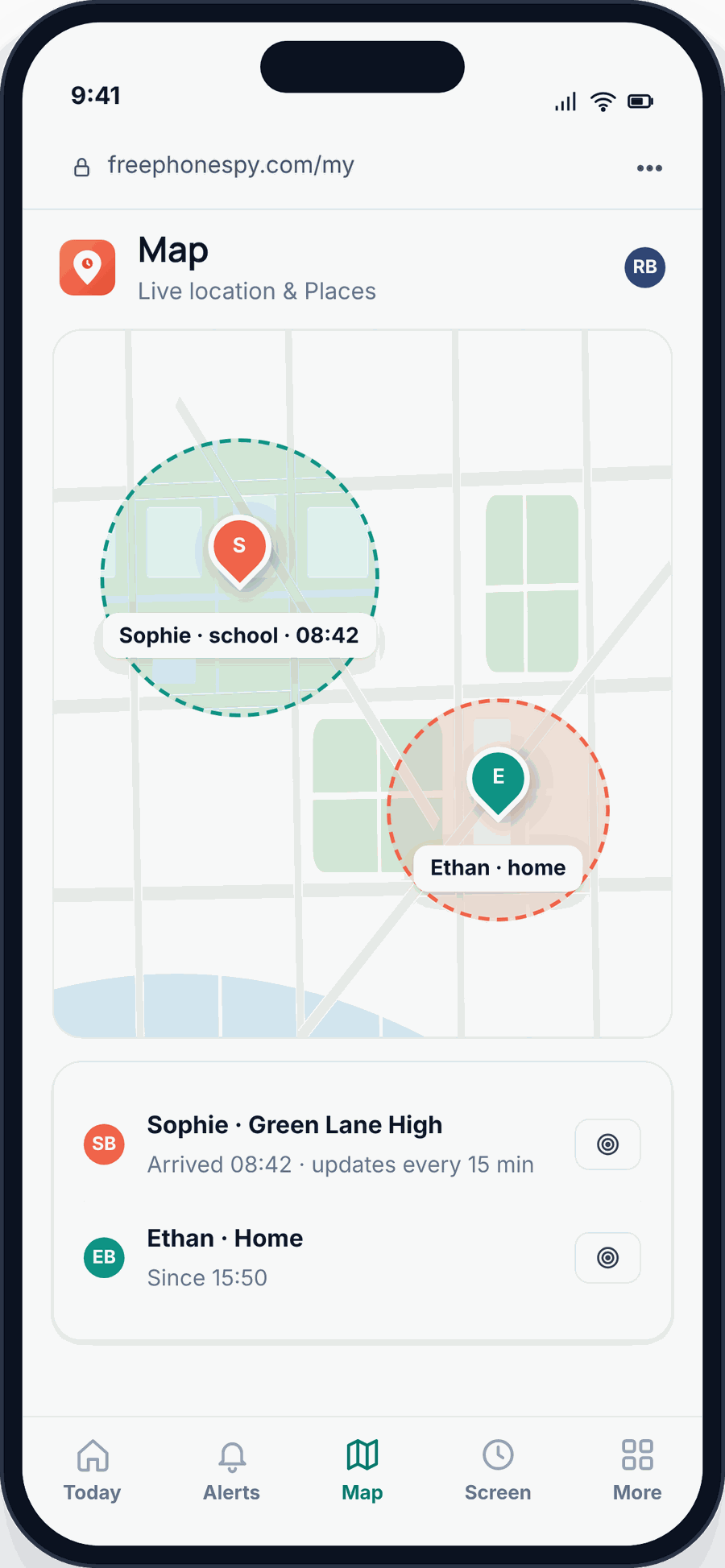
The situations where it earns its keep are ordinary. Coordinating a pickup when a club runs late. A teenager at a festival where texting back is hopeless. A partner landing after a long flight who just wants you already moving toward arrivals. An older parent who’s had a fall before, where knowing they’re home safe lets everyone sleep. None of these are about catching anyone out. They’re about removing a small worry.
Here’s the mindset that keeps it working: it’s a safety net, not a leash. The moment location sharing becomes a way to check up on someone, quiz them about a detour, or control where they go, it stops being safety and starts being pressure. Kids especially can feel the difference, and they’ll route around it — leaving the phone at a friend’s, turning things off. Trust is what makes it stick.
Your options compared
There’s no single best tool — it depends on the phones and who’s sharing. Three options cover almost everyone.
Apple Find My is built into every iPhone, iPad and Mac. If your whole family is on Apple, Family Sharing plus Find My is the obvious choice: it’s free, already there, and battery-light. The catch is it’s Apple-only. An Android phone can’t join.
Google Maps location sharing works across Android and iPhone, which makes it the natural pick for two adults on different platforms — you share for a set time or indefinitely, and either of you can stop whenever. It’s simple and mutual by design. What it doesn’t do is structured parenting: no saved “school” place with arrive-and-leave alerts, no parent dashboard, no “left school early” nudge.
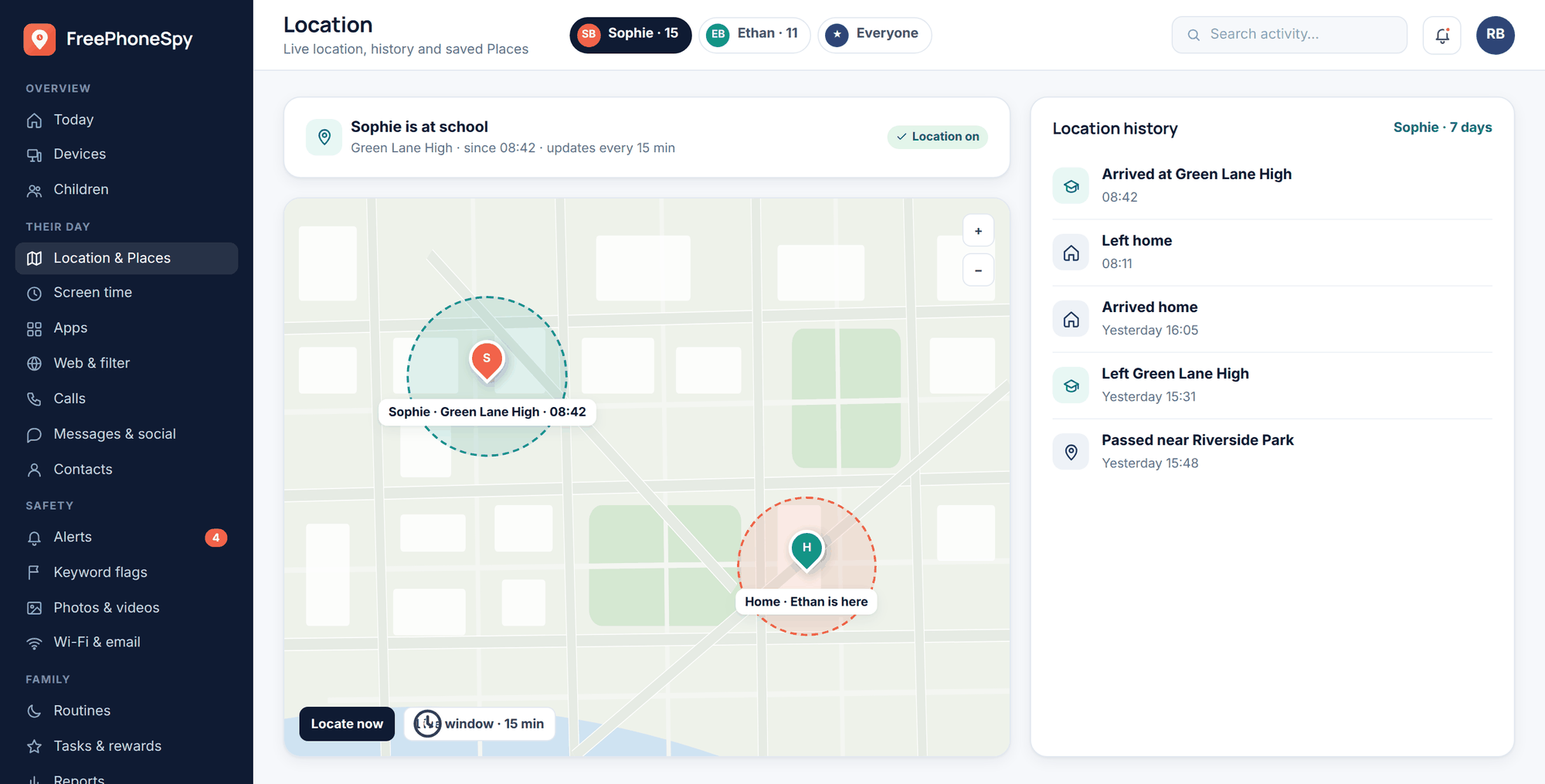
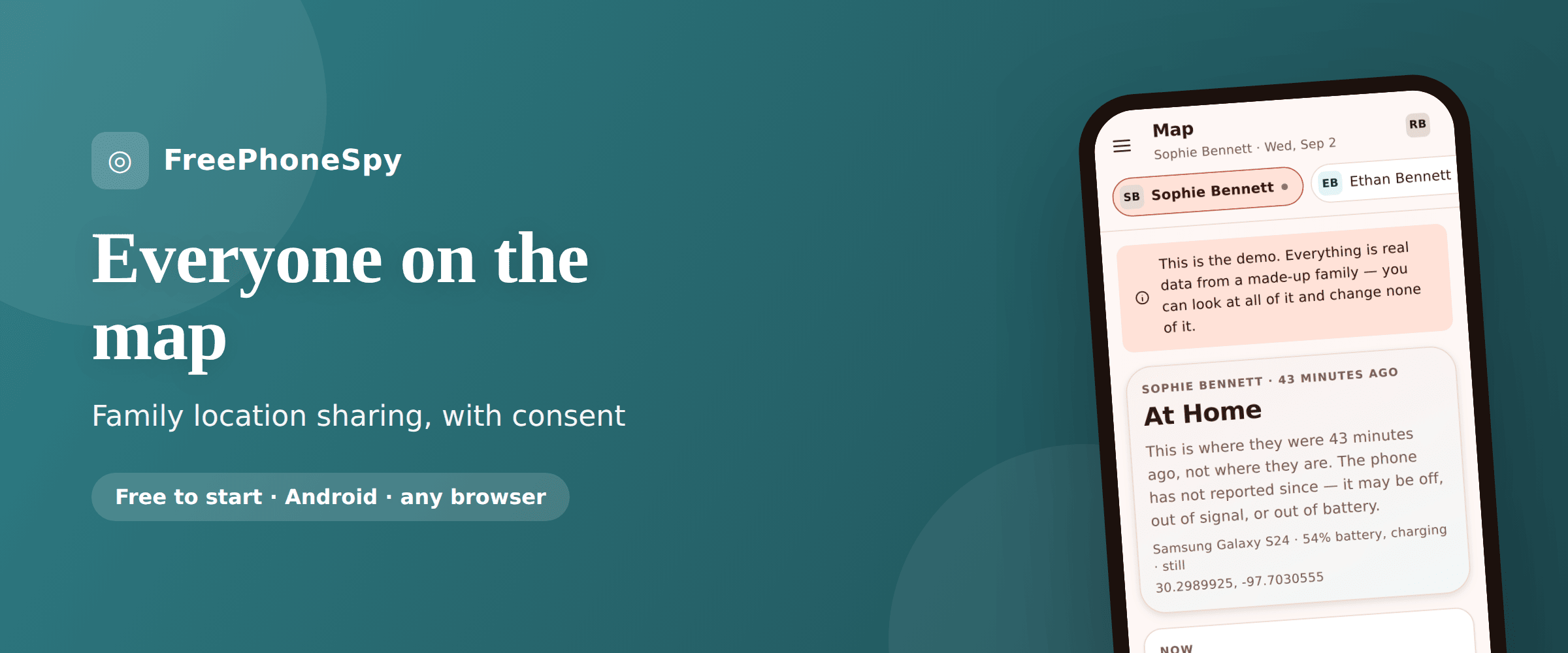
A dedicated family app like FreePhoneSpy is aimed at parents of children on Android phones. One app on the child’s Android phone, a 6-digit pairing code, and you run everything from a web panel in any browser. It adds the things general tools skip: saved Places, arrive and leave alerts, a “left school early” alert, location history, and a locate-now request. Be clear on the honest limit — our child app is Android only. For an iPhone in the family, use Apple’s Find My. Many families mix: FreePhoneSpy for the Android kids’ phones, Find My for the iPhones, Google Maps between the two parents.
| Option | Works on | Best for | Alerts & Places | Cost |
|---|---|---|---|---|
| Apple Find My | Apple devices only | All-Apple families, adult couples on iPhone | Basic arrive/leave notifications | Free, built in |
| Google Maps sharing | Android + iPhone | Two adults, cross-platform, mutual sharing | None (live position only) | Free, built in |
| FreePhoneSpy | Child app is Android; panel is any browser | Parents of children on Android phones | Saved Places, arrive/leave, “left school early”, locate-now | Free to start, kept free by simple tasks |
A quick word on cost and data, since it matters. FreePhoneSpy is free to start for 10 days with no card. After that it stays free through a few simple tasks, and location plus the core features stay free. Your family’s data is never sold. If you want the full picture of what the location side does, there’s a dedicated location and Places walkthrough.
Set it up for kids
The rule for children is simple: age-appropriate, and they know. A seven-year-old and a fifteen-year-old need very different arrangements, and the point isn’t to watch — it’s to build a safety net that shrinks as they grow up and earn more room.
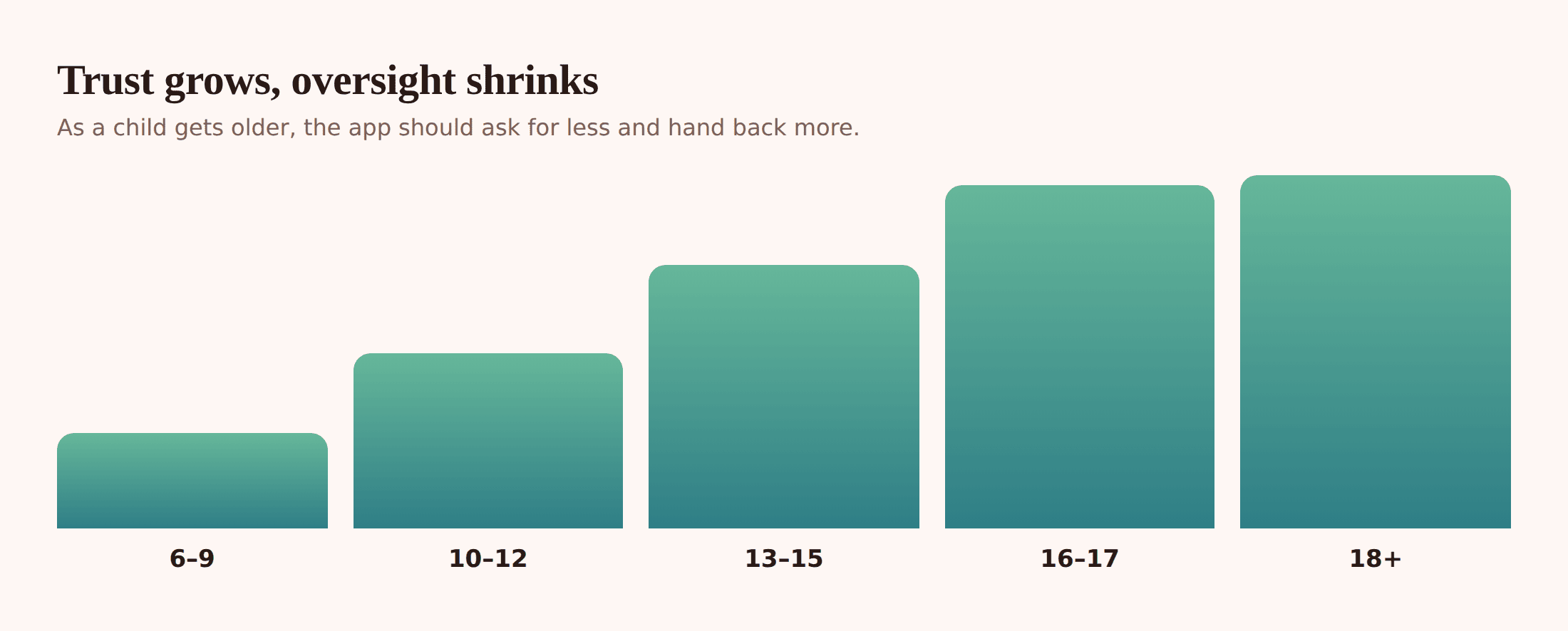
That’s the trust ladder. When they’re small, you share more and check more — an arrive alert for school is reassuring for everyone. As they hit their teens, you dial it back: fewer alerts, more privacy, more of a check-in rhythm than a live map. Tell them that’s the deal out loud. “Right now we’ve got school alerts on. When you’re older, we’ll turn most of this off.” A safety net they can see themselves climbing out of is one they’ll accept.
Setting it up with FreePhoneSpy takes a few minutes, done together on their Android phone.
Install and pair
Put the app on your child’s Android phone with them watching. Open your web panel in any browser, and enter the 6-digit pairing code the app shows. That links the two. Nothing is monitored until you set it up — so do the next steps together.
Save your Places
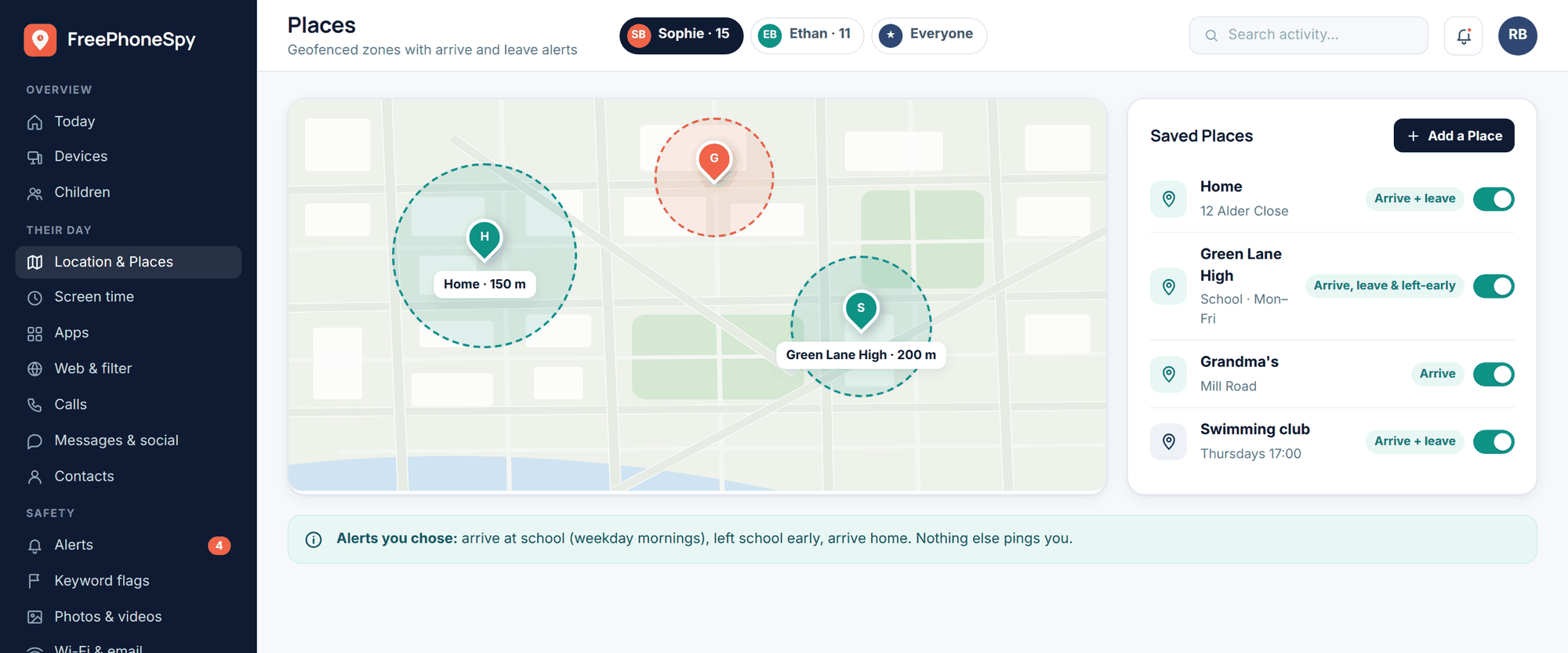
Add the spots that matter: Home, School, and maybe Grandparent’s. Each becomes a named zone on the map instead of a bare pin. This is what turns raw location into useful alerts.
Turn on arrive and leave alerts
For School, switch on an arrival alert so you get a tick when they’re there in the morning. The “left school early” alert tells you if they leave during hours — genuinely useful, and something to explain to your child so it doesn’t feel like a trap.
Use locate-now and the live window sparingly
When you actually need it — running late, can’t reach them — send a locate-now request or open a live-location window to watch the dot move for a short stretch. It’s for the moment, not all day. Close it when you’re done.
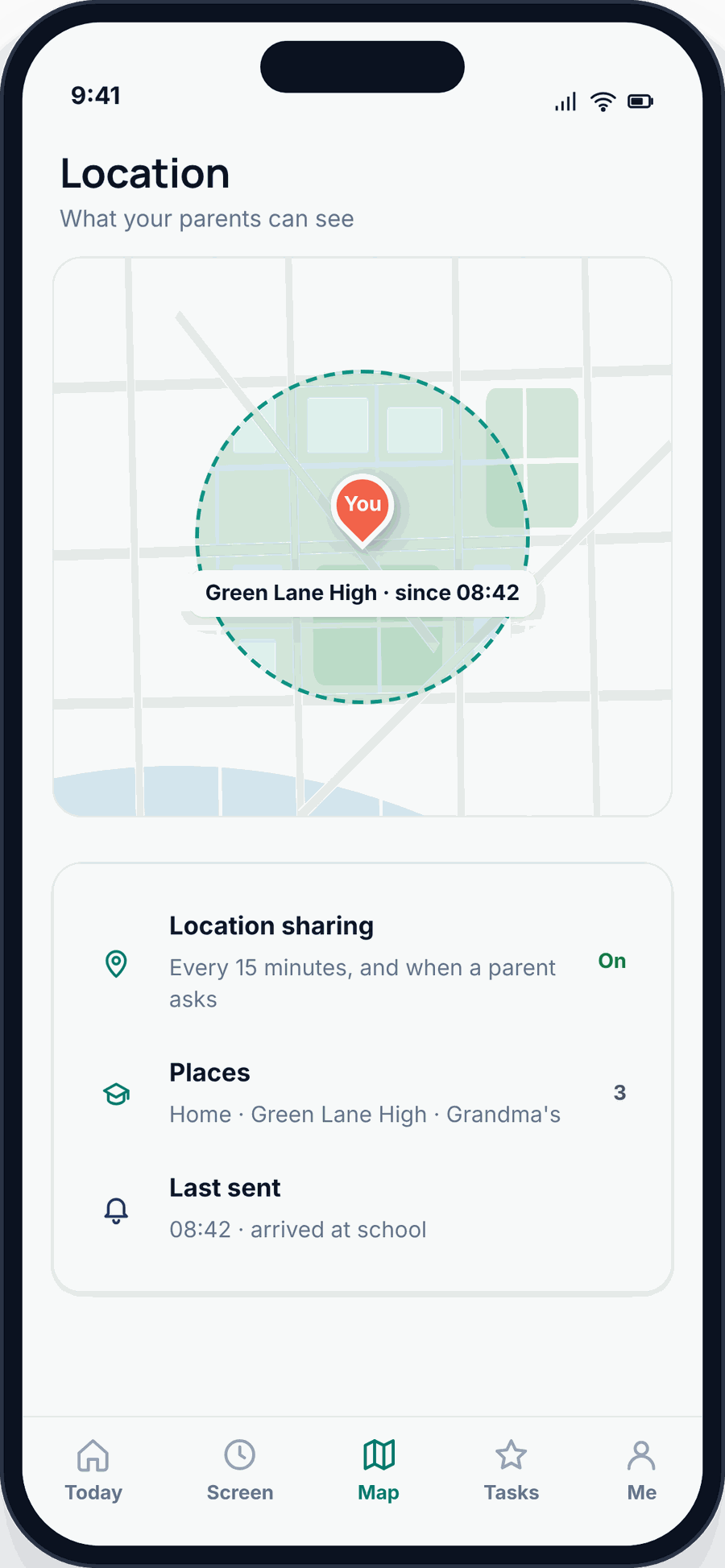
Pair location with a couple of other calm-making settings and you rarely need to open the map. Routines can wind the phone down at bedtime, and the alerts system covers more than location. If you’re weighing up how much of this is right for your child’s age, the what-age guide goes deeper, and the complete guide to child phone monitoring ties it all together.
Set it up with a partner
Between two adults, one word governs everything: mutual. Both of you opt in. Both of you can see the other. Both of you can switch it off. It’s equal, it’s out in the open, and it’s a shared convenience — not one person keeping tabs on the other.
For a couple, you usually don’t need a parenting app at all. If you’re both on iPhone, Find My is right there. If one’s on Android and one’s on iPhone, Google Maps location sharing is the cleaner fit — cross-platform, easy to start, easy to stop. Set it to share indefinitely with each other and get on with your lives. It’s brilliant for the small stuff: “text me when you land” becomes “I can see you’ve landed,” and the pickup sorts itself.
The healthy test is simple: could you show your partner exactly what you can see, right now, without any awkwardness? If yes, you’re doing it right. If the honest answer is that they don’t know, stop.
Set it up for an elderly parent
Ageing parents are often the most receptive to location sharing, because the reassurance runs both ways. They get to keep their independence, and you get a quiet way to know they’re all right. But it has to be with their agreement — sit down, explain what it does, and let them say yes. Framing matters: this is peace of mind for the whole family, not you deciding they can’t cope.
Keep it simple. An older parent usually doesn’t want alerts pinging all day or a wall of settings. Often all you need is the ability to check they’ve made it home, or to locate them if a call goes unanswered and you’re worried. If your parent is on Android, FreePhoneSpy’s basic location and a single Home place is plenty. If they’re on an iPhone, Family Sharing and Find My do the job without installing anything new.
One practical tip: whatever you use, make sure they know how to see you back. A parent who can locate you too feels like a partner in the arrangement, not the subject of it. And keep the phone charged — for an older person’s peace of mind to work, the battery has to last the day, which brings us to the settings that matter.
Alerts and geofencing without the noise
“Geofencing” sounds technical. It just means drawing a circle around a place on the map and getting told when someone crosses the line. Arrive at School, leave Home — those are geofence events, and they’re the difference between a location app you actually use and one you mute after a week.
The single biggest mistake is turning on too many alerts. If every arrival and departure at five places pings both parents, you’ll get twenty notifications a day, and within a week you’ll ignore all of them — including the one that mattered. That’s alert fatigue, and it quietly defeats the whole point.
- Pick two or three Places that genuinely matter — usually Home and School — and leave it there.
- Turn on arrive alerts for the reassuring ones; skip leave alerts unless a departure is what you actually need to know.
- Use the “left school early” style alert for exceptions, not routine comings and goings.
- Let one parent own the alerts rather than both getting doubles of everything.
- Review it monthly. If an alert hasn’t been useful in weeks, switch it off.
A small circle around a specific building gives crisp alerts. Too large a zone and you’ll get a “left” notification when they walk to the far end of the car park. Too small and a slightly-off GPS reading makes it flicker. Aim for a radius that comfortably covers the place and its immediate surroundings.
Battery, accuracy and why it lags
Location isn’t magic, and it’s worth being honest about the limits so nobody panics when a dot sits still. GPS is very good outdoors with a clear view of the sky, and much worse indoors, in tunnels, in multi-storey car parks or between tall buildings. Inside a school or a shopping centre, the position can drift by a good distance or lag behind reality. A dot that’s “at the corner of the building” is often just a phone deep inside it.
A location also sometimes doesn’t update, and that’s usually nothing sinister. The phone might be out of signal, on low-power mode, off, or simply hasn’t moved. Battery-saver settings on Android can throttle background apps, which delays updates. If a position looks stale, the honest read is “the phone hasn’t reported recently,” not “something’s wrong.”
Constant high-accuracy tracking is the enemy of battery life. Live location — that moving-dot view — is the most power-hungry mode there is, which is exactly why it’s built for short bursts rather than all day. A few things keep the phone alive:
- Use arrive/leave alerts for the everyday, and save the live-location window for the moments you truly need it.
- Leave the phone’s own location set to high accuracy, but don’t leave a live view open for hours.
- Keep the app updated — background efficiency improves over time.
- For kids, a cheap portable charger in the school bag solves more location problems than any setting.
Set expectations with everyone sharing: this shows you roughly where a phone last reported, not a flawless real-time position. That framing prevents the 3pm spiral when a dot hasn’t moved because a lesson’s running over and the phone’s in a bag.
Etiquette and how to stop
The manners of location sharing matter as much as the mechanics. The gold standard is check-ins over constant watching. You don’t need to see every step of someone’s day — you need to know the thing you’re wondering about, and then close the map. Families who treat it as an occasional glance keep trust intact. Families who narrate someone’s movements back to them (“saw you stopped at the shop”) wear it out fast.
Be honest, always. Everyone being tracked should know they’re being tracked, know what you can see, and be able to see the same about you where it’s mutual. If you ever feel the urge to hide that you’re checking, that’s the signal you’ve crossed from safety into something else.
And make stopping easy — for everyone, including you. On Google Maps, either person ends sharing in a couple of taps. On Find My, you stop sharing your location from settings whenever you like. With FreePhoneSpy, you can pause or turn off sharing from the web panel, and because it’s a transparent app your child can see its state on their phone. As kids climb the trust ladder, actually turning things off is how you prove the ladder was real. Sharing that can never be switched off isn’t sharing — it’s a cage.
If a phone does go missing, location sharing doubles as your first line of recovery. The find a lost or stolen phone guide walks through that, and it’s a good reason to have location set up before you ever need it.
FAQ
Can I use FreePhoneSpy on an iPhone?
The child app is Android only. For an iPhone in your family, use Apple’s Find My and Family Sharing, which are free and built in. Plenty of families run both — FreePhoneSpy on the Android phones, Find My on the iPhones.
Is it legal to track my partner?
Only with their knowledge and agreement, and only when it’s mutual. Covertly tracking another adult is a serious breach of trust and is illegal in many places. If you both opt in and can each see the other, that’s fine. If it’s secret, don’t.
Will my child know the app is there?
Yes. FreePhoneSpy is transparent by design — the app is visible on the phone, and nothing is monitored until you set it up together. Hiding monitoring on a child’s phone isn’t what it’s for, and it undermines the trust that makes any of this work.
Why hasn’t the location updated?
Usually the phone is out of signal, switched off, in low-power mode, or simply hasn’t moved. Android battery-saver settings can delay background updates too. A stale dot almost always means “no recent report,” not a problem.
Does location sharing drain the battery?
Everyday arrive/leave alerts are light. The live-location view is the heavy one, which is why it’s built for short bursts rather than all day. For kids, a charger in the bag fixes most of it.
How much does it cost?
Free to start for 10 days with no card. After that it stays free through a few simple tasks, and location plus the core features stay free. Your data is never sold.