

Call forwarding is one of the most underrated but powerful features on smartphones. Whether your phone is damaged, out of coverage, or you simply want calls redirected to another number while you’re busy, call forwarding ensures you never miss important conversations.
People use call forwarding for many reasons:
- Switching to a backup phone
- Traveling or working remotely
- Sending calls to a colleague
- Managing business calls
- Ensuring family members can reach you
- Handling a temporarily broken device
This guide explains every method to forward calls on both Android and iPhone, including:
- Built‑in call forwarding settings
- Carrier forwarding codes
- How to turn off call forwarding
- A safe alternative for parents using FreePhoneSpy
How to Forward Calls to Another Number on iPhone
iPhones include a built‑in call forwarding feature, but it only works if your carrier supports it. Before starting, ensure:
- Cellular data is turned on
- Your carrier supports call forwarding
- You have the number you want to forward calls to
Step‑by‑Step: Forward Calls on iPhone
Step 1 — Open Settings
Go to Settings → Phone.
Step 2 — Tap “Call Forwarding”
If you don’t see this option, your carrier may not support call diverting.
Step 3 — Toggle On “Call Forwarding”
Step 4 — Tap “Forward To”
Enter the phone number where you want calls redirected.
Custom Call Forwarding on iPhone (Busy, No Answer, Unreachable)
Some carriers allow advanced forwarding options.
If available:
- Toggle Custom
- Choose from:
- Busy — forward calls when you’re on another call
- No Answer — forward calls when you don’t pick up
- Unreachable — forward calls when your phone is off or out of coverage
This gives you more control over how calls are redirected.
How to Forward Calls to Another Number on Android
Most Android phones have similar call‑forwarding menus, though wording may vary slightly by brand (Samsung, Google Pixel, Xiaomi, etc.).
Step‑by‑Step: Forward Calls on Android
Step 1 — Open the Phone App
Tap the three‑dot menu in the top‑right corner.
Step 2 — Go to Settings
Select Settings or Call Settings.
Step 3 — Open Call Forwarding
Depending on your device, this may appear under:
- Supplementary Services
- Additional Settings
- Carrier Services
Step 4 — Choose Call Forwarding Type
You’ll see four options:
- Always forward — redirects all calls
- Forward when busy — if you’re on another call
- Forward when unanswered — if you don’t pick up
- Forward when unreachable — if your phone is off or has no signal
Step 5 — Enter the Target Number
Step 6 — Tap “Turn On”
How to Set Up Call Forwarding Using Carrier Codes
If your phone doesn’t show call‑forwarding options, you can use carrier forwarding codes. These codes work directly through your mobile network.
Below are the most common U.S. carrier codes.
AT&T Call Forwarding Codes
| Type | Code |
|---|---|
| All calls | *72 + number + # |
| When busy | *90 + number + # |
| When unanswered | *92 + number + # |
| When unreachable | *372 + number + # |
Verizon Call Forwarding Codes
| Type | Code |
|---|---|
| All calls | *72 + number |
| When unanswered | *71 + number |
T‑Mobile Call Forwarding Codes
| Type | Code |
|---|---|
| All calls | *21number# |
| When busy | *67number# |
| When unanswered | *61number# |
| When unreachable | *62number# |
How to Use Carrier Codes
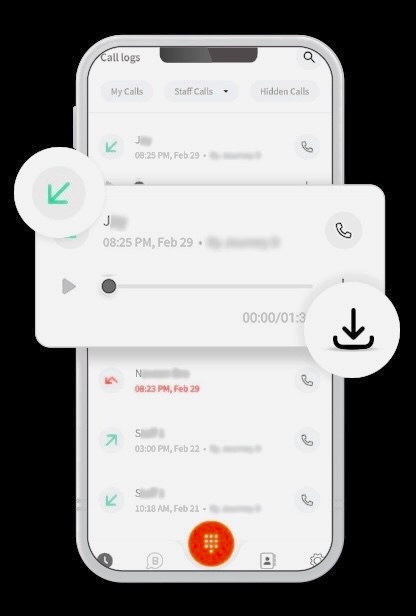
- Open your Phone dialer
- Enter the appropriate code
- Add the forwarding number
- Tap Call to activate
This method works even if your phone’s settings don’t show call‑forwarding options.
How to Receive Your Child’s Calls Without Using Call Forwarding
Traditional call forwarding works well, but it has limitations:
- Carriers may charge extra fees
- Forwarding only works for calls, not messages
- You cannot see missed calls unless they are forwarded
- You cannot monitor call activity in real time
- You cannot see who your child is communicating with
For parents who want a safer, more flexible, and cost‑free way to stay aware of their child’s phone activity, some families explore parental‑control tools such as FreePhoneSpy Parental Control.
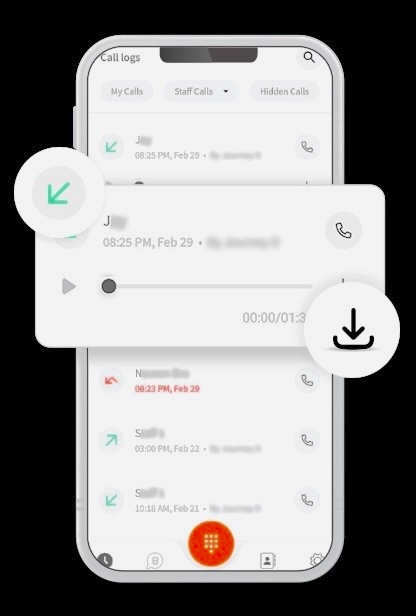
This method does not forward calls through the carrier. Instead, it syncs call notifications to the parent’s device, allowing you to see:
- Incoming calls
- Missed calls
- Caller names
- Call timestamps
…without altering the child’s phone number or paying forwarding fees.
Using FreePhoneSpy to View Your Child’s Call Notifications (Neutral Overview)
FreePhoneSpy includes a feature called Notification Syncing, which mirrors call alerts from the child’s phone to the parent’s device. This allows parents to stay informed about who is calling their child — especially when safety is a concern.
What FreePhoneSpy Can Do
- Sync call notifications instantly
- Show missed and received calls
- Display caller names and numbers
- Monitor app notifications (Snapchat, WhatsApp, Instagram, etc.)
- Track device location
- Mirror the child’s screen
- Provide usage reports and screen‑time controls
This approach is more transparent and flexible than traditional call forwarding.
How to Use FreePhoneSpy to View Call Notifications
⚠️ Important: Always discuss monitoring openly with your child. Transparency builds trust and ensures responsible use of parental‑control tools.
Step 1 — Install FreePhoneSpy Parental Control
Download the app from the Google Play Store or App Store on your phone.
Step 2 — Set Up the Child’s Device
Install FreePhoneSpy Kids on your child’s phone and complete the setup.
Step 3 — Sync Call Notifications
Open Notifications → search for Calls → view all incoming and missed call alerts.
This method requires no carrier involvement and works even when call forwarding is unavailable.
Bonus: How to Turn Off Call Forwarding
If you no longer need call forwarding, here’s how to disable it on different devices and carriers.
Turn Off Call Forwarding on iPhone
- Go to Settings → Phone → Call Forwarding
- Toggle Call Forwarding off
Turn Off Call Forwarding on Android
- Open Phone
- Tap the three dots
- Go to Settings → Supplementary Services
- Tap Call Forwarding
- Select the active forwarding option
- Turn it off
Turn Off Call Forwarding for AT&T
Dial: #72
Turn Off Call Forwarding for Verizon
Dial: \73*
Turn Off Call Forwarding for T‑Mobile
Dial: ##21#
Conclusion
Call forwarding is a powerful feature that ensures you never miss important calls — whether you’re traveling, working remotely, or temporarily unable to use your primary phone. Both Android and iPhone offer built‑in call‑divert options, and carriers provide forwarding codes for more advanced control.
However, call forwarding has limitations, especially for parents who want to stay aware of their child’s communication for safety reasons. In those cases, tools like FreePhoneSpy Parental Control offer a modern, flexible alternative by syncing call notifications without relying on carrier forwarding.
With the step‑by‑step instructions in this guide, you can:
- Forward calls to any number
- Use carrier codes for advanced forwarding
- Disable forwarding when no longer needed
- Monitor call notifications safely and responsibly
Whether you’re managing work calls, protecting your child, or simply keeping your phone activity organized, you now have everything you need to control call forwarding effectively.
FAQs About Diverting Calls
1. What does “call forwarded unconditionally” mean?
This means all incoming calls are redirected to another number, regardless of your phone’s status (busy, off, unreachable, etc.).
2. How do I activate call forwarding on Verizon?
Dial \72 + 10‑digit number*, then press Call to activate.
3. Can you forward text messages like calls?
Yes.
- iPhone: You can enable text message forwarding in Settings.
- Android: Requires third‑party apps such as SMS Forwarders or FreePhoneSpy.
4. Why does it say “call forwarded” when I call someone?
It means the person has redirected their calls to another number.
5. Does call forwarding include SMS?
No. Call forwarding only redirects voice calls. SMS forwarding must be set up separately.


Add comment