
What screen mirroring does for parents
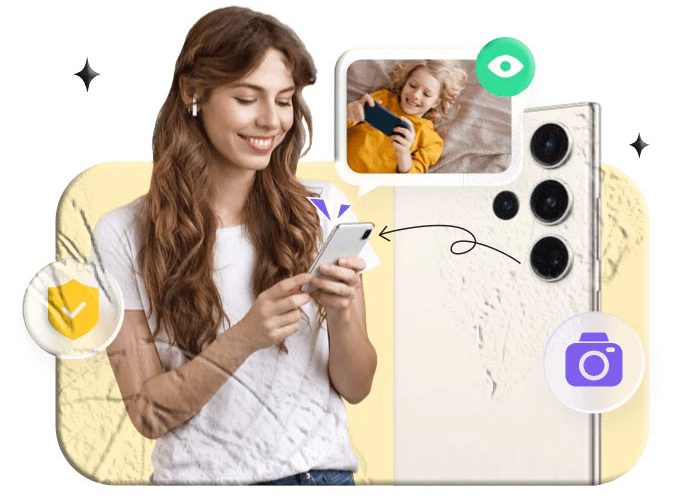
Screen mirroring shows the exact display of one device on another device in real time. For parents, that means being able to view a child’s phone screen from a separate device so you can see the apps they open, the videos they watch, the messages they receive, and the websites they visit. This is not the same as a location tracker: it’s a live visual feed of what appears on the child’s screen at any given moment.
Why parents use screen mirroring
- Immediate visibility: See what a child is doing on their phone right now.
- Context for conversations: Use real examples to discuss online behavior, boundaries, and safety.
- Early detection: Spot potentially harmful content, suspicious contacts, or signs of cyberbullying.
- Homework and focus checks: Confirm whether a device is being used for study or distraction.
Screen mirroring can be a powerful tool when used thoughtfully. It gives a window into a child’s digital life that complements other monitoring approaches such as location sharing, app activity logs, and notification summaries.
How screen mirroring works and what it shows
Screen mirroring transmits the visual output of one device to another. The mirrored feed reproduces everything that appears on the source device’s display: home screens, apps, videos, messages, and system dialogs. Depending on the solution, the feed may be view‑only or include options to capture screenshots for later review.
Common capabilities
- Live display: The parent device shows the child’s screen in real time.
- Screenshot capture: Save still images of the child’s screen for later discussion.
- Session logs: Some solutions keep a short history of mirrored sessions or captured images.
- Cross‑platform support: Many modern tools support both Android and iOS devices, though setup steps differ by platform.
What screen mirroring does not automatically provide
- Full message archives or deleted content unless visible on screen during mirroring.
- Background app activity that doesn’t produce visible screen output.
- Audio from calls or protected media unless the mirroring solution explicitly includes audio capture and local laws permit it.
Device compatibility and platform notes
Most mainstream screen mirroring approaches work across the two major mobile platforms: Android and iOS. Built‑in features and store‑distributed apps each have different setup requirements and limitations.
Android
- Many Android phones support casting or mirroring to other devices using built‑in casting protocols or apps available through Google Play. Some parental monitoring apps on Google Play include screen‑sharing or live view features.
iOS
- Apple devices support AirPlay for mirroring to Apple TV and compatible receivers. Mirroring to another iPhone or iPad typically requires an app or a cloud‑based service that supports iOS screen sharing.
Cross‑platform
- Solutions that support both Android and iOS are useful for families with mixed devices. When choosing a method, confirm compatibility with the specific phone models and OS versions in your household.
Setup approaches parents commonly use
There are several legitimate ways to achieve screen mirroring for parental oversight. The right choice depends on the devices you and your child use, your comfort with technology, and the level of visibility you need.
1. Built‑in casting and AirPlay (no extra app required for some setups)
- How it works: Many Android phones can cast their screen to compatible receivers (smart TVs, Chromecast devices). iPhones can mirror to Apple TV or AirPlay‑enabled devices.
- When to use: When you want to mirror a child’s screen to a home display for shared viewing (for example, reviewing homework or watching a family video).
- Limitations: These methods typically mirror to a local device on the same Wi‑Fi network and are not designed for remote, off‑site monitoring.
2. Parental control suites and family apps from official stores
- How it works: Several family safety and parental control apps available on Google Play and the App Store include features such as screen time management, app activity reports, and in some cases, live screen view or screenshot capture. Examples of family tracking and parental control tools are widely listed and reviewed on parenting and tech sites.
- When to use: When you want a managed, feature‑rich solution that combines screen visibility with time limits, content filters, and location sharing.
- Limitations: Feature sets vary by app; some require explicit consent and installation on both devices.
3. Remote support and remote view tools from official app stores
- How it works: Remote support apps (designed for troubleshooting) can sometimes show a device screen to a remote helper. These apps are typically available through official stores and are intended for technical support rather than continuous monitoring.
- When to use: For one‑off sessions where you need to see a child’s screen to help with a technical issue or to check a specific concern.
- Limitations: Most remote support apps require the user to grant permission for each session.
4. Dedicated parental monitoring products
- How it works: Some parental monitoring products combine multiple features—live screen view, notifications, location, and activity logs—into a single dashboard. These products are often distributed through official app stores or vendor websites.
- When to use: When you want a consolidated view of a child’s digital activity and the ability to capture evidence for later conversations.
- Limitations: Verify that the product is available through official channels and that it complies with local laws and platform policies. Reviews and app store listings can help confirm legitimacy.
Step‑by‑step: a typical setup flow (generalized)
Below is a neutral, platform‑agnostic outline of the steps families commonly follow when enabling a screen‑viewing capability. Exact steps depend on the chosen method and the apps or built‑in features used.
- Decide the scope and purpose. Clarify whether you need occasional remote viewing, continuous oversight, or local mirroring for shared activities.
- Choose a compatible method. Pick a built‑in casting method, a family app from an official store, or a remote support tool that fits your needs.
- Install required apps from official stores. If you select an app, install it on both the parent and child devices using Google Play or the App Store. Confirm the app’s permissions and privacy policy before proceeding.
- Create accounts and sign in. Many solutions require a parent account and a child profile or device binding step.
- Bind devices or grant session permissions. Follow the app’s instructions to pair the child’s device with the parent’s dashboard or to grant permission for a one‑time session.
- Test a short session. Run a brief mirroring session together so the child understands what will be visible and when.
- Set boundaries and review settings. Configure session limits, notification preferences, and any capture or logging options.
- Use captured screenshots or sessions as conversation starters. Focus on learning and guidance rather than punishment.
What to expect during daily use
Frequency and duration: Many parents use screen mirroring sparingly—during homework time, when they suspect a problem, or for shared activities. Continuous, secretive monitoring can harm trust; scheduled or transparent sessions are more constructive.
Battery and performance: Live mirroring can increase battery use and may slow older devices. Expect a modest impact on performance during active sessions.
Network requirements: Remote mirroring typically needs a stable internet connection. Local casting works over the same Wi‑Fi network and may be faster for in‑home use.
Visibility and consent: The child will usually see that mirroring is active (a notification or on‑screen indicator), depending on the method and platform. Transparent use helps maintain trust.
Balancing oversight and trust
Monitoring a child’s screen is most effective when paired with clear communication and agreed boundaries. Use screen mirroring to teach and guide, not to surveil secretly.
Conversation starters after a session
- “I noticed you were using this app—what do you like about it?”
- “I saw a message that looked upsetting; do you want to talk about it?”
- “Let’s set a plan for screen time during homework.”
Rules that help
- Explain when and why mirroring may be used.
- Agree on limits for session length and frequency.
- Use captured screenshots only for constructive conversations.
Safety, legality, and platform policy considerations
Parental monitoring tools must be used in ways that respect local laws and platform policies. Many app stores require explicit consent and transparent disclosure for monitoring features. When choosing a solution, prefer apps distributed through official channels and review their privacy and data handling statements. App store listings and reputable reviews can help verify a product’s legitimacy.
Key points to check
- Permissions: What permissions does the app request? Are they necessary for the feature?
- Data handling: How does the app store or transmit captured images or session data?
- Consent model: Does the app require the child’s device to approve each session?
- Platform compliance: Is the app listed on Google Play or the App Store and does it follow those stores’ rules?
How tools like FreePhoneSpy are mentioned in family monitoring conversations
FreePhoneSpy is one of several names that appear in discussions about parental monitoring tools. When evaluating any named product, treat it like any other option: verify availability on official stores, read the app listing and permissions, and confirm that the product’s features match your family’s needs. Mentioning a product name can be useful when comparing features, but selection should be based on compatibility, transparency, and legal compliance.
Neutral checklist for evaluating a named product
- Is the product available through Google Play or the App Store?
- Does the product clearly explain how screen viewing works and what data is captured?
- Are there clear instructions for obtaining consent and binding devices?
- Are reviews and independent write‑ups consistent about the product’s behavior and reliability?
Practical examples of when screen mirroring helps
- Homework supervision: Confirm a child is using an educational app rather than a game during study time.
- Detecting cyberbullying: Spot messages or social posts that indicate harassment and intervene early.
- Troubleshooting: Help a child fix a technical issue by seeing the exact error or screen behavior.
- Shared viewing: Watch a video together or review a creative project on the child’s device.
Each example is an opportunity to turn visibility into a constructive conversation rather than a punitive action.
Alternatives and complementary tools
Screen mirroring is one tool among many. Consider combining it with:
- App activity reports: Summaries of which apps are used and for how long.
- Notification summaries: Alerts about incoming messages or app notifications.
- Location sharing: Real‑time location for safety when a child is away from home.
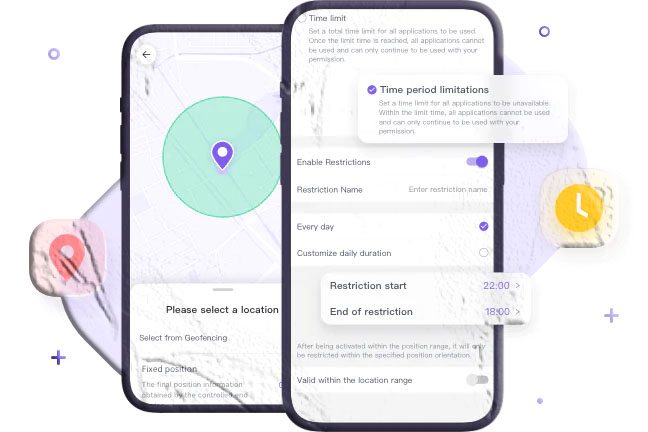
- Time limits and schedules: Automatic restrictions to reduce distraction during homework or bedtime.
Many family apps available on official stores bundle these features into a single dashboard. Research and compare options to find the right balance for your household.
Frequently asked questions
What exactly does “screen mirroring” show?
Screen mirroring reproduces the visual output of a child’s phone on another device in real time. It shows apps, messages, videos, and anything visible on the screen during the session.
Can screen mirroring be used remotely, away from home?
Yes—some solutions support remote mirroring over the internet, while local casting methods work only on the same Wi‑Fi network. Remote options typically require an app or service that supports off‑site connections.
Will the child know when their screen is being mirrored?
Most legitimate solutions show an on‑screen indicator or notification when mirroring is active. The exact behavior depends on the platform and the app used.
Are there apps on Google Play or the App Store that offer screen mirroring for parents?
Yes. Several family safety and parental control apps available through official stores include screen‑viewing or screenshot features as part of a broader parental control suite. Always review the app listing and permissions before installing.
What should I do if I see something concerning during a session?
Pause the session and talk with your child calmly. Use the captured screenshot or the live view as a starting point for a supportive conversation. If the content indicates immediate danger, follow local safety steps and seek help from appropriate authorities.
Can screen mirroring capture private messages or deleted content?
Screen mirroring only shows what is visible on the screen during the session. It cannot retrieve deleted messages or hidden background activity that does not appear on screen.
Choosing the right approach for your family
Match the tool to your goals
- For occasional, in‑home sharing, built‑in casting or AirPlay is simple and effective.
- For ongoing oversight combined with time limits and content filters, consider a family app from an official store that bundles multiple features.
- For one‑time remote help, a remote support app from an official store can provide temporary screen access.
Evaluate trust and transparency
- Discuss monitoring openly with your child when appropriate.
- Use mirroring sessions as opportunities to teach digital literacy and resilience.
- Avoid secretive, continuous surveillance that can damage trust.
Quick checklist before you enable screen mirroring
- Confirm device compatibility (model and OS version).
- Install apps only from Google Play or the App Store and review permissions.
- Create parent and child accounts where required.
- Test a short session together and explain how it will be used.
- Agree on session frequency, duration, and purpose.
- Keep captured screenshots secure and use them constructively.
Final thoughts
Screen mirroring gives parents a direct view into a child’s device activity and can be a useful tool for safety, learning, and conversation. When paired with clear communication, reasonable boundaries, and careful selection of tools from official app stores, it becomes a constructive part of digital parenting. Mentioning products such as FreePhoneSpy can be part of researching options, but selection should always be guided by compatibility, transparency, and compliance with platform policies.