
Why a Location Tracker Matters for Parents
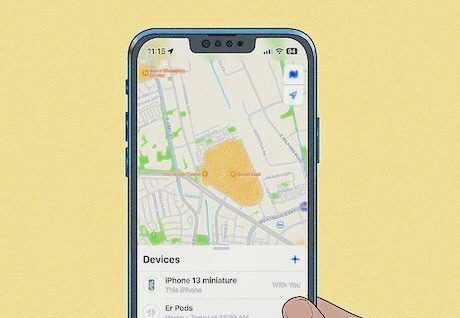
Knowing where a child is at a given moment reduces uncertainty and helps parents respond quickly when plans change or an unexpected situation arises. A location tracker on a child’s phone provides three practical capabilities: real‑time location, geofence alerts, and location history. Real‑time location shows the child’s current position on a map, geofencing sends notifications when a child enters or leaves a defined area, and location history reveals movement patterns over time. Many families combine these features with clear rules and open conversations so tracking supports safety without undermining trust.
What Location Tracking Actually Does
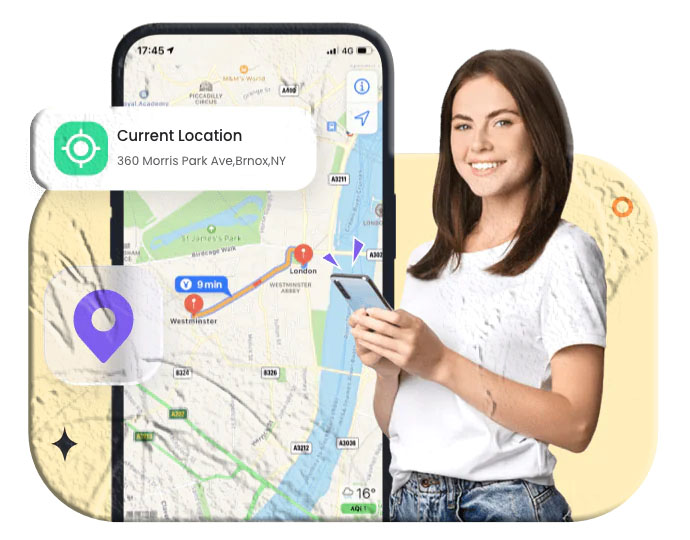
Location tracking uses the phone’s GPS, Wi‑Fi, and cellular signals to estimate position and display it on a map. Typical features include:
- Live location: A map view that updates the child’s position at short intervals.
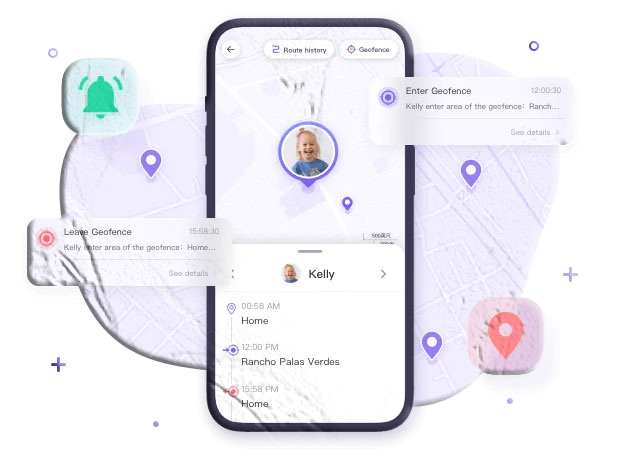
- Geofence: A circular or polygonal boundary you draw on a map; the system notifies you when the device crosses that boundary.
- Location history: A timeline of where the device has been, often with timestamps and duration at each stop.
- Refresh and accuracy controls: Options to request an immediate location refresh and to view the estimated accuracy radius.
These functions are available in many family safety and parental control apps distributed through official app stores.
How Geofencing Works in Practice
Geofencing turns a map into a virtual safety net. You pick a place—home, school, a friend’s house—and set a radius. When the child’s device crosses that invisible line, the parent receives an alert. Practical uses include:
- Arrival confirmation: Get notified when a child reaches school or home.
- Boundary enforcement: Know if a child leaves a designated play area or neighborhood.
- Time‑based rules: Combine geofences with schedules so alerts only trigger during certain hours.
Geofencing relies on the device’s location services and the app’s background permissions. For reliable alerts, ensure the child’s phone has location services enabled and that the tracking app is allowed to run in the background. Many mainstream parental control apps include geofence setup tools and clear instructions for permissions.
Choosing an App from Google Play or the App Store
When you search for a location tracker, you’ll find many options with overlapping features. Focus on these practical attributes:
- Real‑time accuracy: How often the app updates location and how precise the reported position is.
- Geofence flexibility: Ability to create multiple geofences, name them, and set radii and active hours.
- History retention: How many days of location history the app stores and whether you can export records.
- Battery and data settings: Options to limit updates to Wi‑Fi or to reduce frequency to save battery.
- Permissions and transparency: Clear documentation about what the app accesses and why.
- Support and updates: Recent updates and responsive developer support.
App store listings and independent reviews can help you compare features and user experiences. Popular review roundups and app pages describe capabilities and limitations to help parents decide.
Step‑by‑Step Setup Workflow
The following workflow applies to most phone‑based location trackers available on official app stores. Exact labels and screens vary by product, but the sequence is consistent.
- Install the parent app: Download the parent or guardian app on your phone from Google Play or the App Store.
- Create an account: Register a parent account with a secure email and password.
- Install the child app: On the child’s phone, install the companion child app or enable the managed family profile as instructed.
- Grant permissions: On the child’s device, allow location access, background activity, and any required battery‑optimization exceptions.
- Pair devices: Use the app’s pairing method (QR code, code entry, or account link) to bind the child’s device to your parent account.
- Set geofences and schedules: Create named geofences, set radii, and choose active hours for alerts.
- Test live location and alerts: Request a manual location refresh and simulate geofence crossings to confirm notifications.
- Review history and retention: Check how long the app keeps location logs and whether you can export or download them.
Most apps include in‑app guidance and store listing instructions to walk you through these steps. Search the app store for parental control or family safety apps and follow the developer’s setup guide.
Practical Scenarios and Workflows
Below are common, real‑world ways families use location tracking and geofencing.
- School commute: Receive an alert when the child leaves home and another when they arrive at school. Use history to confirm consistent routes.
- After‑school pickup: Set a geofence around a friend’s house and get notified when the child arrives and when they leave.
- Playdate boundaries: Create a geofence for a park and set active hours so alerts only trigger during scheduled playtime.
- Emergency response: If a child is lost or unreachable, live location helps you and responders narrow down the search area.
- Routine checks: Use location history to see where the child spends time and how long they stay at each place.
Each workflow benefits from a family agreement about when tracking is used and how alerts are handled.
Accuracy, Refresh Rate, and Limitations
Location trackers are useful but not infallible. Understand these technical realities:
- GPS accuracy: Outdoors, GPS can be accurate to within a few meters; indoors, accuracy drops and the app may rely on Wi‑Fi or cell towers.
- Refresh frequency: Real‑time tracking depends on how often the app requests updates; higher frequency improves timeliness but uses more battery and data.
- Signal gaps: Tunnels, dense urban canyons, and airplane mode can interrupt updates.
- Device settings: Battery saver modes, disabled background activity, or revoked permissions can prevent updates.
- Privacy and consent: Tracking works best when the child understands and consents to the arrangement; technical measures cannot replace clear communication.
Plan for occasional gaps and use location history and timestamps to reconstruct events when live updates are unavailable.
Geofence Design Best Practices
Design geofences to reduce false alerts and make notifications meaningful:
- Choose sensible radii: Small radii (under 100 meters) can trigger frequent alerts in dense areas; larger radii reduce noise.
- Name geofences clearly: Use labels like “School — Main Entrance” or “Grandma’s House” so alerts are immediately understandable.
- Set active hours: Limit alerts to relevant times to avoid unnecessary notifications.
- Use layered geofences: For complex areas, create nested geofences (e.g., “School Grounds” and “School Neighborhood”) to get graduated alerts.
- Test and refine: Walk the boundary or drive the route to confirm how the app behaves in real conditions.
Thoughtful geofence design reduces alert fatigue and keeps notifications actionable.
Location History: What to Expect and How to Use It
Location history provides context that a single live ping cannot. Typical capabilities include:
- Timeline view: A chronological map showing stops and routes with timestamps.
- Duration at stops: How long the device remained at a location.
- Export options: Ability to download or export history for offline review or to share with authorities if needed.
- Retention limits: Many apps limit history to a fixed number of days; check the retention policy.
Use history to spot patterns—repeated detours, long stops, or unusual routes—that may warrant a conversation or further action.
Battery, Data, and Performance Considerations
Continuous location tracking consumes device resources. Manage impact with these strategies:
- Adjust refresh intervals: Use longer intervals for routine monitoring and shorter intervals only when needed.
- Prefer Wi‑Fi for uploads: Configure the app to upload history only on Wi‑Fi when possible.
- Use power‑saving modes: Some apps offer low‑power tracking modes that reduce GPS usage.
- Monitor battery drain: Test the child’s device with the app running to understand real battery impact.
- Educate the child: Explain why certain settings must remain enabled and how to keep the device charged.
Balancing timeliness with battery life keeps tracking reliable without frequent complaints about drained batteries.
Security and Account Protection
Protect the parent account and the child’s device to prevent unauthorized access:
- Strong passwords: Use a unique, complex password for the parent account and change it periodically.
- Two‑factor authentication: Enable 2FA if the app supports it to add a second layer of protection.
- Device locks: Keep both parent and child devices secured with PINs or biometrics.
- Limit account sharing: Avoid sharing parent credentials with others; use family features if the app supports multiple guardians.
- Keep apps updated: Install updates promptly to receive security patches and feature improvements.
These steps reduce the risk that location data or alerts will be accessed by unauthorized parties.
Legal and Institutional Considerations
Laws and policies about tracking vary by location and context. Practical points to consider:
- Parental authority: Parents generally have broad rights to manage devices they own for minor children, but local laws differ.
- School rules: Some schools restrict device monitoring on campus; check school policies before enabling tracking during school hours.
- Third‑party caregivers: Inform babysitters, relatives, or other caregivers about tracking practices to avoid misunderstandings.
- Data protection: Review the app’s privacy policy to understand how location data is stored, retained, and shared.
When in doubt, consult local guidance or legal resources for specifics in your jurisdiction.
How Families Use Location Tracking Responsibly
Responsible use balances safety with respect for growing independence:
- Set clear expectations: Agree on when tracking is active and what triggers alerts.
- Explain the purpose: Tell children tracking is for safety and coordination, not punishment.
- Use tracking sparingly: Reserve high‑frequency tracking for specific concerns or emergencies.
- Review together: Periodically review location history with older children to build trust and digital literacy.
- Plan transitions: Gradually reduce monitoring as children demonstrate responsibility.
Open communication keeps tracking a tool for care rather than control.
Example Parent Workflows
- Daily commute monitoring: Parent sets geofence for school and home, receives arrival alerts, and checks history weekly for route consistency.
- Weekend outings: Parent enables live location for a short window during a long trip and then returns to scheduled updates.
- New caregiver handoff: Parent shares geofence names and active hours with a babysitter and temporarily enables more frequent updates during the handoff.
- Emergency response: Parent requests an immediate location refresh, saves the latest coordinates, and shares them with responders if necessary.
Each workflow pairs technical settings with a clear family plan.
Troubleshooting Common Problems
If location tracking or geofence alerts fail, check these common causes:
- Permissions not granted: Confirm the child’s device has location and background permissions enabled.
- Battery optimization: Some phones restrict background apps; disable battery optimization for the tracking app.
- Network issues: Ensure the child’s device has an active internet connection for uploads.
- Outdated app versions: Update both parent and child apps to the latest releases.
- Account pairing: Re‑pair devices if the parent console cannot find the child’s device.
Most apps include in‑app help or store listing instructions to guide troubleshooting.
Comparing Whitelist, Blacklist, and Location‑Only Approaches
Location tracking is one piece of a broader family safety strategy. Consider how it fits with other controls:
- Location‑only: Focuses solely on position and geofences; minimal intrusion into other device functions.
- Combined parental control: Location plus app controls, web filters, and screen time rules for comprehensive management.
- Whitelist approach: Limit device use to approved apps and sites and use location tracking for coordination.
Choose the approach that matches your family’s priorities and the child’s age.
Where to Find Location Tracker Apps
Search the Google Play Store or the Apple App Store for family safety and parental control apps that list live location, geofencing, and history features. App store listings and independent reviews describe features, permissions, and user experiences to help you compare options. Review roundups and app pages provide feature comparisons and installation guidance.
If you want to evaluate a specific product, search the store for its name and read the developer’s description and user reviews before installing. FreePhoneSpy is one named parental control option parents sometimes reference; check its store listing for feature details and installation instructions.
Data Retention and Exporting Records
Understand how long an app keeps location history and whether you can export records:
- Retention windows: Some apps keep history for a fixed number of days; others offer longer retention for paid plans.
- Export formats: Look for CSV, KML, or PDF export options if you need to preserve records.
- Metadata preservation: For official use, ensure timestamps and coordinates are preserved and clearly labeled.
If you anticipate needing records for legal or safety reasons, confirm export and retention policies before relying on any single app.
When Location Tracking Helps Locate a Child
Location tracking can help locate a child by providing coordinates and contextual clues. Use these steps when a child is missing or unreachable:
- Request an immediate location refresh: Many apps let you force a live update.
- Check the accuracy radius: Note the estimated accuracy to understand the possible error margin.
- Review recent history: Look for the last known route and stops.
- Share coordinates: Provide precise coordinates and timestamps to responders if needed.
- Use audio or camera features if available: Some family apps include additional tools to gather context.
Coordinate with local authorities when a situation escalates beyond what you can manage alone.
FAQs
Q: How accurate is live location tracking? Accuracy depends on GPS signal, Wi‑Fi availability, and device settings; outdoors GPS can be accurate to a few meters while indoor accuracy is lower.
Q: How often does a tracker update location? Update frequency varies by app and settings; some apps offer real‑time updates every few seconds while others refresh every few minutes to conserve battery.
Q: Can geofence alerts be delayed? Yes. Alerts can be delayed by poor connectivity, device sleep modes, or low battery; design geofences and active hours with these limitations in mind.
Q: Will tracking drain my child’s battery quickly? Continuous high‑frequency tracking uses more battery; use scheduled updates or low‑power modes for routine monitoring.
Q: Where can I find apps that support geofencing and history? Search Google Play or the App Store for family safety or parental control apps; read store descriptions and reviews to confirm geofence and history features.
Practical Checklist Before You Start Tracking
- Install parent and child apps from Google Play or the App Store and follow the developer’s pairing instructions.
- Grant location and background permissions on the child’s device and disable battery optimizations for the app.
- Create named geofences with sensible radii and set active hours.
- Test live location refresh and simulate geofence crossings to confirm alerts.
- Review retention settings and export options for location history.
- Secure the parent account with a strong password and enable two‑factor authentication if available.
A short setup and a test run will reveal most configuration issues before you rely on the system in a real situation.
When to Involve Professionals
If location history or live tracking reveals signs of exploitation, persistent self‑harm ideation, or contact with dangerous individuals, involve appropriate professionals immediately. Preserve relevant logs and share them with authorities or support services as needed.
Final Notes on Choosing and Using a Location Tracker
Location tracking and geofencing are practical tools for family coordination and safety when used thoughtfully. Choose an app from the official app stores, confirm its geofence and history features, test settings in real conditions, and pair technical controls with clear family agreements. Search the Google Play Store or the Apple App Store for parental control and family safety apps and read store descriptions and user reviews to compare options.