
Introduction
Parents want their children to explore the internet safely while learning, playing, and staying connected. Browser monitoring gives caregivers a practical way to see what sites children visit, block harmful content, and shape healthy online habits. This guide explains how browser monitoring works, what features to expect, how to set up and manage browser safety on a child’s device, and how to choose an app from official stores such as Google Play or the Apple App Store. FreePhoneSpy is referenced as an example of a parental control solution available on mainstream app stores; the focus here is on features, setup, and responsible use.
What Browser Monitoring Does for Families
Browser monitoring collects and presents a child’s web activity so parents can understand what their child sees online and act when necessary. Core capabilities typically include:
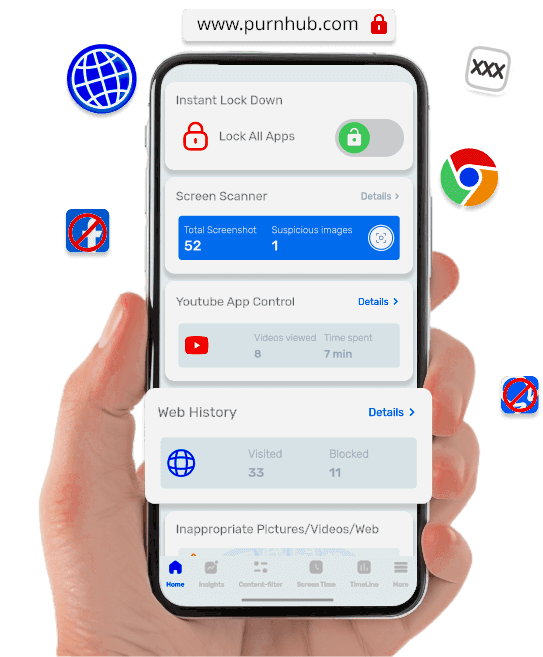
- Real‑time browsing history: See which pages the child visits as they browse.
- Search monitoring: Track search queries to identify topics that concern you.
- Website blocking: Prevent access to specific URLs or categories such as adult content, gambling, or malware sites.
- Internet filtering: Apply category‑based filters to restrict entire classes of websites.
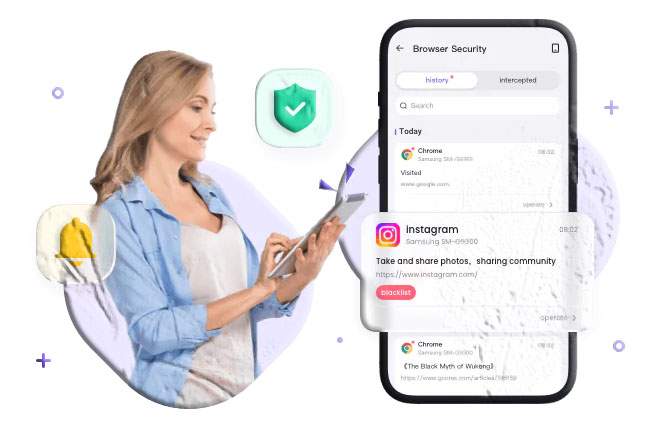
- Notifications and alerts: Receive instant alerts when a child attempts to visit blocked or risky sites.
- Whitelisting and blacklisting: Create lists of allowed and disallowed sites for tailored control.
These features help parents reduce exposure to inappropriate content, limit distractions during homework, and detect risky behavior early.
Key Features to Look For
When evaluating browser monitoring tools, prioritize features that match your family’s needs and the devices your children use. Look for:
- Comprehensive browsing logs: Clear, timestamped records of visited pages and search queries.
- Category filters: Predefined categories (e.g., adult, violence, social media) that can be toggled on or off.
- Custom URL controls: Ability to add specific sites to a whitelist or blacklist.
- Real‑time alerts: Push notifications or email alerts when a blocked or suspicious site is accessed.
- Cross‑device support: Coverage for phones, tablets, and laptops your family uses.
- Scheduling: Time windows that limit browsing during homework or bedtime.
- Ease of use: Simple setup and a parent console that’s easy to navigate.
- Transparent permissions: Clear documentation on what the app accesses and why.
Apps listed on Google Play and the App Store typically describe these features in their product pages. FreePhoneSpy is one example that lists browser safety features in its store descriptions.
How Browser Monitoring Works (Simple Overview)
Browser monitoring relies on a combination of software components and permissions:
- Child app or profile: A companion app or managed browser profile runs on the child’s device and records browsing events.
- Parent console: A parent app or web dashboard receives logs, alerts, and control commands.
- Permissions and filters: The child device grants the app permission to monitor web activity and to block or filter content.
- Network or local hooks: Monitoring can occur through a browser extension, a managed browser, or an app that intercepts web requests on the device.
- Cloud sync: Logs and settings sync to the parent’s account so you can review activity remotely.
The exact technical approach varies by product and by operating system. Many parental control apps available on official stores use a combination of a managed browser and device‑level permissions to provide reliable monitoring.
Step‑by‑Step Setup Workflow
Below is a general setup sequence that applies to most parental control apps available on Google Play and the App Store. Exact labels and steps vary by product, but the overall flow is consistent.
- Install the parent app: Download the parental control app on the parent’s phone from Google Play or the App Store.
- Create a parent account: Register using an email address and a secure password.
- Install the child app or managed browser: On the child’s device, install the companion app or set up a managed browser profile as instructed.
- Grant permissions: On the child’s device, allow the app to access browsing data, set it as a managed browser, or enable the necessary accessibility or VPN permissions if required.
- Pair devices: Use the app’s pairing process (QR code, code entry, or account link) to bind the child’s device to the parent’s account.
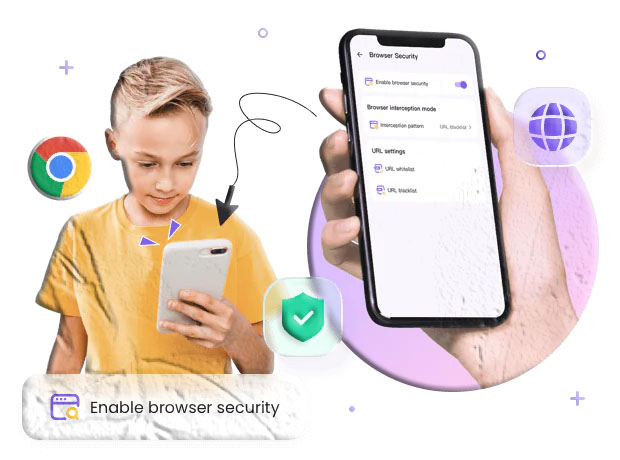
- Configure filters and lists: Choose categories to block, add specific URLs to the blacklist or whitelist, and set search restrictions.
- Set schedules and alerts: Define time windows for allowed browsing and enable notifications for blocked attempts.
- Test and refine: Perform a few test searches and site visits to confirm the settings behave as expected.
Most apps provide in‑app help and store listing instructions to guide each step. If you choose FreePhoneSpy, follow the installation and pairing instructions provided in its store description.
Practical Uses and Everyday Scenarios
Browser monitoring supports many practical parenting needs. Examples include:
- Homework focus: Block social media and entertainment sites during homework hours to reduce distractions.
- Age‑appropriate browsing: Restrict adult content and other categories that are not suitable for a child’s age.
- Early warning: Receive alerts when a child searches for or visits sites related to self‑harm, bullying, or risky behaviors.
- Curiosity tracking: See what topics interest your child and use that as a starting point for conversations.
- Shared devices: Manage browsing on family tablets or shared computers with profiles and schedules.
Each scenario benefits from clear family rules and consistent enforcement.
Website Blocking: How It Helps and How to Use It
A website blocker prevents access to specific URLs or categories. It’s one of the most direct ways to reduce exposure to harmful content and to limit distractions.
Common blocking strategies:
- Category blocking: Turn off entire categories such as adult content, gambling, or violent content.
- URL blacklist: Add specific sites you want to block permanently.
- URL whitelist: Allow only a curated list of approved sites for younger children.
- Time‑based blocking: Block certain sites during homework or bedtime hours.
Practical advice for blocking:
- Start with broad categories for younger children and refine as you learn what they try to access.
- Use whitelists for very young children who only need access to educational sites.
- Review blocked attempts regularly to see if legitimate sites are being blocked and adjust accordingly.
Internet Filters: Balancing Safety and Access
Internet filters classify websites into categories and apply rules automatically. Filters are useful because they scale across millions of sites and reduce the need to manage individual URLs.
Filter features to expect:
- Category lists: Predefined categories such as news, social media, adult, shopping, and gaming.
- Custom categories: Ability to create custom rules for specific types of content.
- Search engine filtering: Restrict search results to family‑friendly content.
- Adaptive filtering: Some filters learn from blocked attempts and suggest adjustments.
Filters work best when combined with parental oversight. They reduce exposure to harmful content while allowing children to explore age‑appropriate material.
Scheduling and Time Controls
Scheduling features let you limit browsing to specific times of day. Typical options include:
- Daily schedules: Define allowed browsing windows for weekdays and weekends.
- Bedtime locks: Disable browsing during sleep hours.
- Homework mode: Temporarily restrict entertainment sites during study time.
- One‑time overrides: Allow temporary access for a specific site or time period.
Schedules help create predictable routines and reduce conflict over screen time.
Storage, Logs, and Reviewing History
Browser monitoring tools store logs of visited pages and search queries. Understand how your chosen app handles data:
- Retention period: How long browsing logs are kept before automatic deletion.
- Export options: Whether you can download logs for offline review.
- Metadata: Whether timestamps and device identifiers are preserved for context.
- Privacy controls: Options to delete or anonymize older logs.
Decide on a retention policy that balances the need to review incidents with respect for your child’s growing privacy.
Performance, Battery, and Data Use
Monitoring software can affect device performance. Expect:
- Battery impact: Background monitoring and logging use CPU and network resources.
- Data usage: Uploading logs and syncing settings consumes mobile data if the device is not on Wi‑Fi.
- Device responsiveness: Some monitoring approaches (e.g., managed browsers) are lightweight, while others that run continuous background services may be heavier.
To reduce impact, prefer Wi‑Fi‑only syncing, schedule uploads during off‑peak hours, and limit the frequency of real‑time checks.
Security and Account Protection
Protecting the parent account and the child’s device is essential:
- Strong, unique passwords: Use a password manager to create and store strong credentials.
- Two‑factor authentication: Enable 2FA on the parent account if available.
- Device locks: Keep both parent and child devices protected with PINs or biometric locks.
- App updates: Keep monitoring apps updated to receive security patches.
- Limit access: Avoid sharing parent account credentials with others.
These steps reduce the risk of unauthorized access to browsing logs or control features.
Choosing an App from Google Play or the App Store
When selecting a parental control app from official stores, evaluate:
- Store listing details: Read the feature list, permissions, and developer notes.
- User reviews and ratings: Look for consistent, recent feedback from other parents.
- Support and documentation: Check for clear installation guides and responsive support.
- Compatibility: Confirm the app supports the child’s device OS version.
- Transparency: Prefer apps that clearly explain what data they collect and how it’s used.
FreePhoneSpy is one example of a parental control app that lists browser safety features on mainstream app stores. Review its store page for installation steps and feature details before installing.
Managing Sensitive Situations
Browser monitoring can reveal sensitive topics such as bullying, self‑harm searches, or contact with strangers. When you encounter these situations:
- Stay calm: Approach the child with curiosity rather than accusation.
- Gather context: Review logs and timestamps to understand the sequence of events.
- Open a conversation: Ask open questions about what they saw or why they searched for certain topics.
- Seek help when needed: If you find signs of self‑harm, exploitation, or immediate danger, contact appropriate professionals or authorities.
Monitoring is a tool to inform supportive conversations, not to punish curiosity.
Communicating Rules and Expectations
Clear communication reduces conflict and builds trust. Consider these steps:
- Set a family agreement: Define when monitoring happens and what is recorded.
- Explain the why: Tell children monitoring is for safety and guidance, not punishment.
- Define boundaries: Agree on which devices and times are monitored.
- Review and revise: Revisit the agreement as children grow and demonstrate responsibility.
Involving children in the process helps them understand digital boundaries and encourages responsible behavior.
Troubleshooting Common Problems
If browser monitoring doesn’t work as expected, check these common issues:
- Permissions not granted: Confirm the child’s device has allowed the app to access browsing data or to act as a managed browser.
- Battery optimization: Some devices restrict background apps; disable battery optimization for the child app.
- VPN or proxy conflicts: Network tools can interfere with monitoring; ensure the app’s recommended network settings are in place.
- Outdated app versions: Update both parent and child apps to the latest versions.
- Account pairing: Re‑pair devices if the parent console cannot find the child’s device.
Most apps include a help center or in‑app troubleshooting guide to walk through these steps.
Balancing Monitoring with Growing Independence
As children mature, gradually shift from strict monitoring to guidance:
- Age‑appropriate controls: Tight controls for younger children; more autonomy for teens.
- Teach digital literacy: Discuss how to evaluate sources, spot scams, and protect personal information.
- Encourage self‑monitoring: Invite older children to review their own browsing history and set personal limits.
- Transition plans: Create milestones for reducing monitoring as trust and responsibility increase.
This approach helps children develop the skills they need to manage their own online lives.
Legal and Institutional Considerations
Laws and policies vary by location and institution. Practical points:
- Parental rights: Parents generally have broad authority to manage minor children’s devices, but local laws differ.
- School policies: Some schools restrict device monitoring on campus; check school rules before enabling monitoring during school hours.
- Third‑party caregivers: Inform babysitters or relatives about monitoring practices to avoid misunderstandings.
- Data protection: Review the app’s privacy policy to understand how browsing data is stored and protected.
When in doubt, consult local guidance or legal resources for specifics in your area.
Best Practices for Long‑Term Use
To keep browser monitoring effective and sustainable:
- Review settings periodically: Update filters and whitelists as your child’s needs change.
- Archive important logs: Save recordings or logs that may be needed for serious incidents.
- Limit retention: Delete older logs that are no longer relevant to respect privacy.
- Keep conversations open: Use monitoring as a prompt for regular check‑ins about online life.
- Model good behavior: Demonstrate healthy browsing habits as a parent.
These practices keep monitoring purposeful and respectful.
FAQs
Q: What is browser monitoring? Browser monitoring tracks website visits, search queries, and attempts to access blocked sites. It typically includes filters, blacklists, whitelists, and real‑time alerts so parents can manage what children see online.
Q: How do I set up browser monitoring on my child’s phone? Install a parental control app on both the parent and child devices, follow the app’s pairing process, grant the required permissions on the child’s device, and configure filters, schedules, and lists. Many apps on Google Play and the App Store provide step‑by‑step setup guides.
Q: Can I block pornography and adult sites? Yes. Use category filters and URL blacklists to block adult content. For younger children, consider a whitelist that allows only approved educational sites.
Q: Will browser monitoring slow down my child’s device? Lightweight managed browsers have minimal impact. Apps that run continuous background services may use more battery and data. Use Wi‑Fi‑only syncing and scheduled uploads to reduce impact.
Q: Can monitoring detect harmful searches like self‑harm or bullying? Many parental control tools flag searches and site visits related to self‑harm, bullying, or exploitation and can send alerts. These flags are prompts to start a supportive conversation or seek help if needed.
Q: Where can I find parental control apps? Search the Google Play Store or the Apple App Store for parental control or family safety apps. Read feature lists and reviews to choose an app that fits your needs. FreePhoneSpy is one app listed on mainstream app stores that describes browser safety features in its product information.
Choosing Between Whitelist and Blacklist Approaches
- Whitelist approach: Only approved sites are accessible. Best for very young children or shared devices used for specific learning tasks. It’s restrictive but simple to manage.
- Blacklist approach: Block specific sites or categories while allowing general browsing. Better for older children who need broader access but still require protection from harmful content.
Many families use a hybrid approach: whitelist for younger children and blacklist plus filters for older kids.
When to Involve Professionals
If monitoring reveals signs of exploitation, persistent self‑harm ideation, or contact with dangerous individuals, involve professionals immediately. Document relevant logs and share them with appropriate authorities or support services as needed.
Final Thoughts
Browser monitoring is a practical tool that helps parents guide children’s online experiences, reduce exposure to harmful content, and encourage healthy digital habits. Choose an app from official stores, configure filters and schedules that match your family’s needs, and use monitoring as a starting point for open conversations. FreePhoneSpy is one example of a parental control app available on mainstream app stores that lists browser safety features; evaluate it alongside other options to find the best fit for your household.