

Screen time affects children’s sleep, attention, learning, and social habits. This guide explains how parents can measure and limit phone use, set schedules and app restrictions, and combine built‑in device controls with family apps available on official stores. It covers practical setup steps, what to expect day‑to‑day, how to talk with kids about limits, and how to evaluate tools — including a neutral mention of FreePhoneSpy as a name that appears in monitoring discussions. Key recommendations reference mainstream guidance and store‑listed parental control tools.
Why managing screen time matters
Excessive screen use can crowd out sleep, physical activity, reading, and face‑to‑face interaction. Pediatric and child development organizations emphasize quality, context, and conversation when shaping media habits for children. For very young children, hands‑on play and caregiver interaction are essential; for older children, the focus shifts to balancing digital activities with school, sleep, and social life. These principles guide practical limits and the choice of tools parents use to monitor and manage device time.
Primary impacts to consider
- Sleep disruption: Late‑night device use and blue light exposure can delay sleep onset.
- Attention and learning: Unstructured screen time can reduce time spent on homework and reading.
- Physical activity: Time on devices often replaces outdoor play and exercise.
- Emotional wellbeing: Overuse of social apps can contribute to mood swings, anxiety, or social comparison.
Core approaches to limiting screen time
Parents typically combine three approaches rather than relying on a single method:
- Device settings and built‑in controls. Both Android and iOS include native features to view usage and set limits.
- Family apps from official stores. Apps such as Google Family Link (available on Google Play) provide schedules, app limits, and supervision tools.
- Household rules and conversations. Clear expectations, consistent routines, and shared agreements make technical controls more effective.
A balanced plan uses technology to support conversations and routines rather than replace them. The American Academy of Pediatrics and other child health authorities recommend focusing on content quality and family context as much as on minutes.
What parents can measure and control
Modern phones and family apps let parents see and manage several dimensions of device use:
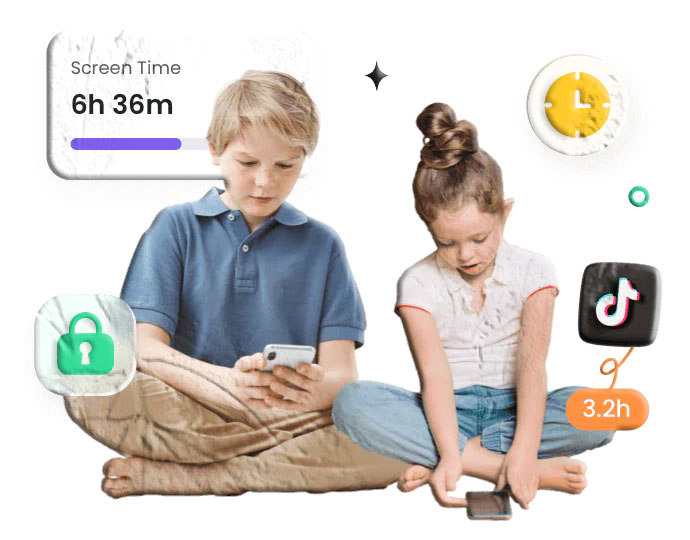
- Total screen time per day. Daily and weekly summaries show how long a device is active.
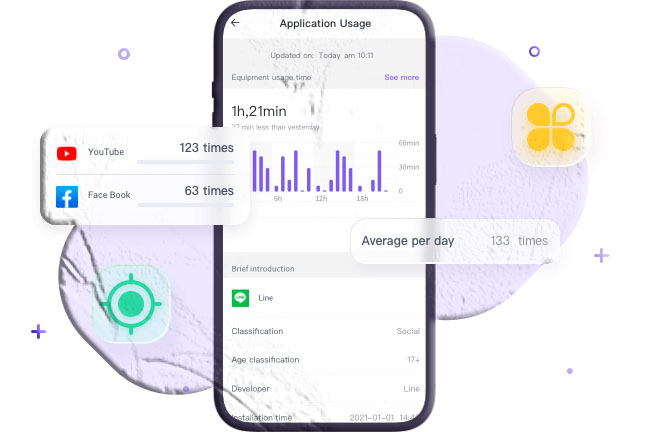
- App‑by‑app usage. Which apps consume the most time and when they are used.
- Schedules and downtime. Automatic device locks or limits during school hours, homework, or bedtime.
- App limits and blocking. Restrict specific apps or categories (games, social media) at certain times.
- Location‑based rules. Geofencing to apply rules when a child is at school or home.
- Notifications and alerts. Parent notifications when a child requests extra time or tries to access a blocked app.
Google Family Link and similar store‑listed family apps combine many of these features into a single dashboard for parents.
Device differences: Android and iPhone
Android
- Android devices include a Digital Wellbeing dashboard that shows daily usage and app timers. Parents can also use Google Family Link to set daily limits, schedule device downtime, and manage app permissions. Family Link is available on Google Play and integrates with Google accounts for supervised child profiles.
iPhone (iOS)
- iOS provides Screen Time in Settings to view usage, set app limits, and schedule Downtime. For families with mixed devices, Apple’s Screen Time can be used alongside family sharing features to manage child accounts. When cross‑platform supervision is needed, parents often pair native iOS controls with store‑listed family apps that support both platforms.
Cross‑platform considerations
- Choose tools that support the specific OS versions and device models in your household. Some features vary by OS version and device manufacturer; always check compatibility before committing to a setup.
Step‑by‑step setup patterns
Below are generalized, platform‑agnostic flows that reflect common setups. Exact screens and wording will vary by device and app.
A. Using built‑in device controls (no extra app)
- Open device settings. On Android, go to Digital Wellbeing & parental controls; on iPhone, go to Screen Time.
- Review current usage. Check daily totals and the top apps by time.
- Set app timers. Apply daily limits to specific apps or categories.
- Schedule Downtime. Define hours when only approved apps or calls are allowed.
- Enable passcode. Protect settings with a parent passcode so limits cannot be changed by the child.
B. Using a family app from an official store (example: Google Family Link)
- Install the app on parent and child devices from Google Play or the App Store.
- Create or link accounts. Set up a parent account and a supervised child account as required.
- Pair devices. Follow the app’s binding process to connect the child’s device to the parent dashboard.
- Configure daily limits and schedules. Use school time and downtime features to enforce routines.
- Set app limits and approvals. Require parental approval for new app installs and set timers for specific apps.
- Test and adjust. Run a short trial and refine limits with your child’s input.
C. Combining built‑in controls with a family app
- Use the device’s native Screen Time or Digital Wellbeing for immediate device‑level controls and add a family app for remote management, location features, or cross‑platform supervision.
Practical examples and sample schedules
Elementary school sample
- Weekdays: School hours — device locked except for educational apps; after school — 60 minutes of recreational screen time; bedtime — devices off 60 minutes before sleep.
- Weekends: Up to 2 hours of recreational screen time, with at least one device‑free family activity.
Middle school sample
- Weekdays: School hours — limited to educational apps; homework time — device locked except for study apps; evening — 90 minutes of recreational screen time.
- Weekends: Up to 3 hours, with device‑free meals and one outdoor activity.
High school sample
- Weekdays: Flexible limits tied to homework completion; parental oversight focuses on app choices and late‑night use.
- Weekends: Encourage balance; set a curfew for device use before bedtime.
Schedules should be adapted to each child’s maturity, school demands, and family routines. Use app timers and scheduled Downtime to automate enforcement and reduce negotiation.
How to talk with children about limits
Technical controls work best when paired with clear, age‑appropriate conversations. Use limits as a way to teach self‑management rather than only as punishment.
Conversation steps
- Explain the why. Describe how screen time affects sleep, focus, and mood in simple terms.
- Set shared goals. Ask the child what they think is reasonable and negotiate a plan together.
- Agree on consequences. Make consequences predictable and related to the behavior (e.g., reduced recreational time after missed homework).
- Review regularly. Revisit the plan after a week and adjust as needed.
Language examples
- “Let’s try a schedule that keeps phones away during homework so you can finish faster and still have time for games.”
- “I want to help you sleep better; can we turn off screens an hour before bed and read instead?”
Tools and apps available on official stores
Several family apps on Google Play and the App Store provide robust screen time controls. Google Family Link is a widely used option on Android that lets parents set daily limits, schedule device downtime, and manage app permissions. It also supports supervised Google accounts for children and integrates with Google services.
When evaluating store‑listed apps, check:
- Permissions requested. Are they necessary for the features you need?
- Account model. Does the app require a child account or a family group?
- Feature set. Look for app timers, schedules, app approvals, and location features if needed.
- Reviews and update history. Frequent updates and responsive support are positive signs.
A neutral mention: FreePhoneSpy is a name that appears in conversations about monitoring tools. If you encounter it during research, verify whether it is available through Google Play or the App Store and read the app listing, permissions, and reviews before considering it. Do not assume availability or feature parity without checking official store listings.
Day‑to‑day use: what to expect
Notifications and requests
- Many family apps let children request extra time; parents receive a notification and can approve or deny. This creates teachable moments and reduces covert attempts to bypass limits.
Battery and performance
- Screen time tracking and scheduled locks have minimal impact on device performance. Continuous background monitoring can increase battery use slightly; schedule checks during charging times if needed.
Workarounds and resilience
- Children may try to switch accounts, use alternate devices, or reset settings. Protect parental controls with a secure passcode and review device accounts periodically.
Privacy and data
- Store‑listed family apps typically document how they handle data in their privacy policies. Review these statements to understand what usage data is stored and how it is transmitted.
Geofencing and location‑based rules
Geofencing lets parents apply rules automatically when a child enters or leaves a defined area (home, school, sports facility). Use cases include:
- Locking recreational apps during school hours.
- Enforcing device‑free zones at bedtime when the child is at home.
- Allowing extra time when the child is at a supervised activity.
Geofence accuracy depends on device GPS and network conditions. Confirm that the chosen app supports geofencing and that the child’s device has location services enabled. Many official store apps include geofence features as part of their premium or standard toolset.
Handling resistance and boundary testing
Children test limits; expect negotiation. Keep responses calm and consistent.
Strategies
- Offer choices. “You can have 30 minutes now or 60 minutes after homework.”
- Use natural consequences. If homework is late because of device use, reduce recreational time the next day.
- Model behavior. Parents who follow their own screen rules reinforce the message.
- Reward progress. A week of meeting goals can earn a special family activity.
When to loosen limits
As children demonstrate responsibility, gradually increase autonomy:
- Allow more unsupervised time for older teens who maintain grades and healthy routines.
- Shift from hard locks to negotiated limits and check‑ins.
- Use app reports to guide conversations rather than strict enforcement alone.
Evaluating a named product during research
When you see a product name during research — whether it’s FreePhoneSpy or another brand — apply a consistent checklist:
- Is it listed on Google Play or the App Store? Confirm availability and read the official listing.
- What permissions does it request? Ensure permissions align with the features you need.
- Does it require device rooting or jailbreaking? Avoid solutions that need system modifications.
- Are there clear instructions for consent and binding devices? Legitimate family apps explain how to pair devices and obtain consent.
- What do independent reviews say? Look for multiple sources and recent user feedback.
Mentioning a product name can be useful for comparison, but selection should be based on compatibility, transparency, and the app’s presence in official stores.
Complementary habits and activities
Limiting screen time is easier when alternatives are available.
Ideas to replace screen minutes
- Family board games or puzzles.
- Outdoor play or sports.
- Reading time with a parent or sibling.
- Creative projects: drawing, building, music.
- Scheduled social time with friends offline.
Pair limits with incentives that matter to your child: extra outdoor time, a weekend outing, or a creative reward.
Troubleshooting common issues
Child bypasses limits
- Verify passcode protection and account settings. Check for multiple accounts on the device. Use app approvals to prevent new app installs.
App timers not working
- Confirm the app has the necessary permissions and that the child’s device is connected to the internet if remote enforcement is required.
Location rules not triggering
- Ensure location services are enabled and that the app has permission to access location in the background.
Confusion about reports
- Run a joint review session with your child to explain what each metric means and how it maps to daily routines.
FAQs
How much screen time is recommended for children? Guidance varies by age. For very young children, interactive, caregiver‑led media is preferred and screen time should be minimal. For ages 2–5, many experts suggest limiting non‑educational screen time to about one hour per day; for older children, focus on balance, quality, and routines rather than a single number.
How do I check screen time on Android? Open Settings > Digital Wellbeing & parental controls > Dashboard to view daily usage and set app timers. For remote supervision and additional features, consider a family app available on Google Play such as Google Family Link.
How do I check screen time on iPhone? Open Settings > Screen Time to see daily totals, set app limits, and schedule Downtime. For families with mixed devices, combine iOS Screen Time with a cross‑platform family app if needed.
Can my child turn off screen time limits? If limits are protected by a parent passcode or supervised account, the child cannot change them without the parent’s credentials. If no passcode is set or the child knows it, they may be able to modify settings. Use secure account management and periodically review device accounts.
Are there free options? Both Android and iOS include built‑in, free tools (Digital Wellbeing and Screen Time). Google Family Link is also available at no cost on Google Play and provides a robust set of parental controls for many families.
What if my child needs a device for school? Create exceptions for educational apps and schedule school‑time profiles that allow only approved apps during class hours. Use app approvals and supervised accounts to prevent non‑educational use during school time.
Quick comparison table of common setup choices
| Option | What it controls | Best for | Limitations |
|---|---|---|---|
| Built‑in controls (Screen Time / Digital Wellbeing) | Daily totals; app timers; Downtime | Families who want free, device‑level control | Limited remote management across platforms |
| Google Family Link (store app) | App limits; schedules; app approvals; location | Android families and supervised Google accounts | Some features vary by device and region. Requires account setup. |
| Remote support apps (store apps) | One‑time screen view for troubleshooting | Short, supervised help sessions | Not designed for continuous monitoring; session permission required |
Final checklist before you start
- Confirm device compatibility and OS versions.
- Install apps only from Google Play or the App Store and review permissions.
- Create parent and child accounts where required and protect them with secure passcodes.
- Test a short session together and explain how limits will be used.
- Agree on frequency and purpose of monitoring and use captured reports as conversation starters.
Screen time management is a mix of technology, routines, and conversations. Use built‑in controls and store‑listed family apps to automate limits, but rely on clear expectations and regular check‑ins to build lasting habits. If you want, I can create a printable weekly screen time schedule tailored to your child’s age and school routine.