


A Full Guide on How to Check Call Log History on Android
Call logs are one of the most frequently accessed features on any smartphone. Whether you’re trying to find a missed call, retrieve an old number, confirm when a conversation took place, or simply stay organized, knowing how to access and manage your call history is essential.
Android devices make this process straightforward, but the exact steps can vary depending on your phone model, Android version, and manufacturer interface. This comprehensive guide walks you through everything you need to know — from viewing recent calls to recovering deleted call logs, checking blocked‑number activity, and understanding parental‑monitoring options.
Throughout the guide, you’ll also see references to broader parental‑control brands such as FreePhoneSpy, which some families explore when learning about device‑management tools. These tools are typically used to help parents stay informed about device activity in a transparent and responsible way.
Let’s dive in.
Understanding Call Logs on Android
Every Android phone automatically stores a record of your incoming, outgoing, and missed calls. This information is kept inside the Phone app and includes:
- Caller name or number
- Call type (incoming, outgoing, missed, declined)
- Call duration
- Call timestamp
- Frequency of communication
These logs help users:
- Retrieve forgotten numbers
- Track communication patterns
- Confirm call times for work or personal reference
- Identify missed calls
- Manage blocked numbers
Because call logs contain sensitive information, Android allows users to delete entries, clear the entire log, or restore call history from backups when needed.
How to Check Call History on an Android Phone
Checking your call history is simple, and the steps are similar across most Android devices.
Step‑by‑Step Instructions
1. Open the Phone App
Locate the Phone app on your home screen or app drawer. This is usually represented by a green or blue phone icon.
2. Go to “Recent Calls” or “Call History”
Once inside the Phone app, tap the Recents tab. Depending on your device, it may be labeled:
- Recent Calls
- Call History
- Recents
This section displays your most recent communication activity.
3. Scroll to View Older Entries
Android stores a long list of call logs, so you can scroll down to view older calls. Some devices also categorize calls by:
- Today
- Yesterday
- Last week
- Older
This makes it easier to locate specific entries.
Viewing Missed Call Logs from Blocked Numbers
Blocked numbers behave differently depending on how they were blocked and which Android model you use. In many cases, blocked callers cannot reach you — but whether their missed calls appear in your call log depends on the blocking method.
Below are the two most common scenarios.
1. If You Blocked the Number Through the Phone App
Some Android devices still record missed calls from blocked numbers, even though you won’t receive notifications.
What You May See
- A missed call entry in the call log
- No ringtone, vibration, or alert
- No notification in the status bar
This behavior varies by manufacturer. Samsung, Xiaomi, Oppo, and Motorola devices may handle blocked calls differently.
2. If You Blocked the Number Through the Messages App
When a number is blocked through the Messages app, many Android phones completely hide missed call attempts from that number.
What You May See
- No missed call entry
- No notification
- No call log record
This method is often used to fully silence unwanted contacts.
Important Note
The visibility of blocked‑number call logs depends entirely on your phone model, Android version, and manufacturer settings. Some devices show partial information, while others hide it completely.
Viewing Details of an Individual Call
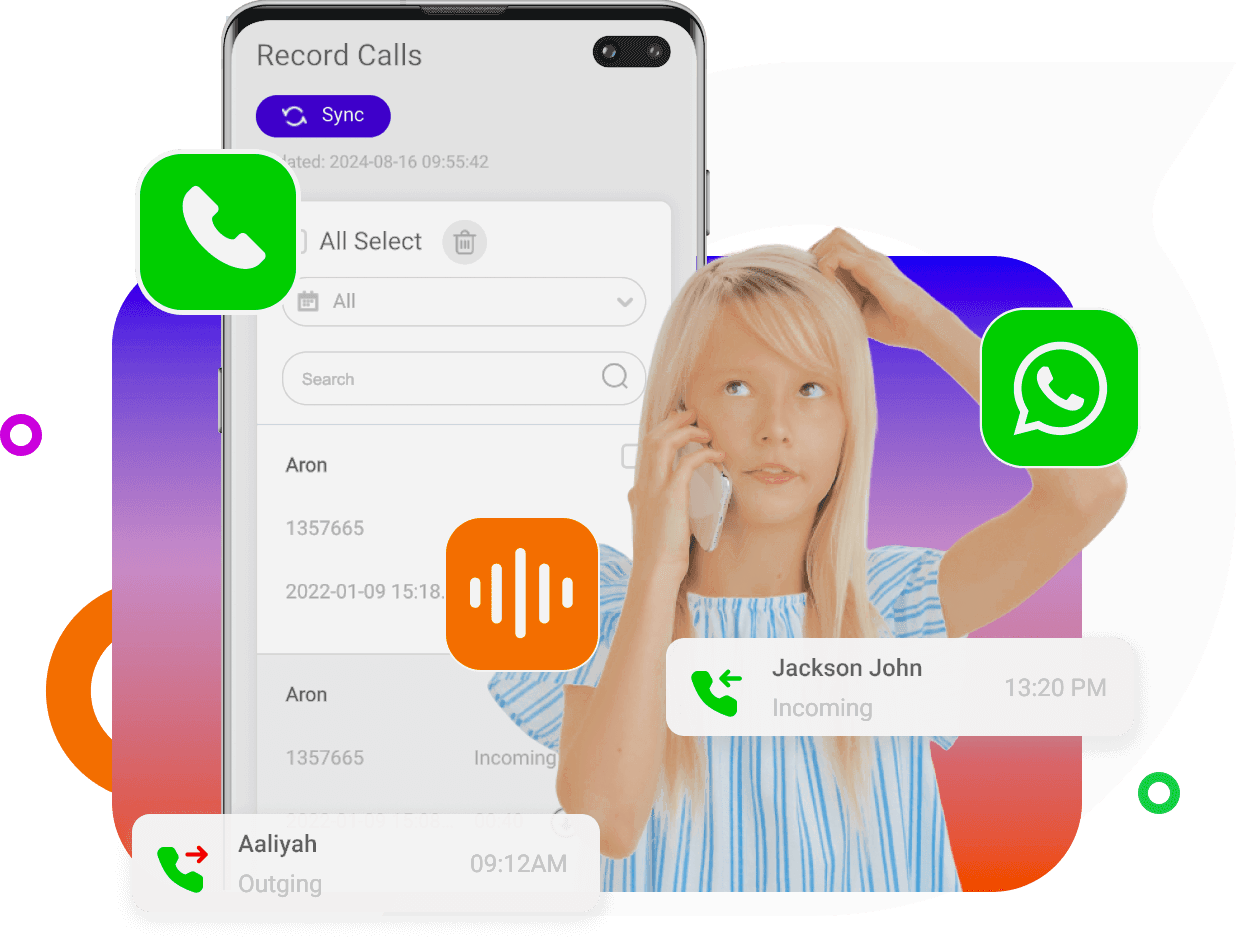
Android allows you to view detailed information about each call entry.
How to View Call Details
- Open the Phone app.
- Go to Recent Calls or Call History.
- Scroll to find the call you want to inspect.
- Tap the “i” (information) icon next to the entry.
You will now see:
- Caller name or number
- Call type (incoming, outgoing, missed)
- Call duration
- Time and date
- Additional options (block, message, add to contacts)
Note
The interface may differ slightly depending on your Android version and manufacturer skin (Samsung One UI, Xiaomi MIUI, Oppo ColorOS, etc.).
How to Check Deleted or Old Call History on Android
Sometimes users accidentally delete call logs or need to retrieve older records for personal or professional reasons. Android does not store deleted call logs locally, but there are two reliable methods to recover them:
- Google Drive backup
- Mobile carrier records
Let’s explore both.
Recovering Call History Through Google Drive Backup
Google Drive can store call history as part of your device backup — but only if the feature was enabled before the call logs were deleted.
Steps to Restore Call History from Google Drive
1. Access Google Drive
Open the Google Drive app on your Android device or visit drive.google.com in a browser.
2. Sign In
Enter your Google account credentials.
3. Locate Your Backups
Tap the Backups section. Here you may see:
- Device backups
- App data backups
- Call history backups (if enabled)
4. Restore the Backup
Find the backup that contains your call history and restore it to your device.
Important Notes
- Restoring a backup may require resetting your phone.
- Call history availability depends on your backup settings.
- Google only retains certain backups for a limited time.
If call history wasn’t included in your backup settings, it cannot be restored through Google Drive.
Recovering Call History Through Your Mobile Carrier
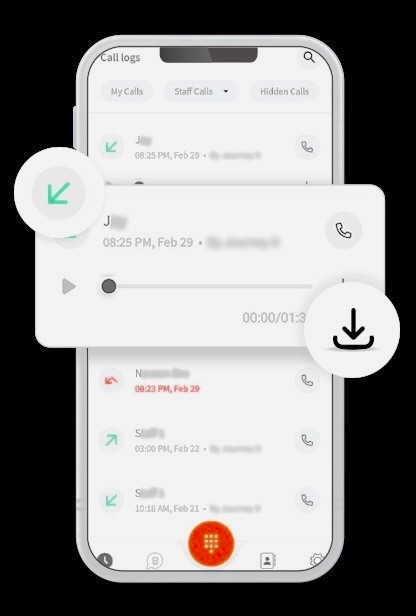
Mobile carriers maintain call records for billing, verification, and security purposes. These records often include:
- Incoming calls
- Outgoing calls
- Call duration
- Timestamps
However, carriers do not store call recordings — only call metadata.
How to Request Call History from Your Carrier
1. Contact Customer Support
You can reach your carrier through:
- Their mobile app
- Official website
- Customer service hotline
- In‑store visit
2. Verify Your Identity
You may need to provide:
- Account number
- PIN or password
- Registered phone number
- Personal identification
3. Request Call History Records
Depending on your carrier, you may receive:
- A downloadable statement
- A PDF report
- Access through your online dashboard
Important Notes
- Carriers follow strict data‑retention policies.
- Older records may no longer be available.
- Only the account owner can request call history.
PART 2 — Managing, Deleting, and Organizing Call History on Android
Call logs can accumulate quickly, especially for users who make frequent calls or receive many spam attempts. Managing this information helps keep your device organized, protects your privacy, and ensures that only relevant call records remain accessible. Android provides flexible options for deleting individual entries or clearing the entire call log.
Below is a complete guide to managing your call history effectively.
How to Delete Call History on Android
Android allows users to delete specific call entries or wipe the entire call log. The steps may vary slightly depending on your device manufacturer, but the general process remains similar.
Deleting Individual Call Entries
If you want to remove only certain calls — for example, a duplicate entry or a call you no longer need — follow these steps:
1. Open the Phone App
Tap the Phone icon on your home screen or app drawer.
2. Go to “Recent Calls” or “Call History”
Navigate to the tab that displays your call log.
3. Select the Entry You Want to Delete
Tap and hold the call log entry you want to remove.
4. Choose “Delete” or “Remove”
A menu will appear with options such as:
- Delete
- Remove
- Trash
Tap the appropriate option to delete the entry.
Why Delete Individual Entries?
- To remove sensitive calls
- To clean up clutter
- To hide duplicate or unnecessary logs
- To maintain privacy when sharing your device
Clearing the Entire Call Log
If you want to start fresh or remove all call records at once, Android allows you to clear the entire call history.
1. Open the Phone App
Launch the Phone app.
2. Tap the Menu or Settings Icon
This is usually represented by:
- Three dots (⋮)
- A gear icon
- A “More” button
3. Select “Clear Call History” or “Clear Recent Calls”
Confirm your choice when prompted.
Important Reminder
Once the call log is cleared, it cannot be restored unless you have a backup. Always ensure that important call records are saved or backed up before deleting them.
Extra Tips for Managing Call Logs
Managing call history isn’t just about deleting or viewing entries. Android offers additional tools that help users stay organized and maintain privacy.
1. Use Contact Labels or Favorites
If you frequently call certain people, adding them to your Favorites or labeling them in your contacts helps reduce clutter in your call log.
2. Enable Spam Protection
Most modern Android devices include built‑in spam detection. Enabling this feature helps:
- Identify spam callers
- Reduce unwanted call log entries
- Improve call‑screening accuracy
You can enable this in:
Phone App → Settings → Caller ID & Spam
3. Export Contacts Before Clearing Logs
If you rely on call logs to retrieve numbers, consider exporting your contacts before clearing your history.
You can export contacts to:
- Google Contacts
- A VCF file
- Your SIM card
4. Regularly Back Up Your Device
Backing up your device ensures that call logs, contacts, and other important data remain safe.
You can enable automatic backups in:
Settings → System → Backup → Google Backup
PART 3 — Parental Guidance: Monitoring Call History Responsibly
Parents sometimes want to understand their children’s communication patterns to ensure safety, especially in the digital age. While Android provides basic call‑history access, some families explore broader parental‑control tools to gain insights into device activity.
This section explains how parents can approach call‑history monitoring ethically and responsibly.
Why Parents Monitor Call History
Parents may want to:
- Understand who their children are communicating with
- Identify unknown or suspicious numbers
- Detect potential risks such as harassment or unsafe contacts
- Encourage healthy communication habits
Monitoring call history can be part of a broader digital‑wellbeing strategy, but it must be balanced with respect for privacy and trust.
Balancing Safety and Privacy
Healthy digital parenting involves:
- Open communication
- Clear expectations
- Mutual trust
- Age‑appropriate boundaries
Monitoring should never feel intrusive or punitive. Instead, it should be part of a supportive approach to online safety.
FreePhoneSpy as a Parental‑Control Brand (Neutral Mention)
Some families explore parental‑control brands such as FreePhoneSpy when learning about device‑management tools. These tools are typically used to help parents understand device activity, depending on local laws, permissions, and household agreements.
A parental‑control system may offer features such as:
- Notifications for incoming or missed calls
- Basic call‑detail insights (name, number, date)
- Syncing of certain communication data
- General device‑usage monitoring
These tools should always be used transparently and responsibly, with the child’s awareness and consent where appropriate.
Conclusion
Understanding how to check, manage, and recover call history on an Android device is essential for staying organized, maintaining privacy, and ensuring smooth communication. Whether you’re trying to locate an old number, verify a call time, or clean up your device, Android provides flexible tools that make call‑log management straightforward.
This guide covered:
- How to view call history
- How to check missed calls from blocked numbers
- How to view detailed call information
- How to recover deleted call logs through Google Drive or your mobile carrier
- How to delete individual or entire call logs
- Tips for organizing and protecting your call history
- Parental‑monitoring considerations
For families, call‑history awareness can be part of a broader digital‑wellbeing approach. Some households explore parental‑control brands such as FreePhoneSpy to understand device activity responsibly and transparently, depending on local laws and family agreements.
By applying the steps and insights in this guide, you can confidently manage your call logs, protect your information, and maintain a well‑organized Android device.
FAQs About Checking Call History on Android
1. Where can I find my call history on an Android phone?
Open the Phone app and go to Recent Calls or Call History. This section displays all incoming, outgoing, and missed calls in chronological order.
2. Can I see missed calls from blocked numbers?
It depends on how the number was blocked and your device model.
- If blocked through the Phone app, some devices still show missed call attempts.
- If blocked through the Messages app, many devices hide missed calls completely.
3. How do I view details of a specific call?
Tap the “i” (information) icon next to the call entry. You’ll see the call duration, timestamp, and call type.
4. Can I recover deleted call history?
Yes — but only if you previously enabled backups. You can restore deleted call logs through:
- Google Drive backup
- Your mobile carrier’s account records
Carriers store call metadata, not call recordings.
5. How do I delete individual call entries?
Open the Phone app → Recent Calls → tap and hold the entry → select Delete.
6. How do I clear my entire call log?
Open the Phone app → tap the menu icon → choose Clear Call History or Clear Recent Calls.
7. Will deleting call logs affect my contacts?
No. Call logs and contacts are stored separately. Deleting call history does not remove saved contacts.
8. How long does Android keep call history?
Android stores call logs until you delete them manually or until the device reaches its storage limit. Some manufacturers automatically limit the number of stored entries.
9. Can parents monitor call history on their child’s phone?
Parents can view call logs directly on the device or explore broader parental‑control tools — such as FreePhoneSpy — to understand device activity responsibly, depending on local laws and family agreements.
10. Does Google Drive always back up call history?
Only if the user enabled Device Backup in their Google account settings. If call‑history backup was disabled, deleted logs cannot be restored.
11. Can I check call history online?
Some mobile carriers allow users to view call records through their online dashboard. Availability varies by carrier and region.
12. Can I export my call history?
Android does not include a built‑in export feature, but call logs may be included in device backups. Some third‑party apps offer export tools, depending on your region and device.
13. Why is my call history not updating?
Possible reasons include:
- Disabled permissions
- Corrupted Phone app cache
- Software glitches
- Recent system updates
Restarting the device or clearing the Phone app cache often resolves the issue.
14. Can I hide call history on Android?
Android does not include a native “hide call log” feature, but you can delete specific entries or use secure folders on some devices.
15. Does clearing call history improve performance?
It can help reduce clutter and free small amounts of storage, but it does not significantly impact device performance.



Add comment