App Blocker & Limits
See the apps on your child's phone. Block the ones you don't want and set limits for the rest.
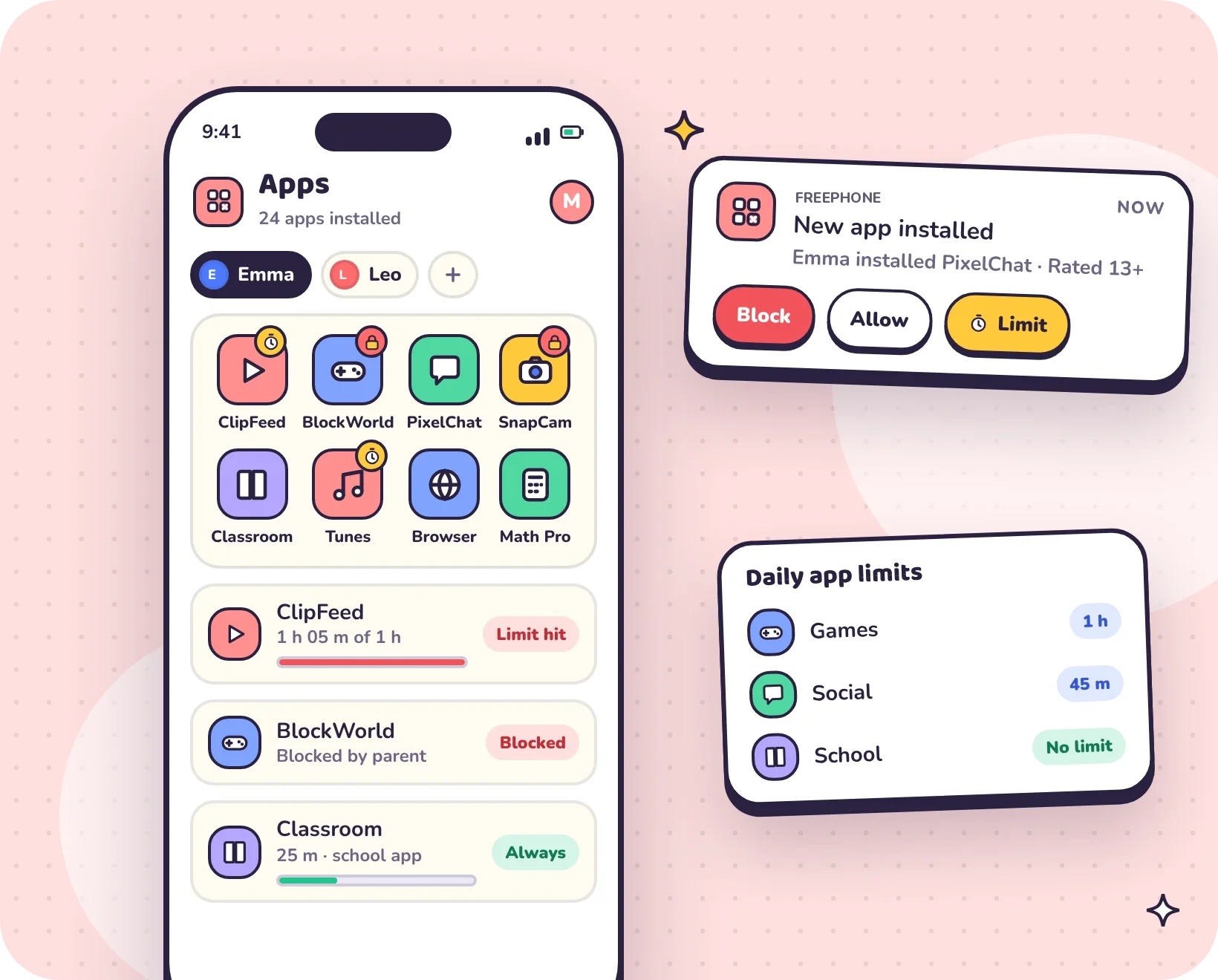
Block apps or give each app its own time limit.
App list
See installed apps and how long each one is used.
Block apps
Block an app with one tap. Unblock it any time.
Per-app limits
Give games one hour a day and keep school apps unlimited.
New app alerts
Get a notification when your child installs a new app.
Why parents use App Blocker & Limits
Not every app is right for every age. Blocking some apps and limiting others keeps the useful ones and cuts the rest.
Tips for parents
- Check the age rating of an app before you allow it.
- Limit games and social apps, but keep school and maps apps open.
- Review the app list once a month with your child.
Three steps
Open Apps and pick your child.
Tap an app to block it or set a limit.
Turn on new app alerts.
App Blocker & Limits FAQ
Will my child know an app is blocked?
Yes. They see a short message that a parent paused the app.
Can I approve apps before they are installed?
Yes, in effect: you get an alert right after an app is installed and can block it before it is used.
Can I block the app store?
Yes. Blocking the app store stops new installs until you unblock it.
Try App Blocker & Limits free
Free on Android and the web. Set up in about 5 minutes.