How to Find a Lost or Stolen Phone: A Complete Guide
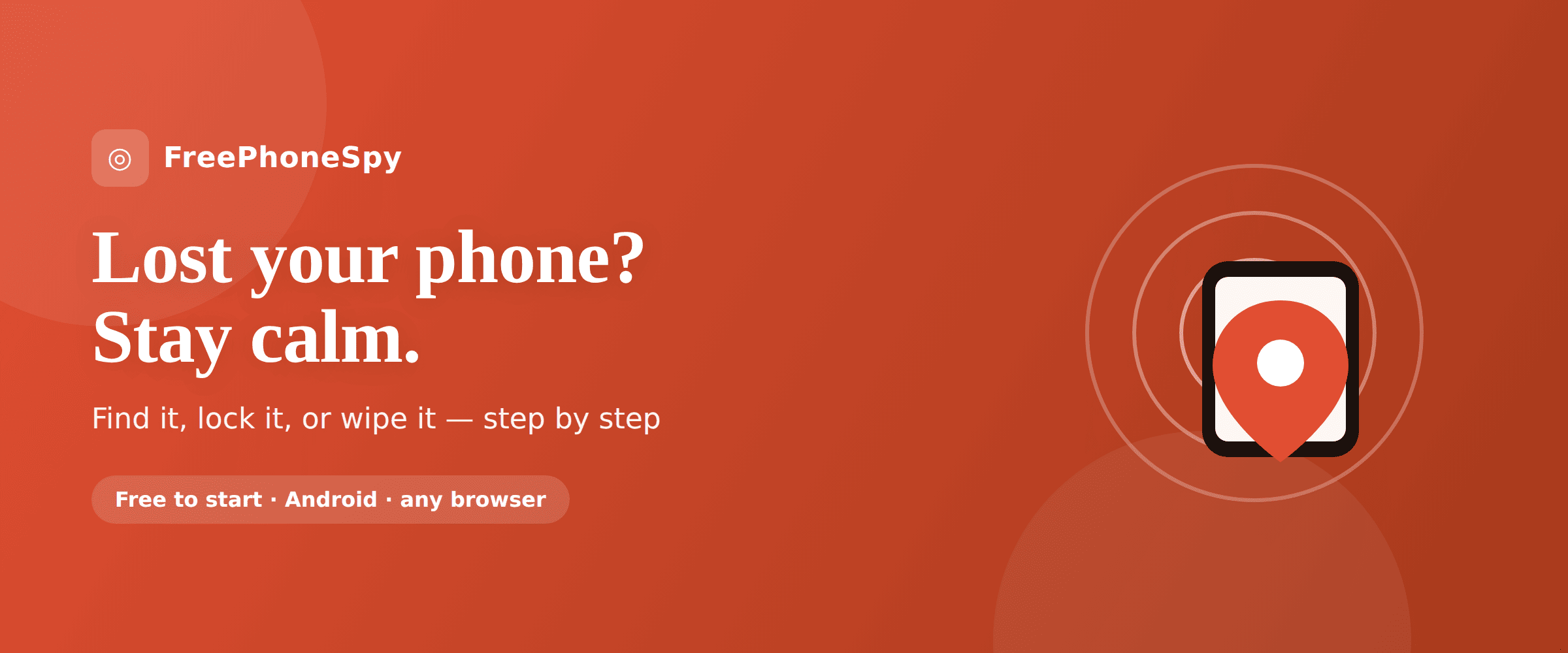
Your phone is gone. Maybe it slipped out of a pocket, maybe it’s still on the café table, maybe someone took it. Whatever happened, the next few minutes matter. Take a breath. In most cases your phone can be found, and even if it can’t, you can lock it, wipe it, and keep your accounts safe. Here’s exactly what to do.
The first five minutes
Speed helps, but panic doesn’t. A phone that’s on and connected can be found in seconds. A phone that’s about to die or get switched off is worth reaching before it does. So act now, and act calmly.
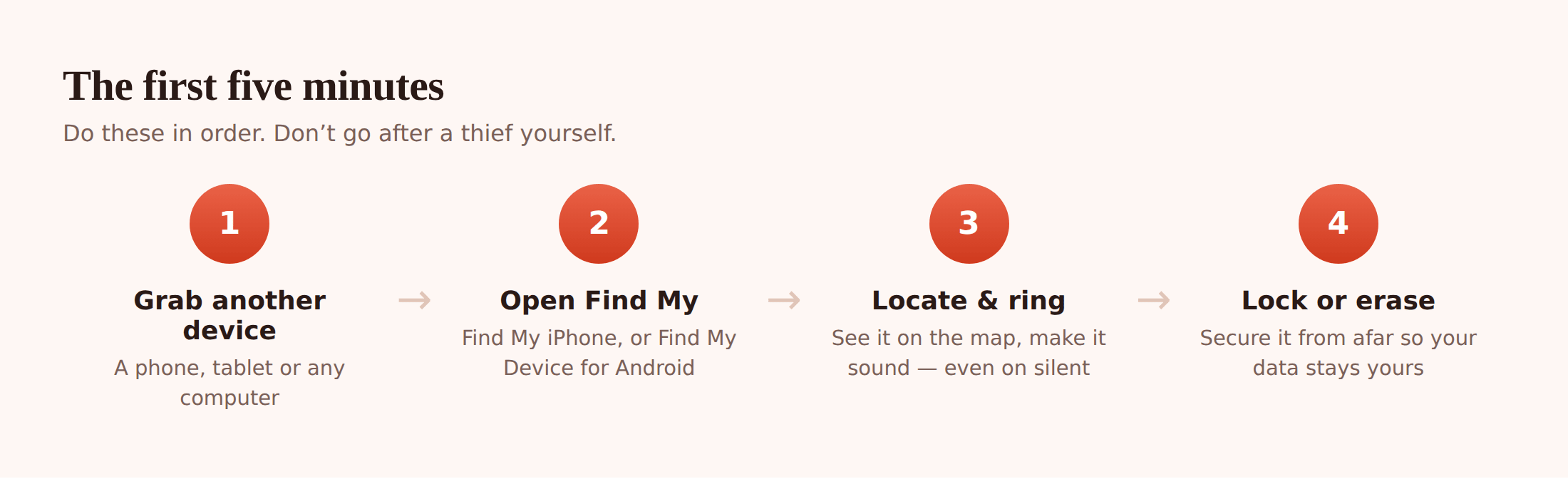
1. Get to another device
Borrow a friend’s phone, use a laptop, or ask at the desk to use a computer. You don’t need your own phone to find it. You just need to sign in to the account it’s linked to.
2. Sign in to Find My or Find My Device
iPhone users go to iCloud.com. Android users go to android.com/find. Sign in with the Apple Account or Google account the phone uses. This is the same login you set up when you first got the phone.
3. Locate it on the map
Within a few seconds you should see a dot. If it’s nearby, make it ring. If it’s somewhere you recognise, you know where to go. If it’s moving, that tells you something too.
4. Don’t chase a thief yourself
If the map points to a stranger’s house, a car park, or somewhere that feels off, stop. Do not knock on doors. Lock the phone, note the location, and let the police handle it. A phone is replaceable. You are not.
That last point is the one people get wrong. The map is a clue, not an invitation. We’ll come back to the stolen-phone case in a moment. First, the two tools that do the actual finding.
Find a lost iPhone
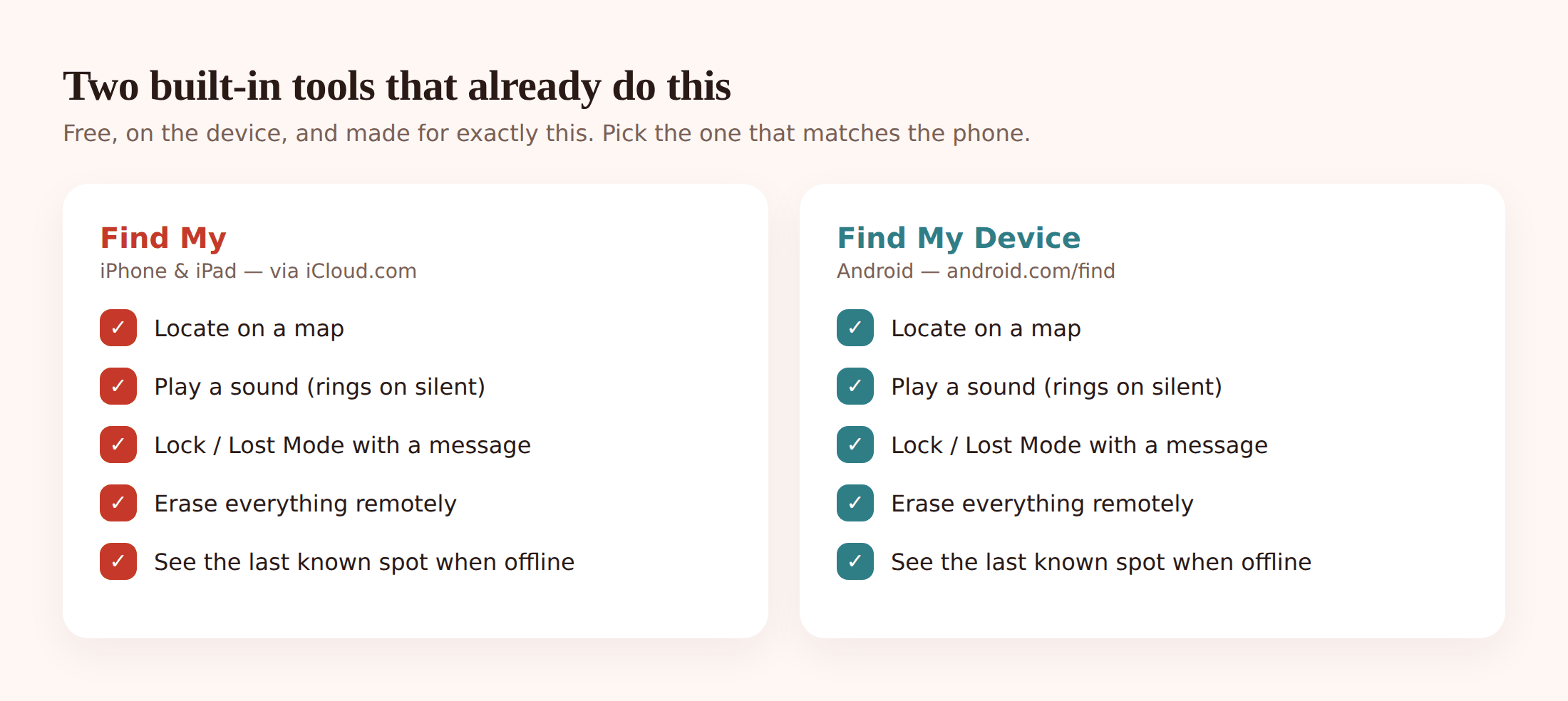
Apple’s tool is called Find My. It works from any web browser at iCloud.com, or from the Find My app on another Apple device, including a friend’s iPhone or an iPad. As long as Find My was switched on before the phone went missing (it usually is by default), you’re in good shape.
Locate the phone
Go to iCloud.com, sign in with your Apple Account, and open Find My (or Find iPhone). Pick your phone from the list of devices. A green dot means it’s online and its location is live. A grey dot means it’s offline, and you’ll see where it last checked in.
Play a sound
If it’s close, tap Play Sound. The phone pings loudly even if you left it on silent, so you can dig it out of the sofa or hear it under the car seat.
Turn on Lost Mode
Lost Mode locks the phone with your passcode, suspends Apple Pay, and lets you put a message and a phone number on the lock screen. So an honest finder can call you without getting into anything else. The phone keeps reporting its location while it’s in Lost Mode.
Erase if you have to
If the phone holds sensitive data and you don’t think you’ll get it back, Erase iPhone wipes it remotely. Only do this once you’ve given up on recovery, because on older setups erasing can stop location tracking. Activation Lock still keeps a thief from using the phone after a wipe.
Keep your Apple Account details safe. A thief who gets your Apple password can turn off Find My and remove Activation Lock. Never share a verification code with anyone who phones or texts asking for it, even if they claim to be Apple. Apple won’t ask.
Find a lost Android phone
Google’s tool is Find My Device. Open android.com/find in a browser, or use the Find My Device app on another Android phone, and sign in with the Google account on the missing phone. Most Android phones have this on by default, but it’s worth checking it’s enabled while you still have the phone in hand.
Locate the phone
Sign in at android.com/find. Your phone appears with its last known position on the map, along with the battery level and whether it’s connected to Wi-Fi. If it’s on and online, the dot updates live.
Play a sound
Play Sound rings the phone at full volume for five minutes, even if it’s set to silent or vibrate. Perfect for a phone lost somewhere in the house or under a pile of coats.
Secure the device
Secure Device locks the phone with your PIN, pattern, or password, and signs it out of your Google account. You can show a message and a contact number on the lock screen, so whoever finds it can reach you. The phone stays locked and keeps trying to report its location.
Erase the device
Erase Device is the last resort. It wipes everything on the phone remotely. After an erase you can no longer locate it, so only choose this when recovery is off the table and you want your data gone.
A locked Android phone is far less useful to a thief. Secure Device plus a screen lock means they can’t read your messages, open your banking app, or reset the phone to sell it without your Google login. Lock first, worry about the hardware later.
If it’s on silent, off, or out of battery
Plenty of missing phones aren’t answering. That doesn’t mean the trail’s gone cold.
On silent: Play Sound and Play Sound work regardless of the silent switch. So a phone that’s face-down and muted will still ring when you tell it to from another device.
Turned off or flat: A dead phone can’t report where it is right now. But both Find My and Find My Device remember the last place the phone checked in before it went dark. That last-seen point is often enough. It tells you which room, which shop, or which stretch of road to search.
When it comes back to life: Leave Play Sound, Lost Mode, or Secure Device queued up. The moment the phone reconnects to a network, the command fires and you get an updated location or a ringing phone. On newer iPhones, Find My can even locate a device for a while after it’s switched off, thanks to a low-power Bluetooth signal nearby Apple devices can pick up. So don’t give up just because the dot is grey. Check back every so often.
Stolen, not just lost
If you’re sure the phone was taken, the priorities shift. Getting the hardware back matters less than your safety and your accounts.
- Don’t confront anyone. The map location is for the police, not for a solo doorstep visit. No phone is worth your safety.
- Lock and, if needed, erase. Use Lost Mode (iPhone) or Secure Device (Android) straight away. If there’s banking or work data on it, erase once you’ve decided recovery isn’t realistic.
- Report it to the police. File a report and give them the location and your IMEI number (more on that below). You’ll often need a crime reference number for an insurance claim.
- Call your carrier and block the IMEI. Your mobile network can blacklist the phone by its IMEI, which stops it being used on networks even with a new SIM. Ask them to suspend your number too, so nobody runs up charges or receives your calls and texts.
- Change your passwords. Start with the important ones: email first (it’s the key to everything else), then banking, then your Apple Account or Google account, then social media. If the phone was unlocked when it went, treat every account it could reach as exposed.
Order matters. Lock the phone, then secure your email, then your money. Email first, because password resets for almost everything else land there.
The IMEI number, and why it matters
Every phone has a unique 15-digit IMEI number, a bit like a serial number for the mobile network. The police and your carrier both use it to identify and block a specific handset.
There are four easy ways to find yours:
- Dial
*#06#on the phone and the IMEI appears instantly. Do this now, before anything happens, and save it somewhere safe. - Check the box the phone came in. The IMEI is printed on the label.
- iPhone: it’s listed in your Apple Account under your devices, at appleid.apple.com.
- Android: it’s shown in your Google account device list, and in Settings under About phone.
Once a phone is reported stolen and its IMEI is blacklisted, it becomes far harder to sell or use. That’s why a thief can’t simply pop in a new SIM and carry on. Note yours down today, while you still can.
Getting your photos and contacts back
Losing the phone doesn’t have to mean losing what was on it. If backups were switched on, your stuff is waiting in the cloud.
iPhone: your photos, contacts, messages, and app data sync to iCloud. Sign in at iCloud.com from any browser to see your photos and contacts right away. When you get a replacement iPhone, sign in with the same Apple Account and restore from your iCloud backup, and it comes back looking almost exactly as it was.
Android: photos live in Google Photos, contacts in Google Contacts, and app data in your Google account. Open photos.google.com or contacts.google.com on any device and it’s all there. Set up a new Android phone with the same Google account and it restores automatically.
This is the quiet reward for turning on backups before you ever needed them. If you haven’t, do it on your next phone the day you get it.
Set your phone up now, so a loss isn’t a disaster
The difference between a stressful afternoon and a genuine emergency is almost entirely about what you set up beforehand. Ten minutes today saves you a very bad week later.
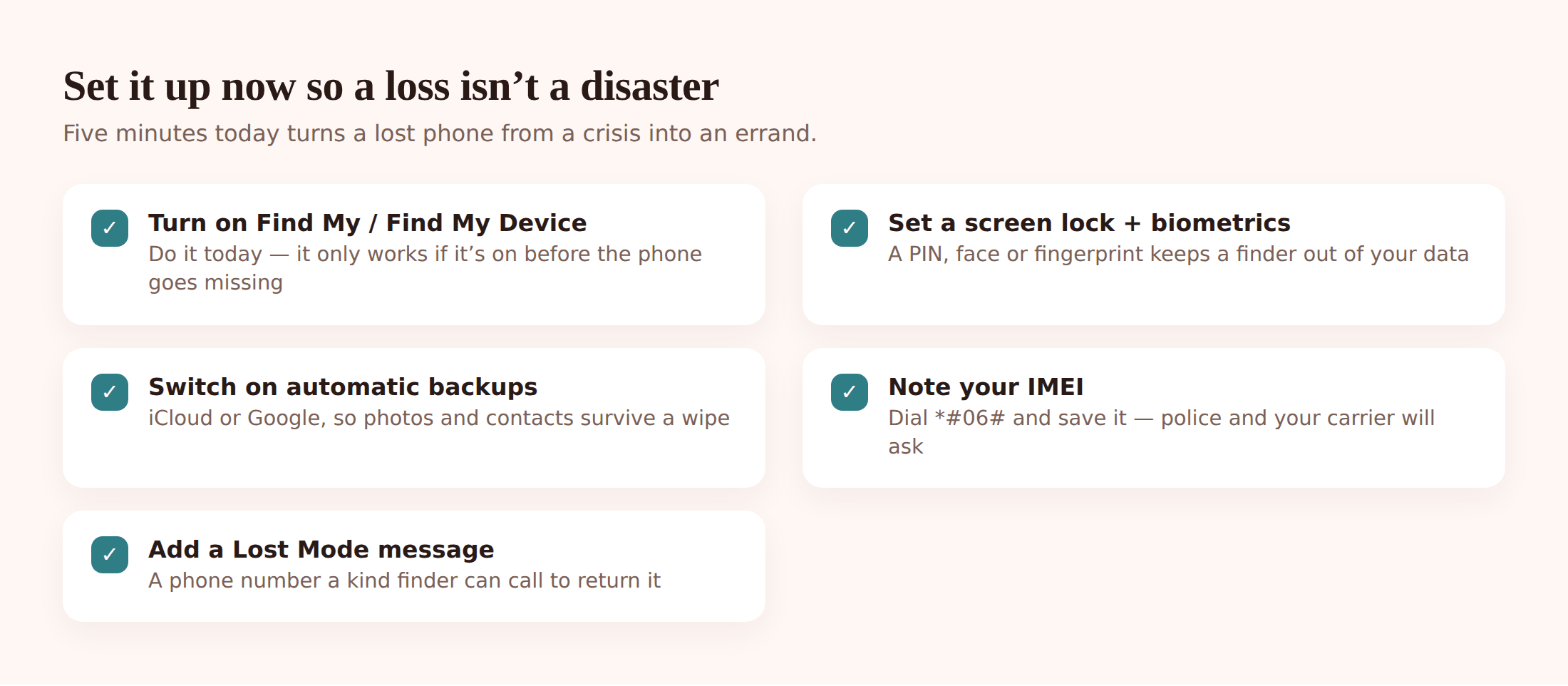
- Turn on Find My iPhone or Find My Device. This is the single most important one. Without it, none of the locating works. Check it’s on today.
- Set a proper screen lock. A PIN, pattern, fingerprint, or face unlock. It’s the wall between a thief and everything you own.
- Switch on automatic backups. iCloud for iPhone, Google for Android. So a lost phone never means lost memories.
- Note your IMEI. Dial
*#06#and save the number somewhere that isn’t on the phone. - Add a lock-screen message. Lost Mode and Secure Device let you show a contact number, so an honest finder can reach you.
- Consider a Bluetooth tracker. A small tag on your keys or in your bag adds a second way to find things nearby, and can help you retrace your steps to where the phone was last with you.
If it’s your child’s phone
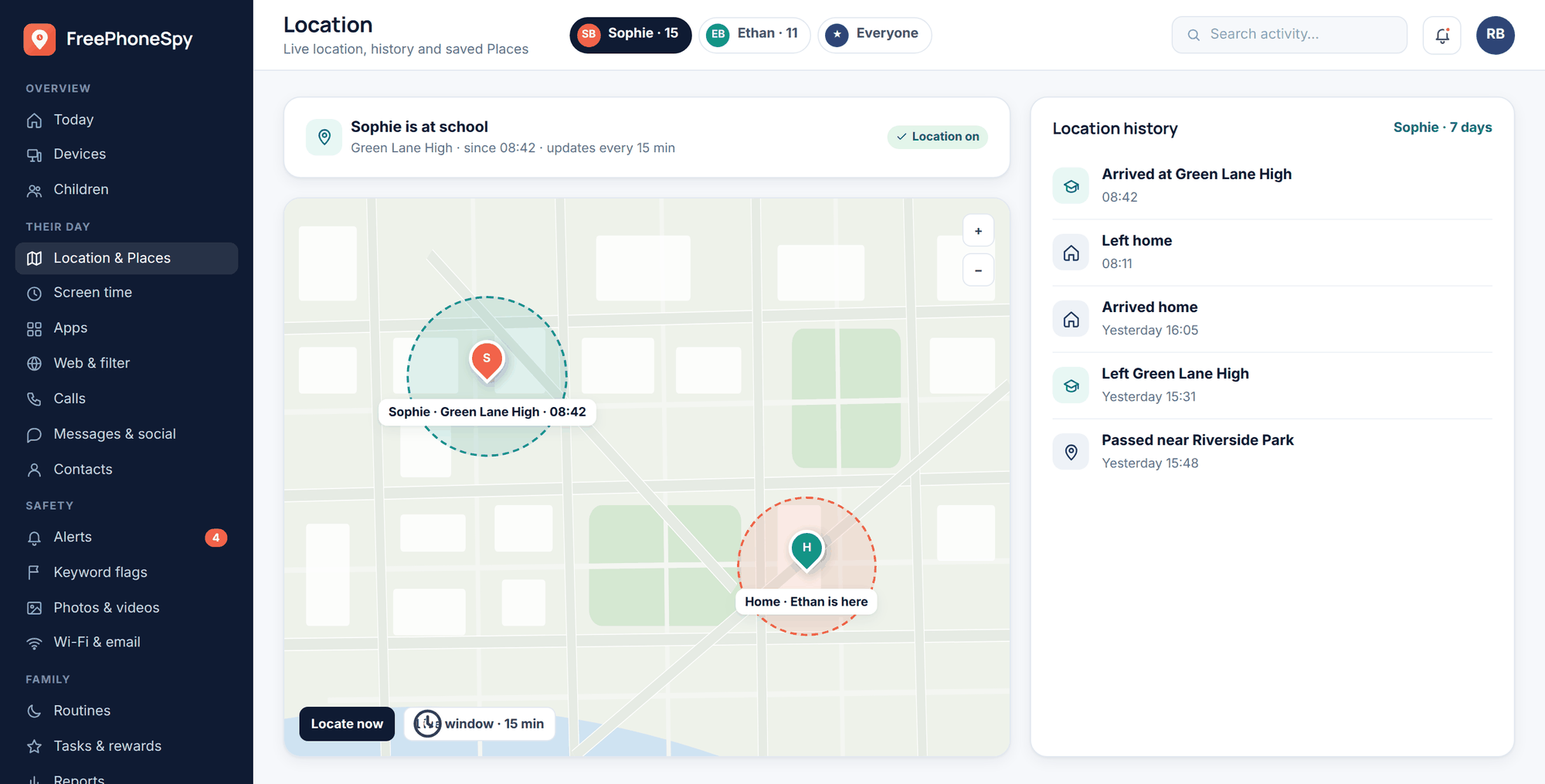
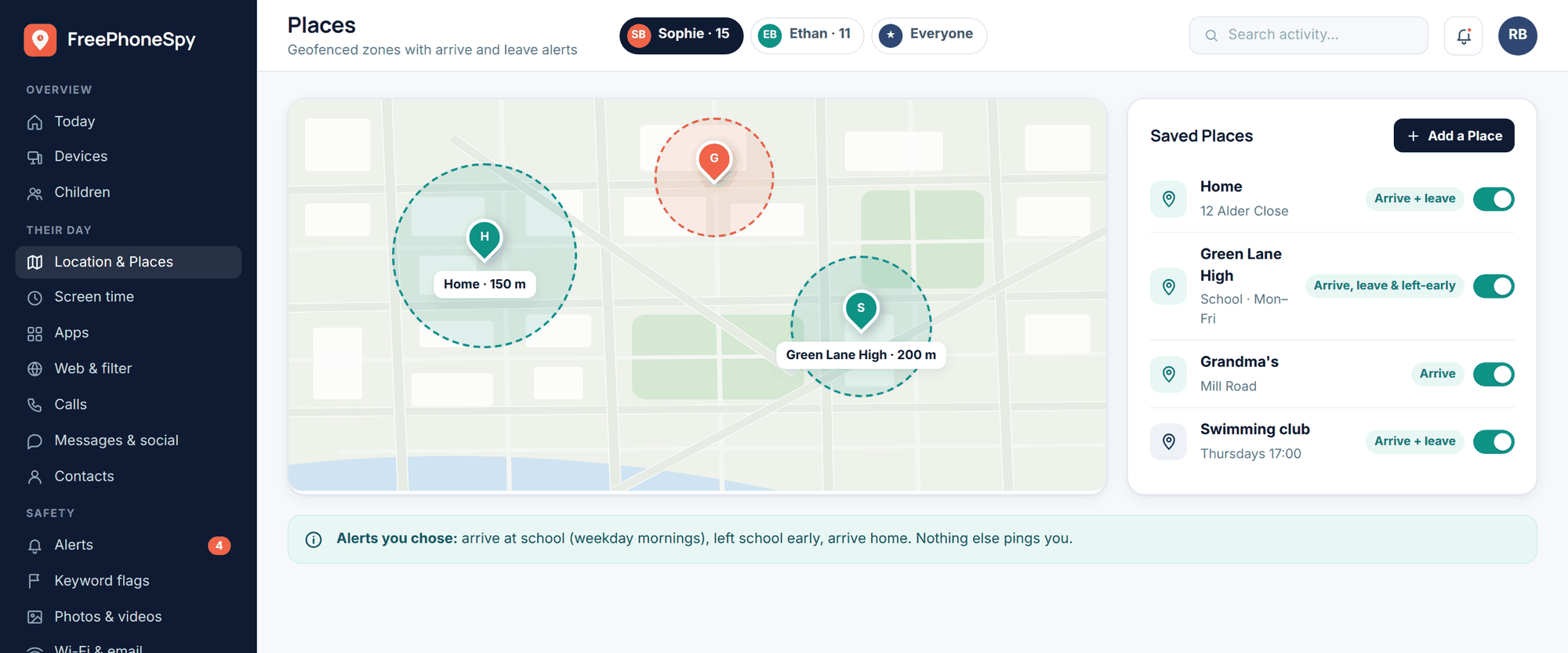
Different situation, so worth its own note. If the missing phone belongs to your child and you’d already set up FreePhoneSpy on it openly, with their knowledge and with location and Places switched on, you have an extra window into where it’s been.
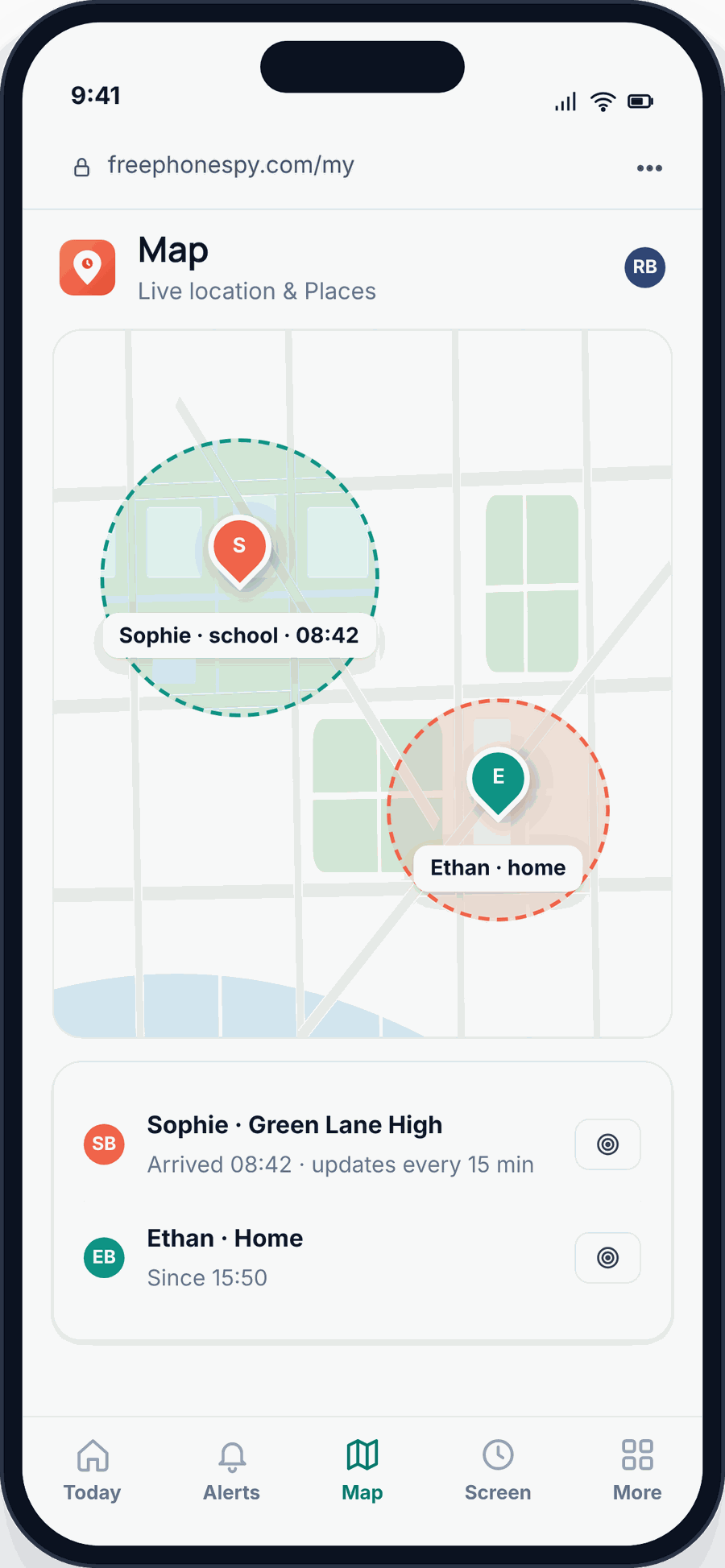
Because location history keeps a record, you can often see where the phone was last, and when. Saved Places give you arrive and leave times for spots that matter, like home, school, or a friend’s house. If the phone left school at the usual time and last reported near the bus stop, that’s a real head start on where to look.
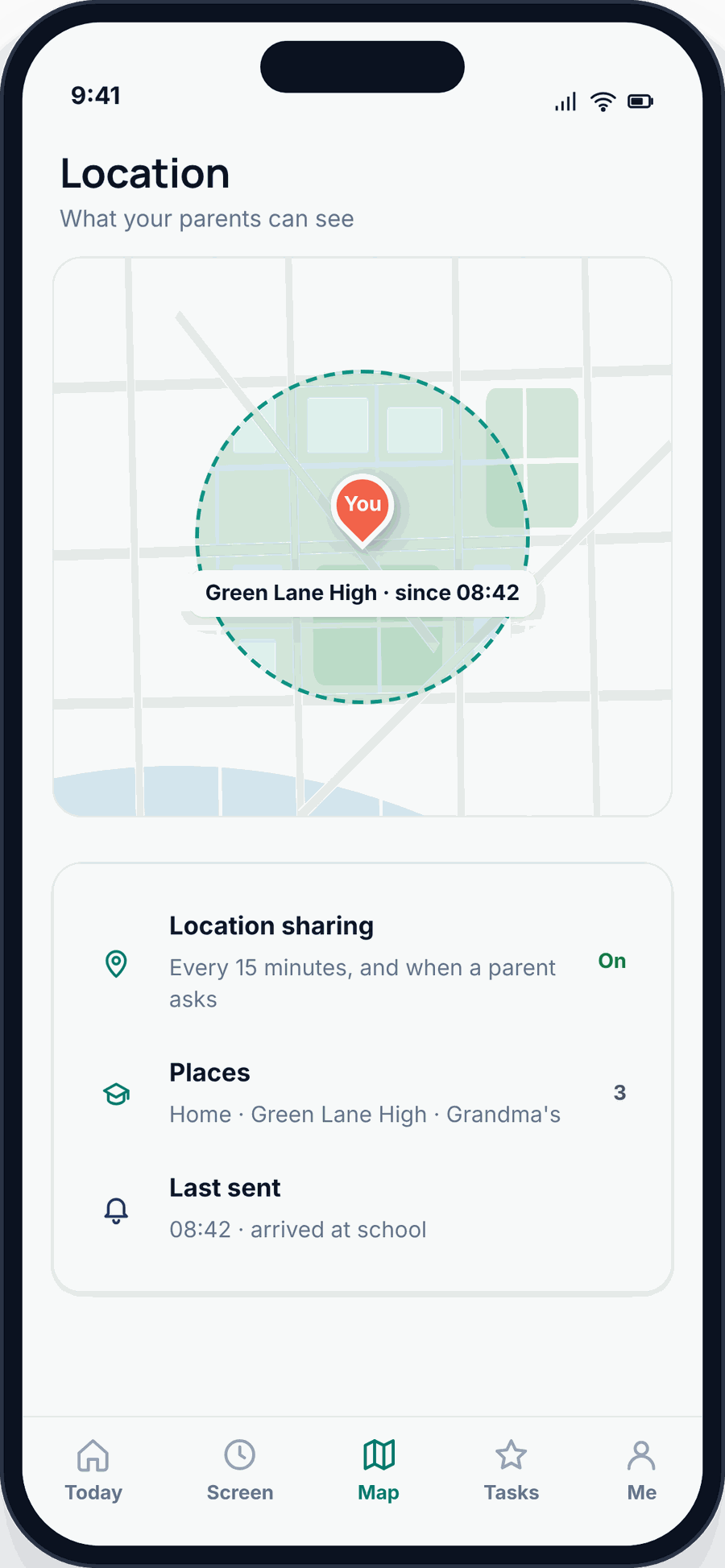
You can read the same information from a computer, which is handy when you’re at work and the phone’s gone quiet.
Be clear about what this is. FreePhoneSpy is a parental monitoring app for your own child’s Android phone, set up with their knowledge. It can show you where the phone was last and where it’s been. It cannot lock the phone, wipe it, or find a stranger’s device or a phone you don’t own. For locking, erasing, or ringing a lost Android, Find My Device is still the right tool, and for a stolen phone, that’s a job for Find My Device and the police. Use the honest tools for the honest job.
If you want to understand the location features properly before you ever need them, our family location and Places guide walks through the setup, and the wider complete guide to child phone monitoring covers doing it openly and fairly. For sharing location across the whole family, see our family location sharing guide.
Common questions
Can I find my phone if the location is turned off?
You can still see the last place it reported before location was switched off, and you can queue up a lock or a ring for when it reconnects. But you won’t get a live position while location is off. This is why leaving Find My or Find My Device enabled all the time matters.
Can I track a phone that’s switched off or out of battery?
Not in real time, no. A powered-down phone can’t report where it is. You’ll see its last-seen point, and on newer iPhones a low-power signal can help for a while after it’s off. The moment the phone charges and reconnects, it appears again, and any lock or sound you queued will fire.
What should I do first if my phone is stolen?
Don’t go after it yourself. Lock it with Lost Mode or Secure Device, note the location for the police, report it with your IMEI, ask your carrier to block the IMEI and suspend your number, then change your email and banking passwords. Safety and accounts come before the hardware.
Does erasing my phone stop me finding it?
Often, yes. Once you erase, you usually can’t locate the phone any more. So treat Erase as a last step, for when you’ve accepted the phone is gone and you want your data wiped. Lock it first, and only erase if there’s sensitive information you can’t leave exposed.
Can FreePhoneSpy find my stolen phone?
No. FreePhoneSpy is a parental monitor for your own child’s Android phone, set up openly. If it was already running, you may see where that phone was last and where it’s been, which can help you look. But it can’t lock or wipe a phone, and it can’t find a stranger’s device or one you don’t own. For a stolen phone, use Find My Device and the police.
Will a new SIM let a thief use my stolen phone?
Much less easily than they’d hope. If you’ve locked the phone and blacklisted the IMEI through your carrier, a new SIM won’t get them far. Activation Lock on iPhone and your Google login on Android also block a factory reset without your account details.