

How to Check App Usage on iPhone
Your iPhone quietly tracks how much time you spend on apps — whether it’s social media, games, productivity tools, or streaming platforms. Monitoring app usage is essential for:
- Protecting your privacy
- Reducing distractions
- Managing data consumption
- Understanding your digital habits
- Setting healthy screen‑time limits for kids
Whether you want to monitor your own usage or keep an eye on your child’s device activity, this guide walks you through every method available on iPhone.
Why Checking App Usage on iPhone Matters
App usage tracking isn’t just about curiosity — it’s about control. Here are the most common reasons people monitor app usage:
1. Privacy Awareness
Some apps run in the background, track your location, or consume data without your knowledge.
2. Reducing Screen Addiction
Social media and gaming apps are designed to keep you hooked. Tracking usage helps you stay mindful.
3. Parental Monitoring
Parents often want to ensure their children aren’t spending excessive time on apps — especially during school hours.
4. Battery & Data Management
Heavy app usage drains battery life and mobile data quickly.
5. Productivity Improvement
Tracking app usage helps you identify distractions and build healthier digital habits.
How to Check App Usage on iPhone
Apple’s built‑in Screen Time feature is the easiest and most accurate way to track app usage. It provides:
- Daily and weekly activity reports
- Time spent on each app
- App category breakdowns
- Notifications received
- Number of device pickups
Below are the three main ways to check app usage.
1. Check Daily and Weekly App Usage Reports
Daily and weekly reports show how much time you spend on:
- Social networking
- Entertainment
- Productivity
- Games
- Utilities
- Education apps
How to View Daily & Weekly Reports
- Open Settings
- Tap Screen Time
- Tap See All Activity
- Toggle between Day and Week at the top
You’ll see:
- Total screen time
- Usage by category
- Usage by individual apps
- Whether your screen time increased or decreased compared to last week
This gives you a clear picture of your digital habits.
2. Check Individual App Usage
If you want to know exactly how much time you spend on a specific app — such as TikTok, Instagram, YouTube, or games — you can view detailed usage for each one.
How to Check Individual App Usage
- Go to Settings
- Tap Screen Time
- Tap See All Activity
- Scroll down to the list of apps
- Tap any app to view:
- Average daily usage
- Total weekly usage
- Number of notifications
- Number of pickups
This is especially helpful for parents monitoring gaming or social media habits.
3. Check Total App Usage (Daily or Weekly)
Screen Time also shows your total device usage, not just individual apps.
How to View Total Usage
- Open Settings
- Tap Screen Time
- Tap See All Activity
- Select Day or Week
This gives you a complete summary of how long your iPhone was used overall.
How to Limit Time on Apps (iPhone)
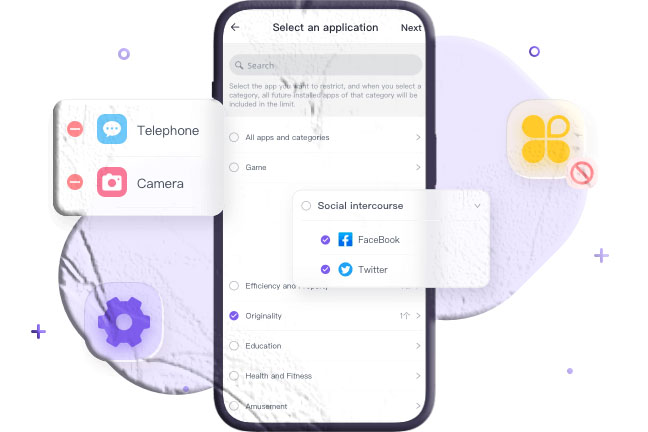
If you want to reduce distractions or help your child stay focused, you can set App Limits directly from Screen Time.
How to Set App Limits
- Open Settings
- Tap Screen Time
- Tap App Limits
- Tap Add Limit
- Enter your Screen Time passcode
- Select the apps or categories
- Set a daily time limit
- Tap Add
Once the limit is reached, the app becomes locked unless you manually extend the time.
How to Limit App Usage on iPhone for Children
Over 90% of children in the U.S. have access to mobile devices — and many exceed recommended screen‑time limits. To help parents manage this, iPhone offers built‑in parental controls, but some families need more detailed monitoring.
This is where FreePhoneSpy Parental Control becomes helpful.
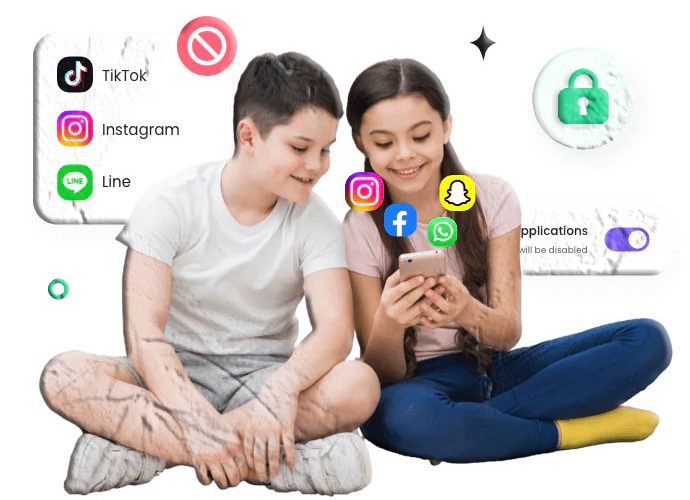
FreePhoneSpy is a consent‑based, family‑friendly monitoring tool that helps parents:
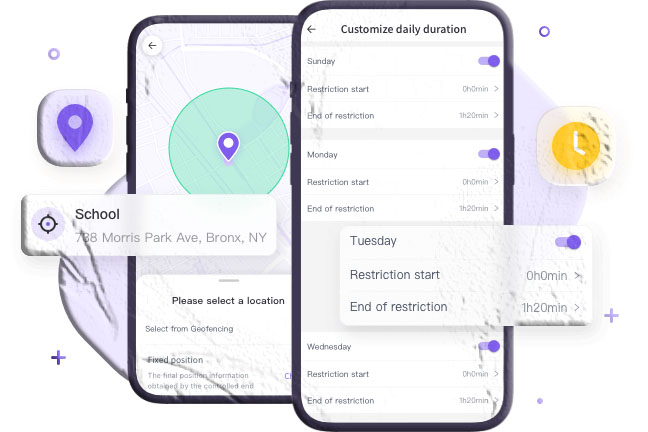
- Set daily app time limits
- Block specific apps during study or bedtime
- Monitor app usage patterns
- Create healthy digital routines
How to Use FreePhoneSpy to Limit App Usage
- Install FreePhoneSpy Parental Control from Google Play or App Store
- Install FreePhoneSpy Kids on your child’s device
- Complete the setup and pairing
- Open Usage Limits
- Select App Time Limits
- Set limits for specific apps or categories
FreePhoneSpy helps parents manage screen time more effectively than Screen Time alone.
How to Remove Time Limits on iPhone
If you previously set a limit and want to remove it:
- Open Settings
- Tap Screen Time
- Tap the app under App Limits
- Tap Delete Limit
The app will return to normal usage.
Additional Tips for Managing App Usage on iPhone
Beyond Screen Time and app limits, there are several other strategies you can use to better understand and manage how apps behave on your iPhone.
1. Check Background App Activity
Some apps continue running even when you’re not actively using them. This can drain battery, consume data, and affect performance.
How to Check Background Activity
- Open Settings
- Tap Battery
- Scroll to see which apps use the most battery
- Tap an app to view:
- On‑screen usage
- Background usage
If an app shows high background activity, consider disabling it.
How to Turn Off Background App Refresh
- Go to Settings
- Tap General
- Tap Background App Refresh
- Turn it off for specific apps or disable it entirely
This reduces battery drain and limits unnecessary data usage.
2. Check Cellular Data Usage
Some apps consume large amounts of mobile data, especially video apps like TikTok, Instagram, and YouTube.
How to Check Data Usage
- Open Settings
- Tap Cellular
- Scroll down to see data usage per app
You can disable cellular access for apps that don’t need it.
3. Use Downtime for Better Focus
Downtime restricts access to all apps except the ones you choose.
How to Enable Downtime
- Go to Settings
- Tap Screen Time
- Tap Downtime
- Set a schedule (e.g., 10 PM – 7 AM)
This is ideal for bedtime, study hours, or family time.
4. Use “Always Allowed” for Essential Apps
If you set limits or Downtime, you can still allow essential apps like:
- Phone
- Messages
- Maps
- Calendar
How to Allow Essential Apps
- Go to Settings
- Tap Screen Time
- Tap Always Allowed
- Select apps you want to keep accessible
5. Use FreePhoneSpy for Advanced App Monitoring (Family‑Safe)
While Screen Time is helpful, some parents need deeper insights into their child’s digital habits. This is where FreePhoneSpy Parental Control becomes useful.
FreePhoneSpy is a consent‑based, family‑friendly monitoring tool that helps parents:
- Track app usage in real time
- Set daily app limits
- Block apps during study or bedtime
- Monitor screen activity
- Encourage healthy digital routines
How FreePhoneSpy Helps Parents
- Usage Limits: Set time limits for specific apps
- App Blocking: Block distracting apps during certain hours
- Screen Mirroring: View your child’s screen in real time
- Activity Reports: Understand how apps are used throughout the day
FreePhoneSpy is available on the Google Play Store and supports cross‑platform monitoring.
Conclusion
Monitoring app usage on your iPhone is essential for maintaining digital balance, protecting privacy, and ensuring healthy screen habits — especially for children. Apple’s Screen Time feature provides powerful tools for tracking daily and weekly usage, setting limits, and managing distractions.
To recap, you can:
- View daily and weekly app usage
- Check individual app activity
- Monitor total screen time
- Set app limits
- Remove limits easily
- Use Downtime and Always Allowed for better control
- Use FreePhoneSpy for advanced parental monitoring
Whether you’re trying to reduce your own screen time or help your child build healthier digital habits, these tools give you full control over how apps are used on your iPhone.
FAQs — App Usage on iPhone
1. How do I check iPhone usage history?
Go to Settings → Screen Time → See All App & Website Activity to view detailed usage history.
2. How do I check app usage on iPhone (iOS 15 and later)?
The steps are the same: Settings → Screen Time → See All Activity.
3. How do I check total usage time on iPhone?
Open Screen Time, tap See All Activity, then switch to the Week tab to view total usage.
4. How do I limit total screen time on iPhone?
Use App Limits for individual apps or Downtime to restrict all apps except essentials.
5. How do I see app activity on iPhone?
Go to Settings → Screen Time → See All App & Website Activity to view app activity, notifications, and pickups.
6. Can FreePhoneSpy help me manage my child’s app usage?
Yes. FreePhoneSpy provides app time limits, blocking schedules, and real‑time monitoring to help parents guide healthy screen habits.


Add comment