

Introduction
Keeping an eye on a child’s immediate environment is a common concern for many parents. Modern smartphones include microphones and cameras that, when used responsibly, let caregivers check on surroundings, listen for signs of trouble, and gather context that helps with timely decisions. This article explains how remote monitoring of a child’s surroundings works in practical terms, what features to expect, how to set up monitoring responsibly, and answers common questions parents raise. FreePhoneSpy is mentioned here as one of the parental control solutions available on mainstream app stores; the guidance below focuses on features and workflow rather than promoting any single product.
What “Live Monitoring” Means for Parents
Live monitoring refers to the ability to access a child’s phone camera or microphone remotely so a parent can see or hear what’s happening in the child’s immediate environment in real time or via recorded clips. The two primary capabilities are:
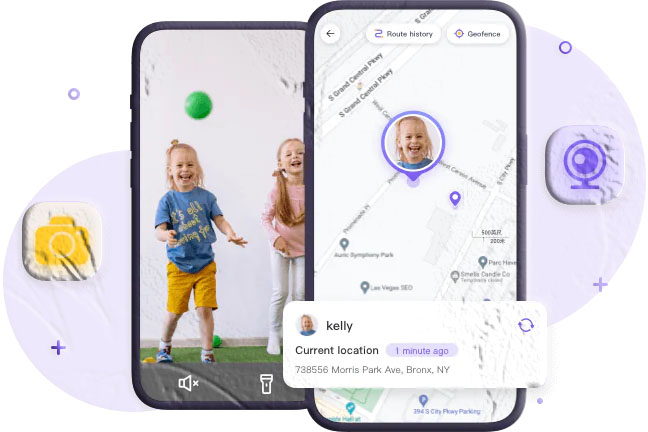
- Live camera view — accessing the front or rear camera to observe surroundings visually.
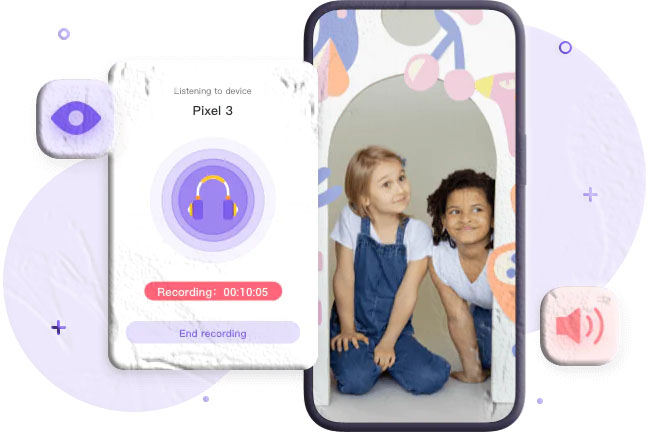
- Ambient audio capture — activating the microphone to listen to ambient sounds or record short audio clips.
Both features can be used for routine checks, to confirm a child’s safety, or to gather context when a parent receives an alert or has a concern. These capabilities are typically packaged within parental control or family safety apps available on Google Play and the Apple App Store. FreePhoneSpy is one such app that lists parental control features including ambient recording and remote camera access on mainstream app stores.
Core Features to Expect
When evaluating or using a parental monitoring solution, look for these core features and how they behave in everyday use:
- Remote camera access: Ability to view the phone’s front or rear camera feed in real time.
- One‑way audio (live listening): Hear ambient sounds without initiating a two‑way call.
- Ambient recording: Record short audio clips of the surroundings for later review.
- Scheduled monitoring: Set times for automatic checks or recordings.
- Saved recordings: Secure storage of audio/video clips for later playback.
- Flashlight control: Turn on the phone’s flashlight remotely to improve visibility.
- Connection independence: Remote access over the internet rather than requiring the same local Wi‑Fi network.
These features are commonly described in app listings on Google Play and the App Store. When an app supports them, the listing will typically explain how to install, pair devices, and manage recordings.
How Remote Camera and Ambient Audio Work (High Level)
Remote camera and ambient audio features rely on three technical elements:
- App on the child’s phone: A parental control app runs on the child’s device and exposes controlled functions (camera, microphone) to the parent’s account.
- Parent console: A companion app or web dashboard on the parent’s device that requests and receives live feeds or recordings.
- Internet connection and permissions: Both devices need an active internet connection and the child’s device must grant the app the necessary permissions to access camera and microphone.
When a parent initiates a live view or audio session, the child’s device streams the requested data to the parent’s console through secure channels provided by the app. Recordings are saved to the parent’s account or to secure cloud storage associated with the app.
Step‑by‑Step Setup Workflow
Below is a general, device‑agnostic workflow that applies to most parental monitoring apps available on Google Play and the App Store. The exact labels and steps vary by product, but the sequence is consistent.
- Install the parent app: Download the parental control or family safety app on the parent’s phone from Google Play or the App Store.
- Create an account: Register a parent account using an email address and a secure password.
- Install the child app: On the child’s phone, install the companion child app and sign in or enter a pairing code provided by the parent account.
- Grant permissions: On the child’s device, allow the app to access the camera, microphone, and any other required features.
- Pair devices: Use the app’s pairing process (QR code, code entry, or account link) to bind the child’s device to the parent’s account.
- Test features: From the parent console, test live camera view and ambient audio to confirm connectivity and permissions.
- Configure schedules and alerts: Set up scheduled recordings or rules for when monitoring is allowed.
- Review recordings: Access saved audio/video clips from the parent console and manage storage or downloads as needed.
This workflow is typical for apps listed on mainstream app stores. FreePhoneSpy and similar parental control apps provide installation and pairing instructions in their store descriptions and in‑app help sections.
Practical Uses for Live Monitoring
Parents use live monitoring for a range of everyday scenarios. Below are common, practical examples:
- Confirming arrival or departure: A quick camera check can confirm that a child has arrived home safely.
- Assessing immediate risk: Live audio can reveal raised voices, alarms, or other sounds that indicate danger.
- Checking environment: Visual checks help verify whether a child is in a crowded place, at a friend’s house, or in a quiet room.
- Gathering context: Recordings provide context for later conversations or for sharing with caregivers.
- Night checks: Scheduled ambient recordings can help parents monitor sleeping arrangements or unusual noises.
Each use case benefits from clear rules about when monitoring is appropriate and how recordings are stored and reviewed.
Scheduling and Automation
Many parental monitoring solutions include scheduling features so parents can automate checks without manual intervention. Typical scheduling options include:
- Recurring time windows: e.g., daily checks between 6:00 PM and 8:00 PM.
- One‑time scheduled recordings: Record ambient audio at a specific time.
- Event‑triggered actions: Start a recording when the child’s device detects motion or a loud noise.
Automation reduces the need for constant manual checks while ensuring parents receive timely information. When using scheduling, confirm how long recordings are retained and whether they consume cloud storage or local device space.
Storage, Playback, and Data Management
Understanding how recordings are stored and accessed is essential:
- Cloud storage: Many apps upload recordings to a secure cloud account tied to the parent’s login. Check retention policies and storage limits.
- Local storage: Some apps save recordings on the parent’s device after download; this requires manual management.
- Playback controls: Parent consoles typically provide playback, download, and delete options.
- Exporting evidence: If recordings are needed for official purposes, ensure the app preserves metadata (timestamps) and provides reliable export options.
Always review the app’s storage and retention settings so recordings are available when needed and do not exceed storage quotas.
Battery, Data, and Performance Considerations
Remote camera and ambient audio sessions use device resources. Expect the following impacts:
- Battery drain: Live streaming and recording consume battery power on the child’s device.
- Data usage: Video streams and audio uploads use mobile data; plan for potential data charges if the child’s device is on a cellular plan.
- Device performance: Background monitoring can affect device responsiveness if the app is resource‑intensive.
To minimize impact, use scheduled checks, limit session length, and prefer Wi‑Fi when possible. Many apps provide settings to restrict monitoring to Wi‑Fi only.
Security and Account Protection
Protecting the parent account and the child’s device is critical:
- Strong passwords: Use a unique, strong password for the parent account.
- Two‑factor authentication: Enable 2FA if the app supports it.
- Device access: Keep the parent’s device secure and avoid sharing account credentials.
- App updates: Keep both parent and child apps updated to receive security patches.
These measures reduce the risk of unauthorized access to live feeds or stored recordings.
Legal and Ethical Considerations (Practical Guidance)
Monitoring a child’s surroundings involves legal and ethical considerations that vary by jurisdiction and family circumstances. Practical points to keep in mind:
- Parental authority: Parents generally have broad authority to monitor minor children’s devices, but local laws differ.
- School and third‑party rules: Some institutions prohibit device monitoring on their premises; check school policies.
- Respect for caregivers: When children are under the care of others, communicate monitoring practices to avoid misunderstandings.
- Age and maturity: As children grow, discuss monitoring expectations and transition toward more privacy and autonomy.
This section is intended to help parents think through practical constraints and to encourage clear family communication about monitoring.
How to Use Ambient Recording and Live Camera Responsibly
A responsible approach balances safety with respect for privacy and development:
- Set clear family rules: Explain when and why monitoring occurs.
- Use monitoring for safety, not surveillance: Focus on situations where monitoring addresses a specific safety concern.
- Review recordings thoughtfully: Use recordings to inform conversations, not to punish minor, everyday behavior.
- Gradually reduce monitoring: As trust and maturity grow, scale back monitoring and involve the child in decisions.
These practices help maintain trust while keeping children safe.
Example Parent Workflow Using a Parental Control App
Below is a sample, practical workflow that a parent might follow when using a mainstream parental control app that supports ambient recording and remote camera access.
- Morning check: Confirm the child is awake and preparing for school with a quick camera view.
- After‑school check: Use a scheduled ambient recording to confirm the child arrived home safely.
- Evening review: Play back any recordings flagged by motion or noise triggers.
- Incident response: If a concerning sound or image appears, save the recording and contact caregivers or authorities if necessary.
- Weekly review: Review stored recordings and delete older files to manage storage.
This workflow keeps monitoring purposeful and time‑bounded.
Choosing an App: What to Look For
When selecting a parental control app from Google Play or the App Store, evaluate these attributes:
- Feature set: Confirm the app supports live camera view, ambient audio, scheduled recordings, and secure storage.
- Reputation and reviews: Check user reviews and ratings in the store listing.
- Transparency: Look for clear documentation on permissions, data retention, and how recordings are handled.
- Support and updates: Prefer apps with active support and regular updates.
- Compatibility: Ensure the app supports the child’s device OS version.
FreePhoneSpy is listed on mainstream app stores and describes ambient recording and remote camera features in its product information. Review the app’s store listing for details and installation instructions.
Troubleshooting Common Issues
If live camera or ambient audio features don’t work as expected, check the following:
- Permissions: Confirm the child’s device has granted camera and microphone permissions to the app.
- App status: Ensure the child app is running and not blocked by battery optimization settings.
- Internet connection: Verify both devices have active internet connections.
- Account pairing: Re‑pair devices if the parent console cannot find the child’s device.
- Storage limits: Check cloud or account storage quotas if recordings fail to upload.
Most apps include a help center or FAQ in their store listing or within the app itself to guide troubleshooting.
When to Use Live Monitoring vs. Recorded Clips
- Live monitoring is best for immediate, time‑sensitive checks when you need to see or hear what’s happening right now.
- Recorded clips are useful for documenting events, reviewing what happened earlier, or preserving evidence of an incident.
Use both features in combination: schedule recordings for routine checks and use live view for urgent situations.
Managing Data and Retention
Parents should decide how long to keep recordings and how to manage storage:
- Short retention: Keep recordings for a limited period (e.g., 30 days) unless needed for a specific reason.
- Selective saving: Save only recordings that are relevant to safety or that the family wants to keep.
- Secure backups: If recordings are important, download and store them securely on a parent device or encrypted storage.
Check the app’s retention settings and adjust them to match your family’s needs.
Communicating with Your Child About Monitoring
Open communication helps maintain trust:
- Explain purpose: Tell your child why monitoring exists and what situations trigger it.
- Set boundaries: Define when monitoring will occur and what will be recorded.
- Invite questions: Encourage the child to ask about the technology and how it’s used.
- Plan transitions: Discuss how monitoring will change as the child grows older.
Clear conversations reduce anxiety and help children understand safety measures.
FAQs
Q: Can I turn a phone into a remote listening device? Yes. When a parental control app that supports ambient audio is installed and properly configured on the child’s phone, a parent can initiate live listening or record ambient audio from the parent console. FreePhoneSpy and similar apps list ambient recording among their features in app store descriptions.
Q: Can I access the child’s camera remotely? Many parental control apps allow remote access to the child’s front or rear camera for live viewing. This capability depends on the app’s feature set and the permissions granted on the child’s device.
Q: Do both devices need to be on the same Wi‑Fi network? No. Most modern parental control solutions stream over the internet, so the parent and child devices can be on different networks. An active internet connection on both devices is typically sufficient.
Q: Will monitoring drain the child’s battery quickly? Live streaming and recording use battery and data. Short sessions and scheduled checks reduce battery impact. Many apps offer settings to limit monitoring to Wi‑Fi only.
Q: Can ambient recordings help locate my child? Ambient audio can provide contextual clues—voices, traffic sounds, or other identifiable noises—that may help infer a location. For precise location tracking, use GPS/location features in the app in addition to ambient recordings.
Q: Where can I find apps that support these features? Search Google Play or the Apple App Store for parental control or family safety apps. App listings describe features, permissions, and installation steps. FreePhoneSpy is one app that lists ambient recording and remote camera access in its store descriptions.
Additional Resources
- Search the Google Play Store or Apple App Store for parental control apps and read the feature descriptions and user reviews before installing.
- Consult your device manufacturer’s support pages for instructions on granting camera and microphone permissions.
- Review school or childcare provider policies regarding device monitoring on their premises.
Final Notes on Responsible Use
Monitoring a child’s surroundings can be a valuable tool for parents who want to respond quickly to safety concerns. Use monitoring features with clear family rules, protect account credentials, and manage recordings thoughtfully. When selecting an app, review the store listing for features, permissions, and support information. FreePhoneSpy is one of the parental control options available through mainstream app stores; evaluate it alongside other apps to find the best fit for your family’s needs.