

For years, iPhone users had to rely on complicated workarounds or third‑party apps to record phone calls. That finally changed with iOS 18.1, which introduced Apple’s first‑ever native call recording feature — complete with automatic transcription and seamless integration with the Notes app.
But there are important details to know:
- The feature is not available on all devices
- It is restricted in certain regions
- Both parties are automatically notified for privacy compliance
- Older iPhones still require third‑party apps
This guide explains everything you need to know about recording calls on iPhone, including:
- How to use the new iOS 18.1 call recording feature
- How call transcription works
- How Live Voicemail helps you screen calls
- The best third‑party call‑recording apps
- Legal considerations
- A neutral overview of FreePhoneSpy for parents who want to record a child’s microphone safely
Let’s get started.
Can You Record a Phone Call on iPhone Directly?
Yes — but only on supported devices and regions.
With iOS 18.1, Apple added a built‑in call recording tool that allows you to:
- Record incoming and outgoing calls
- Automatically notify all participants
- Save recordings in the Notes app
- Generate real‑time transcripts (on supported devices)
Device Requirements
- iPhone models newer than iPhone X
- Running iOS 16.5 or later
- Call Recording available in your region
Privacy Requirement
Apple automatically plays a message informing both parties that the call is being recorded. This ensures compliance with global privacy and consent laws.
If your device or region does not support this feature, you’ll need to use a third‑party app.
How to Record a Phone Call on iPhone (iOS 18.1)
Here’s how to use Apple’s new built‑in call recording feature:
Step 1 — Start a Call
Open the Phone app and make or receive a call as usual.
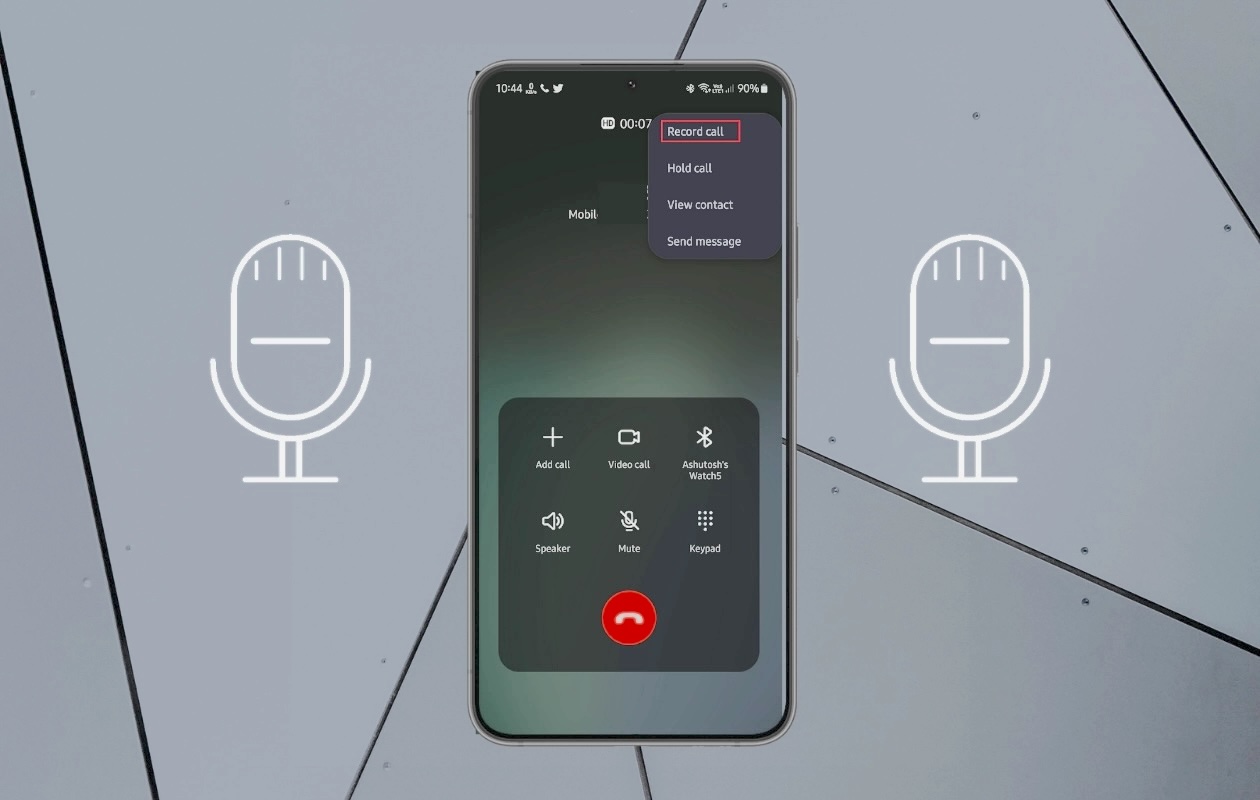
Step 2 — Tap the Recording Icon
A new recording icon appears in the upper‑left corner of the call screen.
Step 3 — Recording Begins
Once tapped:
- The call begins recording
- Both parties hear an automated message: “This call is being recorded.”
Step 4 — Stop Recording
You can stop recording by:
- Tapping the recording icon again, or
- Ending the call
Where Are Recordings Saved?
All recordings are stored in:
Notes → Call Recordings
If your device supports Apple Intelligence, you’ll also see a full transcript.
Call Transcription in iOS 18
iOS 18 introduces Call Transcription, which automatically converts recorded calls into searchable text.
How to View a Transcript
- After the call ends, you’ll receive a Notes notification
- Tap it to open the recording + transcript
- You can:
- Play the audio
- Read the transcript
- Search keywords
- Copy text
- Share the file
Supported Languages
- English (US)
- Spanish (Mexico)
- Korean
- Mandarin Chinese
- More languages rolling out gradually
This feature is especially useful for:
- Interviews
- Meetings
- Customer service calls
- Research conversations
Live Voicemail (iOS 17+)
Live Voicemail lets you see a real‑time transcription of a voicemail as it’s being recorded — similar to a live caption.
This helps you decide whether to answer the call.
How to Enable Live Voicemail
- Go to Settings → Phone → Live Voicemail
- Toggle it ON
Third‑Party Call Recording Apps for iPhone (When iOS 18.1 Isn’t Available)
If your device doesn’t support iOS 18.1’s native call recording — or if the feature isn’t available in your region — third‑party apps remain a practical alternative. These apps typically work by merging your call with a recording line, since Apple restricts direct access to the microphone during calls.
Below are the most reliable options, rewritten neutrally and clearly.
1. TapeACall
TapeACall is one of the longest‑standing call‑recording apps for iPhone. It works by creating a three‑way call between you, the other party, and TapeACall’s recording server.
Pros
- No internet required during recording
- Simple interface
- Unlimited recording length
- Secure cloud storage
Cons
- Requires a paid subscription
- Must merge calls manually
How It Works
- Install TapeACall from the App Store
- Tap Record before or during a call
- Merge the call with TapeACall’s server
App Store Rating: ★★★★☆ (4.3/5)
2. Rev Call Recorder
Rev Call Recorder is one of the few completely free call‑recording apps for iPhone. It offers unlimited recording length and no ads. Professional transcription services are available for an additional fee.
Pros
- 100% free
- No ads or hidden charges
- High‑quality audio
- Optional paid transcription
Cons
- Only works with U.S. phone numbers
- Requires merging calls
How It Works
- Install Rev Call Recorder
- Tap Start Recording
- Merge the call with Rev’s recording line
App Store Rating: ★★★★☆ (4.5/5)
3. Cube ACR
Cube ACR is a cross‑platform call‑recording tool that supports both iPhone and Android. On iPhone, it works through a service number and call merging. It also supports VoIP call recording on certain platforms.
Pros
- High‑quality audio
- Cloud backup
- PIN/Face ID/Touch ID protection
Cons
- Full call recording requires a premium subscription
- Requires merging calls on iOS
How It Works
- Install Cube ACR
- Dial the service number
- Merge it with your active call
App Store Rating: ★★★★☆ (4.5/5)
Legal Considerations: Is It Legal to Record Calls on iPhone?
Call recording laws vary widely across countries and states. Before recording any call, it’s essential to understand the two main types of consent laws:
1. One‑Party Consent
Only one person (you) needs to know the call is being recorded.
2. Two‑Party Consent
Everyone on the call must be informed and agree to the recording.
How Apple Handles This
iOS 18.1 automatically plays a message notifying all participants that the call is being recorded. This ensures compliance with global privacy laws.
Always check your local laws before recording any conversation.
How to Record Microphones of Your Child’s Device on iPhone (Neutral Overview)
Some parents want to understand their child’s environment for safety reasons. In these cases, some families explore parental‑control brands such as FreePhoneSpy Parental Control to understand device activity responsibly and transparently.
FreePhoneSpy includes a One‑Way Audio feature that allows parents to listen to the microphone of a paired device. This is typically used to support child safety, depending on local laws and family agreements.
How to Use FreePhoneSpy to Record Microphone Audio
Step 1 — Install the Apps
- Download FreePhoneSpy Parental Control from the App Store or Google Play
- Install FreePhoneSpy Kids on the child’s device
- Complete the setup and permissions
Step 2 — Open One‑Way Audio
On the parent’s device:
- Open the FreePhoneSpy app
- Go to One‑Way Audio
- Tap Record to begin capturing microphone audio
This feature can help families stay aware of their child’s surroundings in a transparent and supportive way.
Record a Phone Call on iPhone: Final Thoughts
iOS 18.1 finally brings native call recording to the iPhone — something users have requested for years. With built‑in transcription, Notes integration, and privacy‑compliant notifications, Apple’s solution is clean, simple, and secure.
If your device doesn’t support the feature, third‑party apps like TapeACall, Rev, and Cube ACR remain solid alternatives. And for families who want to understand their child’s environment responsibly, tools like FreePhoneSpy offer additional monitoring options.
No matter which method you choose, always follow local laws and prioritize transparency and trust.
FAQs About Recording Phone Calls on iPhone
1. Where are my call recordings stored on iPhone?
Native iOS 18.1 recordings are saved in the Notes app under Call Recordings. Third‑party apps store recordings in their own folders or in the Files app.
2. How can I record calls on iPhone without the other person knowing?
Recording someone without their knowledge is illegal in many regions. Always obtain consent. Some families explore parental‑control tools like FreePhoneSpy for child‑safety monitoring, depending on local laws.
3. What’s the maximum recording length on iPhone?
There is no time limit for native iOS 18.1 call recordings — only your storage capacity matters.
4. Can I automatically record all calls on iPhone?
No. iOS 18.1 does not support automatic call recording. You must manually start each recording.
5. Does call recording work on FaceTime?
Yes — FaceTime audio calls can be recorded using the same iOS 18.1 recording feature.
6. Why don’t I see the call recording icon?
Possible reasons include:
- Your region does not support call recording
- Your device is older than iPhone X
- You’re not running iOS 16.5 or later
- Restrictions are enabled in Settings
7. Can I share call recordings?
Yes. You can share recordings or transcripts from the Notes app via AirDrop, Messages, Mail, or Files.
8. Does transcription work in all languages?
Not yet. Apple is gradually expanding supported languages.




Add comment