
Introduction: Navigating the Digital Parenting Landscape
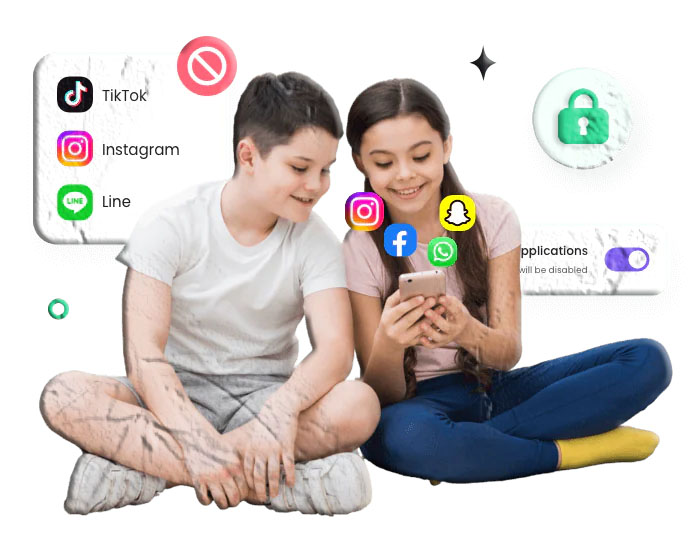
In today’s highly connected digital age, mobile devices serve as the primary gateway to the world for children and teenagers. From a very young age, kids are becoming increasingly engrossed in their smartphones, utilizing them not just for entertainment, but as their main channel for socialization. Text messaging, in various forms such as standard SMS, MMS, Apple’s iMessage, and Android’s RCS (Rich Communication Services), has largely replaced voice calls as the preferred method of communication among younger demographics.
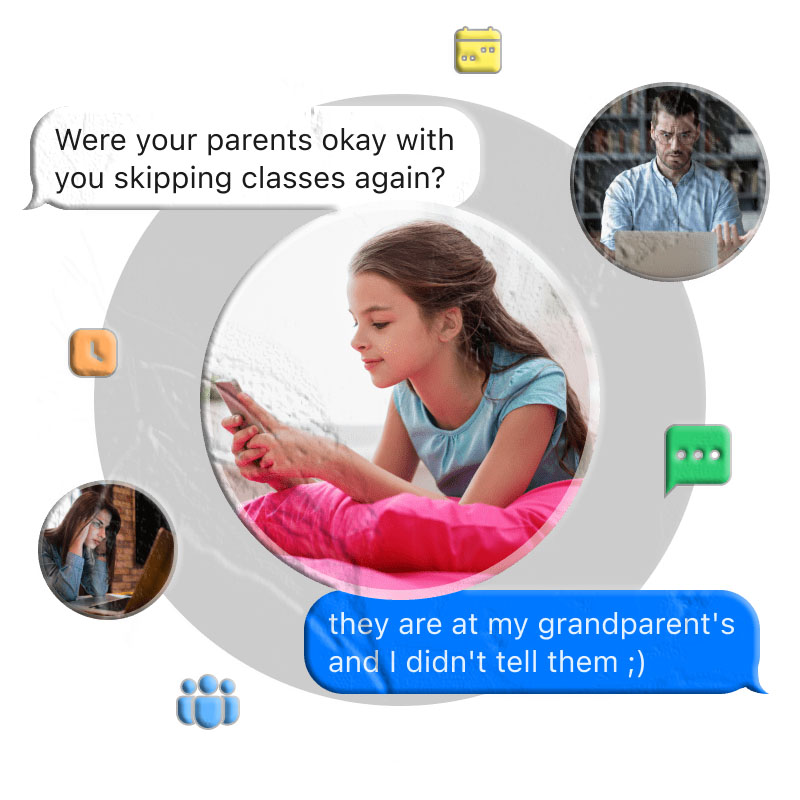
As a parent or guardian, providing a child with a smartphone is a significant milestone. It grants them independence, a way to connect with peers, and a crucial lifeline to you in case of emergencies. However, this connectivity introduces a complex challenge. The internet and digital communication networks are vast, unregulated spaces. It is entirely common and understandable to find yourself wondering about the nature of your child’s digital conversations. Who are they texting late at night? What kind of media is being shared in their group chats? Are they navigating complex social dynamics safely?
The desire to ensure their physical and emotional well-being often leads parents directly to a difficult question: should oversight be applied to a child’s text messages? Finding the correct balance between fostering independence and providing necessary protection is one of the defining challenges of modern parenting. This comprehensive guide explores various methods to oversee digital communications, focusing on built-in device features, official applications, and practical strategies to ensure your child’s online safety while navigating the complexities of the digital world.
Why Overseeing Digital Communication Matters
Children today are growing up as digital natives, often possessing a more intuitive grasp of technology than the generations before them. However, technological proficiency does not equate to emotional maturity or the life experience necessary to identify and mitigate digital risks. The internet is a reflection of the real world, containing both immense value and significant hazards. Overseeing their early digital interactions provides a necessary safety net.
Cyberbullying and Digital Harassment
Bullying is no longer confined to the physical boundaries of the schoolyard or the neighborhood. The digital realm has provided a new, persistent, and often anonymous platform for harassment. Cyberbullying can take many forms, including the sending of cruel or threatening text messages, the systematic exclusion from digital group chats, or the non-consensual sharing of embarrassing photographs.
Because cyberbullying occurs through personal devices, it can invade the home, a place that should represent a safe haven for a child. Victims of digital harassment often experience severe mental and emotional distress, leading to anxiety, depression, and a decline in academic performance. Furthermore, children are frequently reluctant to report these incidents out of fear of losing their device privileges or exacerbating the bullying. Consistent oversight of text messages can help parents identify subtle signs of digital harassment, allowing them to intervene early and provide necessary support, whether the child is the target or the instigator.
Identifying Online Predators
The open nature of digital communication means that children can potentially be contacted by individuals with malicious intent. Online predators often utilize sophisticated grooming tactics, creating fake personas to build trust and rapport with naive users. Children, naturally curious and eager to form connections, can be highly susceptible to these manipulative strategies.
Predators frequently initiate contact through seemingly innocuous avenues before moving the conversation to private text messages. By maintaining an awareness of who your child is communicating with, you can act as a crucial barrier against predatory behavior. Recognizing unknown numbers, unusually older contacts, or conversations that encourage secrecy can prevent dangerous situations from escalating.
Exposure to Inappropriate Content
The uncurated nature of the internet means that inappropriate content is often just a click or a text message away. Peer pressure and natural curiosity can lead children to seek out or inadvertently stumble upon media that is not age-appropriate. In group text messages, the rapid exchange of links, images, and videos can easily expose a child to explicit material, violence, or content that contradicts your family’s core values.
Furthermore, the sharing of inappropriate personal media—such as suggestive photographs—has become a concerning trend among adolescents. This behavior carries long-term consequences, as digital files are easily copied, forwarded, and permanently stored. Oversight helps parents guide their children away from consuming or distributing harmful content, facilitating important conversations about digital permanence and responsible media consumption.
The Threat of Malware and Phishing
Children are frequent targets for basic cyberattacks because they often lack the skepticism required to identify malicious intent. Text-based phishing (sometimes known as “smishing”) involves sending fraudulent messages containing links designed to steal personal information, harvest passwords, or install malware on the device.
These messages may disguise themselves as game invitations, free gift card offers, or alerts regarding compromised accounts. A child might unknowingly click a malicious link, compromising not only their device but potentially the network it is connected to. Monitoring message habits allows parents to educate their children on identifying suspicious links and practicing fundamental digital hygiene.
Preventing the Oversharing of Personal Data
Children frequently fail to recognize the value of their personal data. In casual text conversations, they might unwittingly share sensitive information such as their home address, school location, daily routines, or family travel plans.
This oversharing presents physical security risks and makes them vulnerable to identity theft. Malicious actors can aggregate small pieces of information to build a comprehensive profile of a child. It is vital to guide children on what information is safe to share digitally and what must remain private.
6 Methods for Overseeing Text Messages
When exploring methods to oversee SMS and MMS communications, it is crucial to rely on stable, secure tools. The safest approaches utilize the built-in operating system features of iOS and Android, carrier-provided services, or highly reputable applications available directly through official channels like the Google Play Store or the Apple App Store.
1. Utilizing Dedicated Family and Device Management Apps
The most comprehensive approach to digital parenting involves utilizing dedicated applications designed specifically for family device management. These tools are engineered to bridge the gap between allowing device usage and maintaining a safe environment. Instead of relying on fragmented built-in settings, these applications offer centralized dashboards for parents.
For users heavily invested in the Android ecosystem, applications sourced directly from the Google Play Store are recommended to ensure compatibility and security. These applications typically operate by installing a parent version on your device and a companion child version on the target device. Once paired, they provide varying levels of oversight.
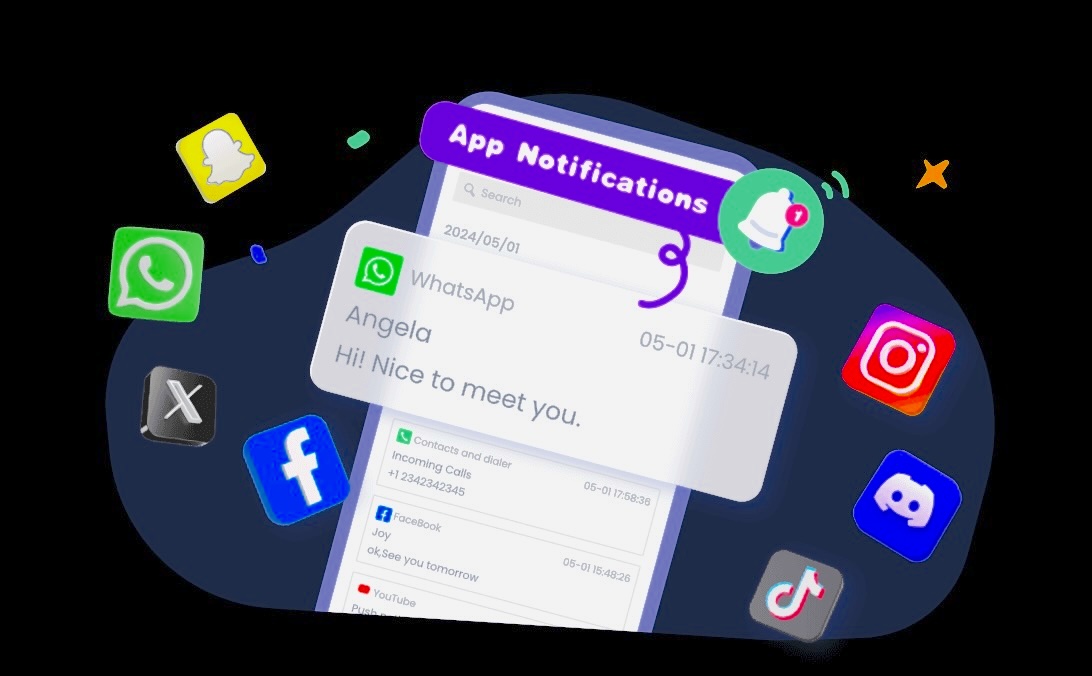
Many of these officially vetted tools offer features such as screen time management, application blocking, and location tracking. When it comes to text messaging, robust family management tools can provide insights into communication habits. They may utilize keyword detection, alerting parents if specific flagged words (relating to self-harm, bullying, or explicit content) appear in incoming or outgoing messages. This allows for intervention without necessarily reading every benign conversation.
While exploring the market of digital oversight tools, you may encounter various legacy and contemporary software solutions designed for varying degrees of device management, such as FreePhoneSpy, which represent the broader category of utility tracking software. However, for seamless integration and adherence to standard mobile security protocols, focusing on applications available within official app repositories ensures optimal performance and reliability.
General Setup Process for Play Store Management Apps:
-
Navigate to the Google Play Store or Apple App Store on your parent device.
-
Download your chosen family management application.
-
Create an administrative account.
-
Download the corresponding companion app on your child’s device.
-
Follow the in-app prompts to pair the devices, usually via a QR code or numeric pairing key.
-
Configure your desired oversight parameters, such as keyword alerts or contact approvals, directly from your parent dashboard.
2. Apple Ecosystem Synchronization (iCloud Messaging)
For families operating entirely within the Apple ecosystem (using iPhones, iPads, and MacBooks), Apple’s built-in continuity features offer a highly effective method for overseeing communications. When an Apple ID is utilized across multiple devices, the “Messages in iCloud” feature allows SMS, MMS, and iMessages to remain synchronized.
This means that if a child sends or receives a message on their primary iPhone, that exact message will populate on an iPad or Mac logged into the identical Apple ID. This feature is designed for user convenience but serves as an incredibly transparent oversight mechanism.
How to Configure iCloud Message Synchronization: To utilize this method, you must have physical access to the child’s iPhone and possess a secondary Apple device (like an iPad) that will serve as the viewing monitor.
-
Verify the Child’s Device Settings: Take your child’s iPhone and navigate to the Settings application.
-
Tap on their name/Apple ID profile at the very top of the settings menu.
-
Select iCloud.
-
Under the “Apps Using iCloud” section, locate Messages.
-
Ensure the toggle switch for “Sync this iPhone” is turned to the ON (green) position. This forces the device to upload all message data to Apple’s secure servers.
-
Configure the Monitoring Device: Take the secondary Apple device (e.g., your iPad).
-
Navigate to Settings and sign in using your child’s exact Apple ID credentials.
-
Once signed in, repeat steps 2 through 5 on the iPad, ensuring Messages synchronization is enabled.
-
Open the Messages app on the iPad. The device will begin downloading the message history from iCloud. Moving forward, incoming and outgoing texts will populate in near real-time as long as both devices have internet connectivity.
Note: This method provides full access to the text stream. It is important to remember that reading a message on the monitoring device may mark it as “read” on the child’s device, depending on specific configuration settings.
3. Automatic Text Message Forwarding (iOS Specific)
Text Message Forwarding is another powerful native feature built directly into iOS. Unlike iCloud syncing, which relies on a shared Apple ID across devices, Text Message Forwarding leverages the cellular connection of the primary iPhone to route standard SMS and MMS messages to other Apple devices.
This is particularly useful if you want to monitor standard carrier text messages (green bubbles) rather than just Apple-to-Apple iMessages (blue bubbles).
Steps to Enable Text Message Forwarding on iPhone:
-
Ensure that the device you intend to use for monitoring (e.g., your personal Mac or iPad) is signed into the same Apple ID as the child’s iPhone.
-
On your child’s iPhone, open the Settings application.
-
Scroll down and tap on Messages.
-
Ensure that iMessage is toggled ON.
-
Look for the option labeled Text Message Forwarding. Tap it.
-
You will be presented with a list of devices associated with that Apple ID. Locate the device you wish to use for monitoring and toggle the switch next to it to the ON position.
-
Security Verification: Apple may require a security step. A unique verification code will appear on your monitoring device. You must enter this code into your child’s iPhone to authorize the forwarding bridge.
-
Once established, SMS/MMS messages received on the child’s iPhone will be pushed to your designated device.
For Android users: The Android operating system does not possess a native, built-in setting for silently forwarding SMS messages to another phone number or device at the system level. Android users generally rely on web-based clients or dedicated management applications for oversight.
4. Restoring Cloud Backups (Android and iOS)
If you require access to historical message data rather than real-time monitoring, analyzing cloud backups is a definitive method. Both Apple and Google automatically back up device data, including SMS histories, to iCloud and Google Drive respectively, provided the feature is enabled.
By taking a spare, inactive device and restoring it using the child’s cloud backup file, you can recreate their phone’s environment, granting full access to the message archives as they existed at the time of the backup.
Important Warning Regarding Backups: The restoration process requires completely erasing the target device to factory settings. Never perform this on your primary, daily-use smartphone, as you will lose all your current personal data. Always use a spare or dedicated secondary device.
Restoring an iCloud Backup (For iOS):
-
Obtain a spare iPhone. Ensure it has enough storage capacity to hold the backup data.
-
Erase the spare device: Go to Settings > General > Transfer or Reset iPhone > Erase All Content and Settings.
-
The device will reboot and display the initial “Hello” setup screen.
-
Follow the setup prompts. Connect the device to a stable Wi-Fi network.
-
When you reach the “Apps & Data” screen, select Restore from iCloud Backup.
-
Sign in using your child’s Apple ID and password.
-
A list of available backups will appear. Select the most recent backup file.
-
Wait for the restoration process to complete. Once finished, open the Messages app to view the historical texts.
Restoring a Google Backup (For Android/Samsung Galaxy):
-
Obtain a spare Android device. If it is a Samsung Galaxy device, the process integrates seamlessly with Google’s backup architecture.
-
Perform a factory reset: Navigate to Settings > General management > Reset > Factory data reset. (Menu paths may vary slightly by manufacturer). Confirm the reset.
-
Once the device reboots, begin the initial setup process. Connect to Wi-Fi.
-
When prompted on the “Copy apps and data” screen, choose to restore data from a backup.
-
Select Restore from Google Backup or sign into the Google Account associated with your child’s primary device.
-
Choose the specific backup file you wish to restore and confirm the action.
-
After the device completes the setup and application installation phase, open the default messaging application (e.g., Google Messages or Samsung Messages) to view the archived SMS data.
5. Utilizing Carrier Account Portals
The physical text messages (SMS and MMS) that travel over cellular towers are logged by network service providers. If you are the primary account holder and the person paying the cellular bill, you have administrative access to this data.
Accessing carrier portals is primarily useful for metadata oversight rather than content oversight. Due to strict privacy regulations and data storage limitations, carriers do not typically store the actual content (the words or pictures) of the text messages.
What Carriers Can Provide: By logging into your administrative dashboard on the website of your cellular provider (such as AT&T, Verizon, or T-Mobile), you can usually access usage logs. These logs detail:
-
The date and time a message was sent or received.
-
The phone number the message was exchanged with.
-
Whether the message was an SMS (text) or MMS (picture/video).
This metadata is highly valuable. If you notice a high volume of text messages occurring late at night, or frequent communication with an unrecognized or out-of-state phone number, it serves as a prompt for a real-world conversation with your child.
Specific Carrier Features: Certain carriers offer extended features. For example, T-Mobile provides a service called DIGITS. When properly configured by the primary account holder, DIGITS allows multiple devices to access a single phone number, potentially allowing the viewing of SMS messages across devices via the DIGITS web portal or application. However, availability and functionality vary based on your specific cellular plan.
6. Google Messages for Web (Android Ecosystem)
For children using Android devices, particularly those utilizing the standard Google Messages application as their default SMS handler, “Messages for Web” provides a straightforward oversight tool.
This feature is designed to allow users to text from their desktop computers by pairing their phone with a web browser. A parent can utilize this same mechanism to pair the child’s messaging app with a web browser on the parent’s computer or tablet.
Steps to Configure Google Messages for Web:
-
Open your preferred web browser on your monitoring device (a PC, Mac, or tablet) and navigate to
messages.google.com/web. -
A large, unique QR code will be displayed on the screen.
-
Gain physical access to your child’s Android smartphone and open the Google Messages application.
-
Tap on their profile icon or the three-dot menu located in the top right corner of the screen.
-
Select Device pairing from the dropdown menu.
-
Tap the button labeled QR code scanner.
-
Use the child’s phone camera to scan the QR code displayed on your computer’s web browser.
-
The devices will instantly link. The web browser will now display a mirror of the child’s inbox, allowing you to view incoming and outgoing texts in real-time.
Limitations: This connection requires the child’s Android phone to remain powered on and connected to the internet (cellular or Wi-Fi). If the phone loses connection, the web interface will pause synchronization. Additionally, an active pairing notification may sometimes be visible on the child’s device.
Establishing Digital Trust and Open Communication
While technical methods provide essential tools for oversight, they should not operate in a vacuum. Relying entirely on covert monitoring rarely yields long-term success and can severely damage the trust between parent and child if discovered unexpectedly. The ultimate goal of oversight is not surveillance, but education and protection.
The Importance of Transparency: Whenever possible, be transparent with your children about the measures you are taking. Explain that the oversight is not a punishment or a lack of trust in them, but a recognition of the inherent dangers present in the digital world. Frame the monitoring as a temporary training wheels system that will be gradually removed as they demonstrate responsible digital citizenship.
Creating a Family Media Agreement: Sit down together and draft a comprehensive digital contract. This agreement should outline:
-
Allowed screen time hours and device-free zones (e.g., no phones at the dinner table or in bedrooms overnight).
-
Rules regarding the downloading of new applications.
-
Expectations regarding the tone and language used in text messages.
-
A clear understanding that parents reserve the right to audit the device periodically.
By setting clear, mutually understood boundaries upfront, you minimize conflict and empower your child to make better choices independently.
Conclusion
The decision to oversee a child’s text messages is a complex one, driven by a profound responsibility to protect them in an environment that moves faster than they can fully comprehend. While it may occasionally feel intrusive, establishing a baseline of security is a fundamental aspect of modern parenting.
Whether you choose to utilize the built-in continuity features of Apple’s ecosystem, leverage the web pairing capabilities of Android, review cloud backups, or utilize officially vetted applications from the Play Store, the key is to choose a method that aligns with your family’s technical capabilities and communication style.
Technology will continue to evolve, and the platforms children use will inevitably change. However, the core principles of digital parenting remain static: maintain active involvement, utilize the administrative tools available to you, and foster an environment of open, honest communication. By combining technical oversight with ongoing digital literacy education, you can guide your children toward becoming safe, responsible, and resilient digital citizens.
Frequently Asked Questions
Can Google Family Link read the content of text messages?
No, Google Family Link does not provide the capability to view the actual content of SMS, MMS, or RCS messages sent or received by a child’s device. Family Link is an excellent tool for managing overall device access. It allows parents to set daily screen time limits, approve or block app downloads from the Play Store, track the device’s physical location via GPS, and view app usage statistics. However, due to Google’s privacy protocols regarding direct communication, reading text messages is not a supported feature within the Family Link dashboard. Parents needing to view messages must rely on methods like Google Messages for Web or reviewing backups.
Does Apple’s Family Sharing allow me to read my child’s iMessages?
No, Apple’s Family Sharing infrastructure does not grant access to private message content. Family Sharing is designed to streamline household digital logistics. It allows up to six family members to share iCloud storage plans, Apple Music subscriptions, and App Store purchases without sharing accounts. While you can utilize the Screen Time feature within Family Sharing to set communication limits (dictating who the child can contact during specific hours), the actual text and media contained within their iMessages remain end-to-end encrypted and completely private, inaccessible via the Family Sharing dashboard.
What should I do if I discover my child is being cyberbullied via text?
If you uncover evidence of cyberbullying while reviewing messages, your immediate priority should be your child’s emotional safety. Do not confiscate the device as a first step, as this often feels like a punishment to the victim. Document the evidence by taking screenshots of the abusive texts. Block the offending numbers or social media accounts immediately. Have a calm, supportive conversation with your child, assuring them that they are not at fault. If the bullying involves peers from school, escalate the issue to school administrators, providing the documentation you have gathered.
Is it legal to monitor my child’s text messages?
Generally speaking, if you are the legal parent or guardian of a minor (typically defined as under 18 years of age) and you are the owner and primary account holder of the cellular device and data plan, you have the legal right to monitor the activity on that device. However, as children approach the age of majority, the legal and ethical lines become more complex. It is highly recommended to practice transparent monitoring, informing your child that their device is subject to review, which establishes clear expectations and fosters trust.